
Is Guest WiFi Safe? How to Create a Secure Guest Network (All Major Routers)
A friend visits and asks for your WiFi password. You hand it over without thinking — and in doing so, you’ve just given their device access to the same network as your work laptop, your NAS drive, your home security cameras, and every other device in your house.
That’s not paranoia — that’s the reality of how most home networks work. And it’s exactly the problem that a guest network is designed to solve.
A properly configured guest network gives visitors full internet access while keeping them completely isolated from your personal devices and data. It takes about five minutes to set up on any modern router — and once it’s running, you’ll wonder why you ever shared your main WiFi password at all.
This guide explains exactly how guest networks work, whether they’re genuinely safe, what risks still exist even with one enabled, and how to set one up correctly on every major router brand.
📋 Quick Answer — Is Guest WiFi Safe?
Yes — when properly configured. A correctly set-up guest network isolates visitors from your main network, preventing them from accessing your personal devices, shared files, or local network resources. The key settings are: network isolation enabled (guests cannot see each other or your main devices), WPA2 or WPA3 encryption, and a strong unique password. An unsecured guest network (open, no password, or with “allow access to local network” enabled) is not safe and should never be used.
What Is a Guest Network and How Does It Actually Work?
A guest network is a separate WiFi network — a second SSID (network name) broadcast by your router — that gives connected devices internet access while keeping them completely isolated from your main network and its devices.
Think of it like a lobby in an office building. Visitors can come and go and use the facilities (internet) without having access to the private offices where sensitive work happens (your personal devices, shared drives, smart home controls).
When a device connects to your guest network, it is placed on a different network segment from your main devices. It can reach the internet, but it cannot:
- See or ping your computers, phones, or tablets on the main network
- Access shared files, printers, or NAS drives
- Communicate with smart home devices like cameras, locks, or thermostats
- Access your router’s admin panel
This separation is called network isolation, and it’s the feature that makes guest networks genuinely useful for security — not just convenient for password management.
Guest Network vs. Main Network — What’s the Difference?
| Feature | Main Network | Guest Network |
|---|---|---|
| Internet access | Yes | Yes |
| Access to local devices | Yes | No (when isolation is on) |
| Access to shared files/printers | Yes | No |
| Can see smart home devices | Yes | No |
| Router admin panel access | (admin only) | No |
| Bandwidth limit option | Optional | Recommended |
| Password sharing frequency | Rare | Regular |
Related: How to Block Specific Devices from Accessing Your Router
Is Guest WiFi Actually Safe? The Honest Answer
The honest answer is: it depends on how it’s configured.
A guest network is not inherently safe or unsafe — it’s a tool. The safety comes from the settings you apply.
When a Guest Network IS Safe
A guest network is genuinely safe when:
- Network isolation is enabled — guests cannot communicate with devices on your main network
- Client isolation is enabled — guest devices cannot communicate with each other (important for IoT devices)
- WPA2 or WPA3 encryption is used — the connection between guest devices and your router is encrypted
- A strong, unique password is set — not “guest123” or your address
- “Allow access to local network” is turned OFF — this is the most critical toggle (more on this below)
- Bandwidth limits are set — prevents a single guest from consuming all available bandwidth
When a Guest Network Is NOT Safe
A guest network creates risk when:
- It has no password (open network) — anyone in range can connect
- “Allow access to local network” is enabled — this defeats the entire purpose; guests can now see your personal devices
- It uses WEP or no encryption — data transmitted over the network can be intercepted
- The guest password is the same as your main password — no effective separation
- The router’s firmware is outdated — known vulnerabilities may affect network isolation
The One Setting That Matters Most
Every major router has a setting that controls whether guests can access your main network’s devices. The exact label varies:
| Router Brand | Setting Label |
|---|---|
| TP-Link | “Allow Guests to Access My Local Network” |
| ASUS | “Access Intranet” |
| Netgear | “Allow guests to see each other and access my local network” |
| Eero | Automatic isolation (on by default) |
| Google Nest | Automatic isolation (on by default) |
| Linksys | “Allow local network access” |
This setting must be OFF. If it is turned on, your guest network provides internet access but no isolation — guests can browse your NAS, attempt to access shared folders, and interact with smart home devices just as if they were on your main network.
Why You Should Use a Guest Network — Even at Home
Most people think guest networks are for offices or cafés. They’re equally valuable — arguably more important — for home users.
For Visitors
Obvious use case: anyone who visits your home and needs WiFi gets the guest password, not your main one. If they accidentally have malware on their device, or if their phone is later compromised, the guest network isolation prevents that threat from spreading to your personal devices and data.
For IoT and Smart Home Devices
This is the use case that security professionals emphasise most strongly, and it’s the one most home users overlook entirely.
Smart home devices — thermostats, smart plugs, robot vacuums, security cameras, baby monitors, smart TVs — are notoriously poorly secured. Many run on outdated embedded software, have known unpatched vulnerabilities, and communicate with manufacturer servers in ways that are difficult to audit.
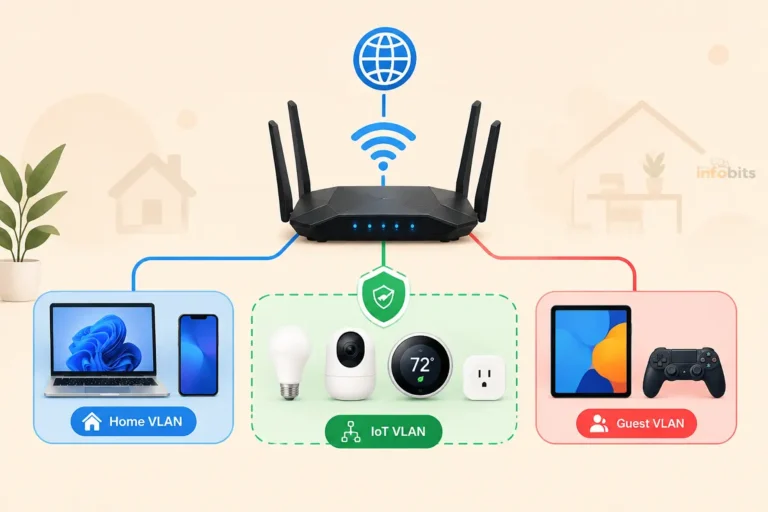
Putting all your IoT devices on a guest network (or a dedicated IoT VLAN if your router supports it) means that even if one device is compromised, the attacker is isolated to that network segment and cannot pivot to your work laptop or personal files.
The rule of thumb: if a device doesn’t need to communicate with your other personal devices, put it on the guest network.
For Airbnb, Home Office, and Mixed-Use Environments
If you run a home business and have clients visit, if you operate a short-term rental, or if you have contractors working on-site, a guest network ensures those users have the connectivity they need without any access to your internal resources.
Related: How to Secure IoT Devices on Your Home WiFi Network
How to Set Up a Guest Network — Step-by-Step by Router Brand
Before You Start: Four Decisions to Make
Before opening your router’s admin panel, decide on these four things:
- Guest network name (SSID) — make it clearly different from your main network. Something like “Smith_Guest” or “HomeVisitors” works well. Avoid your address or anything that identifies your household.
- Password — minimum 12 characters, mix of letters, numbers, and symbols. This gets shared frequently, so don’t make it identical to your main password, but make it genuinely strong. Consider rotating it every few months.
- Encryption — WPA3 if your router supports it; WPA2 (AES) otherwise. Never use WEP or open (no password).
- Isolation — confirm you will turn OFF any “allow access to local network” or “access intranet” setting.
TP-Link Routers
Via the web interface (tplinkwifi.net or 192.168.0.1):
- Log in at
http://tplinkwifi.netor192.168.0.1 - Go to Wireless > Guest Network (or Advanced > Wireless > Guest Network)
- Toggle Enable Guest Network to ON
- Enter your chosen Guest Network Name (SSID)
- Set Security to WPA2/WPA3 Personal and enter a strong password
- Ensure Allow Guests to Access My Local Network is unchecked (OFF)
- Optionally set a bandwidth limit under the guest network options
- Click Save
Via the TP-Link Tether App:
- Open Tether → tap your router
- Tap Wireless → Guest Network
- Toggle the guest network on
- Set SSID, security type (WPA2/WPA3), and password
- Confirm local network access is OFF
- Tap Save
Key TP-Link tip: Some TP-Link routers allow you to set a guest access expiry time — you can configure guests to automatically lose access after a set number of hours. This is ideal for short visits.
ASUS Routers
Via the web interface (router.asus.com or 192.168.1.1):
- Log in at
http://router.asus.comor192.168.1.1 - Go to Guest Network (or Guest Network Pro on newer firmware)
- Click the Enable toggle for the 2.4GHz or 5GHz guest network
- Enter your Network Name (SSID)
- Set Authentication Method to WPA2-Personal or WPA3-Personal and enter a password
- Set Access Intranet to Disabled — this is critical
- Optionally set an Access Time to automatically expire the network after a period
- Click Apply
Via the ASUS Router App:
- Open ASUS Router app → tap Network Map
- Tap Guest Network
- Tap + to create a new guest network → select band (2.4GHz or 5GHz)
- Set SSID, password, and confirm Access Intranet is OFF
- Tap OK
Key ASUS tip: ASUS’s Guest Network Pro (available on newer firmware) adds content filtering and time scheduling per guest network — useful for both household management and IoT isolation.
Netgear (Nighthawk and Orbi)
Via the web interface (routerlogin.net or 192.168.0.1):
- Go to
http://routerlogin.netor192.168.0.1 - Go to ADVANCED > Advanced Setup > Wireless Settings
- Scroll to the Guest Network section
- Check Enable Guest Network
- Enter your Guest Wireless Network Name (SSID)
- Choose WPA2-PSK [AES] or WPA3-Personal and enter a password
- Ensure Allow guests to see each other and access my local network is unchecked
- Click Apply
Via the Nighthawk/Orbi App:
- Open the Nighthawk or Orbi app
- Tap WiFi → Guest WiFi
- Toggle on, set SSID and password
- Confirm local network access is disabled
- Tap Apply
Eero (Amazon)
Eero handles isolation automatically — all guest network traffic is separated from the main network by default.
- Open the Eero app
- Tap the WiFi icon → Guest network
- Toggle Guest network ON
- Set a network name and password
- Optionally set a time limit for guest access (Eero Plus subscription required for advanced scheduling)
Eero-specific note: Eero’s guest network automatically prevents guest devices from communicating with each other (client isolation) and from reaching your main network devices. No additional configuration is required for basic isolation.
Google Nest WiFi / Google Home
- Open the Google Home app
- Tap WiFi > Settings (gear icon)
- Tap Guest network
- Tap Set up and enable the guest network
- Enter a network name and password
- Tap Save
Google Nest handles isolation automatically — guest devices cannot access your main network devices or local services.
Google Nest tip: You can share the guest network password directly from the Google Home app via a QR code — a genuinely convenient feature for frequent entertaining.
Linksys Routers
Via the web interface (192.168.1.1):
- Go to
192.168.1.1and log in - Navigate to WiFi > Guest Access
- Toggle Guest Access to ON
- Set the Network Name (SSID) and Password
- Set Allow local network access to OFF
- Click OK to save
Via the Linksys App (Velop mesh):
- Open the Linksys app → tap Wi-Fi Settings
- Tap Guest Access → toggle ON
- Set name and password → save
Advanced Security Settings Worth Enabling
Once your guest network is active, these additional settings further strengthen it.
1. Client Isolation (Wireless Isolation)
Client isolation prevents guest devices from communicating with each other — not just with your main network. This is especially important if you’re putting IoT devices on the guest network, as it prevents a compromised device from reaching other devices on the same guest SSID.
Look for this setting labelled “Client Isolation”, “AP Isolation”, or “Wireless Isolation” in your router’s guest network settings. Enable it.
2. Bandwidth Limiting (QoS for Guests)
Without bandwidth limits, a single guest device streaming 4K video can consume most of your available internet bandwidth. Most routers allow you to cap upload and download speeds for the guest network:
- TP-Link: Guest Network settings → enable bandwidth limit → set max rates
- ASUS: Guest Network → enable bandwidth limiter
- Netgear: Advanced QoS settings
A reasonable starting point: cap guest network speed at 25–50% of your total plan speed.
3. Schedule Guest Access
If you don’t always need the guest network active, scheduling it to only be available during certain hours is a clean security practice:
- ASUS: Guest Network settings → Access Time → set schedule
- TP-Link: Parental Controls can apply to guest network devices
- Eero Plus: Profile scheduling per network
4. Use a Custom DNS Server on the Guest Network
Setting a privacy-respecting or security-focused DNS for your guest network adds a layer of content filtering without requiring additional hardware:
- Cloudflare for Families (blocks malware):
1.1.1.2and1.0.0.2 - Google Public DNS:
8.8.8.8and8.8.4.4 - OpenDNS Family Shield (blocks adult content):
208.67.222.123and208.67.220.123
Set custom DNS in your router’s guest network DHCP settings if available, or in the router’s general DNS settings.
For households that want DNS-level security filtering, ad-blocking, and detailed per-device monitoring without changing router settings, a dedicated DNS filtering device like the eBlocker or Firewalla provides network-wide protection.
5. Keep Router Firmware Updated
Guest network isolation relies on firmware-level network segmentation. Outdated firmware may contain vulnerabilities that allow devices to bypass this isolation. Check for firmware updates monthly:
- TP-Link: Admin panel → Advanced → System → Firmware Upgrade
- ASUS: Admin panel → Administration → Firmware Upgrade
- Netgear: Admin panel → Advanced → Administration → Router Update
- Eero/Google Nest: Updates automatically via the app (ensure auto-update is enabled)
Related: How to Secure Your Home WiFi Network
Guest Network Security Checklist
Use this as a quick reference every time you set up or review your guest network:
Initial Setup:
- ☐ Guest network SSID is different from your main network name
- ☐ Strong unique password set (12+ characters)
- ☐ Encryption set to WPA2 (AES) or WPA3 — NOT WEP or open
- ☐ “Allow access to local network” / “Access Intranet” is OFF
- ☐ Client isolation enabled (prevents guest devices seeing each other)
Performance:
- ☐ Bandwidth limits configured to prevent guest traffic from overwhelming the main network
- ☐ Guest access scheduled if you don’t need it 24/7
Ongoing Maintenance:
- ☐ Guest password rotated every 3–6 months (or after contractors/Airbnb guests leave)
- ☐ Router firmware checked monthly for updates
- ☐ Connected device list reviewed periodically for unrecognised devices
Common Mistakes When Setting Up a Guest Network
| Mistake | What to Do Instead |
|---|---|
| Leaving “Allow access to local network” ON | Always disable this — it defeats the purpose of a guest network |
| Using an open (no password) guest network | Always require WPA2/WPA3 authentication |
| Using the same password as your main network | Create a separate, distinct password |
| Never rotating the guest password | Change it every 3–6 months, or after each Airbnb/contractor stay |
| Not setting bandwidth limits | Cap guest speeds to prevent network saturation |
| Keeping smart TV and IoT devices on the main network | Move them to the guest or a dedicated IoT network |
| Assuming guest network isolation is automatic | Verify the specific setting for your router model — it varies |
| Never updating router firmware | Firmware updates patch vulnerabilities that could compromise isolation |
Is a Guest Network the Same as a VLAN?
This is a question that comes up frequently among more technical users.
A guest network as described in this article is a simplified version of network segmentation — your router creates a separate SSID with internet access and blocks access to local resources.
A VLAN (Virtual Local Area Network) with a managed switch and explicit firewall rules gives you significantly more granular control. With a VLAN, you can define exactly what each network segment can and cannot reach — for example, allowing your IoT VLAN to reach a specific port on your home server while blocking everything else.
For most home users and small offices, a guest network is sufficient. The isolation it provides — internet access, no local network access — is appropriate for visitors and IoT devices.
For users who want more control, particularly those with a home server, self-hosted services, or complex smart home setups, a VLAN setup using a router with VLAN support (UniFi Dream Machine, pfSense, or a managed TP-Link or Netgear switch) provides finer-grained security.
Related: Using a Second Router as a Dedicated Guest Network: Pros & Setup
Myth vs. Fact: Guest WiFi Edition
Myth: Guest networks slow down your main network. Fact: A guest SSID uses the same radio hardware as your main network. Enabling the feature alone doesn’t reduce your main network’s speed. However, if guest devices are consuming significant bandwidth — streaming HD video, for example — it can impact overall performance. That’s why bandwidth limiting is recommended.
Myth: A guest network with a password is completely secure. Fact: A password prevents unauthorised connection, but security also depends on the “allow access to local network” setting and whether firmware is current. A password alone with “allow local access” enabled still gives guests full access to your home devices.
Myth: I don’t need a guest network because I trust my friends. Fact: Your friends might be completely trustworthy, but their devices may not be. A device with malware doesn’t need its owner’s consent to probe your network. Guests’ phones and laptops can be compromised without their knowledge — the guest network protects you from the device, not necessarily the person.
Myth: Hiding my network SSID is as effective as a guest network. Fact: Hiding your SSID is security through obscurity — anyone with basic network scanning tools can discover a hidden network in seconds. A guest network with proper isolation is a meaningful security measure; hiding your SSID is not.
Myth: IoT devices don’t need network isolation. Fact: IoT devices are among the most frequently exploited entry points in home networks. They often run outdated firmware with unpatched vulnerabilities, communicate with external servers constantly, and are rarely checked by their owners. Placing them on an isolated guest or IoT network is one of the most effective steps a home user can take.
Conclusion
Guest WiFi is genuinely safe — but only when you configure it correctly. The feature itself is sound; the risk comes from one misconfigured setting (allowing local network access) or leaving it completely open.
For most people, the setup takes less than five minutes, and the security benefit is immediate. Visitors get reliable internet access. Your personal devices, files, and smart home infrastructure stay completely out of reach. And if someone’s device happens to be compromised, the infection stays contained to the guest network rather than spreading through your home.
The most valuable takeaway from this guide: put your IoT and smart home devices on the guest network too. It’s the single most effective thing most home users can do to improve their overall network security — and it costs nothing.
Frequently Asked Questions
What is a guest WiFi network?
A guest WiFi network is a separate SSID broadcast by your router that gives connected devices internet access while keeping them isolated from your main network and its devices. Guests can browse the internet but cannot see your computers, shared files, printers, or smart home devices.
Is guest WiFi safe?
Yes, when properly configured. The key requirements are: network isolation enabled, the “allow access to local network” setting turned off, WPA2 or WPA3 encryption, and a strong unique password. An open guest network or one with local access enabled is not safe.
Can someone on my guest network access my files?
No — provided “allow access to local network” is turned off. When isolation is correctly configured, guest devices cannot reach any device or resource on your main network, including shared folders, NAS drives, or printers.
Can guest network users see each other’s devices?
By default on most routers, yes — devices on the same guest SSID can communicate with each other. To prevent this, enable “client isolation” or “AP isolation” in your router’s guest network settings. This is particularly important if you’re using the guest network for IoT devices.
Should I put smart home devices on a guest network?
Yes. Security professionals recommend isolating IoT devices (smart TVs, cameras, thermostats, smart plugs) on a guest or dedicated IoT network. These devices often have poor security, and isolating them prevents a compromised device from reaching your personal computers and files.
Does a guest network use the same internet connection?
Yes. The guest network shares your home’s internet connection. Both your main network and the guest network draw from the same bandwidth. Setting bandwidth limits on the guest network prevents guests from consuming disproportionate bandwidth.
How do I share my guest WiFi password easily?
Most modern router apps (TP-Link Tether, ASUS Router, Eero, Google Home) can generate a QR code for your guest network. Guests scan the code with their camera app and connect instantly — no typing required.
How often should I change my guest WiFi password?
Every 3–6 months for regular household use. Immediately after any Airbnb stay, contractor visit, or if you suspect an unauthorised user. Unlike your main password, the guest password is designed to be shared and rotated regularly.
Can someone hack my router through the guest network?
A properly isolated guest network prevents access to your router’s admin panel from connected devices. However, if your router has an unpatched vulnerability in its firmware, guest network traffic could potentially exploit it. Keeping firmware updated is critical.
Does a guest network reduce WiFi speed?
Enabling a guest network does not inherently reduce speed. Each additional SSID adds a small amount of management overhead, but in practice this is negligible. Guest devices consuming bandwidth will impact total available throughput, which is why bandwidth limiting is recommended.
What encryption should I use for my guest network?
Use WPA3 if your router and devices support it — it’s the current gold standard and especially valuable for a network with a widely shared password. WPA2 with AES encryption is a solid fallback. Never use WEP or TKIP, and never leave the guest network open (no password).
What is the difference between a guest network and a VLAN?
A guest network provides internet access with basic isolation from your main network. A VLAN (Virtual Local Area Network) with a managed switch and explicit firewall rules gives far more granular control over what each network segment can access. For most home users, a guest network is sufficient. For complex home labs or small businesses, a VLAN provides more control.
Can I set up a guest network on any router?
Most routers sold in the last five to seven years support guest networks natively. If your router predates 2018 or is a basic ISP-supplied device, it may not have this feature. In that case, using a second router as a dedicated guest access point or upgrading your router are the best options.
How do I know if my guest network is properly isolated?
The simplest test: connect a device to your guest network and try to open your router’s admin panel (192.168.1.1 or 192.168.0.1). If you can access it, isolation is not working correctly. You should also be unable to ping or access any device on your main network.
Is a guest network safe for Airbnb and short-term rentals?
Yes — a properly configured guest network is ideal for short-term rental guests. Provide the guest network credentials (not your main password), set a bandwidth limit to prevent excessive usage, and change the guest password after each stay.
Found this helpful? Share it with a friend who’s still handing out their main WiFi password. Follow us on Facebook and Twitter, and subscribe to our free newsletter for more home networking guides.
We also ask that you bookmark this page for future reference, as we are constantly updating our articles with new information.
Disclosure: Some links in this article are Amazon affiliate links. If you purchase through them, we may earn a small commission at no additional cost to you.



)