Bitrate vs Resolution: Which Is More Important for Video Quality?
Here’s a question that trips up beginners and experienced creators alike: if you can only improve one thing, the bitrate or the resolution, which one actually makes your video look better?
The answer might surprise you.
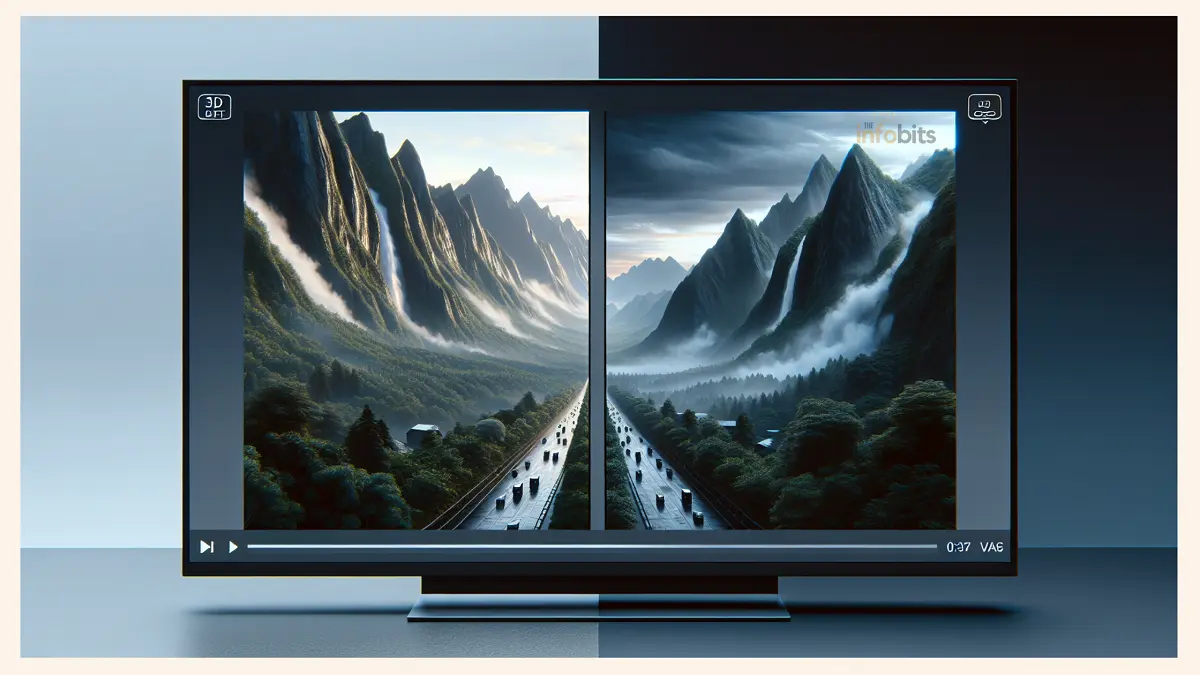
A crisp, clean 720p stream at the right bitrate almost always looks better than a blurry, artifact-filled 1080p stream that doesn’t have enough data to support it. Resolution is what you see in a quality selector. Bitrate is what determines whether that resolution actually looks good.
This guide breaks down both concepts from first principles: what they mean, how they work together, and crucially, how to choose the right settings for YouTube uploads, Twitch streaming, video calls, and everyday consumption.
Whether you’re a content creator, a gamer, or just someone trying to understand why your video looks blocky in fast-action scenes, this is the complete explanation.
Quick Answer: Bitrate vs Resolution – What’s the Difference?
Resolution is the number of pixels that make up the image. its dimensions. 1920×1080 (1080p) means there are 1,920 pixels across and 1,080 pixels down, giving you about 2 million total pixels per frame.
Bitrate is the amount of data used to describe those pixels every second, measured in kilobits per second (kbps) or megabits per second (Mbps). Higher bitrate = more data = more detail, smoother motion, fewer compression artifacts.
| Factor | Resolution | Bitrate |
|---|---|---|
| What it controls | Number of pixels (image dimensions) | Amount of data per second |
| Measured in | Pixels (e.g., 1920×1080) | kbps or Mbps |
| Affects | Image sharpness and detail potential | Actual quality of that detail |
| Analogy | The size of a bucket | The amount of water filling it |
| More = | More pixels to fill | More data to describe each pixel |
| Too low = | Smaller, lower-detail image | Compression artifacts, blurring, blockiness |
The Bucket Analogy That Makes Everything Click
The clearest way to understand bitrate and resolution is with this analogy, and once it lands, everything else makes sense.
Resolution is the size of your bucket. A 720p bucket is smaller. A 1080p bucket is bigger. A 4K bucket is enormous.
Bitrate is the amount of water you have to fill that bucket. It’s your data budget.
Now here’s the insight:
- 720p + 3,500 kbps = bucket filled to the brim. Dense, rich, detailed image.
- 1080p + 3,500 kbps = same water spread thin across a much bigger bucket. Sparse, blocky, artifact-filled image.
A 720p stream at an adequate bitrate will always beat a 1080p stream that doesn’t have enough bitrate to support it. The larger bucket (1080p) means each pixel gets less data; less information to describe color, edges, motion, and detail.
The answer is unequivocal: a stream’s perceived quality is far more dependent on having an adequate bitrate than on having high resolution. This is the core truth most beginners miss when they chase resolution labels without checking whether their data budget can support them.
What Is Bitrate? The Complete Explanation
Bitrate is the amount of data transmitted every second in a video or audio stream. It’s the single biggest controllable factor in how good your video actually looks.
How Bitrate Affects What You See
Think of bitrate as information density. The encoder’s job is to compress your video into a manageable file size, and it does that by throwing away information it considers less important. Higher bitrate means less information is thrown away, so:
- Fine detail in textures, hair, and edges is preserved
- Motion stays clear and clean rather than becoming smeared or blocky
- Color gradients are smooth rather than posterized
- Fast-moving scenes (sports, gaming, action) don’t fall apart into a mess of compression blocks
Lower bitrate forces the encoder to make harder decisions about what to keep. In static scenes (a person talking in front of a plain background), the degradation may be barely noticeable.
In complex, high-motion scenes, a football match, a first-person shooter game, a nature documentary with moving water, low bitrate becomes immediately apparent as chunky, blocky artifacts called “macroblocking.”
Bitrate Measurement
Bitrate is measured in:
- kbps (kilobits per second); used for lower-quality streams, audio, and WebRTC
- Mbps (megabits per second) ; used for higher-quality video (1 Mbps = 1,000 kbps)
Note that bits ≠ bytes. There are 8 bits in a byte. A video at 6,000 kbps (6 Mbps) uses about 0.75 MB of data per second, or roughly 2.7 GB per hour. This matters when calculating storage needs or data cap usage.
CBR vs VBR: Which Bitrate Mode Should You Use?
This is one of the most practical questions creators face, and the answer depends on what you’re doing.
CBR (Constant Bitrate) maintains the same data rate throughout the entire video, regardless of scene complexity. A talking-head static shot uses the same bitrate as a chaotic action sequence.
- Best for: Live streaming to Twitch, YouTube Live, Facebook Live
- Why: Consistent data flow is easier for streaming servers to process and deliver reliably. VBR spikes can cause dropped frames or buffering during live broadcasts.
VBR (Variable Bitrate) adjusts the data rate based on scene complexity, using more data for complex scenes and less for simple ones. This is more efficient: same perceived quality at smaller file sizes.
- Best for: Video uploads (YouTube, Vimeo), archived recordings, local files
- Why: You can’t buffer ahead during live streaming, so VBR’s efficiency advantage only applies when the full file exists before playback begins.
2-Pass VBR (available in export tools like Handbrake, Adobe Premiere, DaVinci Resolve) analyzes the entire video first, then encodes it with an optimally distributed bitrate. This takes longer but produces the best quality-to-file-size ratio for uploads.
Related: Constant Bitrate (CBR) vs Variable Bitrate (VBR): What’s the Difference?
What Is Resolution? The Complete Explanation
Resolution refers to the pixel dimensions of a video frame, width × height. More pixels mean more detail can be rendered, but only if the encoding has enough bitrate to describe those pixels accurately.
Common Video Resolutions Explained
| Resolution | Name | Pixel Count | Common Use |
|---|---|---|---|
| 3840×2160 | 4K / UHD | ~8.3 million | Premium streaming, cinema, large displays |
| 2560×1440 | 1440p / 2K | ~3.7 million | PC gaming, YouTube uploads |
| 1920×1080 | 1080p / Full HD | ~2.1 million | Standard HD; most common for streaming |
| 1280×720 | 720p / HD | ~921,000 | Acceptable quality at lower bitrates |
| 854×480 | 480p / SD | ~410,000 | Low bandwidth, mobile fallback |
| 640×360 | 360p | ~230,000 | Minimal bandwidth, very slow connections |
Resolution and Screen Size
Resolution only matters if the display can show it. A 4K video on a 27-inch monitor viewed from 3 feet looks noticeably sharper than 1080p. The same 4K video on a 6-inch phone screen? The difference is barely perceptible to most human eyes.
This has a practical implication: if the majority of your audience watches on mobile, which is increasingly true for Twitch, YouTube Shorts, and TikTok, chasing 4K or even 1080p matters far less than making sure your bitrate is sufficient for a clean, buffer-free experience at a slightly lower resolution.
Resolution and Frame Rate: The Third Variable
Frame rate (frames per second, or FPS) interacts directly with both resolution and bitrate:
- Higher FPS means more frames per second to encode, which demands more bitrate
- 1080p at 60fps needs roughly 40% more bitrate than 1080p at 30fps to maintain the same quality
- 4K at 60fps demands significantly more than 4K at 30fps
| Resolution + FPS | Approximate Bitrate Needed (H.264) |
|---|---|
| 480p @ 30fps | 1,000–2,000 kbps |
| 720p @ 30fps | 2,500–4,000 kbps |
| 720p @ 60fps | 3,500–5,000 kbps |
| 1080p @ 30fps | 4,500–6,000 kbps |
| 1080p @ 60fps | 6,000–9,000 kbps |
| 1440p @ 60fps | 10,000–16,000 kbps |
| 4K @ 30fps | 15,000–30,000 kbps |
| 4K @ 60fps | 35,000–60,000 kbps |
Related: IRL Streaming: Revolutionizing Real-World Content Creation
Bitrate vs Resolution: Head-to-Head Comparison
Which Affects Quality More?
For most real-world use cases, especially live streaming with limited upload bandwidth, bitrate affects perceived quality more than resolution.
Here’s why. When a stream lacks sufficient bitrate:
- Fast motion causes visible “macroblocking”; chunky rectangular artifacts
- Edges become soft and undefined
- Colors show banding instead of smooth gradients
- The video looks muddy and inconsistent, regardless of what resolution label it carries
When resolution is lower but bitrate is adequate:
- The image is smaller but clean
- Detail within that space is sharp and consistent
- Motion stays smooth
- The video looks professional, even if the pixel count is modest
A stream that a viewer describes as “clean but not the highest quality” is far better than one described as “blurry and blocky.” The former keeps viewers watching; the latter drives them away.
When Resolution Matters More
Resolution becomes the dominant factor when:
- You’re producing content for large displays (TV screens, cinema, digital signage)
- You have ample bitrate budget, and the question is how to use it
- You’re archiving footage for future reuse; always shoot at the highest resolution available
- Your audience is watching on a large screen at close range
- You’re producing graphic-intensive content where fine detail is critical (product close-ups, architectural visualization, medical imaging)
When Bitrate Matters More
Bitrate is the dominant factor when:
- You’re live-streaming with limited upload bandwidth
- Your audience includes mobile viewers without guaranteed fast connections
- You’re streaming fast-paced content (gaming, sports) where motion is demanding
- You’re encoding for web delivery, where file size matters
- You’re on a platform with a bitrate cap (Twitch: 6,000 kbps for non-Partners)
Related: What Transcoding Is and Why It’s Important
Platform-Specific Bitrate and Resolution Settings
This is the section most guides skip or keep vague. Here are the specific, current recommended settings for the major platforms, values you can use directly.
Twitch
Twitch enforces a maximum ingest bitrate of 6,000 kbps for most streamers (non-Partners). Partners may stream higher, but transcoding handles viewer quality ladders regardless.
| Resolution + FPS | Recommended Bitrate | Notes |
|---|---|---|
| 1080p @ 60fps | 6,000 kbps | Maximum for most streamers; sweet spot for fast-paced games |
| 1080p @ 30fps | 4,500–6,000 kbps | Good for slower content (Just Chatting, strategy games) |
| 720p @ 60fps | 3,500–5,000 kbps | Best choice if upload speed is limited |
| 720p @ 30fps | 2,500–4,000 kbps | Minimum viable for competitive gaming streams |
Expert tip: If you don’t have transcoding options (non-Partner), streaming at 720p 60fps at 4,500 kbps is often better than 1080p 60fps at 6,000 kbps.
Because viewers on slower connections can’t downscale from your source, and 720p at 4,500 kbps looks visibly cleaner than 1080p, fighting for the same bitrate budget.
YouTube (Live Streaming)
YouTube provides server-side transcoding to all streamers, so viewers can select quality. This makes higher bitrates more practical since YouTube handles the downscaling.
| Resolution + FPS | Recommended Bitrate (H.264) |
|---|---|
| 1080p @ 30fps | 4,500–6,000 kbps |
| 1080p @ 60fps | 6,000–9,000 kbps |
| 1440p @ 30fps | 6,000 kbps |
| 1440p @ 60fps | 9,000 kbps |
| 4K @ 30fps | 13,000–34,000 kbps |
| 4K @ 60fps | 20,000–51,000 kbps |
YouTube (Video Uploads)
For uploads, use VBR (preferably 2-Pass) rather than CBR. You’ll get better quality at the same file size. YouTube re-encodes all uploaded videos anyway; uploading at a higher bitrate gives their encoder more to work with.
| Resolution | Recommended Upload Bitrate |
|---|---|
| 1080p | 8,000–15,000 kbps |
| 1440p | 16,000 kbps |
| 4K (SDR, 30fps) | 35,000–45,000 kbps |
| 4K (SDR, 60fps) | 53,000–68,000 kbps |
Netflix and Streaming Services (Consumption Side)
For viewers watching Netflix, Disney+, or similar services, the bitrate is determined by the service and your internet connection speed.
Netflix uses adaptive bitrate streaming (ABR), your stream quality adjusts automatically based on available bandwidth:
| Netflix Quality | Approximate Bitrate Required |
|---|---|
| Standard Definition (SD) | 1–3 Mbps |
| High Definition (1080p) | 5–15 Mbps |
| Ultra HD (4K) | 15–25 Mbps |
| HDR / Dolby Vision 4K | 25 Mbps+ |
Related: Why Do Internet Speed Tests Show Different Results?
Video Calls (Zoom, Teams, Google Meet)
Video calls are a special case; they prioritize stability over quality and adapt dynamically. Most platforms handle bitrate automatically, but understanding the rough levels helps diagnose call quality issues:
| Quality | Download Speed Needed | Upload Speed Needed |
|---|---|---|
| Standard (480p equivalent) | 1.5 Mbps | 1.5 Mbps |
| HD (720p) | 2.5 Mbps | 3 Mbps |
| Full HD (1080p) | 4 Mbps | 3.8 Mbps |
Poor video call quality is more often caused by upload speed limitations or network instability (jitter) than by resolution settings.
The Role of Video Codecs: How H.264, H.265, AV1, and VP9 Change the Equation
Resolution and bitrate don’t exist in isolation. The codec compressing your video determines how efficiently those bits are used. The same quality can be achieved at significantly lower bitrates with newer codecs.
| Codec | Efficiency vs H.264 | Support | Best For |
|---|---|---|---|
| H.264 (AVC) | Baseline | Universal | General streaming, compatibility |
| H.265 (HEVC) | ~40–50% better | Wide (not WebRTC) | 4K uploads, storage efficiency |
| VP9 | ~30–50% better | Chrome, YouTube | YouTube streaming/uploads |
| AV1 | ~30% better than HEVC | Growing rapidly (RTX 40-series) | Future-proofing: YouTube and Twitch now support it |
In practice: If you’re currently streaming H.264 at 6,000 kbps and your hardware supports AV1 encoding (NVIDIA RTX 40-series, Intel Arc), switching to AV1 at the same bitrate can deliver noticeably better quality, essentially getting more “water” out of the same bucket.
Adaptive Bitrate Streaming: How Platforms Handle the Balance Automatically
When you watch Netflix, YouTube, or Spotify videos, you’re benefiting from Adaptive Bitrate (ABR) streaming. A technology that automatically adjusts the bitrate and resolution delivered to you based on your real-time network conditions.
Here’s how it works:
- The streaming service encodes each video at multiple quality levels (e.g., 240p at 500 kbps, 480p at 2 Mbps, 720p at 4 Mbps, 1080p at 6 Mbps)
- Your player continuously monitors your available bandwidth
- When bandwidth drops, the player seamlessly switches to a lower quality tier
- When bandwidth improves, it steps back up to higher quality
This is why Netflix doesn’t buffer constantly for users with variable connections. It sacrifices a little quality before it sacrifices smooth playback. The result: most viewers never see a loading spinner, but they may notice the picture getting temporarily softer during congestion.
For content creators building their own streaming platforms, implementing ABR through protocols like HLS or MPEG-DASH is considered essential for a good user experience.
Related: MP3 vs MP4: What’s the Difference and Which Format Should You Use?
How to Choose the Right Bitrate and Resolution for Your Situation
For Live Streamers (Twitch, YouTube Live, Kick)
Step 1: Find your upload speed. Run a speed test at Fast.com or Speedtest.net using a wired Ethernet connection. Note your upload speed.
Step 2: Calculate your safe bitrate. Never use more than 70–75% of your available upload speed for streaming. Reserve the remainder for network stability and other household traffic.
- Upload speed of 10 Mbps → safe streaming bitrate: 7,000–7,500 kbps
- Upload speed of 6 Mbps → safe streaming bitrate: 4,000–4,500 kbps
- Upload speed of 4 Mbps → safe streaming bitrate: 2,500–3,000 kbps
Step 3: Choose the resolution your bitrate can support. Use the bitrate reference tables above to match your safe bitrate to a resolution that receives adequate data.
Step 4: Consider your audience’s connections. If you lack transcoding options (Twitch non-Partner), your entire viewer base must download your full source stream.
A 6,000 kbps stream is too demanding for mobile viewers. 4,500 kbps at 720p60 reaches a broader audience without compromising visible quality.
A reliable wired Ethernet connection is one of the most effective ways to stabilize the streaming bitrate. Even a short Ethernet run using a flat Cat6 cable (available on Amazon) eliminates the upload speed inconsistency that causes dropped frames and bitrate spikes during live streams.
For Video Editors and Creators Uploading Content
- Shoot and edit at the highest resolution your camera supports; you can always downscale, never upscale
- Export using VBR 2-Pass at a bitrate 20–30% higher than the platform’s minimum recommendation gives the platform’s encoder more to work with
- For YouTube 1080p uploads: target 10,000–15,000 kbps VBR
- For YouTube 4K uploads: target 40,000–50,000 kbps VBR
For creators who want precise control over export settings across all major platforms, DaVinci Resolve (the free version, available at Blackmagic Design) includes 2-pass VBR encoding and is widely considered the most capable free professional-grade video editor available, a genuinely excellent tool if you’re serious about output quality.
For Consumers Watching Streaming Services
Your bitrate and resolution are managed automatically by the service. What you can control:
- Internet plan speed: Ensure your plan delivers at least 25 Mbps download for reliable 4K streaming
- Connection type: Wired Ethernet to your smart TV or streaming device delivers a more consistent bitrate than WiFi, especially in peak hours
- Manual quality selection: Most platforms allow forcing a specific quality level, useful if you’re on a capped data plan or want to reduce buffering
For 4K streaming with reliable throughput, connecting your smart TV or streaming device via an Ethernet cable instead of WiFi makes a noticeable difference in consistency.
A flat Cat8 Ethernet cable (see on Amazon) handles 4K bitrates comfortably and runs neatly along walls and baseboards.
Common Mistakes When Balancing Bitrate and Resolution
Chasing resolution labels instead of actual quality. Streaming at 1080p with 3,500 kbps produces visibly worse results than 720p at 3,500 kbps. The “1080p” label on a blocky, artifact-heavy stream impresses no one.
Ignoring upload speed when setting streaming bitrate. Setting a bitrate your connection can’t sustain causes dropped frames, freezing, and stream instability. Always calculate your safe bitrate from your actual upload speed first.
Using CBR for video uploads. CBR is for live streaming. For uploads to YouTube or Vimeo, VBR (ideally 2-pass) produces better quality at the same file size by allocating more data where the video is complex and less where it’s simple.
Using VBR for live streaming. VBR’s bitrate spikes can overwhelm streaming servers in real time, causing dropped frames or disconnections. Use CBR for all live streaming.
Not accounting for frame rate. Many people calculate bitrate for a given resolution without accounting for whether they’re streaming at 30fps or 60fps. Moving from 30fps to 60fps at the same bitrate cuts the data available per frame in half, which can cause visible quality drops in fast-motion scenes.
Setting the bitrate too high for your audience’s connections. If you lack transcoding on Twitch, pushing an 8,000 kbps stream forces all viewers to receive it at full bitrate. Mobile viewers, or those on slower connections, will buffer constantly and leave. Match bitrate to your audience’s typical connection, not just your own.
Archiving footage at compressed settings. If you’re keeping footage for future use, always keep the highest-resolution, highest-bitrate version. Re-encoding already-compressed footage compounds quality loss. Archive at the source quality; compress for delivery.
Myth vs Fact: Bitrate and Resolution Edition
Myth: 4K always looks better than 1080p. Fact: 4K at an inadequate bitrate looks worse than 1080p with a proper bitrate. Resolution sets the potential; bitrate determines whether that potential is realized. On small screens, many viewers can’t distinguish 4K from 1080p even when both are properly encoded.
Myth: Higher bitrate always means better quality. Fact: There’s a perceptual ceiling beyond which additional bitrate provides no visible improvement. Encoding a static screen-recording at 50,000 kbps wastes bandwidth without improving what the viewer sees. Match the bitrate to the content complexity and target resolution.
Myth: You should always stream at the highest resolution your setup allows. Fact: Stream at the highest resolution your available bitrate can adequately support. If your upload speed only allows 4,000 kbps safely, 720p at 4,000 kbps looks significantly better than 1080p at the same bitrate.
Myth: Bitrate and resolution are the only things that matter for video quality. Fact: Frame rate, codec efficiency, color bit depth, encoding preset, and content type all significantly influence perceived quality. A well-encoded H.265 file at 8,000 kbps can match the quality of a poorly encoded H.264 file at 16,000 kbps.
Myth: Resolution only matters for viewing on large screens. Fact: Resolution also affects how video performs under zooming and reframing (important for editors), storage requirements, and the quality ceiling available during post-production.
Bitrate and Resolution Decision Checklist
Use this before exporting or going live:
- [1] Do I know my upload speed (for streaming) or storage limits (for recording)?
- [2] Have I chosen a resolution that my bitrate can adequately support?
- [3] Am I using CBR for live streaming or VBR for uploads?
- [4] Have I accounted for frame rate in my bitrate calculation?
- [5] Does my chosen bitrate fit within the platform’s recommended range?
- [6] Have I reserved at least 25–30% of my upload speed as a buffer (for streaming)?
- [7] For uploads: am I using 2-pass VBR for maximum quality efficiency?
- [8] Have I considered my audience’s connection speeds and device types?
- [9] Is my encoder (H.264, H.265, AV1) appropriate for the platform?
- [10] Am I archiving source footage at maximum quality before compressing for delivery?
Summary
Bitrate and resolution work together to determine video quality. But they play fundamentally different roles. Resolution defines the canvas. Bitrate determines how richly that canvas is painted.
In most practical situations, particularly live streaming with finite upload bandwidth, adequate bitrate matters more than higher resolution.
A clean, well-encoded 720p stream consistently outperforms a starved 1080p stream. The resolution number is just a label; the bitrate is what actually determines whether viewers see clear detail or compression artifacts.
The right approach is to start with your bitrate budget (your upload speed for streaming, your storage or file size limits for recording), then select the highest resolution that budget can properly support, using the platform-specific reference tables in this guide.
For creators uploading to platforms like YouTube, shoot at maximum resolution and export at a high VBR bitrate, then let the platform’s re-encoding handle the rest.
Frequently Asked Questions (FAQ)
What is the difference between bitrate and resolution?
Resolution is the number of pixels in a video frame, its dimensions. 1080p means 1,920×1,080 pixels. Bitrate is the amount of data used to describe those pixels every second, measured in kbps or Mbps. Resolution sets the potential detail level; bitrate determines whether that potential is actually realized. High resolution with insufficient bitrate produces blurry, artifact-heavy video.
Which is more important for video quality: bitrate or resolution?
In most practical situations, an adequate bitrate matters more than a higher resolution. A well-encoded 720p stream at the right bitrate will look visibly better than a 1080p stream that lacks sufficient data to support its resolution. Resolution sets the ceiling; bitrate determines how close you get to that ceiling.
What bitrate do I need for 1080p streaming on Twitch?
For 1080p at 60fps on Twitch, use 6,000 kbps, the platform’s maximum for non-Partners. For 1080p at 30fps, 4,500–6,000 kbps is appropriate. If your upload speed can’t reliably sustain 6,000 kbps, drop to 720p at 60fps with 4,500 kbps. It will look noticeably cleaner than 1080p with an insufficient bitrate.
What bitrate should I use for uploading to YouTube?
For YouTube uploads, target 8,000–15,000 kbps for 1080p content and 35,000–45,000 kbps for 4K at 30fps. Use VBR (Variable Bitrate) with 2-pass encoding rather than CBR. VBR distributes data more efficiently and produces better quality at equivalent file sizes for pre-recorded content.
What is the difference between CBR and VBR?
CBR (Constant Bitrate) maintains the same data rate throughout a video, regardless of scene complexity. It’s required for live streaming because consistent data flow prevents buffering. VBR (Variable Bitrate) adjusts the rate based on scene complexity, more data for complex scenes, less for simple ones. VBR is more efficient and produces better quality for video uploads, but it shouldn’t be used for live streaming.
Why does my 1080p stream look blurry or blocky?
Your bitrate is too low to support 1080p. More pixels require more data. If your bitrate is insufficient, the encoder discards information aggressively, producing visible macroblocking (chunky rectangular artifacts) especially in fast-motion scenes. The fix is to either increase your bitrate or drop to a lower resolution that your current bitrate can adequately support.
What bitrate does Netflix use for 4K streaming?
Netflix’s 4K Ultra HD streams typically require 15–25 Mbps of download speed. For HDR or Dolby Vision content, expect 25 Mbps or more. Netflix uses adaptive bitrate (ABR) streaming, meaning the quality adjusts automatically based on your real-time internet speed, prioritizing smooth playback over maximum quality if bandwidth is limited.
Does resolution matter more on larger screens?
Yes. The benefit of higher resolution is most apparent on large displays viewed at close range. On a 65-inch TV viewed from 8 feet, the difference between 1080p and 4K is clearly visible. On a 6-inch phone screen, many viewers can’t distinguish 1080p from 720p at normal viewing distance. If your audience is primarily mobile, delivering clean video at 720p with an adequate bitrate often provides a better experience than pushing 1080p with insufficient data.
How does frame rate affect bitrate requirements?
Frame rate multiplies the data demand significantly. Going from 30fps to 60fps at the same resolution roughly doubles the amount of data needed to maintain equivalent quality, because twice as many frames must be encoded per second. For 1080p, 30fps needs 4,500–6,000 kbps while 60fps needs 6,000–9,000 kbps. Always factor in frame rate when calculating bitrate budgets.
What is adaptive bitrate (ABR) streaming?
Adaptive bitrate streaming is a technology used by Netflix, YouTube, Twitch, and other platforms that encodes each video at multiple quality levels (e.g., 240p to 4K) and automatically delivers the highest quality tier the viewer’s internet connection can support in real time. When bandwidth drops, the player seamlessly switches to a lower quality to prevent buffering, then steps back up when conditions improve.
Does the codec I use affect how much bitrate I need?
Yes, dramatically. Newer codecs deliver the same perceived quality at significantly lower bitrates. H.265 (HEVC) needs roughly 40–50% less bitrate than H.264 for equivalent quality. AV1 is even more efficient, about 30% better than H.265. If you can use H.265 or AV1 for uploads (where compatibility is less of a concern), you get better quality at smaller file sizes, or the same quality at lower bitrates.
What bitrate is good for video calls on Zoom or Teams?
Zoom and Teams handle bitrate management automatically. For HD (720p) video calls, you need roughly 2.5 Mbps download and 3 Mbps upload. For Full HD (1080p) calls, approximately 4 Mbps download and 3.8 Mbps upload. Poor call quality is more often caused by upload speed limitations, network jitter, or packet loss than by insufficient download speed.
How do I know what bitrate to use for my upload speed?
A safe rule is to never use more than 70–75% of your available upload speed for streaming. If your upload speed is 10 Mbps (10,000 kbps), your safe streaming bitrate is 7,000–7,500 kbps. This reserves bandwidth headroom for network fluctuations and prevents dropped frames. Always test with a wired Ethernet connection before setting your final bitrate.
Is 720p at a high bitrate better than 1080p at a low bitrate?
In most cases, yes. At equivalent bitrate, 720p receives more data per pixel than 1080p, resulting in cleaner edges, less macroblocking, and better motion handling. This is particularly true for fast-paced content like gaming or sports. The generally accepted threshold is that 1080p at 60fps needs at least 6,000 kbps to look better than a well-encoded 720p stream at the same bitrate.
What resolution and bitrate settings should beginners use for streaming?
Start with 720p at 60fps and 4,500 kbps if your upload speed supports it (requires at least 6–7 Mbps upload). This is accessible to most viewers, doesn’t stress your internet connection, and produces clean results. As your setup improves and you confirm your upload speed can handle more, step up to 1080p at 6,000 kbps. Don’t skip ahead to 1080p if your connection can’t sustain the bitrate it needs.
What happens if I set my bitrate too high for my upload speed?
Dropped frames, stream freezing, and disconnections from the streaming server. When your encoder tries to push more data than your connection can handle, packets get delayed or lost. Streaming platforms register this as encoding instability, and the stream becomes choppy or goes offline. Always test your stable upload speed first and set the bitrate to no more than 75% of that number.
Please share this article with your friends and relatives if you find it useful.
We also ask that you bookmark this page for future reference, as we are constantly updating our articles with new information.
Sign up for our free newsletter as well to receive fresh information immediately in your inbox and keep technically up to date.
Disclosure: If you follow our links to a retailer’s website and make a purchase, we may receive an affiliate commission at no extra cost to you.