
How to Set Up Parental Controls on Your Router (All Major Brands + DNS Filtering)
Your kids are online, on laptops, tablets, phones, smart TVs, and gaming consoles. And unlike apps or browser extensions, parental controls set at the router level apply to every device on your network, all at once, without needing to install anything on each device individually.
Router-level parental controls are the most comprehensive and consistent approach to managing what your family can access online.
When a website is blocked at the router, it’s blocked everywhere, regardless of which device, which browser, or whether someone has found a workaround on their phone.
This guide gives you step-by-step instructions for the most popular router brands, explains how DNS-based filtering works for routers without built-in controls, and covers the limitations you need to understand to make your setup genuinely effective.
📋 Quick Answer : How to Set Up Parental Controls on a Router
Built-in controls (most routers): Log into the router’s admin panel → find “Parental Controls” → create a device profile → set time restrictions and content filters → save.
DNS filtering (any router): Change the router’s DNS server to a family-safe DNS like Cloudflare for Families (
1.1.1.3) or OpenDNS FamilyShield (208.67.222.123) , this blocks adult content network-wide without needing a built-in parental controls menu.Key limitation: Router-level controls don’t apply to devices using mobile data (4G/5G). A phone that switches off WiFi bypasses all router-based controls.
What Can Router Parental Controls Actually Do?
Before diving into setup steps, it’s worth being clear about what router-level parental controls can and can’t accomplish. This prevents disappointment and helps you combine router controls with other tools where needed.
What Router Parental Controls CAN Do
- Block specific websites and domains by URL or keyword
- Block entire content categories, adult content, gambling, social media, gaming (depends on router)
- Set internet access schedules, restrict access during homework hours, bedtimes, or mealtimes
- Pause internet access instantly, for a specific device or all devices
- Apply controls to every device simultaneously: phones, tablets, laptops, consoles, smart TVs
- Set bandwidth limits, prevent one device from consuming all available internet speed
- Monitor browsing activity, see which sites were visited and when (on supported routers)
- Create per-device profiles, different rules for each child’s device
Related: How to Block Specific Devices from Accessing Your Router
What Router Parental Controls CANNOT Do
- Control devices using mobile data (4G/5G); when a phone’s WiFi is off, router controls don’t apply
- Block HTTPS traffic by URL path; the router can see
youtube.combut not which specific video - Block content within apps; blocking a domain blocks the whole app; you can’t allow Instagram but block Reels
- See encrypted message content; WhatsApp, iMessage, and similar apps are end-to-end encrypted.
- Prevent a determined teenager from using a VPN; a VPN routes traffic around router-level DNS blocks.
- Automatically adapt as new sites appear; manual block lists require regular updating.
Understanding these limits helps you set realistic expectations and combine router controls with device-level tools (Screen Time on iOS, Digital Wellbeing on Android) where router controls fall short.
Method 1: Built-In Router Parental Controls
TP-Link Routers (HomeCare / HomeShield)
TP-Link’s parental controls are among the most feature-rich available on consumer routers, with separate implementations on older and newer firmware.
Via the web interface (newer firmware with HomeShield):
- Go to
http://tplinkwifi.netor192.168.0.1and log in - Navigate to Advanced > HomeShield (or Advanced > Parental Controls on older firmware)
- Click Get Started or Create Profile
- Enter a profile name (e.g., “Emma”) and click Next
- Select the devices to assign to this profile, your child’s phone, tablet, or laptop, from the device list
- Under Content Filtering, select content categories to block (Adult, Gambling, Social Media, etc.)
- Under Time Limits, set daily or weekly internet time budgets
- Under Bedtime, set a nightly schedule when internet access is cut off automatically
- Click Save
Via the TP-Link Tether App:
- Open Tether → tap your router
- Tap HomeShield or Parental Controls
- Tap Add a Profile → name it, assign devices
- Set content filters, time limits, and bedtime schedule
- Tap Save
✅ TP-Link tip: HomeShield’s free tier includes basic content filtering and time controls. HomeShield Pro (subscription) adds more granular content categories, real-time browsing history, and location services. The free tier is sufficient for most families.
Related: Can Routers Track Internet History? What WiFi Owners Can See
ASUS Routers (AiProtection / Family Controls)
ASUS offers two overlapping parental control systems: AiProtection (powered by Trend Micro, available on supported models) and standard Parental Controls via the web interface and ASUS Router app.
Via the web interface (AiProtection):
- Go to
http://router.asus.comor192.168.1.1and log in - Navigate to AiProtection > Parental Controls
- Accept the Trend Micro license agreement when prompted
- Under Web & Apps Filters:
- Select the client device (MAC address) from the dropdown
- Choose content categories to block (Adult, Social Networks, Streaming, etc.)
- Click the + button to add the rule
- Under Time Scheduling:
- Select the client device
- Use the weekly grid to block specific time slots
- Click Apply
Via the ASUS Router App (Family Controls):
- Open the ASUS Router app → tap Family
- Tap Add Member → enter a name and assign devices
- Set content filters, internet schedule, and time limits per profile
- Tap Apply
✅ ASUS tip: The web interface and app have separate parental control systems with different features. The app-based Family Controls often offers a cleaner profile-based experience. If your router supports AiProtection, it provides superior content filtering via Trend Micro’s database , no subscription required on most models.
Netgear Routers (Nighthawk, Orbi)
Via the Nighthawk/Orbi App (recommended, more features):
- Open the Nighthawk or Orbi app
- Tap Smart Parental Controls (may require a Circle subscription after free trial)
- Tap Add a Person → enter a name and assign devices
- Set a Filter Level: Child, Pre-Teen, Teen, Adult, or Custom
- Customise blocked categories within the filter level
- Set a Bedtime schedule for automatic nightly cutoff
- Use Pause for immediate internet suspension on any profile
- Tap Save
Via the web interface (basic controls, no subscription required):
- Go to
http://routerlogin.netor192.168.0.1and log in - Navigate to ADVANCED > Security > Block Sites
- Under Keyword Blocking, add domains or keywords to block
- Navigate to ADVANCED > Security > Schedule to add time-based restrictions
- Apply the schedule to specific devices under Access Control
⚠️ Netgear note: Netgear’s most powerful parental controls (Circle integration) require a Circle subscription ($4.99/month) for ongoing use after the free trial. The built-in basic controls (keyword blocking, time scheduling) are free and accessible via the web interface without subscription.
Related: Latest Router Security Features to Protect Your Online Privacy
Eero (Amazon)
Eero’s parental controls are entirely app-based and clean to use.
Via the Eero App:
- Open the Eero app → tap Profiles (or the person icon)
- Tap Add a Profile → enter a name (e.g., “Kids” or “Teenagers”)
- Assign devices to the profile
- Under Content Filters, choose a filter level: None, Kids (under 12), Teens, or Adults
- Under Schedule, set internet pause windows (e.g., 9 PM to 7 AM on school nights)
- Toggle Pause to immediately suspend internet for the profile at any time
- Tap Save
⚠️ Eero note: Basic content filtering and scheduling require Eero Plus ($9.99/month). The free tier allows device pausing and basic profile management but limited content filtering. If you don’t want a subscription, use DNS filtering (Method 2 below) on the eero’s DNS settings instead.
Google Nest WiFi / Google Home
Via the Google Home App:
- Open Google Home → tap WiFi → Settings
- Tap Family WiFi
- Tap Add Family Member → enter a name
- Assign devices to the profile
- Set Content Filters, Safe Search enforcement, and content category blocking
- Set a Schedule for automatic internet pause during homework or bedtime
- Tap Save
✅ Google tip: Google’s Family WiFi is powered by Google Family Link integration. If your child already has a supervised Google account via Family Link, connecting their devices here links router-level controls with account-level supervision for a more complete solution.
Linksys Routers (Velop and Standard)
Via the Linksys App (Velop mesh):
- Open the Linksys app → tap Parental Controls
- Tap the + icon → enter a device name or select from the list
- Set Blocked URLs by adding specific domains
- Set Access Restrictions by day and time using the scheduling grid
- Tap Save
Via the web interface:
- Go to
192.168.1.1→ log in - Navigate to Parental Controls
- Add the device’s MAC address and configure URL blocking and time restrictions.
- Save settings
Method 2: DNS-Based Filtering (Works on Any Router)
If your router doesn’t have robust built-in parental controls, or if you want stronger content filtering than your router provides, changing the router’s DNS server is the most effective no-subscription option.
How DNS Filtering Works
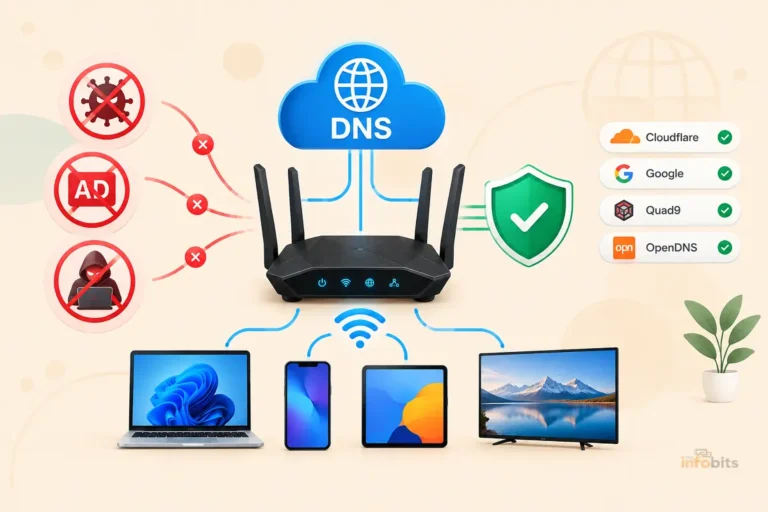
Every time someone visits a website, their device first asks a DNS server to translate the domain name into an IP address. By pointing your router to a DNS service that maintains a database of inappropriate content, you can block entire categories of websites across your entire network before any connection is even attempted.
This approach:
- Works on any router that allows custom DNS settings
- Blocks content for all devices on the network simultaneously
- Requires no subscription (free options available)
- Cannot be bypassed by clearing browser history or using incognito mode
Best Free Family-Safe DNS Services
| DNS Service | Primary DNS | Secondary DNS | What It Blocks |
|---|---|---|---|
| Cloudflare for Families | 1.1.1.3 | 1.0.0.3 | Malware + adult content |
| CleanBrowsing Family | 185.228.168.168 | 185.228.169.168 | Adult content, mixed content, proxy/VPN sites |
| OpenDNS FamilyShield | 208.67.222.123 | 208.67.220.123 | Adult content (free, no account needed) |
| OpenDNS Home | 208.67.222.222 | 208.67.220.220 | Customisable categories (free with account) |
| Google SafeSearch | 8.8.8.8 + SafeSearch | 8.8.4.4 | Enforces SafeSearch on major search engines |
Recommendation for most families: CleanBrowsing Family is the most thorough free option; it blocks adult content, proxies, and VPN bypass sites. Cloudflare for Families (1.1.1.3) is faster and blocks malware plus adult content, though slightly less aggressive on edge cases.
How to Change DNS on Your Router
TP-Link:
- Log in at
192.168.0.1 - Go to Advanced > Network > Internet
- Click the Advanced dropdown
- Under DNS Server, select Use the Following DNS Addresses
- Enter your chosen primary and secondary DNS
- Click Save
ASUS:
- Log in at
192.168.1.1 - Go to WAN > Internet Connection
- Under WAN DNS Setting, set Connect to DNS Server automatically to No
- Enter your DNS server addresses
- Click Apply
Netgear:
- Log in at
routerlogin.net - Go to Advanced > Setup > Internet Setup
- Under Domain Name Server (DNS) Address, enter your DNS addresses
- Click Apply
Eero:
- Open the Eero app → tap Settings → Network Settings → DNS
- Select Custom DNS
- Enter your DNS addresses
- Tap Save
Google Nest:
- Open the Google Home app → WiFi → Settings → Advanced Networking
- Tap DNS → select Custom
- Enter your DNS addresses
- Tap Save
💡 Pro tip: After changing DNS, test by attempting to visit an adult site from a connected device. If you see a block page or connection refusal, the DNS filtering is working. If it loads normally, verify the DNS change saved correctly and try flushing the DNS cache (
ipconfig /flushdnson Windows, or restarting the device).
For families who want more granular DNS filtering with detailed per-device reports, custom block lists, and real-time activity monitoring, a hardware DNS filter like Firewalla Gold or eBlocker provides router-agnostic network-wide control; both are available on Amazon and work independently of your router’s built-in features.
Related: How to Monitor Network Traffic on Your Home Router
How to Block Specific Websites (Manual URL Blocking)
In addition to category-based DNS filtering, most routers allow you to manually block specific domains, useful for blocking specific social media platforms, streaming sites, or other distractions.
General URL Blocking (All Routers)
- Log in to your router’s admin panel
- Look for Access Restrictions, Website Blocking, Content Filtering, or Black List
- Enter the domain you want to block (e.g.,
tiktok.com) - Also add
www.tiktok.comSome routers handle both automatically; others don’t - Save and apply
Tip: Block the main domain and common subdomains where relevant (e.g., m.tiktok.com for mobile, api.tiktok.com to also block app access).
Brand-Specific Paths
| Router | Path to URL Blocking |
|---|---|
| TP-Link | Advanced > Parental Controls > Content Restriction |
| ASUS | AiProtection > Parental Controls > Web & Apps Filters |
| Netgear | Advanced > Security > Block Sites |
| Linksys | Parental Controls > Blocked URLs |
| Eero | Profiles > [Profile Name] > Add Blocked Sites |
| Google Nest | Family WiFi > [Member] > Manage |
Setting Up Internet Time Schedules
Time-based controls are one of the most effective parental tools because they apply automatically without requiring manual intervention each night.
Typical Schedule Recommendations by Age
| Age Group | Suggested Schedule |
|---|---|
| Under 8 | Internet only with direct supervision; full night-time block from 6–7 PM |
| 8–11 | Block after 8 PM on school nights; 9–10 PM on weekends |
| 12–14 | Block after 9:30 PM on school nights; 10:30 PM at weekends; homework hour block at 4–6 PM |
| 15–17 | Lighter restrictions; consider trust-based model with monitoring only |
These are starting points; adjust based on your family’s routines and your child’s demonstrated responsibility.
How to Set Time Schedules
TP-Link: Advanced > Parental Controls > [Profile] > Bed Time → set nightly cutoff or specific weekly slots
ASUS: AiProtection > Parental Controls > Time Scheduling → select device, use the weekly grid to click blocked time slots
Netgear (with Circle): Smart Parental Controls > [Profile] > Bedtime → set different schedules for school nights and weekends
Eero: Profiles > [Profile] > Schedule → set day-by-day pause windows
Google Nest: Family WiFi > [Member] > Schedule → set daily or weekly pause times
Bypass-Proofing Your Parental Controls
This is the section most guides skip, and it’s where many parental control setups fail in practice.
Common Bypass Methods (and How to Block Them)
1. Using mobile data instead of WiFi: Router controls only apply to WiFi traffic. A phone that switches off WiFi and uses 4G/5G bypasses all router controls.
Solution: This requires device-level controls; Screen Time on iPhone/iPad (iOS 12+) can restrict mobile data use by app and time. Google Family Link on Android provides similar controls. Router controls and device-level controls are complementary, not interchangeable.
2. Using a VPN: A VPN encrypts traffic and routes it to a VPN server before it hits the router, bypassing DNS-based content filtering entirely.
Solution:
- Use a DNS provider that blocks VPN and proxy sites (CleanBrowsing Family blocks these)
- Block known VPN provider domains manually in your router’s block list
- Some routers (especially those with advanced firmware) allow blocking VPN protocols (OpenVPN, WireGuard) at the firewall level
3. Changing DNS settings on the device: On some devices, users can manually change the DNS server in the device’s network settings, bypassing the router’s DNS filtering.
Solution: On managed routers (pfSense, UniFi), you can use firewall rules to redirect all DNS traffic on port 53 to your chosen DNS server, regardless of what the device is configured to use. On standard consumer routers, this is harder to enforce; device-level management is more reliable here.
4. Using incognito or private browsing mode: Incognito mode doesn’t bypass router controls at all; the DNS filtering and time schedules still apply.
5. Using a neighbour’s WiFi or a mobile hotspot: No router-level control can prevent this. Address this with conversation and trust-based monitoring.
6. Resetting the router: If a child has physical access to the router, a factory reset can remove all parental controls.
Solution: Place the router in a location that’s not easily accessible. Enable a guest WiFi network for children’s devices and keep the admin password private; they can use the internet but can’t access router settings.
Related: Is Guest WiFi Safe? How to Create a Secure Guest Network
Router Parental Controls Comparison
| Feature | TP-Link HomeCare | ASUS AiProtection | Netgear Circle | Eero | Google Nest |
|---|---|---|---|---|---|
| Free tier available | Yes | Yes | Trial only | Limited | Yes |
| Subscription required | Optional (Pro) | No | Yes ($4.99/mo) | Yes (Plus) | No |
| Per-device profiles | Yes | Yes (app only) | Yes | Yes | Yes |
| Content category filtering | Yes | Yes | Yes | Yes (Plus) | Yes |
| Time scheduling | Yes | Yes | Yes | Yes | Yes |
| Pause internet | Yes | Yes | Yes | Yes | Yes |
| Browsing history/reports | Yes (Pro) | Yes | Yes | Yes (Plus) | Limited |
| Blocks VPN bypass | Partial | Partial | Partial | No | No |
| Setup complexity | Low | Medium | Low (app) | Very low | Very low |
Parental Controls Setup Checklist
Use this to confirm your setup is complete and effective:
Initial Setup:
- Accessed router admin panel and located parental controls section
- Created a profile for each child/group of devices
- Assigned all relevant devices (phone, tablet, laptop, console) to correct profiles
- Set content filter level appropriate to age group
- Added specific blocked sites if needed (social media, gaming, etc.)
- Configured time schedule (bedtime cutoff, homework blocks)
- Tested by attempting to access a blocked site from a child’s device
- Changed router admin password so children cannot access settings
- Set up DNS filtering (if router lacks built-in controls or for extra coverage)
Bypass Prevention:
- Router placed out of easy physical reach
- Guest network or dedicated network set up for children’s devices
- Device-level controls (Screen Time / Family Link) set up for mobile data coverage
- DNS provider blocks proxy/VPN sites (CleanBrowsing Family recommended)
Ongoing Maintenance:
- Reminder set to review settings every 3–6 months
- Reminder set to check for firmware updates monthly
- Browsing activity reviewed periodically (if monitoring is enabled)
Related: WiFi Security for Beginners: How to Secure Your Home WiFi Network
Common Mistakes When Setting Up Router Parental Controls
| Mistake | What to Do Instead |
|---|---|
| Only blocking websites but not setting time limits | Combine content filtering AND time schedules |
| Forgetting to include the child’s phone in the profile | Add every device the child uses , including secondary phones and tablets |
| Using the same admin password as the WiFi password | Keep them separate; children knowing the WiFi password shouldn’t give router access |
| Not testing whether blocks are working | Always test from the child’s device after setup |
| Relying on router controls alone for phone management | Add Screen Time (iOS) or Family Link (Android) for mobile data coverage |
| Blocking without conversation | Talk with your children about why the rules exist; it’s more effective long-term |
| Never updating the block list | New platforms appear regularly; revisit every few months |
Related: Understanding WPA3 Encryption: Why Your Router Needs WPA3
Myth vs. Fact: Router Parental Controls
Myth: Router parental controls block everything on every device. Fact: Router controls apply only to devices connected to your WiFi network. Any device using mobile data (4G/5G) bypasses them entirely. Device-level controls are necessary to cover mobile data usage.
Myth: Incognito mode bypasses router parental controls. Fact: Incognito mode only prevents the browser from saving local history. Router-level DNS filtering and time schedules apply regardless of browsing mode.
Myth: You need a subscription for effective router parental controls. Fact: DNS filtering (Cloudflare for Families, OpenDNS FamilyShield, CleanBrowsing Family) is free and provides strong content filtering on any router without any subscription. Many routers also include capable built-in controls at no extra cost.
Myth: Once set up, router parental controls don’t need attention. Fact: The internet changes constantly: new platforms, new bypass methods, and your children’s ages and needs change too. Revisit settings every 3–6 months and stay informed about what your kids are using.
Myth: A determined teenager can always get around router controls. Fact: While no control is 100% bypass-proof, most teenagers aren’t running VPNs and changing DNS settings, especially when controls are combined with device-level tools and regular conversation. Effective parental controls don’t need to be perfect; they just need to raise the effort required to access inappropriate content meaningfully.
Conclusion
Router-level parental controls are the most practical way to apply consistent internet boundaries across every device in your home, without installing anything on each individual device.
The approach you take depends on your router: if you have a modern TP-Link, ASUS, Netgear, Eero, or Google Nest, you have solid built-in tools that take about 15 minutes to set up properly. If your router lacks built-in controls, switching to a family-safe DNS server (Cloudflare for Families or CleanBrowsing Family) takes about five minutes and works on any hardware.
The most important thing to remember: no single control is foolproof, and router controls have real limits, mobile data being the main one. The most effective approach combines router-level controls for WiFi coverage, device-level controls (Screen Time or Family Link) for mobile data, and regular honest conversations with your children about why the boundaries exist.
Set it up, test it, check it periodically, and adjust as your children grow. The goal isn’t a perfect technical barrier; it’s raising the effort required to access harmful content while fostering responsible digital habits over time.
Frequently Asked Questions
What are the best router parental controls without a subscription?
DNS filtering is the strongest free option; CleanBrowsing Family (185.228.168.168) or Cloudflare for Families (1.1.1.3) block adult and inappropriate content network-wide with no subscription. TP-Link’s HomeCare and ASUS’s AiProtection also offer solid free built-in controls on compatible routers.
Can I set different parental controls for different devices?
Yes, most modern routers support per-device profiles where you can apply different content filters, time schedules, and restrictions to each device. TP-Link HomeCare, ASUS Family Controls, Netgear Circle, and Eero all support this.
Do router parental controls work on phones using mobile data?
No. Router controls only apply to devices connected to your WiFi. When a phone switches to mobile data (4G/5G), it bypasses the router entirely. Use Screen Time (iOS) or Google Family Link (Android) to manage mobile data usage.
Will parental controls slow down my internet?
Not in any meaningful way. DNS-based content filtering adds an insignificant fraction of a millisecond to DNS lookups. Time scheduling and content blocking consume no additional bandwidth or router processing beyond normal operation.
Can my child change the DNS settings on their device to bypass filtering?
On some devices, yes. This is more likely with older children who understand networking. Combining router-level DNS filtering with device-level managed accounts (Family Link, Screen Time with restrictions on changing settings) makes this significantly harder.
How do I block TikTok, YouTube, or specific social media platforms at the router?
Add the relevant domain(s) to your router’s blocked sites list. For TikTok: block tiktok.com . For YouTube: block youtube.com (Note: this blocks YouTube for all devices on the network, including adults). Alternatively, use a DNS filtering service that allows per-category blocking for more nuanced control.
What is the difference between router parental controls and device-level parental controls?
Router controls apply to all devices on your WiFi network from a single point; simpler to manage but limited to WiFi traffic. Device-level controls (Screen Time on iOS, Family Link on Android) apply to a specific device regardless of connection type (WiFi or mobile data) but must be configured per device. They work best in combination.
Can parental controls block HTTPS websites?
DNS-based filtering blocks HTTPS sites at the domain level, if pornhub.com is on the block list, the DNS server refuses to resolve it, blocking access before the encrypted connection is established. However, the specific page content within an allowed HTTPS site (e.g., specific YouTube videos) cannot be inspected or blocked at the router level.
How do I pause internet access for my child’s device immediately?
Almost all modern router apps have an instant pause feature: TP-Link Tether, ASUS Router app, Nighthawk app, Eero app, and Google Home all allow one-tap pause for a specific device or profile. This is useful for mealtimes, homework, or bedtime.
What should I do if my router doesn’t have parental controls?
Use DNS filtering, change your router’s DNS server to CleanBrowsing Family or Cloudflare for Families. This works on any router that allows custom DNS settings (almost all do) and provides strong content filtering without any built-in parental controls menu. Alternatively, consider upgrading to a router with built-in controls or adding a dedicated DNS filtering device.
Do parental controls work on smart TVs and gaming consoles?
Yes, any device connected to your WiFi is subject to router-level controls, including smart TVs, PlayStation, Xbox, Nintendo Switch, and Chromecast. This is one of the key advantages of router-level controls over app-based approaches.
Should I tell my child I’ve set up parental controls?
Generally, yes, particularly for older children. Being transparent about what you’re monitoring and why builds trust and is more effective long-term than attempting covert monitoring. Frame controls as a tool for establishing healthy habits rather than punishment or surveillance.
What happens to parental controls when the router is rebooted?
On modern routers, parental control settings are saved to persistent storage and survive reboots. Time schedules, content filters, and device profiles reload automatically. The exception is DNS-based changes, which persist as they’re part of the router’s saved configuration.
Can I manage parental controls remotely when I’m away from home?
Yes, most manufacturer apps (TP-Link Tether, ASUS Router app, Eero app, Nighthawk app) allow remote management via the internet, including pausing internet access, adjusting schedules, and reviewing activity. Ensure remote management is enabled in your router settings and secured with a strong account password.
My child has a new device, do I need to add it to the parental controls separately?
Yes, new devices typically appear as unmanaged until you assign them to an existing profile. Most routers notify you of new device connections, but you should periodically check your connected device list to ensure all children’s devices are covered under the appropriate profile.
Found this guide helpful? Share it with other parents navigating the same challenge. Follow us on Facebook and Twitter, and subscribe to our free newsletter for more practical home networking and family tech guides.
We also ask that you bookmark this page for future reference, as we are constantly updating our articles with new information.
Disclosure: Some links in this article are affiliate links. If you purchase through them, we may earn a small commission at no additional cost to you.

)