

How to Monitor Network Traffic on Your Home Router(5 Methods for Every Skill Level)
Something is slowing down your internet. Or you’ve spotted an unfamiliar device on your network. Or your data usage is suspiciously high this month, and you want to know which device is responsible.
Or you just want to know what’s actually happening on your home network at any given moment.
All of these questions lead to the same answer: you need to monitor your network traffic.
The good news is that you don’t need an IT background or expensive software to do this. Your router already collects traffic data; in most cases, you just need to know where to look. And when built-in tools aren’t enough, free software like GlassWire, Wireshark, and Pi-hole give you far more detail.
This guide covers five practical methods for monitoring home network traffic, ordered from simplest to most advanced, so you can stop at the level that gives you the information you actually need.
📋 Quick Answer : How to Monitor Network Traffic on Your Home Router
Quickest method: Log into your router’s admin panel (192.168.1.1 or 192.168.0.1) → look for Traffic Statistics, Bandwidth Monitor, or Logs ; most modern routers show per-device bandwidth usage here.
Best free software: GlassWire (Windows/Android) for visual per-app traffic monitoring, or Fing (iOS/Android) for device-level network scanning.
Most powerful free option: Wireshark for deep packet-level analysis; Pi-hole for network-wide DNS monitoring with a Raspberry Pi.
Why Monitor Your Home Network Traffic?
Before diving into methods, it helps to be clear about what you’re trying to achieve, because the right tool depends on the problem you’re trying to solve.
| Goal | Best Method |
|---|---|
| See which devices are using the most bandwidth | Router admin panel → Traffic Statistics |
| Identify an unknown device on the network | Fing app or router device list |
| Find out what a specific device is connecting to | GlassWire (on Windows) or Pi-hole |
| Detect potential malware or suspicious activity | Wireshark or Pi-hole DNS logs |
| Monitor overall bandwidth usage and data caps | Router traffic stats or GlassWire |
| See which apps on your PC are using the internet | GlassWire or Windows Resource Monitor |
| Full packet-level network analysis | Wireshark |
| Network-wide ad/tracker blocking + DNS logs | Pi-hole on Raspberry Pi |
| Professional-grade home network monitoring | PRTG (free tier) |
Method 1: Your Router’s Built-In Traffic Tools
This is where everyone should start. Every modern router has some form of traffic monitoring built in, and for many use cases, it’s all you need.
What Your Router Can Show You
Depending on your router model and firmware, the built-in tools can display:
- Connected devices; every device currently on your network with its IP and MAC address
- Bandwidth usage per device; how much data each device has sent and received
- Traffic logs; timestamps of connections, DNS queries, and data volumes
- Real-time bandwidth graph; live upload/download speeds across the network
- DHCP lease history; devices that have connected recently, even if no longer online
How to Access Your Router’s Traffic Data
- Open a browser and type your router’s admin panel address; usually
192.168.1.1or192.168.0.1 - Log in with your admin credentials (printed on the router label if you haven’t changed them)
- Look for any of these sections depending on your router brand:
| Router Brand | Where to Find Traffic Data |
|---|---|
| TP-Link | Advanced > Statistics or Traffic Statistics |
| ASUS | Network Map > Clients, or Traffic Analyzer (app) |
| Netgear | Advanced > Administration > Logs, or Connected Devices |
| Eero | Eero app > Activity (Eero Plus subscription) |
| Google Nest | Google Home app > WiFi > Devices |
| D-Link | Status > Traffic Statistics |
| Linksys | Status > Local Network > DHCP Client Table |
ASUS Traffic Analyzer (Standout Feature)
ASUS routers with the Traffic Analyzer feature provide some of the most detailed built-in monitoring available on a consumer router.
It breaks down bandwidth usage by device and by traffic type (streaming, web browsing, gaming, file transfer), displayed in a clean chart interface. Access it at: router.asus.com → Traffic Analyzer in the left menu.
TP-Link Traffic Statistics
On TP-Link routers with HomeShield: Advanced > HomeShield > Dashboard shows per-device bandwidth usage and top traffic types. Without HomeShield: Advanced > Statistics → enable Statistics and set the sampling interval to see per-device data.
Limitations of Built-In Router Tools
- Most consumer routers show bandwidth totals but not which sites or services a device is using.
- Logs are often stored in RAM and cleared on reboot
- Older or ISP-supplied routers may have very limited monitoring features
- No deep packet inspection; you can see volume but not content
If you need more than bandwidth totals and device lists, move to Method 2 or 3.
Related: How to Block Specific Devices from Accessing Your Router
Method 2: GlassWire; Visual Network Monitoring for Windows and Android
GlassWire is one of the best free network monitoring tools available for non-technical home users. It provides a clear, visual interface showing exactly which applications on your Windows PC or Android device are using internet bandwidth, and how much.
What GlassWire Does
- Shows real-time bandwidth usage per application (e.g., Chrome is using 45 Mbps, Zoom is using 8 Mbps)
- Displays a timeline graph of network activity over hours, days, and weeks
- Alerts you when a new app first accesses the internet (useful for detecting unexpected connections)
- Shows which remote hosts and IP addresses each application is connecting to
- Detects new devices joining your network
- Monitors bandwidth caps and warns when approaching limits
How to Set Up GlassWire
- Download GlassWire free from
glasswire.com(Windows) or the Google Play Store (Android) - Install and launch; it immediately begins monitoring without any configuration.
- The main dashboard shows a real-time graph of total network activity
- Click the Apps tab to see bandwidth usage broken down by application
- Click Usage tab to see historical data usage over time
- Click Things (in the free tier) or Network to see other devices on your WiFi
✅ GlassWire tip: The free version monitors the device it’s installed on. GlassWire Elite (paid) adds remote monitoring for multiple PCs on the network. For most home users, the free version on a Windows PC is sufficient.
GlassWire Free vs Elite
| Feature | Free | Elite |
|---|---|---|
| Per-app bandwidth monitoring | Yes | Yes |
| Real-time traffic graphs | Yes | Yes |
| New device alerts | Yes | Yes |
| Remote server monitoring | No | Yes |
| Mini graph in system tray | No | Yes |
| Multiple PC monitoring | No | Yes |
GlassWire Elite is available as a one-time purchase and includes lifetime monitoring for up to three PCs; a solid upgrade for users who want continuous per-app visibility across multiple household computers.
Method 3: Fing; Network Scanner for iOS and Android
Fing is the best mobile app for scanning your entire WiFi network and identifying all connected devices, including devices you don’t recognise.
What Fing Does
- Scans your WiFi network and lists all connected devices with their name, manufacturer, IP address, and MAC address
- Identifies device types (phone, laptop, smart TV, router, IoT device)
- Alerts you when new devices join your network
- Tests internet speed and connection quality
- Checks for open ports on devices (useful for security audits)
- Maintains a history of devices that have connected to the network over time
How to Use Fing
- Download Fing from the App Store (iOS) or Google Play Store (Android); free.
- Open the app and tap Scan Network or Devices
- Fing automatically scans your WiFi and lists all connected devices
- Tap any device to see detailed information including manufacturer and open services
- Star or name the devices you recognise; any unnamed device is worth investigating
✅ Fing tip: Unknown devices are common , printers, smart TVs, and IoT gadgets often show up with generic names. Look up any unfamiliar MAC address prefix at
macvendors.comto identify the manufacturer.
Fingbox: Hardware Network Monitor
For continuous, always-on network monitoring without leaving your phone running, Fingbox is a dedicated hardware device that plugs into your router and monitors 24/7:
Fingbox is a plug-in network monitor that provides ongoing device scanning, intruder alerts, network performance tests, and the ability to block specific devices. It works with any router brand.
Related: Can Routers Track Internet History? What WiFi Owners Can See
Method 4: Wireshark; Deep Packet Analysis (Advanced)
Wireshark is the industry-standard tool for detailed network traffic analysis. It captures every packet flowing through your network interface and lets you inspect it at the protocol level.
It’s free, powerful, and genuinely complex, suited for users who want to understand exactly what their network is doing at a technical level.
What Wireshark Does
- Captures all network packets passing through the network interface you select
- Lets you filter traffic by protocol (HTTP, DNS, TCP, UDP, etc.), IP address, port, and more
- Displays the full content of unencrypted traffic (HTTP, DNS queries, plain-text protocols)
- Shows the timing, sequence, and content of every packet exchange
- Identifies network anomalies, suspicious connections, and protocol errors
What Wireshark Is Used For (Home Network Scenarios)
- Diagnosing DNS issues: See exactly which DNS queries are being made and whether they’re resolving correctly
- Detecting unexpected outbound connections: Identify if a device is calling home to suspicious servers
- Troubleshooting slow connections: See where packets are being dropped or delayed
- Security investigation: Determine what an unknown device on the network is actually doing
Limitations of Wireshark for Home Use
Wireshark captures traffic on the interface it’s installed on, typically just the traffic to and from the computer running it. To monitor all traffic across your entire network, you need either:
- Port mirroring / SPAN; configuring your router or a managed switch to mirror all traffic to the monitoring port (requires a router/switch that supports this)
- A network tap; a hardware device that passively copies all traffic flowing through it
- Running Wireshark on a device that acts as a WiFi access point
For most home users, Wireshark is best used to analyse traffic on the specific device running it. For network-wide visibility, Pi-hole (Method 5) is more practical.
Basic Wireshark Usage
- Download Wireshark free from
wireshark.org - Launch and select your active network interface (your WiFi adapter or Ethernet connection)
- Click the blue shark fin icon to begin capturing
- Use the filter bar to narrow results:
dns; show only DNS queries (see every domain your device looks up)http; show only unencrypted HTTP trafficip.addr == 192.168.1.5; filter by specific device IPtcp.port == 443; show HTTPS connections
- Click the red square to stop capturing.
- Review the packet list; each row is one packet with timestamp, source, destination, protocol, and info
⚠️ Wireshark note: Most modern traffic is encrypted (HTTPS, TLS). Wireshark can see the destination of encrypted connections but not their content. DNS queries are often visible unless the device uses DNS-over-HTTPS.
Method 5: Pi-hole; Network-Wide DNS Monitoring (Technical but Powerful)
Pi-hole is a free, open-source DNS server that you run on a Raspberry Pi (or any Linux machine) on your home network.
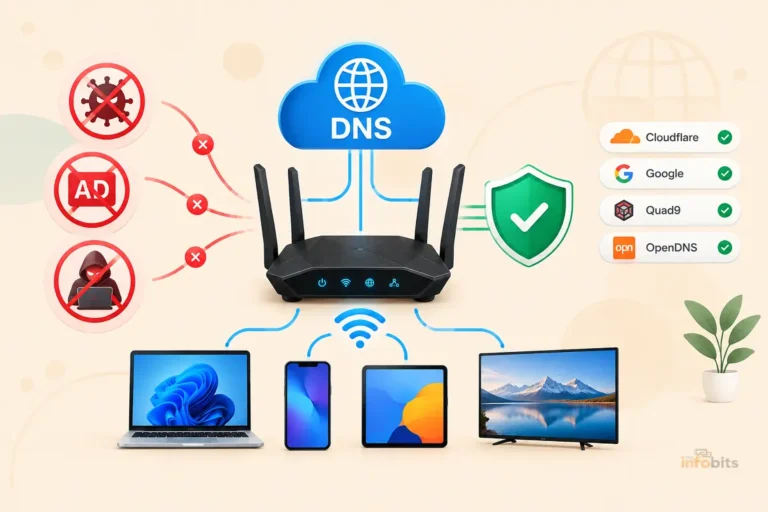
By setting your router to use Pi-hole as its DNS server, every DNS query from every device on your network passes through Pi-hole, giving you complete visibility into which domains every device is querying.
What Pi-hole Does
- Logs every DNS query from every device on your network, including smart TVs, IoT devices, and phones
- Blocks ads, trackers, and malicious domains before they load (network-wide, on all devices)
- Shows a dashboard with per-device query history, top domains, blocked queries, and traffic trends
- Works on all devices simultaneously; no software installation on individual devices required
- Reveals the hidden network activity of IoT devices and smart home gadgets
Related: How to Secure IoT Devices on Your Home WiFi Network
Why Pi-hole Is Especially Useful for Traffic Monitoring
Unlike other tools that only monitor one device, Pi-hole sees the DNS activity of your entire network. This is invaluable for:
- IoT device monitoring: Smart TVs, cameras, and other devices often make connections you wouldn’t expect; Pi-hole reveals them all
- Security investigation: If a device is infected with malware, its DNS queries to command-and-control servers will appear in Pi-hole’s logs
- Bandwidth optimisation: Identify which devices are making excessive network requests
Basic Pi-hole Setup Overview
- Install Pi-hole on a Raspberry Pi (or any Linux device); full instructions at
pi-hole.net - In your router’s LAN/DHCP settings, set the DNS server to the Pi-hole device’s IP address
- All devices on your network will now use Pi-hole for DNS; their queries will be logged in Pi-hole’s admin dashboard
- Access the dashboard at
http://pi.hole/adminor your Pi-hole’s IP address
✅ Pi-hole tip: A Raspberry Pi 4 or even a Raspberry Pi Zero 2W can run Pi-hole efficiently. For those who don’t want dedicated hardware, Pi-hole can also run as a Docker container on a home server or NAS.
A Raspberry Pi 4 starter kit (view on Amazon) including the board, case, power supply, and SD card, is the most common hardware for running Pi-hole; kits are available on Amazon and cover everything you need to get started.
Related: How to Set Up Parental Controls on Your Router
Method 6 (Bonus): PRTG Network Monitor; Free Enterprise-Grade Option
For users who want professional-level monitoring without paying for it, PRTG Network Monitor from Paessler offers a free tier (up to 100 sensors) that’s more than sufficient for a home network.
What PRTG Does
- Monitors routers, switches, and devices using SNMP, NetFlow, and ping
- Tracks bandwidth usage, device uptime, CPU load, and memory per device
- Creates visual dashboards and reports
- Sends email or SMS alerts when thresholds are exceeded
- Supports NetFlow/sFlow data from routers that export it
PRTG for Home Users
PRTG is more complex to set up than GlassWire or Fing, but it’s genuinely powerful. The 100-sensor free tier covers most home networks. Key sensors you’d use at home:
- Ping sensor; monitors whether each device is online
- SNMP Traffic sensor; monitors bandwidth per router interface (requires SNMP enabled on router)
- NetFlow sensor; captures flow data from routers that support NetFlow
- HTTP sensor; monitors whether specific web services are reachable
PRTG is best suited for home users with a networking background or those running a home lab/server environment. For most casual home users, GlassWire or Fing is a better starting point.
How to Identify Suspicious Network Activity
With your monitoring tools in place, here’s what to look for when investigating unusual behaviour.
Signs of a Problem on Your Network
| Warning Sign | Possible Cause | Investigation Step |
|---|---|---|
| Unknown device in device list | Unauthorised WiFi access | Check MAC address at macvendors.com; change WiFi password |
| Unusually high bandwidth from one device | Malware, crypto mining, or background downloads | Check GlassWire app list on that device |
| Constant traffic from an IoT device at odd hours | Device calling home or compromised | Check Pi-hole DNS logs for that device’s IP |
| Slow internet despite low device count | Background updates, streaming, or bandwidth theft | Check router traffic stats per device |
| Repeated connection attempts to unknown IPs | Malware or port scanning | Run Wireshark on the affected device |
| Bandwidth spikes with no explanation | Large automatic backups or cloud sync | Check GlassWire or router stats for peak times |
How to Investigate an Unknown Device
- Log into your router’s admin panel and find the device in the connected devices list
- Note its MAC address; look up the first 6 characters at
macvendors.comto identify the manufacturer - Cross-reference with devices you own (the manufacturer name often identifies the device type, “Apple” = iPhone/Mac, “Amazon” = Echo/Fire device, “Samsung” = Samsung phone/TV)
- If still unrecognised, temporarily block the device using your router’s MAC filtering
- Check whether any of your household devices lose connectivity; if one does, you’ve identified the unknown device
- If none do, change your WiFi password immediately
Related: Is Guest WiFi Safe? How to Create a Secure Guest Network
Network Traffic Monitoring Tools Comparison
| Tool | Platform | Cost | Skill Level | Best For |
|---|---|---|---|---|
| Router admin panel | Browser | Free | Beginner | Quick bandwidth overview |
| GlassWire | Windows, Android | Free / Paid | Beginner | Per-app monitoring on PC |
| Fing | iOS, Android | Free / Paid | Beginner | Device scanning and identification |
| Fingbox | Hardware | ~$80 | Beginner | Always-on network monitoring |
| Wireshark | Windows, Mac, Linux | Free | Advanced | Deep packet analysis |
| Pi-hole | Linux / Raspberry Pi | Free (hardware cost) | Intermediate | Network-wide DNS monitoring |
| PRTG | Windows | Free (100 sensors) | Intermediate | Professional bandwidth monitoring |
| Windows Resource Monitor | Windows (built-in) | Free | Beginner | Quick per-process network check |
| macOS Activity Monitor | macOS (built-in) | Free | Beginner | Quick per-process network check on Mac |
Quick Method: Built-In OS Network Monitoring (No Extra Software)
Before installing anything, check your operating system’s built-in tools; they show per-process network usage instantly.
Windows Resource Monitor
- Press Ctrl + Shift + Esc to open Task Manager
- Click More details if it’s in compact mode
- Go to the Performance tab → click Open Resource Monitor at the bottom
- Click the Network tab
- You’ll see every process currently using the network, sorted by Send/Receive rate
Windows Task Manager (Quick View)
- Ctrl + Shift + Esc → Task Manager
- In the Processes tab, click the Network column header to sort by usage
- Any process consuming unexpected bandwidth is worth investigating
macOS Activity Monitor
- Go to Applications > Utilities > Activity Monitor
- Click the Network tab
- Sort by Sent Bytes or Received Bytes to identify heavy users
These built-in tools are great for quickly identifying which app is consuming bandwidth on a specific device without installing anything.
Network Monitoring Checklist
Use this as a regular maintenance routine for your home network:
Weekly:
- Open the router admin panel and check the connected device list for unfamiliar entries
- Note any unexpected bandwidth spikes in router traffic stats
Monthly:
- Review GlassWire or Pi-hole logs for unusual patterns
- Cross-check connected devices against known household devices
- Check router firmware for updates
- Review any new devices that appeared on the network during the month
Related : Latest Router Security Features to Protect Your Online Privacy
When investigating a problem:
- Identify the device causing the issue using router traffic stats
- Check per-app usage on that device using OS built-in tools or GlassWire
- Run Wireshark if the issue appears security-related
- Check Pi-hole DNS logs for unexpected outbound connections
Common Mistakes When Monitoring Network Traffic
| Mistake | What to Do Instead |
|---|---|
| Only checking the router when problems occur | Set up regular monitoring (weekly device list review) |
| Ignoring IoT devices | Smart home devices are among the most active; monitor them via Pi-hole or router stats |
| Assuming high traffic always means a problem | Automatic OS updates, cloud backups, and streaming legitimately consume significant bandwidth |
| Using Wireshark and expecting to see HTTPS content | Wireshark sees destinations but not content of encrypted traffic; use it for DNS and metadata analysis |
| Installing multiple tools that overlap | Pick one or two tools for your skill level; GlassWire + Fing covers most home use cases |
| Never changing the router admin password | Without a strong admin password, anyone on your network can view your traffic logs |
Related: WiFi Security for Beginners: How to Secure Your Home WiFi Network.
Myth vs. Fact: Home Network Monitoring
Myth: You need expensive software to monitor home network traffic. Fact: Your router’s built-in tools, GlassWire (free tier), and Fing (free) cover most home monitoring needs at zero cost. Pi-hole on a Raspberry Pi adds powerful DNS-level monitoring for a one-time hardware cost of under $50.
Myth: Wireshark can show you everything everyone on the network is doing. Fact: Wireshark captures traffic on the interface it’s running on. Monitoring other devices’ traffic requires port mirroring or a network tap. Additionally, HTTPS traffic is encrypted; Wireshark can see destinations but not content.
Myth: If my internet is fast, I don’t need to monitor my network. Fact: Network monitoring is valuable for security as much as performance. An unauthorised device consuming modest bandwidth might not slow you down noticeably, but it’s still a security risk worth knowing about.
Myth: IoT devices barely use any bandwidth and don’t need monitoring. Fact: Smart home devices, cameras, smart TVs, and voice assistants can be among the most active network users, sending data to manufacturer servers constantly. Pi-hole and router logs often reveal surprising levels of activity from these devices.
Myth: Incognito mode hides browser traffic from network monitoring tools. Fact: Incognito only prevents local browser history from being saved. All traffic still passes through the router and is visible to router-level monitoring tools. DNS queries are particularly visible regardless of browsing mode.
Related: The Ultimate Guide to Troubleshooting Common Router Issues
Conclusion
Monitoring your home network traffic doesn’t have to be complicated, and in most cases you already have everything you need to get started.
For a quick check, your router’s admin panel shows connected devices and bandwidth usage in minutes. For ongoing visibility on a Windows PC, GlassWire’s free tier gives you clear, visual per-app monitoring without any configuration.
For identifying unknown devices, Fing on your phone scans the network in seconds. And if you want the whole picture- every DNS query from every device on your network- Pi-hole on a Raspberry Pi is the most powerful free solution available.
The key is matching the tool to the problem. Start with the simplest method that answers your question, and escalate to more powerful tools when needed.
Regular monitoring, even just a monthly review of your router’s device list, goes a long way toward keeping your network fast, secure, and fully under your control.
Frequently Asked Questions
How do I monitor network traffic on my home router?
The simplest method is to log into your router’s admin panel (typically at 192.168.1.1 or 192.168.0.1) and check the Traffic Statistics, Bandwidth Monitor, or Connected Devices sections. For more detail, use GlassWire (Windows) for per-app monitoring, Fing (iOS/Android) for device scanning, or Pi-hole for network-wide DNS logging.
Can I see what websites someone is visiting on my WiFi?
At the router level, you can see the domain names (e.g., reddit.com) of sites visited via DNS logs, but not the specific pages, since HTTPS encrypts the content of traffic. Pi-hole provides the most comprehensive DNS-level visibility. For a full answer, see our dedicated article on what routers can and can’t see.
What is the best free tool to monitor home network traffic?
For most home users, the combination of GlassWire (Windows, per-app monitoring) and Fing (mobile, device scanning) covers the main use cases for free. For network-wide DNS monitoring, Pi-hole is the most powerful free option but requires a Raspberry Pi or similar device.
How do I find out which device is using the most bandwidth?
Log in to your router’s admin panel and look for Traffic Statistics or a similar section. ASUS, TP-Link, and most modern routers show per-device bandwidth usage. Alternatively, GlassWire on Windows or the Fing app on mobile can show bandwidth distribution across devices.
Can Wireshark monitor all devices on my home network?
Wireshark only captures traffic on the network interface it’s installed on, typically just the device running it. To monitor all devices, you need port mirroring configured on your router or managed switch to send a copy of all traffic to the monitoring device. For home networks, Pi-hole is a more practical approach to network-wide visibility.
What is Pi-hole and why is it useful for network monitoring?
Pi-hole is a free DNS server that logs every DNS query made by every device on your network. By pointing your router’s DNS to Pi-hole, you gain visibility into all the domains every device is contacting, including smart TVs, IoT devices, and phones. It also blocks ads and trackers network-wide as a side benefit.
How do I detect an unknown device on my network?
Use the Fing app to scan your WiFi network; it lists all connected devices with manufacturer names. Alternatively, check your router’s connected device list in the admin panel. If you find an unknown device, look up its MAC address prefix at macvendors.com to identify the manufacturer.
Does monitoring network traffic slow down my internet?
Router-level monitoring has negligible impact on performance. Software tools like GlassWire and Fing add minimal overhead. Pi-hole adds a fraction of a millisecond to DNS queries, which is imperceptible in practice. The monitoring itself does not meaningfully affect internet speed.
Can I monitor network traffic on my phone without any apps?
On iOS: Settings > WiFi > tap your network > check the IP address, but traffic monitoring isn’t available without additional apps. On Android: Settings > Connections > Data usage shows per-app data usage. For proper network monitoring, GlassWire for Android is the most capable free option.
What is SNMP and how does it relate to router monitoring?
SNMP (Simple Network Management Protocol) is a standard protocol that routers and network devices use to expose performance data. Tools like PRTG use SNMP to collect bandwidth, CPU load, and uptime data from routers. Most consumer routers support read-only SNMP, but it’s typically disabled by default; enable it in advanced settings if you want to use PRTG-style monitoring.
How long do routers store traffic logs?
Most consumer routers store logs in RAM only and clear them on reboot, often just hours of data. Some routers with USB ports can log to external storage. For persistent logs, Pi-hole (which stores its database on an SD card or USB drive) is a better solution.
Is it legal to monitor network traffic on my home router?
Yes, absolutely. As the owner and administrator of your home network, you have full legal authority to monitor the traffic on it. Monitoring your own network is standard network administration practice.
What should I do if I find a device I don’t recognise on my network?
First, identify it using MAC address lookup at macvendors.com and by temporarily blocking it to see which household device loses connectivity. If it’s genuinely unauthorised, change your WiFi password immediately and enable WPA3 or WPA2 encryption. Consider setting up a dedicated guest network for visitors to prevent future unauthorised main-network access.
Can I monitor traffic from smart home devices like Alexa or smart TVs?
Yes; Pi-hole is the most effective way to monitor IoT and smart home device traffic, as it logs all DNS queries from every connected device. Router admin panels also show bandwidth usage per device by MAC address, though without the domain-level detail Pi-hole provides.
What is the difference between bandwidth monitoring and traffic analysis?
Bandwidth monitoring tracks how much data is transferred, total bytes per device, per time period. Traffic analysis goes deeper, examining what types of traffic are being sent, which domains or IPs are being contacted, and in Wireshark’s case, the actual packet content. Most home users need bandwidth monitoring; traffic analysis is for troubleshooting and security investigations.
Found this guide helpful? Share it with someone dealing with mysterious slow internet. Follow us on Facebook and Twitter, and subscribe to our free newsletter for more home networking guides.
We also ask that you bookmark this page for future reference, as we are constantly updating our articles with new information.
Disclosure: Some links in this article are affiliate links. If you purchase through them, we may earn a small commission at no additional cost to you.



)