
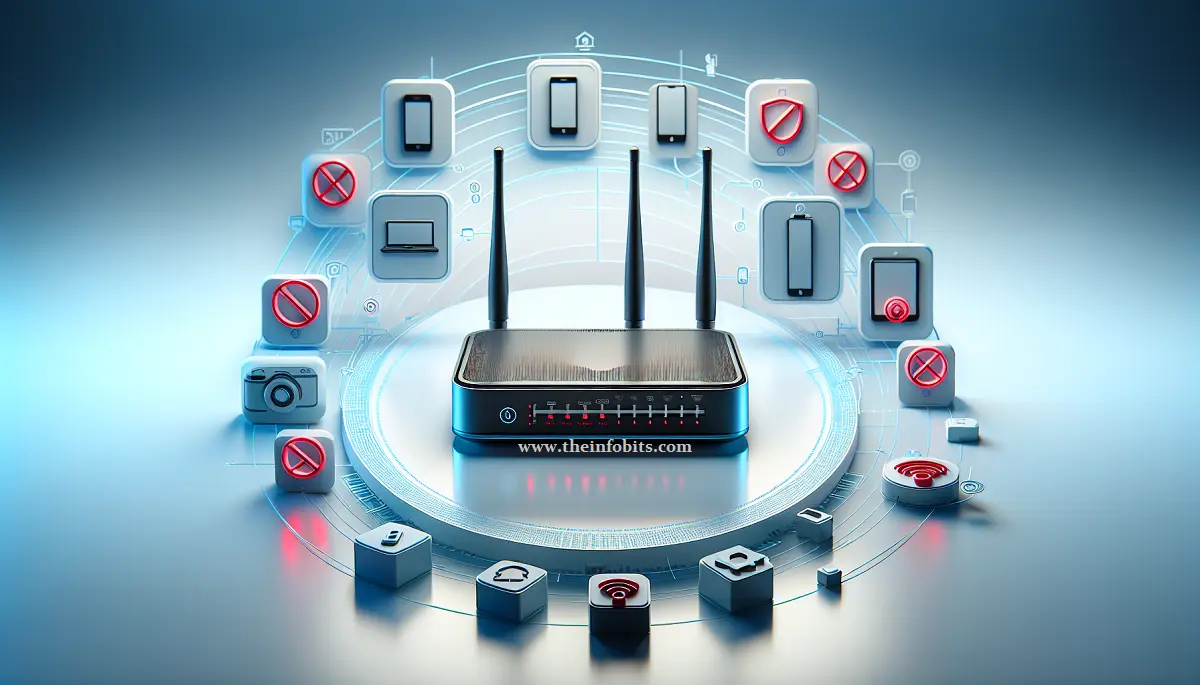
How to Block Specific Devices from Your WiFi Router (All Major Brands Covered)
You log into your router and spot a device you don’t recognise. Or your internet has been crawling lately, and you suspect someone nearby is piggybacking on your WiFi. Maybe you want to cut off your kid’s PlayStation at bedtime without changing the password and disrupting every other device in the house.
Whatever the reason, blocking specific devices from your router is one of the most useful network management skills you can have, and once you know where to look in your router’s settings, it takes less than five minutes.
This guide covers every available method, with precise step-by-step instructions for the most popular router brands, an honest look at what MAC filtering can and can’t do, and smarter alternatives worth knowing about.
Quick Answer: How to Block a Device from Your WiFi
The fastest method: log into your router’s admin panel → find MAC Filtering or Access Control → add the device’s MAC address to the block list → save. That device will be unable to reconnect even if it knows your WiFi password.
For routers with a mobile app (TP-Link Tether, Netgear Orbi, ASUS Router app, Eero), you can block a device in two taps without opening a browser.
Important caveat: MAC filtering blocks a device’s current hardware ID. A technically savvy user can spoof their MAC address to bypass it. For stronger protection, use Access Control (allow-list mode) or change your WiFi password.
Why You Might Need to Block a Device
Before jumping into the how, it helps to know what each use case calls for. Because the right method varies depending on your goal.
| Situation | Best Method |
|---|---|
| Someone is using your WiFi without permission | MAC block + password change |
| You want to limit a child’s device at certain times | Parental controls / scheduled access |
| A guest device overstayed its welcome | MAC block or guest network expiry |
| You want to prevent all unknown devices from connecting | Allow-list (whitelist) mode |
| A smart home device is behaving suspiciously | MAC block + investigate |
| You want to manage bandwidth for specific devices | QoS settings (separate from blocking) |
| You’re troubleshooting a network conflict | Temporary MAC block |
Related: Matter/Thread Devices Keep Disconnecting from Wi-Fi: 7 Fixes
Step 1: Find Your Router’s Admin Panel
Every method in this guide starts here. Your router’s admin panel is a web-based interface you access through a browser; no software download needed.
Find Your Router’s IP Address
Your router’s IP address (also called the Default Gateway) is the one you type into your browser’s address bar to access the admin panel.
On Windows:
- Press Windows + R, type
cmd, press Enter - Type
ipconfigand press Enter - Look for Default Gateway under your active connection. It will be something like
192.168.1.1or192.168.0.1
On macOS:
- Go to System Settings > Network
- Click your active connection (WiFi or Ethernet)
- Click Details. The router’s IP is listed as Router.
On iPhone/iPad:
- Go to Settings > WiFi
- Tap the (i) next to your connected network
- The router address is listed under Router
On Android:
- Go to Settings > WiFi
- Tap your connected network
- Expand Advanced; look for Gateway
Common default IPs to try:
192.168.1.1(TP-Link, ASUS, most brands)192.168.0.1(Netgear, D-Link, some TP-Link)10.0.0.1(Xfinity, some Apple AirPort)192.168.100.1(some ISP-supplied modem-routers)
You can also check the label on the underside of your router. Most manufacturers print the default gateway IP address there, along with the default username and password.
Log Into the Admin Panel
Type the IP address into your browser’s address bar (not the search bar) and press Enter. You’ll see a login prompt.
Default credentials:
- Most routers: username
admin, passwordadminorpassword - TP-Link: username
admin, passwordadmin - Netgear: username
admin, passwordpassword - ASUS: username
admin, passwordadmin - Linksys: no username, password
admin
If you’ve never changed your router’s default password, do that now, before blocking any devices. Default credentials are publicly known and anyone on your network (or within range) can log in and undo any changes you make. Set a strong, unique admin password as soon as you’re in.
Related: A Beginner’s Guide to Setting Up a Router in Your Home
Step 2: Find Each Device’s MAC Address
A MAC (Media Access Control) address is a unique 12-character identifier assigned to every network-capable device. It looks like this: A4:C3:F0:12:3D:7E ; six pairs of hexadecimal characters separated by colons or hyphens.
MAC addresses are how your router identifies each device on the network, and they’re what you’ll use to block specific ones.
Find the MAC Address from Your Router (Easiest Method)
Your router already knows the MAC address of every connected device:
- Log into your router’s admin panel
- Look for a section called Connected Devices, Device List, DHCP Client List, or Attached Devices (varies by brand, usually under the main dashboard or under Network Map)
- The list will show each device’s name, IP address, and MAC address
This is the most reliable method because the MAC address is pulled directly from the device’s connection data; no guesswork needed.
Find the MAC Address on the Device Itself
Windows:
- Press Windows + R, type
cmd, press Enter - Type
ipconfig /alland press Enter - Find your active adapter (WiFi or Ethernet) and look for Physical Address. That’s the MAC address
macOS:
- Go to System Settings > Network
- Click your active connection → Details
- Look for Hardware Address (shown as Wi-Fi Address)
iPhone/iPad:
- Go to Settings > General > About
- Scroll to Wi-Fi Address; this is the MAC address
Note: iOS uses Private WiFi Addresses by default (a randomised MAC per network). To see the real MAC, go to Settings > WiFi > tap (i) next to the network > toggle Private WiFi Address off.
Android:
- Go to Settings > About Phone > Status
- Look for Wi-Fi MAC Address
Note: Android also uses randomised MACs by default on many versions. Check the specific connection settings for the real hardware MAC.
Windows (from the device’s network settings): Right-click the Start menu → Network Connections → click your active adapter → scroll to Properties. The Physical Address (MAC) is shown.
Printed on the device: Most routers, smart TVs, game consoles, and printers have the MAC address printed on a label on the underside or back of the device.
Step 3: Block the Device – Instructions by Router Brand
TP-Link Routers (New Interface – Tether App or Web)
Via the web interface:
- Log in to your TP-Link router at
http://tplinkwifi.netor192.168.0.1 - Go to Advanced > Security > Access Control
- Enable Access Control
- Under Access Mode, select Blacklist (to block specific devices) or Whitelist (to allow only specific devices and block everything else)
- Click Add. You can select from the list of connected devices or enter the MAC address manually
- Enter a device name for reference, then click OK
- Click Save
Via the Tether App:
- Open the TP-Link Tether app on your phone
- Tap your router
- Tap Clients to see connected devices
- Tap the device you want to block
- Tap Block; done
The blocked device will be disconnected immediately and unable to reconnect.
Related: How to Boost WiFi Signal at Home or Office
ASUS Routers
Via the web interface:
- Log in to your ASUS router; typically at
192.168.1.1orhttp://router.asus.com - Go to Wireless > Wireless MAC Filter
- Set Enable MAC Filter to Yes
- Under MAC Filter Mode, select Reject (to block listed devices); do NOT select Accept unless you want to allow only the listed devices
- Click Add in the MAC filter list
- Enter the MAC address of the device to block
- Click the + button, then click Apply
Note for ASUS dual-band routers: MAC filtering must be set separately for 2.4GHz and 5GHz bands. If a device connects on both bands, add its MAC address to both filter lists.
Via the ASUS Router App:
- Open the ASUS Router app
- Tap Network Map
- Tap the device you want to block
- Select Block Internet Access or add to the MAC filter
Netgear Routers (Nighthawk, Orbi)
Via the web interface:
- Open a browser and go to
http://routerlogin.netor192.168.0.1 - Log in (username:
admin, password:passwordby default) - Go to ADVANCED > Security > Access Control
- Check Turn on Access Control
- Select an access rule:
- Allow all new devices to connect – then manually block specific devices by selecting them and clicking Block
- Block all new devices from connecting – then manually allow only approved devices (whitelist mode)
- Find the device in the Allowed list, select it, and click Block
- Click Apply
Via the Nighthawk / Orbi App:
- Open the Nighthawk or Orbi app
- Tap Device Manager or Connected Devices
- Tap the device you want to manage
- Select Block or Pause
Linksys Routers
Via the web interface:
- Open a browser and go to
192.168.1.1 - Log in (no username; default password:
admin) - Go to Wireless > Wireless MAC Filter
- Select Enable
- Under Restrict Access Mode, choose Prevent (to block listed devices)
- Click Wireless Client List to see currently connected devices and add them with one click, or manually enter a MAC address
- Click Save Settings
Via the Linksys app (Velop mesh systems):
- Open the Linksys app
- Tap Devices
- Tap the device you want to block
- Tap Block (this immediately disconnects and blocks the device)
Eero (Amazon)
Eero uses a mobile-first approach. Most management is done through the app.
- Open the Eero app on your phone
- Tap Devices at the bottom
- Find and tap the device you want to block
- Tap Block. The device is immediately disconnected
Note: Eero’s blocking feature is available on both free and Eero Plus plans. Profile-based blocking (for parental controls with scheduling) requires Eero Plus.
Google Nest WiFi / Google Home
- Open the Google Home app
- Tap WiFi from the home screen
- Tap Devices to see connected devices
- Tap the device you want to pause or block
- Toggle Pause device. This immediately cuts off the device’s internet access.
- For permanent blocking, go to the device settings and select Remove
Note: Google Nest’s built-in “pause” feature is more of a temporary block. For permanent MAC-based blocking, you may need to use the router’s web interface via
192.168.86.1.
D-Link Routers
- Log in to your D-Link router at
192.168.0.1 - Go to Advanced > Network Filter (or Advanced > MAC Address Filter)
- Set MAC Filtering to Turn MAC Filtering ON and DENY computers listed to access the network
- Click Add Rule
- Enter the MAC address of the device to block
- Click Save Settings
Method 2: Use Allow-List Mode (Whitelist) for Maximum Security
MAC filtering in block-list (blacklist) mode only blocks devices you specifically add. Any new unknown device that connects isn’t blocked until you manually add it.
Allow-list mode (whitelist) flips this: only devices you explicitly approve can connect. Every other device ( regardless of whether it has your WiFi password) is blocked automatically.
This is the strongest built-in method for keeping unauthorised devices off your network completely.
How to set it up:
- Before enabling allow-list mode, add every device you want to keep connected to the approved list, including your own phone, laptop, tablets, smart TV, and IoT devices. Failing to do this will disconnect your own devices.
- Enable whitelist/allow-list mode in your router’s MAC filtering or Access Control settings.
- Save and apply
The limitation: Every time a new device (a new phone, a guest’s laptop) needs to connect, you must add its MAC address to the list first. This adds friction for guests but maximises security.
Method 3: Block a Device Without Changing Your WiFi Password
A common concern: “If I block a device, does the person still know my WiFi password?” Yes, they do. MAC blocking doesn’t change your password.
But here’s why that’s less of a problem than it sounds: even if someone knows your WiFi password, a blocked MAC address means their device cannot authenticate and join the network. The password alone is not enough.
However, if you want complete peace of mind after removing an unauthorised user, the right approach is:
- Block the device(s) via MAC filtering first
- Change your WiFi password in the router’s wireless settings
- Reconnect all your authorised devices with the new password
This combination ensures:
- The blocked device can’t connect with the old password (even if it spoofs a MAC)
- No device can connect with the old password at all
- Your network is clean and under your control
Related: Is Guest WiFi Safe? How to Create a Secure Guest Network
Method 4: Use Parental Controls for Scheduled Blocking
MAC filtering blocks devices permanently. Parental controls let you block devices on a schedule; useful for managing screen time without manual intervention every evening.
Most modern routers include parental control features that allow you to:
- Block a device’s internet access during specific hours (e.g., 10 PM – 7 AM)
- Block access to specific categories of websites on a per-device basis
- Set daily or weekly usage limits
On TP-Link: Advanced > Parental Controls > Add profile > select device > set schedule
On Netgear: ADVANCED > Security > Schedule > create schedule, then apply to a device.
On ASUS: AiProtection > Parental Controls > add device > set schedule.
On Eero: Requires an Eero Plus subscription — Profiles > set schedule per device.
On Google Nest: Google Family Link integration or Home app > WiFi > Devices > schedule downtime.
For households where fine-grained parental controls matter ( scheduled access, content filtering, and per-device rules), a router with built-in advanced parental controls like the TP-Link AX1800S or TP-Link Archer AX55 handles all of this natively without a subscription; both are available on Amazon.
Method 5: Block Devices Using Third-Party Apps
If your router’s built-in interface feels clunky or limited, several apps provide a cleaner way to manage connected devices.
Fing (iOS and Android: Free)
Fing is the most popular network scanner app for home users. It scans your WiFi network, identifies all connected devices with their MAC addresses, manufacturer names, and device types, and shows you a history of devices that have appeared on your network.
Fing itself doesn’t block devices directly (blocking must happen through your router), but it gives you a clear, readable list of every device and its MAC addresses, making the identification step much faster.
For users who want deeper network visibility without opening a browser, Fingbox, which is a hardware device that connects to your router and provides persistent monitoring, intruder alerts, and device blocking, is available on Amazon and works with any router brand.
GlowtoNet / NetCut (Windows: Free)
NetCut is a Windows application that can disconnect specific devices from the network at the OS level using ARP (Address Resolution Protocol) manipulation. It’s effective but more aggressive. Use it only if you have administrative authority over the network.
Router Manufacturer Apps
Most major router brands now offer dedicated mobile apps that make device management significantly easier than the web interface:
| Router Brand | App Name | Device Blocking |
|---|---|---|
| TP-Link | Tether | One tap |
| ASUS | ASUS Router | One tap |
| Netgear | Nighthawk / Orbi | One tap |
| Linksys | Linksys | One tap |
| Eero | Eero | One tap |
| Google Home | Pause (limited) | |
| D-Link | D-Link WiFi | Available |
Understanding MAC Filtering Limitations
MAC filtering is useful, but it’s important to be clear-eyed about what it can and can’t do.
What MAC Filtering Does Well
- Blocks everyday users who don’t know how to get around it
- Keeps specific devices off your network without changing your password
- Works on all router brands
- Fast and easy to configure
What MAC Filtering Cannot Do
- Prevent MAC address spoofing: A technically sophisticated user can change their device’s MAC address (called “MAC spoofing”) to impersonate an allowed device or bypass a block. This is not something most casual users would know how to do, but it’s possible on any OS.
- Block wired connections independently: On most routers, MAC filtering for WiFi doesn’t automatically apply to wired Ethernet connections. Set up separate rules if needed.
- Protect against determined intruders: MAC filtering is a first line of defence, not a replacement for a strong WiFi password and WPA3 encryption.
Best Practices for Stronger Security
| Security Layer | Why It Matters |
|---|---|
| Strong WiFi password (WPA3 or WPA2) | Primary defence against unauthorised connections |
| Change default router admin password | Prevents others from accessing your router settings |
| MAC filtering in allow-list mode | Ensures only pre-approved devices can connect |
| Regular connected device audits | Catches any new unauthorised devices quickly |
| Guest network for visitors | Keeps guests on a separate network without your main password |
| Firmware updates | Patches security vulnerabilities in your router |
Related: WiFi Security for Beginners: How to Secure Your Home WiFi Network
How to Find Unknown Devices on Your Network
Before you can block a device, you need to identify it. Here’s how to investigate an unknown device name on your router’s connected device list.
What the Device Name Tells You
Router interfaces show device names (also called hostnames). But these are self-reported by the device. A device can call itself anything. Common patterns:
- Android-XXXX – an Android phone or tablet
- iPhone or iPad – an Apple mobile device
- DESKTOP-XXXXXXX – a Windows PC
- Amazon-XXXX or Echo-XXXX – an Amazon device
- ESP32-XXXX or ESP8266-XXXX – a smart home device or IoT gadget
- [blank] or Unknown – a device that isn’t broadcasting a hostname
How to Identify a Device by MAC Address
The first six characters of a MAC address identify the manufacturer (called the OUI – Organizationally Unique Identifier). You can look up any MAC address prefix at:
For example, a MAC starting with A4:C3:F0 belongs to Apple. One starting with B4:A9:FC belongs to Amazon. This tells you immediately what type of device you’re dealing with.
Related: How to Detect Unauthorized Devices on Your WiFi Network
Common Mistakes When Blocking Devices
| Mistake | What to Do Instead |
|---|---|
| Blocking your own device by accident | Double-check MAC addresses before saving; confirm your device’s MAC first |
| Not saving after making changes | Always click Save/Apply before leaving the settings page |
| Forgetting to add both bands | On dual-band routers, apply MAC filtering to both 2.4GHz and 5GHz |
| Using the IP address to block instead of MAC | IP addresses change; MAC addresses are permanent hardware identifiers |
| Enabling whitelist mode without adding all your devices first | You’ll lock yourself and all your devices off the network |
| Not changing the WiFi password after removing an intruder | A blocked device is still blocked, but the person still knows your password |
| Relying only on MAC filtering for security | Combine with a strong password, WPA3 encryption, and regular audits |
Regularly Monitor Your Network
Blocking a device is a reactive step. Staying ahead of unauthorised access requires regular monitoring.
What to do monthly:
- Log into your router and review the connected device list
- Look for any device names or MAC addresses you don’t recognise
- Check your router’s logs if available (look for repeated connection attempts from blocked devices)
- Update your router’s firmware (Security > Firmware Update, or check in the manufacturer’s app)
- Confirm your admin password is still strong and unique
- Verify your WiFi password hasn’t been shared with people who no longer need access
Signs someone might be using your WiFi without permission:
- Internet speeds are noticeably slower than usual
- Your router’s activity lights are active when you’re not using any devices
- Unknown devices appear in your connected device list
- You receive data usage alerts from your ISP without a clear cause
Related: How to Monitor Network Traffic on Your Home Router
Myth vs. Fact: Blocking Devices from Your Router
Myth: Blocking a device on your router changes your WiFi password. Fact: Blocking a device via MAC filtering does not affect your WiFi password whatsoever. Your other devices continue to use the same password and remain connected. The blocked device is simply refused a connection even if it attempts to join with the correct password.
Myth: MAC filtering is foolproof security. Fact: MAC filtering is a useful layer of defence but not a complete security solution. A determined user with technical knowledge can spoof their MAC address to bypass it. A strong WPA3/WPA2 password is your primary security; MAC filtering is an additional layer.
Myth: You need to restart the router every time you block a device. Fact: Most modern routers apply MAC filtering and access control changes instantly without a reboot. Some older models may require a restart, but this is increasingly rare on current firmware.
Myth: You can only block WiFi devices, not wired ones. Fact: Most routers allow you to apply access control to wired (Ethernet-connected) devices as well, using the same MAC address. The location of this setting varies. Look for “LAN” access control or wired device management in your router’s advanced settings.
Myth: Blocking a device prevents it from seeing your WiFi network name (SSID). Fact: Blocking a device only prevents it from connecting. It can still see your network name. If you want to hide your network name, enable SSID broadcasting off in your wireless settings, though this is security through obscurity and not a reliable protection on its own.
Conclusion
Blocking a specific device from your router is one of the simplest and most effective network management actions you can take. Whether you’re dealing with an unauthorised user, managing a child’s screen time, or just keeping your network clean and organised, the built-in tools in every major router brand make this a five-minute task.
The key steps to remember: log into your router’s admin panel, find the MAC Filtering or Access Control section, add the device’s MAC address to the block list, and save. For ongoing monitoring, check your connected device list monthly and consider switching to allow-list mode for the strongest available protection.
MAC filtering is a solid first line of defence. Combine it with a strong WiFi password, WPA3 encryption, regular firmware updates, and a dedicated guest network for visitors, and you have a well-secured home network.
Frequently Asked Questions
How do I block a specific device from my WiFi router?
Log into your router’s admin panel (typically at 192.168.1.1 or 192.168.0.1), find the MAC Filtering or Access Control section, and add the device’s MAC address to the block list. Save your changes. The device will be immediately disconnected and unable to reconnect. Most major router brands also offer this through a mobile app in one or two taps.
Can I block a device without changing my WiFi password?
Yes. MAC filtering blocks a device by its hardware identifier, not by the password. You do not need to change your password to block a specific device. However, if you suspect an intruder, it’s wise to change your password after blocking them for complete protection.
What is a MAC address and where do I find it?
A MAC (Media Access Control) address is a unique 12-character hardware identifier assigned to every network device. It looks like A4:C3:F0:12:3D:7E. You can find it in your router’s connected device list, in your device’s network settings (Windows: ipconfig /all, Mac: System Settings > Network, iPhone: Settings > General > About > Wi-Fi Address), or printed on a label on the device itself.
Will the blocked device know it has been blocked?
The device will simply be unable to connect to your network. It may show an error like “Unable to join network” or endlessly attempt to reconnect, but it will not receive any notification that it has been specifically blocked.
How do I block all unknown devices from my router?
Use allow-list (whitelist) mode in your router’s Access Control settings. Add all your trusted devices to the approved list first, then switch to whitelist mode. Any device not on the list, including all future unknown devices, will be blocked automatically, even if they have your WiFi password.
Does blocking a device on the router also block it from local network access?
On most routers, yes. Blocking a device prevents it from connecting to the WiFi network entirely, which means it has no access to local devices or the internet. However, some routers (like Netgear in certain modes) block internet access but still allow local network access to blocked devices. Check your specific router’s documentation.
Can a blocked device reconnect if it changes its MAC address?
Yes. MAC address spoofing ( changing a device’s reported MAC address) is technically possible and can bypass MAC filtering. This is why MAC filtering should be combined with a strong WiFi password and not relied upon as your sole security measure.
How do I find out who is using my WiFi without permission?
Log into your router’s admin panel and check the connected device list. Look for any device names or MAC addresses you don’t recognise. You can look up the manufacturer of any device using the first six characters of its MAC address at macvendors.com. For ongoing monitoring, apps like Fing (iOS/Android) scan your network and alert you to new connections.
Does MAC filtering work on both WiFi and wired connections?
WiFi MAC filtering applies to wireless connections. For wired Ethernet connections, most routers have a separate access control setting in the LAN or wired section. On some routers, a single access control list covers both wired and wireless. Check your specific router’s manual.
What is the difference between a blacklist and a whitelist in router settings?
A blacklist (deny list or block list) blocks only the specific devices you add to it. All other devices can connect freely. A whitelist (allow list) does the opposite: only devices you specifically approve can connect, and everything else is blocked by default. Whitelist mode offers much stronger protection but requires more initial setup.
Can I set a schedule to block a device at certain times?
Yes, through your router’s parental controls or time-based access control features. You can configure a device to be blocked during specific hours (for example, school nights after 9 PM) without manually blocking and unblocking it each day. This feature is available on most modern routers, including TP-Link, ASUS, Netgear, and Eero (with an Eero Plus subscription).
How do I block a device if I don’t know its MAC address?
The easiest way is to check your router’s connected device list. It shows the MAC address of every currently connected device. If the device has already disconnected, check your router’s DHCP lease history (usually under Advanced > Network > DHCP), which logs recent connections with their MAC addresses.
Why can’t I find the MAC Filtering option in my router settings?
The location varies significantly by router brand and firmware version. Common paths: TP-Link (Advanced > Security > Access Control), ASUS (Wireless > Wireless MAC Filter), Netgear (Advanced > Security > Access Control), Linksys (Wireless > Wireless MAC Filter). If you still can’t find it, search your router’s model number followed by “MAC filtering” on the manufacturer’s support page.
Will blocking a device slow down my network for other users?
No. Blocking a device removes it from the network. It has no bandwidth consumption or performance impact on other users. If anything, removing an unwanted device may improve speeds for authorised users by freeing up bandwidth it was consuming.
Is it legal to block someone from my WiFi?
Yes, absolutely. As the owner of the network, you have complete authority over which devices can access it. Blocking unauthorised users from your private network is not just legal. It’s good practice.
Found this helpful? Share it with someone who’s dealing with an unknown device on their network. Follow us on Facebook and Twitter, and subscribe to our free newsletter for more home networking guides.
We also ask that you bookmark this page for future reference, as we are constantly updating our articles with new information.
Disclosure: Some links in this article are Amazon affiliate links. If you purchase through them, we may earn a small commission at no additional cost to you.



)