How Much Internet Speed Do You Need for Streaming Live TV?
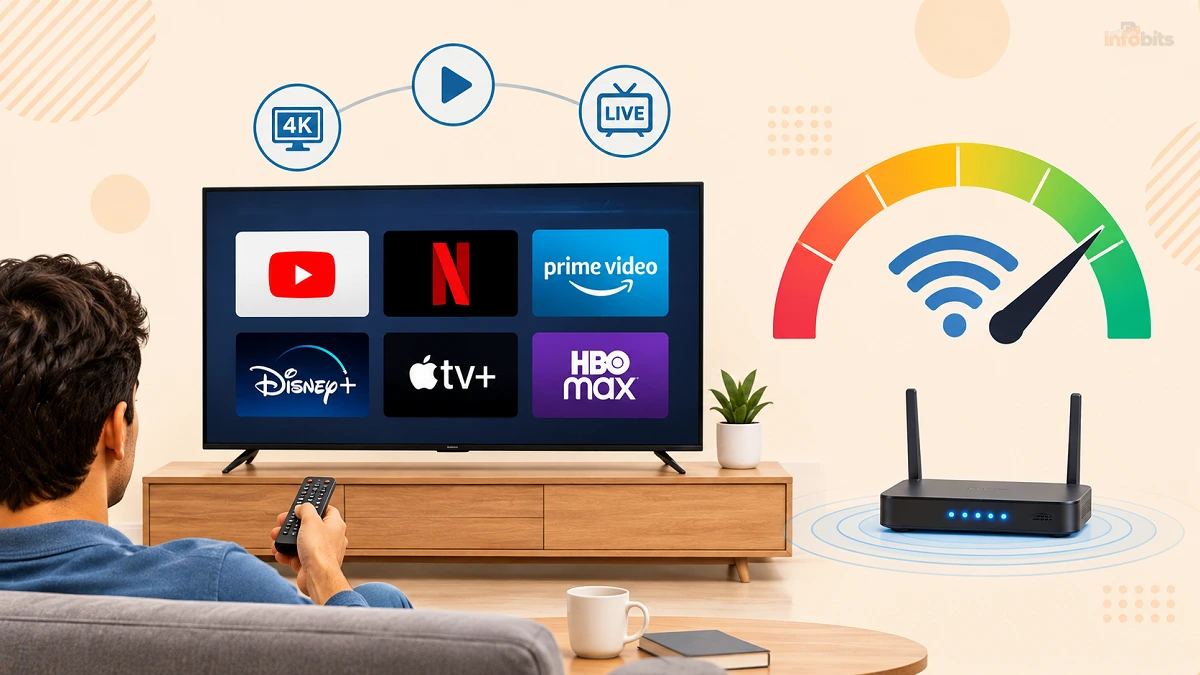
You’ve picked a live TV service, set it up on the living room TV, and then the big game freezes at the worst possible moment. The service isn’t always the problem. Most of the time it’s the internet connection, and often the way it’s being used.
Live TV is pickier than Netflix. A movie can download a few minutes ahead and ride out a hiccup. Live TV can’t, so a short dip in speed shows up on screen right away.
This guide gives you the exact numbers for YouTube TV, Hulu + Live TV, Fubo, and Sling. It also shows how to work out what your household needs and how to fix the problem if you already have enough speed on paper and the picture still stutters.
Quick Answer: How Much Internet Speed Do You Need for Live TV?
For one HD stream, you need about 10–15 Mbps. For one 4K stream, plan on 25 Mbps or more. For a typical household with several people streaming and using the internet at once, 50–100 Mbps is the comfortable range.
We suggest a simple rule: take the number of streams that could run at the same time, multiply by 10–13 Mbps for HD (25 Mbps for 4K), add what everything else on your network uses, then add about 25% for headroom.
What Do the Services Officially Require?
Here are the published minimums. They’re a floor, not a goal. A connection that only just meets them can still buffer once anything else is using the network.
| Service | SD | Standard HD | Reliable HD / Recommended | 4K |
|---|---|---|---|---|
| YouTube TV | 3 Mbps | 7 Mbps | 13 Mbps (with other devices in use) | 25 Mbps (4K Plus add-on) |
| Hulu + Live TV | n/a | 8 Mbps (live) | 8 Mbps or higher | 16 Mbps (on-demand 4K) |
| Fubo | 3 Mbps | 7 Mbps (720p), 10 Mbps (1080p) | 10 Mbps or more per stream | 25 Mbps |
| Sling TV | 3 Mbps (single-stream minimum) | Higher for HD sports | Plan on 10+ Mbps per stream | Not offered |
Always confirm on each service’s help page, since requirements are updated from time to time.
A few things stand out:
- Live TV minimums are higher than on-demand. Hulu’s live requirement (8 Mbps) is well above its on-demand HD figure.
- 4K is limited. Only some services and some events are in 4K. Sling’s lineup is HD, and 4K on YouTube TV and Fubo needs a specific plan or add-on.
- The per-stream number multiplies. Fubo’s own example is three 720p streams needing a constant 21 Mbps or more.
Related: YouTube TV vs Hulu vs Sling vs Fubo: Which is The Best Live TV Streaming Service?
The Simple Formula for Your Household
Here’s the basic calculation in four steps.
- Count your simultaneous live streams. How many TVs, tablets, and phones could be playing live TV at the same time on a busy night?
- Multiply by the per-stream speed. Use about 13 Mbps for HD and 25 Mbps for 4K.
- Add everything else. Video calls (around 3–8 Mbps each), gaming (3–10 Mbps, plus downloads that can spike far higher), cloud backups, smart home cameras, and other streaming apps.
- Add 25–30% headroom. Real-world speeds fluctuate, and live TV punishes dips.
Example: a family of four
- Two TVs in HD: 2 × 13 = 26 Mbps
- One person on a video call: about 5 Mbps
- Two phones browsing and one console idling: about 10 Mbps
- Subtotal: about 41 Mbps
- Add 25% headroom: about 51 Mbps
For that household, a 100 Mbps plan is a sensible choice. It leaves room for growth, and plan prices often barely differ between 50 and 100 Mbps.
How Much Speed Do You Need by Household Type?
| Household | Typical usage | Suggested plan speed |
|---|---|---|
| One person, one TV, HD | 1 live stream, light browsing | 25–50 Mbps |
| Couple, 2 TVs, HD | 2 streams, calls, phones | 50–100 Mbps |
| Family of 4, work and school from home | 2–3 streams, video calls, gaming | 100–300 Mbps |
| Sports-heavy home with 4K | 1–2 4K streams plus HD streams | 200–500 Mbps |
| Large household or smart home heavy | 4+ streams, many devices, cameras | 300 Mbps–1 Gbps |
These are practical suggestions rather than hard limits. Many people stream happily on lower speeds when the network is well set up, and others struggle on fast plans with a weak Wi-Fi connection.
Why Live TV Needs More Than You’d Expect
Three things make live streaming more demanding than watching a show on demand.
1. Live video can’t be pre-loaded. On-demand apps store several minutes of video ahead of what you’re watching. Live TV only buffers a few seconds, so any dip shows immediately.
2. Consistency matters more than peak speed. A connection that runs at 100 Mbps but drops to near zero for a couple of seconds will cause a visible freeze. A steady 30 Mbps often beats an erratic 150 Mbps.
3. Fast action is harder to compress. Sports with quick camera movement need more data than a quiet drama, so the same stream can swing between lower and higher bitrates mid-game.
Tip: When people say their internet is “fast enough” but the picture still breaks up, the problem is usually the connection quality (Wi-Fi interference, congestion, a weak router) rather than the plan speed.
Related: How to Boost WiFi Signal at Home or Office (10 Proven Ways That Actually Work)
Download Speed vs Upload Speed
Live TV is almost entirely a download activity. Upload speed hardly matters for watching, so you don’t need to pay extra for a fast upload tier just for live TV.
Upload matters if someone in your home does video calls, uploads large files, or games and streams at the same time. For those uses, a connection with decent upload (many fiber plans are symmetrical) helps keep the whole network responsive.
Mbps vs MBps: A Common Confusion
Internet plans are sold in megabits per second (Mbps). File sizes and data usage are often shown in megabytes (MB). There are 8 bits in a byte, so 100 Mbps equals about 12.5 MB per second.
This matters when you compare an app’s recommendation (in Mbps) with a speed test or download result (sometimes in MB/s).
How Much Data Does Live TV Use?
If your internet plan has a monthly data cap, streaming hours add up quickly.
| Quality | Approximate data per hour |
|---|---|
| SD | about 1–1.5 GB |
| HD 720p | about 2–2.5 GB |
| HD 1080p | about 3–3.5 GB |
| 4K sports | about 7 GB or more |
A household watching four hours of 1080p live TV a day would use around 360 GB a month on that alone. A full NFL day in 4K can use 28–35 GB or more.
If your provider has a cap, check it, because exceeding it can mean extra fees or reduced speeds. Many plans in the US, UK, Canada, Australia, and New Zealand are now unlimited, but it’s worth confirming.
Related: Mini-LED TV: How It Works, RGB Mini-LED, and Whether It’s Worth Buying
How to Test Whether Your Internet Is Good Enough
A speed test shows what’s possible, but a few steps make the result more meaningful.
- Test on the actual device. Run the test on the streaming device or smart TV, or on a phone standing next to it. A test on your laptop in the office says nothing about the TV in the living room.
- Test at your busy time. Run it in the evening when neighbors and your own household are online, since congestion can lower your speed.
- Test more than once. Take three readings over a few days.
- Compare to your plan. If you consistently get under about 80% of what you pay for, call your internet provider.
- Watch for dips. The average matters less than whether speed drops suddenly. Some tests show jitter and latency, which are worth looking at.
Most live TV services, such as Fubo, point customers to Fast.com for a quick test.
If You Have Enough Speed but Live TV Still Buffers
This is the most common situation, and it’s usually fixable. Work through these in order.
1. Restart your streaming device, then your router. It sounds basic, but it clears a surprising number of problems. Unplug the router for about 30 seconds.
2. Move to a wired connection. An Ethernet cable gives the most stable connection for a TV. Wi-Fi is subject to interference from walls, microwaves, neighbors’ networks, and distance. If your TV is far from the router, a Cat6 Ethernet cable is cheap on Amazon and effective, and if you can’t run a cable, a powerline or MoCA adapter kit (see the options on Amazon) can bring wired-quality connections to a distant room.
3. Use the 5 GHz band (or 6 GHz). The 2.4 GHz band reaches farther but is slower and more crowded. Make sure your TV or streaming device is connected to the faster band where the signal is strong enough.
4. Fix your router placement. Put the router in a central, open, raised spot, away from thick walls, metal, and appliances. A router tucked in a cabinet in a corner can cut your Wi-Fi performance dramatically.
5. Upgrade an old router. A router that’s many years old may not handle several streams at once. A modern Wi-Fi 6 or Wi-Fi 6E router, or a mesh system for a larger home, is often the single most effective upgrade for live TV buffering, and many reliable models are available in the $80–$200 range.
6. Close competing traffic. Large downloads, game updates, and cloud backups can take a big share of your bandwidth. Pause them during live events.
7. Update the streaming app and device. Out-of-date apps and slow devices cause stutter that looks like a network problem. If your TV’s built-in apps are sluggish, a current streaming device such as a Fire TV Stick 4K or a Roku Streaming Stick is a low-cost way to fix it, and they are available on Amazon.
8. Lower the video quality temporarily. Most apps let you drop from 1080p to 720p. A smooth 720p stream is better than a stuttering 1080p one.
9. Check for a service-side issue. If other people report the same problem, it may be an outage or a carriage issue with the network, not your connection.
10. Contact your internet provider. If wired speeds are poor, the issue may be the line, modem, or provider’s network.
Wi-Fi or Ethernet for Live TV?
| Ethernet | Wi-Fi 6 / 6E | Older Wi-Fi (Wi-Fi 4/5) | |
|---|---|---|---|
| Stability | Best | Very good close to router | Variable |
| Setup | Needs a cable | Easy | Easy |
| Best for | Main living room TV, 4K sports | Bedrooms, secondary TVs | Light use only |
| Weak points | Cable routing | Walls and distance | Congestion and interference |
For your main TV, use Ethernet when you can. For other rooms, a good Wi-Fi 6 or mesh network works well.
Does Your Internet Provider Type Matter?
Yes, mostly through consistency and upload speed.
- Fiber usually offers the most stable speeds and strong upload.
- Cable offers fast downloads but can slow at peak times when neighbors share capacity.
- DSL is often too slow for more than one HD stream.
- 5G/4G home internet can work well, but speeds vary with signal and network load, and some plans have limits. Test at your busiest times before relying on it.
- Satellite can handle live TV on some plans, but latency and data limits need checking.
Related: SmartThings Setup Guide: From Unboxing to Your First Automation
Myth vs Fact
| Myth | Fact |
|---|---|
| “I have 100 Mbps, so I’ll never buffer.” | The plan speed is just the maximum your connection can reach. Wi-Fi quality, router placement and other devices decide what the TV actually gets. |
| “4K needs 100+ Mbps.” | The services list about 25 Mbps for a single 4K stream. Extra speed is for headroom and other devices, not the stream itself. |
| “Live TV needs the same speed as Netflix.” | Live TV usually needs more consistent speed, because it can’t be buffered far ahead. |
| “A speed test result means my TV will be fine.” | A test on a laptop in another room doesn’t reflect the TV’s connection. Test on the actual device. |
| “A Wi-Fi extender fixes everything.” | Cheap extenders can halve your speed. Mesh systems or a wired link work better. |
Common Mistakes to Avoid
- Judging your needs by the plan speed alone and ignoring Wi-Fi quality
- Testing speed on the wrong device or at the wrong time
- Forgetting other household use, especially video calls and game downloads
- Ignoring data caps
- Buying a 4K service on a connection that’s only marginal for HD
- Using the old ISP-supplied router for a busy home
- Putting the router in a cabinet or basement corner
- Assuming a service outage is a home internet problem, or the reverse
Warning Signs Your Connection Is the Problem
- Buffering that happens at the same time each evening
- The picture drops to blurry and sharpens again repeatedly
- Problems on one TV but not another
- Other devices (video calls, web pages) lag at the same time
- Speed tests that vary widely from reading to reading
Which Plan Should You Choose? Quick Decision Guide
- Single person, one TV, mostly HD: 25–50 Mbps is enough. Prioritize a stable connection over a bigger number.
- Two to three people, a couple of TVs: Aim for 100 Mbps.
- Family with working and gaming at home: Look at 200–300 Mbps and a good Wi-Fi 6 or mesh system.
- Sports fan with 4K: Get 200+ Mbps and wire the main TV with Ethernet.
- Not sure? Run the formula above, then pick the next plan tier up.
Checklist Before You Blame Your Internet Plan
- Run a speed test on the actual streaming device, at your usual viewing time.
- Compare the result with your service’s recommended speed
- Count how many streams run at once
- Try Ethernet on the main TV
- Reboot the router and streaming device
- Check router placement and age
- Pause large downloads
- Confirm your data cap, if any
- Lower the quality as a test
Final Thoughts
For most households, live TV runs smoothly on 50–100 Mbps with a decent router. If you stream 4K sports, or lots of people share the connection, aim higher. In every case, a steady connection matters more than a big headline speed.
Before you upgrade your plan, try the free fixes first: test on the right device, move to Ethernet, and fix router placement. You may find you didn’t need a faster plan at all.
Note: Speed requirements are accurate as of November 2026. Check each service’s help center for current numbers.
Frequently Asked Questions
How much internet speed do I need for live TV streaming?
For one HD stream, plan on about 10–15 Mbps. For 4K, about 25 Mbps or more. A typical household streaming on a couple of TVs while others use the internet is comfortable at 50–100 Mbps.
What internet speed does YouTube TV require?
YouTube TV recommends 7 Mbps for a single HD stream, 13 Mbps or more for reliable HD with other devices in use, and 25 Mbps or more for 4K programs on the 4K Plus add-on.
How much speed does Hulu + Live TV need?
Hulu recommends at least 8 Mbps for live streams and 16 Mbps for 4K content.
What speed does Fubo need?
Fubo lists 7+ Mbps for 720p, 10+ Mbps for 1080p, and 25+ Mbps for 4K
How much speed does Sling TV need?
Sling states that a reliable connection of at least 3 Mbps is needed for a single stream, but for HD sports and a busy household, plan on 10 Mbps or more per stream.
Is 25 Mbps enough for live TV?
For one HD stream, yes, as long as nothing else is using much of the connection. For multiple streams or a busy household, it’s usually too tight.
Is 50 Mbps enough for streaming live TV?
It’s enough for two or three HD streams with light other use. Heavy use, 4K streams, or many devices may need 100 Mbps or more.
Is 100 Mbps enough for a family?
For most families streaming live TV on two or three TVs plus normal use, yes. Add more speed if you also game, work from home, and stream 4K.
Why does live TV buffer even with fast internet?
The cause is usually Wi-Fi interference, router placement, an old router, other devices using bandwidth, or an unstable connection. A fast plan doesn’t guarantee a steady connection.
Does live TV need more internet speed than Netflix?
Often yes, because live video can’t be buffered far ahead. A brief dip in speed shows on screen straight away.
Do I need fast upload speed for live TV?
No. Streaming is almost entirely download. Upload matters for video calls, uploading files, and gaming.
How much data does live TV use per hour?
Roughly 2–3.5 GB per hour in HD and about 7 GB or more per hour for 4K sports.
Should I use Ethernet or Wi-Fi for live TV?
Ethernet is the most stable option, especially for your main TV and 4K sports. Wi-Fi 6 works well for other rooms.
How many Mbps do I need for 4K live sports?
About 25 Mbps per stream, and ideally more headroom if other devices share the network.
How do I test if my internet is fast enough for live TV?
Run a speed test on the streaming device itself during your usual viewing time, several days in a row, and compare the result with your service’s recommended speed.
What’s the difference between Mbps and MBps?
Mbps means megabits per second, used for internet speeds. MBps means megabytes per second. One byte is eight bits, so 100 Mbps is about 12.5 MB per second.
Can a bad router cause live TV buffering?
Yes. An old or poorly placed router can’t handle several streams and often causes buffering even when the internet plan is fast.
What can I do right now if my live TV is buffering?
Restart your router and streaming device, move closer to the router or use Ethernet, pause large downloads, and lower the video quality temporarily.
Found this guide useful? Share it with someone interested in tech-related tips, tricks, solutions, and news. Follow us on Facebook and Twitter for more tips, tricks, and guides.
We also ask that you bookmark this page for future reference, as we are constantly updating our articles with new information.
Sign up for our free newsletter as well to receive fresh information immediately in your inbox and keep technically up to date.
Disclosure: If you follow our links to a retailer’s website and make a purchase, we will get an affiliate commission on some, but not all, of the items or services we promote. This will cause no price change for you.
You May Be Interested in Reading:
- Why Do Internet Speed Tests Show Different Results? Full Explanation
- Can Routers Track Internet History? What WiFi Owners Can (and Can’t) See
- Best DNS Servers for Gaming (Speed-Tested & Ranked)
- Best Internet Service Providers in the US: Complete Comparison Guide
- No Internet Connection? Here’s Why Your Internet Access Is Blocked