
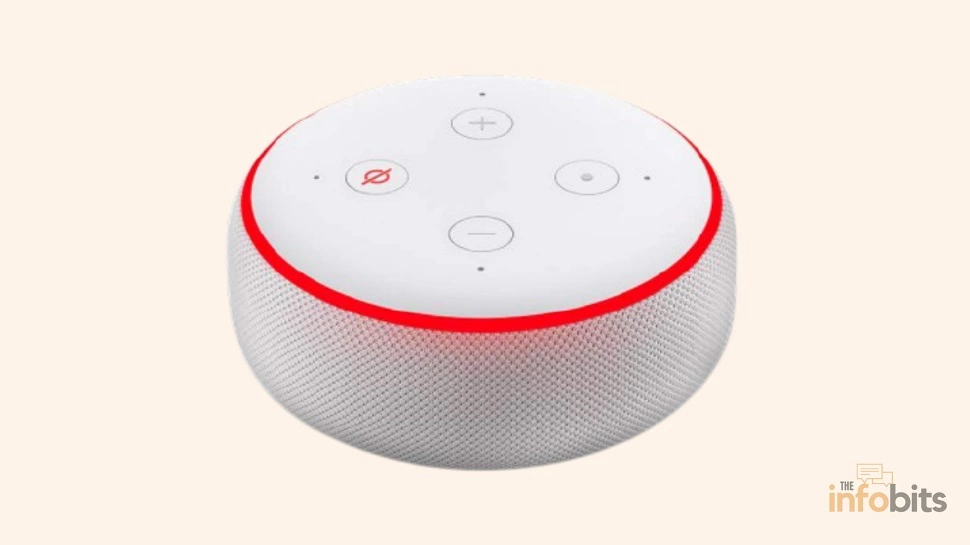
Alexa Red Ring: What It Means and 9 Ways to Fix It
You walk past your Echo and notice the ring glowing solid red instead of its usual blue. You say “Alexa,” and nothing happens; no chime, no response, nothing. It’s an unsettling moment, especially if you rely on your Echo for reminders, smart home controls, or hands-free calling.
Take a breath. A red ring almost never means your device is broken. In the overwhelming majority of cases, it means one specific thing – the microphone has been muted, and the fix takes about one second.
The rest of the time, it points to something equally fixable, like a Wi-Fi hiccup, Do Not Disturb being on, or (on portable models) a low battery.
Quick answer: A solid red ring on an Echo device means the microphone is muted, so Alexa physically cannot hear you. Press the microphone mute button on top of (or on the side of) your device; the ring will turn off immediately, and Alexa will respond again. If the mic isn’t muted, the next most likely cause is a Wi-Fi connection problem, followed by Do Not Disturb being enabled.
Below, we’ll cover every scenario that produces a red light on an Echo, Echo Dot, Echo Show, and Echo Auto, including a couple that most guides skip entirely, plus what to do when the obvious fix doesn’t clear it.
What Does a Red Ring on Alexa Mean?
Amazon Echo devices use their light ring (or light bar, on Echo Show models) as a built-in status system. Each color maps to a specific state, and red is reserved for situations where the device can’t hear you or can’t communicate.
There are four distinct causes, and they’re easy to tell apart once you know what to look for.
| What you see | Most likely cause | Fastest fix |
|---|---|---|
| Solid red ring, no response to wake word | Microphone muted | Press the mic mute button |
| Solid red ring, appeared after setup or a dropout | Wi-Fi connection lost | Check router, reconnect |
| Small red crescent or moon icon in the corner (Echo Show) | Do Not Disturb is on | Say “Alexa, turn off Do Not Disturb” |
| Red ring only during/after charging (Echo Tap, Echo Auto, battery base) | Battery critically low | Charge for 20–30 minutes before use |
1. Muted Microphone (the most common cause by far)
Every Echo speaker has a physical mute button. A dedicated hardware switch that cuts power to the microphones entirely, so Alexa genuinely cannot hear anything, not even the wake word. It’s usually the small button with a microphone-and-slash icon.
- On 2nd and 3rd generation Echo and Echo Dot devices, it sits on top, opposite the action button.
- On 4th and 5th generation devices, it’s moved to the top edge, near the volume buttons.
- On Echo Show devices, it’s beside the volume controls, often paired with a physical camera shutter.
When this button is pressed ( even by accident, by a curious pet, or during cleaning), the ring turns a steady, uninterrupted solid red and stays that way until you press it again.
2. Wi-Fi Connection Lost
Alexa’s actual “thinking” happens in the cloud, not on the device. If your Echo loses its internet connection, it has nothing to process your commands with, and it will often show a red ring (sometimes with a distinct blinking or pulsing pattern, depending on the model) along with the spoken message “Sorry, I’m having trouble understanding you right now.”
3. Do Not Disturb Is Turned On
This one trips people up because it looks similar to the mute indicator but behaves completely differently.
When Do Not Disturb (DND) is active, Echo Show devices display a small red crescent-moon icon in the corner of the screen, and some Echo speakers (particularly 4th-gen and later) show a red crescent-shaped segment on part of the ring rather than the whole ring.
The key difference you should understand is that DND does not stop Alexa from hearing you. You can still say a command and get a response. DND only blocks incoming calls, Drop-Ins, and notification chimes from interrupting you.
If your device otherwise responds normally but shows a partial red indicator, this is almost certainly what’s going on.
4. Critically Low Battery (Portable Echo Devices Only)
If you own an Echo Tap, an Echo Auto running on battery, or any Echo paired with an optional battery base accessory, a solid or slowly pulsing red ring can mean the battery dropped to a critically low level and the device entered a protection state.
This won’t happen on a standard plugged-in Echo or Echo Dot. It’s specific to battery-powered setups.
How to Fix the Alexa Red Ring
Work through these in order. Most people solve it at step 1 or step 2.
1. Press the Microphone Mute Button
This clears the vast majority of red-ring cases instantly. Locate the mic button (see the generation-specific locations above) and press it once. The ring should turn off, or shift to blue, right away. Give it a few seconds, then try a wake word to confirm Alexa is listening again.
2. Turn Off Do Not Disturb
If your Echo still responds to commands despite showing a partial red indicator, just say: “Alexa, turn off Do Not Disturb.” You can also do this manually in the Alexa app under your device’s settings. The icon clears immediately.
3. Restart the Device
Unplug the power cord, wait a full 5 seconds (this matters; unplugging and instantly replugging sometimes doesn’t fully reset it), then plug it back in. Watch for the light to cycle to blue during boot-up, then try, “Alexa, how are you?” to confirm it’s responsive.
4. Check and Fix Your Wi-Fi Connection
- Confirm other devices on your network have solid internet access.
- Move your Echo closer to your router if it’s currently far away or in a room with thick walls.
- Restart your router by unplugging it for 30 seconds.
- In the Alexa app, go to Devices → Echo & Alexa → [your device] → Wi-Fi Network to confirm it’s connected to the network you expect (it’s easy to accidentally connect to a guest network or an old network name after a router upgrade).
5. Charge the Device (Battery-Powered Models Only)
If you’re using an Echo Tap, Echo Auto, or a battery base accessory, connect the official charging cable and power adapter and leave it charging undisturbed for at least 20–30 minutes before trying to use it again.
Using a non-Amazon charger or cable can sometimes cause slow or inconsistent charging.
6. Move the Echo Away from Interference
Other electronics such as baby monitors, older cordless phones, microwaves, and even some Bluetooth speakers can interfere with a 2.4GHz Wi-Fi signal enough to cause intermittent connectivity drops. If your Echo sits right next to one of these, try relocating it a few feet away and see if the red ring stops recurring.
7. Update the Echo’s Software
An outdated software version can carry unresolved bugs that trigger a red ring with no obvious cause. To update manually:
- Open the Alexa app.
- Tap Devices → Echo & Alexa, then select your device.
- Scroll to About, and check for the latest available software version.
If the update won’t apply, power the device off and back on, then try again. Most Echo devices also update automatically overnight when idle.
8. Factory Reset the Device
If nothing above clears a persistent red ring, a factory reset resolves most remaining software-level causes. There are two ways to do it:
Through the Alexa app (easiest):
- Open the app and tap Devices.
- Select Alexa & Echo, then choose your device.
- Scroll down and tap Factory Reset.
With a physical reset (if the app can’t reach the device):
- Echo Dot (3rd/4th gen) and Echo (4th gen): press and hold the action button (the dot icon) for about 25 seconds until the ring turns orange, then release.
- Older Echo models: use a paperclip or pin to press the small recessed reset button, usually on the bottom or back of the device, and hold until the ring turns orange.
An orange, blinking ring means the reset succeeded, and the device is now in setup mode. Go through the normal setup process in the Alexa app from there.
9. Check for Physical Damage
If your Echo was recently dropped, knocked over, or exposed to spilled liquid, physical damage to the internal microphone array can cause a red ring that no software fix will resolve. There’s not much you can do about this at home. If the device is still under warranty, Amazon’s limited warranty may cover a replacement.
Red Ring on an Echo Show
Echo Show devices follow the same logic as Echo speakers, but the indicator appears as a bar along the bottom of the screen rather than a full ring, and DND shows up as a small crescent icon in the corner instead of a colored segment.
A solid red bar most often means the microphone or camera has been switched off. Pressing the shutter/mute button will toggle both back on. All the fixes above apply the same way; just note that on some Echo Show models, the power and mic buttons are combined, so double-check your exact model before pressing anything.
Red Ring vs. Other Alexa Light Colors
Getting the colors mixed up is common, and it sends people down the wrong troubleshooting path. Here’s the full picture:
- Blue, spinning: Alexa is processing your request.
- Cyan spot on blue: Alexa is actively listening.
- Purple: Do Not Disturb is active in some contexts, or there’s a Wi-Fi issue during initial setup.
- Yellow, slow pulse: You have a notification or missed message. Ask “What are my notifications?”
- White: Volume level indicator, or Alexa Guard is active (spinning white means Away mode is on).
- Green, flashing: An incoming call or Drop-In.
- Orange: The device is in setup mode or connecting to the internet. This is normal right after a reset.
- Red: Microphone muted, Wi-Fi lost, Do Not Disturb, or (portable devices) critically low battery.
If you’re seeing green specifically, our full breakdown of the Alexa green light covers what it means and how to manage it.
Myth vs. Fact
Myth: “A red ring means my Echo has been hacked.” Fact: This is highly unlikely. The red ring is a hardware/software status indicator, not a security alert. It signals a muted mic, DND, or a connectivity issue, not unauthorized access.
Myth: “A factory reset will always clear the red ring.” Fact: It clears most software-level causes, but not physical microphone damage or an active battery protection state. Those need a different fix entirely.
Myth: “The red crescent and the solid red ring mean the same thing.” Fact: They don’t. The full solid ring means the mic is muted and Alexa can’t hear you at all. The small crescent (mainly on newer models and the Echo Show) means Do Not Disturb is on, and Alexa can still hear and respond to you normally.
Common Mistakes to Avoid
- Immediately resetting the device without first checking whether the mic is simply muted. This is the fix for 90% of cases and takes one press.
- Confusing DND with a muted mic, then wondering why “unmuting” didn’t fix anything, when the actual issue was DND all along.
- Unplugging and instantly replugging the power cable. Give it a full 5 seconds so the device actually powers down before restarting.
- Assuming persistent red ring is a hardware failure before trying a software update or factory reset, both of which are free and take a few minutes.
- Using a third-party charging cable on battery-powered Echo models can cause inconsistent charging and repeat “critical battery” red rings.
Related: Why Is Alexa Not Responding to Voice Commands? Easy Fixes
Preventing the Red Ring From Coming Back
- Keep your Echo’s software set to auto-update rather than deferring updates for weeks.
- Place your Echo at least a few feet from routers, microwaves, and cordless phone base stations to reduce Wi-Fi interference.
- If you have kids or pets near the device, be aware the mute button is easy to bump. A quick check of the ring before assuming something’s broken saves a lot of frustration.
- For battery-powered Echo devices, charge them before the battery drops critically low rather than running them all the way down regularly.
If you’re finding your Echo’s red ring keeps coming back due to Wi-Fi dead zones, a mesh Wi-Fi system like the Amazon eero can eliminate the weak-signal spots that most often trigger connectivity-related red rings, and it pairs directly with Alexa for voice control of your network.
Final Thoughts
The Alexa red ring looks alarming precisely because red universally means “something’s wrong,” but on an Echo device it’s almost always the least serious kind of wrong. It indicates a muted microphone or a dropped Wi-Fi connection, both fixed in seconds.
Work through the checklist above in order, and if you’re still stuck after a factory reset and a physical inspection, that’s the point where contacting Amazon Support for a possible hardware replacement makes sense.
Frequently Asked Questions
What does it mean when my Alexa turns red?
It means the device’s microphone is currently muted and cannot hear you, or ( less commonly) that it has lost its Wi-Fi connection. Press the microphone mute button to check; if the ring clears, that was the cause.
Why is my Echo Dot showing a solid red light?
The mute button on top (or the top edge, on newer generations) has been pressed, cutting power to the microphone. Press it again to restore listening.
What does a flashing or blinking red ring mean, specifically?
A blinking red ring, as opposed to a steady solid one, more often points to a Wi-Fi connectivity problem rather than a simple mute. Try moving the device closer to your router or restarting your router.
How do I unmute my Echo device?
Press the physical microphone button, the one with the mic-and-slash icon, located on top of most Echo speakers or on the top edge of newer generations. The red ring should clear immediately.
What’s the difference between the red ring and the red crescent icon?
A full solid red ring means the microphone is muted and Alexa cannot hear anything. A small red crescent (mainly on Echo Show and newer Echo speakers) means Do Not Disturb is active. Alexa can still hear and respond to you.
Does Do Not Disturb turn the ring red?
It can show a partial red crescent segment on some models, or a crescent-moon icon on Echo Show screens, but it does not disable the microphone. Say “Alexa, turn off Do Not Disturb” to clear it.
Can a red ring mean my Echo has been hacked?
No. This is a common worry but not how the indicator works. A red ring reflects a muted mic, lost connection, DND, or low battery, not a security compromise.
Why does my Echo Auto or Echo Tap show a red ring only sometimes?
On battery-powered devices, a red ring can indicate the battery dropped to a critically low level. Charge it for 20–30 minutes with the official cable before using it again.
Will a factory reset fix a persistent red ring?
In most cases, yes, if the cause is software-related like a stuck setting, corrupted configuration, or an update that didn’t apply cleanly. It won’t fix physical microphone damage or a depleted battery.
How do I factory reset my Echo device?
Through the Alexa app: Devices → Alexa & Echo → [your device] → Factory Reset. If the app can’t reach the device, hold the physical action button (Echo Dot 3rd/4th gen and Echo 4th gen) for about 25 seconds until the ring turns orange.
What does an orange ring mean after I factory reset my Echo?
Orange means the device is in setup mode and ready to be reconfigured through the Alexa app. This is expected and not an error.
Why does my Echo Show display a red bar instead of a ring?
Echo Show devices use a light bar along the bottom of the screen instead of a full ring, but it follows the same color logic. Red usually means the mic or camera has been disabled.
Can other electronics cause my Alexa to show a red ring?
Indirectly, yes. Devices like microwaves, baby monitors, and older cordless phones can interfere with 2.4GHz Wi-Fi signals strongly enough to cause connectivity drops, which can trigger a red ring.
Is a red ring a sign of hardware failure?
Not usually. It’s most often a mute state or connectivity issue. A persistent red ring that survives a restart, software update, and factory reset, especially after the device was dropped or exposed to liquid, is a stronger signal of a hardware problem.
Why does my Echo respond to commands even though the ring looks partially red?
That’s the Do Not Disturb indicator, not a muted microphone. DND only blocks incoming calls and notification sounds. Alexa can still hear and answer you normally while it’s active.
How long should I charge a battery-powered Echo showing a red ring?
At least 20 to 30 minutes with the official charger before trying to use it, since the device may be in a low-battery protection state that needs a minimum charge to exit.
Can I prevent the red ring from happening again?
Keep software set to auto-update, position your Echo away from Wi-Fi interference sources, and be mindful that the mute button is easy to bump accidentally, especially in households with kids or pets.
Does unplugging my Echo for a few seconds actually help?
Yes. But give it a full 5 seconds unplugged before reconnecting. Instantly replugging sometimes doesn’t let the device fully power down and reset its state.
Should I contact Amazon Support if the red ring won’t go away?
Yes, if you’ve tried unmuting, restarting, checking Wi-Fi, updating software, and factory resetting without success. That combination of failed fixes is a good indicator of a hardware issue worth Amazon’s attention, especially if the device is still under warranty.
We hope you found this article helpful; please like and follow us on Facebook and Twitter for regular updates. Also, please bookmark this page for future reference.
Sign up for our free newsletter as well to receive fresh information right in your inbox and stay informed technically.
Disclosure: If you follow our links to a retailer’s website and make a purchase, we will receive an affiliate commission on some, but not all, of the items or services we recommend.
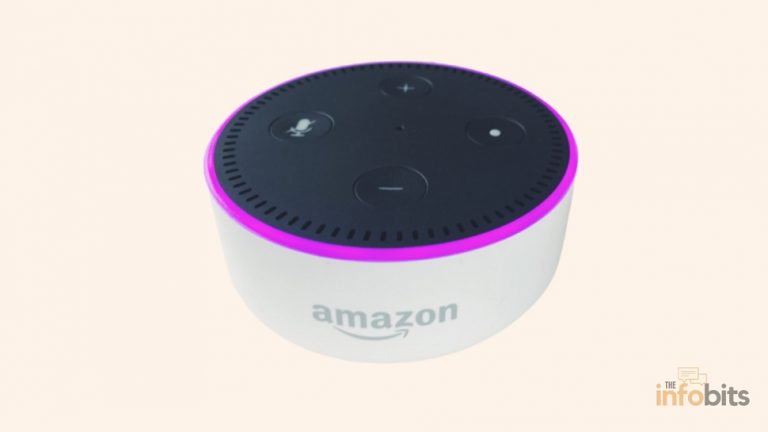

app Version2.2.465737, Won’t connect to wifi has a red and purple light on top.
Dear Mr. Mark, The purple light indicates that there is a problem with Wi-Fi connectivity. Try each of our fixes one at a time, in the order listed. If you need more help read https://www.theinfobits.com/echo-dot-not-responding/ also