
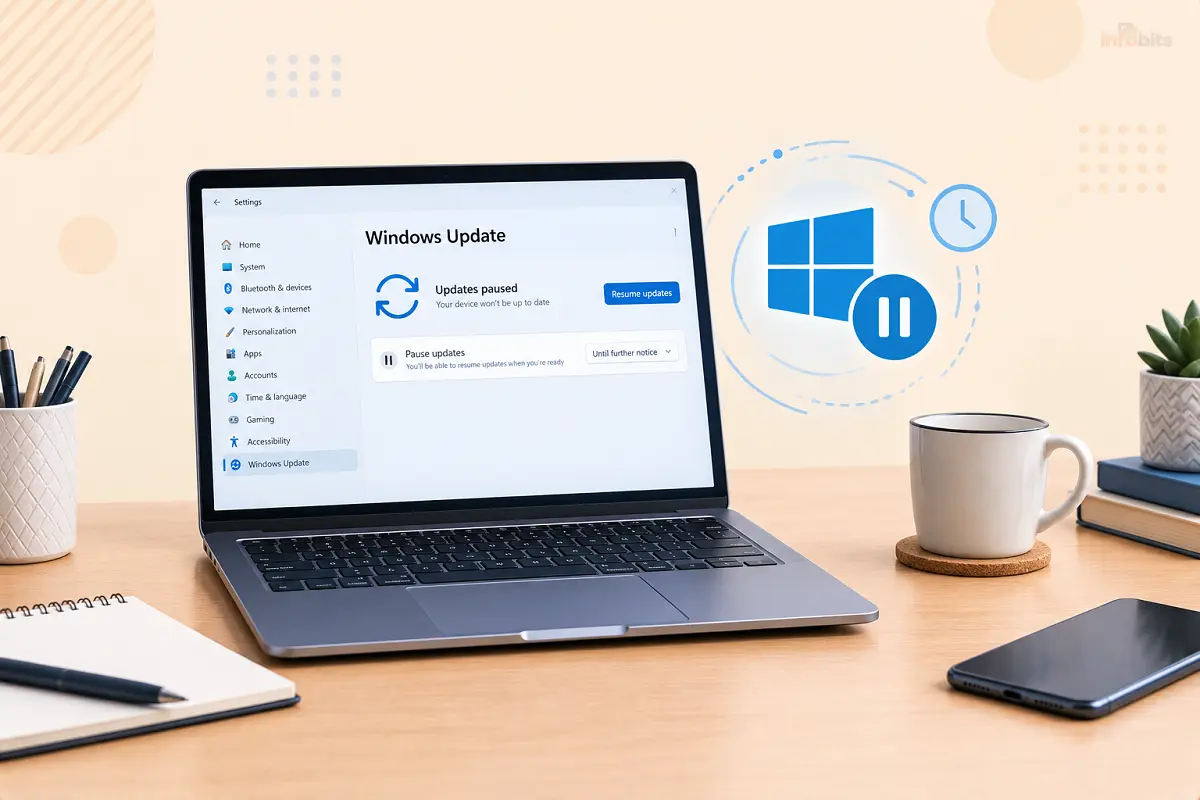
How to Pause Windows Updates Temporarily in Windows 11 and 10 (Without Turning Updates Off)
You’re ten minutes from a big presentation, and Windows decides it’s the perfect moment to get ready for a restart. Or you’ve read that the latest update is causing trouble for other people, and you’d rather let the early adopters find the bugs first. Or you’re about to travel with a laptop and a slow hotel connection.
In all of those cases, you don’t want to switch Windows Update off. You just want it to wait.
That’s what pausing is for. This guide shows you how to pause updates on Windows 11 and Windows 10, how long you can pause, what still installs while you’re paused, and how to resume without surprises. It also covers what to do if you can’t find the pause button, and a few shortcuts we’d steer you away from.
Quick answer: In Windows 11, open Settings > Windows Update, select Pick a date next to Pause updates, and choose an end date up to 35 days away. In Windows 10, open Settings > Update & Security > Windows Update > Advanced options and use the Pause until drop-down. When the pause ends, updates resume automatically. You can extend the pause again as long as the new end date is within 35 days of today.
What Does Pausing Windows Updates Actually Do?
Pausing is a temporary hold, not an off switch. According to Microsoft’s support documentation, pausing delays updates for the period you choose and doesn’t permanently turn off automatic updates. Here’s what that means in practice:
- Updates that might need a restart won’t be downloaded or installed until the pause ends.
- Your PC won’t restart on its own to finish installing updates while the pause is active.
- If an update was already in progress when you paused, Windows cancels it.
- When the pause ends, Windows checks for updates and downloads and installs the latest ones available.
That last point matters. Pausing doesn’t skip an update. It moves it to later, and you’ll usually get everything you missed in one go.
What a pause covers, and what it doesn’t
| Item | Held back by a pause? | Notes |
|---|---|---|
| Monthly security and quality updates | Yes | These install when the pause ends |
| Feature updates (such as 25H2 or 26H2) | Yes | But see the end-of-support warning below |
| Driver updates delivered through Windows Update | Yes | Optional drivers wait too |
| Microsoft Defender security intelligence updates | Usually no | These small definition updates generally keep installing |
| Microsoft Store app updates | No | They have their own setting |
| Edge, Office, Chrome, and other apps | No | They update themselves |
| Router and device firmware | No | See our router firmware update checklist |
Should You Pause Windows Updates? A Quick Decision Guide
Pausing is a sensible tool when you have a real reason and a plan to resume. It’s a poor habit if you use it to avoid updates for months.
Good reasons to pause:
- You have a presentation, exam, stream, or deadline coming up and can’t risk a surprise restart.
- You’re traveling, or on a slow or capped connection, and don’t want a large download eating your data.
- A new update has known problems, and you’d like to wait for a fix. For example, an update that triggers repeated BitLocker recovery prompts, like the one we cover in fixing the Windows 11 KB5094126 BitLocker recovery loop.
- You need your work software to be checked against a new Windows version first.
Poor reasons to pause:
- You’re annoyed by restarts in general. Active hours and scheduled restarts solve that better (covered below).
- You want to avoid updates indefinitely. Unpatched PCs are the easiest targets for malware.
- Your PC is already on a version that’s out of support.
| Your situation | Best move |
|---|---|
| Big deadline or live event this week | Pause for the length of the event, then resume |
| Leaving for a trip | Pause until you’re back on a good connection |
| A fresh update is making headlines for bugs | Pause for a week or two, then check for fixes |
| Restarts keep interrupting your day | Set active hours instead of pausing |
| Work PC managed by your employer | Ask IT, because policies may control pausing |
| PC on an unsupported Windows version | Don’t rely on pausing; plan an upgrade |
Before You Pause: A Four-Step Checklist
1. Check which version of Windows you’re running
Open Settings > System > About and look at the Windows specifications. This matters more than usual in October 2026.
Microsoft ended updates for Windows 11 version 24H2 Home and Pro on October 13, 2026, and has been automatically moving unmanaged Home and Pro PCs from 24H2 to 25H2.
Microsoft says you can postpone that update or choose when to restart, but you shouldn’t park on an unsupported version. If you’re unsure what changed between them, our guide to Windows 11 25H2 vs. 24H2 explains it.
2. Back up what matters
Pausing doesn’t protect your files, but a backup does. If you already know a risky update is coming, it’s the best time to copy your important folders. If you’d like to understand what recovery could cost when things go wrong, see how much data recovery costs.
If you don’t already have a backup routine, a portable SSD or external hard drive (view options on Amazon) is the simplest safety net: plug it in, run File History or Windows Backup, and you have a copy of your files before any update touches the system.
3. Note your end date
Pick the shortest pause that covers your need. A pause that ends the day after your deadline is better than a pause that runs for the full 35 days.
4. Plan how you’ll resume
Decide when you’ll install the waiting updates, ideally at a quiet time such as the end of the day, with your laptop plugged in and your work saved.
How to Pause Updates in Windows 11 (Calendar Method)
Microsoft has been rolling out a calendar-style pause control during 2026. If your PC has it, here’s how to use it:
- Select Start, then open Settings.
- Choose Windows Update.
- Next to Pause updates, select Pick a date.
- Choose an end date from the calendar. The calendar only lets you select dates within the next 35 days.
- Confirm that Windows Update now says updates are paused until your date.
That’s it. Windows won’t download or install updates that need a restart until that date arrives.
How to extend the pause
If you need more time, go back to Settings > Windows Update and pick a new end date from the calendar. One detail trips people up: the new end date can be up to 35 days from today.
Time you already paused doesn’t get added on top. Microsoft says you can repeat this later, as long as each new date stays within 35 days of the current date.
An example: If you pause on October 18, the farthest end date available is November 22. That window includes Patch Tuesday on November 10, which means that month’s security fixes would wait for you. If you need to keep going, you’d return before November 22 and choose a new date.
How to resume updates early
You don’t have to wait for the end date. Go to Settings > Windows Update and select Resume updates.
Windows will then check for updates and install what’s available.
What if you only see a drop-down, not a calendar?
You may not have received the calendar yet, since Microsoft has been releasing it gradually through optional and cumulative updates.
On older builds, Pause updates shows a drop-down with options from one week up to five weeks (35 days total). It works the same way, but older builds may require you to install the waiting updates before you can pause again once the time runs out.
How to Pause Updates in Windows 10
Windows 10 still lets you pause, though the menus look different.
- Open Settings > Update & Security > Windows Update.
- Select Advanced options.
- Under Pause updates, open the Pause until drop-down and choose a date.
- To undo it, return to the same screen and select Resume updates.
A word of caution for Windows 10 users: Windows 10 reached its official end of support on October 14, 2025. Microsoft has since extended the free Extended Security Updates program for home users until October 2027, but you need to be enrolled to receive those updates.
If your PC isn’t enrolled, pausing is the least of your worries, because there may be no security updates to install at all.
Check whether your PC can move to Windows 11 using our guide to Windows 11 system requirements, or read what to do when you can’t upgrade your PC to Windows 11. If your hardware is too old, installing Linux on an old PC is another option.
Other Ways to Delay Updates When Pause Isn’t Enough
Sometimes the pause button is missing, greyed out, or not quite the right tool. These options work alongside pausing, and none of them turn updates off completely.
Set your connection as metered.
A metered connection tells Windows to be careful with data, which can delay large downloads. In Windows 11, go to Settings > Network & internet, choose Wi-Fi (or Ethernet), open your connection’s properties, and turn on Metered connection.
This is a good fit if you’re on a mobile hotspot or a capped plan. It isn’t a true pause, though. Windows may still download important updates on a metered connection, and it won’t hold anything back once you switch back to a normal network.
Defer updates with Group Policy (Pro, Enterprise, and Education)
If you have Windows Pro or higher, Group Policy lets you postpone updates for longer, on a schedule that suits you. Windows Home doesn’t include the Local Group Policy Editor, so this method isn’t available there.
- Press Win + R, type gpedit.msc, and press Enter.
- Go to Computer Configuration > Administrative Templates > Windows Components > Windows Update > Manage updates offered from Windows Update.
- Open Select when Preview Builds and Feature Updates are received to defer feature updates (up to 365 days).
- Open Select when Quality Updates are received to defer monthly security and quality updates (up to 30 days).
- Choose Enabled, set the number of days, and select OK.
Deferring keeps updates flowing on a delay, which is gentler than a long pause. If your PC is managed by an employer or school, these settings may already be controlled by your IT department.
Control restarts instead of blocking updates
Many people say they want to stop updates when what they really want is to stop surprise restarts. Fix that directly:
- Set active hours: Go to Settings > Windows Update > Advanced options > Active hours, and tell Windows when you use the PC.
- Schedule the restart: When an update is waiting, choose Schedule the restart and pick a time that suits you.
- Plug in and save work: A restart that happens when you expect it is rarely a problem.
Microsoft has also been changing the Power menu so that Shut down means shut down, rather than installing waiting updates first. That behavior is rolling out gradually, so it may not be on your PC yet.
Pause Microsoft Store app updates separately
Pausing Windows Update doesn’t stop Microsoft Store apps from updating. If you need to hold those back as well, open the Microsoft Store, select your profile picture, open App settings, and turn off App updates. Remember to turn it back on later.
What Happens When the Pause Ends?
If you do nothing, nothing dramatic happens at first. When the end date arrives, Windows checks for updates, downloads what’s waiting, and installs it.
Because several weeks of updates may have piled up, that first check can take longer than usual, and a restart is likely.
You don’t have to let the clock decide. A better habit is to resume updates yourself at a convenient time:
- Save your work and plug in your laptop.
- Go to Settings > Windows Update and select Resume updates (or Check for updates).
- Let the downloads finish, then restart when prompted.
- After the restart, open Windows Update > Update history and confirm the updates installed successfully.
On a desktop, a small UPS (uninterruptible power supply) available on Amazon is cheap insurance, because a power cut in the middle of an update is one of the more reliable ways to land on a recovery screen.
How Long Is It Safe to Pause Windows Updates?
There’s no magic number, but a few rules of thumb help.
| Pause length | Risk level | Good for |
|---|---|---|
| 1 to 7 days | Very low | A deadline, a live event, or a stream |
| 1 to 2 weeks | Low | Letting early bug reports surface after a new release |
| 2 to 5 weeks | Moderate | Travel or a long project, with updates installed as soon as you’re done |
| Repeated extensions | Rising | Rarely a good idea, because every month adds more unpatched time |
Known security flaws can start being exploited soon after fixes are published, so each extra week on an unpatched PC carries a little more risk. Microsoft itself describes the pause as a temporary delay, not a permanent fix. Treat your pause like a loan: useful, short, and best repaid promptly.
Common Mistakes People Make When Pausing Updates
- Forgetting the end date. Put a reminder in your calendar the day you pause, and set it a day or two before the pause ends.
- Assuming a pause covers everything. Store apps, Edge, Office, and other software update on their own schedules.
- Pausing to avoid restarts. Active hours and scheduled restarts are a better fix.
- Stacking extensions. Extending again and again quietly turns a short delay into months without security fixes.
- Pausing on a work PC without checking. Employers often control update behavior, and your IT team may need updates installed on a schedule.
- Ignoring end of support. If your Windows version is out of support, pausing delays the upgrade but doesn’t solve the underlying problem.
- Skipping the backup. Updates rarely go wrong, but when they do, a backup turns a disaster into an inconvenience.
Myth vs. Fact
| Myth | Fact |
|---|---|
| Pausing turns Windows Update off. | It’s a temporary hold. Updates resume automatically when the pause ends. |
| You can only pause once. | You can extend it as long as the new end date is within 35 days of today. |
| Windows 11 Home can’t pause updates. | Pausing is available in Home and Pro. |
| Pausing keeps me safe from a bad update forever. | It only buys time. A fix may arrive, or the update will install when the pause ends. |
| Disabling the Windows Update service is the same as pausing. | It isn’t. It’s riskier, and Windows may re-enable the service on its own. |
| Pausing blocks every kind of update. | Store apps, Edge, Office, and other software update separately. |
Troubleshooting: When Pausing Doesn’t Go as Planned
| Problem | Likely cause | What to try |
|---|---|---|
| The Pause updates button is greyed out or missing | A policy from work or school, or a preview build | Check whether your PC is managed. Group Policy can remove access to the Pause feature |
| You see a drop-down instead of a calendar | The newer calendar hasn’t reached your PC yet | Use the drop-down. It still pauses for up to five weeks |
| Updates installed even though you paused | The pause expired, or the item isn’t covered by Windows Update | Check the pause date on the Windows Update page and your Update history |
| You can’t pause again after a pause ends | An older build that requires installing updates first | Install the pending updates, then pause again |
| The PC restarted by itself after the pause | Auto-resume at the end date | Set active hours, schedule restarts, and re-pause before the date |
| Wi-Fi or internet stopped after resuming | A driver or network setting changed | See our Windows network troubleshooting basics |
| A recent update caused a new problem | A faulty update or driver | Uninstall it. Our guide to removing a Windows update with DISM explains how |
| The PC won’t boot after updating | An update that failed partway | See our guide to the unmountable boot volume error, which includes steps for removing updates from recovery |
| Windows keeps pushing a newer version | End-of-support upgrade for an older release | Pause to pick your timing, but plan to move to a supported version |
Why You Shouldn’t Just Turn Windows Update Off
Search for ways to stop updates, and you’ll find advice to disable the Windows Update service, edit the registry, or install third-party update blockers. For most people, that’s the wrong trade. Here’s how the options compare.
| Approach | Good for | Verdict |
|---|---|---|
| Pause updates | A week or a few weeks | Best first choice |
| Metered connection | Capped or mobile data | Fine, but not a real pause |
| Group Policy deferral | Pro users who want a steady delay | Good for planned control |
| Active hours and scheduled restarts | Avoiding bad timing | Best fix for surprise restarts |
| Disabling the update service | Almost nobody | Not recommended. Windows may switch it back on, and you lose security fixes |
| Registry tweaks or third-party blockers | Almost nobody | Not recommended. They can break updates in confusing ways |
The goal of this guide is control, not avoidance. A paused PC that you update on schedule is safer than a PC where updates have been silently broken.
Staying Safe While Updates Are Paused
A short pause is low risk if you keep the rest of your defenses in place:
- Leave Microsoft Defender (or your antivirus) turned on, since its definition updates generally continue during a pause.
- Keep your browser updated, because browsers are a major way attacks reach your PC.
- Be extra careful with email attachments and unfamiliar downloads while you’re behind on patches.
- Use a standard account for daily work if you can, and keep your admin account for changes.
Before you resume updates, it’s worth creating a Windows recovery drive, and all you need is a spare USB flash drive of around 16 GB or larger, like the SanDisk 16GB Ultra Flair USB 3.0 Flash Drive available on Amazon. If an update ever leaves the PC unable to start, that drive can be the difference between a quick repair and a full reinstall.
Your Pause-and-Resume Checklist
- I checked my Windows version and confirmed it’s still supported
- I backed up the files I can’t replace
- I chose the shortest pause that covers my need
- I put the end date and a reminder in my calendar
- I know which apps (Store, Edge, Office) still update on their own
- I plan to resume at a quiet time with my laptop plugged in
- I’ll check Update history after the restart
The Bottom Line
Pausing Windows updates is one of the most useful small controls in Windows, as long as you treat it as a short-term tool. Pick the shortest date that covers your deadline, trip, or wait for a bug fix. Set a reminder. Resume on your own terms, with your files backed up and your laptop plugged in.
If what you really want is fewer interruptions, use active hours and scheduled restarts.
And if you find yourself extending the pause month after month, that’s a sign to find out what’s making you want to avoid updates, whether it’s a buggy driver, an old PC, or a Windows version that’s run its course. Fix that, and you’ll rarely need the pause button at all.
Frequently Asked Questions
How do I pause Windows updates temporarily?
In Windows 11, open Settings, choose Windows Update, and select Pick a date next to Pause updates. In Windows 10, open Advanced options in Windows Update and use the Pause until drop-down. Pick the shortest period that covers your need.
How long can you pause Windows 11 updates?
You can pause for up to 35 days from today. When the end date nears, you can choose a new one, as long as it’s within 35 days of the current date. Older builds offer up to five weeks through a drop-down.
Can I pause Windows updates for more than 35 days?
Not in one go. Microsoft limits each pause to 35 days, but you can extend it by choosing a new end date within 35 days of today. Pausing for months is risky because you’ll miss several rounds of security fixes.
Can I pause updates on Windows 10?
Yes. Go to Settings, then Update & Security, then Windows Update, then Advanced options, and choose a date under Pause updates. Remember that Windows 10 is past its standard end of support, so check that your PC is receiving security updates.
What happens when the pause ends?
Windows automatically checks for updates, then downloads and installs the latest ones available. A restart is often required. You can also resume early by selecting Resume updates, which is usually the better option because you choose the timing.
Does pausing cancel an update that’s already in progress?
Yes. According to Microsoft, updates that are in progress when you pause are canceled. When the pause ends, or you resume, Windows checks again and may need to download or install them again.
Is it safe to pause Windows updates?
A short pause is generally safe if you keep your antivirus and browser updated. The risk grows with time, because unpatched PCs are easier to attack. Aim for days or a couple of weeks, not months.
Can I pause updates on Windows 11 Home?
Yes. Pausing updates is available in Windows 11 Home and Pro. Home doesn’t include the Local Group Policy Editor, so longer deferral through Group Policy is a Pro, Enterprise, and Education option.
Why is the Pause updates button greyed out?
Usually because your PC is managed by an employer or school, or a policy removes access to the pause feature. Preview builds can also have shorter limits. Check with your IT team if it’s a work device.
Will Windows still install security updates while paused?
Monthly Windows security updates that need a restart are held back during a pause. Small Microsoft Defender definition updates generally keep installing. Everything else waits until the pause ends or you resume updates.
Does pausing Windows Update stop app updates?
No. Microsoft Store apps, Edge, Office, and third-party programs update separately. To hold back Store apps, turn off App updates in the Microsoft Store settings, and remember to turn it back on.
How do I resume paused Windows updates?
Open Settings, go to Windows Update, and select Resume updates. Windows will check for updates and install what’s available. Save your work first, because a restart may be needed.
What is the difference between pausing and deferring updates?
Pausing holds updates for a short period, up to 35 days. Deferring, available through Group Policy on Pro and higher, delays when updates are offered, up to 30 days for quality updates and 365 days for feature updates.
Should I turn off Windows Update completely?
No. Turning it off leaves your PC without security fixes, and Windows may re-enable it anyway. Use a temporary pause, metered connection, or scheduled restarts to control timing instead.
How do I stop Windows from restarting automatically after updates?
Set active hours under Windows Update, Advanced options, and schedule restarts for a time that suits you. Pausing also prevents automatic restarts to finish updates while the pause is active.
Windows 11 24H2 support has ended. Can I pause the upgrade to 25H2?
Yes, you can postpone it. Microsoft says unmanaged Home and Pro PCs will receive 25H2 automatically, but you can postpone it or choose when to restart. Because 24H2 Home and Pro no longer get updates, plan to upgrade soon.
How do I know if my update pause is active?
Open Settings and select Windows Update. If a pause is active, the page shows the date when updates will resume and offers a Resume updates button.
Found this guide useful? Share it with someone interested in Windows-related tips, tutorials, and solutions. Follow us on Facebook and Twitter for more tips, tricks, and guides.
We also ask that you bookmark this page for future reference, as we are constantly updating our articles with new information.
Sign up for our free newsletter as well to receive fresh information immediately in your inbox and keep technically up to date.
Disclosure: If you follow our links to a retailer’s website and make a purchase, we will get an affiliate commission on some, but not all, of the items or services we promote. This will cause no price change for you.
You May Be Interested in Reading:
- DNS Server Not Responding: How to Fix It on Windows, Mac, and Router
- How to Run Windows Programs on a Mac: Every Method Explained
- MBR or GPT for SSD? The Real Answer (Windows 11, NVMe & 2TB+ Drives)
- How to Transfer Files Over Remote Desktop in Windows: 5 Easy Methods
- How to Check If Your RAM Is DDR3, DDR4, or DDR5 in Windows?




)