DNS Server Not Responding: How to Fix It on Windows, Mac, and Router
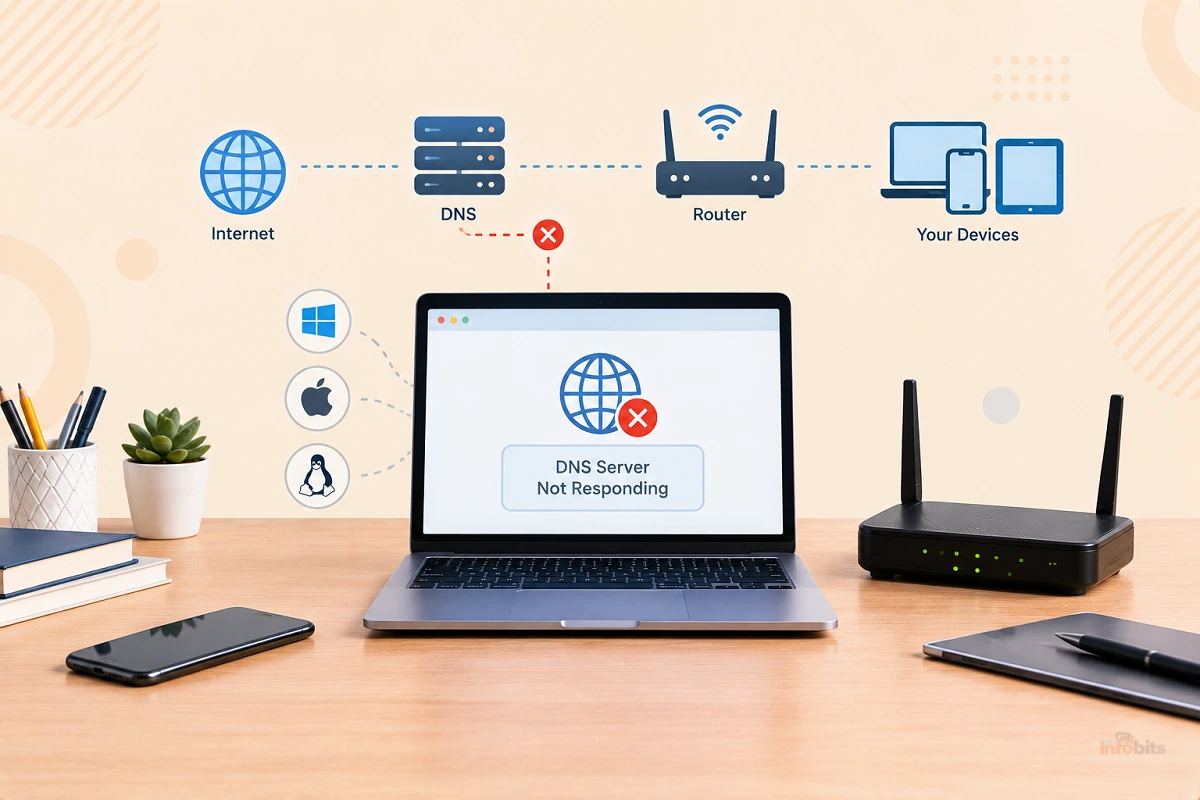
Your Wi-Fi bars are full. The little icon says “Connected.” But every website you try just spins, and then Windows or your browser tells you the DNS server isn’t responding.
It’s one of the most frustrating network errors because it looks like your internet is down, when most of the time it isn’t. Your connection works. One specific lookup step is broken, and that step is usually fixable in a few minutes.
This guide shows you how to confirm it’s really DNS, figure out whether the problem is your computer, your router, or your provider, and fix it on Windows, Mac, and your router.
Quick Answer: What Does “DNS Server Not Responding” Mean, and How Do I Fix It?
What it means: your device asked a DNS server to translate a website name (like
google.com) into an IP address, and either got no answer or an unusable one. Without that translation, pages won’t load even though your connection is technically up.The fastest fixes, in order:
- Restart your modem and router (unplug for 30 seconds).
- Flush your device’s DNS cache.
- Switch to a public DNS server, such as Cloudflare (
1.1.1.1) with Google (8.8.8.8) as the backup.One rule of thumb: if only one device fails, fix that device. If every device on your Wi-Fi fails, fix the router or wait out a provider problem.
What Is DNS?
DNS (the Domain Name System) is the internet’s phone book. You type theinfobits.com; your device asks a DNS server, “what’s the number for that?”; the server answers with an IP address; and your browser connects to it.
When the DNS server is slow, unreachable, misconfigured, or returns a bad answer, you get errors like:
- Windows: “The DNS server isn’t responding” or “Your DNS server might be unavailable”
- Chrome:
DNS_PROBE_FINISHED_NO_INTERNET,DNS_PROBE_FINISHED_BAD_CONFIG, orERR_NAME_NOT_RESOLVED - Firefox: “Hmm. We’re having trouble finding that site.”
- Safari: “Safari can’t find the server.”
One look-alike to watch for: DNS_PROBE_FINISHED_NXDOMAIN is different. It means the DNS server did answer and said that domain doesn’t exist (often a typo or a dead site). That’s not a “not responding” problem.
Step 1: Confirm It’s Actually DNS (60-Second Test)
Before changing anything, find out what’s actually broken. This test saves you from fixing the wrong thing.
On Windows: open Command Prompt. On Mac: open Terminal. Then run:
ping 8.8.8.8
Then run:
ping google.com
| What you see | What it means |
|---|---|
ping 8.8.8.8 works, ping google.com fails | It’s DNS. Keep reading. |
| Both work | DNS is fine. The problem is likely the browser, a VPN, or a specific site. |
| Both fail | Not DNS. Your device has no real connection. See our guides on Wi-Fi not having a valid IP configuration and your internet access being blocked. |
For extra proof, test a different DNS server directly:
nslookup google.com 1.1.1.1
If that works but a plain nslookup google.com times out, your default DNS server is the broken piece, and switching DNS will fix it.
Step 2: Figure Out Where the Problem Lives
Run this quick triage:
| Test | Result | Likely culprit |
|---|---|---|
| Try another device on the same Wi-Fi | Works | Your original device |
| Try another device on the same Wi-Fi | Also fails | Router or provider |
| Switch your phone to mobile data | Sites load | Your router or home internet provider |
| Plug a laptop in by Ethernet | Works | Wi-Fi or adapter issue |
| Only certain sites fail | Others load | That site, or a blocklist/filter |
A short flat Cat6 Ethernet cable (easily available on Amazon) is the quickest way to rule Wi-Fi in or out, so it’s worth keeping one around.
Public Wi-Fi tip: at hotels and airports, a login page (“captive portal”) can make DNS look broken. Try opening http://neverssl.com to trigger the sign-in page.
Why Does the DNS Server Stop Responding? (Common Causes)
| Cause | How it shows up |
|---|---|
| Your provider’s DNS is down or slow | Every device fails; mobile data works |
| Router’s DNS relay glitching | All devices fail until a restart |
| Stale or corrupted DNS cache | One device, sometimes only certain sites |
| VPN or proxy leftovers | Started after using or removing a VPN |
| Security software or filtering | Started after installing or updating one |
| Network adapter or driver problem | One device, flaky Wi-Fi or Ethernet |
| IPv6 DNS trouble | Intermittent, some sites slow or failing |
| Bad encrypted DNS (DoH) setting | Started after changing browser or Windows DNS settings |
| Altered hosts file or DNS hijacking | Odd redirects, ads, or fake login pages |
| Provider or DNS-provider outage | Everyone nearby is affected |
Fix 1 (Everyone): Restart the Modem and Router the Right Way
It sounds basic, but a power cycle clears the router’s DNS relay and refreshes your lease from your provider.
- Unplug the modem and the router (and any mesh nodes).
- Wait 30 seconds.
- Plug in the modem first and wait until its online light is steady (1 to 3 minutes).
- Plug in the router and wait about 2 minutes.
- Test again.
If this fixes it, but the problem comes back every few days, see our guide on common router issues. A basic smart plug like an Amazon Smart Plug on a schedule can power-cycle a router automatically, though set it for the middle of the night, not when anyone’s using the internet.
Fix It on Windows (10 and 11)
Work through these in order. Most people are fixed by step 1 or 3.
1. Flush the DNS Cache and Renew Your IP
Open Command Prompt as administrator (search “cmd,” right-click, Run as administrator), then run these one at a time:
ipconfig /flushdns
ipconfig /release
ipconfig /renew
You should see “Successfully flushed the DNS Resolver Cache.” Your connection may drop for a few seconds during release and renew. You need administrator rights, or the flush fails.
2. Run the Windows Network Troubleshooter
Go to Settings → Network & internet → Advanced network settings → Network troubleshooter (or right-click the network icon and choose Troubleshoot problems). It can fix simple adapter glitches. If it can’t, see our guides on Windows network troubleshooting basics and when the Windows network troubleshooter isn’t working.
3. Change Your DNS Server
This is the fix that works most often when the problem is your provider’s DNS.
Windows 11:
- Open Settings → Network & internet.
- Choose Wi-Fi (or Ethernet), then open your connection’s Hardware properties (or the network’s properties page).
- Next to DNS server assignment, click Edit and choose Manual.
- Turn on IPv4.
- Enter a Preferred DNS and an Alternate DNS (see the table below).
- Set DNS over HTTPS to On (automatic template) only for providers Windows recognizes; otherwise leave it off.
- Click Save.
Windows 10:
- Press Windows + R, type
ncpa.cpl, and press Enter. - Right-click your active adapter and choose Properties.
- Select Internet Protocol Version 4 (TCP/IPv4) and click Properties.
- Choose Use the following DNS server addresses and enter your two servers.
- Click OK, then flush the DNS cache (step 1).
Which servers to enter:
| Provider | Primary | Secondary | Good for |
|---|---|---|---|
| Cloudflare | 1.1.1.1 | 1.0.0.1 | Speed, privacy focus |
8.8.8.8 | 8.8.4.4 | Wide reliability | |
| Quad9 | 9.9.9.9 | 149.112.112.112 | Blocking known malicious domains |
| OpenDNS | 208.67.222.222 | 208.67.220.220 | Optional filtering |
Pro tip: use two different providers, for example Cloudflare as primary (1.1.1.1) and Google as secondary (8.8.8.8).
In July 2025, Cloudflare’s 1.1.1.1 resolver had a global outage lasting around an hour, and Cloudflare itself suggested switching to another provider in the meantime. A backup from a different company would have kept you online.
One caution: If you choose Quad9 or OpenDNS for their filtering, pair them with a filtering secondary so protection stays consistent. For a deeper comparison, see our guides to the best DNS servers for blocking malware and ads and the best DNS servers for gaming.
Work or school computer? Don’t change DNS on a domain-joined or managed PC. Company logins and internal sites rely on your organization’s DNS, and changing it can break them. Ask your IT team.
4. Reset the Network Stack (Winsock and TCP/IP)
If a cache flush didn’t help, reset the networking components. In an administrator Command Prompt:
netsh winsock reset
netsh int ip reset
Then restart the PC.
For a bigger reset: Settings → Network & internet → Advanced network settings → Network reset → Reset now.
This removes and reinstalls your network adapters and resets networking components to their defaults. It can also remove saved Wi-Fi networks and VPN adapters, so note your Wi-Fi password first.
5. Turn Off VPNs and Proxies (Temporarily)
A VPN, or one that was uninstalled badly, can leave behind DNS settings pointing at a server that no longer exists.
- Disconnect any VPN and test again. Our guide on whether a VPN makes your home Wi-Fi more secure explains how VPNs handle DNS.
- Check Settings → Network & internet → Proxy and turn off Use a proxy server unless you need it.
- Run
ipconfig /alland look at the DNS Servers line. If you see an address you don’t recognize, that’s a clue.
6. Check Your Security Software (Without Turning It All Off)
Some antivirus and “web protection” tools intercept DNS. To test:
- Pause the web-shield or network-protection feature briefly, test, and turn it back on.
- Check the app’s settings for a DNS or web filtering option.
Don’t disable Windows Firewall or your antivirus entirely as a “fix,” and don’t leave protection off after testing. If pausing one feature solves it, adjust or reinstall that feature instead.
7. Update or Reinstall the Network Adapter Driver
- Right-click Start → Device Manager.
- Expand Network adapters, right-click your Wi-Fi or Ethernet adapter, and choose Update driver.
- If that doesn’t help, choose Uninstall device, then restart. Windows reinstalls the driver.
Also open the adapter’s Power Management tab and make sure Allow the computer to turn off this device to save power is unchecked.
If a laptop’s built-in Wi-Fi adapter keeps misbehaving even after driver updates, a USB Wi-Fi 6 adapter like UGREEN WiFi Adapter or a USB-C Ethernet adapter like UGREEN USB C to Ethernet Adapter ( both are available on Amazon) is an inexpensive workaround that sidesteps the faulty hardware.
8. Test Turning Off IPv6 (As a Test, Not a Permanent Fix)
Some providers’ IPv6 DNS is flaky, and Windows may prefer it. To test:
- Press Windows + R, type
ncpa.cpl, and press Enter. - Right-click your adapter → Properties.
- Uncheck Internet Protocol Version 6 (TCP/IPv6) and click OK.
If that fixes it, the real problem is your IPv6 DNS. Consider setting IPv6 DNS servers explicitly, or fixing it at the router, rather than leaving IPv6 off forever.
9. Check the Hosts File
Malware and old software can add entries that override DNS. Open Notepad as administrator and open C:\Windows\System32\drivers\etc\hosts. Lines starting with # are comments. Anything else pointing popular sites to odd addresses deserves suspicion.
10. Isolate It with Safe Mode or a Clean Boot
Start Safe Mode with Networking. If DNS works there, a startup program or service is the culprit. A clean boot (disabling non-Microsoft startup items) helps you track it down.
A note on “restart the DNS Client service”: many guides recommend this, but on current Windows versions the Stop and Restart options for the DNS Client service are usually greyed out. Flushing the cache (step 1) achieves the same practical result.
Fix It on Mac (macOS Tahoe, Sequoia, Sonoma, Ventura)
1. Flush the DNS Cache
Open Terminal (Applications → Utilities) and run:
sudo dscacheutil -flushcache; sudo killall -HUP mDNSResponder
Enter your password when prompted. No message appears when it works. This command applies to recent macOS versions, including Tahoe (macOS 26).
2. Change DNS Servers
- Open the Apple menu → System Settings → Network.
- Select Wi-Fi (or Ethernet) and click Details.
- Choose DNS in the sidebar.
- Click + and add
1.1.1.1and8.8.8.8. - Remove any old or odd entries (like a leftover VPN address) using −.
- Click OK.
On macOS Monterey and earlier, the path is System Preferences → Network → Advanced → DNS.
To see which DNS servers your Mac is actually using, run scutil --dns in Terminal.
3. Use Wireless Diagnostics
Hold Option and click the Wi-Fi icon in the menu bar, then choose Open Wireless Diagnostics. It checks signal, interference, and basic connectivity, and it’s useful for flaky Wi-Fi.
4. Check VPNs, Filters, and Privacy Features
- Disconnect any VPN and test. Look in System Settings → VPN.
- Temporarily disable third-party content filters or security apps that manage DNS.
- If you use iCloud Private Relay, try turning it off for testing. Some networks and setups interfere with it.
5. Try a Different Browser and Clear Browser DNS Settings
If other apps work but one browser doesn’t, the browser’s own DNS settings may be the issue. In Chrome, check Settings → Privacy and security → Security → Use secure DNS.
Set it to your current provider, or a known-good one. If it’s pointed at a custom provider that’s unreachable, pages fail while other apps still work.
Fix It on Your Router (Fixes It for Every Device)
If every device on your Wi-Fi is failing, work here. Changing DNS at the router means every phone, TV, and laptop gets the fix automatically.
1. Power Cycle (see Fix 1 above)
2. Change the Router’s DNS Servers
Log in to your router (the address is on its label, often. 192.168.0.1, 192.168.1.1, or 10.0.0.1). Menu names vary, but here’s where to look:
| Router | Where to find DNS settings |
|---|---|
| TP-Link | Advanced → Network → Internet → Advanced → Use the following DNS addresses (older UIs: Network → WAN) |
| ASUS | WAN → Internet Connection → WAN DNS Setting (uncheck “Connect to DNS Server automatically”) |
| Netgear | Advanced → Setup → Internet Setup → “Use These DNS Servers” |
| eero | In the app, Network settings → DNS (menu names shift between app versions) |
| Google Nest Wifi | Google Home app → Wifi → Settings → Advanced networking → DNS |
Enter your two servers (for example 1.1.1.1 and 8.8.8.8), save, and reboot the router. Then restart your devices, or reconnect them, so they pick up the new setting.
Provider-supplied routers often lock this setting. If you can’t change DNS there, set it on each device instead, or ask about using your own router in bridge mode. Our guide to ISP router vs your own router in bridge mode explains the trade-offs.
3. Update the Router Firmware
Old firmware can have buggy DNS handling. Follow our router firmware update checklist before and after.
4. Test Router Features That Touch DNS
Features such as built-in malware blocking, parental controls, and DNS filtering can sit between your devices and the internet.
Turn one off for a few minutes and test. If DNS starts working, adjust that feature. See our guides on TP-Link HomeShield, ASUS AiProtection, and Netgear Armor if you use them.
5. Try Disabling IPv6 on the Router (As a Test)
If your provider’s IPv6 is unstable, switching it off in the router settings can reveal whether that’s the cause. If it helps, contact your provider rather than leaving it off permanently.
6. Check for a Provider Outage
Try your phone on mobile data (or use the phone’s hotspot). If sites load there but not on your home Wi-Fi, the problem is your router or provider. Check your provider’s outage page or app, and see our guide on setting up temporary internet service as a backup.
7. Look for Signs of DNS Hijacking
Malware and compromised routers can silently change DNS settings to redirect you to fake sites. Warning signs:
- Your router’s DNS shows addresses you didn’t set and don’t recognize
- Pages redirect to ads or fake login screens
- Browser certificate warnings on sites that were fine before
- DNS settings keep changing back after you fix them
If you see these, change the router’s admin password, update the firmware, and consider a factory reset. See our guide on how to factory reset a router. Also, read if your router is part of a botnet.
8. Factory Reset as a Last Resort
If nothing else works, a factory reset clears every setting. Note your provider login details first, since some providers need them.
9. Consider Whether the Router Is the Problem
If the router drops DNS repeatedly even after updates and resets, it may be failing or outdated. See how long routers last.
If it’s time for a replacement, a budget option like the TP-Link Archer AX21 or a stronger pick like the ASUS RT-AX88U Pro ( you may find both of them on Amazon) gets regular security updates and handles DNS more reliably than a router from several generations ago.
Our roundup of routers with built-in malware protection has more detail.
Phones, Consoles, and Smart TVs
The same issue can hit non-computer devices.
iPhone/iPad: Settings → Wi-Fi → tap the ⓘ next to your network → Configure DNS → Manual → remove old servers, add 1.1.1.1 and 8.8.8.8 → Save.
Android: If you see “Private DNS server cannot be accessed,” your phone’s Private DNS setting points to a hostname that isn’t responding.
Go to Settings → Network & internet → Private DNS (the location varies by phone) and choose Automatic or Off, or set a working provider hostname such as dns.google or one.one.one.one.
Consoles and smart TVs: Most let you enter DNS manually under their network settings. If a console has Wi-Fi trouble, see our guide on PS5 Wi-Fi connection issues.
Which DNS Server Should You Use?
There’s no single best answer. Here’s how to choose:
| If you want… | Consider |
|---|---|
| Fast, privacy-focused lookups | Cloudflare (1.1.1.1) |
| Broad reliability | Google (8.8.8.8) |
| Built-in blocking of known malicious domains | Quad9 (9.9.9.9) |
| Optional content filtering | OpenDNS |
| The simplest option | Your provider’s default (but have a backup) |
Privacy note: any DNS provider can see which domains your devices look up. Read each provider’s privacy policy and decide who you trust. Our post on whether routers can track your internet history covers what else sees your activity.
Myth vs. Fact
Myth: “DNS server not responding” means my internet is down.
Fact: Usually your connection works. Only the name-lookup step is failing, and ping 8.8.8.8 will prove it.
Myth: Changing DNS makes my internet much faster.
Fact: It can speed up the lookup step slightly, but it won’t raise your download speed.
Myth: Flushing the DNS cache deletes my browsing history.
Fact: It clears stored name-to-address lookups only. Your history, cookies, and passwords aren’t affected.
Myth: I should turn off my firewall to fix DNS errors.
Fact: Don’t leave protection off. Pause one feature briefly to test, then adjust it.
Myth: It’s always my provider’s fault.
Fact: Often it’s a stale cache, a VPN leftover, or a router glitch, all fixable at home.
Myth: Free public DNS is unsafe.
Fact: Major providers are widely used and reliable. The real trade-off is privacy, not safety, so pick one you trust.
Troubleshooting Matrix
| Symptom | Likely cause | Try this |
|---|---|---|
| Only one device fails | Device cache, VPN, driver | Flush DNS, disable VPN, update driver |
| All devices on Wi-Fi fail | Router or provider | Power cycle, change router DNS |
| Works on mobile data, not home Wi-Fi | Router or provider | Router DNS change, outage check |
| Works on Ethernet, not Wi-Fi | Wi-Fi adapter or signal | Driver update, move closer to router |
| Started after installing software | Security/VPN app | Pause or remove it |
| Redirects to strange pages | DNS hijack or malware | Check DNS settings, scan, secure router |
| Android “Private DNS” error | Bad Private DNS hostname | Set to Automatic or Off |
| Works then fails every few days | Aging router | Update firmware, consider replacing |
Common Mistakes
- Fixing before diagnosing. Run the ping test first.
- Changing DNS but not flushing the cache. Flush afterward.
- Setting only IPv4 DNS while IPv6 DNS is still broken.
- Using two servers from the same provider, so one outage takes both.
- Disabling the firewall entirely.
- Forgetting managed or work devices need their own DNS.
- Leaving IPv6 off permanently as a fix.
- Ignoring signs of hijacking like unknown DNS addresses.
Expert Tips
- Set DNS at the router when you can. One change fixes every device.
- Use two providers for resilience.
- Write down your original settings before changing anything, so you can revert.
- Test with
nslookup google.com 1.1.1.1. It tells you instantly whether your default DNS is the problem. - Re-check DNS after VPN changes. VPN software is a common source of stale settings.
- Keep your router’s firmware current.
Quick Checklist: What to Try, in Order
- [1] Run
ping 8.8.8.8andping google.comto confirm it’s DNS - [2] Test another device and mobile data to locate the problem
- [3] Restart modem and router
- [4] Flush DNS (
ipconfig /flushdnson Windows, thedscacheutilcommand on Mac) - [5] Switch DNS to two different public providers
- [6] Turn off VPN and proxy
- [7] Pause security software to test
- [8] Reset the network stack (Windows)
- [9] Update drivers and router firmware
- [10] Check for a provider outage
- [11] Look for signs of DNS hijacking
When to Contact Your Provider
If only your home connection fails, other devices fail too, and your phone works on mobile data, call your provider. Tell them: “Pinging IP addresses works, but DNS lookups time out on every device.” That wording gets you past the basic script and points them at DNS.
Conclusion
“DNS server not responding” sounds worse than it is. In most cases, your internet connection is fine, and a single lookup step has stalled. Start with the 60-second ping test, work out whether the problem lives on your device or your router, and then apply the fix at that level.
For most people, a router restart, a DNS flush, and a switch to two public DNS servers solve it for good.
If it keeps coming back, treat that as a sign: an aging router, a flaky adapter, or a provider issue worth raising.
Frequently Asked Questions
What does “DNS server not responding” mean?
It means your device asked a DNS server to turn a website name into an IP address and got no usable answer. Your connection may still be working, but without that lookup, pages won’t load.
How do I fix “DNS server not responding”?
Restart your modem and router, flush your device’s DNS cache, and switch to a public DNS such as Cloudflare (1.1.1.1) with Google (8.8.8.8) as the backup. If it’s one device, also check VPNs and drivers.
Is it my router or my computer causing the DNS error?
Test another device on the same Wi-Fi. If it works, the problem is your first device. If every device fails, the cause is your router or provider. Mobile data working while Wi-Fi fails also points to the router or provider.
How can I tell if it’s DNS or my internet connection?
Ping an IP address (ping 8.8.8.8) and then a website name (ping google.com). If the IP works and the name fails, it’s DNS. If both fail, your connection itself is the problem.
What is the best DNS server to use?
There’s no single best. Cloudflare (1.1.1.1) is popular for speed and privacy, Google (8.8.8.8) for reliability, and Quad9 (9.9.9.9) for blocking known malicious domains. Using two different providers adds resilience.
Will changing my DNS make my internet faster?
It can make name lookups slightly quicker, but it won’t increase your download or upload speed. If your provider’s DNS was slow or failing, the improvement can feel noticeable.
How do I flush DNS on Windows?
Open Command Prompt as administrator and run ipconfig /flushdns. You should see a message saying the DNS Resolver Cache was flushed. Running ipconfig /release and ipconfig /renew afterward refreshes your IP too.
How do I flush DNS on a Mac?
Open Terminal and run sudo dscacheutil -flushcache; sudo killall -HUP mDNSResponder, then enter your password. There’s no confirmation message when it works. This applies to recent versions, including macOS Tahoe.
How do I change DNS on Windows 11?
Go to Settings → Network & internet, choose Wi-Fi or Ethernet, open the connection’s properties, and click Edit next to DNS server assignment. Choose Manual, turn on IPv4, enter your preferred and alternate servers, and save.
How do I change DNS on a Mac?
Open System Settings → Network, select Wi-Fi, click Details, then choose DNS. Click + to add servers such as 1.1.1.1 and 8.8.8.8, remove any stale entries, and click OK.
How do I change DNS on my router?
Log in to the router, find the Internet or WAN settings, and turn off automatic DNS. Enter your preferred servers, save, and reboot. Every device then uses them. Provider-supplied routers sometimes lock this setting.
Why does DNS fail on Wi-Fi but work on Ethernet?
Usually it’s the Wi-Fi adapter, its driver, or signal quality, not DNS itself. Update or reinstall the adapter driver, check power-saving settings, and test closer to the router.
Can a VPN cause a “DNS server not responding” error?
Yes. A VPN, or one that was uninstalled badly, can leave DNS settings pointing to a server that no longer exists. Disconnect or remove it, then flush DNS and check your DNS settings.
Can antivirus or a firewall cause DNS errors?
Sometimes. Web-protection and network-filtering features can intercept DNS. Pause one feature briefly to test, then adjust it. Don’t leave protection switched off or disable your firewall entirely.
Is it safe to use Google DNS or Cloudflare DNS?
Yes, both are widely used and reliable. The main trade-off is privacy, because the provider can see the domains you look up. Read the provider’s privacy policy and choose one you trust.
What’s the difference between “DNS server not responding” and DNS_PROBE_FINISHED_NXDOMAIN?
“Not responding” means the DNS server did not answer. NXDOMAIN means it answered that the domain doesn’t exist, which is often a typo or an expired site. They have different fixes.
Does flushing the DNS cache delete my history or passwords?
No. It only clears saved name-to-address lookups. Your browsing history, cookies, and saved passwords stay untouched.
Can malware or hackers cause DNS problems?
Yes. Malware or a compromised router can change DNS settings to redirect you to fake sites. Warning signs include unfamiliar DNS addresses, strange redirects, and certificate warnings. Secure the router and scan your devices.
Found this guide useful? Share it with someone who is suffering from networking-related issues. Follow us on Facebook and Twitter for more tips, tricks, and guides.
We also ask that you bookmark this page for future reference, as we are constantly updating our articles with new information.
Sign up for our free newsletter as well to receive fresh information immediately in your inbox and keep technically up to date.
Disclosure: If you follow our links to a retailer’s website and make a purchase, we will get an affiliate commission on some, but not all, of the items or services we promote. This will cause no price change for you.
You May Be Interested in Reading:
- How to Set Up Parental Controls on Your Router (All Major Brands + DNS Filtering)
- Guest Network vs. VLAN: Which Do You Need and Which Is Better?
- Router-Level Security vs. Antivirus Software: Do You Need Both?
- Do AI Agents Save Time? What the Evidence Shows
- FAST vs. SVOD: Which Streaming Model Should You Use?