
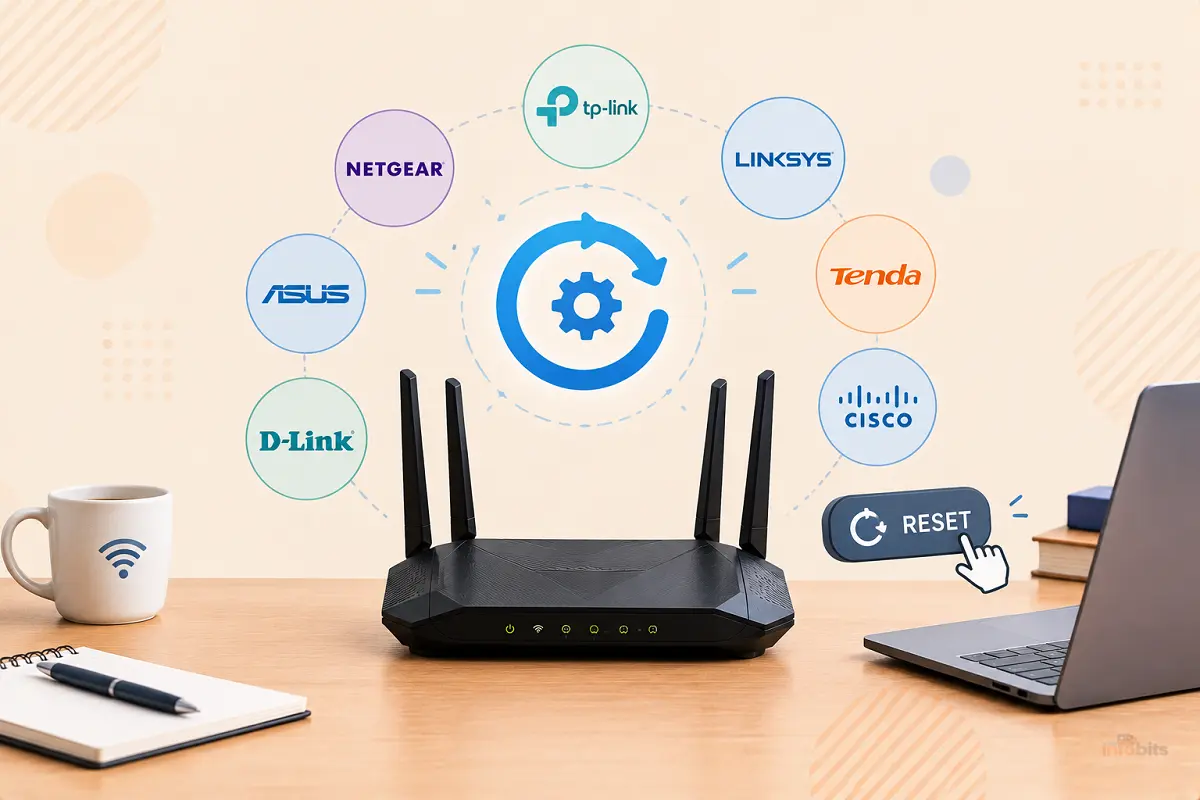
How to Factory Reset Every Major Router Brand (Step-by-Step)
Forgot the admin password? Wi-Fi dropping every hour? Selling or handing down a router? A factory reset fixes all of these, but only if you do it correctly for your router.
That’s where most guides let people down. A TP-Link Archer wants a 10-second hold. A TP-Link Deco needs a one-second press. An Xfinity gateway can need 30 seconds. Hold the wrong button for the wrong time and you either reboot the router (nothing changes) or, on a few models, drop it into recovery mode.
This guide covers every major brand, explains what a reset actually erases, and tells you what to do when the reset button doesn’t work.
Quick Answer: How Do You Factory Reset a Router?
For most routers:
- Leave the router powered on.
- Find the small recessed Reset button (usually on the back or bottom).
- Press and hold it with a paperclip for about 10 seconds, until the lights flash or change pattern.
- Release the button and wait 2 to 5 minutes while the router restarts.
- Connect using the default Wi-Fi name and password printed on the router’s label.
Hold times vary by brand: ASUS is 5 to 10 seconds, eero is about 15 seconds, Xfinity gateways are around 30 seconds, and TP-Link Deco is a quick press. If you can still log in to the router, resetting from its web page or app is safer than using the button. The brand-by-brand steps are below.
Before You Reset: Do You Actually Need a Factory Reset?
A factory reset is a last resort, not a first step. Here’s the difference between the three things people call “resetting”:
| Restart / Reboot | Factory Reset | Hard / Recovery Reset | |
|---|---|---|---|
| What it does | Turns the router off and on | Erases all your settings and returns to defaults | A deeper reset some brands offer when the standard one fails |
| Wi-Fi name and password | Kept | Erased | Erased |
| Port forwards, DNS, parental controls | Kept | Erased | Erased |
| When to use it | Slow or glitchy Wi-Fi | Forgotten admin password, persistent problems, selling or recycling | Standard reset doesn’t take |
| How | Unplug for 30 seconds, or use the app | Reset button, web page, or app | Brand-specific (see ASUS and UniFi below) |
Try a reboot first. Unplug the router (and modem), wait 30 seconds, plug the modem in first, then the router. That alone fixes a surprising number of problems. If your issue is a modem that keeps dropping out, see our guide on modem keeps resetting.
What a Factory Reset Erases (and What It Doesn’t)
Gets erased:
- Your Wi-Fi network names (SSIDs) and passwords
- The admin password you set
- Port forwarding, static IP reservations, and DHCP settings
- Guest network, VLAN, and parental control settings
- DNS changes, VPN settings, and security feature configuration
- On mesh systems, the link between the main unit and its nodes
Usually stays:
- Your internet service and account with your provider
- The firmware version already installed on the router
- Your modem’s connection to the provider (if the modem is a separate device)
Important: if you own your router (rather than renting a combined modem/router from your provider), you may need to re-enter your provider’s login details afterward. Some providers, especially in the UK and Australia, require a PPPoE username and password or a specific VLAN setting on the WAN port. Look these up in your router’s settings before you reset.
Pre-Reset Checklist
- [1] Note your provider’s login details (PPPoE username/password or VLAN tag), if your provider uses them
- [2] Back up your router’s configuration file, if it offers that option
- [3] Write down port forwards, static IPs, and DNS settings you want to restore
- [4] Find the default Wi-Fi name, password, and admin login on the router’s label
- [5] Connect a computer by Ethernet cable, because Wi-Fi disappears during a reset
- [6] Make sure the router has stable power, so don’t reset during a storm. A small UPS with surge protection, like the APC BE600M1 UPS available on Amazon, keeps a power blip from interrupting a reset or firmware update, which is one of the few ways to corrupt a router.
- [7] Tell the household, because everything will go offline for a few minutes
Keep a short flat Cat6 Ethernet cable (can be gotten from Amazon) near your router for exactly this kind of job. It makes the wired connection painless and avoids the “which devices lost Wi-Fi” scramble.
The Three Ways to Factory Reset a Router
Method 1: The Reset button (works even if you’re locked out). Use a paperclip or pin to press the recessed button while the router is on. Best for forgotten passwords.
Method 2: The router’s web page. Log in (often 192.168.0.1, 192.168.1.1, or 10.0.0.1; check the label), then find “Factory Default,” “Restore,” or “Reset” under Administration, System Tools, or Advanced. Best when you can still log in, since there’s no timing to get wrong.
Method 3: The router’s app. Brands like eero, Google Nest Wifi, ASUS, TP-Link Deco, and UniFi let you reset from your phone. Best for mesh systems.
One warning about combined buttons. Many routers use one button for both WPS and Reset. A short press triggers WPS pairing. A long press resets. If nothing resets, you probably let go too early.
A small SIM-ejector tool or a set of reset pins is easier on your fingertips than a bent paperclip, especially for the 30-second holds some provider gateways need.
Quick Reference: Factory Reset by Brand
| Brand | Button method | What to watch for | Software option |
|---|---|---|---|
| TP-Link (Archer) | Hold WPS/Reset for more than 10 sec | SYS LED changes from slow to quick flash | Advanced → System Tools → Backup & Restore |
| TP-Link Deco | Press reset on the bottom for about 1 sec | Unit restarts | Deco app → select unit → Remove |
| Netgear (Nighthawk) | Hold Reset at least 7 sec (many hold 10) | Power LED blinks amber | Advanced → Administration → Backup Settings → Erase |
| Netgear Orbi | Hold Reset until the Power LED blinks amber | Ignore the top ring light | Same Erase option in the web UI |
| ASUS | Hold Reset 5 to 10 sec | Power LED starts flashing | Administration → Restore/Save/Upload Settings → Restore, or ASUS Router app |
| Linksys | Hold Reset for about 10 sec (20+ on some mesh models) | Light flashes red, then goes solid purple/blue | Troubleshooting → Diagnostics → Factory reset |
| eero | Soft: hold until yellow (about 7 sec). Hard: hold until red (about 15 sec) | LED flashes blue when ready | App → Network Settings → Delete your network |
| Google Nest Wifi | Hold 10 sec (Nest Wifi Pro: 12 sec) | Solid yellow light on router | Google Home app → Wifi → Settings → Factory reset |
| D-Link | Hold Reset about 10 sec | Lights cycle | Management/Tools → System → Restore |
| UniFi | Hold Reset 5 to 10 sec | UDM: System LED turns solid light blue | UniFi OS → System → Factory Reset |
| Xfinity gateway | Hold Reset 30 sec | Lights flash, then go solid | Xfinity app or 10.0.0.1 admin page |
| Spectrum (SAX2V1S/R) | Hold Reset over 15 sec | 4 to 14 sec only reboots it | Spectrum app |
| Verizon Fios | Hold Reset roughly 10 to 15 sec | Varies by model | Router web page |
| BT Smart Hub | Hold pinhole 20 sec | Lights go out, then restart | Hub Manager |
| Virgin Media Hub | Hold pinhole about 10 sec | Wait 5 to 10 minutes | Hub web page |
| Telstra Smart Modem | Hold pinhole about 10 sec | Lights flash, then go green | Modem page → System Reset |
Always check the label and manual for your exact model. Hold times vary between generations.
Step-by-Step Reset Guides by Brand
TP-Link Archer Routers
Using the button:
- With the router powered on, find the Reset or WPS/Reset button.
- Press and hold it for more than 10 seconds.
- On models with a SYS LED, release it once it changes from slow flashing to quick flashing.
- Wait for the router to reboot.
Quick presses under 5 seconds trigger WPS on combined buttons, not a reset.
Using the web page: Log in, go to Advanced → System Tools → Backup & Restore (labelled “System” on some newer models), and click Factory Restore.
TP-Link Deco Mesh
This is where most guides get it wrong. According to TP-Link’s own support page, you reset a Deco unit by pressing the reset button on the bottom for about one second, or by removing it in the Deco app. Many third-party guides say to hold 10 to 15 seconds, which isn’t what TP-Link documents.
Using the app (recommended): Tap the unit on your network map, open the menu in the top-right, and tap Remove.
Order matters: if you’re resetting the whole system, remove the extra units first and the main unit last. If a quick press doesn’t work, unplug the unit, plug it back in, wait two minutes, and try again.
Some older Deco models respond to holding the button until the LED flashes yellow, so check your model’s manual if the quick press fails.
Netgear Nighthawk and Orbi
- With the router on, find the recessed Restore Factory Settings (or Reset) button.
- Hold it with a paperclip. Netgear’s documentation says at least 7 seconds, and many people hold for 10.
- Release when the Power LED blinks amber.
- Wait for the router to reboot with a default Wi-Fi name.
Orbi gotcha: the LED that matters is the small Power LED on the back, not the big ring light on top. The ring light does nothing visible during a reset, which makes many people think it failed. A quick press for under five seconds only restarts the router.
Satellites reset separately. Reset each Orbi satellite on its own, and re-add them afterward.
Software option: Log in, go to Advanced → Administration → Backup Settings, and click Erase.
ASUS Routers (Including AiMesh)
Method 1: Web page or app (best option):
- Web: Go to Administration → Restore/Save/Upload Settings and click Restore next to “Factory default.”
- App: In the ASUS Router app, go to Settings → System Settings → System reset to factory default (menu names vary by app version).
Method 2: Reset button: Hold the Reset button for 5 to 10 seconds until the power LED starts flashing, then release. Wait for the LEDs to settle.
Method 3: Hard factory reset (when the standard reset fails): Power the router off, hold the WPS button, turn the router on while still holding it, and keep holding until the power light stops flashing and the router reboots. Steps vary by model, so check ASUS’s hard-reset page for yours.
Note that ASUS’s WPS and UI-based resets also clear logs for features like AiProtection and Traffic Analyzer. If you use it, our ASUS AiProtection setup guide covers turning it back on.
Linksys Routers and Velop Mesh
Standard Linksys routers: Hold the Reset button for about 10 seconds, then release. Some older models need up to 30 seconds.
Velop and other Linksys mesh nodes:
- Wait until the node has fully booted and shows a solid purple or blue light. Linksys specifically warns that resetting right after power-up won’t work.
- Hold the Reset button on the bottom or back. Depending on the model, Linksys documents 10 seconds or at least 20 seconds.
- Watch the light flash red, pulse, then go out and flash bright red again. Release it at that point.
- The light returns to solid purple or blue, which means it’s ready for setup.
Child nodes: if you reset the main node, you’ll need to reset each additional node too.
Software option: In the Linksys app or web page, go to Troubleshooting → Diagnostics → Factory reset.
eero (Amazon)
eero has two kinds of reset, and picking the wrong one is the most common mistake.
| Soft reset | Hard reset (factory reset) | |
|---|---|---|
| How | Hold the button until the LED flashes yellow (about 7 sec, no more than 8) | Hold the button until the LED flashes red (about 15 sec) |
| What it clears | Network configuration | Everything, including logs and the unit’s place on your network |
| Use when | Troubleshooting | Selling it or starting over |
After a hard reset, the LED flashes blue, which means it’s ready to set up again. A one-second press simply reboots the unit.
From the app (easiest): Tap the menu → Network Settings → Advanced Settings → Delete Your Network. To reset a single eero, remove it from the network in the app.
Warning: A hard reset on the gateway eero (the one plugged into your modem) deletes the entire network. If you only need to reset one unit, reset a non-gateway eero.
Google Nest Wifi and Google Wifi
From the Google Home app: Open the app, select your Wifi, go to Settings, and choose Factory reset network (menu labels shift between app versions).
Using the button: The reset button is on the bottom of the router.
- Nest Wifi router: Hold for 10 seconds until the light turns solid yellow.
- Nest Wifi Pro: Hold for 12 seconds.
- Nest Wifi point: The reset begins after about 5 seconds; keep holding for about 10 seconds until you hear a confirming sound.
- Google Wifi: Hold for about 10 seconds.
Be patient. Google says the process can take up to 10 minutes. Also, holding far longer than directed (15+ seconds on some Google devices) can leave the light flashing orange without resetting, so don’t treat “longer” as “safer.”
D-Link
Hold the Reset button, usually on the back, for about 10 seconds. A few models, such as the DIR-842, use a combined reset/WPS button that needs about 8 seconds. Alternatively, log in and look under Management or Tools → System for a restore-to-defaults option.
Ubiquiti UniFi
UniFi works differently because the device is managed by a console or controller.
- Button: UniFi says to hold Reset for 5 to 10 seconds depending on the device. On the Dream Machine, hold for about 10 seconds until the System LED turns solid light blue.
- Timing matters both ways: too short just reboots, and too long can drop the device into TFTP recovery mode.
- Software: Owners can use UniFi OS → System settings → Factory Reset, or restore a managed device from the console.
Heads-up: a physical reset doesn’t remove the device from your controller. A reset UniFi device may still think it’s managed by the old console. Factory restore and re-adopt it, or remove it from the console first.
Xfinity (Comcast) Gateways
- Find the recessed Reset pinhole on the back.
- Use a paperclip, pin, or other pointed object, and hold it for 30 seconds. Xfinity’s own page covers XB2 and XB3 gateways this way. For newer gateways, Xfinity suggests a non-metallic pointed object.
- Release when the lights flash, then wait until they go solid.
- Reconnect using the default Wi-Fi name and password on the gateway’s label.
Newer models such as the XB7 and XB8 use a combined WPS/reset control, and a short press only triggers WPS. Check Xfinity’s page or app for your exact model.
Two notes: Xfinity Voice (including home-phone 911 calling) stops during the reset and returns when the gateway restarts. And you don’t need a factory reset just to view or change your Wi-Fi password, because the Xfinity app handles that.
Spectrum, Verizon Fios, AT&T and Other US Provider Gateways
Provider-supplied gateways reconfigure themselves with your provider after a reset, but the button timing differs by model:
- Spectrum SAX2V1S and SAX2V1R: Hold Reset for more than 15 seconds. A 4- to 14-second hold only reboots it.
- Verizon Fios: Typically 10 to 15 seconds, but the button location and exact instructions differ between the Quantum Gateway and newer routers. Check Verizon’s page for your model.
- AT&T and others: Check the label and your provider’s support page for your gateway’s exact hold time.
If the gateway is rented, a provider app or support chat can often reset it remotely. See also our guide to ISP router vs your own router in bridge mode.
UK Provider Hubs: BT, Virgin Media, Sky, EE
| Hub | Reset method |
|---|---|
| BT Smart Hub / Ultrafast Smart Hub | Paperclip in the recessed pinhole on the back; hold 20 seconds. BT’s page lists a 5-second press for some newer hubs, so match the instructions to your hub |
| Virgin Media Hub 3/4/5 | Pen in the reset pinhole, hold about 10 seconds, then allow 5 to 10 minutes |
| Sky Hub (older) | Hold Reset for about 10 seconds until the power light flashes. Sky Q and Max hubs differ, so check Sky’s page |
| EE Smart Hub | Standard button about 5 seconds, or pinhole version about 20 seconds |
After a BT hub reset, allow about five minutes for the light to turn blue. Your Wi-Fi name and password revert to what’s printed on the hub.
Australia and New Zealand: Telstra and Others
For the Telstra Smart Modem (Gen 1 and Gen 2), find the pinhole labelled Reset on the back and hold it for about 10 seconds until the lights flash.
Allow about five minutes for the reset to finish; it is complete when the lights are green. You can also log in to the modem’s page and use System Reset. The Gen 3 is generally documented the same way, though some reviewers report much longer holds were needed on used units.
Most provider modems in Australia and New Zealand follow the same pattern: recessed button, hold for roughly 10 seconds, wait several minutes. Check your provider’s support page for your exact model.
Other Brands (Tenda, Huawei, Belkin, Synology, GL.iNet, MikroTik)
The pattern is the same: power on, hold the reset button until the lights change, release, and wait. Brand specifics vary, so check the label or manual.
For firmware like OpenWrt and DD-WRT, reset procedures differ, so see our guides on DD-WRT vs OpenWrt and best OpenWrt routers.
Myth vs. Fact
Myth: You should always do a 30-30-30 reset.
Fact: The 30-30-30 method (hold reset 30 seconds, unplug for 30 more while still holding, replug and hold 30 more) is a decades-old trick. Mainstream manufacturers don’t prescribe it for modern routers, and it can risk damaging newer models. Hold the button the way your manufacturer says, with the router plugged in.
Myth: Holding the button longer is always safer.
Fact: Not always. UniFi can drop into recovery mode if you hold too long, and some Google devices stop resetting if held too long.
Myth: A factory reset cancels my internet service.
Fact: It only affects the router’s local settings. Your account with your provider is untouched.
Myth: A factory reset removes all malware.
Fact: It wipes your settings, which clears things like hijacked DNS entries and rogue admin accounts. It doesn’t fix old, vulnerable firmware. Update the firmware afterward. If you suspect a compromise, read our guide on whether your router is part of a botnet.
Myth: The reset button and the reboot button are the same thing.
Fact: A reboot keeps everything. A factory reset erases everything.
After the Reset: Setup Checklist
Do these in order:
- Connect by Ethernet and log in with the default credentials on the label.
- Update the firmware first, before reconnecting everything. A reset doesn’t update the firmware, so you could be running the same vulnerable version. See our router firmware update checklist.
- Change the admin password to something unique. A password manager makes this painless. See our guide to the best password managers.
- Set a new Wi-Fi name and password, and use WPA3 (or WPA2/WPA3 mixed) if your devices support it.
- Re-enter your provider’s login details if you use your own router and your provider requires them.
- Turn off remote management unless you need it.
- Restore port forwards, static IPs, and DNS. If you use filtering, see our guide to the best DNS servers for blocking malware and ads.
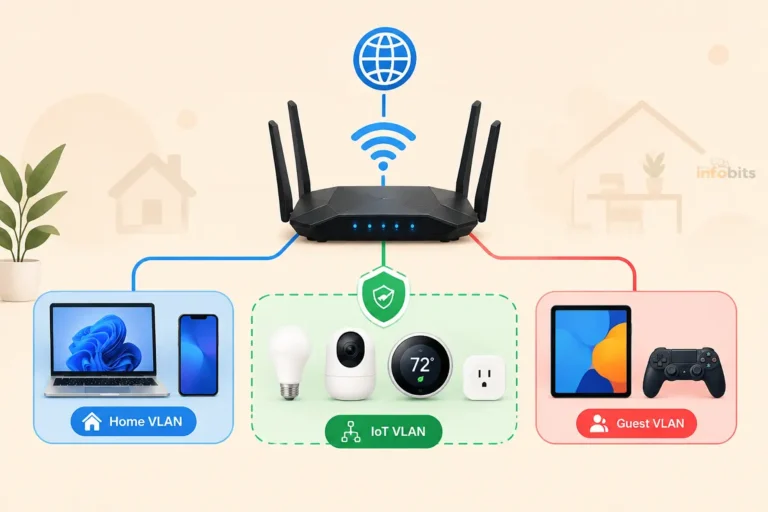
- Rebuild your guest and IoT networks. Our guides on creating a secure guest network and securing IoT devices on home Wi-Fi walk through this.
- Re-add mesh nodes. If a node won’t rejoin, reset it too.
- Reconnect your devices. Smart speakers, TVs, and plugs will need the new Wi-Fi details. If an Alexa device gets stuck, see Echo Dot not responding.
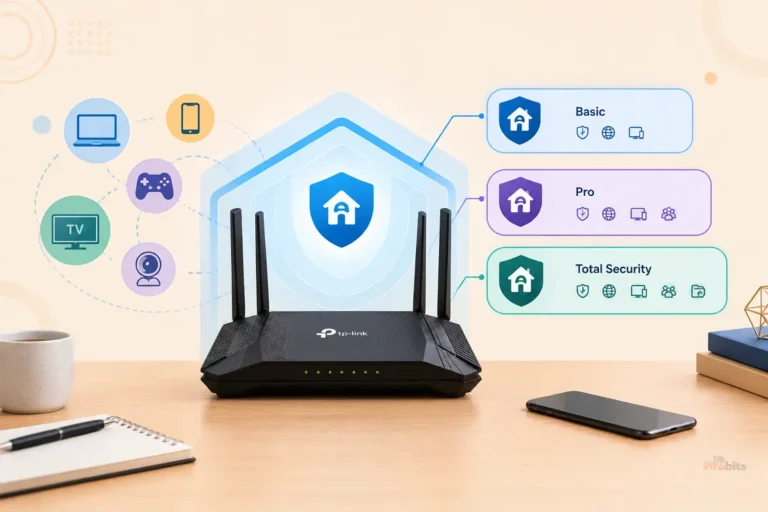
- Re-enable security features such as your brand’s built-in protection. Check out TP-Link HomeShield, ASUS AiProtection, or Netgear Armor if you use them.
If your device refuses to connect after a router swap or reset, our post on Wi-Fi 7 router not connecting to older devices covers common compatibility fixes.
Resetting Before You Sell, Give Away, or Recycle
Wiping the router protects your data and your Wi-Fi details. Do all of these:
- [1] Factory reset the router
- [2] Confirm the default Wi-Fi name appears (if your old network name still shows up, the reset didn’t take)
- [3] Remove it from any account or app (eero, Google Home, UniFi console, vendor cloud accounts)
- [4] Remove any USB drives attached to it
- [5] Reset any mesh nodes too
If the router is still decent, consider reusing it first. Our post on uses for old routers has ideas.
Troubleshooting: When the Factory Reset Doesn’t Work
Nothing happens when you press the button.
- Confirm the router is powered on and has finished booting.
- You may be pressing too lightly. The button is recessed, so push until you feel the click.
- Use a thin non-metal pin if a paperclip is too fat.
The router reboots but keeps your old settings.
You held it too briefly. Reset it again and hold until the indicator the manufacturer describes (amber blinking, red flashing, solid yellow), not just a time.
You’re watching the wrong light.
On Orbi, it’s the back Power LED, not the top ring.
Linksys mesh node won’t reset.
Wait until it’s fully booted and showing a solid purple or blue light first.
It rebooted, but the old Wi-Fi name is still there.
Do it again, and try the web or app method instead.
The reset keeps failing.
- Try the software method.
- Try the brand’s hard reset (ASUS).
- Check for a firmware recovery tool (many brands offer one).
- If it still won’t reset, the button may be faulty, or the router may be failing. See how long routers last.
The router resets, but you have no internet.
Re-enter your provider’s login details, or check cables and modem lights. If your provider supplied the device, call them. Some provider gateways need to be re-provisioned with the provider, which can take several minutes.
A UniFi device still appears in the controller.
Forget or remove it in the controller, then re-adopt it.
Common Mistakes
- Resetting when a reboot would do.
- Not writing down provider login details first.
- Releasing the button too early.
- Holding it far too long on models that dislike it.
- Resetting a mesh gateway unit when you only meant to reset one node.
- Forgetting to reset the nodes after resetting the main router.
- Skipping the firmware update after the reset.
- Restoring an old backup without checking it. If the reason you reset was a bad config, restoring it brings the problem back.
- Resetting during a power outage risk.
Expert Tips
- Software first, button second. If you can log in, use the web page or app. There’s no timing guesswork.
- Take a photo of the router label before you start.
- Record the LED sequence you see. It tells you whether the reset took.
- Plan 10 minutes, not 2, for mesh systems and provider hubs.
- Don’t reset in the middle of a firmware update.
- If the router is 5+ years old, consider whether a reset is delaying an upgrade you need. A newer router such as the ASUS RT-AX88U Pro or TP-Link Deco BE85 (both are available on Amazon and covered in our roundup of routers with built-in malware protection) gets regular security updates and handles modern devices better.
Decision Guide: What Should You Do?
| Your situation | Best option |
|---|---|
| Wi-Fi is slow or flaky | Reboot first |
| Forgot the admin password | Reset button |
| Can log in, want a clean slate | Web page or app reset |
| Selling or giving away | Factory reset + remove from account |
| Mesh node offline | Reset that node only |
| Provider-supplied gateway acting up | Restart, then contact provider |
| Reset doesn’t work | Hard reset or firmware recovery |
| Router is very old | Replace it |
Conclusion
A factory reset is simple once you know three things: which button your router has, how long to hold it, and what the lights should do when it works.
Always try a reboot first, use the software reset if you can log in, and skip the 30-30-30 ritual unless your manufacturer specifically asks for it.
Then do the part most people skip: update the firmware, change the default passwords, and rebuild your guest and device networks properly. A clean reset followed by a careful setup leaves you with a more secure network than the one you started with.
Frequently Asked Questions
How do I factory reset my router?
Leave the router powered on, press and hold the recessed Reset button with a paperclip for about 10 seconds until the lights flash or change, then release. Wait a few minutes for it to restart. If you can log in, resetting from the web page or app is safer than the button.
How long do you hold the reset button on a router?
It depends on the brand. Typical holds are about 10 seconds for TP-Link Archer and D-Link, 5 to 10 seconds for ASUS, at least 7 seconds for Netgear, about 15 seconds for an eero hard reset, and around 30 seconds for Xfinity gateways. Always match the hold time to your model.
What’s the difference between restarting and factory resetting a router?
Restarting turns the router off and on and keeps all your settings. A factory reset erases your Wi-Fi name, passwords, and custom settings and returns the router to its out-of-the-box state.
Will a factory reset delete my internet service?
No. A factory reset only clears the router’s local settings. Your account with your provider is unaffected, though you may need to re-enter provider login details if you use your own router.
Will I lose my Wi-Fi password if I reset my router?
Yes. Your custom Wi-Fi name and password are erased and replaced with the defaults printed on the router’s label. You’ll need to reconnect every device using the new details.
Can I factory reset my router without the reset button?
Yes, if you can log in. Use the router’s web page (under Administration, System Tools, or Advanced), or the brand’s app for systems like eero, Google Nest Wifi, ASUS, and TP-Link Deco.
How do I reset my router if I forgot the admin password?
Use the physical Reset button. It works without a login. After the reset, sign in with the default credentials on the router’s label and set a new, unique admin password.
How long does a router factory reset take?
The button hold takes about 10 to 30 seconds, and the router usually takes 2 to 5 minutes to restart. Provider hubs and Google Nest Wifi can take up to 10 minutes.
Why won’t my router factory reset?
Common causes are letting go too early, not waiting until the router has finished booting (Linksys), watching the wrong light (Orbi), or holding too long (UniFi). Try the web or app method, or your brand’s hard reset.
How do I factory reset a TP-Link Deco?
Use the Deco app and tap Remove on the unit, or press the reset button on the bottom for about one second, according to TP-Link. When resetting a whole system, remove the extra units first and the main unit last.
How do I factory reset an eero?
In the eero app, go to Network Settings → Advanced Settings → Delete Your Network. With the button, hold it until the LED flashes red (about 15 seconds) for a full factory reset. A yellow flash at about 7 seconds is only a soft reset.
Is the 30-30-30 router reset safe?
It isn’t recommended for modern routers. It’s an old trick that most manufacturers don’t prescribe, and it can risk damaging some models. Use the hold time and method your manufacturer documents instead.
Does a factory reset remove malware from a router?
It clears settings-level changes such as hijacked DNS and rogue accounts, but it doesn’t patch outdated firmware. Update the firmware right after resetting, change all passwords, and replace the router if it’s no longer supported.
Do I need to reset mesh nodes after resetting the main router?
Usually yes. On systems like Linksys Velop and Netgear Orbi, nodes lose their link to the main router, so reset each node and re-add it. With TP-Link Deco, reset the extra units before the main one.
Does a factory reset update my router’s firmware?
No. It generally keeps the firmware version already installed. Check for updates immediately after the reset, before reconnecting all your devices.
What’s the default login after a factory reset?
Check the label on the router. It lists the default Wi-Fi name, Wi-Fi password, and often the admin address and login. Some brands, like UniFi, have no default password because you create one during setup.
Should I factory reset my router before selling it?
Yes. Reset it, confirm the default Wi-Fi name appears, remove it from any app or cloud account (eero, Google Home, UniFi), and unplug any USB storage. That protects your Wi-Fi details and settings.
Can I factory reset an ISP-provided router?
Usually yes, using the reset button or provider app. Provider gateways typically re-provision automatically, but timing varies, so allow several minutes. Check your provider’s guidance first, since some models need specific hold times.
Found this guide useful? Share it with someone who is suffering from networking-related issues. Follow us on Facebook and Twitter for more tips, tricks, and guides.
We also ask that you bookmark this page for future reference, as we are constantly updating our articles with new information.
Sign up for our free newsletter as well to receive fresh information immediately in your inbox and keep technically up to date.
Disclosure: If you follow our links to a retailer’s website and make a purchase, we will get an affiliate commission on some, but not all, of the items or services we promote. This will cause no price change for you.
You May Be Interested in Reading:
- Can Routers Track Internet History? What WiFi Owners Can (and Can’t) See
- Best Long-Range WiFi Routers: Tested for Large Homes & Dead Zones
- How to Check If a Smart Device on Your Network Is Vulnerable (Step-by-Step Guide)
- Windows Network Troubleshooting Basics: A Step-by-Step Guide for Windows
- SmartThings Setup Guide: From Unboxing to Your First Automation


)