Guest Network vs. VLAN: Which Do You Need and Which Is Better?
You want visitors off your main Wi-Fi. Or you’ve bought a few smart plugs, a camera, and a robot vacuum, and a nagging voice says they shouldn’t share a network with your work laptop. Then you search for solutions and come across two similar terms: guest network and VLAN.
They’re related, but they aren’t interchangeable, and picking the wrong one means either overspending effort on a setup you didn’t need or leaving a gap you thought was covered.
This guide explains the real difference, shows what each one does and doesn’t protect, and gives you a straight answer for your situation.
Quick Answer: Guest Network or VLAN?
Use a guest network if your goal is to keep visitors (or one or two untrusted devices) away from your main devices. It takes about five minutes, costs nothing, and works on most routers.
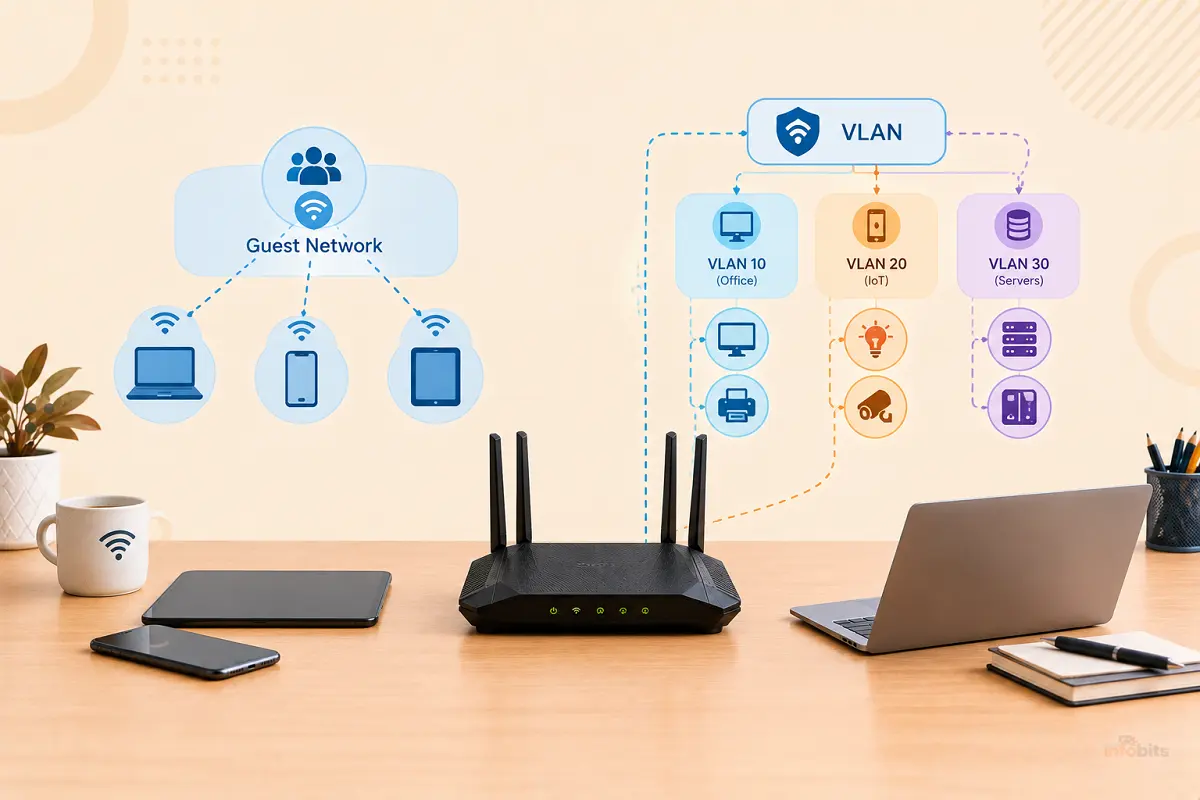
Use VLANs if you want to split your own devices into groups (trusted, smart home, cameras, work) and control exactly which group can talk to which. VLANs need compatible hardware and more setup, but they give you far more control.
Rule of thumb: if you aren’t sure you need a VLAN, start with a guest network. You can always move up later.
What Is a Guest Network?
A guest network is a separate Wi-Fi network (its own name and password) that your router runs alongside your main one. Devices on it can reach the internet, but the router blocks them from reaching your main network: your laptops, NAS, printers, and the router’s admin page.
Most guest networks also offer client isolation (sometimes called AP isolation), which stops guest devices from seeing each other. That matters when you have a dozen strangers on the same Wi-Fi at a party, a rental property, or a small shop.
The key idea is to understand that a guest network is a feature. Your router manufacturer made the decisions for you, and you flip a switch.
What Is a VLAN?
A VLAN (Virtual Local Area Network) splits one physical network into several separate logical networks. It works by adding a small label, defined by the 802.1Q standard, to network traffic so that switches, access points, and routers know which “virtual network” each packet belongs to.
By default, devices on different VLANs can’t talk to each other. Traffic between them has to pass through a router or firewall, and that’s where you decide the rules: “my phone can control the smart bulbs, but the smart bulbs can’t start a conversation with my laptop.”
Here, the key idea is that a VLAN is a building block. It gives you segmentation, and you build the policy on top.
Related: How to Set Up a VLAN for IoT Devices on Your Home Router (Step-by-Step)
A Guest Network Is Often a VLAN in Disguise
Behind the scenes, many routers and access points implement the guest network as a separate segment with its own address range and firewall rules, often using VLAN technology. So the real difference isn’t what the technology is. It’s how much control you get.
- Guest network: one preset segment, minimal settings.
- VLANs: as many segments as you need, with custom rules between them.
Think of a guest network as a pre-built shed and VLANs as the lumber and tools. The shed is quick and perfectly good for storing visitors. If you need rooms with different locks, you want the lumber.
Guest Network vs. VLAN: Side-by-Side Comparison
| Guest Network | VLAN | |
|---|---|---|
| What it is | A built-in router feature | A network segmentation method |
| Setup difficulty | Easy (minutes) | Moderate to advanced |
| Hardware needed | Most modern routers | VLAN-capable router/firewall, plus VLAN-aware APs and (for wired devices) a managed switch |
| Number of segments | Usually one | Many |
| Rules between segments | Mostly all-or-nothing | Fully customizable |
| Wired device support | Often Wi-Fi only | Yes, with the right switch |
| Best for | Visitors, temporary devices | Smart homes, cameras, home labs, small businesses |
| Main downside | Limited control | More complexity and more things to break |
| Cost | Usually free | Free to several hundred dollars, depending on gear |
When a Guest Network Is Enough
A guest network is the right call when:
- You mainly want visitors off your main network. Friends, relatives, and the babysitter get internet without touching your files or devices.
- You have only a handful of smart devices. A couple of smart speakers or plugs on a guest network is a reasonable, low-effort upgrade over putting them on the same network as your laptop.
- Your router doesn’t support VLANs. Many consumer routers and mesh systems offer a guest network but nothing more.
- You want a quick win. A guest network delivers the biggest security gain per minute spent.
Related: Using a Second Router as a Guest Network: Complete Setup Guide
When You Actually Need VLANs
VLANs start to earn their keep when:
- You have a lot of IoT gear. Cameras, sensors, TVs, and appliances you can’t fully trust or update.
- Your devices need to talk to each other in a controlled way. For example, a smart-home hub on your trusted network that needs to control devices on an IoT network.
- You work from home with sensitive data. Keeping a work laptop on its own segment limits what a compromised smart device could reach.
- You run a NAS, home server, or home lab and want different access rules for different devices.
- You run a small business, rental, or café. Guest Wi-Fi, point-of-sale systems, and staff devices should never share a segment.
- You need more than two or three segments. A guest network can’t give you “trusted, IoT, cameras, guests, and work.”
The IoT Trap: Should Smart Devices Go on the Guest Network?
This is where many people get tripped up, so it’s worth spelling out.
Putting IoT devices on the guest network works well when the devices only need the internet, such as a smart plug controlled by a cloud app, a streaming stick, or a robot vacuum.
It gets frustrating when your phone or hub needs to talk to the device locally. Because the guest network blocks traffic into and out of your main network, you may find that:
- Casting to a Chromecast or smart TV stops working.
- Your phone can’t find the printer.
- A smart-home hub can’t see devices on the guest side.
- Some apps refuse to set up a device unless the phone and device share a network.
Device discovery protocols such as mDNS and SSDP generally don’t cross between separate networks. VLAN-based systems can often fix this with a discovery relay or “mDNS reflector” feature, which is one of the main reasons smart-home enthusiasts move beyond a guest network.
Also worth knowing: neither a guest network nor a VLAN stops your devices from “calling home” to the manufacturer’s servers. Segmentation controls what devices can reach inside your network. To restrict outbound traffic, you’d add DNS filtering or firewall rules on top.
Related: Router-Level Security vs. Antivirus Software: Do You Need Both?
Myth vs. Fact
Myth: A guest network makes my devices secure.
Fact: It keeps untrusted devices away from your main network. It doesn’t patch vulnerable devices or stop them from contacting the internet.
Myth: A VLAN is a firewall.
Fact: A VLAN is a separation mechanism. The security comes from the firewall rules between VLANs. A VLAN with a permissive “allow all” rule isolates nothing.
Myth: VLANs are only for businesses.
Fact: They’re increasingly common in advanced home setups, especially with prosumer gear from brands like Ubiquiti UniFi and TP-Link Omada. They just aren’t necessary for everyone.
Myth: More networks always means more security.
Fact: Extra complexity creates more room for misconfiguration. A simple setup you understand beats an elaborate one you don’t.
Myth: Guests on my guest network can’t see each other.
Fact: Only if client isolation is turned on. Check that setting.
What Hardware Do You Need?
For a guest network: basically any current router or mesh system. Look in the admin app or web page for “Guest Network” or “Guest Wi-Fi.”
For VLANs, you generally need:
- A router or firewall that supports VLANs and per-VLAN firewall rules. Standard ISP routers and many basic mesh systems don’t.
- Access points that can map different Wi-Fi names to different VLANs.
- A managed or “smart” switch, if you want wired devices on different VLANs or you’re connecting multiple access points.
If your current router has no VLAN options, a prosumer gateway such as the TP-Link Omada ER707-M2 (available on Amazon) or the UniFi Cloud Gateway Max (view on Amazon) gives you VLANs and firewall rules in a package built for home and small-office use.
For wired segments, an inexpensive smart switch like the TP-Link TL-SG108E (see on Amazon) supports 802.1Q VLANs. If you also want to power access points or cameras over the cable, a PoE-capable managed switch like the TP-Link TL-SG108PE V3 (available on Amazon) or from the same family as your router will make life easier.
How to Set Up a Guest Network (5-Minute Version)
- Log in to your router using its app or web admin page.
- Find the Guest Network setting. It may be under Wireless, Network, or Advanced.
- Turn it on and give it a clear name, such as “Home-Guest,” that doesn’t reveal your family name or address.
- Choose WPA3 or WPA2/WPA3 security and set a unique password you don’t use anywhere else.
- Enable client isolation (if offered) and make sure access to the local network is off.
- Optional: set a bandwidth limit or schedule if your router supports it.
- Test it using the checklist below.
Pro tip: print the Wi-Fi details as a QR code so visitors can join without you reading out a password. For rentals and small businesses, a simple acrylic QR sign holder available on Amazon keeps it tidy.
Related: ASUS AiProtection Setup Guide: Every Feature Explained, Step by Step
How VLAN Setup Works (The Big Picture)
Exact steps depend on your gear, so here’s the vendor-neutral process:
- Plan your segments before you touch anything. For most homes, three is plenty: Trusted (laptops, phones), IoT (smart devices, TVs, cameras), and Guest.
- Create each network on your router. Give each a VLAN ID, its own address range, and its own DHCP settings.
- Write firewall rules. A common pattern: Trusted can reach IoT and the internet; IoT can reach the internet but cannot start connections to Trusted; Guest can reach only the internet.
- Create a Wi-Fi network (SSID) for each VLAN on your access points.
- Configure switch ports for any wired devices, and mark the links between your router, switch, and access points as trunk ports that carry multiple VLANs.
- Handle device discovery. If casting or hub control breaks, enable your system’s mDNS relay or add narrow firewall exceptions.
- Test everything (see below).
Safety tip: keep a wired “backdoor” to your router and avoid changing the network settings of the exact port you’re connected through. A mistake there is the classic way to lock yourself out.
How to Test Whether Your Isolation Actually Works
Don’t assume. Verify.
Checklist:
- [1] Connect a phone to the guest or IoT network.
- [2] Confirm it can load websites.
- [3] Try to open your router’s admin page from it. It should be blocked or inaccessible.
- [4] Try to reach a device on your main network (a NAS, printer, or laptop’s IP address). It should fail.
- [5] If client isolation is on, check that two guest devices can’t reach each other.
- [6] From your trusted network, confirm that anything you want to reach (like a camera feed) still works.
If a device you wanted blocked is reachable, the isolation isn’t working. Re-check your firewall rules, or the “allow local network access” setting on the guest network.
Common Mistakes
- Using the guest network but leaving local access enabled. Some routers let guests reach your main network if a toggle is on.
- Reusing your main Wi-Fi password for the guest network.
- Assuming a VLAN is secure by default. Without firewall rules between VLANs, you’ve changed the layout, not the security.
- Making too many VLANs too soon. Start small.
- Forgetting wired devices. A guest network usually covers only Wi-Fi.
- Skipping the isolation test.
- Ignoring firmware updates on the router and access points. Segmentation is only as good as the device enforcing it.
Related: Router Firmware Update Checklist: How Often Should You Really Update?
Troubleshooting
“I can’t cast to my TV.” The phone and TV are probably on different networks. Move them to the same one, or use an mDNS relay if you’re on a VLAN system.
“My smart device won’t set up.” Many apps require the phone and device to be on the same network during setup. Temporarily connect the phone to the device’s network, then switch back.
“My smart-home hub can’t see my devices.” Same cause: discovery traffic doesn’t cross networks. A guest network with a hard wall can’t fix this, which is a sign you’ve outgrown it.
“I lost access to my router after changing a VLAN.” Connect by cable to a port you haven’t changed, or use the router’s recovery option. Plan a management path before you start.
“Guests are getting slow speeds.” Check whether the guest network has a bandwidth cap, and whether too many devices share one access point.
Warning Signs You’ve Outgrown a Guest Network
- You keep opening exceptions in your main network to make smart devices work.
- You have cameras or IoT devices that need local access and isolation from your personal computers.
- You want different rules for different device types.
- You work with sensitive data from home.
- You run a business or rental and need separate guest, staff, and payment networks.
Expert Tips
- Start with a guest network, then grow. Use it as your first step, then move to VLANs when you hit its limits.
- Name segments by purpose, not by number. “IoT” is easier to remember than “VLAN 30” six months later.
- Document your setup. A quick note listing VLAN IDs, address ranges, and rules will save you hours later.
- Keep your management interface on a trusted segment.
- Back up your router configuration before major changes. A pack of color-coded Cat6 patch cables easily available on Amazon also helps keep trunk and access links easy to tell apart when you’re troubleshooting.
- Segment by risk, not by room. Group devices by how much you trust them and what they need to reach.
Related: Is Your Router Part of a Botnet? How to Check and What to Do
Conclusion
The honest answer to “guest network or VLAN?” depends on what you’re protecting and how much control you want.
If you want visitors on a separate network without fuss, a guest network is all you need, and it’s one of the highest-value five minutes you can spend on home security.
If you want to separate your own devices into groups with specific rules between them, VLANs are the right tool, provided you have compatible hardware and are willing to test what you build.
Most people should begin with a guest network, learn where it falls short, and only then step up to VLANs. There’s no prize for complexity, only for a network that works and protects what matters.
Frequently Asked Questions
What is the difference between a guest network and a VLAN?
A guest network is a preset, separate Wi-Fi network built into your router, mainly for visitors. A VLAN is a flexible way to split a network into multiple segments with custom rules between them. A guest network is simple; a VLAN gives more control.
Do I need a VLAN if I already have a guest network?
Usually not. If you only want visitors separated from your main devices, a guest network is enough. You need VLANs when you want several segments, such as trusted, IoT, and cameras, with specific rules between them.
Is a VLAN more secure than a guest network?
Not automatically. A VLAN is only as secure as the firewall rules between segments. A well-configured VLAN setup offers more control, but a guest network with isolation is perfectly effective for keeping visitors off your main network.
Is a guest network actually secure?
It’s secure for its purpose: keeping guest devices away from your main network. It doesn’t secure the guest devices themselves, and it doesn’t stop them from reaching the internet. Use a strong password, WPA3 if available, and enable client isolation.
Can devices on a guest network see my main network?
They shouldn’t. A properly configured guest network blocks access to your main devices and router admin page. Some routers have a toggle that allows local access, so check that it’s off, and test it yourself.
Should I put smart home devices on a guest network?
It works for devices that only need the internet. It’s frustrating for devices you control locally, like casting devices or hub-managed gadgets, because discovery traffic doesn’t cross between networks.
Why can’t I cast to my TV from the guest network?
Casting relies on device discovery that normally works only within one network. If your phone and TV are on different networks, discovery fails. Put them on the same network, or use a VLAN system with a discovery relay.
Does a guest network slow down my internet?
Not noticeably on its own, though guests share your bandwidth. If your router supports it, you can set a speed limit or schedule for the guest network.
Does my router support VLANs?
Many standard ISP routers and basic mesh systems don’t. Prosumer systems such as UniFi and Omada do, as do routers running OpenWrt or firewall software such as OPNsense and pfSense. Check your model’s specifications for “802.1Q” or “VLAN support.”
Do I need a managed switch for VLANs?
Only for wired devices or for carrying multiple VLANs between devices. If all your devices are on Wi-Fi and your access point handles the VLANs, you may not need one.
How many VLANs does a home network need?
Most homes do well with three: trusted devices, IoT devices, and guests. Add more, such as cameras or a work segment, only if you have a clear reason.
Can I use a guest network for IoT devices instead of a VLAN?
Yes, if the devices only need internet access and you don’t need to control them locally. It’s a quick, low-effort improvement. If you need local control with isolation, a VLAN is the better fit.
Does a VLAN stop IoT devices from phoning home?
No. VLANs control what devices can reach inside your network. To limit outbound connections, add DNS filtering or firewall rules.
What is client isolation?
Client isolation (also called AP isolation) stops devices on the same Wi-Fi network from communicating with each other. It’s useful on guest networks so one visitor’s device can’t probe another’s.
Can I set up VLANs on a mesh Wi-Fi system?
Some mesh systems support VLANs, but many consumer ones offer only a guest network. Check your system’s documentation before buying extra gear.
How do I test that my guest network is isolated?
Connect a phone to the guest network, then try to open your router’s admin page and reach a device on your main network. Both should fail while regular websites still load.
Found this guide useful? Share it with someone who is interested in networking-related queries and issues. Follow us on Facebook and Twitter for more tips, tricks, and guides.
We also ask that you bookmark this page for future reference, as we are constantly updating our articles with new information.
Sign up for our free newsletter as well to receive fresh information immediately in your inbox and keep technically up to date.
Disclosure: If you follow our links to a retailer’s website and make a purchase, we will get an affiliate commission on some, but not all, of the items or services we promote. This will cause no price change for you.
You May Be Interested in Reading:
- How to Secure IoT Devices on Your Home WiFi Network (Practical Guide)
- Can a VPN Secure Your Home WiFi? What It Protects (and What It Doesn’t)
- Router Security Features That Matter in 2026: A Complete Guide
- How to Set Up a Router at Home: A Complete Beginner’s Guide
- Best OpenWrt Routers of 2026: Tested Picks for Every Budget and Use Case