
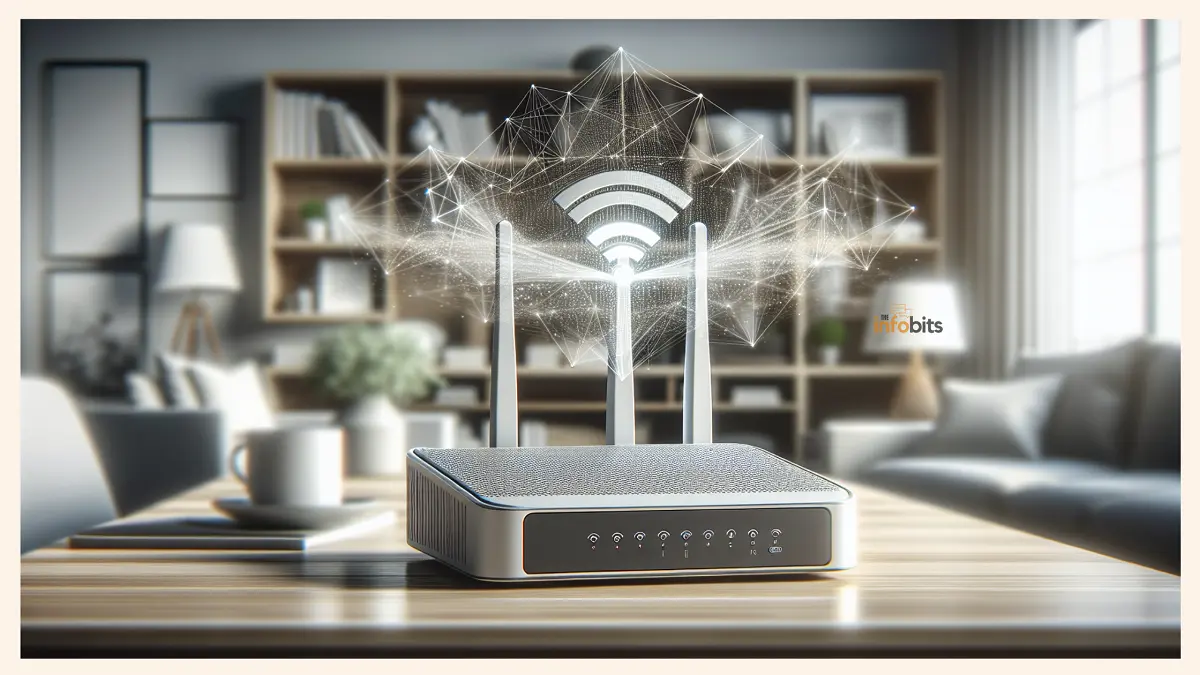
How to Boost WiFi Signal at Home or Office (10 Proven Ways That Actually Work)
You’re in the middle of a video call, and your screen freezes. You walk two rooms away from your router and the speed drops by half. Your smart TV buffers. Your gaming console lags. Sound familiar?
Weak WiFi is one of the most common household frustrations, and the fix is rarely as expensive or complicated as people assume. In most cases, a few smart adjustments — starting with free settings changes and working up to affordable hardware if needed — can transform a patchy network into something that actually works in every corner of your home or office.
This guide covers 10 proven methods to boost your WiFi signal, ordered from the easiest and cheapest to the more involved. You don’t need to be technical. You just need to know where to start.
📡 How Do You Boost WiFi Signal?
The fastest free fixes: move your router to a central, elevated location, switch to a less congested WiFi channel, and update your router’s firmware. If those don’t fully solve the problem, a WiFi extender covers one or two dead zones cheaply, while a mesh system provides seamless whole-home coverage. Read on for step-by-step guidance on all of these.
What Causes a Weak WiFi Signal? (And Why It Matters to Diagnose First)
Before you try to fix a weak WiFi signal, it helps to understand what’s causing it. Applying the wrong solution wastes time and money.
The most common culprits are:
- Distance from the router — WiFi signal weakens with every meter between your device and the router. A 2.4GHz signal typically covers 40–50 metres indoors; a 5GHz signal can drop after just 15–20 metres.
- Physical obstructions — Concrete walls, brick, metal studs, large appliances, and even fish tanks (water absorbs radio waves) all weaken WiFi signals significantly. A single concrete wall can reduce signal strength by 50% or more.
- Interference from other devices — Microwave ovens, cordless phones, baby monitors, and Bluetooth devices all operate on the 2.4GHz band and can disrupt your connection.
- Congested channels — If multiple nearby networks (your neighbours’ routers, for example) are all broadcasting on the same channel, they compete for the same frequency and slow each other down.
- Too many connected devices — Every device sharing your bandwidth takes a slice of it. A household with 15–20 connected devices — phones, laptops, smart TVs, smart bulbs, security cameras — puts real strain on a standard router.
- Outdated equipment — A router from 2018 or earlier likely uses WiFi 5 (802.11ac) at best, and may not support the speeds your internet plan is capable of delivering.
How to Test Your WiFi Signal Strength
Before making any changes, run a baseline test so you can measure your actual improvement.
Step 1: Go to fast.com or speedtest.net and run a speed test while standing next to your router. Note the result.
Step 2: Move to the room with the worst signal and run it again. If speeds drop dramatically, you have a coverage problem.
Step 3: Download a free WiFi analyser app — NetSpot (Windows/Mac), WiFi Analyzer (Android), or Network Analyzer (iOS) — to see a visual map of your signal strength and identify which channels your neighbours are using.
Step 4: Check how many devices are connected to your router via its admin panel (usually accessible at 192.168.1.1 or 192.168.0.1 in your browser).
This baseline gives you a clear picture of whether your problem is coverage, interference, congestion, or bandwidth overload — and which solution will actually help.
Related: WiFi Channel Optimization: How to Choose the Best WiFi Channel for Faster Speeds
1. Reposition Your Router — The Easiest Free Fix
This one costs nothing and is often the single most impactful change you can make. Yet most people put their router wherever it came out of the box and never move it.
Where to Place Your Router for Maximum Coverage
Routers broadcast radio waves in all directions — think of it like a light bulb radiating outward in a sphere. Where you place it determines how much of your home sits inside that sphere.
Do this:
- Place the router as centrally as possible in your home or office — not in the corner, not by the front door, not stuffed inside a cupboard.
- Elevate it — place it on a shelf, desk, or high table. Radio waves spread outward and slightly downward, so height helps coverage reach further.
- Keep it out in the open — not behind the TV, not inside a cabinet, not on the floor behind the sofa.
- Point the antennas vertically (straight up) for single-storey coverage, or position one antenna horizontally if you need coverage across multiple floors.
Avoid placing your router:
- Inside closed cabinets or AV units
- Behind large appliances like TVs, microwaves, or refrigerators
- On the floor or in a corner
- Near cordless phone bases, baby monitors, or microwave ovens
- Against an exterior wall (half the signal goes outside your home)
Pro tip: A properly positioned router can improve signal strength by 25–50% without spending a penny. If you’ve never moved your router from its original position, try this first before anything else.
2. Switch to a Less Congested WiFi Channel
Think of WiFi channels like lanes on a motorway. If everyone is using the same lane, traffic slows down. Changing your router to a less crowded channel is a free settings fix that can make a noticeable difference, especially in flats, apartment blocks, and offices.
How WiFi Channels Work
WiFi broadcasts on specific channels within its frequency band:
- The 2.4 GHz band has 11–13 channels (depending on your country), but only channels 1, 6, and 11 don’t overlap. If your neighbours’ routers are on channel 6, moving to channel 1 or 11 immediately reduces interference.
- The 5 GHz band has far more non-overlapping channels (up to 24 in the US and UK), which is one of the reasons it’s faster and less congested.
How to Change Your WiFi Channel
- Open a browser and type your router’s IP address — usually 192.168.1.1 or 192.168.0.1
- Log in with your admin credentials (often printed on the label under your router)
- Navigate to Wireless Settings or WiFi Settings
- Look for Channel or Channel Selection
- Switch from “Auto” to a specific channel — use your WiFi analyser app to identify which channels are least congested in your area.
- For 2.4GHz, choose channel 1, 6, or 11
- Save and apply the changes
Most routers default to “Auto” channel selection, which sounds sensible but often ends up choosing the same busy channel as your neighbours. Manual selection gives you control.
Related: WiFi Channel Optimization: How to Choose the Best WiFi Channel for Faster Speeds
3. Use the Right Frequency Band (2.4GHz vs. 5GHz vs. 6GHz)
One of the most misunderstood aspects of home WiFi is the difference between frequency bands — and using the wrong one for your situation can cost you significant speed and reliability.
| Feature | 2.4GHz | 5GHz | 6GHz (WiFi 6E) |
|---|---|---|---|
| Range | Long (40–50m indoors) | Medium (15–20m indoors) | Short |
| Speed | Slower | Faster | Fastest |
| Wall penetration | Good | Fair | Poor |
| Interference | High (crowded band) | Low | Very low |
| Best for | IoT devices, far rooms | Laptops, phones, streaming | Latest devices only |
The simple rule:
- Connect devices that need speed and are close to the router (laptops, phones, smart TVs) to the 5GHz band.
- Connect devices that just need reliable connectivity at a distance (smart bulbs, thermostats, security cameras) to the 2.4GHz band.
- If your router supports band steering, enable it — this automatically directs devices to the best available band without any manual work.
Most modern dual-band routers broadcast both frequencies simultaneously. If yours broadcasts them under a single network name, your devices should switch automatically. If speeds still feel slow on 5GHz, check whether your device is actually connecting to it — some older phones and laptops prefer 2.4GHz by default.
4. Update Your Router’s Firmware
Router manufacturers regularly release firmware updates that fix bugs, patch security vulnerabilities, and — importantly for our purposes — improve radio performance, channel management, and device compatibility. Many people have never updated their router’s firmware since the day they bought it.
How to Update Your Router’s Firmware
For most modern routers:
- Open the router’s admin panel in your browser (192.168.1.1 or 192.168.0.1)
- Log in with your admin credentials
- Look for Advanced, Administration, or System settings
- Find Firmware Update or Software Update
- Click Check for Updates — if an update is available, follow the on-screen instructions
For routers with a dedicated app (TP-Link Tether, ASUS Router, Netgear Orbi, Eero, etc.):
- Open the app and check the device settings or home screen for update notifications — most will prompt you automatically.
Important: Don’t unplug your router during a firmware update. It typically takes 2–5 minutes and the router will restart automatically.
Once updated, restart your router and run a speed test to compare results.
5. Enable QoS (Quality of Service) to Prioritise Traffic
If your household includes video calls for work, streaming, gaming, and general browsing all happening at the same time, your internet connection is constantly being divided between competing demands.
QoS is a feature built into most modern routers that lets you decide which traffic gets priority.
What QoS Does
QoS doesn’t create more bandwidth — it makes smarter use of what you already have. You can configure it to:
- Give your work laptop higher priority during business hours
- Ensure video calls (Zoom, Teams, Google Meet) don’t get interrupted by someone else downloading a large file
- Prioritise gaming traffic to reduce latency and lag
- Deprioritise background traffic like software updates and cloud backups
How to Enable QoS
- Log in to your router’s admin panel
- Look for QoS, Traffic Management, or Bandwidth Control in the settings
- Enable QoS and choose either device-based priority (prioritise a specific device) or application-based priority (prioritise video calls, gaming, etc.)
- Save and apply
Not all routers have QoS, and its implementation varies widely between brands. Routers from ASUS, TP-Link, Netgear, and Eero tend to have the most robust QoS options. If your router doesn’t support it, this is a strong reason to consider an upgrade.
Related: The Latest Trends in Router Technology: What You Need to Know
6. Reduce Interference from Household Devices
Interference is an invisible problem that can make your WiFi feel unreliable even when you have a good router in a decent location.
Common Sources of WiFi Interference
| Device | Frequency It Interferes With | How Bad |
|---|---|---|
| Microwave oven | 2.4GHz | High — severe while in use |
| Cordless phone base | 2.4GHz | High — constant |
| Baby monitor | 2.4GHz | High — constant |
| Bluetooth devices | 2.4GHz | Medium |
| USB 3.0 devices / hubs | 2.4GHz | Medium (often overlooked) |
| Neighbouring WiFi networks | Both | Medium to high |
| Smart home devices | 2.4GHz | Low to medium |
How to Reduce Interference
- Move the router away from microwave ovens, cordless phone bases, and baby monitors — even a metre of distance makes a difference.
- Switch to 5GHz for your primary devices. Microwave ovens, cordless phones, and most interference sources only affect the 2.4GHz band.
- Upgrade to DECT 6.0 cordless phones — they operate outside the WiFi frequency range and don’t interfere.
- Check USB 3.0 devices — this is a frequently overlooked source of 2.4GHz interference. External hard drives, hubs, and docking stations connected via USB 3.0 emit radio frequency noise on the 2.4GHz band. Try moving USB 3.0 devices away from your router or use shielded USB cables.
7. Add a WiFi Extender for Dead Zones
If repositioning your router and changing settings doesn’t fully eliminate dead zones, a WiFi extender (also called a repeater or booster) is the most affordable hardware solution.
How WiFi Extenders Work
A WiFi extender captures your router’s existing signal and rebroadcasts it at higher power, effectively stretching the coverage area into rooms and zones that the router’s signal can’t reach alone.
Best for:
- Single-storey homes with one or two dead zones
- Extending signal to a home office, garage, or garden
- Households where a full mesh system isn’t needed
Limitations:
- The extender’s signal is only as good as the signal it receives from your router — placing it in an area with already weak signal won’t help.
- It typically creates a separate network name (SSID), meaning your device may not automatically switch as you move around.
- Bandwidth is shared between the uplink to the router and the downlink to your devices, which can halve effective speeds if not managed well.
Placement Tips for WiFi Extenders
- Place the extender halfway between your router and the dead zone — not at the edge of coverage.
- The extender should be within clear line-of-sight of the router if possible.
- Avoid placing it in a cupboard or behind a large appliance
- Check the signal on the extender’s app or indicator lights — you want it receiving a strong signal from your router (typically 60–70% or better)
A well-placed mid-range extender like the TP-Link RE615X available on Amazon can cover an additional 140–185 square metres — enough to eliminate dead zones in most medium-sized homes.
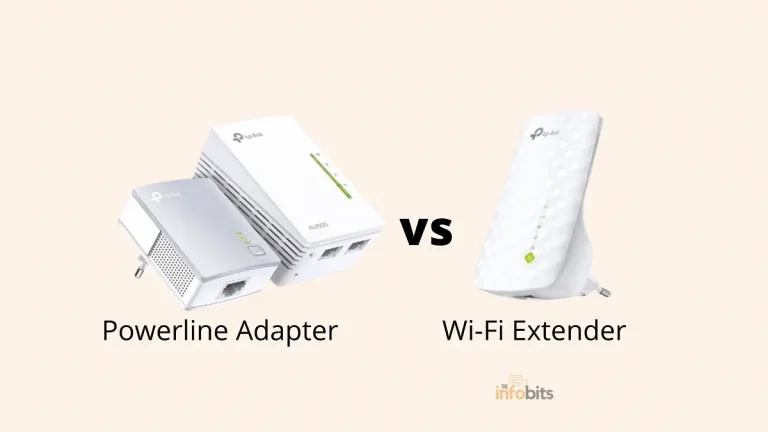
Related: Powerline Adapter vs Wi-Fi Extender: Which Is Best for Wi-Fi Signal Boosting?
8. Consider a Mesh WiFi System for Whole-Home Coverage
If you have a large home, multiple floors, thick walls, or a complex layout — or if you’re simply tired of dealing with dead zones and want a permanent solution — a mesh WiFi system is the most effective upgrade available.
How Mesh Systems Are Different from Extenders
Unlike a traditional router-plus-extender setup, a mesh system uses multiple nodes that communicate with each other directly and intelligently. Your device seamlessly hands off from one node to another as you move around the house, staying on the fastest available connection — all under a single network name.
| Feature | Router + Extender | Mesh System |
|---|---|---|
| Setup complexity | Low | Low (most use an app) |
| Roaming (seamless handoff) | No — separate SSIDs | Yes — single SSID |
| Coverage consistency | Uneven | Even throughout |
| Speed at range | Reduced | Consistent |
| Cost | $20–$80 | $150–$500+ |
| Best for | Small homes, one dead zone | Large homes, multi-floor |
Which Mesh System Should You Choose?
For most homes, the Eero Pro 6E (Amazon’s own brand, works with Alexa), TP-Link Deco X55, or Google Nest WiFi Pro are excellent starting points, and they are available on Amazon. A two-node kit typically covers 370–460 square metres and runs between $150–$250.
For larger homes or offices, three-node kits extend coverage to 650+ square metres. You can find current pricing and options for mesh WiFi systems on Amazon.
Setting up a mesh system takes about 15–20 minutes through the manufacturer’s app. Most require no technical knowledge beyond plugging in the nodes and following the on-screen instructions.
Related: Mesh System vs WiFi Extender: Which Is Better?
9. Use a Powerline Adapter to Extend Network via Your Electrical Wiring
Powerline adapters are an underrated solution that many people haven’t heard of. Instead of extending your WiFi wirelessly, they use your home’s existing electrical wiring to carry your network signal — turning any power socket in your house into a potential network connection point.
How Powerline Adapters Work
You plug one adapter into a socket near your router and connect it with an Ethernet cable. You plug a second adapter into a socket in the room that needs better connectivity. The two adapters communicate through your electrical circuit, and the second adapter either broadcasts a new WiFi signal in that room or provides a wired Ethernet port.
Best for:
- Rooms where WiFi signal is consistently poor regardless of extender placement (e.g., a home office at the opposite end of the house)
- Connecting smart TVs, gaming consoles, and streaming devices that benefit from a wired connection
- Multi-floor buildings where WiFi struggles to penetrate floors and ceilings
- Homes where running an Ethernet cable isn’t practical
Limitations:
- Performance varies depending on the quality and age of your home’s electrical wiring.
- Adapters on different electrical circuits within the same property may not communicate.
- Speeds are generally lower than a direct Ethernet run but higher than a stretched WiFi signal.
Starter kits from TP-Link AV2000 or TP-Link AV1000 are consistently well-reviewed. A two-adapter starter kit typically costs moderately and can be found on Amazon.
Related: Powerline Adapter vs Wi-Fi Extender: Which Is Best for Wi-Fi Signal Boosting?
10. Upgrade Your Router if It’s More Than 3–4 Years Old
If you’ve worked through the tips above and still have disappointing WiFi, the problem might simply be that your router is no longer capable of handling the demands of a modern home or office network.
Signs It’s Time to Upgrade Your Router
- Your router is more than 3–4 years old.
- It only supports WiFi 5 (802.11ac) or older standards — modern devices are designed for WiFi 6 (802.11ax) or WiFi 6E
- It’s a single-band router (2.4GHz only)
- You regularly have more than 10–15 devices connected simultaneously
- Speeds remain poor even after trying all the fixes above
What to Look for in a New Router
| Feature | Why It Matters |
|---|---|
| WiFi 6 (802.11ax) | Handles more devices simultaneously, faster speeds, better in congested environments |
| Dual-band or tri-band | Separate bands prevent congestion between devices |
| MU-MIMO | Allows the router to communicate with multiple devices at once rather than sequentially |
| Beamforming | Focuses signal toward your devices rather than broadcasting equally in all directions |
| WPA3 security | Latest encryption standard for better network security |
| Built-in QoS | Traffic prioritisation without needing third-party firmware |
For most homes, a mid-range WiFi 6 router like the GL.iNet GL-MT6000, TP-Link AXE5400, or GL.iNet GL-AX1800 provides a significant upgrade over older hardware at a price between $80–$170 on Amazon. You can compare the latest options for WiFi 6 routers on Amazon.
Related: Best Long Range WiFi Routers
Common WiFi Mistakes That Are Slowing You Down
Before spending money on new hardware, check whether any of these common mistakes are the real cause of your slow WiFi:
| Mistake | What to Do Instead |
|---|---|
| Router inside a cupboard or AV unit | Place it out in the open on a shelf or high surface |
| Never restarted the router | Restart it once a month — it clears memory and refreshes connections |
| Using the same default password and SSID from the ISP | Change both — an obvious network name attracts freeloaders stealing your bandwidth |
| Leaving unused devices connected | Disconnect or turn off devices you’re not using — they consume bandwidth passively |
| Running speed tests on WiFi only | Test wired too (Ethernet to laptop) — if wired is slow, the issue is your ISP, not your router |
| Assuming new hardware will fix a bad ISP plan | If your plan is genuinely too slow, no router upgrade will fix that — call your ISP |
| Never updating firmware | Set a quarterly reminder to check for firmware updates |
WiFi Booster, Extender, Repeater, or Mesh — Which Do You Actually Need?
These terms are often used interchangeably, but they’re not the same thing. Here’s a plain-English breakdown:
| Term | What It Actually Does | Best Situation |
|---|---|---|
| WiFi Extender / Booster / Repeater | Captures and rebroadcasts your router’s signal at higher power | One or two dead zones in a smaller home |
| Powerline Adapter | Sends network signal through your electrical wiring | Dead zones where WiFi can’t reach wirelessly |
| Access Point | Connects to your router via Ethernet and creates a new WiFi broadcast point | Larger homes where running a cable is practical |
| Mesh System | Multiple nodes with seamless handoff and a single network name | Large homes, multiple floors, many devices |
| New Router | Replaces your current router with better hardware | Old or underpowered equipment |
The right choice depends on your home’s layout, the nature of the problem, and your budget. If you’re unsure, start with the free fixes (positions, channels, bands) before spending anything.
How to Boost WiFi Signal at the Office
Most of the tips above apply equally to offices, but there are a few office-specific considerations worth addressing:
- Multiple users and devices — offices typically have far more simultaneous connections than homes. A business-grade router or access point handles this significantly better than a consumer router. Look for options with MU-MIMO and at least WiFi 6 support.
- QoS is essential — prioritise video conferencing traffic (Teams, Zoom) over background file syncing and software updates.
- Consider multiple access points — for offices over 200 square metres, a single router rarely provides consistent coverage. A wired access point setup (router → Ethernet cable → access points in each zone) is the most reliable configuration.
- Separate networks for staff and guests — set up a guest network that doesn’t share bandwidth or network access with your primary business network.
- Security matters more — enable WPA3 if your router supports it, change default credentials, and update firmware regularly.
Related: Is Guest WiFi Safe? How to Create a Secure Guest Network
Myth vs. Fact: WiFi Signal Misconceptions
Myth: Putting your router higher always makes it better. Fact: Height helps because it reduces obstructions, but the most important factor is central placement. A router on the floor in the centre of your home will outperform one mounted on a high shelf in the corner.
Myth: More antennas always means better WiFi. Fact: The number of antennas is not directly proportional to signal strength or range. What matters more is the quality of the radio chipset, the WiFi standard supported (WiFi 6 beats WiFi 5 regardless of antenna count), and the placement of the router.
Myth: Switching to a different ISP will fix your WiFi problem. Fact: In most cases, slow WiFi inside your home has nothing to do with your ISP — it’s a router placement, settings, or hardware issue. Before switching ISPs, connect a laptop directly to your modem with an Ethernet cable and run a speed test. If that result is fine, the problem is your WiFi setup, not your internet provider.
Myth: A WiFi signal booster will double your internet speed. Fact: A WiFi booster extends coverage — it cannot give you more speed than your internet plan provides. If your plan is 100Mbps, a booster won’t deliver 200Mbps. It just makes your existing 100Mbps available in more rooms.
Myth: Turning off your router saves meaningful electricity. Fact: Modern routers consume very little power (5–10 watts). Turning it off overnight saves a negligible amount on your electricity bill. However, restarting it monthly does help clear memory and refresh connections.
Related: How to Secure IoT Devices on Your Home WiFi Network
Conclusion
Slow or unreliable WiFi is almost always fixable — and you don’t need to spend a lot of money to fix it. Start with the free changes: reposition your router centrally, switch to a less congested channel, update the firmware, and make sure your devices are on the right frequency band. These four steps alone resolve the majority of home WiFi problems.
If you still have dead zones after the free fixes, a WiFi extender handles one or two problem areas cheaply, while a mesh system is the most complete solution for large homes and offices.
The goal isn’t just faster speeds — it’s reliable, consistent connectivity in every corner of your home or office, for every device, every time. With the right combination of placement, settings, and hardware, that’s entirely achievable.
Frequently Asked Questions
How can I boost my WiFi signal for free?
The best free fixes are: move your router to a central, elevated location; switch to a less congested WiFi channel (use channels 1, 6, or 11 on 2.4GHz); update your router’s firmware; switch close devices to the 5GHz band; and reduce interference from nearby appliances. Many people see significant improvements without spending anything.
Why is my WiFi signal weak in some rooms but strong in others?
Distance and physical obstructions are the main causes. Concrete, brick, and metal weaken WiFi signals significantly. The further a room is from your router — especially if walls or floors are between them — the weaker the signal will be. Repositioning your router centrally, or adding a WiFi extender, usually solves this.
Does a WiFi extender slow down your internet speed?
A standard (single-band) extender can reduce effective bandwidth by up to 50% because it uses the same frequency to communicate with both the router and your devices. A dual-band extender uses separate frequencies for the uplink and downlink, which reduces this problem considerably. A mesh system avoids it almost entirely through dedicated backhaul communication.
What is the best position for a WiFi router?
Centrally located, elevated (on a shelf or table), out in the open, and away from walls, thick obstructions, and appliances that cause interference (microwaves, cordless phones). Antennas should point vertically for single-storey coverage, or one vertical and one horizontal for multi-floor homes.
Is WiFi 6 worth upgrading to?
Yes, particularly if you have many devices or live in a dense environment (apartment block, office building). WiFi 6 (802.11ax) handles multiple simultaneous connections much more efficiently than WiFi 5, and includes OFDMA technology that reduces congestion in crowded environments. It’s backwards compatible with older devices, so there’s no downside to upgrading.
What is the difference between 2.4GHz and 5GHz WiFi?
2.4GHz has longer range and better wall penetration but is slower and more prone to interference. 5GHz is faster and less congested but has shorter range and weaker wall penetration. Use 5GHz for devices close to the router that need speed (laptops, streaming), and 2.4GHz for devices that just need a reliable connection at range (smart home devices, IoT gadgets).
How many devices can be connected to a home WiFi router?
Most consumer routers specify a limit of 20–50 devices, but real-world performance typically degrades before that hard limit. A standard WiFi 5 router handling 15+ active devices will feel slower than a WiFi 6 router handling the same load, because WiFi 6 is designed specifically for high-density environments.
Does restarting my router improve WiFi signal?
Yes — restarting your router once a month clears its memory, refreshes IP address assignments, and often resolves unexplained slowdowns. It’s one of the simplest maintenance steps you can take. Power the router fully off, wait 30 seconds, and power it back on.
What is a mesh WiFi system and do I need one?
A mesh WiFi system uses multiple nodes placed around your home that communicate with each other to provide seamless, consistent coverage under a single network name. You need one if: your home is large (over 200 square metres), has multiple floors, or has persistent dead zones that a single extender doesn’t resolve. For smaller homes with one or two dead spots, an extender is often sufficient.
Can my neighbours’ WiFi slow down my internet?
Yes — if your router is on the same channel as nearby networks, they compete for the same frequency and cause congestion. This is especially noticeable in flats and apartment buildings. Switching to a less congested channel (identified using a WiFi analyser app) usually solves the problem immediately.
What is QoS on a router and should I enable it?
QoS (Quality of Service) lets you prioritise certain devices or types of traffic on your network. Enable it if you regularly have video calls, gaming, or streaming competing for bandwidth — it ensures the most important traffic gets priority and prevents large downloads from degrading your call quality. Most modern routers support it in the admin settings.
How do I know if someone is stealing my WiFi?
Log into your router’s admin panel and check the list of connected devices. Any device you don’t recognise may be an unauthorised connection. Change your WiFi password immediately, use WPA3 or WPA2 encryption, and consider setting up a separate guest network for visitors rather than giving them your main password.
Does the type of router antenna matter?
Yes, to a degree. Most consumer routers have fixed omnidirectional antennas that broadcast equally in all directions. Some routers allow you to replace antennas with aftermarket high-gain or directional antennas, which can improve range in a specific direction. However, for most homes, router placement and settings changes have more impact than antenna upgrades.
What is beamforming and does it help WiFi signal?
Beamforming is a technology in modern routers that focuses the WiFi signal toward specific connected devices rather than broadcasting equally in all directions. It improves both signal strength and efficiency for those devices. Most WiFi 5 and WiFi 6 routers include beamforming — check your router’s specs to confirm it’s enabled.
Should I use my ISP’s supplied router or buy my own?
ISP-supplied routers are often low-end hardware chosen to minimise cost. If you’re experiencing persistent WiFi issues and you’ve tried all the free fixes, replacing your ISP’s router with a quality third-party router is often the most impactful upgrade you can make. Just make sure your chosen router is compatible with your ISP’s connection type (ADSL, VDSL, fibre, cable) or use it in combination with your ISP’s modem.
Please share this article with your friends and relatives if you find it useful.
We also ask that you bookmark this page for future reference, as we are constantly updating our articles with new information.
Sign up for our free newsletter as well to receive fresh information immediately in your inbox and keep technically up to date.
Disclosure: Some links in this article are affiliate links. If you purchase through them, we may earn a small commission at no additional cost to you.


)