Router Firmware Update Checklist: How Often Should You Really Update?
Quick answer: Check for firmware updates every 1–3 months, and install a security patch immediately whenever your manufacturer flags one as critical. If your router hasn’t received an update in over a year, or the model is more than 5 years old, stop checking the update log and start checking whether it’s reached end-of-life instead.
Here’s an uncomfortable number: fewer than 30% of home users ever manually update their router’s firmware. It’s the one device in the house that’s on 24/7, sitting between every device you own and the open internet, and it’s also the one most people never touch again after setup day.
That gap matters more than it used to. In 2025 and 2026, the FBI issued repeated warnings about botnets actively hijacking outdated home routers, and researchers keep finding the same pattern. Routers that haven’t been patched in years get quietly turned into proxies for other people’s cybercrime, without their owners noticing a thing.
This guide gives you a real, evidence-based answer to “how often should I update my router,” a checklist you can actually follow, and the warning signs that tell you it’s time to stop patching and start replacing.
Why Router Firmware Updates Matter More Than People Think
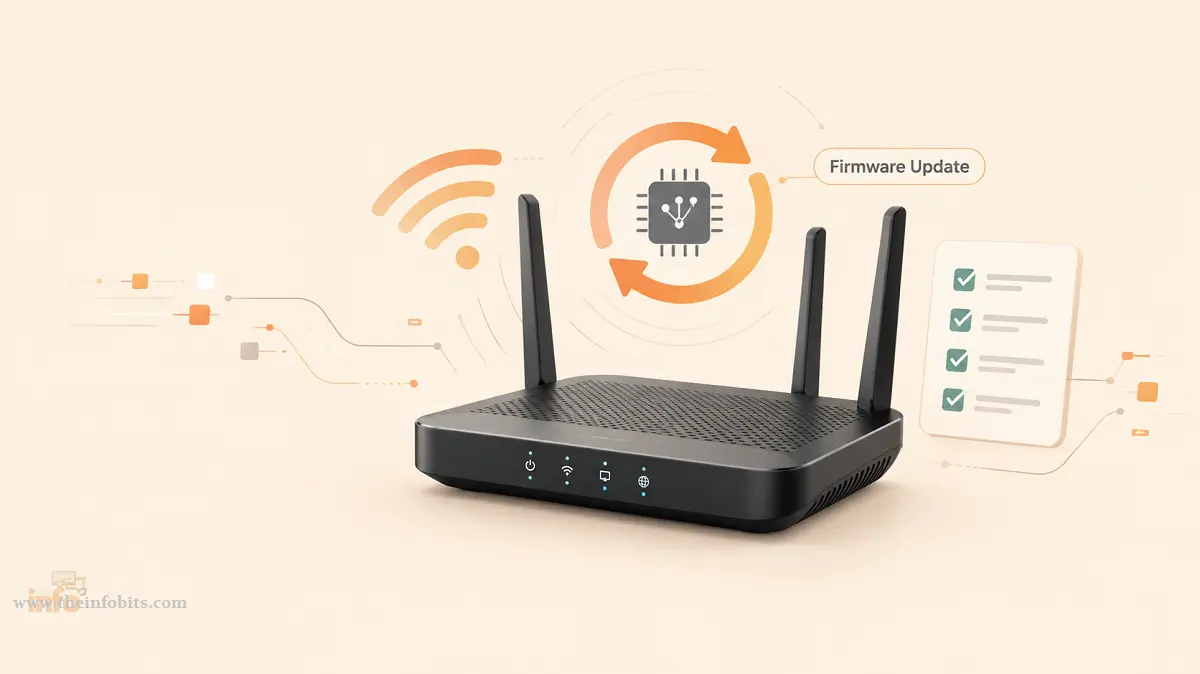
Firmware is the operating system running inside your router. It controls everything from how it handles Wi-Fi traffic to how it manages your network’s firewall, VPN passthrough, and remote administration settings. Like any software, it ships with bugs, and some of those bugs are security holes.
Unlike your phone or laptop, most consumer routers don’t update themselves by default. Manufacturers release patches when they find or get told about a vulnerability, but the router just sits there running the old, exploitable version until someone logs in and installs it.
This isn’t a hypothetical risk. TP-Link recently confirmed that a botnet tracked as “Quad7” was chaining two vulnerabilities together to hijack end-of-life Archer C7 and TL-WR841N/ND routers, using the compromised devices to run password-spraying attacks against Microsoft 365 accounts.
And in a flash bulletin, the FBI named a dozen specific end-of-life router models being actively exploited by a botnet built around a malware family called TheMoon, which installs proxy software that lets criminals route traffic anonymously through victims’ home networks.
The common thread in both cases: the routers were unpatched or unpatchable, and their owners had no idea anything was wrong. If you want to check whether your specific router might already be compromised, or add real-time filtering as an extra layer, our guide to routers with built-in malware protection covers models that catch this kind of threat automatically.
So, How Often Should You Actually Update?
There’s no single universal number, but based on manufacturer guidance and cybersecurity best practices, here’s a realistic schedule:
- Check for updates every 1–3 months. This is the consensus across manufacturer support docs and IT best-practice guides: check regularly, even if nothing seems wrong.
- Install security patches immediately, ideally within a few days of release, especially if the changelog mentions a CVE, a remote-code-execution fix, or “critical” in the description. This is the update category that actually matters most; feature updates can wait, security patches shouldn’t.
- Don’t wait for a problem to appear. Most firmware vulnerabilities are exploited silently. A router that “seems fine” isn’t evidence that it’s secure; it’s often exactly what a compromised router looks like from the outside.
- Re-evaluate annually whether your router is still supported at all. Manufacturers eventually stop releasing updates for older models. If your router hasn’t seen an update in 12+ months, check whether that’s because it’s rock-solid or because it’s reached end-of-life (more on how to tell below).
If that feels like more oversight than you want to manage by hand, jump to the automatic updates section; enabling this feature closes most of the gap between “should update” and “actually updated.”
Related: How to Detect Unauthorized Devices on Your WiFi Network
The Router Firmware Update Checklist
Print this, bookmark it, or just run through it every few months:
- [1] Identify your exact model number and hardware revision (found on a label on the router itself, e.g., “v1.2” or “v3”)
- [2] Log in to the router’s admin panel or manufacturer’s app
- [3] Check the current firmware version against the manufacturer’s support page for your model
- [4] Read the changelog for the latest available version, and note whether it mentions a security fix, a CVE number, or “critical”
- [5] Back up your current configuration before updating; most admin panels have a “Backup Settings” or “Export Configuration” option
- [6] Update over a wired Ethernet connection, not Wi-Fi, to avoid a dropped connection mid-flash
- [7] Never power off the router during the update. Let it finish and reboot on its own, even if it takes several minutes
- [8] Verify the new firmware version is showing correctly after the reboot
- [9] Re-test your network: Wi-Fi, guest network, port forwarding, VPN, and any custom DNS settings, since some updates reset non-default configurations
- [10] Re-enable any security settings that reset to default during the update (remote management should stay off unless you specifically need it)
- [11] Set a recurring reminder (phone calendar, note, whatever works) to repeat this check in 60–90 days
How to Check Your Router’s Current Firmware Version
- Connect to your router’s admin panel, typically at
192.168.1.1or192.168.0.1or via the manufacturer’s mobile app. - Log in with your admin credentials.
- Look under Administration, Advanced, or System for a “Firmware Version” or “Software Version” field.
- Compare that version number against your manufacturer’s official support page for your exact model and hardware revision.
If you’re not sure how to reach the admin panel in the first place, our guide to setting up a router walks through finding your router’s IP address and logging in for the first time.
How to Update Firmware by Brand
ASUS
- Go to
router.asus.comor your router’s LAN IP, and log in. - Navigate to Advanced Settings → Administration → Firmware Upgrade.
- Click Check to see if a new version is available.
- If one appears, click Upload or Firmware Upgrade to install it.
- Optionally, enable Auto Firmware Upgrade on this same page and set a preferred upgrade time (choose a low-traffic overnight window).
TP-Link
- Log in to the router’s web interface or the Tether/TP-Link app.
- Go to Advanced → System Tools → Firmware Upgrade (interface labels vary slightly by model).
- Click Check for Upgrade.
- If available, click Upgrade and wait for the router to reboot.
NETGEAR
- Log in at
routerlogin.netor through the Nighthawk app. - Go to Advanced → Administration → Router Update (or tap Check for Updates in the app).
- Enable Router Auto Firmware Update in this section if you want it handled automatically going forward.
- If a manual update is available, click Update Now and let it complete.
Amazon Eero
Eero mesh systems don’t have a web admin interface; updates are handled entirely through the mobile app:
- Open the Eero app and go to Settings → Software Version.
- If an update is available, tap Install Now.
- Eero applies most updates automatically in the background, so a manual check is mostly a way to confirm you’re current, not a requirement.
ISP-Provided Routers (Xfinity, Spectrum, etc.)
Most ISP-supplied gateways update automatically and don’t expose a manual firmware option to the end user.
You can typically confirm your current version under Maintenance → Router Upgrade → Check in the admin panel, but if an update is pending, your ISP generally controls the rollout schedule.
Automatic Updates: Should You Turn Them On?
For most home users, yes. Enabling automatic firmware updates closes the single biggest gap in router security: the update that never gets installed because nobody remembered to check.
The issue is that you lose the ability to review a changelog before it’s applied, and in rare cases, an automatic update has introduced a new bug or reset a custom configuration without warning.
This has happened often enough with a few manufacturers that some enthusiasts and IT admins deliberately stay one patch version behind on business equipment, applying updates manually after confirming there are no early reports of problems.
For a typical home network, automatic updates set to install overnight are still the safer default; the frequency and severity of botnet-driven router exploitation now outweigh the occasional bad update.
If you run a business network or a setup with custom port forwarding, a VPN configuration, or OpenWrt/DD-WRT custom firmware, manual updates with a quick changelog review are worth the extra few minutes.
Signs Your Router Is End-of-Life (Stop Patching, Start Replacing)
Firmware updates only help if the manufacturer is still releasing them. Watch for these signs that your router has aged out of support entirely:
- No firmware releases in 12+ months, especially if the manufacturer’s support page has no listed update history for your model.
- Your model doesn’t appear in the manufacturer’s current support/download search at all. This usually means it’s been formally discontinued.
- You’re running hardware from 2018 or earlier without WPA3 support. In an active alert, the FBI specifically flagged routers dated 2010 or earlier as being at serious risk of exploitation because they no longer receive any security patches, and the broader pattern holds for most consumer routers once they pass the 5–7 year mark.
- Unexplained overheating, random reboots, or settings changes you didn’t make. The FBI’s advisory lists these as common signs of an active router-malware infection, alongside connectivity problems that don’t match your ISP’s status.
- Remote management is enabled, and you don’t remember turning it on. This is the specific setting attackers have exploited to gain shell access to outdated routers with known vulnerabilities.
If two or more of these apply, it’s genuinely time to shop for a replacement rather than keep checking for an update that isn’t coming. Our guide to routers with built-in malware protection and our breakdown of the latest router security features worth paying for are both good starting points if you’re due for an upgrade.
Myth vs. Fact: Router Firmware Updates
| Myth | Fact |
|---|---|
| “If my internet is working fine, my firmware doesn’t need updating.” | Most router vulnerabilities are exploited silently. A router that “seems fine” gives you no information about whether it’s actually been compromised. |
| “Firmware updates are only about new features.” | Many updates exist purely to patch a security vulnerability. Skipping them because “nothing looks new” is exactly how routers end up in botnets. |
| “My router updates itself automatically by default.” | Most consumer routers do not auto-update out of the box. You typically have to find and enable this setting manually. |
| “An old router is fine as long as I have a strong Wi-Fi password.” | A strong Wi-Fi password doesn’t protect against a firmware vulnerability exploited remotely over the internet, which is how most botnet campaigns spread. |
| “Updating firmware will wipe all my settings.” | A backup beforehand protects against this, but most updates preserve your configuration. Some do reset specific features (like remote management or DNS), which is why re-testing matters afterward. |
Related: How Long Do Routers Last? Real Lifespan & 8 Signs It’s Time to Replace
Common Mistakes That Cause Failed Updates
- Updating over Wi-Fi instead of a wired connection. A dropped Wi-Fi signal mid-update can corrupt the firmware and, in rare cases, brick the router.
- Downloading the wrong firmware file. Always match the exact model and hardware revision (e.g., “v1” vs. “v3”); a mismatched file is one of the most common causes of a failed flash.
- Powering off during the update. Even if the router looks frozen, interrupting the process is far more likely to cause damage than waiting it out.
- Skipping the pre-update backup. If a setting does reset, having an exported configuration file saves you from rebuilding port forwarding rules, guest network settings, or a VPN configuration from scratch.
- Assuming the update finished without checking. Always confirm the new version number is showing in the admin panel after the reboot.
Troubleshooting a Failed or Stuck Update
The update seems stuck or frozen:
- Wait at least 10–15 minutes; some updates genuinely take this long, especially on mesh systems updating multiple nodes.
- Avoid power-cycling during this window unless the router has been unresponsive well past the expected time.
- If it’s genuinely frozen, power-cycle once, then reconnect to the admin page to check status.
The router won’t respond after an update:
- Power-cycle the router once and wait for a full reboot cycle.
- Try reconnecting via a wired Ethernet connection directly to the admin page.
- If it still won’t respond, check the manufacturer’s support page for a factory-reset or firmware-recovery procedure specific to your model.
Wi-Fi, guest network, or VPN settings stopped working after the update:
- Log in to the admin panel and check whether the affected feature reset to a default state; this is common with certain security-related updates.
- Manually reconfigure the setting, or restore it from the backup file you exported before updating.
- If you use custom DNS servers, confirm they weren’t reset to your ISP’s default; see our guide on the best DNS servers for blocking malware and ads if you need to re-enter them.
Related: Common Router Issues & How to Fix Them: Complete Guide
Expert Tips Checklist
- Set a recurring 60–90 day reminder to check for updates manually, even with auto-updates enabled.
- Treat any changelog mentioning “security,” “CVE,” or “critical” as urgent; install within days, not months.
- Always update over Ethernet, never Wi-Fi
- Export a configuration backup before every manual update
- Re-test your full network (Wi-Fi, guest network, port forwarding, DNS, VPN) after any update
- Check your model against the manufacturer’s current support list once a year to catch end-of-life status early
- Disable remote management unless you actively use it; it’s the setting most commonly exploited on outdated routers
Conclusion
The honest answer to “how often should you update your router” is: check every 1 to 3 months, act immediately on anything labeled a security patch, and stop treating “it’s still working” as proof that it’s still safe.
The bigger risk most households face isn’t forgetting to update; it’s running a router that’s already past the point where updates exist at all. If your device hasn’t seen a firmware release in over a year, or it’s pushing five-plus years old, the checklist above should shift from “update it” to “plan to replace it.”
Pair whichever router you land on with the basics in our guide to securing your home Wi-Fi network, and firmware updates become one solid layer in a setup that’s genuinely hard to compromise.
Frequently Asked Questions
How often should I update my router’s firmware?
Check for updates every 1 to 3 months as a general habit, and install any update described as a security patch immediately, ideally within a few days of release.
What happens if I never update my router’s firmware?
Unpatched vulnerabilities remain exploitable indefinitely. The FBI has documented active botnet campaigns specifically targeting routers running outdated, unpatched firmware, using them to launch attacks or route criminal traffic anonymously.
Do routers update themselves automatically?
Not by default on most consumer models. Many routers include an auto-update option under Administration or System settings, but it usually has to be manually enabled.
Is it safe to enable automatic firmware updates?
For most home users, yes. It closes the biggest security gap (forgotten updates) at the cost of occasionally applying an update before you’ve reviewed its changelog. Business networks or setups with heavy customization sometimes prefer manual updates with a brief delay to watch for early bug reports.
How do I know if my router is too old to update?
Check the manufacturer’s official support page for your exact model. If it doesn’t appear in current firmware downloads, or hasn’t received an update in 12+ months, it’s likely reached end-of-life and should be replaced rather than patched.
What are the FBI’s warnings about outdated routers?
The FBI has issued advisories naming specific end-of-life router models (mostly older Linksys and Cisco devices) that were actively compromised by botnet malware, used to build proxy networks for cybercriminals. The core recommendation is the same for any brand: replace routers that no longer receive security updates.
Can a firmware update fix a slow router?
Sometimes. Updates can resolve bugs affecting stability and performance, but they can’t fix aging hardware, a weak processor, or an outdated Wi-Fi chipset. If your router is genuinely underpowered for your current internet speed or device count, a firmware update won’t solve that.
Will updating my router’s firmware delete my settings?
Usually not, but some updates reset specific features like remote management, DNS settings, or advanced security options to default. Exporting a configuration backup before updating protects against losing anything important.
Should I update over Wi-Fi or a wired connection?
Always use a wired Ethernet connection when possible. A dropped Wi-Fi connection during the update process can corrupt the firmware and potentially damage the router.
What’s the difference between firmware and software updates on a router?
Firmware is the low-level operating system built into the router’s hardware; there’s typically no separate “software” layer to distinguish it from on a consumer router. Manufacturer apps sometimes use the terms interchangeably.
How long does a router firmware update take?
Most updates take 2 to 10 minutes, including the reboot. Mesh systems updating multiple nodes can take longer since each unit updates in sequence.
What should I do if a firmware update fails?
Wait at least 10–15 minutes before assuming failure; some updates are simply slow. If the router remains unresponsive well past that window, power-cycle it once and check the manufacturer’s support page for a model-specific firmware-recovery procedure.
Can outdated router firmware really be used to attack other people, not just me?
Yes. Documented botnet campaigns have used compromised, outdated routers as launch points for password-spraying attacks against other accounts and as anonymous proxy infrastructure for cybercriminals, without the router’s owner noticing anything unusual.
Does resetting my router to factory settings count as a firmware update?
No. A factory reset restores default settings on your current firmware version; it doesn’t install newer firmware. You may still need to check for and apply an update after a reset.
Is it worth paying for a router with guaranteed long-term firmware support?
If you keep routers for 5+ years, yes. Some manufacturers commit to longer support windows than others, and a router that’s abandoned early becomes a security liability well before it physically fails. Check a model’s firmware update history before buying if longevity matters to you.
Do mesh Wi-Fi systems need firmware updates too?
Yes, every node in a mesh system runs its own firmware and needs to stay updated, though most mesh systems (like Eero) handle this automatically through their mobile app with little manual intervention required.
Should I update my ISP-provided router, or does the ISP handle that?
Most ISP-supplied gateways update automatically on a schedule the ISP controls. You typically can’t force an early update, but you can usually check your current firmware version under the admin panel’s maintenance section to confirm you’re not stuck on an old release.
Found this guide useful? Share it with someone who is suffering from networking-related issues. Follow us on Facebook and Twitter for more tips, tricks, and guides.
We also ask that you bookmark this page for future reference, as we are constantly updating our articles with new information.
Sign up for our free newsletter as well to receive fresh information immediately in your inbox and keep technically up to date.
Disclosure: If you follow our links to a retailer’s website and make a purchase, we will get an affiliate commission on some, but not all, of the items or services we promote. This will cause no price change for you.