
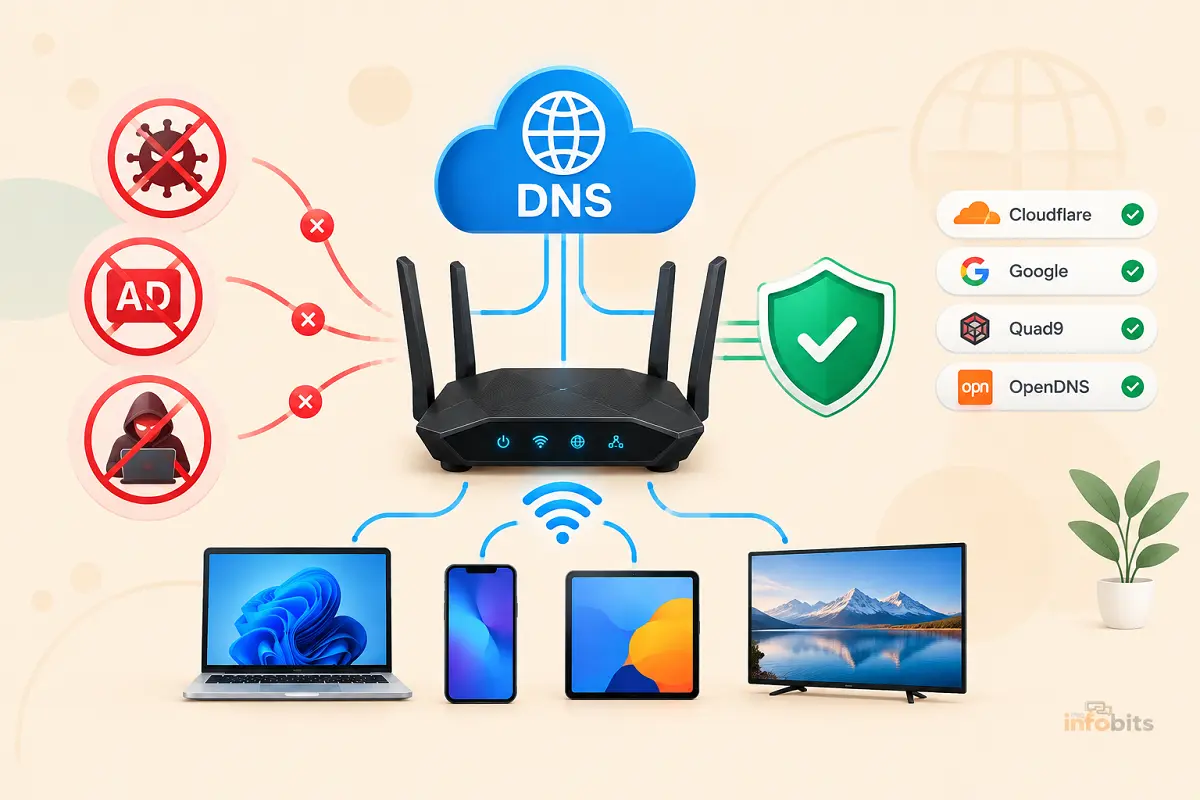
Best DNS Servers for Blocking Malware and Ads in 2026 (Free & Paid, Tested)
Quick answer: For most homes, Quad9 (9.9.9.9) is the best free, no-signup DNS server for blocking malware and phishing. If you also want ads and trackers gone across every device, switch to AdGuard DNS (94.140.14.14) or build a free custom profile with NextDNS. Families who want adult-content filtering too should use Cloudflare 1.1.1.3 or OpenDNS FamilyShield.
Your router is almost certainly still using whatever DNS server your ISP handed it on day one. That server resolves web addresses just fine, but it does nothing to stop you from landing on a phishing page, a malvertising redirect, or a site that’s actively serving malware. It also doesn’t block a single ad.
A DNS-level filter fixes both problems before your device connects. Point your router at the right resolver, and every phone, laptop, smart TV, and game console on your network gets protected at once- no browser extension, no app to install on each device.
I tested and compared nine public DNS resolvers that specifically filter malware, phishing, and advertising domains, looked at what each one actually blocks (versus what its marketing claims), and put together exact setup steps for routers, Windows, Mac, Android, and iOS.
How DNS-Level Blocking Actually Works
Think of DNS as the internet’s phone book. Every time your phone or laptop tries to load a site, it asks a DNS server to translate a domain name (like example.com) into the IP address that computers actually use to connect.
A filtering DNS server checks that request against a blocklist before answering. If the domain is known to host malware, run a phishing kit, or serve ads and trackers, the server refuses to resolve it, typically returning 0.0.0.0 or an NXDOMAIN response instead of the real address. Your device never connects, so the malicious payload never loads, and the ad never has a chance to render.
This happens at the network layer, before any HTTP request is made, which is why it works identically across browsers, apps, smart TVs, and IoT devices that can’t run an ad-blocking extension.
Related: Best DNS Servers for Gaming (Speed-Tested & Ranked)
What DNS Filtering Can’t Do
I’d rather tell you the limits upfront than let you find out the hard way:
- It can’t clean malware already on a device. DNS blocking stops a connection to a known-bad domain; it isn’t antivirus software. If you suspect an active infection, pair this with a scanner like the one compared in our Malwarebytes vs. Kaspersky guide.
- It can’t see traffic that bypasses it. Apps with hardcoded IP addresses, devices using their own encrypted DNS (some browsers ship a built-in DoH resolver), or anyone connected to a VPN or a different Wi-Fi network won’t be filtered.
- It won’t stop every ad. Blocklists cover known ad and tracker domains, but first-party ads served from a site’s own domain (common on YouTube and some news sites) usually slip through. A DNS filter meaningfully reduces ads; it doesn’t eliminate them the way an in-browser blocker can.
- It can occasionally break a legitimate site. Aggressive blocklists sometimes flag a domain that a service depends on for login, payment, or video playback. Every provider below lets you allowlist a domain if this happens.
How We Evaluated These DNS Servers
Rather than repeating marketing claims, we compared every provider against the same criteria:
- Malware and phishing coverage – how the blocklist is sourced and how frequently it’s updated
- Ad and tracker blocking – whether this is included by default or requires extra configuration
- Customization – can you add your own blocklists, allowlist a domain, or set per-device profiles
- Privacy policy – whether the provider logs, sells, or shares query data
- Protocol support – DoH, DoT, and DoQ support for encrypted DNS
- Setup complexity – a fixed IP you can type in two minutes versus an account and config profile
Related: Best Routers with Built-in VPN for Ultimate Security
Quick Comparison Table
| DNS Provider | Primary / Secondary IP | Malware Blocking | Ad/Tracker Blocking | Customization | Price |
|---|---|---|---|---|---|
| Quad9 | 9.9.9.9 / 149.112.112.112 | Excellent (25+ threat feeds) | No | None | Free |
| Cloudflare (1.1.1.1 for Families) | 1.1.1.2 / 1.0.0.2 (malware); 1.1.1.3 / 1.0.0.3 (malware + adult) | Good | No | Fixed presets only | Free |
| AdGuard DNS | 94.140.14.14 / 94.140.15.15 | Good | Excellent | Family/default profiles | Free / Paid |
| NextDNS | Config-based (app/profile ID) | Excellent | Excellent | Fully customizable, per-device | Free (300K queries/mo), Paid |
| Control D | 76.76.2.0 / 76.76.10.0 | Very good | Very good | Free presets, deep paid customization | Free / Paid |
| OpenDNS FamilyShield | 208.67.222.123 / 208.67.220.123 | Good | No | None (preset only) | Free |
| CleanBrowsing | 185.228.168.9 / 185.228.169.9 (Security filter) | Good | Limited | Multiple filter presets | Free |
| Mullvad DNS (ad/tracker variant) | Config-based (DoH/DoT endpoint) | Basic | Good | Toggle-based, no account | Free |
| Pi-hole + upstream resolver | Self-hosted (local IP) | Depends on upstream + lists | Excellent | Fully customizable | Free (hardware only) |
Related: Best OpenWrt Routers: Tested Picks for Every Budget and Use Case
The 9 Best DNS Servers for Blocking Malware and Ads in 2026
1. Quad9 (9.9.9.9)
Primary DNS: 9.9.9.9 Secondary DNS: 149.112.112.112
Quad9 is run by a Swiss non-profit and checks every query against real-time threat intelligence feeds contributed by more than two dozen cybersecurity partners. If a domain is linked to malware, phishing, or a botnet’s command-and-control infrastructure, Quad9 simply refuses to resolve it.
It doesn’t log personally identifiable data, supports DNSSEC validation, and offers encrypted DNS over DoH and DoT.
What it’s missing: Quad9 does not block general advertising domains by default, so you’ll still see ads in your browser and apps. It’s a security filter first, not an ad blocker.
Best for: Anyone who wants the strongest free malware and phishing protection and doesn’t mind pairing it with a separate ad blocker.
2. Cloudflare 1.1.1.1 for Families (1.1.1.2 / 1.1.1.3)
Malware only: 1.1.1.2 / 1.0.0.2 Malware + adult content: 1.1.1.3 / 1.0.0.3
Changing a single digit on Cloudflare’s standard resolver switches on automatic filtering. 1.1.1.1 for Families comes with two default options: one that blocks malware, and another that blocks both malware and adult content, depending on which IP address you configure. There’s no account, no app, and no dashboard, just two IP addresses typed into your router or device.
What it’s missing: Like Quad9, this is a security and content filter, not an ad blocker; ad and tracker domains resolve normally. Some users have also reported the adult-content filter under-blocking on certain routers, so it’s worth testing with Cloudflare’s own verification pages after setup.
Best for: Households that want Cloudflare’s speed plus a genuinely two-minute security setup, with an easy toggle for adult-content filtering.
Related: How to Set Up Parental Controls on Your Router (All Major Brands + DNS Filtering)
3. AdGuard DNS
Primary DNS: 94.140.14.14 Secondary DNS: 94.140.15.15
AdGuard DNS is purpose-built around the two things most people actually search for: fewer ads and fewer malicious domains. It filters known ad, tracker, analytics, and malware domains simultaneously, and it does this on every connected device- phones, smart TVs, game consoles- without a single browser extension.
It supports DoH, DoT, DoQ, and even DNSCrypt, and doesn’t log identifiable query data. A separate “Family protection” IP set adds adult-content and safe-search enforcement on top.
What it’s missing: Aggressive ad-domain blocking occasionally breaks a page or app feature that depends on an ad-network domain to function. You may need to whitelist a specific domain if something stops loading.
Best for: Anyone whose main goal is a genuinely ad-free browsing and app experience, with malware protection included as a bonus.
4. NextDNS
Setup: Config-based via app or profile ID (no fixed public IP)
NextDNS is the most customizable option on this list. After creating a free profile, you can toggle dozens of blocklists (ads, trackers, malware, phishing, cryptomining, even specific streaming or social platforms), set different rules per device, and see real-time analytics on exactly what’s being blocked and where.
The free tier covers 300,000 queries a month, which comfortably covers a single household.
What it’s missing: Unlike Cloudflare or Quad9, you can’t just type in two numbers and be done. NextDNS requires linking a config ID through its app, a browser extension, or a DoH/DoT endpoint, which takes a few extra minutes the first time.
Best for: Power users who want granular, per-device control and visibility into their own DNS traffic rather than a fixed, one-size-fits-all filter.
5. Control D
Primary DNS: 76.76.2.0 Secondary DNS: 76.76.10.0
Control D offers free, no-account filtering profiles that block malware and ads out of the box, alongside a paid tier with deep category-level customization (gambling, social media, adult content, and more). It supports every major encrypted DNS protocol, DoH, DoT, and DoQ, and its network tests well for both speed and uptime.
What it’s missing: The free tier’s filtering categories are more limited than the paid plans, and as a newer company, it doesn’t have the decades-long track record of Cisco-owned OpenDNS.
Best for: Users who want encrypted DNS and solid ad/malware blocking without giving up speed, and who might grow into the paid, fully customizable tier later.
Related: How to Detect Unauthorized Devices on Your WiFi Network
6. OpenDNS FamilyShield
Primary DNS: 208.67.222.123 Secondary DNS: 208.67.220.123
OpenDNS FamilyShield blocks pornographic content along with proxies and anonymizers that could otherwise be used to bypass filtering, and it also blocks phishing and some malware. It’s preconfigured, requires no account, and works the moment you enter the two IP addresses above, distinct from OpenDNS’s standard (unfiltered) resolver at 208.67.222.222 / 208.67.220.220.
What it’s missing: FamilyShield has no ad-blocking component, and its filtering categories are fixed. If you want to customize what’s blocked, you need a free OpenDNS Home account and the standard resolver instead.
Best for: Families who want a simple, preconfigured filter that blocks adult content, phishing, and some malware without any setup beyond the DNS change itself.
7. CleanBrowsing
Security filter: 185.228.168.9 / 185.228.169.9
CleanBrowsing offers several presets depending on what you need: a Security filter (phishing and malware only), a Family filter (adds adult content, proxies, and VPN domains), and an Adult filter. The Security preset is the one most relevant if malware and phishing are your main concern without touching general browsing.
What it’s missing: Ad and tracker blocking isn’t a core focus, so don’t expect it to meaningfully reduce ads the way AdGuard or NextDNS will.
Best for: Schools, libraries, and households that want a specific, well-defined filtering preset without building a custom profile.
8. Mullvad DNS (ad/tracker-blocking variant)
Setup: DoH/DoT endpoint, no fixed public IP, no account
Mullvad, the Sweden-based VPN provider, also runs a standalone DNS service aimed at improving privacy for people not using its VPN. Its ad-and-tracker-blocking variant filters basic content, ad, and malware domains, and you choose which categories to enable at setup.
What it’s missing: The blocking is more basic than AdGuard or NextDNS, and it requires configuring an encrypted DNS endpoint rather than a simple IP address, which is a bit more setup for a casual user.
Best for: Privacy-focused users who already trust Mullvad’s no-logs reputation and want ad/malware filtering without creating any account.
9. Pi-hole (or AdGuard Home) as a Local Layer
Setup: Self-hosted on a Raspberry Pi, old PC, or NAS
If you want the most control, run Pi-hole or AdGuard Home locally and point it at one of the resolvers above (Quad9 or Cloudflare’s malware-blocking IPs are common choices) as the upstream server. This gives you a local blocklist you fully control, layered on top of a security-focused upstream resolver, plus a dashboard showing exactly what’s being blocked network-wide.
What it’s missing: This requires a Raspberry Pi 5 Starter Kit, which is available on Amazon, and ongoing maintenance, unlike the zero-setup public resolvers above. It’s the most powerful option and the most hands-on one.
Best for: Homelab enthusiasts and anyone who wants full transparency and control over their household’s blocklists rather than trusting a single provider’s defaults.
Related: Router Security Features That Matter in 2026: A Complete Guide
Myth vs. Fact: DNS Ad & Malware Blocking
| Myth | Fact |
|---|---|
| “A DNS filter replaces antivirus software.” | It blocks connections to known-bad domains before they load. It can’t detect or remove malware already on a device. |
| “DNS blocking removes all ads.” | It removes ads served from known ad-network domains. First-party ads hosted on a site’s own domain often still load. |
| “Free DNS filters are less secure than paid ones.” | Quad9, Cloudflare, and AdGuard’s free resolvers are independently regarded as some of the most secure, privacy-respecting options available. |
| “Once I set it on my router, every device is protected no matter what.” | Any device using a VPN, a different Wi-Fi network, or its own hardcoded DNS (some browsers ship a built-in resolver) bypasses your router-level filter. |
| “More blocklists is always better.” | Overlapping, unmaintained blocklists increase false positives and can break legitimate sites. A well-maintained, focused list beats a bloated one. |
How to Choose the Right One for Your Setup
- Want the simplest security upgrade, no ad-blocking needed: Quad9 (9.9.9.9) – free, no account, strong malware and phishing coverage.
- Want ads gone across every device on the network: AdGuard DNS (94.140.14.14) – the most complete free ad, tracker, and malware combination.
- Want granular, per-device control: NextDNS – build a custom profile with exactly the categories you want blocked.
- Family with kids, want adult content filtered too: Cloudflare 1.1.1.3 or OpenDNS FamilyShield – preset, no configuration required.
- Comfortable with a bit of setup, want full transparency: Pi-hole or AdGuard Home on a spare Raspberry Pi, using Quad9 or Cloudflare as the upstream resolver.
If you’re setting this up at the router level, it’s worth checking that your router actually supports manual DNS overrides and encrypted DNS. Some older or ISP-locked routers restrict this, in which case a router with built-in malware protection that handles filtering itself can be the easier fix.
If your current router is one of the restrictive ISP-supplied models, the GL.iNet Flint 2 (GL-MT6000) [see on Amazon] supports custom upstream DNS and DoH out of the box, which makes setting up Quad9 or NextDNS at the router level far simpler than fighting a locked-down ISP router.
Step-by-Step: How to Change Your DNS Server
Router (protects every device at once)
- Open a browser and enter your router’s IP address (commonly 192.168.1.1 or 192.168.0.1).
- Log in with your router’s admin credentials.
- Find the WAN or Internet settings page.
- Change the DNS fields from “Automatic” or ISP-assigned to your chosen provider’s Primary and Secondary addresses.
- Save and reboot the router.
Windows
- Open Settings → Network & Internet.
- Click your active connection (Wi-Fi or Ethernet), then click Edit next to DNS server assignment.
- Switch from Automatic (DHCP) to Manual.
- Enable IPv4 and enter your Preferred and Alternate DNS addresses.
- Save the changes.
Mac
- Open System Settings → Network.
- Select your active connection and click Details.
- Go to the DNS tab.
- Click + and add your chosen Primary and Secondary DNS addresses.
- Click OK, then Apply.
Android
- Go to Settings → Network & Internet → Wi-Fi.
- Tap the gear icon next to your connected network.
- Tap Advanced, then change IP settings to Static.
- Enter your chosen DNS 1 and DNS 2 addresses.
- Save. (Newer Android versions also support “Private DNS” under Network settings for a DoH/DoT hostname.)
iPhone / iPad
- Go to Settings → Wi-Fi.
- Tap the (i) icon next to your connected network.
- Tap Configure DNS → Manual.
- Remove the existing servers and add your chosen addresses.
- Tap Save.
Common Mistakes to Avoid
- Mixing unrelated providers as primary/secondary. Use a single provider’s own primary and secondary IPs together to keep its full filtering benefit; mixing providers means either could respond first, and only one may be filtering.
- Forgetting to restart after a router-level change. Devices can cache the old DNS settings until you restart them or flush the local DNS cache.
- Assuming DNS blocking replaces antivirus. It stops connections to known-bad domains; it doesn’t scan or remove malware already present. Pair it with endpoint protection for full coverage.
- Not testing the filter after setup. Providers like Cloudflare publish test URLs specifically for this. Confirming the block is working takes thirty seconds and saves confusion later.
- Ignoring the privacy policy. If avoiding data logging matters to you, check whether the provider you picked actually has an audited no-log policy rather than assuming “free” means private.
Troubleshooting DNS Filtering Issues
A site or app stopped working after switching DNS:
- Confirm the domain is being blocked by checking your provider’s dashboard or block log, if it has one (NextDNS, Control D, and AdGuard DNS all offer this).
- Temporarily switch back to your previous DNS to confirm the filter is the cause.
- Add the specific domain to your provider’s allowlist rather than disabling filtering entirely.
Filtering doesn’t seem to be blocking anything:
- Flush your device’s DNS cache (
ipconfig /flushdnson Windows) and restart the browser. - Confirm you entered the correct filtered IP addresses. Providers like Cloudflare and OpenDNS run separate filtered and unfiltered resolvers that differ by a single digit.
- Visit your provider’s official test page (for example, Cloudflare’s
malware.testcategory.com) to confirm the block is active.
DNS server times out or is slow:
- Restart your router and device.
- Try the provider’s secondary IP address.
- Run a quick benchmark against an alternative provider to rule out a regional routing issue.
Expert Tips Checklist
- Use a provider’s own primary and secondary IPs together, not a mix of providers.
- Test the filter with the provider’s official test URL right after setup
- Set DNS at the router level to cover every device without individual configuration
- Keep an allowlist habit: fix a false positive by whitelisting the domain, not by disabling the filter
- Revisit your choice periodically; blocklists and provider features change over time
- If you want both strong malware blocking and full ad blocking, consider layering AdGuard DNS or NextDNS on top of a home network’s router-level settings
Conclusion
The right DNS server for blocking malware and ads in 2026 depends on how much filtering you want and how much setup you’re willing to do.
If you want the simplest, most trusted security upgrade with zero configuration, Quad9 is hard to beat. If ads are your main frustration, AdGuard DNS or a custom NextDNS profile will do far more than Quad9 alone.
Families that also want adult content filtered should look at Cloudflare 1.1.1.3 or OpenDNS FamilyShield, and anyone comfortable with a bit of hardware can get the most complete, transparent setup by running Pi-hole or AdGuard Home locally.
Whichever you choose, remember that DNS filtering is one strong layer, not a full replacement for antivirus software or careful browsing habits. Combine it with the basics covered in our guide to securing your home Wi-Fi network for a setup that’s genuinely hard to compromise.
Frequently Asked Questions
What is the best free DNS server for blocking malware?
Quad9 (9.9.9.9) is the top free pick for malware and phishing blocking. It’s run by a Swiss non-profit, uses real-time threat intelligence feeds, and requires no account or sign-up
What is the best DNS server for blocking ads?
AdGuard DNS (94.140.14.14) blocks ads, trackers, and malware together with no account required. NextDNS offers even deeper customization if you’re willing to spend a few extra minutes setting up a profile.
Does DNS-level ad blocking work as well as a browser extension?
It works across every app and device on your network, which a browser extension can’t do, but it doesn’t catch first-party ads hosted on a site’s own domain the way some extensions can. Many users run both for the most complete coverage.
Is DNS blocking enough to protect against malware on its own?
No. It stops connections to domains already known to be malicious, but it can’t detect or remove malware already on a device, or protect against threats delivered through channels it can’t see, like an encrypted VPN tunnel. Pair it with endpoint protection such as the tools compared in our Malwarebytes vs. Kaspersky guide.
What’s the difference between Cloudflare 1.1.1.1, 1.1.1.2, and 1.1.1.3?
What’s the difference between Cloudflare 1.1.1.1, 1.1.1.2, and 1.1.1.3?
1.1.1.1 is the standard resolver with no filtering. 1.1.1.2 adds automatic malware and phishing blocking. 1.1.1.3 adds everything 1.1.1.2 does plus adult-content filtering.
What’s the difference between OpenDNS and OpenDNS FamilyShield?
Standard OpenDNS (208.67.222.222 / 208.67.220.220) requires a free account to customize filtering categories. FamilyShield (208.67.222.123 / 208.67.220.123) is preconfigured to block adult content, phishing, and some malware with no account needed.
Is NextDNS worth paying for?
The free tier (300,000 queries a month) is enough for most single households. It’s worth upgrading if you’re filtering several heavy-use devices or want extended query history and analytics.
Can DNS filtering slow down my internet?
A well-run resolver adds negligible delay, typically a few milliseconds. Encrypted DNS (DoH/DoT) adds a small amount of processing overhead, but it’s rarely noticeable during normal browsing.
Will DNS blocking work on my smart TV or game console?
Yes, as long as you set it at the router level (recommended) or the device supports manual DNS entry, which most smart TVs, PS5, and Xbox consoles do under their network settings.
Can someone bypass my router’s DNS filter?
Yes. Anyone on the network who manually sets a different DNS server on their own device, or connects through a VPN, bypasses your router-level filter for that device. Locking DNS settings at the router’s firewall level (blocking outbound port 53 to other resolvers) can prevent this on more advanced routers.
Do I need Pi-hole if I already use a filtering DNS server like Quad9?
Not necessarily. Public resolvers like Quad9 and AdGuard DNS cover most households well. Pi-hole is worth the extra setup if you want full visibility into every blocked query and complete control over custom blocklists.
Does a VPN make my DNS filter irrelevant?
Often, yes. Most VPNs route DNS queries through their own servers by default. Some VPN apps let you specify a custom DNS server to use instead; check your VPN’s settings to confirm your preferred filtered DNS is actually being used.
How do I test if my new DNS filter is actually working?
Use your provider’s official test page. Cloudflare, for example, publishes malware.testcategory.com and nudity.testcategory.com specifically for this. If the page fails to load, filtering is active.
What happens when a DNS filter blocks a site?
The DNS server returns 0.0.0.0 or an NXDOMAIN response instead of the site’s real IP address. Your browser shows a “can’t reach this page” style error because your device never actually connects to the blocked server.
Can DNS filtering block phishing emails?
Not directly. It blocks the malicious link inside a phishing email from resolving if you click it, but it doesn’t scan or filter the email itself. Pair it with your email provider’s built-in phishing protection for full coverage.
Is it safe to use a free public DNS filter?
Yes, as long as you stick to reputable, well-known providers like the ones covered in this guide. Check each provider’s privacy policy if data logging is a concern; several here (Quad9, Cloudflare, Mullvad) have independently reviewed no-log commitments.
What’s the best DNS combination for a family with kids?
Cloudflare 1.1.1.3 or OpenDNS FamilyShield for straightforward, preset adult-content and malware filtering. For more granular, age-specific controls per device, NextDNS’s free tier is worth the extra setup time.
Do I need to change DNS on every device, or just my router?
Setting DNS at the router level applies it to every connected device automatically. Changing it on a single phone or PC only affects that device, which is useful for testing before a full network change.
Why does my DNS filter keep getting bypassed on my phone?
Check whether your phone has “Private DNS” enabled under Android settings, or a browser with a built-in DoH resolver (some versions of Chrome and Firefox do this by default). These can override your router-level filter unless you disable them or point them at the same filtering provider.
Found this guide useful? Share it with someone who is suffering from networking-related issues. Follow us on Facebook and Twitter for more tips, tricks, and guides.
We also ask that you bookmark this page for future reference, as we are constantly updating our articles with new information.
Sign up for our free newsletter as well to receive fresh information immediately in your inbox and keep technically up to date.
Disclosure: If you follow our links to a retailer’s website and make a purchase, we will get an affiliate commission on some, but not all, of the items or services we promote. This will cause no price change for you.
)