ISP Router vs. Buying Your Own: Is Bridge Mode Worth the Hassle?
Quick answer: If you’re paying a $10–$15/month equipment rental fee, buying your own router pays for itself in under a year, and bridge mode is a one-time, 10-minute setup, not an ongoing hassle. The exception: if you genuinely never touch network settings and value “call the ISP and it’s their problem” support more than saving money or getting better Wi-Fi, keeping the rental is a legitimate, low-effort choice.
Somewhere on your internet bill, there’s probably a line item called “Wi-Fi Gateway Service,” “Equipment Rental,” or something equally vague. At $10 to $15 a month, it doesn’t look like much. Over three years, though, that’s $360 to $540, more than enough to buy a genuinely good router outright and still have money left over.
The usual advice at this point is “just buy your own router and put the ISP gateway in bridge mode.” That’s correct, but it glosses over the actual friction: what bridge mode is, why you need it at all, and what happens on the specific gateway sitting in your closet right now, because the process is different for every major ISP, and a few of them don’t even call it “bridge mode.”
This guide breaks down the real cost comparison, what bridge mode actually fixes, and exact setup steps for Xfinity, Spectrum, AT&T, and Verizon Fios.
ISP Router vs. Your Own Router: The Actual Scenario
Neither option is universally “better.” Here’s the honest breakdown of what you’re actually trading:
Sticking with the ISP-provided gateway gets you:
- Zero setup; it’s already configured and working
- One phone call fixes almost anything; the ISP owns the whole problem
- Automatic firmware updates handled centrally, so you’re not the one responsible for patching
- No upfront hardware cost
Buying your own router gets you:
- No more monthly rental fee, the single biggest long-term saving
- Stronger hardware: better antennas, more processing power, and features like Quality of Service (QoS) that let you prioritize which device gets bandwidth first
- Access to newer Wi-Fi standards and mesh systems the ISP’s gateway doesn’t support
- Full control over settings the ISP locks down, like custom DNS, VPN, or advanced firewall rules
- A more flexible upgrade path: you can swap the router without touching the modem
There is one important point to consider. An Opensignal study covering January through March 2025 found that customers who rented equipment from their ISP reported better network reliability and consistency.
One possible reason is the extra support that ISPs provide. Their equipment often includes built-in diagnostic tools and troubleshooting assistance. These features may not be available by default when you manage your own hardware.
So, renting isn’t always a bad choice. If you don’t want to troubleshoot your home network, ISP-provided equipment may offer greater peace of mind. You may also prefer having the ISP handle technical problems instead of dealing with them yourself.
In that case, paying a monthly rental fee can be a reasonable trade-off. Saving money isn’t the only factor. Convenience and reliable support matter, too.
For most people who are even a little comfortable with a router’s admin panel, though, the math and the performance both favor buying your own; you just need bridge mode to make the two devices work together properly.
What Bridge Mode Actually Does
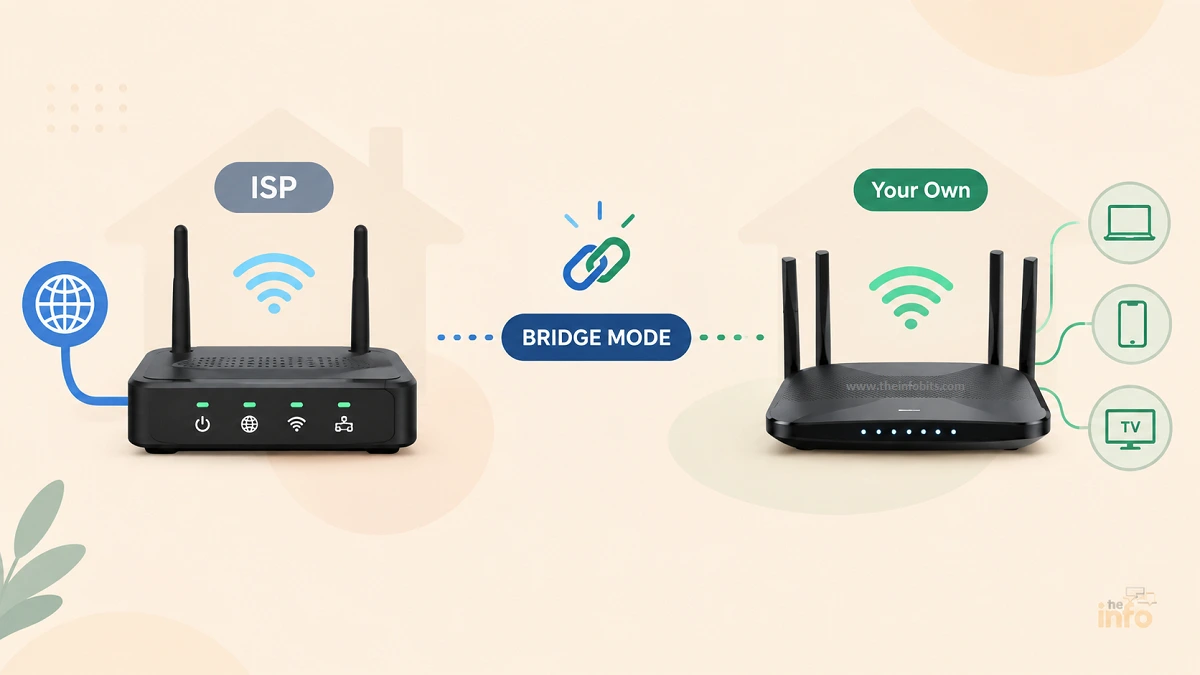
Bridge mode is a setting on your ISP’s modem/router combo (often called a “gateway”) that turns off its routing and Wi-Fi functions, leaving only the modem part active.
Put simply, it stops the ISP gateway from acting as a second router and hands full control of your network, IP addresses, firewall, Wi-Fi, everything, to the router you plug in behind it.
Without bridge mode enabled, plugging your own router into an active ISP gateway creates two routers on the same connection, each trying to manage traffic. That’s the core problem bridge mode exists to solve.
Why You’d Need It: Double NAT, Explained Simply
NAT (Network Address Translation) is what lets every device in your house share one public IP address from your ISP. Every router performs this translation. The problem starts when two routers do it in a chain, a situation known as double NAT.
When your ISP’s gateway is still routing, and you plug in your own router behind it without enabling bridge mode, you get exactly that: Internet → ISP Gateway (still routing) → Your Router (also routing) → Your Devices. Each router NATs the traffic independently, and that mismatch commonly causes:
- Failed or unreliable port forwarding, since your forwarding rule only reaches the second router, not the first
- Online gaming problems, including being unable to host matches or getting flagged with a restrictive NAT type on consoles
- VPN and remote-access issues, both for VPN client connections and for anyone trying to remote into your home network
- General connection flakiness that’s hard to diagnose because everything appears to work most of the time
A quick way to check if you’re already in a double NAT situation: log in to your own router’s admin panel and look at its WAN (internet) IP address.
If it starts with 192.168.x.x, 10.x.x.x, or 172.16.x.x through 172.31.x.x, that’s a private address, meaning something upstream (your ISP gateway) is also doing NAT. A router that’s genuinely first in line will show a public IP address there instead.
Bridge mode fixes this by taking the ISP gateway out of the routing chain entirely, leaving only your router to handle NAT, DHCP, and Wi-Fi.
Cost Comparison: Renting vs. Buying
| ISP Rental | Buying Your Own | |
|---|---|---|
| Typical monthly fee | $10–$15/mo | $0 after purchase |
| 1-year cost | $120–$180 | One-time $50–$350 (avg. ~$150) |
| 3-year cost | $360–$540 | Same one-time cost, plus resale/reuse value |
| Setup effort | None | ~10 minutes for bridge mode, once |
| Support | ISP handles everything | You troubleshoot, or use community/manufacturer support |
| Firmware updates | Handled automatically by ISP | Your responsibility; see our firmware update checklist |
| Hardware quality | Mass-produced, budget-tier | Wide range, including gaming and mesh-grade options |
At a typical $15/month rental fee, a mid-range $150 router pays for itself in exactly 10 months. Every month after that is pure savings, and unlike the rental, you keep the hardware even if you switch providers (assuming the new ISP uses compatible technology, cable-to-cable is usually fine; cable-to-fiber usually isn’t).
How to Enable Bridge Mode by ISP
Bridge mode isn’t universal; the toggle, the terminology, and even whether it exists at all vary by provider. Here’s the current process for the four largest ISPs.
Xfinity (Comcast)
- Open the Xfinity app and allow “Admin Tool” access if prompted; this is required before the web interface will show the toggle.
- Connect a device to your Xfinity gateway and browse to
http://10.0.0.1. - Go to Gateway → At a Glance.
- Find and enable the Bridge Mode toggle.
- Connect your own router’s WAN port to a LAN port on the Xfinity gateway with an Ethernet cable.
If the toggle is missing or greyed out, this has been a widely reported firmware issue on XB-series gateways through 2026.
A factory reset (hold the reset button until the front light changes) restores the toggle for most users; persistently affected XB6 units may need a free gateway swap from Xfinity.
Spectrum
Spectrum’s gateways generally don’t offer a standard bridge mode toggle. The cleaner path, where your service area allows it, is to skip bridge mode entirely: return the Spectrum gateway and use your own approved cable modem plus your own router instead.
This also removes the rental fee completely rather than just working around it. Check Spectrum’s approved modem list for your plan before buying.
AT&T Fiber
AT&T’s fiber gateways (including the BGW210, BGW320, and BGW620) don’t use the term “bridge mode.”
The equivalent feature is called IP Passthrough, and it hands the gateway’s public IP address directly to your own router instead of fully disabling the gateway’s routing function.
- Log in to the gateway’s admin page (typically.
192.168.1.254). - Go to Firewall → IP Passthrough.
- Set Allocation Mode to Passthrough, and choose your router (identified by its MAC address) as the passthrough device.
- Save and reboot both devices.
AT&T documents this process directly in its own IP Passthrough support article, and the steps are consistent across the BGW210, BGW320, and BGW620 models.
Verizon Fios
Fios gateways like the G3100 and CR1000A don’t have a standard bridge toggle either. The practical workaround:
- Browse to
192.168.1.1(or use the My Fios app) and log in with the password printed on the device. - Go to Wi-Fi Settings and turn off every radio band (2.4 GHz, 5 GHz, and 6 GHz if present).
- Connect an Ethernet cable from a gateway LAN port to your router’s WAN port.
- Set your router’s WAN connection type to DHCP (automatic).
Note that the Fios gateway is technically still routing in this setup, so it’s a workaround rather than a true bridge; some double NAT edge cases may still appear.
If your Fios service arrives over Ethernet rather than coax, the cleaner long-term option is connecting your own router directly to the ONT and retiring the gateway entirely; confirm this is supported for your specific installation with Verizon first.
Related: Best Internet Service Providers in the US: Complete Comparison Guide
The Middle Option: Access Point Mode
If bridge mode isn’t available on your gateway, or you want to keep the ISP’s Wi-Fi radios active for a secondary purpose, access point (AP) mode is a reasonable middle ground: you leave the ISP gateway as the sole router, and configure your own router (or mesh system) to simply extend Wi-Fi rather than route traffic itself.
This avoids double NAT the same way bridge mode does, but from the other direction: one device is routing, the other is only handling Wi-Fi. It’s commonly used with mesh systems layered on top of an existing ISP gateway.
The issue is that you lose access to your own router’s advanced firewall, QoS, and VPN features, since the ISP gateway is still the one managing the actual internet connection.
Related: Mesh Network vs Router: Which Is Right for Your Home?
Myth vs. Fact: ISP Routers and Bridge Mode
| Myth | Fact |
|---|---|
| “Enabling bridge mode disconnects my internet.” | Bridge mode disables routing and Wi-Fi on the gateway; it doesn’t touch the modem function that actually maintains your internet connection. |
| “I need bridge mode any time I add a new router.” | Only if you’re keeping the ISP gateway active in routing mode too. If you fully replace the gateway (own modem + own router, or return the gateway entirely), there’s nothing to bridge. |
| “Buying my own router voids my ISP’s support.” | Most ISPs still support the connection itself; they just won’t troubleshoot your own router’s Wi-Fi settings. Cable modem swaps in particular are standard and expected. |
| “Bridge mode is a one-and-done, permanent setting.” | It generally stays enabled through firmware updates and power cycles, but some ISP firmware bugs (notably on certain Xfinity gateways in 2026) have reset or hidden the toggle, worth checking after a major update. |
| “Any router works with any ISP once it’s in bridge mode.” | The router works, but modems are ISP-technology specific. A cable modem won’t work on fiber or DSL service, and vice versa; check compatibility before buying. |
Who Should Just Keep the ISP Router
Buying your own router and configuring bridge mode isn’t the right call for everyone. Consider staying with the rental if:
- You genuinely never want to touch a router’s admin panel, even once
- Your household has very light usage (a handful of devices, no gaming, no VPN, no port forwarding)
- You move frequently and don’t want to deal with reselling or repurchasing hardware
- Your ISP-supplied gateway already performs well, and the rental fee is small or bundled into a plan you’re happy with
If none of those describe your situation and you’re paying a standalone equipment fee, buying your own router is very likely worth the one-time setup effort.
For picking hardware, our guides on features to look for in a router and the latest router security features worth paying for are good starting points, and gamers specifically should check our best gaming router picks.
Common Mistakes When Setting Up Bridge Mode
- Forgetting to disable the gateway’s Wi-Fi after bridging. Some setups leave the old Wi-Fi network broadcasting even after bridge mode is enabled, creating confusing duplicate networks.
- Not rebooting both devices after the change. Both the gateway and your router often need a fresh reboot to correctly renegotiate the connection.
- Skipping the WAN IP check. After setup, always confirm your router’s WAN address is a public IP, not a private one, to verify you actually eliminated double NAT.
- Assuming “bridge mode” and “AP mode” are interchangeable. They solve the same underlying problem from opposite directions and aren’t configured the same way; using the wrong one for your setup can leave double NAT in place.
- Buying an incompatible modem. Confirm your ISP’s approved equipment list before purchasing; a modem built for cable internet won’t work on fiber or DSL service, and vice versa.
Troubleshooting Bridge Mode Issues
No internet after enabling bridge mode:
- Confirm your router’s WAN port is connected to a LAN port (not the WAN port) on the ISP gateway.
- Set your router’s WAN connection type to DHCP, unless your ISP specifically requires PPPoE credentials.
- Power-cycle the gateway first, then your router, waiting for each to fully reconnect before restarting the next.
Bridge mode toggle is missing or greyed out:
- Try a factory reset on the gateway (this has resolved the issue for many Xfinity XB7/XB8 users experiencing a known 2026 firmware bug).
- Check for a pending firmware update on the gateway that may need to be installed first.
- Contact your ISP for a gateway swap if the issue persists on older hardware.
Still seeing double NAT symptoms after setup:
- Recheck your router’s WAN IP address to confirm it’s now public, not private.
- Confirm the old gateway’s Wi-Fi radios are fully disabled, if using the AP-mode-style workaround (as on Fios).
- Restart both devices once more; some gateways need a second reboot cycle to fully release routing control.
Related: Common Router Issues & How to Fix Them: Complete Guide
Expert Tips Checklist
- Check your router’s WAN IP address before and after enabling bridge mode to confirm double NAT is actually gone.
- Use your ISP’s official name for the feature when searching for help; “IP Passthrough” on AT&T won’t show results if you search “bridge mode”
- Reboot both the gateway and your router after any bridge mode or IP Passthrough change.
- Confirm modem/router compatibility with your specific ISP and plan tier before buying hardware.
- Keep an eye on your bill for 1–2 cycles after buying your own equipment to confirm the rental fee actually dropped off.
- If bridge mode isn’t available on your gateway, AP mode is a legitimate fallback that solves the same core problem.
Conclusion
For most households paying a standalone equipment rental fee, buying your own router and putting the ISP gateway in bridge mode is worth it: the fee pays back the hardware cost in under a year, and the setup itself is a one-time, roughly 10-minute task once you know which button to press on your specific gateway.
The exception is genuine, and it’s fine to take it: if you have no interest in ever opening a router’s admin panel and you value single-call ISP support more than the savings, keeping the rental is a defensible choice, not a mistake.
Whichever way you go, pair your setup with our guide to securing your home Wi-Fi network and, if you do buy your own hardware, bookmark our router firmware update checklist so the router you bought to save money doesn’t quietly become the security risk your old ISP gateway wasn’t.
Related: How to Set Up a Router at Home: A Complete Beginner’s Guide
Frequently Asked Questions
Is it worth buying my own router instead of renting from my ISP?
Usually, yes, if you’re paying a standalone rental fee of $10–$15/month. A mid-range router typically pays for itself in under a year, and you get stronger hardware and more control afterward.
What does bridge mode actually do?
It disables the routing and Wi-Fi functions on your ISP’s modem/router combo, leaving only the modem active, so a separate router you connect behind it can fully manage your network without conflict.
Do I need bridge mode if I buy my own router?
Only if you’re keeping the ISP’s combo gateway in place. If you buy a separate modem and fully retire the ISP’s gateway, there’s nothing to bridge.
What is double NAT and why does it matter?
Double NAT happens when two routers on the same network both perform address translation. It commonly causes gaming connection problems, unreliable port forwarding, and VPN issues, exactly the symptoms bridge mode is designed to prevent.
How do I know if I have a double NAT problem?
Check your own router’s WAN IP address in its admin panel. If it starts with 192.168.x.x, 10.x.x.x, or 172.16–31.x.x, that’s a private address, meaning another device (your ISP gateway) is also routing ahead of it.
Does AT&T Fiber have bridge mode?
Not by that name. AT&T’s equivalent feature is called IP Passthrough, configured under Firewall settings on the BGW210, BGW320, and BGW620 gateways.
Does Verizon Fios support bridge mode?
Not a true bridge toggle on gateways like the G3100 or CR1000A. The common workaround is disabling all Wi-Fi radios on the gateway and connecting your own router via Ethernet, though the gateway is technically still routing in this setup.
Why is my Xfinity bridge mode toggle missing?
This has been a widely reported firmware issue on XB7 and XB8 gateways. A factory reset resolves it for most users; Xfinity has also pushed fixes, and persistent cases on older XB6 units may need a gateway swap.
What’s the difference between bridge mode and access point (AP) mode?
Bridge mode disables routing on the ISP gateway so your router becomes the sole router. AP mode does the opposite: your own router or mesh system only extends Wi-Fi, while the ISP gateway keeps handling routing. Both prevent double NAT from opposite directions.
Will buying my own router void my ISP’s support?
No, but support becomes limited to the connection itself. Your ISP will still help with outages or line issues; they generally won’t troubleshoot your own router’s Wi-Fi or advanced settings.
Can I use any router with my ISP once bridge mode is enabled?
Any standard router will work behind a bridged gateway. What’s ISP-specific is the modem: a cable modem only works with cable internet and won’t work on fiber or DSL service, so check compatibility separately if you’re also replacing the modem.
Does bridge mode slow down my internet?
No, if anything, it typically improves performance by removing a redundant NAT layer and letting a single, often more capable router manage the whole network.
Can I switch back if bridge mode causes problems?
Yes. Disabling bridge mode restores the ISP gateway’s normal routing and Wi-Fi function; it’s a reversible setting, not a permanent change.
Is renting a router ever actually the smarter choice?
Yes, for households with very light, simple usage who have zero interest in managing network settings and who value single-call ISP support enough to offset the ongoing fee. It’s a legitimate trade-off, not just inertia.
How long does it take to set up bridge mode?
Typically 10–15 minutes total, including logging into the gateway, enabling the setting, connecting your router, and rebooting both devices.
Does a firmware update ever undo bridge mode?
It’s uncommon but not unheard of. Some ISP firmware bugs have reset or hidden the bridge mode toggle after an update; if your setup suddenly shows double-NAT symptoms again after a gateway update, check the setting.
Found this guide useful? Share it with someone who is suffering from networking-related issues. Follow us on Facebook and Twitter for more tips, tricks, and guides.
We also ask that you bookmark this page for future reference, as we are constantly updating our articles with new information.
Sign up for our free newsletter as well to receive fresh information immediately in your inbox and keep technically up to date.
Disclosure: If you follow our links to a retailer’s website and make a purchase, we will get an affiliate commission on some, but not all, of the items or services we promote. This will cause no price change for you.