Alexa Not Responding to Voice Commands? 15 Real Fixes
You say the wake word. Nothing. You say it again, louder this time, and your Echo just sits there; no blue ring, no chime, no “hmm.” It’s one of the most common complaints Echo owners have, and the good news is that it’s rarely a sign your device is broken.
In the vast majority of cases, Alexa stops responding for one of a handful of reasons: a muted microphone, a shaky Wi-Fi connection, a background noise problem, an outdated app, or, increasingly in 2026, a hiccup with Alexa+, Amazon’s newer AI-powered assistant.
Below is a complete, step-by-step walkthrough to get your Echo, Echo Dot, Echo Show, or any other Alexa-enabled device talking again.
Quick Answer: Why Alexa Isn’t Responding
Alexa usually goes silent because of one of these six things: the microphone is muted, your Wi-Fi connection has dropped or weakened, the device is out of range of your router, there’s too much background noise for it to hear the wake word, the Alexa app or device firmware needs an update, or Amazon’s servers are experiencing an outage. Start with the 60-second checklist below before trying anything more involved.
60-Second Checklist Before You Troubleshoot
Run through these quickly. They solve the problem more often than any advanced fix:
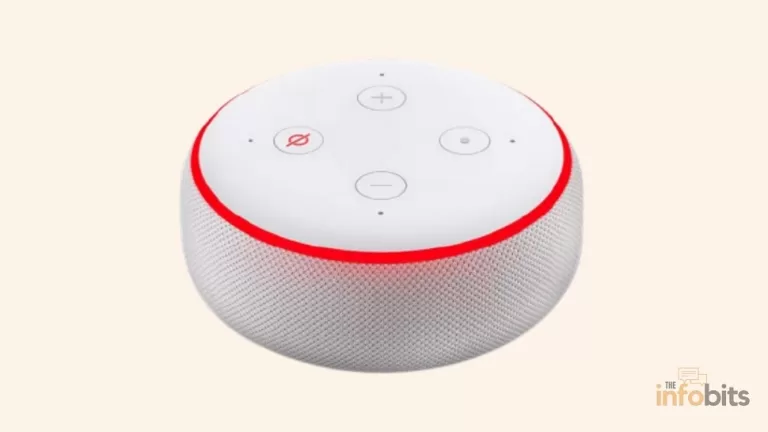
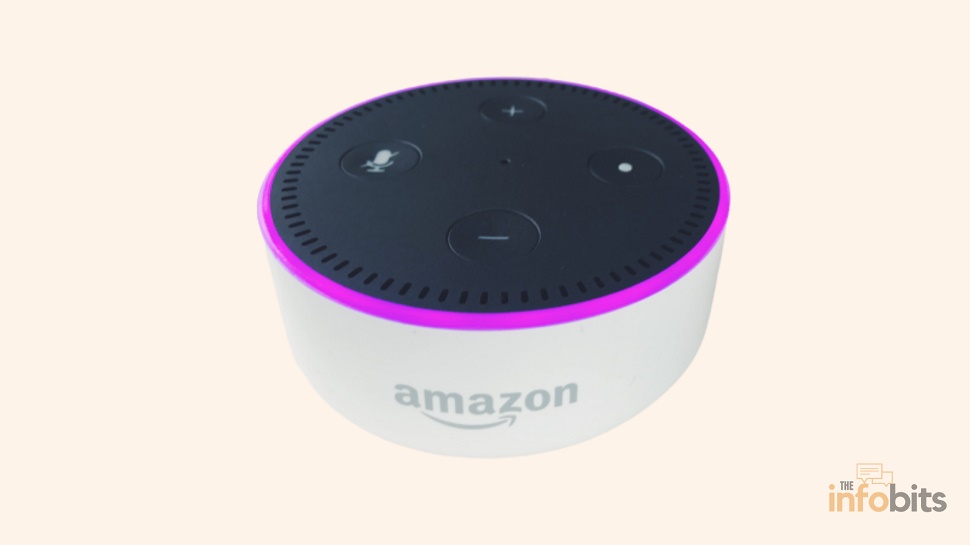
- Check the light ring. A solid red ring means the mic is muted. An orange or yellow ring means there’s a Wi-Fi or network issue. No light at all usually points to a power problem.
- Confirm it’s plugged in. Use the original power adapter. Third-party chargers sometimes can’t supply enough power for the device to work reliably.
- Check your internet. Open another app or device on the same Wi-Fi network and see if it loads normally.
- Look for background noise. TVs, music, fans, or a baby monitor running nearby can all drown out the wake word.
- Say the wake word clearly and naturally – no need to shout, but don’t mumble it either.
- Try a different wake word command, like “Alexa, what time is it?” to see if it’s a general unresponsiveness issue or specific to certain requests.
If none of that works, move on to the detailed fixes below.
1. Check the Microphone Isn’t Muted
Every Echo device has a physical microphone button on top. Pressing it disables the mic entirely, and Alexa can’t hear anything you say until it’s turned back on, even if the device otherwise looks fully powered and connected.
How to check: Look at the light ring. A solid red ring is Amazon’s universal signal for “microphone off.” Press the mic button (it usually has a microphone icon, sometimes with a line through it) once to re-enable listening. You should see the ring change color or go dark, confirming the mic is active again.
This is worth checking first because it’s the single most common reason people think their Echo is “broken” when it’s actually working fine. It just can’t hear them.
Related: What Does an Alexa Red Ring Mean, and How Can it Be Fixed?
2. Fix Wi-Fi and Internet Connection Problems
Alexa relies entirely on an internet connection to process your voice commands. Even simple ones like “what time is it” get sent to Amazon’s cloud and back. If your Wi-Fi is unstable, Alexa will often stay silent, respond with noticeable delay, or say it’s having trouble understanding you.
Signs your Wi-Fi is the problem:
- The light ring turns orange or yellow when you speak
- Alexa responds with “I’m having trouble understanding right now” or similar
- Other smart home devices on the same network are also acting up
What to do:
- Test another device on the same network. If it’s also struggling, the issue is your router or ISP, not your Echo.
- Power-cycle everything, in this order: unplug your Echo, then your router, then your modem. Wait about 30 seconds, then plug the modem back in, wait for it to fully reconnect, then the router, then the Echo.
- Move your Echo closer to the router. Thick walls, floors, and metal appliances all weaken Wi-Fi signal, and Echo devices generally need a stronger, more consistent connection than a phone or laptop to stream and process voice requests reliably.
- Keep it away from interference sources like microwaves, baby monitors, and cordless phones, all of which operate on frequencies that can clash with your Wi-Fi.
- Double-check your Wi-Fi password if you recently changed it. An expired or incorrect saved password will disconnect the Echo without any obvious warning.
- Try switching bands. If your router supports both 2.4GHz and 5GHz, the 2.4GHz band reaches farther through walls, while 5GHz is faster and less congested for devices closer to the router. If you’ve never picked one deliberately, it’s worth testing both.
- Reconnect Wi-Fi from the Alexa app if a simple restart doesn’t help: open the Alexa app, go to Devices, select your Echo, tap the Wi-Fi settings, and choose Change to walk through setup again.
If your router is several years old or struggling to keep up with a growing number of smart home devices, upgrading it can meaningfully improve Alexa’s responsiveness. Especially in larger homes with multiple Echo devices.
Related: How to Choose the Best WiFi Channel for Faster Speeds
3. Rule Out an Amazon Server Outage
Sometimes the problem isn’t your device or your network at all; it’s on Amazon’s side. Alexa depends on Amazon’s cloud servers to process nearly every request, so when those servers have an outage, Echo devices across the world stop responding at the same time, regardless of how strong your Wi-Fi is.
How to check:
- Search “is Alexa down” to see if others are reporting the same issue
- Check a live outage-tracking site, which shows spikes in user reports in real time
- Try a completely unrelated Alexa feature, like checking the weather through the Alexa app. If that also fails, it’s likely server-side.
If it is a widespread outage, there’s genuinely nothing to fix on your end. These incidents are usually resolved within an hour or two. In the meantime, you’ll need to control smart home devices manually, light switches, thermostat panels, and so on, until service is restored.
4. Reduce Background Noise and Distance
Alexa’s far-field microphones are good, but they’re not magic. Loud TVs, music playing through the Echo itself, running fans, or a busy household can all interfere with the device’s ability to pick out the wake word from everything else it’s hearing.
Try this:
- Move closer to the device when giving commands, especially in noisy rooms
- Lower the volume of any music or video playing on or near the Echo before speaking
- Place the Echo in a spot with fewer competing sound sources, not directly next to a TV, speaker, or open window facing a busy street
- Speak at a normal, clear volume rather than shouting, which can actually distort your voice and make it harder for Alexa to parse
5. Update the Alexa App and Device Firmware
An outdated app or an Echo running old firmware can develop bugs that affect voice recognition, connectivity, or general responsiveness. Amazon regularly ships updates that quietly fix exactly these kinds of issues.
To check your Echo’s firmware:
- Open the Alexa app
- Go to Devices → select your Echo
- Scroll to About and check the Device Software Version
- Compare it against the latest version listed on Amazon’s support site, or simply trust that if an update is available, your device will usually install it automatically within 24 hours when idle.
To update the Alexa app itself, check your phone’s app store for a pending update. An outdated app is a surprisingly common cause of “Alexa isn’t responding to my requests from the app” specifically, even when the physical device works fine through voice.
6. Restart Your Echo Device
If the basics check out and Alexa is still unresponsive, a simple restart resolves a large share of remaining issues by clearing out temporary software glitches.
- Unplug the power adapter directly from the wall outlet (don’t just turn off a power strip)
- Wait at least 30 seconds. This matters, since unplugging for only a couple of seconds sometimes isn’t enough to fully clear the device’s memory.
- Plug it back in
- Wait for the light ring to cycle through its startup sequence and settle into a steady state, which can take a minute or two
7. Factory Reset the Device (Last Resort)
If restarting doesn’t help, a factory reset wipes the device back to its out-of-box state. This fixes deeper software issues but also erases your Wi-Fi settings and device preferences, so you’ll need to set it up again from scratch afterward.
- Open the Alexa app
- Tap Devices
- Select Echo & Alexa
- Choose the device you want to reset
- Scroll down and tap Deregister or the reset option under device settings
- Confirm the factory reset
Once it’s done, set the device up again as if it were brand new, including reconnecting it to Wi-Fi and signing back into your Amazon account.
8. Retrain Alexa to Recognize Your Voice
If Alexa responds to some people in your house but not others, or seems to consistently mishear specific words or phrases, the issue may be voice recognition rather than a technical fault.
Two things to try:
Ask Alexa what it heard. After a failed or wrong response, say “Alexa, tell me what you heard.” This repeats back exactly what the device picked up, which makes it much easier to figure out whether it’s a pronunciation issue, an accent issue, or something else entirely.
Run Voice Training. In the Alexa app, go to Settings → Your Profile → Voice → Manage → Match Voice Profiles.
This walks you through reading a set of sentences aloud so Alexa can learn your specific speech patterns. If multiple people share the same Echo, each person can create their own voice profile, and the device will automatically recognize who’s speaking and respond accordingly.
9. Check for an Amazon Account or Device Registration Issue
Occasionally, an Echo silently loses its connection to your Amazon account, usually after a password change, a security review, or a long period offline. When this happens, the device may light up normally but fail to process any actual requests.
What to do:
- Open the Alexa app and confirm the device still shows as “Online” under Devices
- If it shows as offline or unregistered, you’ll need to re-register it by following the in-app setup flow
- If you recently changed your Amazon password, make sure the Echo has reconnected with the new credentials. This sometimes requires a manual Wi-Fi reconnect even if the network itself hasn’t changed
10. Understand Alexa+ Quirks (2026 Update)
If your Echo has been upgraded to Alexa+, Amazon’s generative-AI version of the assistant that rolled out to all US users in February 2026, you might notice different “not responding” behavior than with the classic Alexa.
Alexa+ runs on a mix of Amazon’s own Nova models for quick commands and more advanced reasoning models for complex, conversational requests, which means it sometimes takes noticeably longer to answer multi-step or conversational questions than the old Alexa did for simple commands.
A few Alexa+-specific things worth knowing:
- Longer pauses are sometimes normal, not a malfunction, especially for requests that involve booking something, summarizing information, or reasoning through multiple steps rather than a single command
- The Alexa app has had stability issues during the Alexa+ rollout, according to independent reviews, so if voice works but the app itself is unresponsive, try force-closing and reopening it, or reinstalling it.
- Early Access features roll out unevenly by region and device, so if a specific Alexa+ capability isn’t responding, it may simply not be available on your device yet rather than broken.
- If Alexa+ specifically seems stuck or unresponsive while the classic voice features still work, try asking a simple command first (“Alexa, what’s the weather?”) to isolate whether the issue is with the new conversational layer or the core device.
Related: Is Guest WiFi Safe? How to Create a Secure Guest Network
Common Mistakes That Make the Problem Worse
- Repeating the wake word rapidly and loudly: this often confuses voice recognition further rather than helping. One clear, normal-volume attempt works better than five rushed ones.
- Unplugging for only a few seconds: a proper restart needs at least 30 seconds to fully clear the device’s memory.
- Skipping the app updates: an outdated Alexa app is one of the most overlooked causes of “it’s not responding,” especially for app-based controls.
- Assuming it’s always Wi-Fi: a muted mic and a genuine Amazon server outage both look similar to connectivity issues at first glance, so it’s worth ruling each one out individually rather than only checking your router.
Myth vs. Fact
Myth: If the light ring is blue, Alexa is broken because it’s not saying anything. Fact: A blue ring means Alexa is actively listening or processing your request. Give it a few seconds. This is normal, especially for more complex Alexa+ requests that require more reasoning time.
Myth: Restarting your router always fixes Alexa issues. Fact: It fixes many connectivity issues, but not muted microphones, server outages, or account/registration problems. Diagnose before you restart everything.
Myth: A factory reset is the fastest fix. Fact: It’s usually the slowest. You’ll need to redo your entire setup. Save it for when every other faster fix (mic, Wi-Fi, restart, updates) has failed.
Related: Alexa Green Light: What It Means and How to Turn It Off
When to Contact Amazon Support
If you’ve worked through every fix above and your Echo still won’t respond, it may be a hardware fault rather than a software or network issue. Particularly if the device won’t power on at all, the light ring never appears, or it repeatedly disconnects even on a strong, verified network.
In that case, Amazon’s support team can run diagnostics remotely or arrange a replacement if the device is still under warranty.
If you’re shopping for a backup device or considering an upgrade, look for a reliable smart speaker with strong far-field microphones like Sonos Era 100 (available on Amazon), which tends to hold up better in noisy, multi-device households.
Conclusion
Alexa going quiet is almost always fixable, and the fix is usually faster than it feels in the moment. Start with the basics ( the mic button, your Wi-Fi, background noise) before assuming anything is seriously wrong.
If you’ve worked through every step above and your Echo is still unresponsive, it’s worth checking for a wider Amazon outage or reaching out to Amazon support to rule out a hardware fault.
Frequently Asked Questions
Why is my Alexa not responding to any commands at all?
The most common causes are a muted microphone (check for a solid red light ring), a lost Wi-Fi connection, or an Amazon server outage. Work through the 60-second checklist above before trying more advanced fixes.
Why is Alexa’s light on but she’s not responding?
A lit ring usually means the device has power and is connected, but a blue ring specifically means it’s listening or processing. Give it a few extra seconds, especially with Alexa+. If the ring is red, the mic is muted. If it’s orange, there’s a network issue.
How do I reset Alexa if it’s not responding?
First, try a simple restart: unplug it for at least 30 seconds, then plug it back in. If that doesn’t work, do a factory reset through the Alexa app under Devices → Echo & Alexa → select your device → Reset settings.
Why does Alexa understand me but not respond?
This usually points to a Wi-Fi issue rather than a microphone issue, since Alexa needs an active internet connection to process and answer requests even after it hears the wake word. It can also indicate a temporary server-side problem on Amazon’s end.
Can background noise really stop Alexa from responding?
Yes. Loud TVs, music, or general household noise can prevent the device from clearly picking out the wake word, especially from farther away. Moving closer or lowering nearby volume often solves it immediately.
Why is my Echo Dot not responding but still lighting up?
This typically means the device has power and network connectivity but is either muted, struggling with background noise, or momentarily stuck processing a request. Check the mic button first, then try a different, simpler command.
Does unplugging Alexa reset it?
Unplugging and reconnecting resets temporary software glitches but doesn’t erase your settings the way a factory reset does. It’s a safe first step and often enough to fix minor unresponsiveness.
Why is Alexa not responding on my Fire TV Stick?
Make sure your Fire TV remote’s batteries aren’t low and that the remote is within range. Also confirm the Fire TV Stick itself has a stable internet connection, since remote-based Alexa commands are processed the same way as Echo commands.
How do I know if Alexa is down for everyone or just me?
Check a live outage-tracking site or search “is Alexa down” to see recent reports. If many users are reporting issues at the same time, it’s a widespread outage rather than a problem with your specific device.
Why does Alexa keep saying “Sorry, I’m having trouble understanding right now”?
This message almost always points to a Wi-Fi or server-side issue rather than a microphone problem, since it means the device heard something but couldn’t process it. Check your connection first.
Is Alexa+ the reason my Echo feels slower to respond?
It can be. Alexa+ sometimes takes longer for complex, conversational requests because it’s reasoning through multiple steps rather than matching a single fixed command, unlike the original Alexa. Simple commands should still be fast.
Why won’t Alexa respond to my voice but responds to other people in the house?
This is often a voice recognition issue. Try running Voice Training in the Alexa app under Settings → Your Profile → Voice, which helps the device learn your specific speech patterns.
Can a VPN or firewall cause Alexa to stop responding?
Yes, if your router or network has strict firewall rules or a VPN active on the network level, it can block the connection Echo devices need to Amazon’s servers. Try temporarily disabling a network-level VPN to test.
Why does my Echo Show respond to touch but not voice commands?
This usually means the microphone is muted or blocked, while the touchscreen and Wi-Fi connection are both working fine. Check the mic button and make sure nothing is physically covering the microphone array.
How long do Amazon server outages usually last?
Most are resolved within one to two hours, though some can take longer depending on the underlying cause. There’s no way to speed this up from your end. The fastest solution is simply waiting it out.
Does moving my Echo to a different room fix connectivity issues?
It can, if the new location is closer to your router or away from interference sources like microwaves and baby monitors. Wi-Fi signal strength has a direct impact on how reliably Alexa responds.
Why does Alexa not respond to routines I’ve set up?
Check that the routine’s trigger phrase matches exactly what you’re saying, and confirm all devices involved in the routine are online. A single offline smart home device in a routine can sometimes cause the whole routine to fail silently.
Should I unplug my Echo overnight to prevent issues?
It’s not necessary for most households, but if you’re experiencing recurring unresponsiveness, a nightly restart can help clear minor glitches before they build up, similar to restarting a router periodically.
Why does Alexa work on my phone app but not on the physical Echo device?
This points to a device-specific problem rather than an account or server issue, like usually a muted mic, a lost Wi-Fi connection specific to that device, or a firmware issue. Try restarting just the physical Echo first.
Is it worth replacing my Echo if it keeps having these issues?
Only if you’ve ruled out network, software, and account issues and the device still won’t respond consistently. That pattern usually points to a hardware fault. Amazon support can confirm this and check warranty coverage before you buy a replacement.
We hope you found this post informative, and do like and follow us on Facebook and Twitter for regular updates.
We also ask that you bookmark this page for future reference. Sign up for our free newsletter as well to receive fresh information immediately in your inbox and keep technically up to date.
Disclosure: We will get an affiliate commission on some, but not all, of the items or services we recommend if you follow our links to a retailer’s website and make a purchase.