Router Security Features That Matter in 2026: A Complete Guide
Your router is the most security-critical device in your home or office, and the one that most people set up once, never touch again, and eventually replace only when it breaks.
That’s a problem. Because the router sits between every device you own and the entire internet, its security configuration determines whether your network is hardened against the constantly evolving threat landscape or quietly exposed through default settings nobody changed.
The good news is that modern routers have become genuinely impressive security devices. WiFi 7 routers from ASUS, TP-Link, Netgear, and Eero ship with features that would have required enterprise hardware five years ago.
The challenge is knowing which features actually matter, which are marketing fluff, and how to configure what you have effectively.
This guide covers every meaningful router security feature in 2026, what it does, why it matters, and how to verify it’s working on your router.
Quick Answer
In priority order:
- WPA3 encryption : the current wireless security standard
- Strong admin credentials : change the defaults immediately
- Automatic firmware updates : patches security vulnerabilities
- SPI firewall : blocks unsolicited inbound connections
- WPS disabled : eliminates a brute-force vulnerability
- Network segmentation (guest network + IoT isolation) : contains device compromise
- DNS filtering : blocks malware domains network-wide
- UPnP disabled : closes automatic port-forwarding exploits
- Remote management disabled : removes internet-facing admin access
- VPN support : encrypts all outbound traffic when needed
Why Router Security Matters More in 2026
The average UK household now has 9 connected devices; the average US household has over 13.
Smart homes with cameras, thermostats, voice assistants, smart locks, and IoT sensors can easily reach 40–60 connected devices. Every single one of them is reachable through the router.
Cybercriminals understand this. Router compromises, particularly through unchanged default credentials and unpatched firmware vulnerabilities, remain among the most commonly exploited entry points into home and small business networks.
A compromised router doesn’t just expose your browsing; it can intercept credentials, redirect DNS to malicious servers, enlist your devices in botnets, and serve as a pivot point for attacks on other devices.
According to the Federal Trade Commission, router-based security is essential because it protects all connected devices simultaneously, something individual device security can’t always guarantee.
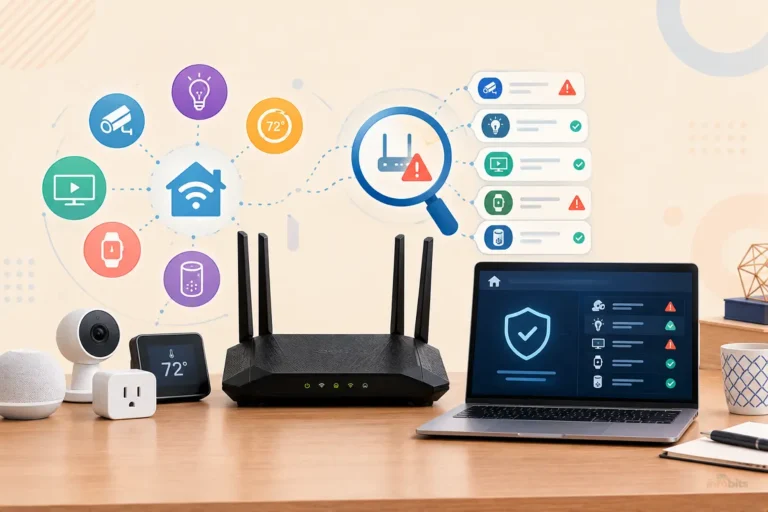
The threat has also evolved in scope. IoT devices (security cameras, baby monitors, smart plugs) are notoriously under-secured and are frequently exploited as entry points into the broader home network.
Router-level security is the one control point that sits above all of these devices and can contain breaches before they spread.
Feature 1: WPA3 Encryption – The Wireless Security Standard
What it is: WPA3 (Wi-Fi Protected Access 3) is the current encryption standard for WiFi connections, replacing WPA2. It uses Simultaneous Authentication of Equals (SAE, also called the Dragonfly handshake) instead of the older Pre-Shared Key (PSK) handshake used by WPA2.
Why it matters:
- WPA2’s PSK handshake can be captured and cracked offline; an attacker records your WiFi handshake once and attempts millions of password guesses per second with no time limit
- WPA3’s SAE requires active real-time participation from both device and router for every authentication attempt; offline cracking becomes computationally infeasible
- WPA3 adds forward secrecy; even if a password is later compromised, past sessions cannot be decrypted
- WPA3 is mandatory for WiFi 6E and WiFi 7 certification
How to enable it: Admin panel → Wireless Settings → Security Mode → select WPA3 or WPA2/WPA3 (Mixed Mode)
Use Mixed Mode if you have older devices that don’t support WPA3; newer devices connect with WPA3 automatically.
Also disable:
- WEP: completely broken; crackable in minutes
- TKIP: deprecated and vulnerable
- WPA (original): replaced by WPA2 for good reason
Related: Understanding WPA3 Encryption: Why Your Router Needs WPA3
Feature 2: Strong Admin Credentials – The First Thing to Change
What it is: Your router’s admin panel is protected by a username and password. The default credentials are set by the manufacturer and are often publicly documented. admin/admin, admin/password, or printed on the router label.
Why it matters: Default credentials are the most exploited vulnerability in consumer routers. Automated scanning tools constantly probe home networks for routers with default admin credentials. An attacker who gains admin access can change any security setting, redirect DNS, enable remote access, or monitor all your traffic.
What to change:
- Log in to your router admin panel (typically at
192.168.1.1or192.168.0.1) - Go to Administration or System settings.
- Change the admin username (if changeable)
- Change the admin password to something strong and unique, at least 15 characters, not used anywhere else.
- Save and log back in to confirm
Important: Your router admin password and your WiFi password must be different. These protect two different things , the admin password protects router configuration access; the WiFi password protects network connection access.
Feature 3: Automatic Firmware Updates – The Silent Security Lifesaver
What it is: Firmware is the operating system that runs on your router. Manufacturers release firmware updates to patch security vulnerabilities, fix bugs, and add features. Automatic firmware updates apply these patches without requiring manual action.
Why it matters: Regular firmware updates ensure routers are equipped with the latest security enhancements to defend against evolving threats.
Staying up to date minimises the risk of exploitation and improves the overall security posture of the router. Security researchers regularly discover and publicly disclose router vulnerabilities; a router running unpatched firmware for months is running with known, exploitable weaknesses.
How to enable auto-update:
- ASUS: Administration → Firmware Upgrade → enable Automatic Firmware Update
- TP-Link: Advanced → System Tools → Firmware Upgrade → enable automatic updates
- Netgear: Advanced → Administration → Router Update → enable automatic updates
- Eero: Auto-updates are on by default via the Eero app
- Google Nest: Auto-updates on by default via the Google Home app
For routers without auto-update: Set a quarterly calendar reminder to check for updates manually.
Warning sign: If your router manufacturer hasn’t released a firmware update in over a year, the router may be approaching end-of-life for security support. A router without ongoing firmware support is a long-term liability.
Related: How Long Do Routers Last and When Should You Replace Them?
Feature 4: SPI Firewall – Your Router’s Gatekeeper
What it is: An SPI (Stateful Packet Inspection) firewall is a built-in router security layer that monitors incoming and outgoing network traffic and blocks connections that don’t match known, legitimate traffic patterns.
How it works: A stateful firewall tracks the “state” of every network connection; it knows whether an incoming packet is a response to something your device requested or an unsolicited connection attempt from the internet. Unsolicited inbound connections are blocked by default.
This is different from a simple packet filter that just checks IP addresses and ports. An SPI firewall understands the context of traffic and catches more sophisticated attacks.
What SPI protects against:
- Port scanning from external attackers looking for open services
- Unsolicited inbound connections from malicious actors
- Some Denial of Service (DoS) attack patterns
- Traffic that appears to come from trusted sources but doesn’t match expected patterns
How to verify it’s enabled: Admin panel → Security or Firewall → confirm SPI Firewall is enabled.
Most modern routers have it on by default, but it’s worth confirming, particularly on older or ISP-supplied hardware.
Feature 5: Disable WPS – Close a Known Vulnerability
What it is: WPS (WiFi Protected Setup) is a connection convenience feature. The PIN-based WPS method, where you enter an 8-digit PIN to connect a device, has a documented vulnerability.
Why it’s dangerous: Because the 8-digit PIN is validated in two halves (4 digits each), an attacker only needs to try approximately 11,000 combinations rather than 100 million. Tools like Reaver can crack a WPS PIN in hours to days, giving full access to the network.
What to do: Disable WPS entirely in your router’s wireless settings.
Admin panel → Wireless → WPS → set to Disabled
The push-button WPS method is less directly vulnerable, but the PIN method must be off. The safest approach is disabling WPS entirely. It provides minimal convenience benefit and a meaningful security risk.
Feature 6: Network Segmentation – Contain the Blast Radius
Network segmentation means dividing your network into separate zones so that a compromise in one zone can’t spread to others. This is one of the highest-impact security practices in modern home networking.
Guest Network
A separate SSID (network name) for visitors that provides internet access without access to your main network’s devices, files, or admin panel.
Key settings for your guest network:
- “Allow access to local network” or “Access Intranet” → OFF
- Client isolation → ON (guests can’t see each other)
- WPA2/WPA3 encryption → ON
- Bandwidth limit → recommended to prevent bandwidth abuse
Related: Is Guest WiFi Safe? How to Create a Secure Guest Network
IoT Device Isolation
All smart home devices like cameras, thermostats, smart plugs, voice assistants, and smart TVs should be on a network segment separated from your personal computers and phones.
IoT devices are frequently the weakest link in home networks: they run outdated firmware, use weak default credentials, and communicate constantly with manufacturer servers. If compromised, they’re used to pivot to the rest of your network.
Placing IoT devices on the guest network (or a dedicated IoT SSID if your router supports it) means a compromised camera or smart plug can’t reach your laptop or personal files.
Related: How to Secure IoT Devices on Your Home WiFi Network
Feature 7: DNS Filtering – Block Threats Before They Load
What it is: DNS (Domain Name System) filtering intercepts DNS queries.The requests your devices make to look up website addresses and compares them against databases of known malicious, phishing, and inappropriate domains.
If a match is found, the lookup is blocked before any connection is made.
Why it’s powerful: DNS filtering works at the network level, protecting every device simultaneously, including IoT devices that can’t run security software. It blocks malicious connections before they reach your devices, at the domain lookup stage.
Free DNS filtering options:
| Service | Primary DNS | Secondary DNS | What It Blocks |
|---|---|---|---|
| Cloudflare for Families | 1.1.1.3 | 1.0.0.3 | Malware + adult content |
| Quad9 | 9.9.9.9 | 149.112.112.112 | Malware, phishing, privacy-focused |
| CleanBrowsing Security | 185.228.168.9 | 185.228.169.9 | Malware and phishing |
| OpenDNS Home | 208.67.222.222 | 208.67.220.220 | Customisable categories (free with account) |
| NextDNS | Custom | Custom | Highly configurable; free tier available |
How to configure: Admin panel → WAN Settings or Internet Connection → DNS → set to Manual and enter your chosen DNS addresses.
Built-in DNS Security Features
Several router manufacturers now include integrated DNS-level threat blocking:
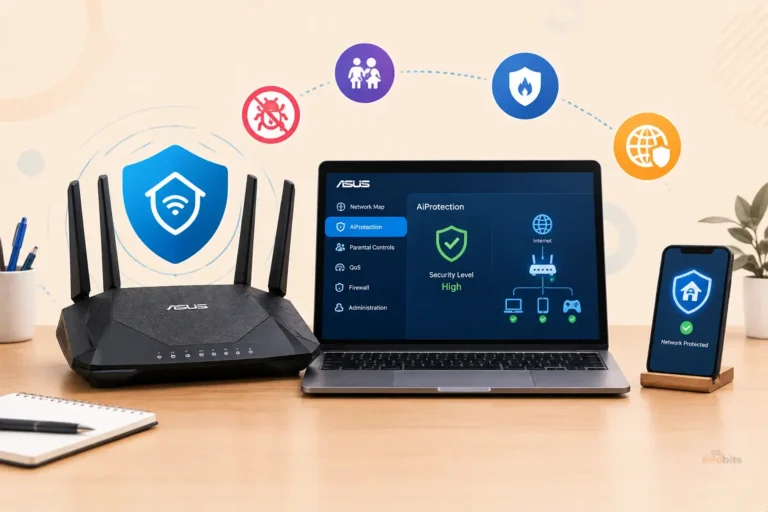
- ASUS AiProtection (free, powered by Trend Micro): blocks malicious URLs using a continuously updated cloud database
- TP-Link HomeShield: DNS-based malware and content filtering; basic tier free
- Netgear Armor (powered by Bitdefender): subscription-based; real-time malware detection and DNS filtering
- Eero Secure: subscription add-on with threat blocking and content filtering
For households wanting enterprise-grade DNS filtering with per-device reporting and ad blocking without any router configuration, Netgate 2100 [view on Amazon] connects to your router and provides full DNS filtering, traffic monitoring, and security alerting for every device on the network.
Related: AiProtection vs. Armor vs. HomeShield: Which Router Security Suite Actually Wins?
Feature 8: Disable UPnP – Close the Automatic Port-Forwarding Door
What it is: UPnP (Universal Plug and Play) allows devices on your network to automatically open ports on your router, telling the router to accept incoming connections on specific ports for specific devices.
Why it’s a security risk: UPnP was designed for convenience, but it creates an exploitable attack surface. Malware on any device can use UPnP to open ports on your router, creating inbound access for attackers without any notification or authentication required.
The 2019 CallStranger vulnerability exploited UPnP in millions of routers to launch DDoS attacks.
What to do: Disable UPnP unless a specific application you use requires it.
Admin panel → Advanced → UPnP or WAN → set to Disabled.
If you disable UPnP and something stops working (a gaming console shows Strict NAT, for example), you can re-enable it or manually forward the specific ports needed, which is actually the more secure approach.
Feature 9: Disable Remote Management
What it is: Remote management allows access to your router’s admin panel from outside your home network, from the internet.
Why disable it: A router with remote management enabled has an admin login page exposed to the entire internet. Automated scanners constantly probe for these login pages and attempt to log in with default or common credentials.
Unless you have a specific operational need for remote router access, there’s no reason to expose this surface.
How to disable it: Admin panel → Administration or Advanced → Remote Management → set to Disabled.
If you need to manage your router remotely, do so through a VPN connection to your home network, not through exposed remote management.
Feature 10: Built-in VPN Support
What it is: Many modern routers support both running a VPN server (allowing you to connect to your home network securely from outside) and a VPN client (routing all traffic from your home network through a VPN service).
VPN Server on your router: Allows you to connect to your home network from anywhere, accessing home devices, shared drives, and local services through an encrypted tunnel. More secure than exposing services through port forwarding.
Common protocols supported: WireGuard (fastest, most modern), OpenVPN (most established), L2TP/IPSec.
VPN Client on your router: Routes all internet traffic from every connected device through a VPN provider’s server. This means all your devices benefit from VPN protection without needing individual VPN apps on each one.
Related: Can a VPN Make Your Home WiFi More Secure?
Feature 11: AI-Powered Intrusion Detection and Prevention (IDS/IPS)
This is one of the genuinely new additions to consumer routers in 2025–2026. Several manufacturers now include AI-assisted traffic analysis that goes beyond traditional packet filtering.
How It Works
Traditional firewalls check packet headers against rules. AI-powered IDS/IPS analyses traffic patterns, device behaviour over time, and communication metadata to detect anomalies that indicate compromise, even from new attack vectors without existing signatures.
Examples in practice:
- A smart camera that suddenly starts sending large volumes of data to an unfamiliar server (possible botnet recruitment)
- A device attempting to communicate with known command-and-control IP addresses
- Traffic patterns consistent with malware callbacks
Current Implementations
ASUS AiProtection Pro (free, powered by Trend Micro): Uses deep packet inspection to detect and block malicious traffic. Includes a two-way Intrusion Prevention System that guards against both incoming and outgoing threats.
Updates threat databases automatically to stay current with new attack signatures.
Netgear Armor (powered by Bitdefender, subscription): Provides real-time malware detection, VPN, identity protection, and anti-tracking tools for all devices on the network.
TP-Link HomeShield: Network scanning, parental controls, and IoT protection; basic tier free with premium upgrade available.
Synology Threat Prevention: Enterprise-grade features in a consumer form factor. Full VLAN support, built-in IDS/IPS threat detection, and detailed traffic analytics with automatic firmware updates.
Free vs Subscription Security Suites
| Router Brand | Security Suite | Free? | Key Features |
|---|---|---|---|
| ASUS | AiProtection Pro | Free for life | Malware blocking, IPS, parental controls, infected device detection |
| TP-Link | HomeShield | Basic free, Pro paid | IoT protection, content filtering, traffic analytics |
| Netgear | Armor (Bitdefender) | Subscription required | Real-time threat detection, VPN, anti-tracking |
| Eero | Eero Secure | $2.99/month | DNS filtering, content filtering, ad blocking |
| Synology | Threat Prevention | Free | IDS/IPS, traffic analytics, deep packet inspection |
Feature 12: Automatic Threat Intelligence Updates
A security feature is only as good as its current knowledge. Modern router security suites, ASUS AiProtection, Netgear Armor, TP-Link HomeShield, maintain connections to cloud-based threat intelligence databases that update continuously.
What this means in practice:
- New malicious domains are added to blocklists within hours of discovery
- New attack signatures are pushed to intrusion detection systems without waiting for firmware updates
- Compromised device patterns are identified from global telemetry and pushed as detection rules
This cloud-connected threat intelligence is what separates a security router from a basic router with a static rule set, and it’s increasingly available even on mid-range hardware.
Feature 13: Protected Management Frames (PMF)
What it is: PMF (Protected Management Frames), part of the 802.11w and WPA3 standards, encrypts and authenticates the management frames that WiFi networks use to control connections, authentication, association, and disassociation.
Why it matters: Without PMF, an attacker can send spoofed deauthentication frames that force your device off the network. This is used as a preliminary step in several attacks, including forcing a device to reconnect (capturing a WPA2 handshake for offline cracking) and denial-of-service attacks.
WPA3 makes PMF mandatory. On WPA2 networks, it can be enabled as an optional feature.
How to check: Look for “Management Frame Protection” or “PMF” in your wireless security settings. On WPA3 networks, it’s already active.
Feature 14: Network Monitoring and Traffic Visibility
What it is: The ability to see what’s happening on your network, which devices are connected, which external servers they’re communicating with, how much bandwidth each device uses, and whether any devices are behaving unusually.
Why it matters: You can’t defend what you can’t see. Network visibility is the foundation for identifying unauthorised devices, detecting compromised IoT devices, and understanding your network’s security posture.
What to look for in a router:
- Connected device list with manufacturer identification
- Per-device bandwidth usage
- Traffic logging (which external IPs devices are communicating with)
- DNS query logging
- Alerts when new devices join the network
Related: How to Monitor Network Traffic on Your Home Router
Security Feature Comparison: What to Look for When Buying a Router
| Feature | Essential | Important | Nice to Have |
|---|---|---|---|
| WPA3 support | ✔ | ||
| Automatic firmware updates | ✔ | ||
| SPI firewall | ✔ | ||
| WPS disable option | ✔ | ||
| Guest network (separate SSID) | ✔ | ||
| WPA3 transition mode | ✔ | ||
| DNS filtering (built-in or custom DNS) | ✔ | ||
| VPN server/client support | ✔ | ||
| UPnP disable option | ✔ | ||
| Remote management disable | ✔ | ||
| IDS/IPS (intrusion detection) | ✔ | ||
| AI-powered threat intelligence | ✔ | ||
| VLAN support (for advanced IoT isolation) | ✔ | ||
| Network traffic monitoring | ✔ | ||
| Protected Management Frames (PMF) | ✔ | ||
| Malware/phishing URL blocking | ✔ |
Related: Must-Have Features to Look for in a Router
Your Router Security Audit Checklist
Work through this after setting up any new router, or as a periodic review of your existing one:
Credentials and Authentication:
- Default admin username/password changed
- Admin password is 15+ characters, unique
- WiFi password is 12+ characters, different from admin password
- WPS is disabled
Encryption and Wireless:
- WPA3 or WPA2/WPA3 Mixed Mode enabled
- WEP, TKIP not in use
- SSID doesn’t identify your router model or household
Network Architecture:
- Guest network enabled with local network access OFF
- IoT devices on guest or dedicated IoT network
- Client isolation enabled on guest/IoT network
Services and Exposure:
- Remote management disabled
- UPnP disabled
- Unused services disabled (SSH, FTP, Telnet if present)
Updates and Monitoring:
- Firmware is current
- Automatic firmware updates enabled (or quarterly manual check scheduled)
- Security suite / DNS filtering configured
- Quarterly reminder set to check connected devices
Common Router Security Mistakes
| Mistake | What to Do Instead |
|---|---|
| Never changing default admin credentials | Change immediately on first setup, before anything else |
| Leaving WPS enabled | Disable it; the vulnerability isn’t worth the convenience |
| Putting IoT devices on the main network | Guest network or dedicated IoT SSID, always |
| Keeping an ISP-supplied router indefinitely | ISP routers often have limited security features and delayed updates; own hardware gives you control |
| Using WPA2-TKIP instead of WPA2-AES | Always select AES; TKIP is deprecated |
| Assuming a manufacturer’s security suite is enabled by default | Verify AiProtection, Armor, and HomeShield often need manual activation |
| Never updating firmware | Check quarterly; firmware patches are critical security fixes |
| Treating router security as a one-time setup | Security requires ongoing monitoring and quarterly reviews |
Myth vs. Fact: Router Security Features
Myth: My router’s built-in firewall is the only security I need. Fact: The SPI firewall protects against unsolicited inbound connections. But doesn’t protect against threats initiated by devices already inside your network (compromised IoT devices), phishing attacks, malicious downloads, or DNS-level threats.
Layered security- firewall + DNS filtering + network segmentation + strong credentials – provides comprehensive protection.
Myth: WPA2 is still secure enough if I have a strong password. Fact: WPA2 with a strong password is reasonable protection today, but WPA2’s PSK handshake can still be captured and submitted to offline cracking. WPA3 eliminates this attack vector. If your router supports WPA3, use it.
Myth: A subscription security suite is always better than free built-in features. Fact: ASUS AiProtection (powered by Trend Micro) is genuinely excellent and completely free for the life of the router.
Free DNS filtering through Cloudflare for Families or Quad9 provides strong malware blocking at no cost. Paid suites like Netgear Armor offer additional features, but free options are not inherently inferior.
Myth: Hiding my WiFi SSID makes my network more secure. Fact: Hiding your SSID is security theatre. Any basic WiFi scanner detects hidden networks immediately. Worse, hidden SSIDs cause devices to broadcast the network name while probing for it. Use a strong password and WPA3 instead.
Myth: If nothing bad has happened, my security is fine. Fact: Router compromises are often silent. A botnet-recruited router continues working normally while participating in attacks against others.
Regularly auditing your security settings and connected device list is necessary to catch problems that don’t announce themselves.
Conclusion
Router security in 2026 is more capable, and more necessary, than ever. The combination of WPA3 encryption, AI-powered threat detection, DNS filtering, and automatic firmware updates that modern mid-range routers offer would have been enterprise-grade five years ago.
The gap between a well-configured router and a default-settings router is enormous. Default credentials, enabled WPS, no network segmentation, and no DNS filtering leave a network significantly more exposed than one where these basic steps have been taken.
The priority order matters: change default credentials and enable WPA3 today. That alone closes the most commonly exploited attack vectors. Then layer on DNS filtering, network segmentation for IoT devices, and disabled UPnP. Review your settings quarterly and check for firmware updates.
The most important security decision you make about your router isn’t which features to enable. It’s making security an ongoing practice rather than a one-time setup.
Related: WiFi Security for Beginners: How to Secure Your Home WiFi Network
Frequently Asked Questions
What are the most important router security features in 2026?
The highest-priority features are WPA3 encryption, changed default admin credentials, automatic firmware updates, a disabled WPS, and network segmentation (separate guest and IoT networks). These address the most commonly exploited vulnerabilities. DNS filtering, disabled UPnP, and disabled remote management provide additional important layers.
What is WPA3 and why is it important?
WPA3 is the current WiFi security standard, replacing WPA2. Its SAE authentication protocol makes offline password cracking computationally infeasible, a significant improvement over WPA2’s vulnerable PSK handshake. WPA3 also provides forward secrecy, protecting past sessions even if a password is later compromised. It’s mandatory for WiFi 6E and WiFi 7 certification.
What is DNS filtering and should I enable it on my router?
DNS filtering intercepts DNS queries- the lookups devices make to find website addresses- and blocks known malicious domains before any connection is established. Configured at the router level, it protects every device simultaneously. Free options like Cloudflare for Families (1.1.1.3) and Quad9 (9.9.9.9) are excellent starting points.
Should I disable UPnP on my router?
Yes, in most cases. UPnP allows devices to automatically open ports on your router without authentication, a convenient feature that malware can also use to create inbound access for attackers. Disable UPnP and manually forward only the specific ports you need for applications that require it.
Is the free security suite on my router (AiProtection, HomeShield) worth using?
Yes. ASUS AiProtection (powered by Trend Micro) in particular is a genuinely effective free security suite that provides malware URL blocking, intrusion prevention, and infected device detection. TP-Link HomeCare offers similar capabilities. These free features add meaningful protection and are worth enabling.
How often should I update my router’s firmware?
Ideally, enable automatic updates so the router patches itself. If your router doesn’t support automatic updates, check quarterly and install any available updates. Security researchers regularly discover and disclose router vulnerabilities. An unpatched router may be running with known exploitable weaknesses for months.
What is network segmentation and why does it matter for security?
Network segmentation means dividing your home network into separate zones. A main network for personal devices, a guest network for visitors, and an IoT network for smart home devices. A device compromised on one segment cannot directly reach devices on other segments. This contains breaches and prevents an infected smart TV from accessing your laptop.
Should I disable remote management on my router?
Yes, unless you specifically need to manage your router from outside your home network. Remote management creates an internet-facing admin login page that automated tools scan for constantly. If you need remote access, use a VPN connection to your home network instead.
What is IDS/IPS in a router and how is it different from a firewall?
An SPI firewall blocks connections based on rules and connection state. IDS (Intrusion Detection System) and IPS (Intrusion Prevention System) analyse traffic patterns and device behaviour over time to detect attacks that don’t match simple rule violations, including novel attack vectors. IPS actively blocks suspicious traffic; IDS alerts you to it. Router implementations like ASUS AiProtection include two-way IPS.
Does using WPA3 require me to replace all my devices?
No. WPA3 in Transition Mode (WPA2/WPA3 Mixed Mode) allows both WPA3-capable devices and WPA2-only devices to connect to the same router. WPA3-capable devices use the more secure connection automatically; older devices continue using WPA2 without disruption.
Is an ISP-supplied router secure enough?
Generally less so than a modern standalone router. ISP routers often have limited security features, delayed firmware updates (ISPs control the update schedule), and some ISPs maintain remote access for support purposes. Owning your own router gives you control over firmware timing, feature configuration, and security settings. Many ISP routers also lack WPA3 and modern security suites.
What does “guest network access to local network OFF” mean?
This setting controls whether devices on the guest network can communicate with devices on your main network. If it’s ON, guests share the same network access as your personal devices, defeating the purpose of network isolation. It must be OFF to ensure guests only get internet access with no visibility into your home devices.
Can my router’s security features slow down my internet?
Feature-intensive security processing (deep packet inspection, IDS/IPS, VPN encryption) can reduce throughput, typically 10–20% depending on the router’s CPU and the intensity of the security features enabled. Modern routers with dedicated security coprocessors handle this much better than older hardware. VPN encryption has the most impact; basic firewall and DNS filtering have minimal effect on everyday speeds.
What should I look for in a secure router when buying?
Prioritise: WPA3 support, automatic firmware updates, a built-in SPI firewall, the ability to disable WPS and UPnP, guest network support, and DNS filtering capability. Free security suites (ASUS AiProtection, TP-Link HomeCare) are a significant value-add. VPN server support is valuable for remote access. WiFi 6 or WiFi 7 ensures you won’t need to upgrade for several years.
How do I know if my current router is still receiving security updates?
Check the manufacturer’s support page for your specific model and look for recent firmware release notes. If the last firmware update was more than 12–18 months ago, the router may be approaching end-of-life for security support. Routers that are 5+ years old are frequently in this position.
Found this guide useful? Share it with someone who hasn’t touched their router settings since it was installed. Follow us on Facebook and Twitter, and subscribe to our free newsletter for more networking and security guides.
We also ask that you bookmark this page for future reference, as we are constantly updating our articles with new information.
Disclosure: Some links in this article are affiliate links. If you purchase through them, we may earn a small commission at no additional cost to you.