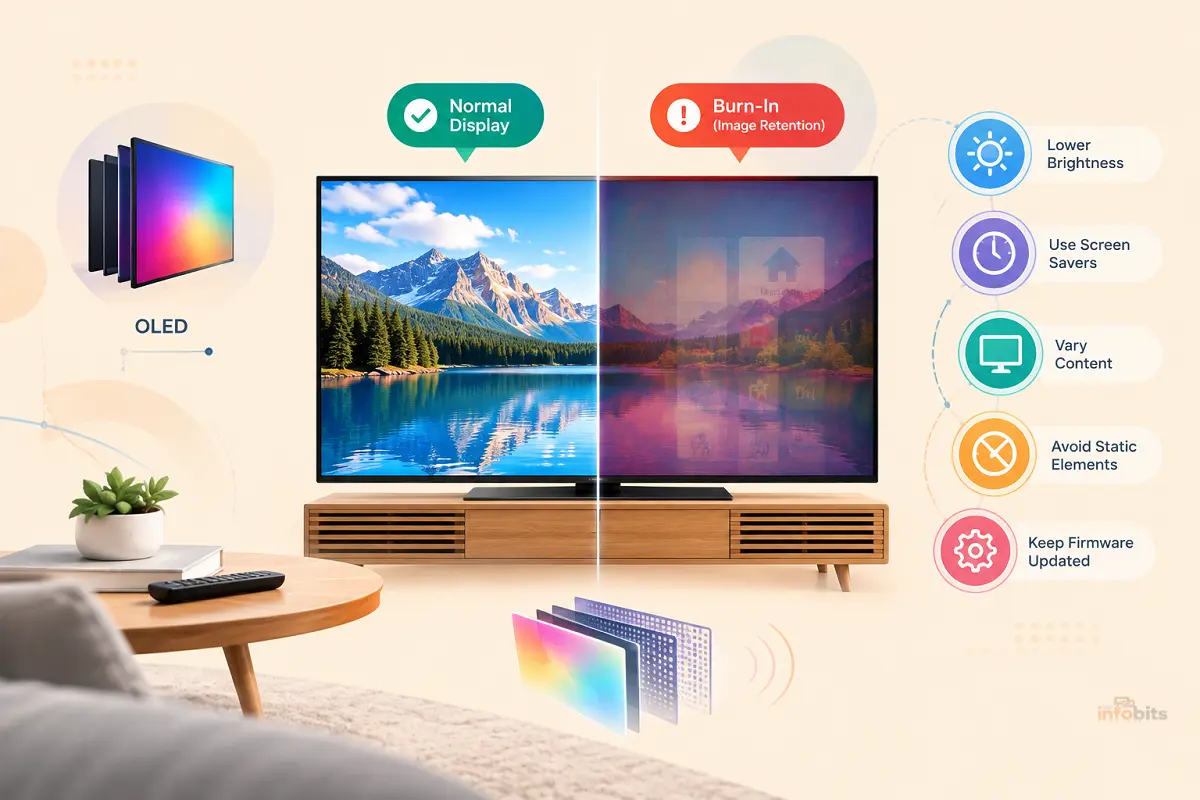
OLED Burn-In Explained: Causes, Real Risk & How to Prevent It
Quick Answer: OLED burn-in is permanent, uneven wear on a display’s organic pixels caused by showing the same bright, static content in the same spot for very long stretches. It’s still physically possible on every OLED made in 2026, but for anyone who watches normal, varied content, it’s no longer something to lose sleep over. Modern panels ship with pixel shifting, automatic brightness limiting, logo dimming, and periodic pixel-refresh cycles that spread out wear and catch problems early, and most manufacturers now back their panels with multi-year burn-in warranties.
The people who still need to be careful are heavy static-content users like 24/7 news channel viewers, office workers who run the same bright taskbar for 10+ hours a day, and gamers who leave a fixed HUD on screen for months without variation.
If you’re using an OLED the way most people use a TV or monitor, a mix of shows, games, browsing, and streaming, burn-in shouldn’t be the reason you avoid one.
What Is OLED Burn-In?
To understand burn-in, it helps to understand what makes OLED different in the first place. Every pixel on an OLED (Organic Light-Emitting Diode) panel produces its own light. There’s no backlight sitting behind the whole screen like there is on an LCD, QLED, or Mini-LED panel.
Each subpixel is its own tiny light source that switches on, off, and to any brightness level independently. That’s how OLED gets its perfect blacks (a pixel that’s “off” is truly off) and why viewing angles and contrast are so strong.
If you’re weighing OLED against a competing panel type, our breakdown of NanoCell vs. OLED and IPS vs. VA panels covers how these architectures compare beyond just burn-in.
The issue is that those organic compounds degrade a little every time they’re used, and blue subpixels degrade faster than red or green ones. If a pixel displays the same bright image, at the exact same brightness, for thousands of hours, it wears down faster than the pixels around it that got a break.
Over time, that uneven wear becomes visible as a faint, permanent ghost of whatever was on screen, like a channel logo, a taskbar, a scoreboard, a static HUD.
That permanent, unrecoverable version is true burn-in. It’s different from a related and far more common issue: temporary image retention, which looks similar but goes away on its own or with a refresh cycle.
Burn-In vs. Image Retention: Myth vs. Fact
This is the single biggest point of confusion in every OLED burn-in conversation, so it’s worth separating clearly.
| Image Retention | True Burn-In | |
|---|---|---|
| What it is | Short-term “shadow” from recently displayed static content | Permanent, uneven wear of organic pixels |
| How long it lasts | Minutes to a few hours; sometimes up to a day | Indefinitely; it does not go away |
| Cause | A few hours of a static image | Cumulative hours (often thousands) of the same static content |
| Fixable? | Yes; turning the screen off, playing varied content, or running a pixel-refresh cycle usually clears it | No; reversal isn’t possible; only mitigation and, in warranty cases, panel replacement |
| How common in 2026 | Fairly common, especially with UI elements left on screen | Rare for typical mixed-use viewing; more common with 24/7 static content |
Myth: “If I see a faint shadow after using my laptop’s taskbar for an afternoon, my screen is already burned in.” Fact: That’s almost certainly image retention. Genuine burn-in on a modern panel takes a lot more cumulative exposure than a single session.
What Actually Causes Burn-In
Four factors compound to create burn-in risk, and it’s really the combination, not any single one, that matters.
- Static content. Anything that sits in the same pixel position for extended, repeated periods: news tickers, channel logos, video game HUDs, browser toolbars, stock tickers, and paused video.
- High brightness. Brighter pixels run hotter and degrade faster. A static logo at 100% brightness ages a panel far quicker than the same logo at 30%.
- Duration and repetition. A single long session rarely does lasting damage. It’s the same static element appearing, day after day, for months or years, that adds up.
- Heat. Higher temperatures accelerate the chemical degradation of organic compounds, which is part of why brightness and burn-in risk are linked.
Common real-world burn-in triggers include 24-hour news channels, video game HUDs and minimaps, computer taskbars and browser tabs left open for entire workdays, black bars from non-native aspect ratios, and channel or app logos.
How Real Is the Burn-In Risk in 2026?
This is where the internet tends to split into two overconfident camps. “Burn-in was solved years ago” and “OLED is basically disposable”, and neither is quite right.
The most rigorous data on this comes from RTINGS’ long-running accelerated longevity test, which has run dozens of TVs continuously for years, simulating roughly a decade of real-world use in a fraction of the time by playing static news content for up to 18–20 hours a day. The results are genuinely useful because they show both sides of the picture:
- Every OLED panel in that punishing, worst-case test eventually developed some visible image retention. Brightness and material improvements haven’t eliminated the underlying physics.
- At the same time, OLED panels as a category proved more reliable overall than most LCD/LED TVs in that same test, largely because backlight failures are a bigger real-world killer of LCD TVs than burn-in is for OLEDs.
- Panels from reputable manufacturers with strong protection systems consistently outperformed cheaper or older units.
The honest takeaway: burn-in risk scales directly with how static and bright your content is, not with the calendar year. A modern OLED used for a mix of streaming, gaming, and browsing is a low-risk purchase.
The same panel used as an always-on kiosk display for a company logo is a genuinely higher-risk use case, regardless of how new the TV is.
The Built-In Protections Every Modern OLED Has
Manufacturers know burn-in is the single biggest objection to buying OLED, so nearly every panel sold today, including a TV, monitor, or phone, ships with an active protection stack, usually enabled by default.
| Feature | What It Does |
|---|---|
| Pixel shift | Subtly nudges the entire image a pixel or two at regular intervals so no single pixel bears constant stress |
| Pixel/panel refresh | A maintenance cycle (often triggered automatically after several cumulative hours of use) that runs while the display is off or in standby to even out wear |
| Automatic brightness limiting (ABL) | Reduces peak brightness on static or mostly-static scenes to lower pixel stress |
| Logo/static-element dimming | Detects fixed bright elements like channel logos or app icons and dims them specifically |
| Screen savers / auto-dim | Fades or blanks the display after a period of inactivity, common on monitors and phones |
These aren’t gimmicks. They’re the reason a 2026 OLED can survive daily use far better than a 2016 one, even though the fundamental organic-material physics hasn’t changed.
Worth checking that they’re switched on in your display’s settings, since a small number of models let advanced users disable them for marginally better color accuracy.
TVs vs. Monitors vs. Phones: Does the Risk Differ?
Not all OLED use cases carry the same risk, mostly because of how static the typical content is:
- TVs see the most varied content of the three (movies, sports, streaming), which is generally lower risk, except for households that leave the same news channel or a paused stream on for hours at a time.
- Monitors face the highest realistic risk because office and productivity work like spreadsheets, browser tabs, and a fixed taskbar is exactly the static, bright, repetitive pattern that stresses pixels. Heavy productivity users who need a screen on for 8+ hours a day, every day, are often better served by a Mini-LED or IPS/VA monitor.
- Phones are comparatively low risk for most people because status bars and nav bars are small, dim, and increasingly protected by dedicated software mitigations. Though years of heavy use with max brightness and the same launcher layout can still show wear.
Do Manufacturers Back This With a Warranty?
Yes, and this has become a meaningful part of how brands compete. Coverage specifics change often enough that it’s worth confirming directly with the manufacturer or retailer before you buy, but as a general 2026 pattern:
- Most major OLED TV brands (LG, Samsung, Sony) now offer burn-in coverage as part of their standard or extended warranty on current-generation panels, typically running one to a few years.
- Gaming and professional OLED monitors increasingly ship with dedicated burn-in warranties separate from the general hardware warranty, since monitor use skews toward the riskier static-content pattern.
- Coverage usually requires that the built-in protection features (pixel shift, refresh cycles) remain enabled. Disabling them can sometimes void burn-in-specific coverage.
If you want extra peace of mind on a monitor that’s going to run static desktop content for long stretches, a simple smart plug, like a Kasa Smart Plug ( Available on Amazon) with a scheduling feature, can enforce an automatic nightly shutdown. A small habit change that does a lot of the same protective work as the panel’s own refresh cycle.
How to Check If You Actually Have Burn-In
Before assuming the worst, confirm what you’re looking at:
- Turn off all content and display a single solid color such as full-screen red, then green, then blue, then white and gray. Genuine burn-in shows as a faint but consistent shape across all colors, not just one.
- Play a full-screen, fast-moving, colorful video for a few minutes and see if the shadow disappears. If it fades or vanishes, you’re looking at image retention, not burn-in.
- Compare against a fresh boot. Power the display off completely for at least 30–60 minutes, then check again in a dark room.
- Rule out reflections and glare – sometimes what looks like burn-in is actually a coating issue, reflection, or dust, especially under bright ambient light.
If the shadow survives all four checks and appears in the same shape regardless of what’s playing, it’s genuine burn-in.
How to Fix Temporary Image Retention
The good news: most of what people call “burn-in” clears up with basic steps.
- Run the built-in pixel refresh or panel maintenance cycle. On Samsung OLED monitors and TVs, this is found under Settings > General & Privacy > Panel Care > Pixel Refresh. LG and Sony use similarly named tools (“Pixel Refresher,” “Panel Refresh”) in their picture or support menus. The cycle typically runs for 10 minutes to over an hour and should not be interrupted.
- Play varied, colorful, full-motion content for an extended period. This is a low-effort way to exercise pixels that have been stuck in one pattern.
- Lower the brightness while the retention clears; heat and high output make it linger longer.
- Give the display a genuine rest. Powering off for several hours to overnight resolves the majority of retention cases.
- For monitors specifically, a browser-based pixel exerciser like JScreenFix uses rapid, high-contrast color cycling to “unstick” affected pixels. It’s a safe first thing to try, though results vary by severity.
For true, confirmed burn-in, none of the above will reverse it. The organic material itself has changed. At that point, your options are living with it, checking if it’s covered under a manufacturer burn-in warranty, or, in severe cases, panel replacement.
Preventing Burn-In: A Practical Checklist
- Keep brightness moderate rather than maxed out, especially for content you know will stay static for a while
- Leave pixel shift, ABL, and automatic pixel-refresh features turned on
- Avoid leaving a single channel, paused video, or app open and static for many hours at a stretch
- Use auto-hide for taskbars, docks, and browser toolbars on monitors
- Set a screen saver or auto-dim timeout for idle periods
- Vary what’s displayed. Mix content rather than repeating the same layout day after day
- Watch letterboxed or 4:3 content in a way that avoids fixed black bars for very long sessions, or use your display’s zoom/fill options sparingly
- Let scheduled pixel-refresh cycles run uninterrupted when prompted
Common Mistakes That Increase Burn-In Risk
- Disabling pixel shift for a “sharper” static desktop. It costs a fraction of visual precision and buys lower wear meaningfully.
- Running max brightness for everyday use. Peak brightness is for HDR highlights and sunlit rooms, not baseline viewing.
- Ignoring pixel-refresh prompts because they’re inconvenient in the moment.
- Assuming any faint mark is permanent and panicking before running the basic retention checks above.
- Buying an OLED specifically for a static, always-on use case (digital signage, a fixed dashboard) without checking whether that’s what the panel and warranty are actually designed for.
OLED or Something Else? A Quick Decision Guide
- Choose OLED if your use is a genuine mix of content like streaming, gaming, browsing, and you’re not running the same bright static layout for the majority of your waking hours. You’ll get better contrast, blacks, and viewing angles, and modern protections plus warranty coverage keep the real-world risk low.
- Consider Mini-LED, QLED, or an IPS/VA monitor if your primary use is genuinely static for long daily stretches. Think trading dashboards, 24/7 signage, or an office monitor that runs the same spreadsheet-and-toolbar layout for 8–12 hours a day, every day, for years.
- Gaming-specific note: varied game libraries are lower risk than a single game with a fixed HUD played for hundreds of hours straight; if you’re deciding between a TV and a monitor for your setup, our monitor vs. TV comparison covers the broader tradeoffs beyond panel type.
Frequently Asked Questions
Is OLED burn-in still a problem in 2026?
It’s still physically possible, but for typical mixed-content use, modern protection systems and manufacturer warranties have made it a low real-world risk. It remains a legitimate concern for heavy static-content use like 24/7 news viewing or all-day office work.
How long does it take for OLED to burn in?
There’s no fixed number. It depends on brightness, content, and how static your usage is. Accelerated lab testing that simulates roughly a decade of heavy, worst-case static use shows visible retention after thousands of hours; typical mixed home use takes vastly longer, if it happens at all.
Can OLED burn-in be fixed?
Temporary image retention, yes; through pixel-refresh cycles, varied content, and rest. True, confirmed burn-in cannot be reversed since it reflects permanent wear in the organic material.
Does turning off pixel shift or ABL void my warranty?
It can, depending on the manufacturer and model. Check your specific warranty terms before disabling built-in protection features.
Is OLED burn-in worse on TVs, monitors, or phones?
Monitors generally carry the highest realistic risk because office and productivity use is inherently static. TVs and phones tend to see more varied content, which is lower risk, unless used in a static-heavy way (an always-on news channel, for example).
What’s the difference between burn-in and image retention?
What’s the difference between burn-in and image retention? Image retention is temporary and clears with time, rest, or a refresh cycle. Burn-in is permanent, uneven wear that doesn’t go away.
Do LG, Samsung, and Sony OLEDs handle burn-in differently?
They use different branded names for similar underlying technology like pixel shift, refresh cycles, and brightness limiting, and increasingly back current-generation panels with burn-in-specific warranty coverage. Exact terms vary by model and region, so check with the manufacturer.
Should I avoid OLED if I work from home on it all day?
Not necessarily, but you should be more deliberate: keep brightness moderate, auto-hide your taskbar, let refresh cycles run, and consider whether a Mini-LED or IPS monitor might better fit a truly static, all-day workflow.
Does dark mode prevent burn-in?
It helps, since fewer bright pixels are active, but it doesn’t eliminate risk from static bright elements (a bright icon or cursor on a dark background can still wear unevenly if it never moves).
Are QD-OLED panels more or less prone to burn-in than WOLED?
Both use organic materials and carry similar underlying risk; independent longevity testing has shown reputable panels of both types performing comparably well under normal use, with brand and protection features mattering more than the specific OLED subtype.
Can I test my OLED for burn-in myself?
Yes; full-screen solid color tests (red, green, blue, white, gray) in a dark room are the simplest way to spot early signs, alongside checking whether any shadow you notice fades after varied content plays.
Is a screen protector or coating useful against burn-in?
No; burn-in happens at the pixel level, beneath any surface coating or protector, so external screen protection doesn’t reduce the risk.
How often should I run a pixel refresh cycle?
Most modern displays trigger this automatically after a set number of cumulative use hours (often around 4 hours of continuous use or several hours of cumulative use) and will prompt you. Let it run when prompted rather than skipping it repeatedly.
Does burn-in affect resale value?
Yes, visible burn-in is a significant and often disqualifying issue for resale, since it’s not something a buyer can fix.
Is it safe to buy a used OLED TV or monitor?
It can be, but ask about usage patterns (hours per day, content type) and run the solid-color test in person or ask for photos/video before buying.
What content is riskiest for burn-in?
Static, bright elements displayed for long, repeated periods: 24-hour news tickers and logos, paused video, fixed video game HUDs, and computer taskbars or browser toolbars.
Does high refresh rate (120Hz, 240Hz) affect burn-in risk?
Refresh rate itself doesn’t meaningfully change burn-in risk. What matters is brightness, staticness of content, and cumulative hours, not how many times per second the panel redraws.
Found this guide useful? Share it with someone who is suffering from audio-video-related issues. Follow us on Facebook and Twitter for more tips, tricks, and guides.
We also ask that you bookmark this page for future reference, as we are constantly updating our articles with new information.
Sign up for our free newsletter as well to receive fresh information immediately in your inbox and keep technically up to date.
Disclosure: If you follow our links to a retailer’s website and make a purchase, we will get an affiliate commission on some, but not all, of the items or services we promote. This will cause no price change for you.