
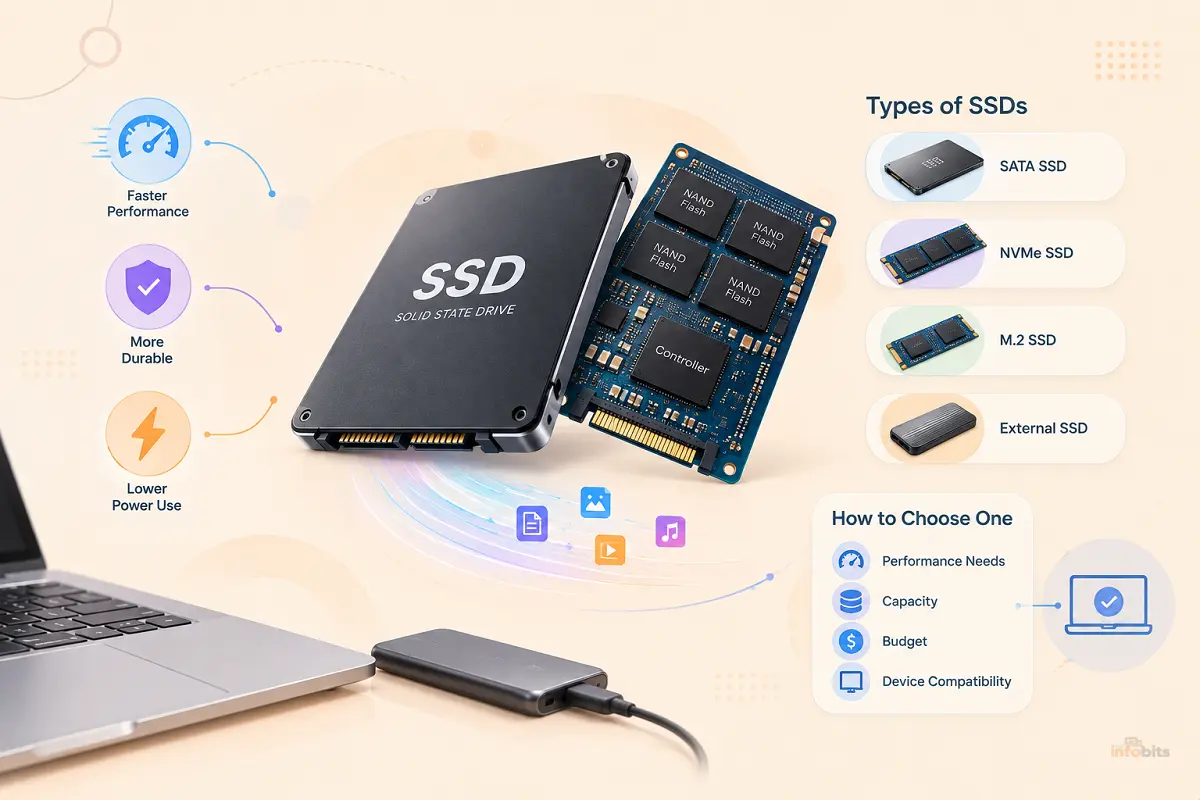
Internal SSD Fundamentals: Types, Speeds & How to Choose (2026 Guide)
Quick Answer: An internal SSD (solid-state drive) stores data on NAND flash memory chips instead of spinning magnetic platters, which is why it has no moving parts, starts up almost instantly, and survives bumps that would damage a hard drive. For most people building or upgrading a PC in 2026, the practical decision comes down to three things: interface (NVMe over PCIe is dramatically faster than SATA), form factor (M.2 is now the default; 2.5-inch SATA is mostly for older systems or bulk secondary storage), and capacity (1TB is the sensible baseline for a primary drive).
Everything else, such as NAND type, DRAM cache, and TBW rating, matters far less for a typical user than sellers make it sound, and this guide walks through exactly where each of those does and doesn’t matter.
How an SSD Actually Works
Every SSD stores data in NAND flash memory. This is a type of non-volatile memory that holds its charge (and therefore your data) even with the power off. Data is written and read by trapping or releasing electrical charge in individual memory cells, organized into pages and blocks.
A dedicated controller chip manages everything. It decides where data physically lands, spreading writes evenly across cells (wear leveling), correcting errors, and, on higher-end drives, using a pool of onboard DRAM cache to speed up the process of tracking where every piece of data lives.
This is fundamentally different from a traditional hard disk drive (HDD), which stores data magnetically on spinning platters and uses a mechanical arm to physically move a read/write head to the right location.
That mechanical process is the source of nearly every practical disadvantage HDDs have next to SSDs, including slower access times, audible noise, vulnerability to drops and shocks, and higher power draw.
If you’re wondering whether an SSD upgrade is worth it for an older PC, it usually is. An SSD can make a noticeable difference in everyday performance. Apps can open almost instantly instead of making you wait through a visible loading screen. For many older machines, this is one of the most worthwhile upgrades you can make.
Internal SSD vs. External SSD vs. HDD
| Internal SSD | External SSD | Internal HDD | |
|---|---|---|---|
| How it connects | Directly to the motherboard (M.2 slot or SATA cable) | Via USB-C/USB-A to any device | Directly to the motherboard via SATA cable |
| Typical speed | Fastest (especially NVMe) | Fast, but capped by the USB connection | Slowest |
| Best for | Your main OS/boot drive and primary storage | Portable backups, transferring files between machines | Cheap bulk/archival storage |
| Moving parts | None | None | Yes; spinning platters, moving head |
| Durability | High | High, but connector and cable add failure points | Lower; sensitive to drops and shock |
If your goal is the fastest possible experience on your main computer, an internal SSD is the right category. External SSDs and HDDs both still have valid, specific roles. They’re just not what this guide focuses on.
NVMe vs. SATA: The Interface That Matters Most
This is the single biggest performance decision you’ll make, and it’s simpler than it sounds.
- SATA (Serial ATA) is the older interface, originally designed for hard drives. SATA SSDs are capped at roughly 550–600 MB/s regardless of how good the drive is internally. The interface itself is the bottleneck.
- NVMe (Non-Volatile Memory Express) is a protocol built specifically for flash storage, running over the PCIe bus instead of the older SATA pathway. A mid-range PCIe 4.0 NVMe drive comfortably hits 5,000–7,000 MB/s, and current PCIe 5.0 drives can exceed 12,000 MB/s.
For everyday use, booting your OS, opening applications, loading game levels, browsing- that speed difference is very noticeable in the first few seconds of any of those actions. For large sequential transfers (copying a big video file, cloning a drive), it’s the difference between a task taking minutes versus tens of minutes.
Should you always buy NVMe? For any system built in the last several years, yes. It typically costs little to nothing more than SATA at the same capacity today.
The one exception is if your specific motherboard or laptop only supports SATA-based M.2 slots (common on older or budget hardware), in which case an NVMe drive will physically fit but only run at SATA speeds, so double-check your slot’s actual capability before buying, not just whether an M.2 slot exists.
M.2, 2.5-Inch, and Why the Form Factor Confuses People
Here’s where a lot of buyers get tripped up: M.2 is a physical form factor, not a speed guarantee. An M.2 slot can carry either the older SATA protocol or the newer NVMe/PCIe protocol, and a drive’s physical “keying” (notches on the connector; B-key, M-key, or B+M key) determines which one it actually uses.
- M.2 (NVMe): A slim, gum-stick-shaped card that plugs directly into a dedicated M.2 slot on the motherboard, using the M-key connector for full PCIe bandwidth. No cables needed. This is the default choice for nearly every modern desktop and laptop.
- M.2 (SATA): Physically similar but electrically limited to SATA speeds (~550-600 MB/s). It is common on some older ultrabooks and budget laptops with only SATA-wired M.2 slots.
- 2.5-inch SATA: The traditional laptop-hard-drive-shaped SSD that connects via a SATA data cable and a separate power cable, just like a 2.5-inch HDD did. Still relevant for older desktops and laptops without an M.2 slot, or as easy-to-add secondary/bulk storage in a desktop with spare drive bays.
If you’re building or upgrading and see an M.2 slot listed in your motherboard’s specs, check the manual or manufacturer page for which protocol(s) that specific slot supports. It’s not safe to assume every M.2 slot on a board runs NVMe at full speed, since manufacturers sometimes wire secondary M.2 slots at reduced lane counts.
Our related guide on M.2 vs. U.2 covers the enterprise/workstation side of this if you’re working with server-class storage, and if you’re wondering whether a specific M.2 drive needs additional cooling, see Does an M.2 SSD Need a Heatsink?
PCIe Generations: 3.0 vs. 4.0 vs. 5.0
NVMe drives are further split by which generation of PCIe bus they use, and this affects both maximum speed and price:
- PCIe 3.0: The budget tier in 2026; still meaningfully faster than any SATA drive, and genuinely fine for everyday computing, web browsing, and general productivity.
- PCIe 4.0: The current sweet spot for most builds. It has strong sustained speeds without the price premium of the newest standard, ideal for gaming, creative work, and general high-performance use.
- PCIe 5.0: The current high end, capable of extremely high peak speeds. This is most valuable for professional workloads like large-scale video editing, real-time large-file access, or workstation use where sustained bandwidth genuinely gets used. For most home users, the difference over PCIe 4.0 is hard to notice in daily use.
One important compatibility note: a PCIe 4.0 or 5.0 drive will still work perfectly fine in a PCIe 3.0 slot. It simply runs at the slower generation’s speed rather than failing to work.
NAND Types: TLC vs. QLC (and Why It Matters Less Than You’d Think)
Inside every SSD, data is physically stored in NAND flash cells, and how many bits each cell holds defines the NAND type:
- TLC (Triple-Level Cell) stores 3 bits per cell and is the dominant, most-recommended NAND type in consumer SSDs today. It balances cost, speed, and endurance well, and is what’s used in most well-reviewed drives across every price tier.
- QLC (Quad-Level Cell) stores 4 bits per cell, which increases storage density and lowers cost per terabyte, but reduces both endurance and sustained write performance once a drive’s fast cache buffer fills up.
In practice: TLC is the safer, more consistent choice for your primary drive. Especially one running your OS and everyday applications.
QLC is a reasonable and genuinely cost-effective choice for secondary, read-heavy storage like a game library, a media archive, or backups you write once and read many times.
Understanding TBW and DWPD (Endurance Ratings)
Every SSD ships with an endurance rating, most commonly expressed as:
- TBW (Terabytes Written): The total amount of data the manufacturer guarantees the drive to accept over its life. A quality 1TB TLC drive typically carries a rating in the 300–1,200 TBW range.
- DWPD (Drive Writes Per Day): A related rating, more common on enterprise drives, expressing how many times you could rewrite the drive’s full capacity per day for the length of the warranty.
How much does this actually matter for a normal user? Very little. Someone writing an unusually heavy 50GB per day would still take somewhere between 16 and 65 years to exhaust a quality 1TB TLC drive’s rated endurance.
Most home and office users will replace a drive for capacity or speed reasons long before they come anywhere close to its write limit. TBW becomes a meaningful decision factor mainly for genuinely write-intensive workloads like continuous video recording, database servers, or heavy creative scratch-disk use, not everyday computing.
You can check how much of a drive’s rated life you’ve used through its SMART data, specifically the “Percentage Used” or “Wear Leveling Count” attribute, using free tools like CrystalDiskInfo (Windows) or smartctl (Linux/macOS).
Capacity: How Much Storage Do You Actually Need?
- 256GB–512GB: Workable only as a boot drive with minimal installed software, or as a secondary drive for specific projects. Tight for most modern operating systems and application sets.
- 1TB: The sensible baseline for a primary drive in 2026, which is comfortable room for an OS, applications, and a reasonable game or media library without constant cleanup.
- 2TB and above: Worth it if you install several large games, work with large video/photo files, or simply want to avoid ever thinking about storage management again. Price per gigabyte continues to improve, making 2TB increasingly the better long-term value over buying a second smaller drive later.
DRAM Cache, HMB, and Other Terms You’ll See on Spec Sheets
- DRAM cache: A small pool of fast memory on the drive itself used to track where data lives, improving consistency and responsiveness, especially under heavier or more random workloads.
- HMB (Host Memory Buffer): A budget alternative used on some DRAM-less drives, where the SSD borrows a small slice of your system’s main RAM instead of carrying its own cache chip. It closes some of the performance gap but isn’t a full substitute for onboard DRAM on heavier workloads.
- TRIM: An operating system command that tells the SSD which data blocks are no longer in use, so the drive can clean them up in advance and maintain consistent write performance over time. Enabled by default on modern Windows, macOS, and Linux installations. No action needed for most users.
- Over-provisioning: Extra, hidden NAND capacity reserved by the drive (beyond what’s advertised) to improve wear leveling and sustain performance as the drive fills up and ages.
How to Choose the Right Internal SSD: A Practical Framework
- Confirm your slot type and protocol. Check your motherboard or laptop’s documentation for M.2 slot availability and whether it runs NVMe (and which PCIe generation) or SATA-only.
- Pick NVMe over SATA unless your hardware genuinely limits you to SATA. The price gap has narrowed enough that it’s rarely worth sacrificing speed.
- Choose PCIe 4.0 as your default unless you’re on a strict budget (PCIe 3.0 is fine) or have a specific, sustained-heavy workload that benefits from PCIe 5.0.
- Pick TLC NAND for your primary/OS drive; QLC is fine for secondary, read-heavy storage.
- Size up to at least 1TB for a primary drive if your budget allows it. You’ll thank yourself in a year.
- Don’t use TBW as the deciding factor in most SSD comparisons. It only becomes more important in specific cases. For example, consider a DRAM-less QLC SSD versus a TLC SSD with DRAM. If you’re choosing a drive for a busy primary PC, the TLC model is usually the better option. It often offers higher endurance along with better everyday performance.
Common Buying Mistakes
- Assuming every M.2 slot runs at full NVMe speed. Some boards wire secondary M.2 slots at reduced lane counts or SATA-only.
- Buying a drive keyed for the wrong slot. M.2 keying (B-key, M-key, B+M) determines electrical compatibility. Check both the drive and the slot before buying.
- Trusting peak “up to” speed claims without checking sustained write behavior. Many budget NVMe drives advertise high burst speeds but drop sharply once their fast cache fills during large, continuous transfers.
- Overpaying for TBW you’ll never use on a general-purpose home or office PC.
- Skipping a heatsink on a genuinely hot, sustained workload (see our M.2 heatsink guide). Most everyday use doesn’t need one, but sustained gaming on thin laptops or heavy creative work can benefit.
Troubleshooting: Common SSD Issues
- Drive not showing up in BIOS? Check our dedicated guide: SSD Not Showing Up in BIOS for step-by-step fixes.
- Worried your SSD is failing? Watch for symptoms like frequent freezes, files becoming corrupted, or the drive disappearing intermittently. See Is My SSD Failing? for a full diagnostic checklist.
- Setting up a new drive (MBR vs. GPT)? If you’re partitioning a fresh SSD, our guide on MBR or GPT for SSD walks through which to choose and how to convert an existing drive with Convert SSD to GPT.
- Recovering data from a dead or failing drive? See our overview of typical data recovery costs before deciding whether professional recovery is worth it.
Myth vs. Fact
Myth: “SSDs wear out quickly, and you’ll lose your data suddenly.” Fact: Modern SSDs are rated for years to decades of typical use, and most fail (if they fail at all) gradually, with SMART warning signs available well before total failure, unlike sudden mechanical HDD failures.
Myth: “You need to defragment an SSD like you would a hard drive.” Fact: Defragmentation is unnecessary and can add pointless write cycles on an SSD, since there’s no physical read/write head that benefits from contiguous data placement. Modern operating systems automatically use TRIM instead.
Myth: “A bigger M.2 slot number means a faster slot.” Fact: Slot naming varies by motherboard manufacturer and doesn’t reliably indicate speed. Always check the actual PCIe generation and lane count listed in your motherboard’s manual.
Expert Tips
- Leave 10–20% of an SSD’s capacity free where possible; performance and longevity both benefit from some working headroom, especially on QLC drives.
- If you’re installing an OS on a new NVMe drive, confirm your motherboard’s boot mode (UEFI, generally paired with GPT) is configured correctly before installation to avoid boot issues later.
- Keep firmware updated through the manufacturer’s utility. Firmware updates occasionally fix real performance and stability issues, particularly on newer drive models.
Frequently Asked Questions
What is an internal SSD?
An internal SSD is a solid-state drive that installs directly inside a computer (via an M.2 slot or SATA connection) and stores data on NAND flash memory chips rather than spinning magnetic platters.
Is NVMe always better than SATA?
For raw speed, yes; NVMe is dramatically faster. The only reason to choose SATA is if your specific hardware doesn’t support NVMe, or you need a low-cost secondary drive where extra speed won’t be noticeable.
Do I need a heatsink for my M.2 SSD?
Most everyday use doesn’t require one. Sustained heavy workloads ( extended gaming sessions on thin laptops, large continuous file transfers, or professional video work) can benefit from added cooling to prevent thermal throttling.
What’s the difference between TLC and QLC NAND?
TLC stores 3 bits per cell and offers better speed and endurance; QLC stores 4 bits per cell for higher density and lower cost, at the expense of endurance and sustained write performance.
How much SSD storage do I need?
1TB is a comfortable, practical baseline for most users in 2026. Heavy gamers, creators, or anyone working with large media files should consider 2TB or more.
What does TBW mean, and should I worry about it?
TBW (Terabytes Written) is a manufacturer’s endurance rating. For the vast majority of home and office users, it’s irrelevant. You’ll replace the drive for capacity or speed long before reaching its rated write limit.
Can I use an NVMe drive in any M.2 slot?
Only if the slot supports NVMe/PCIe and matches the drive’s keying (typically M-key). Some M.2 slots are wired for SATA only or have reduced PCIe lanes. Check your motherboard’s documentation.
Do SSDs need to be defragmented?
No. Defragmentation is unnecessary for SSDs and can add unneeded write cycles. TRIM, which runs automatically on modern operating systems, is the relevant maintenance process instead.
What’s the difference between M.2 and 2.5-inch SSDs?
M.2 is a compact, cable-free card format that plugs directly into the motherboard and typically uses NVMe for maximum speed; 2.5-inch SSDs use a SATA cable connection and are mainly relevant for older systems or added bulk storage.
How long do SSDs actually last?
For typical use, well beyond the point most people would replace the drive anyway. Often a decade or more of everyday use, given how far most TBW ratings exceed normal write volumes.
Is PCIe 5.0 worth it over PCIe 4.0?
For most home users, the everyday difference is minor. It’s most valuable for professional, sustained-bandwidth workloads like large-scale video editing or workstation tasks.
Why does my new NVMe drive feel slower than advertised during a big file transfer?
Many drives use a fast SLC cache for burst speeds; once that cache fills during a large, continuous write, speeds can drop noticeably, especially on budget or DRAM-less drives.
Should I buy a SATA SSD in 2026?
Mainly if you’re upgrading an older system that doesn’t support NVMe, or need low-cost secondary storage where speed doesn’t matter as much.
Can I clone my existing drive to a new SSD instead of reinstalling my OS?
Yes; most SSD manufacturers offer free cloning software, and many third-party tools support this as well, making an upgrade largely plug-and-play in most cases.
Found this guide useful? Share it with someone interested in storage- and backup-related solutions. Follow us on Facebook and Twitter for more tips, tricks, and guides.
We also ask that you bookmark this page for future reference, as we are constantly updating our articles with new information.
Sign up for our free newsletter as well to receive fresh information immediately in your inbox and keep technically up to date.
Disclosure: If you follow our links to a retailer’s website and make a purchase, we will get an affiliate commission on some, but not all, of the items or services we promote. This will cause no price change for you.


)