Android Permissions Management: Complete 2026 Guide
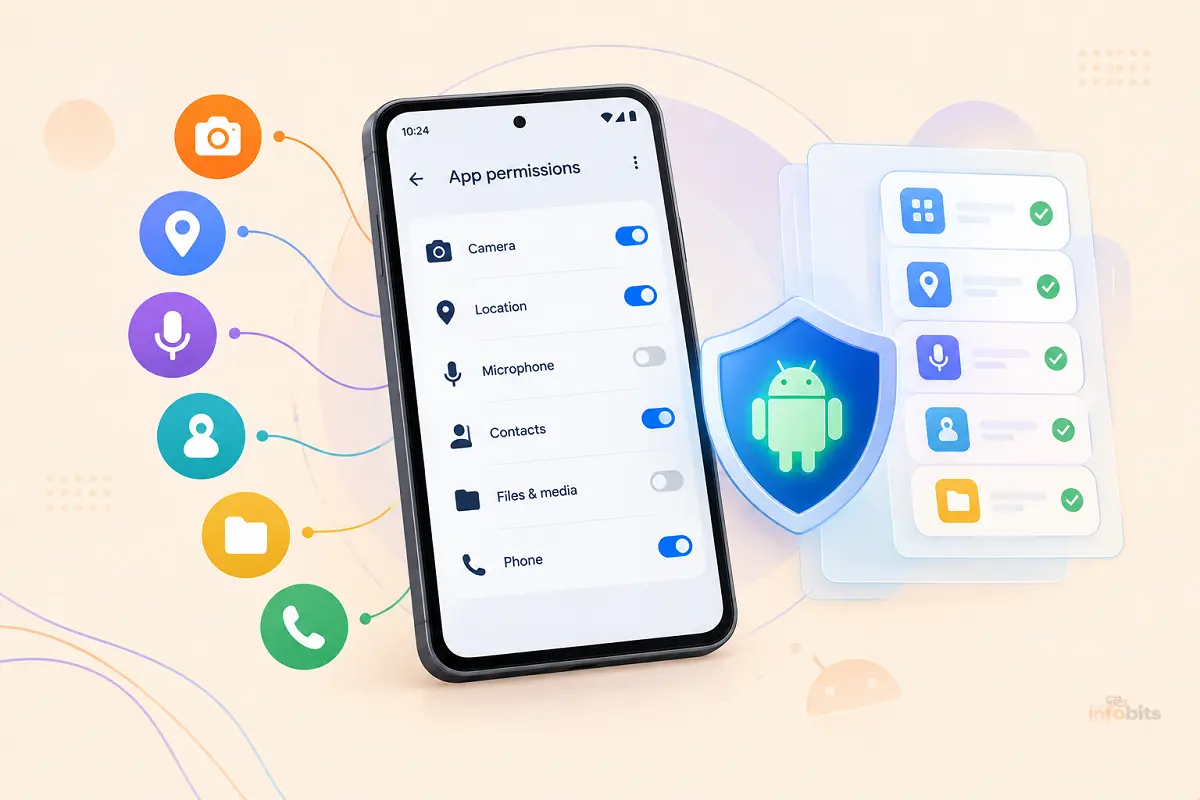
Quick Answer: Every permission an app has on your Android phone lives in one central place: Settings > Security & Privacy > Privacy > Permission manager. From there, you can review access by permission type (Camera, Location, Microphone, Contacts, and more) rather than digging through each app individually, and change any app’s access to Allow, Ask every time, or Deny. For sensitive permissions like camera, microphone, and location, Android also offers one-time access, which grants permission for a single session only. And if you forget an app has permissions at all, Android’s auto-reset feature automatically revokes access from apps you haven’t opened in months, so old, unused apps don’t sit on standing access to your data.
Ten minutes spent in Permission Manager is genuinely one of the highest-value privacy habits you can build into your phone routine. Most people are surprised by how many apps have quietly held onto access they no longer need.
What Are Android Permissions?
Permissions are the gatekeepers between an app and the sensitive parts of your phone like your camera, microphone, precise location, contacts, files, and more.
Rather than granting apps blanket access at install time (the old model), modern Android uses runtime permissions: apps must ask for access to something sensitive at the moment they actually need it, and you decide in that moment whether to allow it.
Permissions fall into a few practical categories:
- Normal permissions (like internet access) are granted automatically since they carry minimal privacy risk.
- Dangerous/runtime permissions (camera, microphone, location, contacts, and similar) require your explicit approval and show up in Permission Manager.
- Special permissions (like displaying over other apps, or accessibility access) require a deeper trip into Settings to grant, since they carry more significant control over your device.
Related: Android 17 Not Showing Up on Your Phone? Here’s Why (and When You’ll Get It)
Where to Find Permission Manager
The exact wording varies slightly by Android version and manufacturer skin, but the path is consistent:
- Stock Android / Pixel: Settings > Security & Privacy > Privacy > Permission manager
- Samsung (One UI): Settings > Privacy > Permission manager
- Most other manufacturers (Xiaomi, OnePlus, Oppo): Settings > Apps > Permissions, or Settings > Privacy > Permission manager
Once inside, you’ll see a list of permission types for Camera, Microphone, Location, Contacts, Photos and videos, Nearby devices, Health/Wellness/Fitness, Files, and others depending on your Android version.
Tapping any type shows every app that has requested it, split into “Allowed” and “Denied” groups.
Two Ways to Review Permissions
Android gives you two complementary views, and each is useful for a different kind of check:
- By app: Go to Settings > Apps, tap a specific app, then tap Permissions. This is the right approach when you’re evaluating one particular app; say, right after installing something new.
- By permission type: Use Permission Manager to see every app that has camera access, every app with location access, and so on. This is the more powerful view for a privacy audit, since it lets you ask “which apps can see my location?” instead of checking app-by-app.
Understanding Location Permission Levels
Location deserves special attention because Android splits it into more granular options than most other permissions:
- Precise location: Exact GPS-level accuracy.
- Approximate location: Accurate to roughly a neighborhood-sized area; enough for weather or general local search, without pinpointing your exact position.
- Allow all the time: The app can access location even when you’re not actively using it (background access).
- Allow only while using the app: Location access is limited to when the app is actively open and in the foreground.
- Ask every time: No standing permission at all; you’re prompted fresh each time the app wants location.
- Don’t allow: No location access whatsoever.
A practical rule: very few apps genuinely need “Allow all the time” or precise location. Navigation and ride-share apps are legitimate cases; a shopping app or game asking for background precise location is a red flag worth investigating before granting.
Related: Android 17 Battery Drain & Bluetooth Bugs: Fixes That Actually Work
One-Time Permissions: Access That Expires on Its Own
For camera, microphone, and location specifically, the system permission prompt includes an “Only this time” option alongside Allow and Deny. Choosing it grants the app access for that single session. The permission automatically reverts to denied once you leave the app, and you’ll be prompted again the next time that feature is used.
This is the best option whenever you’re not sure an app genuinely needs standing access. A random utility asking for camera access to scan a document, for example, is a good candidate for “Only this time” rather than a permanent grant.
Privacy Dashboard: See Who Accessed What, and When
The Privacy Dashboard (Settings > Security & Privacy > Privacy > Privacy dashboard, wording varies by manufacturer) shows a timeline of which apps accessed your camera, microphone, and location over roughly the last 24 hours, along with how many times and for how long.
It’s the fastest way to catch an app quietly using a permission far more often than you’d expect. A flashlight app hitting your location every few minutes is exactly the kind of thing this view is designed to surface.
Auto-Reset and App Hibernation: Protection for Forgotten Apps
Two related features protect you from apps you’ve simply forgotten about:
- Permission auto-reset: If you haven’t opened an app in a few months, Android automatically revokes its sensitive runtime permissions. You’ll get a notification when this happens, and the app will need to ask for permission again the next time you open it.
- App hibernation: Builds on auto-reset by also force-stopping long-unused apps and reclaiming the storage and memory they were holding. This is genuinely useful for phones that accumulate a lot of rarely-opened apps over time. Opening the app again brings it out of hibernation automatically; nothing is deleted.
To manage this directly: Settings > Security & Privacy > Privacy > Privacy controls > Unused app settings, where you can toggle “Pause app activity if unused” globally or check which apps have already had permissions reset.
Related: 5 Best Android Firewall Apps in 2026 (Tested & Ranked)
A Practical Walkthrough: Reviewing Your Permissions in 10 Minutes
- Open Permission Manager and start with the highest-sensitivity categories first: Location, Camera, Microphone, Contacts, and Files.
- For each category, check the “Allowed” list. For any app you don’t immediately recognize, or don’t remember why it needs that access, tap in and consider switching it to “Ask every time” or “Don’t allow.”
- Pay particular attention to background location. Check whether any app truly needs “Allow all the time” versus “Allow only while using the app.”
- Open the Privacy dashboard and scan the recent access timeline for anything surprising. Look for an app accessing your microphone or location far more often, or at times that don’t match how you actually use it.
- Check Unused app settings and confirm auto-reset is enabled. It’s on by default on modern Android, but worth a quick check, especially if you’ve side-loaded apps outside the Play Store.
- For any app you’re not sure you still need at all, this is also a good moment to just uninstall it rather than managing its permissions indefinitely.
What Each Common Permission Actually Does
| Permission | What It Grants | When It’s a Reasonable Ask |
|---|---|---|
| Camera | Take photos, record video | Camera apps, video calling, document scanners, QR readers |
| Microphone | Record audio | Calling apps, voice assistants, voice memo apps |
| Location (precise/approximate) | Your geographic position | Maps, weather, ride-share, delivery tracking |
| Contacts | Read/write your contact list | Messaging apps, dialer replacements, contact sync tools |
| Photos and videos | Access your media library | Photo editors, social apps, cloud backup tools |
| Nearby devices | Discover and connect to Bluetooth/Wi-Fi devices nearby | Fitness trackers, smart home apps, file-sharing tools |
| Files | Broader access to files on your device | File managers, backup apps, some document editors |
| Health, Wellness, Fitness | Health data, records, and vital-sign sensor info | Fitness trackers, health apps, connected smartwatches |
| Call logs | Read/write your phone call history | Dialer replacements, call-blocking or spam-ID apps |
Related: Ghost Touch on Android: Why It Happens and 15 Ways to Fix It
New in Android 16: Local Network Permission
Android 16 introduces a dedicated runtime permission gating access to your local network; the same Wi-Fi network your phone is connected to.
Historically, apps could discover and connect to other devices on your home network (smart TVs, printers, IoT devices) without a specific prompt. This closes that gap by requiring explicit permission, similar to how camera or location access already works.
It’s rolling out gradually and is opt-in for developers initially, with broader enforcement expected in later Android releases. It is worth checking Permission Manager for a “Nearby devices” or “Local network” entry if you’re on a recent Android 16 device and notice a new prompt from a smart home or casting app.
Common Mistakes People Make With Permissions
- Granting “Allow all the time” out of habit instead of choosing “while using the app” or “only this time”. Most apps work perfectly fine with the more limited option.
- Ignoring the Privacy Dashboard entirely. It takes thirty seconds to check and is the fastest way to spot an app quietly overusing a permission.
- Assuming denying a permission breaks the app. Many apps degrade gracefully. A social app without contacts access still works; it just can’t suggest people you might know.
- Not revisiting old, rarely-used apps. Auto-reset helps, but actively checking Unused app settings, or just uninstalling apps you no longer use, closes the gap faster.
- Granting permissions to apps installed outside the Play Store without extra scrutiny. Sideloaded apps don’t go through the same review process, so it’s worth being more conservative with what you grant them.
Frequently Asked Questions
Where is Permission Manager on Android?
Settings > Security & Privacy > Privacy > Permission manager on stock Android and Pixel devices. On Samsung, it’s under Settings > Privacy > Permission manager. The exact wording varies slightly by manufacturer, but it’s consistently under a Privacy or Security & Privacy section.
What does “Only this time” mean for a permission?
It grants an app one-time access for the current session only. The permission automatically reverts to denied once you leave the app, and you’ll be asked again next time that feature is needed.
What happens if I deny a permission an app needs?
The app usually still works, but the specific feature relying on that permission won’t function. A maps app without location access, for example, won’t be able to show your current position but can still be used for general searches.
How does Android’s auto-reset feature work?
If you haven’t opened an app for a few months, Android automatically revokes its sensitive runtime permissions and notifies you. Opening the app again prompts you to grant permissions fresh, just like a first-time install.
What’s the difference between precise and approximate location?
Precise location gives an app exact GPS-level accuracy. Approximate location narrows it to roughly a neighborhood-sized area. This is enough for weather or general local content without revealing your exact position.
Can I see which apps recently used my camera or microphone?
Yes; the Privacy Dashboard shows a timeline of camera, microphone, and location access over roughly the last 24 hours, including how often and for how long each app used it.
Is it safe to deny location access to most apps?
For apps where location isn’t core to their function (games, utilities, shopping apps), yes. Denying it or switching to “ask every time” rarely breaks anything and reduces unnecessary tracking.
What does app hibernation do to my apps?
It force-stops apps you haven’t used in a long time and reclaims the storage and memory they were holding, in addition to resetting their permissions. Nothing is deleted; opening the app again brings it back to normal immediately.
Should I worry about permissions on apps installed outside the Play Store?
Yes, more so than Play Store apps, since sideloaded apps skip Google’s review process. Be more conservative about what you grant, and double-check Permission Manager after installing anything from outside the Play Store.
Do all Android phones have the same permission settings menu?
The core Android permission system (Permission Manager, Privacy Dashboard, one-time permissions, auto-reset) is consistent across devices, but manufacturer skins like Samsung’s One UI or Xiaomi’s MIUI sometimes rename menu items or add their own additional privacy controls layered on top.
What is the new local network permission in Android 16?
It’s a new runtime permission that specifically gates an app’s ability to discover and connect to devices on your local Wi-Fi network, smart TVs, printers, and IoT devices, closing a gap where this access previously required no explicit prompt.
How often should I review my app permissions?
A quick pass every few months is a reasonable habit, and it’s worth doing a fuller review any time you notice unusual battery drain, data usage, or after installing several new apps in a short period.
Found this guide useful? Share it with someone who is suffering from networking-related issues. Follow us on Facebook and Twitter for more tips, tricks, and guides.
We also ask that you bookmark this page for future reference, as we are constantly updating our articles with new information.
Sign up for our free newsletter as well to receive fresh information immediately in your inbox and keep technically up to date.
Disclosure: If you follow our links to a retailer’s website and make a purchase, we will get an affiliate commission on some, but not all, of the items or services we promote. This will not change the price for you.