Wi-Fi 7 Router Won’t Connect to Older Devices: 9 Fixes That Work
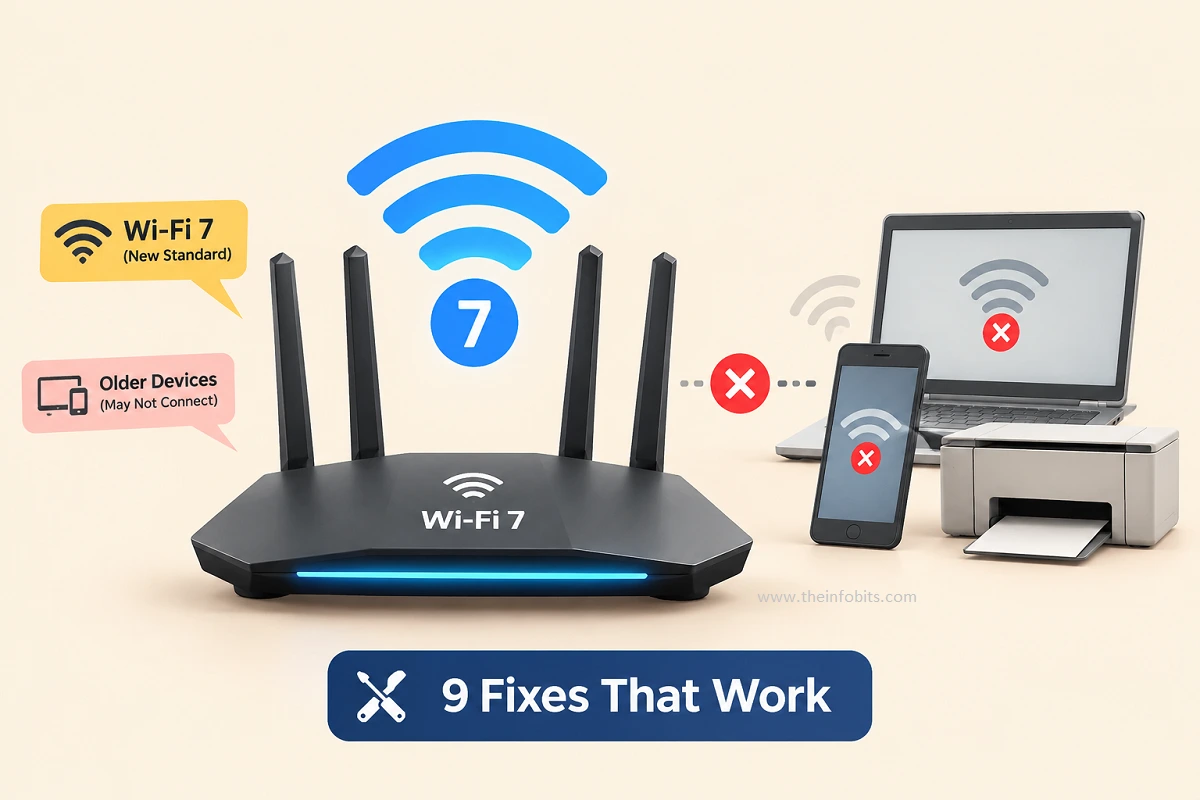
Quick answer: Most of the time, an older device won’t join a new Wi-Fi 7 network because of a security mismatch, not a broken router. Wi-Fi 7 networks default to WPA3 encryption, and a lot of gear built before 2018, like printers, smart plugs, older laptops, and budget Android phones, only understands WPA2 or WEP.
The fastest fix is usually to set your router’s encryption to “WPA2/WPA3-Personal” (mixed mode), or to move older devices onto a dedicated IoT/guest network. If that doesn’t solve it, the next suspects are Multi-Link Operation (MLO), the 6 GHz band, and outdated firmware; all covered below.
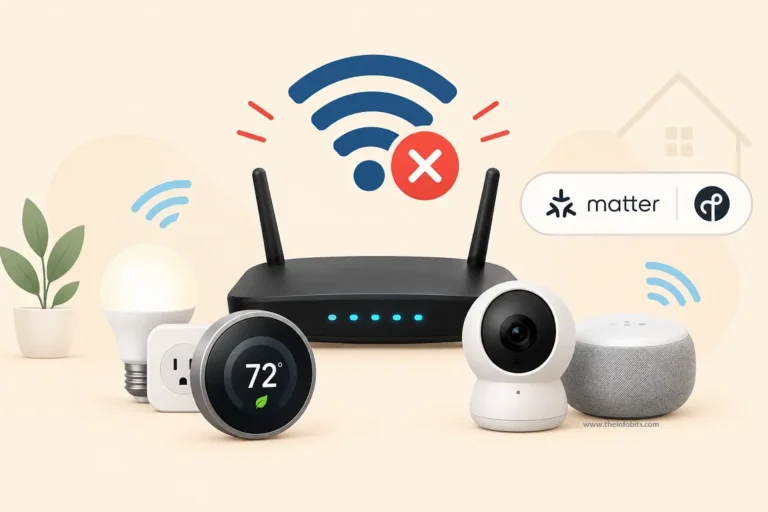
You just spent real money on a new router, and instead of a faster network, you’ve got a smart bulb blinking amber, a printer that won’t show up, or a five-year-old laptop that keeps saying “can’t join this network.”
It’s a genuinely common problem right now, and it’s not a sign you bought a defective router. Wi-Fi 7 changed several things under the hood ( security defaults, band behavior, and how devices link to the router ) and older hardware simply wasn’t built with those changes in mind.
This guide walks through why it happens and how to fix it, in the order that resolves the issue fastest for most people.
Wi-Fi 7 Router Not Connecting to Older Devices: Why This Happens
Before you start changing settings, it helps to know what’s actually going on. There are four common causes, and they often overlap:
- Encryption mismatch. Wi-Fi 7 routers ship with WPA3 (or WPA2/WPA3 mixed mode) turned on by default. Devices made before roughly 2018 frequently only support WPA2 or WPA/WPA2 mixed mode, and some IoT gadgets only speak WEP or open security. They simply can’t authenticate against WPA3.
- 6 GHz band confusion. Wi-Fi 7’s fastest band, 6 GHz, requires WPA3. There’s no legacy option there at all. If your router is broadcasting a single combined SSID across 2.4, 5, and 6 GHz (“Smart Connect” or “band steering”), older devices can get confused trying to negotiate with a band they don’t understand.
- Multi-Link Operation (MLO). MLO lets Wi-Fi 7 devices connect across multiple bands at once for lower latency. Legacy devices can’t use MLO, and on some router models, enabling it changes how the SSID broadcasts in ways that trip up older clients. Even though, in theory, non-MLO devices should just connect normally on one band.
- Firmware and driver bugs. Wi-Fi 7 is genuinely new. Both router firmware and client-side Wi-Fi drivers (especially on Windows 11 laptops with newer Wi-Fi 7 adapters) have shipped with early bugs around reconnecting after sleep, band switching, and MLO handling.
The good news: none of these require new hardware. They’re settings problems, and they’re fixable in about 10 minutes for most people.
Before You Start: Confirm What You’re Dealing With
Quick 2-minute check to save yourself time:
- Does the device connect to other networks fine? If yes, the device itself is okay. This is a router/network setting issue.
- Is it one device or several? One stubborn device usually means a device-side fix (driver, forget-and-rejoin). Multiple devices failing points to a router setting.
- What’s the device’s age and Wi-Fi capability? Check its box, manual, or settings menu for “802.11” specs. If it tops out at 802.11n (Wi-Fi 4) or 802.11ac (Wi-Fi 5), WPA3-only networks are the most likely blocker.
With that in mind, here are the fixes, roughly in the order worth trying.
1. Switch Your Router to Mixed WPA2/WPA3 Security
This resolves the issue for the majority of people and takes about two minutes.
- Log into your router’s admin page (commonly
192.168.1.1, or via the manufacturer’s app). - Go to Wireless Settings → your 2.4 GHz or 5 GHz network.
- Find the Security or Authentication dropdown.
- Change it from WPA3-Personal to WPA2/WPA3-Personal (sometimes labeled “Mixed Mode” or “Compatibility Mode”).
- Save and let the router reboot.
Related: WPA3 Explained: What It Is, How It Works, and Why You Need It in 2026
If your current router doesn’t offer a mixed-mode option at all (some budget models force WPA3-only on certain bands), that’s usually a sign it’s running older firmware or entry-level hardware.
A router with more granular per-band security controls, like recent TP-Link Deco or Amazon eero 7 series mesh systems available on Amazon, will save you this headache going forward.
Keep in mind: 6 GHz cannot use mixed mode. It’s WPA3 only, by design of the Wi-Fi 7 standard. So this fix applies to your 2.4 GHz and 5 GHz bands, not 6 GHz.
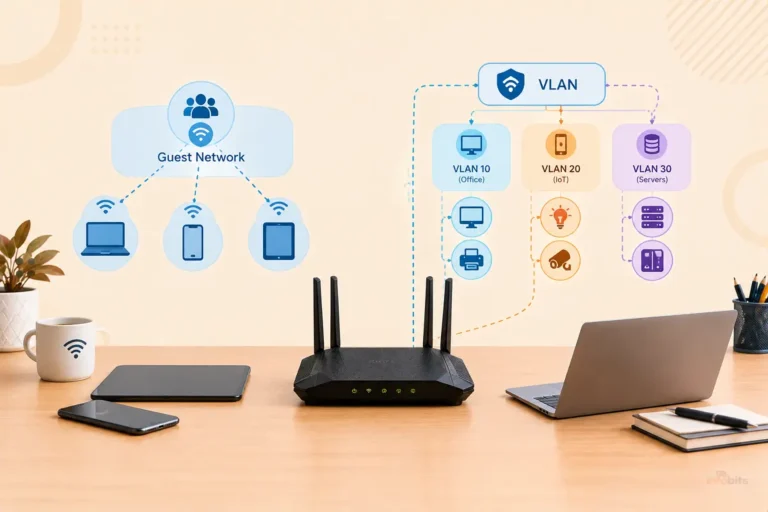
2. Set Up a Dedicated IoT or Legacy Device Network
If mixed mode isn’t available, or you’d rather keep your main network fully on WPA3 for security, create a second network specifically for older gear.
Most Wi-Fi 7 routers now support this natively:
- NETGEAR Orbi (WiFi 7): Built-in IoT network under Advanced Settings.
- ASUS: Look for the auto-created network with “_IoT” appended to your SSID name.
- eero, Google Nest Wifi Pro, TP-Link Deco: Use the app’s Guest Network or IoT profile feature.
Set this secondary network to WPA2-Personal, give it a distinct name (e.g., “HomeNet-Legacy”), and connect your printer, smart plugs, older laptop, or security cameras to it.
Your primary Wi-Fi 7 devices stay on the fast, WPA3-secured main network, and everything else works exactly as before.
Related: How to Secure IoT Devices on Your Home WiFi Network (Practical Guide)
3. Disable MLO Temporarily to Isolate the Problem
Multi-Link Operation is one of Wi-Fi 7’s headline features, but it’s also the newest and least mature part of the standard.
If devices are dropping or failing to join intermittently rather than being flatly rejected, MLO is worth testing.
- In your router’s wireless settings, find MLO (sometimes under an “Advanced” or “Wi-Fi 7” tab).
- Toggle it off. The network will reboot.
- See if the older device connects normally now.
If that fixes it, you have two options: leave MLO off (you’ll lose some latency benefit for your Wi-Fi 7 devices, but gain full legacy compatibility), or re-enable MLO and instead put legacy devices on a separate, non-MLO SSID as described in the section above.
For most mixed households ( a few new devices, several older ones), a separate legacy SSID is the better long-term setup than disabling MLO network-wide.
4. Update Router Firmware (and Device Drivers)
Wi-Fi 7 firmware has moved fast since routers launched, and manufacturers have pushed multiple stability patches specifically targeting connection drops and legacy-device handshake failures.
On the router:
- Check for updates through the router’s app or admin panel; most Wi-Fi 7 routers check automatically, but a manual check often surfaces a newer build.
- Install and reboot before retesting.
On the device (especially Windows 11 laptops with newer Wi-Fi 7 adapters):
- Update the wireless adapter driver through Device Manager or the manufacturer’s site (Intel, Killer, MediaTek).
- Windows 11’s own update channel has shipped fixes for Wi-Fi 7 reconnect issues after sleep. Running Windows Update is worth doing before you assume it’s a router problem.
This is a common mistake: people assume a firmware-related bug is a permanent hardware limitation and give up on a device or a router setting that would have worked fine after an update.
Related: WiFi 6 vs WiFi 7: What’s the Real Difference and Should You Upgrade in 2026?
5. Force the Device onto 2.4 GHz or 5 GHz Manually
If your router broadcasts one combined SSID across all three bands (Smart Connect / Band Steering), some older clients get stuck trying and failing to negotiate the best band automatically.
- Temporarily disable Smart Connect and broadcast separate SSIDs per band (e.g., “HomeNet-2.4,” “HomeNet-5”).
- Manually connect the older device to the 2.4 GHz or 5 GHz SSID.
- Once it’s working, you can usually re-enable Smart Connect for your other devices without disrupting this one, since it will now remember its specific network.
6. Check Channel Width and Interference
Older devices, especially anything using the 2.4 GHz band, can struggle if your router is set to wide, aggressive channel widths meant for Wi-Fi 7’s newer clients.
- In wireless settings, set the 2.4 GHz channel width to 20 MHz and 5 GHz to 80 MHz rather than the maximum available.
- Keep the router away from microwaves, baby monitors, and USB 3.0 devices, which interfere with 2.4 GHz signals.
- If you’re in an apartment or dense neighborhood, use a free app like Wi-Fi Analyzer (Android) or NetSpot (Windows/Mac) to pick a less congested channel manually instead of relying on auto-select.
Related: How to Choose the Best WiFi Channel for Faster Speeds
7. Forget the Network and Reconnect From the Device
Sounds basic, but it resolves a surprising number of cases, especially after you’ve changed any of the settings above.
Devices cache old network credentials and security handshake details, and a stale cache can cause repeated failures even after the router-side fix is correct.
- Windows: Settings → Network & Internet → Wi-Fi → Manage known networks → Forget, then reconnect.
- iOS/Android: Wi-Fi settings → tap the network → Forget This Network, then reconnect.
- Printers/IoT: Use the manufacturer’s app to remove and re-add the Wi-Fi network from scratch, rather than just retrying the password.
8. Reset the Router to Factory Defaults (Last Resort)
If nothing above works and multiple devices across categories are affected, a full factory reset clears out any corrupted configuration from a previous router or a botched firmware update.
- Hold the reset button for 5–10 seconds until the LED flashes.
- Set the router up fresh, applying mixed-mode security and your IoT network from the start.
- Reconnect devices one at a time so you can spot exactly which one, if any, still has trouble.
9. Contact the Manufacturer or Consider a Compatibility Gap
If you’ve worked through everything above and one specific device still won’t connect, it may genuinely lack the hardware or firmware support to talk to your router’s current configuration.
This shows up occasionally with older smart home hubs and budget IoT devices that were built before Wi-Fi security standards were finalized.
- Check the device manufacturer’s support site for a firmware update addressing Wi-Fi 7 router compatibility.
- If there’s no fix available, keep the device on a WPA2-only legacy network (Fix #2) rather than trying to force it onto your main network.
Related: How to Set Up a Router at Home: A Complete Beginner’s Guide
Quick Reference: Fix by Symptom
| Symptom | Most Likely Cause | Try First |
|---|---|---|
| Device says “can’t join network” immediately | WPA3-only security | Fix #1 or #2 |
| Device connects, then drops every few minutes | MLO instability or firmware bug | Fix #3 or #4 |
| Device sees the network but times out connecting | Band steering/channel width | Fix #5 or #6 |
| Worked yesterday, broken after an update | Cached credentials or new firmware bug | Fix #7 or #4 |
| Nothing else has worked | Config corruption or hardware ceiling | Fix #8 or #9 |
Common Mistakes to Avoid
- Assuming the router is defective. In the vast majority of cases, this is a settings mismatch, not faulty hardware.
- Turning off all security to “just get it working.” An open network fixes the symptom but leaves your whole household exposed. Use mixed-mode WPA2/WPA3 or a separate legacy SSID instead.
- Buying a new device before trying software fixes. Firmware and driver updates resolve a large share of these cases at zero cost.
- Leaving Smart Connect on while troubleshooting. It makes it harder to tell which band is actually causing the failure. Split the bands temporarily while you diagnose.
Myth vs. Fact
Myth: “Wi-Fi 7 routers aren’t backward compatible with older devices.” Fact: Wi-Fi 7 routers are built with strong backward compatibility, so older phones, laptops, and other devices can join the network even without Wi-Fi 7 support of their own. Connection failures come from specific settings ( usually security mode ), not a lack of backward compatibility in the standard itself.
Myth: “If my devices connect, I’m getting Wi-Fi 7 speeds.” Fact: A device only gets Wi-Fi 7 performance if both the router and the device support Wi-Fi 7. Everything else connects at its own maximum standard ( Wi-Fi 4, 5, or 6 ) over the same network, just slower.
Myth: “MLO is required and can’t be turned off.” Fact: MLO can be disabled per-band or per-SSID on virtually every consumer Wi-Fi 7 router, specifically to preserve compatibility with legacy clients.
Expert Tips
- Keep your Wi-Fi 7 devices and your legacy devices on separate SSIDs if your router supports it. It’s the single most reliable fix and avoids compromising security on your main network.
- Label your legacy SSID something obvious (“Legacy-2.4”) so you don’t forget which devices belong where when troubleshooting later.
- Recheck firmware every few months for the first year after buying a Wi-Fi 7 router. This is the period when manufacturers ship the most compatibility fixes.
- If you manage a mixed-device household or small office, a mesh system with per-band SSID control (rather than a single combined SSID) gives you far more flexibility than a basic router.
Conclusion
A Wi-Fi 7 router refusing to talk to your older devices almost always comes down to security settings, not broken hardware. Start with mixed-mode WPA2/WPA3 or a dedicated IoT network. That alone resolves most cases.
If a device is still holding out, work through MLO, firmware updates, and band settings in order. And if a single stubborn gadget never comes around, giving it its own legacy network is a perfectly normal, permanent solution; not a workaround you should feel bad about.
Frequently Asked Questions
Why won’t my old phone connect to my new Wi-Fi 7 router?
It’s most likely a security mismatch. Your router probably defaults to WPA3, which phones made before around 2018 don’t support. Switch the band to WPA2/WPA3 mixed mode in your router settings.
Do I need to replace my older devices when I get a Wi-Fi 7 router?
No. Wi-Fi 7 routers are backward compatible, and older devices connect using whatever standard they support ( Wi-Fi 4, 5, or 6 ) at their normal speeds.
Why does my printer keep disconnecting from my Wi-Fi 7 network?
Printers often only support WPA2 and struggle with 6 GHz or MLO-enabled SSIDs. Move it to a WPA2-only or IoT network.
What is MLO and does it affect older devices?
Multi-Link Operation lets Wi-Fi 7 devices use multiple bands at once for lower latency. Legacy devices can’t use it, and on some routers it can cause connection instability for older clients. Disabling it or isolating legacy devices on a separate SSID usually fixes this.
Can old devices use the 6 GHz band on a Wi-Fi 7 router?
No. 6 GHz requires Wi-Fi 6E or Wi-Fi 7 hardware and WPA3 security. Devices without that support automatically fall back to 5 GHz or 2.4 GHz.
Is WPA3 the reason my smart home devices won’t connect?
Very likely, yes. Many smart plugs, bulbs, and older security cameras only support WPA2 or WEP and cannot authenticate on a WPA3-only network.
Should I turn off WPA3 completely to fix connection issues?
Not recommended. Use WPA2/WPA3 mixed mode instead, which keeps modern devices secure while still allowing legacy devices to connect.
How do I know if my device supports Wi-Fi 7?
Check the device specifications or box for “Wi-Fi 7” or “802.11be.” If it’s not listed, it will connect using an earlier standard automatically.
Why did my device work fine before but stopped connecting after a router firmware update?
Firmware updates occasionally change default security or MLO settings. Check your router’s wireless settings after any update, and reconnect the device by forgetting and rejoining the network.
Can channel width settings cause connection failures?
Yes. Very wide channel widths on 2.4 GHz especially can cause issues for older 802.11n/ac devices. Lowering to 20 MHz on 2.4 GHz often helps.
Is it safe to put IoT devices on a separate network from my main Wi-Fi?
Yes. It’s actually a recommended security practice, not just a workaround. It isolates less-secure devices from your main network.
Will resetting my router to factory settings fix connection problems?
It can, especially if the issue started after a firmware update or router migration. It’s a good last resort if targeted fixes haven’t worked.
Why does my smart TV keep dropping off my Wi-Fi 7 network?
Likely a mix of WPA3 incompatibility and Smart Connect band-steering confusion. Try assigning it a fixed 5 GHz SSID with WPA2/WPA3 mixed security.
Do all Wi-Fi 7 routers support a separate IoT network?
Most current models do, either built-in or through the companion app, but availability varies by brand and firmware version. Check your specific router’s settings menu.
How long does it typically take to fix a Wi-Fi 7 compatibility issue?
For most people, changing the security mode takes under five minutes and resolves the issue immediately after the router reboots.
Can outdated Wi-Fi drivers on a laptop cause this problem, not the router?
Yes, especially on Windows 11 laptops with newer Wi-Fi 7 adapters, where early driver bugs around sleep/wake and band switching have been documented. Updating the driver often resolves it.
Does disabling MLO reduce my Wi-Fi 7 router’s performance?
Slightly, for devices that support MLO, you lose some latency benefit. Devices that don’t support MLO aren’t affected either way.
Why does my device connect but then get very slow speeds?
That’s usually not a connection failure at all. It means the device is connecting at its own maximum Wi-Fi standard, which is normal for older hardware.
Is there a permanent fix, or will I need to do this every time I add a new device?
Setting up mixed-mode security and a dedicated legacy network is a one-time fix. Newer devices you add later will simply join the legacy network without further troubleshooting.
Found this guide useful? Share it with someone who hasn’t touched their router settings since it was installed. Follow us on Facebook and Twitter for more networking and security guides.
We also ask that you bookmark this page for future reference, as we are constantly updating our articles with new information.
Sign up for our free newsletter as well to receive fresh information immediately in your inbox and keep technically up to date.