
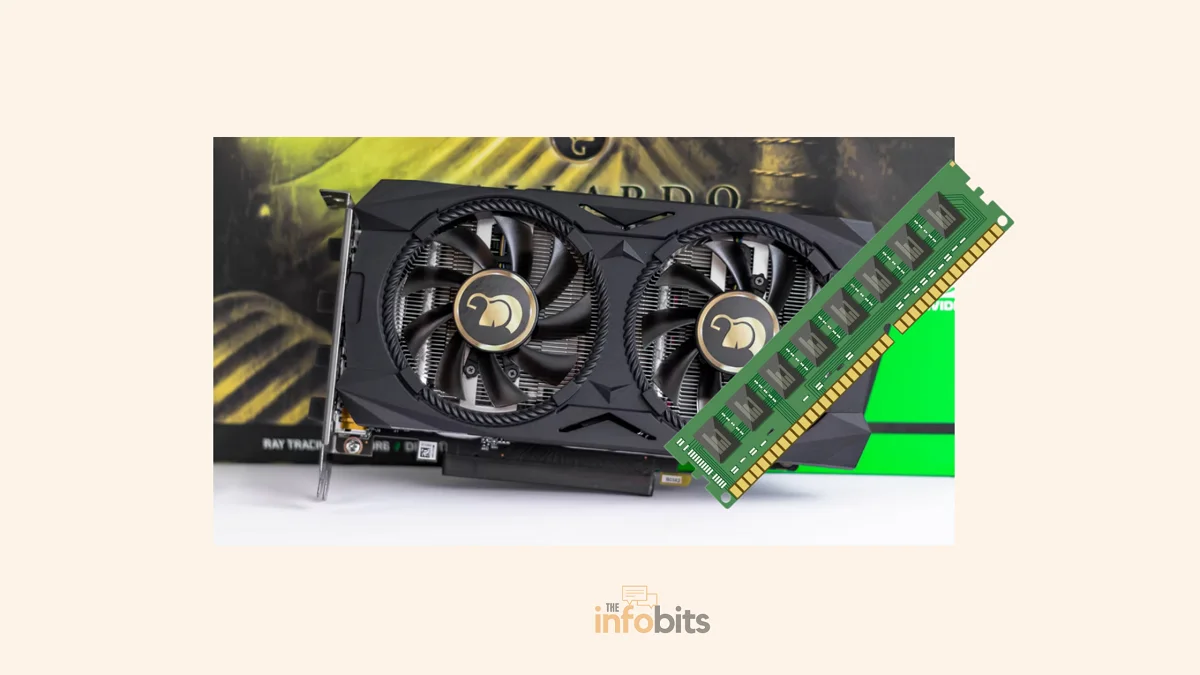
RAM vs VRAM: What’s the Difference? (2026 Guide)
Quick answer: RAM (system memory) is used by your CPU to run the operating system, apps, and background processes. Your GPU uses VRAM (video memory) specifically to store textures, frame buffers, and other graphics data. They’re both fast, temporary (volatile) memory. Still, they live on different hardware, use different memory technology, and can’t substitute for each other. More RAM won’t fix a VRAM bottleneck, and vice versa.
If you’ve ever shopped for a gaming PC or graphics card, you’ve run into both terms in the same spec sheet: “16GB RAM,” “12GB VRAM.” They sound similar, and they’re both measured in gigabytes, which is exactly why it’s easy to assume they’re interchangeable.
They’re not, and mixing them up when you’re buying or troubleshooting a PC can lead you to fix the wrong thing entirely.
Here’s what each one actually does, how they differ under the hood, and how much of each you realistically need.
RAM vs VRAM at a Glance
| RAM (System Memory) | VRAM (Video Memory) | |
|---|---|---|
| Used by | CPU | GPU |
| Location | DIMM/SO-DIMM slots on the motherboard | Soldered directly onto the graphics card PCB |
| Purpose | Runs the OS, apps, background processes | Stores textures, frame buffers, shaders, graphics data |
| Upgradeable? | Usually yes (unless soldered on some laptops) | No; fixed at purchase on consumer graphics cards |
| Current standard | DDR5, up to roughly 8,800 MT/s | GDDR7, up to roughly 32 Gbps per pin |
| Optimized for | Low latency, general-purpose access | High bandwidth, parallel data throughput |
| Volatility | Volatile; cleared when powered off | Volatile; cleared when powered off |
| Typical 2026 capacity | 16GB–32GB for most builds | 8GB (1080p) to 16GB+ (1440p/4K) depending on resolution |
| Can one substitute for the other? | No; integrated graphics borrow RAM, but it’s slower and not a real substitute for dedicated VRAM | No |
Related: How Many Bytes Are in a Gigabyte? (GB Explained Simply)
What Is RAM?
RAM (Random Access Memory) is your computer’s main working memory. The space where your CPU keeps everything it’s actively using, so it doesn’t have to constantly fetch data from your much slower SSD or HDD.
Open a browser, and every tab’s content gets loaded into RAM, so it’s instantly available rather than being re-read from storage every time you click back to it.
RAM lives on the motherboard as removable DIMM modules (desktops) or SO-DIMM modules (laptops), which is why it’s usually upgradeable. You can add more or swap in faster sticks, provided your motherboard and CPU support them, and provided the RAM isn’t soldered directly to the board (increasingly common on thin laptops).
The current mainstream standard is DDR5, which has replaced DDR4 in new builds and tops out around 8,800 MT/s under the latest JEDEC spec, though most consumer kits run considerably lower than that ceiling.
Related: How to Check If Your RAM Is DDR3, DDR4, or DDR5 in Windows?
DDR memory is built for low latency; quick, responsive access across the huge variety of unpredictable tasks a CPU handles, from OS calls to loading a spreadsheet to running a game’s logic.
RAM is volatile memory, meaning everything stored in it disappears the moment your PC loses power. That’s intentional. It’s meant to be a fast temporary workspace, not permanent storage.
If your PC doesn’t have enough RAM for what you’re doing, it falls back on virtual memory. A portion of your drive that Windows uses as overflow storage when RAM fills up.
It works, but it’s dramatically slower than real RAM, which is exactly why background apps start stuttering or take a moment to “wake up” when you switch back to them on a RAM-starved system.
Worth noting that virtual memory is sometimes confused with VRAM, but the two have nothing to do with each other. Virtual memory is borrowed drive space; VRAM is dedicated graphics hardware.
What Is VRAM?
VRAM (Video RAM) is dedicated memory built specifically for your GPU. Instead of sitting on the motherboard, it’s soldered directly onto the graphics card’s circuit board, physically close to the GPU chip itself, which minimizes the distance data has to travel.
VRAM stores the data your GPU needs to render what’s on your screen: textures, frame buffers, shader data, lighting information, and more. When you’re gaming, VRAM holds the texture and geometry data for everything currently visible (and often nearby, pre-loaded) in the scene. When you’re editing video, it holds footage and effects data actively being processed.
The current standard on new graphics cards is GDDR7, which has replaced GDDR6X and GDDR6 on Nvidia’s RTX 50-series and is spreading across the market through 2026.
GDDR memory is built for bandwidth over latency. GPUs need to move enormous, predictable blocks of data (like an entire texture) very quickly, rather than juggling the small, unpredictable requests a CPU handles.
GDDR7 pushes up to roughly 32 Gbps per pin, which is why a modern flagship GPU’s total memory bandwidth can reach well over 1,500 GB/s; several times what system RAM delivers.
Unlike system RAM, VRAM on a consumer graphics card cannot be upgraded. It’s fixed at the factory based on the card’s design, so the amount of VRAM you buy is the amount you’re stuck with for the life of that card.
If your PC doesn’t have a dedicated graphics card, integrated graphics (built into many CPUs) borrow a portion of system RAM to use as makeshift video memory. It works for basic tasks and light gaming, but it’s meaningfully slower than dedicated VRAM, since it has to travel over the same shared memory bus as everything else the CPU is doing.
Related: What Is a Normal GPU Temperature While Gaming?
RAM vs VRAM: The Differences That Actually Matter
What They’re Physically Made Of
RAM uses DDR (Double Data Rate) SDRAM, currently DDR5. VRAM uses GDDR (Graphics Double Data Rate) SDRAM, currently GDDR7. These are related, but distinct memory technologies; DDR and GDDR are not interchangeable, and you can’t put GDDR memory in a RAM slot or vice versa.
Bandwidth vs Latency
This is the core design difference. RAM is optimized to respond quickly to a huge, unpredictable variety of small requests; that’s what a CPU needs.
VRAM is optimized to move massive, predictable chunks of data as fast as possible. That’s what a GPU rendering a frame needs.
GDDR7 achieves far higher raw bandwidth than DDR5, but it does so by trading away some of the low-latency responsiveness that makes DDR good at general-purpose computing.
Upgradeability
RAM sticks in a desktop or most laptops can be added to or swapped out, provided you match your motherboard’s supported speed and capacity. VRAM is soldered to the graphics card and fixed permanently. The only way to get more VRAM is to buy a different graphics card.
Read/Write Behavior
VRAM used in many modern GPUs supports simultaneous read and write access far more efficiently than standard system RAM, since the GPU may need to read existing frame data for display output while simultaneously writing new frame data; a workload pattern system RAM isn’t optimized for in the same way.
Can You Substitute One for the Other?
No, in either direction. Extra system RAM will help your PC multitask and load applications faster, but it does nothing for graphics rendering performance if your GPU doesn’t have enough VRAM.
The data still has to travel over a slower path to reach the GPU, and games relying on RAM-as-VRAM (as integrated graphics do) show it clearly in stutter and lag. Likewise, more VRAM on your GPU won’t speed up general CPU-bound tasks like loading applications or multitasking.
Related: Can You Mix RAM Brands or Sizes on a PC or a Laptop?
Myth vs Fact
Myth: “More RAM will fix my low-FPS gaming problem.” Fact: If your GPU doesn’t have enough VRAM for the settings you’re running, extra system RAM won’t fix stuttering or texture pop-in. That’s a VRAM bottleneck, and it needs to be addressed with lower settings or a GPU with more video memory.
Myth: “VRAM and virtual memory are the same thing.” Fact: They’re unrelated. Virtual memory is a portion of your storage drive that Windows uses as RAM overflow. VRAM is dedicated graphics hardware soldered to your GPU. The similar names are a coincidence of naming, not a technical relationship.
Myth: “You can upgrade the VRAM on your graphics card.” Fact: On virtually all consumer graphics cards, VRAM is soldered directly to the board and fixed at manufacture. The only way to get more VRAM is to buy a card that has more.
Myth: “More VRAM always means better GPU performance.” Fact: VRAM capacity is only one factor. A GPU with more VRAM but a weaker core, narrower memory bus, or fewer processing cores can be outperformed by a card with less VRAM, but a stronger overall design. Capacity and raw processing power aren’t the same thing.
Common Mistakes to Avoid
- Buying more system RAM to fix a graphics performance problem. Diagnose whether the bottleneck is actually VRAM (stuttering, texture pop-in at high settings) before spending money on RAM that won’t help.
- Assuming integrated graphics with “shared RAM” performs like dedicated VRAM. It’s a real substitute in a pinch, but meaningfully slower; don’t expect equivalent gaming performance.
- Choosing a GPU by VRAM capacity alone. A high-VRAM, weak-core card can lose to a lower-VRAM card with a stronger GPU chip. Check both.
- Ignoring your actual target resolution when picking VRAM capacity. Buying far more VRAM than your resolution needs wastes money; buying too little leaves performance on the table as textures get forced to lower quality.
How Much of Each Do You Actually Need?
System RAM (2026 general guidance):
- 16GB is a reasonable baseline for general use and most gaming.
- 32GB is a comfortable target if you multitask heavily, stream, or run demanding creative software alongside games.
Related: How to Find Your PC’s Maximum RAM Capacity
VRAM (2026 gaming guidance by resolution):
- 1080p: 8GB still works for most titles, though 12GB gives more headroom for newer, texture-heavy releases.
- 1440p: 12GB is now the practical baseline; 16GB is the safer choice if you want a card to comfortably last several years.
- 4K: 16GB is the realistic minimum; 24GB+ gives comfortable headroom for maxed-out settings and ray tracing.
These numbers have moved up significantly over the past couple of years as game textures, ray tracing, and engines like Unreal Engine 5 have become more memory-hungry. An 8GB card that felt generous a few years ago is now firmly a 1080p-tier card, not a 1440p one.
If you’re upgrading system RAM for a DDR5 build, a kit like the Corsair Vengeance DDR5-6000 32GB (2x16GB) [available on Amazon] hits the sweet spot most gamers and multitaskers land on in 2026. There is enough headroom for background apps and browser tabs without paying for capacity you won’t use.
Troubleshooting: Which One Is Actually the Problem?
Games stutter or textures look blurry/low-res at high settings. This points to VRAM, not RAM. Lower texture quality settings, or check whether your GPU’s VRAM capacity matches the recommendation for your resolution above.
Your whole system feels sluggish, apps take a moment to respond when you switch to them, or background tabs reload themselves. This points to system RAM. Check Task Manager’s memory usage. If it’s consistently near 100%, more RAM (or closing background apps) is the fix.
A game runs fine at low settings but crashes or drops frames hard at high/ultra settings. Classic VRAM ceiling symptom. The game is trying to load more graphics data than your card’s VRAM can hold, and something has to give.
Multitasking between several heavy apps causes slowdown, but games run fine. That’s a RAM story, not VRAM. Your GPU’s video memory isn’t involved in general app multitasking at all.
Final Thoughts
RAM and VRAM show up on the same spec sheet, get measured in the same units, and both disappear the moment you lose power. But they’re built for entirely different jobs, on entirely different hardware, using entirely different memory technology.
RAM keeps your CPU fed with everything your operating system and apps need in the moment. VRAM keeps your GPU fed with the graphics data it needs to put a frame on your screen.
If you’re troubleshooting sluggish general performance, look at RAM. If you’re troubleshooting graphics stuttering or texture quality at high settings, look at VRAM.
And when you’re buying either one, size it to what you’ll actually use. 16GB–32GB of system RAM for most builds, and enough VRAM to match your gaming resolution, not just the biggest number on the box.
For anyone shopping for a GPU with the right VRAM headroom for 1440p gaming, the RTX 5060 Ti 16GB (available on Amazon) is a well-regarded pick that lands right at the “comfortable, future-proof” tier this guide recommends for that resolution.
Frequently Asked Questions
Is VRAM better than RAM?
Neither is “better”. They serve different jobs. VRAM has far higher bandwidth for graphics data; RAM is optimized for the lower-latency, general-purpose demands of the CPU.
Do games use RAM or VRAM?
Both. RAM handles game logic, AI, physics, and general system operation; VRAM specifically handles the textures and graphics data being rendered to your screen.
Does every GPU have VRAM?
Dedicated graphics cards do. Integrated graphics (built into many CPUs) don’t have their own VRAM and instead borrow a portion of system RAM, which is slower.
How much VRAM do I need for 1440p gaming in 2026?
12GB is currently the practical baseline for 1440p, with 16GB recommended if you want a card that stays comfortable for several years as newer titles increase VRAM demands.
Can I upgrade the VRAM on my graphics card?
No. VRAM is soldered directly to the graphics card and fixed at manufacture. The only way to get more is to buy a different card.
Is VRAM the same as virtual memory?
No, despite the similar name. Virtual memory is a portion of your storage drive used as RAM overflow; VRAM is dedicated physical memory on your graphics card.
Will adding more RAM improve my gaming FPS?
Sometimes, if your system was RAM-starved and stuttering from background load. But if your bottleneck is actually VRAM capacity, more system RAM won’t help at all.
What’s the difference between DDR5 and GDDR7?
DDR5 is system RAM optimized for low-latency, general-purpose CPU access. GDDR7 is graphics memory optimized for very high bandwidth to feed a GPU’s parallel processing demands. They’re related technologies but not interchangeable.
Can a CPU use VRAM instead of RAM?
No. VRAM is physically located on and dedicated to the graphics card. A CPU has no direct access to it.
Why can’t I just use extra RAM instead of buying a GPU with more VRAM?
Because system RAM has to communicate with the GPU over a much slower path (through the PCIe bus) compared to VRAM, which sits right next to the GPU chip. Games that lean on this workaround (like integrated graphics do) show noticeably worse performance than dedicated VRAM.
Is 8GB of VRAM enough in 2026?
For 1080p gaming, generally yes. For 1440p or 4K, 8GB is increasingly a limiting factor in newer, texture-heavy titles. 12GB or more is the safer choice at those resolutions.
Does video editing need more RAM or more VRAM?
Both matter, but modern video editing software increasingly leans on VRAM for GPU-accelerated effects, encoding, and playback. Especially when working with high-resolution footage.
Is more VRAM always better for gaming performance?
Not by itself. VRAM capacity only helps if your GPU’s core is also powerful enough to use it. A strong core with adequate VRAM will usually outperform a weaker core with excess VRAM.
Do laptops have separate VRAM from RAM?
Laptops with a dedicated (discrete) GPU have separate VRAM, just like desktops. Laptops using only integrated graphics share system RAM for graphics tasks instead.
What happens when a game runs out of VRAM?
The GPU has to start shuffling data in and out of VRAM more frequently, or fall back on slower system memory, which typically shows up as stuttering, texture pop-in, or a sudden frame rate drop rather than a crash.
We hope you found this post useful, and please like and follow us on Facebook and Twitter for regular updates.
We also request that you bookmark this page for future reference. Sign up for our free newsletter as well to receive new information in your inbox regularly and stay technically up to date.
Disclosure: If you follow our links to a retailer’s website and make a purchase, we will get an affiliate commission on some, but not all, of the items or services we promote. This will cause no price change for you.






)