Common Router Issues & How to Fix Them: Complete 2026 Guide
Quick Answer: Slow Wi-Fi speeds, intermittent disconnections, inability to connect to the internet, and difficulty accessing the router’s admin panel are all common router issues. The majority are caused by overheating, outdated firmware, poor placement, or ISP-related issues. Restarting the router and modem frequently solves many problems quickly.
Your internet stops working. The video call freezes. The game disconnects. And everyone in the house turns to stare at you expectantly, as if you personally caused the problem.
Router issues are one of those frustrations that hit at the worst possible moments. But here’s the reassuring truth: the vast majority of home router problems, probably 80–90% of them, can be resolved in under ten minutes without calling your ISP or buying new equipment.
You just need to know what you’re looking at and what to do in the right order.
This guide covers every common router problem clearly and practically. Each issue gets its own diagnosis section, a quick fix to try first, and more advanced steps if the quick fix doesn’t work.
There’s also a complete router light guide, a symptom-to-problem lookup, and a FAQ section covering the questions people search for most.
Start with the quick diagnostic below, then jump directly to the section that matches your problem.
Quick Diagnostic: What’s Your Symptom?
| What You’re Seeing | Most Likely Problem | Jump To |
|---|---|---|
| No internet at all, nothing works | ISP outage, modem issue, or WAN cable | Issue 1 |
| Connected to WiFi, but no internet | IP conflict, DNS failure, or ISP issue | Issue 2 |
| Slow internet everywhere in the house | Bandwidth congestion, ISP throttling, or outdated hardware | Issue 3 |
| Fast near the router, slow far away | Weak WiFi signal, wrong band, or dead zone | Issue 4 |
| WiFi keeps dropping randomly | Interference, overheating, firmware bug, or ISP dropout | Issue 5 |
| One device can’t connect, others are fine | Device-specific issue, IP conflict, or MAC filtering | Issue 6 |
| Router keeps rebooting on its own | Overheating, failing power supply, or firmware crash loop | Issue 7 |
| Can’t access router admin panel | Incorrect IP, wrong credentials, or browser issue | Issue 8 |
| Wired (Ethernet) connection not working | Bad cable, wrong port, or adapter settings | Issue 9 |
| Red or orange lights on router | No internet connection, ISP outage, or hardware fault | Issue 10 |
Before You Do Anything Else: The Correct Restart Sequence
A proper restart fixes the majority of router problems. Most people unplug and replug at random; doing it in the right order makes a real difference.
The correct sequence (takes about 3 minutes):
- Power off both the modem and the router. If there’s a power button, use it. Otherwise, unplug from the wall. Do NOT just press a reset button, that wipes your settings.
- Wait 30 full seconds. This clears the RAM and forces the devices to fully discharge.
- Power on the modem first. Wait a full 60 seconds for it to connect to your ISP and stabilize. Watch for the internet/online light to go solid.
- Then, power on the router. Wait another 60–90 seconds for it to initialize and pull settings from the modem.
- Test your connection.
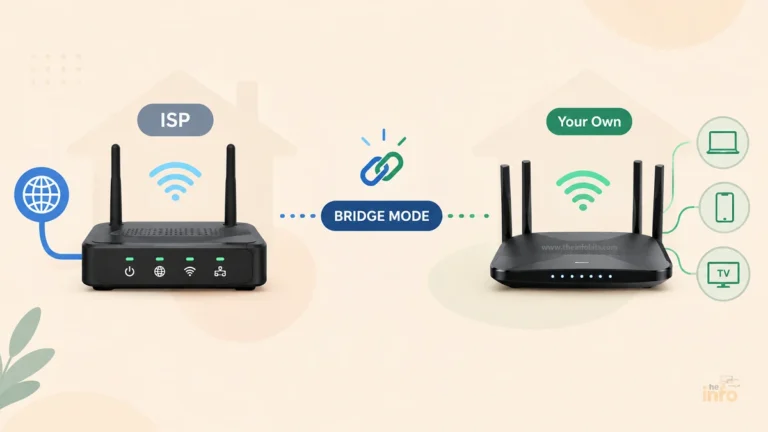
If your modem and router are a single combined unit (a gateway), just unplug it, wait 30 seconds, and plug it back in. Wait 2 minutes before testing.
This single step resolves approximately 60–70% of common connection issues, according to network equipment manufacturers. Try it before anything else.
Issue 1: No Internet – Nothing Works at All
Symptoms: Every device in the house has no internet. WiFi may still show as connected, but nothing loads.
Step 1: Check whether it’s your ISP
This is the most important first step, and most guides skip it. Before touching your hardware, find out whether the problem is inside or outside your home.
- Visit your ISP’s service status page on mobile data (not your home WiFi) and look for outage information.
- Check Downdetector.com for real-time outage reports from other customers in your area.
- Check your ISP’s social media or app; many ISPs now send push notifications for outages.
If there’s a confirmed outage, nothing you do to your router will fix it. Wait for the ISP to restore service.
Step 2: Check your modem lights
Look at your modem (the box your ISP line connects to, separate from or combined with the router):
- Online/Internet light solid green or white: Modem has internet, the problem is in your router or between devices
- Online/Internet light blinking or red: Modem cannot reach your ISP; this is a modem or ISP issue
- No lights at all: Power issue, check the outlet and power cable
If the modem lights are abnormal, do the restart sequence above. If they remain abnormal after a restart, contact your ISP; the problem is outside your home or with the modem itself.
Step 3: Check all physical connections
- Is the coaxial or phone line cable plugged firmly into both the wall and the modem?
- Is the Ethernet cable from the modem going into the WAN port on the router (not a LAN port)?
- Are all cables free of visible damage, sharp bends, or kinks?
A surprising number of “no internet” problems come down to a cable that’s slightly unseated. Push every connection firmly into place.
Step 4: Run the restart sequence
If the modem shows a normal internet connection but the router still shows no internet, restart in the correct order described above.
Step 5: Factory reset as a last resort
If you’ve been through the steps above and nothing works, a factory reset restores the router to its out-of-box state.
Note: this erases all your settings, WiFi name, password, and any custom configurations. Have your ISP account details ready in case they’re needed after.
To factory reset: locate the small pinhole reset button on the back or bottom of the router. Use a paperclip and hold it down for 10–15 seconds until the lights change. The router will reboot with factory defaults.
Issue 2: Connected to WiFi but No Internet
Symptoms: Your device shows a WiFi connection with full bars, but websites won’t load, and apps say “no internet connection.”
This is one of the most common and confusing router problems. Your WiFi is working; the problem is upstream.
Quick Fix: Restart the modem first, then the router
Follow the correct restart sequence. This resolves most “connected but no internet” situations by refreshing the router’s connection to the ISP and renewing IP addresses.
Cause: IP address conflict
Every device on your network gets assigned an IP address by the router’s DHCP server. Occasionally, two devices end up with the same address, which blocks internet access.
Fix: On the affected device, forget the WiFi network and reconnect (this requests a new IP assignment). Alternatively, go into your router’s admin panel → DHCP → check for duplicate IP entries.
Cause: DNS failure
DNS (Domain Name System) translates website names into IP addresses. If your DNS server fails, websites won’t load even though your internet connection is working.
Test: Open a command prompt (Windows: search for “cmd”; Mac: Terminal) and type ping 8.8.8.8. If you get responses, your internet is working, but DNS is broken. If you get no response, the issue is deeper.
Fix: Change your DNS servers to a reliable alternative:
- Cloudflare: 1.1.1.1 and 1.0.0.1 (fastest for most users)
- Google: 8.8.8.8 and 8.8.4.4
You can set these in your router’s admin panel under WAN or Internet settings, which applies them to every device on your network automatically.
Cause: Router’s WAN IP not assigned
Your router needs an IP address from your ISP to connect to the internet. If this assignment fails, you’ll have WiFi but no internet.
Check: Log into your router’s admin panel (usually at 192.168.1.1 or 192.168.0.1) → WAN or Internet status. If the WAN IP shows 0.0.0.0 or is blank, the router isn’t getting an address from your ISP.
Fix: Try restarting the modem first, then the router. If still not working, check if your ISP requires a PPPoE username and password; some ISPs do, and confirm it’s entered correctly in your router’s WAN settings.
Cause: VPN interference
A VPN running on your device or router can block internet access if it loses connection or has a configuration issue.
Fix: Disable your VPN temporarily and test. If the internet works without a VPN, the VPN configuration needs attention.
Issue 3: Slow Internet Everywhere in the House
Symptoms: Downloads are slow, streaming buffers, and video calls are of poor quality, and this happens on every device, not just one.
Step 1: Run a speed test correctly
Before blaming the router, confirm where the problem actually is.
- Connect a laptop or PC to the router via Ethernet cable (not WiFi)
- Go to Speedtest.net, Fast.com, or your ISP’s speed test tool
- Run the test and compare the result to your subscribed plan speed
- If wired speed matches your plan: The router is fine. The problem is WiFi-specific; go to Issue 4.
- If wired speed is significantly lower than your plan: The issue is with the ISP, modem, or the cable between them, not the router.
- If wired speed is fast but all WiFi devices are slow: Bandwidth congestion or router processing issue, continue below.
Cause: Bandwidth congestion from too many active devices
The average US household had 20–25 connected devices in 2026. If multiple devices are simultaneously streaming 4K video, downloading large files, or running game updates, they can saturate your available bandwidth.
Fix: Check your router’s admin panel for a connected devices list. Look for:
- Devices you don’t recognize (unauthorized users consuming your bandwidth)
- Any active large downloads (game updates, cloud backups, OS updates)
- Smart home devices are constantly syncing
Enable Quality of Service (QoS) if your router supports it. This lets you prioritize specific devices or types of traffic, video calls, and gaming over background downloads.
Cause: ISP throttling
Some ISPs throttle speeds for specific activities (streaming, gaming, torrenting) or after you exceed a monthly data cap. This typically shows as fast speeds on speed tests but slow performance for specific activities.
Test: Use a VPN temporarily. If speeds improve with the VPN on, your ISP may be throttling specific traffic types.
Cause: Outdated router hardware
Routers more than 5 years old often struggle with modern bandwidth demands. Wi-Fi 5 routers, in particular, can’t efficiently handle 20+ simultaneous connections or multi-gigabit internet plans.
Signs your router is the bottleneck:
- Wired speed matches your ISP plan, but WiFi speed is far below it
- Router runs hot consistently
- Performance degrades significantly at peak usage times (evenings)
If your router is more than 4–5 years old and you’re experiencing consistently slow performance across all devices, upgrading to a Wi-Fi 6 router like the TP-Link Archer AX55 (available on Amazon) often resolves congestion and speed issues immediately.
Wi-Fi 6’s OFDMA technology handles multiple simultaneous devices far more efficiently than older standards.
Related: Best Gaming Router: Top Picks + How to Choose
Issue 4: Fast Near the Router, Slow or No Signal Far Away
Symptoms: WiFi works fine next to the router, but becomes slow or drops out in other rooms or floors.
This is a coverage problem, not an internet problem.
Quick fix: Optimize router placement
Router placement is the single biggest factor in WiFi coverage, and it costs nothing to improve:
- Place it centrally; a router in a corner or far wall wastes most of its signal on outdoor areas
- Elevate it; place it on a shelf 5–7 feet off the ground; WiFi signals propagate slightly downward and outward
- Keep it in the open; away from cabinets, closets, metal furniture, fish tanks, and microwaves
- Point antennas upward for single-floor homes; angle one horizontal for multi-story coverage
Even shifting the router’s position by a few feet in the right direction can dramatically improve coverage in problem areas.
Related: How to Boost WiFi Signal at Home
Switch your device to the 5 GHz band
If your router is dual-band, make sure the device in the weak-signal area is using the right band:
- 2.4 GHz: Longer range, better at penetrating walls, use for devices far from the router
- 5 GHz: Faster speeds, shorter range, best for devices near the router
Paradoxically, being too close to the router on 5 GHz and too far on 2.4 GHz both cause problems. Check which band your device is connected to in its WiFi settings.
Change your WiFi channel
In dense neighborhoods, neighboring WiFi networks on the same channel cause interference that looks like a coverage problem.
Use a WiFi analyzer app (NetSpot for Mac/Windows, WiFi Analyzer for Android) to see which channels are congested in your area.
For 2.4 GHz: Channels 1, 6, and 11 are the only non-overlapping channels. Choose whichever is least congested.
For 5 GHz: More channels are available and less congested; most routers handle 5 GHz channel selection automatically well.
Related: How to Choose the Best WiFi Channel for Faster Speeds
Consider a coverage solution for large or multi-story homes
If placement optimization doesn’t fix persistent dead zones:
WiFi extender: Affordable ($30–$100), works for a single dead zone in a smaller home. Note that wireless extenders cut available bandwidth by up to 50% due to how they retransmit signals.
Mesh WiFi system: Multiple coordinated nodes create one seamless network. Better performance than extenders, particularly for multi-story homes or multiple dead zones. The mesh system handles roaming between nodes automatically.
Wired access point: If you can run an Ethernet cable to the problem area, a wired access point delivers full-speed WiFi there with zero bandwidth loss, technically the best solution.
For a single dead zone fix in a medium-sized home, the TP-Link RE615X WiFi6 extender (available on Amazon) uses one band exclusively for the router connection and the other for devices, minimizing the speed loss that cheaper single-band extenders suffer from.
Related: Mesh System vs WiFi Extender: Which Is Better?
Issue 5: WiFi Keeps Dropping Randomly
Symptoms: Internet works, then suddenly drops. Sometimes it reconnects on its own; sometimes it doesn’t. This happens across multiple devices.
Intermittent drops are one of the most frustrating issues because they’re hard to reproduce on demand. The key is identifying patterns.
Identify the pattern first
Ask yourself:
- Does it happen at the same time each day? (Evenings = likely congestion; specific times = possibly interference from a scheduled device)
- Does it happen when using the microwave, cordless phone, or Bluetooth speaker? (Interference from 2.4 GHz devices)
- Does it happen during heavy use (streaming + gaming + video call simultaneously)? (Bandwidth saturation or QoS issue)
- Does it happen completely at random with no pattern? (Hardware fault, overheating, or ISP line issue)
Cause: WiFi channel interference
Microwaves, baby monitors, cordless phones, and Bluetooth devices all operate near the 2.4 GHz frequency. When they’re active, they can disrupt 2.4 GHz WiFi connections.
Fix: Switch affected devices to the 5 GHz band, or change your 2.4 GHz WiFi to a less congested channel (1, 6, or 11). Keep the router at least 3–4 feet away from microwaves and cordless phone bases.
Cause: Router overheating
Routers generate heat and need airflow to stay cool. A router that overheats throttles its processing speed or disconnects periodically to protect itself.
Signs of overheating:
- Router feels hot to the touch (warm is normal; hot is not)
- Drops happen after the router has been on for a few hours
- Drops improve after you restart the router, but return within a few hours
Fix:
- Move the router to an open, ventilated location, not inside a cabinet, closet, or entertainment center.
- Point all vents upward or ensure airflow around the unit
- Blow out accumulated dust from vents with compressed air
- If it runs hot constantly despite good placement, the router may be failing
Cause: Outdated firmware
Router firmware is software, and like all software, it has bugs. A firmware bug can cause memory leaks, connection loops, or stability issues that manifest as random drops.
Fix: Log into your router’s admin panel → Administration or Advanced settings → check for firmware updates. Install any available update and let the router reboot. Enable automatic updates if available.
Cause: ISP line instability
If the drops happen simultaneously across all devices, including wired connections, the problem is likely with your ISP’s signal coming into your home rather than the router itself.
Test: Connect a laptop to the router via Ethernet. If Ethernet drops at the same time as WiFi, it confirms the issue is upstream of the router.
Fix: Contact your ISP. They can remotely check signal levels at your home and send a technician if the line is degraded. Common causes include deteriorated coaxial cable, a faulty splitter, or ISP infrastructure issues in your area.
Issue 6: One Device Can’t Connect, Others Are Fine
Symptoms: Everything in the house works except one specific phone, laptop, or other device.
This is almost always a device-side issue rather than a router problem.
Try these fixes in order:
1. Toggle WiFi off and on on the device. Simple, but often effective. Forces the device to drop its current connection and reconnect fresh.
2. Forget the network and reconnect. On the device, go to WiFi settings → find your network name → “Forget” or “Remove.” Then reconnect by entering the password again. This clears any corrupted session data.
3. Restart the device. A full restart clears the network adapter state that can cause persistent connection failures.
4. Check that the device’s date and time are correct. An incorrect date/time causes SSL certificate errors that prevent web browsing, even when the WiFi appears connected.
5. Check for MAC address filtering on the router. Log in to your router’s admin panel and look for MAC filtering or access control settings. If MAC filtering is enabled, your device’s MAC address may be blocked. Either add the device’s MAC to the allowed list or disable MAC filtering.
6. Renew the IP address on the device:
- Windows: Open Command Prompt → type
ipconfig /release→ thenipconfig /renew - Mac: System Preferences → Network → WiFi → Advanced → TCP/IP → Renew DHCP Lease
- iPhone/Android: Forget the network and reconnect (this triggers a new IP request)
7. Reset network settings on the device (last resort). On phones, “Reset Network Settings” clears all saved WiFi passwords, Bluetooth pairings, and VPN settings, essentially fresh-starts all network functionality. Use this only if other steps fail.
Issue 7: Router Keeps Rebooting on Its Own
Symptoms: The router restarts frequently without anyone touching it. Lights cycle through the startup sequence, then return to normal, sometimes repeatedly.
Spontaneous rebooting is a sign of a hardware problem, and it usually gets worse over time.
Cause: Overheating (most common)
When a router’s processor gets too hot, the device restarts to protect itself. This becomes more frequent as the router ages and thermal paste degrades, or as dust accumulates in vents.
Fix:
- Move the router to an open location with airflow on all sides
- Use a can of compressed air to clear dust from all vents
- Check that no vents are blocked by books, cables, or the wall
- If the router is in a cabinet, either relocate it or install a small USB fan nearby
Cause: Failing power supply
Power adapters degrade over time, especially in areas with power fluctuations. A power supply that can no longer deliver a stable voltage causes unpredictable reboots.
Test: If you have another router of the same brand, try swapping the power adapter. Alternatively, try plugging the router directly into a wall outlet rather than a power strip or surge protector to rule out those as variables.
Cause: Firmware crash loop
A bad firmware update, corrupted firmware file, or misconfiguration can cause the router to crash and restart in a loop.
Fix: Perform a factory reset (hold the reset pinhole button for 10–15 seconds). If the router has a dedicated recovery mode or emergency firmware restore function, consult the manual. This can reload clean firmware even if normal operation fails.
Cause: Aging hardware
Routers have a typical lifespan of 4–6 years. Internal components, capacitors in particular, degrade over time and cause instability. If your router is old, has had overheating episodes, or has been through power surges, spontaneous rebooting may indicate it’s reached the end of its life.
Sign it’s time to replace: If the rebooting persists after factory reset, proper ventilation, and power supply verification, the router hardware is likely failing.
Related: How Long Do Routers Last and When Should You Replace Them?
Issue 8: Can’t Access the Router Admin Panel
Symptoms: Typing 192.168.1.1 (or similar) into a browser brings up an error page rather than the router’s login screen.
Step 1: Confirm you’re using the right IP address
The router’s admin IP is printed on a sticker on the bottom or back of the router. It’s also in the manual. Common defaults:
| Brand | Default Admin IP | Alternative |
|---|---|---|
| Most routers | 192.168.1.1 | 192.168.0.1 |
| ASUS | 192.168.1.1 | router.asus.com |
| TP-Link | 192.168.0.1 | tplinkwifi.net |
| NETGEAR | 192.168.1.1 | routerlogin.net |
| Linksys | 192.168.1.1 | myrouter.local |
On Windows, find your actual router IP: Open Command Prompt → type ipconfig → Look for “Default Gateway” under your active network adapter. On Mac: System Preferences → Network → Advanced → TCP/IP → Router field.
Step 2: Make sure you’re connected to the router
You must be connected to the router (via WiFi or Ethernet), not a neighbor’s network, to access the admin panel.
Try connecting via an Ethernet cable directly to a LAN port on the router, then attempt the admin URL again.
Step 3: Try a different browser
Browser extensions, cached data, or security settings can block admin panel access. Try a different browser in private/incognito mode.
Step 4: Clear your browser cache
Cached data from a previous session can interfere. Clear your browser’s cache and cookies, then try again.
Step 5: Check if you’ve forgotten the admin password
If the login page appears but the credentials don’t work:
- Try the defaults printed on the router’s sticker (often admin/admin or admin/password)
- If you’ve changed the password and can’t remember it, a factory reset is the only way to recover access
Related: Powerline Adapter vs Wi-Fi Extender: Which Is Best for Wi-Fi Signal Boosting?
Issue 9: Wired (Ethernet) Connection Not Working
Symptoms: A device connected via Ethernet cable has no internet or a very slow connection, despite WiFi working fine on other devices.
Wired connections should be the most reliable option available. So when they fail, the cause is almost always physical.
Step 1: Check the cable
Ethernet cables are more vulnerable than they look. Common failure points:
- Cable with a sharp bend or kink (internal wire break)
- Connectors that don’t click firmly into the port (partially seated)
- Visible damage to the cable jacket (chewing by pets, being run under furniture)
- Very old cables that have degraded internally
Fix: Swap the Ethernet cable for a known-good one. This single step resolves the majority of wired connection problems.
A quality Cat6 Ethernet cable, like the Cable Matters Snagless Cat6 (view on Amazon), provides reliable gigabit connections with secure locking connectors and is worth having a spare of. A bad cable is one of the most common and easily overlooked causes of wired connection failures.
Step 2: Try a different LAN port on the router
Individual Ethernet ports can fail, especially on older routers where ports are plugged in and out frequently. Try plugging into a different numbered LAN port.
Step 3: Check the device’s network adapter settings
On Windows:
- Open Device Manager → Network Adapters → right-click the Ethernet adapter → Update Driver
- Check that the adapter isn’t disabled (right-click → Enable if you see it)
- Try setting the adapter speed manually: right-click adapter → Properties → Configure → Speed & Duplex → set to “1.0 Gbps Full Duplex” rather than “Auto Negotiation”
On Mac:
- System Preferences → Network → Ethernet → make sure it’s showing “Connected”
Step 4: Test with another device
Plug a different device (another laptop, a gaming console) into the same Ethernet cable and port.
If it works, the issue is with the original device’s network adapter, not the router or cable. If it also doesn’t work, the cable or router port is the issue.
Related: How to Use a Router as a WiFi Extender?
Issue 10: Reading Your Router’s Lights – What Each Color Means
Router indicator lights are your fastest diagnostic tool, but most people never learn to read them. Here’s a universal guide.
Note that exact meanings vary by brand, so always cross-reference your router’s manual for model-specific information.
Light Colors: What They Mean
| Color | General Meaning | Action |
|---|---|---|
| Solid green or white | Normal operation | No action needed |
| Blinking green or white | Active data transmission | Normal, this is expected during use |
| Solid amber/orange | Transitional state or firmware update | Wait 5–10 minutes; restart if it doesn’t change |
| Blinking amber/orange | Attempting to connect; minor issue | Wait, then restart the modem first, then the router |
| Solid red | No internet connection or hardware fault | Check cables and restart; contact ISP if persistent |
| Blinking red | Critical error or connection failure | Check modem first; contact ISP or manufacturer |
| No light on power | No power | Check outlet, power cable, and power adapter |
Light Meanings by Function
Power light:
- Solid: Router is on and operational
- Blinking rapidly: Startup sequence in progress (normal)
- Off: No power, check the outlet and adapter
- Never unplug a router while its power light is pulsing amber; this may indicate a firmware update is in progress. Interrupting a firmware update can permanently corrupt the router’s software.
Internet/WAN/Globe light:
- Solid: Connected to ISP, the internet is working
- Blinking: Attempting to connect or actively transferring data (check which state)
- Red or off: No internet connection, check the modem and cables first
WiFi light (2.4 GHz / 5 GHz / 6 GHz):
- Solid: WiFi radio is active and broadcasting
- Blinking: Devices are actively sending/receiving data, completely normal
- Off: WiFi is disabled (check router settings) or hardware fault
LAN/Ethernet port lights:
- Solid: Device is connected
- Blinking: Data is being transferred, normal
- Off: No device connected, bad cable, or port fault
WPS light:
- Blinking: WPS pairing mode is active, a device is trying to connect
- Disable WPS in your router settings if you’re not actively using it. WPS has known security vulnerabilities that can allow unauthorized access to your network.
Quick Diagnostic Using Lights
If modem lights are abnormal (red, orange, blinking) but the router looks normal: → The problem is between your home and the ISP. Restart the modem; if the lights don’t normalize, contact your ISP.
If modem lights look normal but router shows red/orange internet light: → Check the Ethernet cable between modem and router (make sure it’s in the WAN port on the router). Restart both in the correct order.
If both modem and router lights look normal, but you have no internet: → Device-specific issue or DNS failure. Try the fixes in Issue 2.
Related: What to Do If Your Internet Access is Blocked or There is No Internet Connection?
Advanced Troubleshooting: When Basic Steps Don’t Work
How to Factory Reset Your Router
A factory reset clears all settings and returns the router to its out-of-box state. Use this when:
- You’ve forgotten the admin password and can’t access the panel
- A firmware update went wrong
- Settings are corrupted, and basic troubleshooting hasn’t helped
- The router is behaving erratically after someone changed the settings
How to do it:
- Find the reset button, usually a small pinhole on the back or bottom labeled “Reset”
- With the router powered on, insert a paperclip and hold for 10–15 seconds until the lights change
- Release and wait for the router to fully reboot (about 2 minutes)
- Reconnect using the default credentials on the router’s sticker
Note: Write down your custom WiFi name, password, and any ISP credentials before resetting. You’ll need to reconfigure everything afterward.
How to Update Router Firmware Manually
- Log in to your router’s admin panel
- Navigate to Administration, Advanced, or Maintenance settings
- Look for “Firmware Update,” “Software Update,” or “Router Upgrade”
- Most routers can check for updates automatically from this menu. Click “Check for Updates”
- If available, install the update and allow the router to reboot
For routers that don’t auto-update: find your router’s model number on the sticker, visit the manufacturer’s support website, download the latest firmware file, and upload it through the admin panel’s firmware update page.
Enable automatic firmware updates if your router supports it. Security vulnerabilities in unpatched router firmware are one of the most common attack vectors in home network security.
How to Access Your Router Admin Panel
If you’re unsure of your router’s admin IP:
- Windows: Command Prompt → type
ipconfig→ look for “Default Gateway” - Mac: System Preferences → Network → Advanced → TCP/IP → Router
- iPhone: Settings → WiFi → tap the (i) next to your network → Router
- Android: Settings → Network → WiFi → tap your network → Advanced → Gateway
Common default admin credentials by brand:
| Brand | Username | Password |
|---|---|---|
| ASUS | admin | admin |
| TP-Link | admin | admin |
| NETGEAR | admin | password |
| Linksys | admin | admin |
| D-Link | admin | (blank) |
| Eero | No browser panel, use the app |
Change your admin password immediately after first login. Default credentials are publicly known, and leaving them unchanged is a significant security risk.
Router Troubleshooting Checklist
Work through this systematically before concluding you need a new router or an ISP call:
- [1] Checked the ISP outage page on mobile data, confirmed no outage in your area
- [2] Restarted in correct order: modem first (60 seconds), then router (60–90 seconds)
- [3] Checked all physical cable connections, WAN cable firmly in the WAN port, not the LAN
- [4] Inspected all cables for visible damage
- [5] Checked router lights and identified what each is showing
- [6] Confirmed whether the problem is on all devices or just one
- [7] Run a speed test via wired Ethernet to isolate the WiFi vs. the internet issue
- [8] Checked the router’s admin panel for connected devices, firmware status, and error messages
- [9] Updated router firmware if an update was available
- [10] Changed the WiFi channel if interference is suspected
- [11] Checked router temperature and ventilation
- [12] Tested a different Ethernet cable for wired connection issues
- [13] Tried factory reset as a final step before hardware replacement
Related: Router Security Features That Actually Matter Now: A Complete Guide
Common Router Troubleshooting Mistakes
Restart by pressing the reset button. The reset button does a factory reset. It erases all your settings. To restart, use the power button or unplug from the wall.
Restart the router before the modem. Always restart the modem first and let it stabilize before restarting the router. Doing it in the wrong order causes the router to pull an invalid IP address.
Assuming the problem is the router without checking the ISP first. ISP outages cause most “total internet failure” scenarios. Check the ISP outage map on your phone’s mobile data before touching any hardware.
Testing WiFi speed and assuming the router is fine. Always run a speed test via wired Ethernet first to isolate whether the slow speeds are coming from the ISP/modem or the router’s WiFi specifically.
Ignoring router overheating. A hot router is a failing router. Persistent overheating causes connection drops, spontaneous reboots, and eventually permanent hardware damage.
Never update router firmware. Unpatched firmware contains security vulnerabilities and performance bugs. The FBI has issued advisories about compromised home routers being used in cyberattacks. Enable automatic updates or check manually every few months.
Leaving default admin credentials unchanged. Admin username “admin” and password “admin” are the first things any attacker tries. Change these immediately after setup.
When to Call Your ISP vs. When to Buy a New Router
Call your ISP when:
- Modern lights are abnormal after a restart
- Problems affect wired connections (Ethernet) to the modem, not just WiFi
- Speed is slow on all devices, including wired, immediately after the modem
- You see the US/DS channel lights on your cable modem blinking continuously
- You’ve confirmed no outage, but still can’t connect after a full restart
Buy a new router when:
- Your router is more than 5–6 years old and isn’t receiving firmware updates
- The router doesn’t support WPA3 (security risk)
- It spontaneously reboots, and the problem persists after a factory reset and ventilation improvements.
- Your internet plan exceeds the router’s speed capability (e.g., 2 Gbps plan with a 1 Gbps router)
- You have 15+ connected devices, but the router only handles 10 efficiently
- Dead zones persist despite optimal placement
Related: A Beginner’s Guide to Setting Up a Router in Your Home
Summary
Almost every common router issue falls into a handful of categories: ISP problems (outside your control, call them), physical connection issues (cables and ports, check before anything else), configuration problems (firmware, settings, DNS – fixable in the admin panel), coverage problems (placement, bands, channels – free to fix), and hardware failure (overheating, aging components – may require replacement).
The correct restart sequence alone resolves the majority of intermittent issues.
After that, reading the router’s lights correctly, isolating the problem to the right device or layer, and systematically working through the checklist above will solve virtually everything else without requiring a technician or new hardware.
If you’ve been through everything in this guide and are still stuck, the next step is a direct call to your ISP with the specific light patterns and symptoms ready to describe.
This information helps their technicians diagnose the problem remotely far more quickly.
Related: Latest Trends in Router Technology
Frequently Asked Questions (FAQ)
Why does restarting the router fix so many problems?
Routers run continuously and accumulate temporary files, stale connection data, and memory errors over time. A restart clears all of this and forces the router to re-establish fresh connections, similar to restarting a computer. Most manufacturers recommend a monthly restart as routine maintenance, even when things seem to be working fine.
What’s the correct order to restart a modem and router?
Unplug both, wait 30 seconds, then plug in the modem first. Wait 60 seconds for the modem to connect to your ISP. Then plug in the router and wait another 60–90 seconds. This sequence ensures the router gets a valid IP address from the modem on startup. Restarting the router before the modem often results in the router connecting in a degraded state.
My WiFi shows connected, but there’s no internet. What’s wrong?
This usually means your device has a WiFi connection to the router, but the router has no connection to the internet. Start by restarting your modem and router in the correct order. If that doesn’t help, check whether the issue affects all devices (ISP or modem problem) or just one (device-specific or IP conflict). Also, check your router’s WAN/Internet status in the admin panel.
What do the lights on my router mean?
Solid green or white lights indicate normal operation. Blinking green or white during use means data is transferring, completely normal. Amber or orange lights indicate transitional states (startup, firmware update, or a minor connection issue trying to resolve). Red or off lights on the internet/WAN indicator mean no connection to your ISP. Never unplug a router with an amber pulsing light; it may be mid-firmware-update.
How do I know if my ISP is having an outage?
Check your ISP’s service status page on your phone’s mobile data (not your home WiFi). Search for “[your ISP name] outage status.” You can also check Downdetector.com, which aggregates real-time reports from users across the country. Many ISPs also send notifications through their apps or by SMS when outages affect your area.
Why is my WiFi slow on one device but fast on others?
This is a device-specific problem, not a router problem. Try these fixes in order: forget and reconnect to the network, restart the device, check that the device is connecting to the 5 GHz band (not 2.4 GHz), renew the device’s IP address, update the network adapter drivers (on computers), and as a last resort, reset the device’s network settings.
How do I find my router’s admin panel IP address?
On Windows, open Command Prompt and type ipconfig – Look for “Default Gateway” under your active connection. On Mac, go to System Preferences → Network → Advanced → TCP/IP → Router. Common defaults are 192.168.1.1 and 192.168.0.1. The IP is also printed on the sticker on the bottom or back of most routers.
My router keeps disconnecting randomly. What should I do?
Start by identifying a pattern. Does it happen at specific times, with specific devices, or when specific appliances are on? Possible causes include: wireless interference (move router away from microwaves), overheating (improve ventilation), firmware bugs (update firmware), ISP line instability (contact ISP), or too many devices saturating bandwidth. A wired Ethernet test helps confirm whether drops are WiFi-specific or affect the whole internet connection.
How do I factory reset my router without losing everything?
You can’t avoid losing custom settings on a factory reset; that’s what it does. Write down your WiFi name and password, admin credentials, and any custom DNS or QoS settings before resetting. Use the pinhole button on the back, hold for 10–15 seconds until the lights change. After resetting, set up your network again using those saved details.
What’s the difference between a router restart and a factory reset?
A restart (rebooting) simply cycles the power and clears temporary memory; your settings remain intact. A factory reset returns the router to its out-of-box state, wiping all your custom settings, including WiFi name, password, and admin credentials. Always try restarting first; factory reset only as a last resort.
Why does my router slow down at certain times of day?
Evening slowdowns (typically 7–11 pm) are usually caused by network congestion. Many people in your neighborhood are using the internet simultaneously. This is an ISP-side issue during peak hours that no router setting can fully fix. If this is persistent, compare your evening speeds to daytime speeds and report the difference to your ISP. Also, check whether heavy downloads or streaming from multiple devices in your home are occurring simultaneously.
Should I leave my router on all the time?
Yes, most routers are designed to run continuously and don’t need to be turned off daily. However, a monthly manual restart is good practice for clearing accumulated errors and refreshing connections. If your router is in an area that experiences frequent power surges, connecting it through a UPS (uninterruptible power supply) protects it from damage.
What does the WPS button on my router do, and should I use it?
WPS (Wi-Fi Protected Setup) allows devices to connect to your network by pressing a button rather than entering a password. While convenient, WPS has known security vulnerabilities. Security experts recommend disabling WPS in your router’s wireless settings and using standard password authentication instead. The WPS button on the router itself can be disabled via the admin panel.
How do I know if someone else is using my WiFi?
Log in to your router’s admin panel and navigate to the connected devices list (often under “DHCP Clients,” “Connected Devices,” or “Network Map”). Look for any devices you don’t recognize. If you find unauthorized users, change your WiFi password immediately and use WPA3 or WPA2-AES encryption. Also, disable WPS and check whether your router’s admin password has been changed from the default.
Can a bad Ethernet cable cause internet problems?
Yes, absolutely, and this is one of the most frequently overlooked causes of wired connection failures. Ethernet cables can fail internally from sharp bends, physical damage, or simply age, with no visible sign of the problem. Swapping the cable is always worth trying as one of the first troubleshooting steps for any wired connection issue.
When should I replace my router rather than keep troubleshooting?
Replace your router if it’s more than 5–6 years old and no longer receives firmware updates; it doesn’t support WPA3 security; it spontaneously reboots, and the problem persists after factory reset and improved ventilation; your internet plan speed exceeds what the router can handle; or you consistently have dead zones in a home where placement optimization hasn’t helped.
Please share this article with your friends and relatives if you find it useful.
We also ask that you bookmark this page for future reference, as we are constantly updating our articles with new information.
Sign up for our free newsletter as well to receive fresh information immediately in your inbox and keep technically up to date.
Disclosure: If you follow our links to a retailer’s website and make a purchase, we may receive a small affiliate commission at no extra cost to you.
You May Be Interested in Reading:
- How to Use a Router as a WiFi Extender?
- How Long Do Routers Last and When Should You Replace Them?
- Powerline Adapter vs Wi-Fi Extender: Which Is Best for Wi-Fi Signal Boosting?
- Why Is Your Modem Keeps Resetting? Fix It In 11 Easy Steps
- Simple Methods to Get Temporary Wi-Fi Internet Without a Dedicated ISP