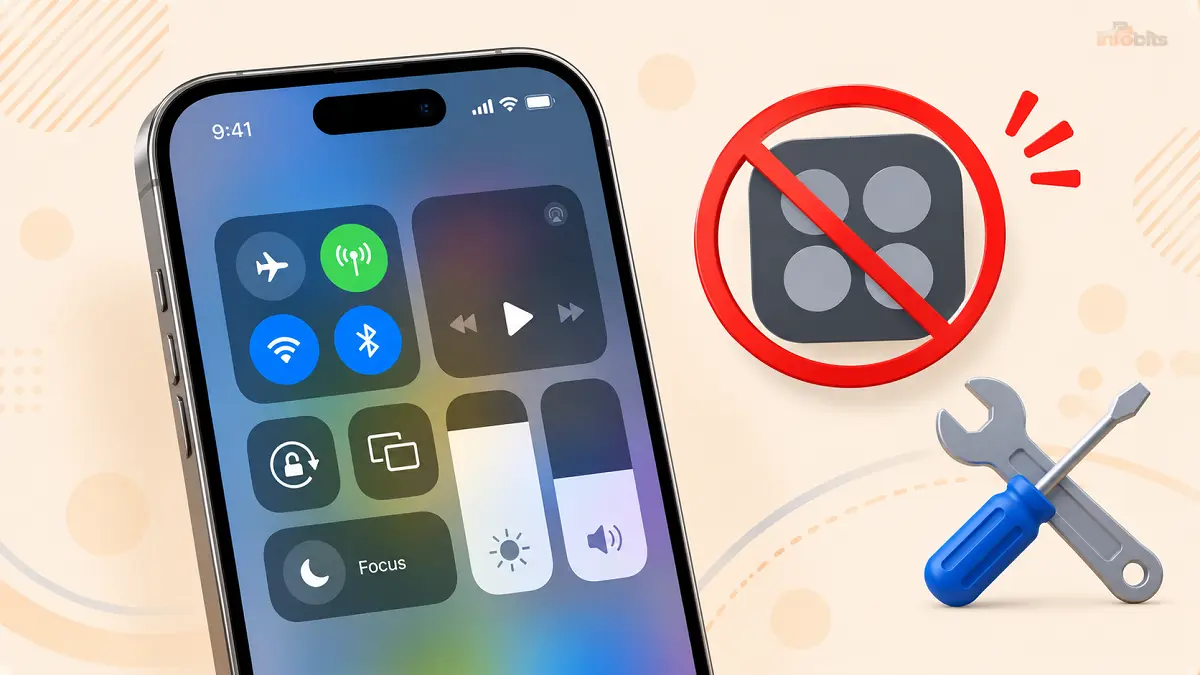
iPhone Control Center Not Working? 12 Fixes That Work (iOS 27 & Earlier)
You swipe down for Control Center, and nothing happens. Or it opens, but the buttons ignore you. Or, since the iOS 27 update, it opens, and you can barely read it. Annoying, because you use it for everything: Wi-Fi, flashlight, brightness, screen recording.
I’m happy to say this is almost always fixable at home, without a reset and without paid software. Work through the fixes below in order. They go from quickest and most likely to rarest.
Quick Answer: Why Is My iPhone Control Center Not Working?
On a Face ID iPhone, Control Center opens when you swipe down from the top-right corner. If it isn’t responding, the usual culprits are a swipe that starts in the wrong spot, Access Within Apps being switched off, a dirty screen or thick case, a frozen app, or a software glitch. Start by restarting your iPhone and checking Settings > Control Center. If you’re on iOS 27, also check the Liquid Glass slider, because it may be working but hard to see.
Diagnose It First (Saves Time)
| What’s happening | Most likely cause | Jump to |
|---|---|---|
| Nothing happens when I swipe | Wrong swipe zone, dirty screen, or a case in the way | Fix 1, 2 |
| Works on the Home Screen, not inside apps | Access Within Apps is off | Fix 4 |
| Works in apps, not on the Lock Screen | Lock Screen access is off | Fix 5 |
| Opens, but taps and sliders ignore me | Frozen app or a software glitch | Fix 3, 8, 11 |
| Opens, but I can’t read it (iOS 27) | Liquid Glass transparency | Fix 7 |
| A specific button or control is missing | Customization or an iOS 27 layout change | Fix 9 |
| Started after an update | Bug or incomplete install | Fix 10, 12 |
How Control Center Is Supposed to Open
Make sure you’re using the right gesture for your model. Apple’s instructions are:
- iPhone with Face ID: swipe down from the top-right corner of the screen. Swipe up from the bottom to close it.
- iPhone with a Home button (such as iPhone SE or iPhone 8): swipe up from the bottom edge. Press the Home button to close it.
That’s the first fix, too.
Fix 1: Check Your Swipe (It’s Not Always What You Think)
This sounds too simple, but it’s the most common cause. Start your finger at the very top edge, on the right side, near the battery and signal icons, and drag straight down.
If you start too close to the middle, iOS opens Notification Center instead, which feels like Control Center “not working.”
Try the swipe three times, slightly higher and further right each time.
Fix 2: Clean the Screen and Check Your Case
Dirt, moisture, or a case lip that hangs over the top edge can confuse the touch sensor right where this gesture lives.
- Power off the iPhone and wipe the screen with a dry, lint-free microfiber cloth.
- Dry your hands. Moisture on fingers or the screen makes touch input erratic.
- Remove the case and any screen protector, then test the swipe again.
If Control Center works without the case, you’ve found it. A case with a raised front lip, or a screen protector that doesn’t sit flush at the top edge, can block the swipe zone.
If a bad protector was the culprit, a case-friendly tempered glass protector that ships with an alignment tray makes it easy to apply correctly. The Spigen GlasTR EZ Fit is a popular example and is available on Amazon.
For screens that feel generally dirty or smudged, a basic microfiber cloth pack from Amazon costs a few dollars and is gentler than your shirt sleeve.
Tip: Test with the case off and the protector off if you can. If the problem vanishes, put the protector back first. Only one of them is usually responsible.
Fix 3: Restart Your iPhone
A restart clears background processes that compete for touch input. It fixes more “glitchy gesture” problems than any other single step.
- Press and hold the Side button plus either Volume button until the power-off slider appears.
- Drag the slider, wait about 30 seconds, then hold the Side button until the Apple logo appears.
- Test Control Center from the Home Screen first, then inside an app.
You can also go to Settings > General > Shut Down. That works even if a gesture is acting up.
Fix 4: Turn On Access Within Apps
If Control Center opens on the Home Screen but not inside Safari, Messages, or other apps, this setting is the likely cause.
- Open Settings > Control Center.
- Make sure Access Within Apps is on.
- If it is already on, switch it off, wait five seconds, and switch it back on. This forces iOS to re-apply the setting.
Apple confirms that turning this off blocks Control Center inside apps. Some people turn it off to stop accidental swipes in games, then forget about it.
Fix 5: Check Lock Screen Access
If Control Center only fails when your phone is locked, it’s a separate setting.
- Go to Settings > Face ID & Passcode and enter your passcode.
- Scroll to Allow Access When Locked.
- Turn on Control Center.
Security note: Leaving this on means someone holding your locked phone can toggle things like Airplane Mode. If you’re worried about theft, you may prefer it off, but that’s your trade-off to make.
If Face ID & Passcode is missing or grayed out, a Screen Time restriction may be hiding it. Check Settings > Screen Time > Content & Privacy Restrictions. On a work or school iPhone, an administrator profile may control this too.
Fix 6: Turn Off VoiceOver or Use Its Gestures
VoiceOver changes how every gesture works. If it’s on, your normal swipe won’t open Control Center, which can look like a bug.
- Turn it off: go to Settings > Accessibility > VoiceOver, or triple-click the Side button (if you set it as your shortcut), or ask Siri to “turn off VoiceOver.”
- Keep it on and use its gesture: Apple says to tap any item in the status bar, then swipe up with three fingers.
Fix 7: On iOS 27, check the Liquid Glass Slider
If Control Center opens fine but looks washed out, you may not have a broken feature at all. iOS 27 added a Liquid Glass slider that controls transparency across Control Center, notifications, folders, and more. At the clearest end, icons can blend into a busy wallpaper.
- Open Settings > Appearance > Liquid Glass.
- Drag the slider toward the more opaque (tinted) end.
- Open Control Center to check the result.
Still hard to read? Go to Settings > Accessibility > Display & Text Size and turn on Reduce Transparency, which flattens the effect system-wide. You can also try Increase Contrast in the same menu.
Fix 8: Force-Close the App You Were Using
If Control Center fails in only one app, the app is likely the problem, not Control Center.
- Swipe up from the bottom edge and pause in the middle to open the App Switcher.
- Swipe that app’s card up to close it.
- Go back to the Home Screen and test the gesture.
If one app keeps causing the issue, update it in the App Store, or delete and reinstall it.
Fix 9: Remove a Control That’s Misbehaving
If the trouble began right after you customized Control Center, a single control may be the cause. This also matters for third-party controls you added from the controls gallery.
- Open Control Center, then tap the + at the top left (or touch and hold an empty area) to enter edit mode.
- Tap the − on the control you added most recently.
- Close and test. If it works, add your controls back one at a time to find the troublemaker.
Missing something after the iOS 27 update? Open the controls gallery with Add a Control and re-add it. Layouts sometimes change after a major update.
Fix 10: Update iOS
Apple fixes bugs in point updates, so being a version behind can keep a known problem alive.
- Plug in your iPhone and join Wi-Fi.
- Go to Settings > General > Software Update.
- Tap Update Now if one is available.
Updates fail silently when storage is nearly full. If you’re short on space, see our guide on what to do when you can’t download apps on iPhone, which covers clearing storage.
If photos and videos are the culprit, a dual USB-C/lightning connector flash drive built for iPhone, like a SanDisk Phone Drive, lets you offload them without paying for more iCloud storage.
Fix 11: Force Restart
If your screen is lagging or half-responsive, a regular restart might not be possible. A force restart is safe and doesn’t erase anything.
- Quickly press and release Volume Up.
- Quickly press and release Volume Down.
- Press and hold the Side button until the Apple logo appears (ignore the power-off slider).
Fix 12: Reset All Settings (Doesn’t Delete Your Data)
If nothing else has worked, this clears customized settings, including your Control Center layout, Wi-Fi passwords, and privacy permissions. It does not delete your photos, apps, or messages.
- Back up your iPhone first (iCloud or a computer).
- Go to Settings > General > Transfer or Reset iPhone > Reset > Reset All Settings.
- Enter your passcode and confirm.
- After it restarts, reconnect to Wi-Fi and rebuild your Control Center layout.
Still Not Working? Check for a Hardware Issue
If Control Center works only sometimes, or the touchscreen itself misbehaves, the problem may be the display, not the software. Watch for these warning signs:
- The screen registers touches you didn’t make (read our guide to fixing iPhone ghost touch).
- Parts of the screen are dead, or the response is patchy.
- The problem began after a drop or water exposure.
- Swiping works fine everywhere except one zone.
If you see any of these, book a visit with Apple Support or an authorized repair provider. If you want a software-side last resort first, you can restore the iPhone using a computer, but back up first. A restore wipes the device.
When One Control Is the Problem (Not All of Control Center)
| Control | What may be happening | What to try |
|---|---|---|
| Wi-Fi or Bluetooth toggle | Tapping it in Control Center only temporarily disconnects. It doesn’t fully turn the radio off. | Turn it off completely in Settings |
| Flashlight | Often a camera or software issue, or Low Power Mode | See iPhone flashlight not working |
| Low Power Mode | Behaves differently while charging | See Low Power Mode while charging |
| Orientation lock | Some apps ignore rotation | Test in Safari or Photos |
| Focus | Schedules or automations can override it | Check Settings > Focus |
| Brightness slider | Auto-Brightness may be adjusting it | Check Settings > Accessibility > Display & Text Size |
Myth vs. Fact
| Myth | Fact |
|---|---|
| “Control Center not working means my iPhone is broken.” | In most cases it’s a gesture, setting, or small software glitch. |
| “I need to pay for a repair app.” | Free built-in fixes solve the large majority of cases. |
| “Reset All Settings will delete my photos.” | It doesn’t touch photos, apps, or messages. |
| “Turning off Wi-Fi in Control Center fully disables it.” | It only disconnects temporarily until conditions change. |
Common Mistakes to Avoid
- Restoring the whole iPhone before trying a simple restart.
- Forgetting that Access Within Apps can be switched off.
- Leaving a thick case or misaligned screen protector on while troubleshooting.
- Skipping a backup before Reset All Settings or a restore.
- Assuming a dim, see-through Control Center is a bug on iOS 27.
Which Fix Should You Try? A Quick Decision Guide
- No response at all: Fix 1, 2, 3, then 11.
- Fails only inside apps: Fix 4 and 8.
- Fails only when locked: Fix 5.
- Works but looks unreadable: Fix 7.
- Started right after an update: Fix 10, then 12.
- Touch problems everywhere: check for hardware issues.
Emergency Workaround: Open Control Center Without the Swipe
Need Control Center right now? Turn on AssistiveTouch in Settings > Accessibility > Touch.
Its on-screen menu includes a Control Center shortcut. It’s a handy stopgap if your swipe is unreliable while you troubleshoot.
Final Thoughts
For most people, the fix is one of three things: the right swipe zone, Access Within Apps, or a restart.
On iOS 27, add a fourth: check the Liquid Glass slider before assuming anything is broken.
If nothing works and the touch problems extend beyond Control Center, it’s time to have the display checked.
Frequently Asked Questions
Why won’t Control Center open on my iPhone?
Most often, the swipe starts in the wrong place, Access Within Apps is off, or the screen or case is interfering. Restarting fixes many cases.
How do I open Control Center on an iPhone with Face ID?
Swipe down from the top-right corner of the screen. Swipe up from the bottom to close it.
How do I open Control Center on an iPhone with a Home button?
Swipe up from the bottom edge of the screen. Press the Home button to close it.
Why does Control Center open Notification Center instead?
Your swipe started too close to the middle of the top edge. Start further right, near the battery icon.
Why is Control Center not working in apps?
Access Within Apps may be turned off. Go to Settings > Control Center and switch it on.
Why is Control Center not working on my Lock Screen?
Check Settings > Face ID & Passcode > Allow Access When Locked and turn on Control Center.
Can a case or screen protector stop Control Center from working?
Yes. A case or protector overlapping the top-right edge can block the swipe. Remove them to test.
Why is Control Center hard to read after updating to iOS 27?
iOS 27 added a Liquid Glass transparency slider. At the clear end, icons can blend into your wallpaper. Increase opacity in Settings > Appearance > Liquid Glass, or turn on Reduce Transparency.
Why did a control disappear from Control Center?
It was likely removed or reset during an update. Re-add it using Add a Control in edit mode.
Does VoiceOver affect Control Center?
Yes. VoiceOver changes gestures. Turn it off or use its gesture: tap a status bar item, then swipe up with three fingers.
Will Reset All Settings delete my photos?
No. It resets settings, including your Control Center layout and Wi-Fi passwords, but keeps your photos, apps, and messages.
How do I force restart an iPhone?
Press Volume Up, press Volume Down, then hold the Side button until the Apple logo appears.
Why does the Wi-Fi button in Control Center not fully turn Wi-Fi off?
Tapping it only disconnects temporarily. To turn Wi-Fi fully off, use Settings > Wi-Fi.
Can I open Control Center without swiping?
Yes. Turn on AssistiveTouch in Settings > Accessibility > Touch and use its on-screen menu.
When should I take my iPhone to Apple?
If the touchscreen is unresponsive in places, registers phantom touches, or the problem started after a drop or water damage.
Is it normal for Control Center to lag after a big update?
Brief slowness right after a major update is common while the phone finishes background tasks. If it persists after a restart and a day or two, work through the fixes above.
Found this guide useful? Share it with someone interested in tech-related tips, tricks, solutions, and news. Follow us on Facebook and Twitter for more tips, tricks, and guides.
We also ask that you bookmark this page for future reference, as we are constantly updating our articles with new information.
Sign up for our free newsletter as well to receive fresh information immediately in your inbox and stay up to date.
Disclosure: If you follow our links to a retailer’s website and make a purchase, we will get an affiliate commission on some, but not all, of the items or services we promote. This will cause no price change for you.