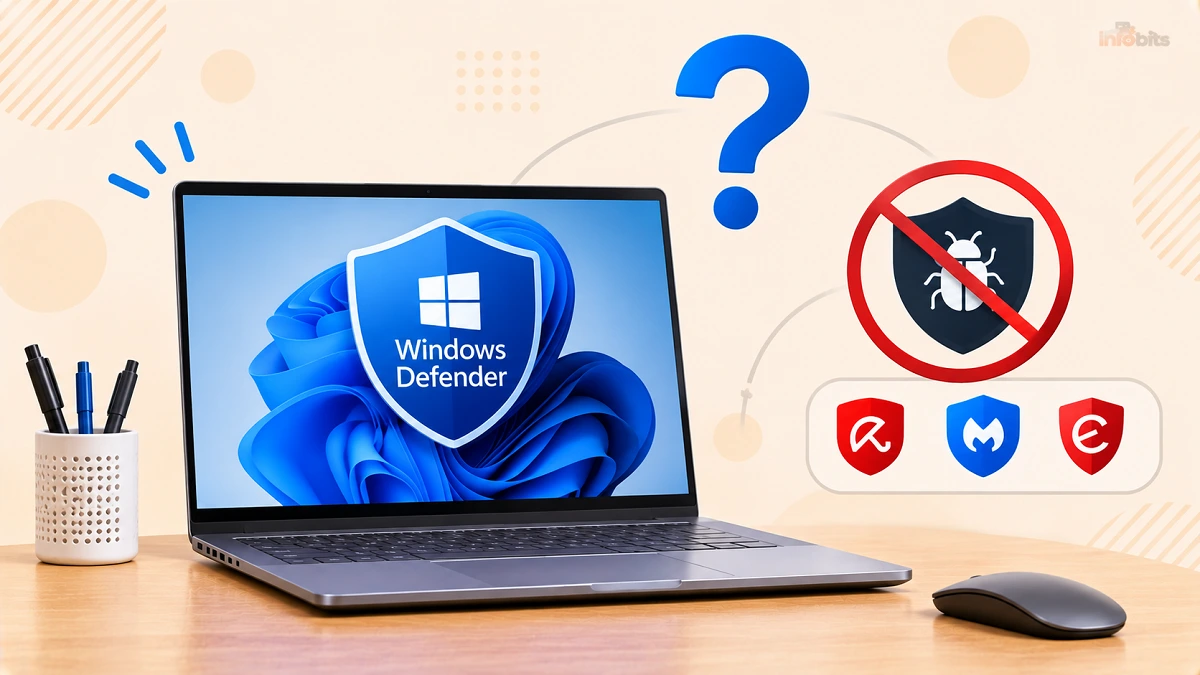
Do You Need Antivirus If You Have Windows Defender? The Honest 2026 Answer
Quick answer: For most people using an up-to-date Windows 11 PC, no. You don’t need to buy a separate antivirus, because Microsoft Defender Antivirus is built in, free, and scores at or near the top in independent lab tests. You do need extra protection if you manage a mixed-device family, want identity monitoring or parental controls, or take real risks online. Defender also can’t rescue you from bad habits.
You’ve just unboxed a laptop, and a pop-up is telling you your “free trial of McAfee” is about to expire. Or a friend swears you’re “basically unprotected” without a paid suite. Meanwhile, Windows keeps insisting it already has you covered.
Who’s right?
This guide gives you an unbiased, straight answer. It covers what Defender does, what the independent tests say, where it falls short, and a short checklist to settle the question for your own situation.
We’ll also cover something most articles skip to point out: Microsoft itself published, then pulled, an official post saying you don’t need third-party antivirus. Here’s what to make of that.
The 30-Second Answer
| Your situation | Is Defender enough? |
|---|---|
| Windows 11, updates on, download from official sources | Yes |
| Windows 10 PC (no longer getting regular OS updates) | Not alone. Upgrade, enroll in extended updates, or add care |
| Mixed household: Windows, Mac, Android, iPhone | Depends. Defender covers only the Windows PCs |
| Kids or elderly relatives using the PC | Usually yes, but you may want parental controls or a stricter setup |
| You torrent, use cracked software, or visit risky sites | No antivirus can save you here. Change the behaviour first |
| You handle sensitive client data for work | Ask your employer or client what they require |
What “Windows Defender” Actually Means (It’s Confusing)
Microsoft has renamed this stuff so many times that it’s worth untangling:
- Windows Security is the app you open from the Start menu. It’s the dashboard.
- Microsoft Defender Antivirus is the actual antivirus engine running underneath. It’s what most people mean when they say “Windows Defender.”
- Microsoft Defender (the app in your Microsoft 365 subscription) is a separate, paid-for extra layer. If you’re not paying for it, you’re not using it, and your PC is still protected.
So when someone asks, “Do I need antivirus if I have Windows Defender?”, the real question is: is the free, built-in antivirus good enough on its own?
How Good Is Windows Defender?
Opinions are cheap, so let’s look at independent testing. Two labs matter most: AV-TEST and AV-Comparatives. Both test products against thousands of real-world threats.
| Test | Result for Microsoft Defender |
|---|---|
| AV-TEST, Windows 11 (early 2026) | Perfect scores for protection, performance and usability |
| AV-Comparatives Real-World Protection, Feb–May 2026 (400 test cases) | Roughly 99% of threats blocked, with no false positives reported |
Paid products like Bitdefender, Norton and Kaspersky score marginally higher in some tests. We’re talking about a fraction of a percentage point. When the best and worst mainstream products are separated by a few points, the real difference for a careful home user is tiny.
The honest disclaimer: lab tests measure how well software blocks malware samples. They don’t measure what happens when you approve a fake invoice, type your password into a convincing fake login page, or run a “free” game crack. That’s where most real-world damage happens, and no antivirus fully fixes it.
What Defender Already Protects You From
Windows 11 layers several protections, so it’s more than a file scanner:
- Real-time protection scans files and apps as they open or download.
- Cloud-delivered protection checks suspicious files against Microsoft’s threat intelligence within seconds.
- Behaviour monitoring flags programs acting like malware, even if they’ve never been seen before.
- SmartScreen warns you before you run an unknown download or visit a known-bad site.
- Ransomware protection (Controlled Folder Access) stops untrusted apps from changing files in folders like Documents and Desktop.
- Tamper Protection stops malware from quietly switching Defender off.
- Windows Firewall blocks unwanted inbound connections.
- Smart App Control (on supported Windows 11 setups) can block untrusted apps outright, though it’s stricter and can occasionally block legitimate niche software.
For a typical home user, that’s a lot of protection you’re not paying for.
Where Defender Falls Short
Here’s the part many “Defender is enough!” articles gloss over.
1. It only protects Windows. There’s no consumer Defender dashboard covering your family’s iPhone, Mac, or Android phone. If you want one place to manage all of them, that’s a point for paid suites.
2. No identity monitoring, parental controls, or bundled VPN. Microsoft itself acknowledges that if you want extras like these, you’ll need a separate solution. Windows does include basic Family Safety tools, but they’re not the same as a full parental-control suite.
3. Web protection leans on Microsoft Edge. SmartScreen works best inside Edge. If you use Chrome or Firefox, you’re relying largely on those browsers’ own protections (which are decent, but separate).
4. It can’t stop you from being tricked. Phishing, fake tech-support pop-ups, and romance or investment scams work by persuading you, not by exploiting software.
5. No human help. When something goes wrong, paid suites often include phone or chat support. With Defender, you’re on your own (or on a forum).
6. Ransomware recovery isn’t included. Defender tries to prevent it, but if files are encrypted, you need a backup.
The Microsoft Plot Twist: They Said “You Don’t Need It,” Then Deleted It
In April 2026, Microsoft published an article in its Windows Learning Center that essentially said most Windows 11 users don’t need third-party antivirus. Tech sites ran with it. By early June, that page had been taken down.
Microsoft hasn’t given a clear public explanation, and you shouldn’t read too much into it. Some observers suspect pushback from security partners who sell Windows software, but that’s speculation.
What matters is this: the underlying facts didn’t change. Defender’s test results are still strong, and its features are still there. Microsoft’s own softer wording remains reasonable. For many people, Defender covers everyday risk, and whether you add more depends on how you use your PC and what features you want.
A Simple Decision Guide
Answer these five questions honestly:
- Are you on Windows 11 (or a fully supported Windows 10 with extended updates)?
- Do you install updates within a week or two?
- Do you download software only from official stores and publisher websites?
- Do you use a password manager and two-factor authentication on important accounts?
- Do you have a recent backup of files you can’t replace?
Four or five “yes” answers: Defender is enough. Spend your energy on backups and account security, not another subscription.
Two or three “yes” answers: Defender is probably fine, but fix the gaps first. A paid suite won’t cover for missing updates or reused passwords.
Zero or one: Switching antivirus isn’t your problem. Your habits are. Start with the checklist below.
Who Genuinely Benefits From a Third-Party Antivirus
Defender-plus-habits is enough for most people. But a paid suite earns its place if you:
- Manage several devices across platforms and want one dashboard
- Want parental controls and screen-time tools in a single product
- Want bundled identity monitoring, a VPN or cloud backup, and prefer paying once rather than assembling them
- Support less tech-confident relatives and want a product with phone or chat help
- Work somewhere that mandates a specific product
If that sounds like you, shop around before auto-renewing. Introductory prices are often much lower than renewal prices, so check the renewal rate before you commit.
Products such as Norton 360 and Bitdefender Total Security are widely sold as digital codes through retailers like Amazon, which can make comparing prices easier.
A note for US readers: Kaspersky products can no longer be sold in the United States under a federal ban that took effect in 2024, so it isn’t an option there. Our Malwarebytes vs Kaspersky comparison covers how the two stack up elsewhere.
A note on “free” antivirus: Free doesn’t always mean private. In 2024, the US Federal Trade Commission fined Avast $16.5 million over the sale of users’ browsing data. Defender’s advantage is simple: it’s built into your OS, and it isn’t trying to upsell you.
Windows 10: A Different Answer
Windows 10 reached end of support on October 14, 2025, meaning ordinary security patches stopped for most home users. Microsoft says it will keep delivering Defender Antivirus definition updates through at least October 2028.
That’s good news, but it’s only part of the picture. Defender updates fix detection; they don’t fix holes in Windows 10 itself. If you’re still on Windows 10:
- Upgrade to Windows 11 if your PC qualifies. See our Windows 11 system requirements guide.
- If it doesn’t qualify, check your options for extended updates, or consider installing Linux on old PCs as a safe alternative.
- Be stricter than usual with downloads, email attachments, and browser extensions.
Should You Run Two Antivirus Programs?
No. Running two real-time antivirus products tends to cause slowdowns and conflicts, because they fight over the same files.
The good news is that Windows handles this for you. When you install a third-party antivirus, Defender normally steps aside automatically. You can still switch on Periodic scanning, which lets Defender do occasional checks without interfering.
What is safe is pairing Defender with an on-demand scanner, such as the free version of Malwarebytes, for an occasional second opinion. It doesn’t run constantly, so it doesn’t clash.
A 7-Step Defender Checklist
Open Windows Security from the Start menu and check:
- Virus & threat protection → Manage settings: make sure Real-time protection, Cloud-delivered protection, and Tamper Protection are all on.
- Windows Update: install updates and let Defender’s definitions refresh automatically.
- App & browser control → Reputation-based protection: keep SmartScreen switched on.
- Virus & threat protection → Ransomware protection: turn on Controlled folder access and add your important folders. It isn’t switched on for everyone by default.
- Firewall & network protection: confirm the firewall is on for your active network.
- Browser: if you use Chrome or Firefox, keep their built-in safe-browsing protections enabled.
- Schedule a monthly check: run a Quick Scan, then once in a while, a Microsoft Defender Offline scan (see below).
Common Mistakes to Avoid
- Disabling Defender “just for a minute” to install something. This is the oldest trick in the malware playbook.
- Keeping a half-dead trial antivirus that came with the laptop. Expired trials can leave you with a disabled scanner and nagging pop-ups.
- Trusting “cracked” software because an antivirus didn’t complain. Many cracks are designed to slip past detection.
- Skipping backups because “I have antivirus.”
- Clicking “scan now” pop-ups from websites. Those aren’t from your antivirus. They’re ads or scams.
Myth vs. Fact
| Myth | Fact |
|---|---|
| “Free antivirus is useless.” | Defender consistently scores at or near the top in independent tests. |
| “Windows Defender is the same as the old one from Windows XP.” | Today’s version uses cloud intelligence and behaviour analysis, not just a signature list. |
| “If I have Defender, I can click anything.” | Defender can’t stop you voluntarily running something malicious or handing over a password. |
| “Paid antivirus makes me immune.” | No product does. The best ones still miss a small percentage in testing. |
| “I use a Mac, so I’m safe.” | Macs get malware too, though less often. Separate topic, same principle: habits matter most. |
Warning Signs Your PC May Be Infected
Even with Defender running, watch for:
- Sudden slowness or fans spinning hard while the PC is idle
- Browser homepage or search engine changing on its own
- New toolbars or extensions you didn’t install
- Pop-ups claiming “Your PC is infected” from your browser
- Files renamed, missing, or showing a ransom message
- Defender or Windows Security switched off and refusing to turn back on
If you spot several of these, disconnect from the internet and run an offline scan.
How to Run a Microsoft Defender Offline Scan
This catches stubborn malware that hides while Windows is running.
- Save your work.
- Open Windows Security → Virus & threat protection → Scan options.
- Choose Microsoft Defender Antivirus (offline scan), then click Scan now.
- Windows restarts and scans before it fully loads. It takes about 15 minutes.
- Afterwards, check Protection history for what was found and removed.
Troubleshooting Common Defender Problems
“Windows Security says it’s managed by your organization.” This usually means a work/school policy or leftover settings from a previous antivirus. Uninstall old security software with the vendor’s removal tool, restart, and check again.
Defender won’t turn on. It’s often caused by a leftover third-party antivirus. Remove it completely, restart, then re-check Windows Security. Make sure Windows is fully updated.
High CPU use from “Antimalware Service Executable.” It’s usually temporary during a scan or update. If it persists, schedule scans for off-hours, and make sure you don’t have a second antivirus fighting it. Our Windows network troubleshooting basics can help rule out other causes of slowdowns.
Constant false alarms on a program you trust. Verify the file with a second opinion first. Only add an exclusion if you’re certain.
Security Beyond Antivirus: What Actually Protects You
Antivirus is one layer. These matter at least as much:
- A password manager. Reused passwords cause more real-world harm than most viruses. See our guide to the best password managers.
- Two-factor authentication. For your most important accounts, a physical security key is the strongest option. Our YubiKey 5C NFC review explains why many people choose one.
- Backups. Follow the 3-2-1 idea. Three copies, two types of storage, one offsite. A portable SSD such as the Samsung T7 or a WD My Passport drive makes the local copy easy, and keeping it unplugged afterwards protects it from ransomware. If you’ve already lost files, see our guide to data recovery costs.
- Network-level protection. Your router and DNS can block threats before they reach any device. See router security vs antivirus, best DNS servers for blocking malware and ads, and best routers with built-in malware protection.
- Updates everywhere. Keep Windows, your browser, and your router firmware current with our router firmware update checklist.
Do You Need Antivirus on Your Phone?
Android: Stick to Google Play, review app permissions, and keep the phone updated. See our guide to Android permissions management.
iPhone: Apple’s app sandboxing means traditional antivirus apps aren’t really a thing. Avoid sideloading and keep iOS updated.
The Bottom Line
Defender is genuinely good. It isn’t a compromise or a “better than nothing” tool. If you’re on Windows 11, you keep updates on, you download from trusted sources, and you back up your files, you don’t need to pay for another antivirus.
Reach for a paid suite when you want specific extras (family dashboards, identity monitoring, cross-platform coverage, support), not because you fear Defender is weak.
And whichever way you go, spend your first hour on the unglamorous stuff: passwords, two-factor authentication, and backups. That’s where most real-world protection comes from.
Frequently Asked Questions
Do I need antivirus if I have Windows Defender?
For most Windows 11 home users, no. Defender provides real-time protection, cloud scanning, and ransomware safeguards for free. You may want extra software if you need cross-platform coverage, parental controls, or identity monitoring.
Is Windows Defender enough for Windows 11 in 2026?
Yes, for typical use. Independent labs rate it at or near the top, provided Windows stays updated and you download software from trusted sources.
Is Windows Defender as good as Norton, McAfee, or Bitdefender?
In lab tests, it’s very close. Paid products may edge ahead by small margins, and they add extras such as VPNs and identity monitoring that Defender doesn’t include.
Is Windows Defender enough for Windows 10?
Not on its own. Microsoft still updates Defender’s threat definitions through at least October 2028, but it no longer provides regular Windows security patches for most home users. Upgrade if you can.
Can I run Windows Defender and another antivirus at the same time?
You shouldn’t run two real-time scanners together, as they can slow your PC and conflict. Pairing Defender with an on-demand second-opinion scanner is fine.
Does Windows Defender turn off when I install another antivirus?
Normally yes. Windows detects the new product and Defender’s real-time protection steps aside. You can enable periodic scanning to keep Defender as a backup checker.
Is Windows Defender good enough for gaming?
Yes. It has low performance impact in testing. Gamers are targeted by fake mods, cheats, and “free” skins, so be cautious about what you download.
Do I need antivirus for online banking?
Defender plus a patched browser is generally adequate. Strong, unique passwords and two-factor authentication matter far more than extra antivirus.
Does Windows Defender protect against ransomware?
It helps through behaviour detection and Controlled folder access, which blocks untrusted apps from changing protected folders. Keep offline backups, since no tool guarantees prevention.
Does Windows Defender protect against phishing?
Partly. SmartScreen warns about known malicious sites and downloads, most reliably in Microsoft Edge. It can’t stop you from voluntarily entering your password on a convincing fake page.
Is Windows Defender enough for work or freelancing?
Often yes, but check your employer’s or client’s security policy. Some require specific managed tools.
Do I need antivirus on my phone?
Usually not. Install apps only from official stores, review permissions, and keep the OS updated. Extra apps can add risk rather than reduce it.
Does Windows Defender include a VPN?
No. A VPN is a separate product. Read our guide on whether a VPN can make your home Wi-Fi more secure before paying for one.
Is free antivirus better than Defender?
Rarely. Some free products score similarly in tests, but many collect data or push upgrades. Defender is built in and doesn’t rely on advertising.
Should I uninstall the McAfee or Norton that came with my laptop?
If you don’t plan to pay after the trial ends, yes. Remove it with the vendor’s uninstall tool, then confirm Defender is active in Windows Security.
How do I know if Windows Defender is working?
Open Windows Security. A green checkmark under “Virus & threat protection” means it’s active. Check that real-time protection is on and definitions are up to date.
How often should I scan with Windows Defender?
Real-time protection scans continuously, so you rarely need manual scans. A monthly quick scan is a sensible habit, with an offline scan if something seems wrong.
Is Defender enough if I download pirated software or use torrents?
No. Cracks and keygens are a leading malware source, and many are built to evade detection. The safest answer is to avoid them.
Found this guide useful? Share it with someone interested in tech-related tips, tricks, solutions, and news. Follow us on Facebook and Twitter for more tips, tricks, and guides.
We also ask that you bookmark this page for future reference, as we are constantly updating our articles with new information.
Sign up for our free newsletter as well to receive fresh information immediately in your inbox and stay up to date.
Disclosure: If you follow our links to a retailer’s website and make a purchase, we will get an affiliate commission on some, but not all, of the items or services we promote. This will cause no price change for you.
You May Be Interested in Reading:
- How to Pause Windows Updates Temporarily in Windows 11 and 10
- DNS Server Not Responding: How to Fix It on Windows, Mac, and Router
- How to Use DISM to Remove a Windows Update (Step-by-Step Guide)
- Windows 11 25H2 vs 24H2: Which Update Should You Install?
- Windows 11 KB5094126 Boot Failure & BitLocker Recovery: How to Fix It