

How to Fix Mouse Stuttering in Games: 15 Proven Fixes for Windows 10 & 11
There’s nothing more maddening in a game than a mouse that refuses to cooperate. You’re tracking a target, lining up a shot, or navigating a tricky section, and your cursor stutters, hitches, or jumps instead of moving cleanly. Your reaction time is fine. Your aim is fine. Your mouse is the problem.
The good news: mouse stuttering in games is almost always fixable, and in most cases, the fix takes less than five minutes. The tricky part is that “mouse stuttering” isn’t one single problem. It’s a symptom with a dozen different potential causes, from a dirty sensor and a bad USB port to a Windows setting you’ve probably never heard of called Enhance Pointer Precision.
This guide walks through every meaningful fix, ordered from the quickest and most common to the more advanced. So you can work down the list and stop the moment your mouse feels smooth again.
Quick Answer: Why Is My Mouse Stuttering in Games?
The most common causes are: Enhanced Pointer Precision (mouse acceleration) is enabled, polling rate set too high for your system (common with 2000Hz+ mice on Windows 11), dirty or obstructed sensor, USB 3.0 interference affecting a wireless receiver, or an overloaded CPU leaving no headroom for mouse input processing. Start with Fix 1 and Fix 2; they solve the majority of cases within minutes.
What Is Mouse Stuttering and What Causes It?
Mouse stuttering in games refers to inconsistent, jerky, or unpredictable cursor movement, where the mouse stops tracking smoothly and instead moves in hitchy, uneven steps. It’s different from general game lag (where the entire frame slows down) and different from mouse acceleration (where fast movements feel disproportionately large).
The root cause determines the fix, which is why a scatter-shot approach of “try everything” wastes time. Here are the main categories:
| Category | Example Causes |
|---|---|
| Hardware | Dirty sensor, failing cable, bad USB port, low battery |
| Windows Settings | Enhance Pointer Precision, power management, USB selective suspend |
| Mouse Software/Firmware | Polling rate too high, DPI fluctuating, conflicting mouse software |
| System Performance | CPU overload, background processes, game DVR recording |
| Wireless-Specific | USB 3.0 interference, Bluetooth congestion, weak receiver signal |
| Driver Issues | Outdated mouse driver, corrupted GPU driver |
| In-Game Settings | V-Sync, frame rate cap, resolution scaling |
Work through the fixes below in order. They’re arranged from highest to lowest likelihood of solving the problem.
Fix 1: Disable Enhance Pointer Precision (Mouse Acceleration)
This is the single most overlooked cause of erratic mouse behaviour in games, and it’s a Windows setting that’s enabled by default on most systems.
Enhance Pointer Precision is Windows’ name for mouse acceleration. It makes your cursor move further when you move the mouse quickly and less when you move slowly.
For everyday desktop use, this feels natural. In games, especially shooters, it makes your aiming inconsistent because the same physical mouse movement produces different in-game results depending on how fast you move.
Many gamers mistake this for “stuttering” because cursor movement feels unpredictable and inconsistent.
How to disable it:
- Press Windows + I to open Settings
- Go to Bluetooth & devices > Mouse (Windows 11) or Devices > Mouse (Windows 10)
- Click Additional mouse settings (or “Mouse Properties”)
- Go to the Pointer Options tab
- Uncheck Enhance pointer precision
- Click Apply, then OK
Test in-game immediately. Many players are stunned by how much smoother their mouse feels after this single change.
Note: Some games apply their own mouse acceleration on top of Windows. Check your in-game mouse settings for an “acceleration” or “raw input” option and disable acceleration / enable raw input there as well.
Fix 2: Adjust Your Mouse Polling Rate
Polling rate is how often your mouse reports its position to your computer, measured in Hz. A 1000Hz mouse reports its position 1,000 times per second. Higher polling rates can improve smoothness. But they also increase the CPU workload required to process all those position updates.
On Windows 11 specifically, a known bug (partially fixed in the KB5028185 “Moment 3” update) caused high-polling-rate mice (2000Hz and above) to send position updates to every open application simultaneously, causing significant performance drops and stuttering.
Even with the patch, very high polling rates (4000Hz, 8000Hz) can still cause issues on mid-range CPUs.
The fix:
If you’re using a gaming mouse with a polling rate above 1000Hz, lower it to 500Hz or 1000Hz through your mouse’s software:
- Logitech mice: Logitech G Hub → select your mouse → scroll to Polling Rate
- Razer mice: Razer Synapse → Performance → Polling Rate
- SteelSeries mice: SteelSeries GG → select mouse → Performance → Polling Rate
- Corsair mice: iCUE → select mouse → scroll to Polling Rate
- Other mice: check your manufacturer’s software or the DPI button on the mouse itself
The difference in real-world responsiveness between 1000Hz and 2000Hz is imperceptible to human reaction times. The reduction in CPU load is the meaningful change. If you don’t have software control, check your mouse’s quick-select DPI/report rate button (often a small button on the underside).
Fix 3: Clean the Mouse Sensor
A dirty sensor is the most straightforward physical cause of mouse tracking problems, and it’s surprisingly common.
The optical sensor on the underside of your mouse is sensitive to dust, hair, and mousepad fibres collecting in the sensor well. Even a single hair across the sensor can cause the tracking to skip or stutter inconsistently.
How to clean it properly:
- Unplug your mouse (or turn off wireless)
- Use a can of compressed air held 2–3 inches away from the sensor; short bursts to blow debris out, not in
- Gently wipe the sensor lens with a dry cotton swab; no circular rubbing, just a light pass.
- Do not use alcohol or liquid cleaners on the sensor lens itself; they can damage the optical coating.
- Also wipe the feet (skates) on the underside; worn or dirty mouse feet cause inconsistent surface tracking.
- Clean your mousepad with a damp cloth (for cloth pads) or a dry microfibre cloth (for hard pads)
Reconnect and test. Sensor cleaning often produces immediate, dramatic improvement.
A small electronics cleaning kit with compressed air and lint-free swabs is useful for keeping your mouse, keyboard, and other peripherals clean; a well-reviewed option is available on Amazon for under $25 and will serve every peripheral you own.
Fix 4: Check Your USB Port (Switch from USB 3.0 to USB 2.0)
This one catches a lot of people by surprise. If you’re using a wired mouse or a wireless USB receiver, the USB port you’re plugged into matters more than you’d expect.
USB 3.0 ports (the ones with the blue interior, usually labelled “SS” for SuperSpeed) can emit radio frequency noise that interferes with wireless mouse signals on the 2.4GHz band. Particularly if the receiver is plugged directly into a USB 3.0 port or physically close to one.
What to do:
- Move your mouse (wired) or wireless receiver to a USB 2.0 port (black interior, no “SS” label)
- If using a wireless mouse, use a USB extension cable to position the receiver closer to the mouse and away from USB 3.0 devices; even 30cm of distance makes a meaningful difference.
A short USB extension cable (male-A to female-A) lets you position your wireless receiver in the optimal spot away from interference. This cable is available on Amazon for just a few dollars and is one of the most cost-effective wireless mouse fixes available.
Most gaming mice come with a USB 2.0 interface by design. They’re not bottlenecked by the slower port, and the interference reduction is a net win.
Related: How to Test a PC Motherboard: Signs of Failure, Diagnostic Tools & Step-by-Step Fixes
Fix 5: Disable USB Selective Suspend
Windows has a power management feature called USB Selective Suspend that puts USB devices into a low-power state when they’re idle. The problem is that “idle” can sometimes include brief moments during gameplay, causing the mouse to stutter or disconnect momentarily before Windows wakes it back up.
How to disable it:
Method A – Through Power Options:
- Press Windows + R, type
powercfg.cpl, and press Enter - Click Change plan settings next to your active power plan
- Click Change advanced power settings
- Expand USB settings > USB selective suspend setting
- Change it to Disabled
- Click Apply and OK
Method B – Through Device Manager (per device):
- Press Windows + X and select Device Manager
- Expand Universal Serial Bus controllers
- Right-click each USB Root Hub entry → Properties
- Go to the Power Management tab
- Uncheck Allow the computer to turn off this device to save power
- Repeat for each USB Root Hub entry
This fix is particularly effective for wireless mice that show intermittent stuttering with no obvious pattern.
Fix 6: Update or Reinstall Your Mouse Driver
Outdated or corrupted mouse drivers can cause tracking issues, DPI fluctuations, and inconsistent polling behaviour, all of which show up as stuttering in games.
To update via Device Manager:
- Right-click the Start button and select Device Manager
- Expand Mice and other pointing devices
- Right-click your mouse and select Update driver
- Choose Search automatically for drivers
For a cleaner fix – uninstall and reinstall:
- In Device Manager, right-click your mouse and select Uninstall device
- Check “Delete the driver software for this device” if the option appears
- Unplug your mouse, wait 10 seconds, and plug it back in
- Windows will automatically reinstall a clean driver
For gaming mice with manufacturer software: Always download the latest version of the manufacturer’s software (Logitech G Hub, Razer Synapse, SteelSeries GG, Corsair iCUE, etc.) from the official website rather than relying on Windows Update for driver management.
Fix 7: Update Your GPU Driver
GPU driver issues are a frequently missed cause of mouse stuttering in games. When the GPU driver is buggy or outdated, it can cause frame timing irregularities that make the mouse movement feel stuttery even when the mouse hardware and Windows settings are fine.
For NVIDIA:
- Open NVIDIA GeForce Experience or download the latest driver from nvidia.com/drivers
- For a clean installation, use DDU (Display Driver Uninstaller), a free tool that removes the old driver completely before installing the new one
- Install the latest Game Ready or Studio Driver
For AMD:
- Open AMD Adrenalin Software or download from amd.com/support
- Same principle applies; a clean install via DDU is the most reliable approach
After updating, restart your PC and test in-game. A GPU driver update alone sometimes completely resolves mouse stuttering that was misattributed to the mouse itself.
Related: What Happens When Hardware Accelerated GPU Scheduling Is On or Off?
Fix 8: Disable Game DVR and Xbox Game Bar
Game DVR (also called Game Bar recording) is a built-in Windows feature that continuously records your gameplay in the background so you can save the last few minutes of a session.
The problem is that it consumes CPU, GPU, and storage resources constantly, and that overhead shows up as stuttering, particularly during intense moments in a game.
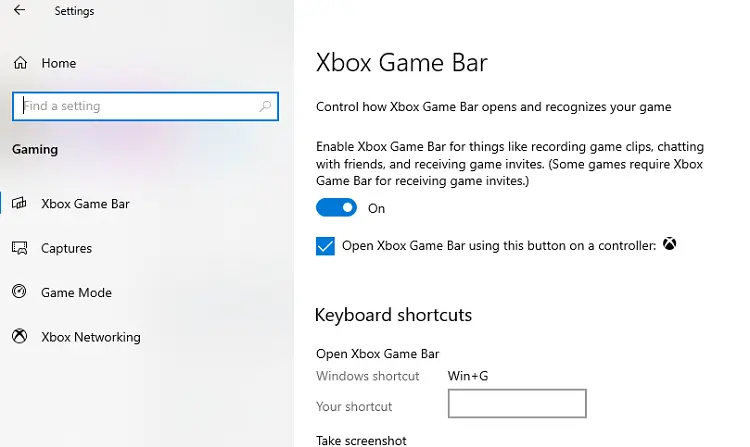
To disable it:
- Press Windows + I to open Settings
- Go to Gaming
- Click Xbox Game Bar and toggle it off
- Go back and click Captures (Windows 11) or Game DVR (Windows 10)
- Toggle Record in the background while I’m playing a game to Off
If you use Xbox Game Bar for screenshots or clips, you can leave Game Bar on but disable background recording specifically. That’s where most of the performance impact comes from.
Fix 9: Set Game Process Priority to High
When your CPU is under heavy load, it distributes processing time between all running tasks. Windows doesn’t automatically know that your game should get priority over background processes, which can result in mouse input being processed with a delay.
Manually setting your game to high priority tells Windows to give it more CPU time, which can noticeably reduce input lag and stuttering:
- Launch your game
- Press Ctrl + Shift + Esc to open Task Manager
- Go to the Details tab (not Processes)
- Find your game’s executable (e.g.,
cs2.exe,valorant.exe) - Right-click it → Set Priority → High (or Above Normal; High can occasionally cause instability)
Important: Do not set to Realtime. This can cause system instability by starving Windows’ own processes of CPU time.
This setting resets when you close the game, so you’ll need to repeat it each session, or use a third-party tool like Process Lasso to automate priority settings per application.
Related: What Is the Normal GPU Temperature While Gaming?
Fix 10: Check Display Scaling Settings
This fix specifically addresses the scenario where mouse movement feels sluggish or disproportionate, particularly on high-DPI displays (1440p, 4K).
Windows scales the desktop interface on high-resolution monitors to make text and UI elements readable, but this scaling can interfere with how mouse movement is translated in certain games, making the cursor feel inconsistent or laggy.
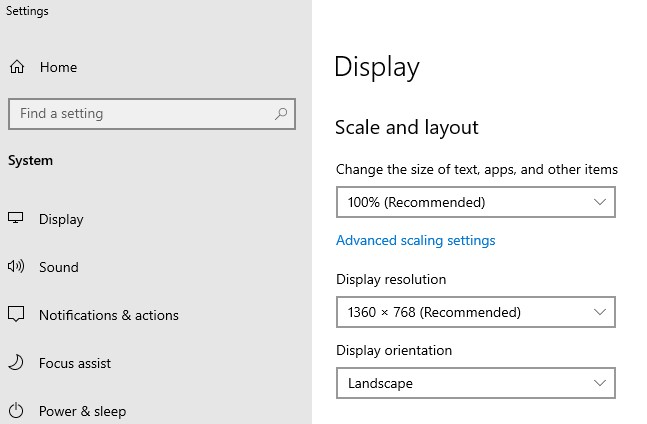
To check and adjust:
- Right-click your desktop and select Display settings
- Under Scale and layout, check the current scaling percentage (100%, 125%, 150%, 200%)
- If it’s above 100%, try reducing it temporarily while gaming
Also check in-game resolution settings: if the game is running at a resolution that doesn’t match your monitor’s native resolution, the upscaling or downscaling process creates additional latency. Always run games at your monitor’s native resolution for the cleanest mouse tracking.
Fix 11: Disable V-Sync and Check Frame Rate Caps
V-Sync (Vertical Synchronisation) locks your game’s frame rate to your monitor’s refresh rate to prevent screen tearing. The problem is that it adds input lag, and when frames drop below the cap, V-Sync causes significant stuttering rather than a graceful frame rate drop.
Recommendations:
- Disable V-Sync in-game for competitive games where input latency matters
- Use G-Sync (NVIDIA) or FreeSync (AMD) instead if your monitor supports it. These adaptive sync technologies eliminate tearing without the input lag penalty of traditional V-Sync
- If your game has a frame rate cap, cap it to something your GPU can consistently maintain. Uncapped frame rates that fluctuate wildly cause more perceived stutter than a stable, slightly lower cap
For most competitive games: disable V-Sync, enable your monitor’s adaptive sync technology if available, and cap the frame rate to 95–97% of your monitor’s refresh rate (e.g., 141fps on a 144Hz monitor).
Fix 12: Close Background Processes and Overlays
Background applications consume CPU and RAM, leaving less available for your game. More specifically, certain overlay software intercepts mouse input in a way that can cause noticeable stuttering:
Common culprits:
- Discord overlay: disable it in Discord Settings > Game Overlay
- Steam overlay: disable in Steam Settings > In-Game > Enable the Steam Overlay while in-game
- GeForce Experience overlay: disable in GeForce Experience Settings > General > In-Game Overlay
- MSI Afterburner with RivaTuner: can cause input stuttering; try closing during gaming if you don’t need on-screen stats
- Browser tabs: Chrome and Edge are notorious RAM consumers; close unnecessary tabs before gaming
To identify high-CPU background processes:
- Open Task Manager (Ctrl + Shift + Esc)
- Sort by CPU column (click the header to sort)
- Close any non-essential process consuming meaningful CPU before launching your game.
Related: Can You Mix RAM Brands or Sizes on a PC or a Laptop?
Fix 13: Disable Realtek Audio Manager (NVIDIA GPU Users)
This is a specific fix for users with NVIDIA graphics cards who experience mouse stuttering. Particularly a periodic hitch that happens at regular intervals rather than randomly.
The Realtek HD Audio Manager process can conflict with NVIDIA’s audio processing pipeline in a way that causes regular CPU spikes, which manifests as rhythmic mouse stuttering.
To disable it temporarily (to test):
- Press Ctrl + Alt + Del and open Task Manager
- In the Processes or Details tab, look for Realtek HD Audio Manager or
RAVBg64.exe - Right-click and select End Task
- Test in-game. If stuttering improves, this was the cause.
For a permanent fix:
- Press Windows + R, type
msconfig, and press Enter - Go to the Startup tab → click Open Task Manager
- Find Realtek HD Audio Manager in the startup list and Disable it
Alternatively, disable it in Device Manager > Sound, video and game controllers. Right-click the Realtek Audio device and select Disable device if you don’t need it (this affects Realtek audio output, so only do this if you use a different audio device or headset with its own DAC).
Fix 14: Fix Wireless Mouse Stuttering Specifically
If you’re using a wireless or Bluetooth mouse, some causes of stuttering are unique to wireless connections. Here’s a dedicated checklist:
Check Battery Level First
Low battery is the simplest and most common cause of wireless mouse stuttering. A mouse running on depleted batteries drops connection quality, causing erratic movement, skipping, or complete dropout.
Check your mouse’s battery indicator (in your manufacturer’s software or on the mouse itself) and replace or recharge before troubleshooting anything else.
If your wireless gaming mouse uses AA or AAA batteries, keeping a pack of rechargeable NiMH batteries, like Panasonic Eneloop Pro, on hand means you’re never caught with a stuttering mouse mid-game; a four-pack with a charger is available on Amazon and pays for itself quickly compared to disposables.
Move the Receiver Closer to the Mouse
Most 2.4GHz wireless gaming mice include a small USB dongle (receiver). The further the receiver is from the mouse, and the more obstacles between them, the weaker the connection. Ideally:
- Plug the receiver into a USB port on the front of your PC (closer to where you use the mouse)
- Use the included USB extension cable (most gaming mice include one) to position the receiver on your desk, within 30–60cm of the mouse
- Keep the receiver away from USB 3.0 devices, external drives, and other wireless devices
Reduce 2.4GHz Interference
Your wireless mouse receiver and your WiFi router both operate on 2.4GHz. If they’re close together, they interfere with each other. Possible fixes:
- Move your PC or router to increase distance between them
- Switch your router to 5GHz WiFi on your PC (if your adapter supports it). This eliminates frequency overlap.
- For Bluetooth mice: go to Device Manager > Bluetooth, right-click your Bluetooth adapter, select Properties > Power Management, and uncheck Allow the computer to turn off this device to save power.
Turn Off Cortana (Windows 10)
On Windows 10, Cortana’s background listening process can cause intermittent CPU spikes that manifest as mouse stuttering, particularly with wireless mice that are more sensitive to input timing interruptions. To disable it:
- Click the search bar on your taskbar
- Click the gear icon (Settings) within the search/Cortana panel
- Turn off Cortana and Search suggestions
On Windows 11, Cortana is disabled by default and no longer runs as a background process in the same way.
Fix 15: Replace the Mouse Cable or the Mouse Itself
After working through all the above fixes, if your wired mouse is still stuttering, the cable itself may be the issue. Wired gaming mouse cables, especially older braided cables with heavy drag, can create inconsistent resistance as you move the mouse, which affects tracking and feels like stuttering.
Signs the cable is the problem:
- Stuttering correlates with specific positions or directions of movement
- The cable is kinked, bent sharply near the connector, or has visible damage
- Stuttering disappears when you hold the cable slightly off the mousepad
Solutions:
- Cable management: use a bungee to lift the cable off the desk. This significantly reduces cable drag.
A mouse bungee holds your cable at a fixed point and eliminates drag. One of the most underrated accessories for wired gaming mice; a well-reviewed option is available on Amazon for around $15–$20 and makes a wired mouse feel almost wireless.
- Paracord cable replacement: some popular mice (like the Logitech G Pro X) have community-made lightweight paracord cable replacements available that dramatically reduce drag
- Replace the mouse: if the sensor itself is failing ( you’ve cleaned it, tried different surfaces, and still get random jumps ), the mouse hardware has reached the end of its life.
When buying a replacement gaming mouse, look for one with a top-tier optical sensor (PixArt 3395, Hero 25K, or Focus Pro 30K); the Logitech G Pro X Superlight 2 or Razer DeathAdder V3 are consistently top-rated by competitive players; both are available on Amazon.
Mouse Stuttering Troubleshooting Checklist
Use this as a quick reference when you first notice stuttering; work top to bottom:
- Disable Enhance Pointer Precision in Windows Mouse settings
- Lower polling rate to 1000Hz or 500Hz if using 2000Hz+
- Clean the mouse sensor with compressed air and a dry cotton swab
- Move mouse/receiver to a USB 2.0 port (away from USB 3.0)
- Disable USB Selective Suspend in Power Options
- Update or clean-reinstall mouse driver
- Update GPU driver (use DDU for clean install)
- Disable Game DVR / Xbox Game Bar background recording
- Close Discord, Steam, and other overlays
- End task on Realtek HD Audio Manager (NVIDIA users)
- Check display scaling, reduce if above 100%
- Disable V-Sync in-game; use G-Sync/FreeSync instead
- Set game process priority to High in Task Manager
- (Wireless only) Check battery level and replace/recharge
- (Wireless only) Move receiver closer with USB extension
- (Wireless only) Disable Bluetooth/USB power management
Common Mistakes That Make Mouse Stuttering Worse
| Mistake | What to Do Instead |
|---|---|
| Cleaning sensor with alcohol | Use a dry cotton swab only; alcohol damages the lens coating |
| Plugging wireless receiver into USB 3.0 port | Use a USB 2.0 port or USB extension cable |
| Running 4000Hz+ polling rate on a mid-range CPU | Lower to 1000Hz; perceptible benefit is negligible, CPU saving is real |
| Using mouse on a glossy or reflective surface | Use a quality cloth or hard mouse pad with a matte surface |
| Leaving Enhance Pointer Precision enabled for gaming | Always disable it for competitive or precision gaming |
| Ignoring GPU driver updates | GPU driver bugs are a legitimate cause of mouse-related stuttering |
| Overlooking battery level on wireless mice | Low battery is the most common wireless mouse fix. Check this first |
Myth vs. Fact: Mouse Stuttering Edition
Myth: Higher DPI always means better mouse performance. Fact: DPI simply measures cursor sensitivity, how far the cursor moves per inch of physical mouse movement. Running extremely high DPI (16,000+) on a standard monitor can actually make precise aiming harder. Most competitive players use 400–1600 DPI combined with higher in-game sensitivity. DPI has no direct effect on stuttering.
Myth: Mouse stuttering always means the mouse is broken. Fact: In the majority of cases, mouse stuttering is caused by Windows settings (Enhance Pointer Precision, USB power management), driver issues, or system performance, not the mouse hardware itself. Work through the fixes above before concluding your mouse needs replacement.
Myth: Wireless mice always have more lag than wired mice. Fact: Modern 2.4GHz wireless gaming mice (Logitech G Pro X Superlight, Razer DeathAdder V3 HyperSpeed) have latency indistinguishable from wired in testing. The gap between wired and wireless has effectively closed for high-quality gaming mice. Bluetooth mice still have meaningfully higher latency and are not recommended for competitive gaming.
Myth: V-Sync eliminates stuttering. Fact: Traditional V-Sync prevents screen tearing but introduces input lag and can make frame drops feel worse as stutters rather than smooth reductions in frame rate. Adaptive sync (G-Sync, FreeSync) is a much better solution for most gamers.
Myth: Reinstalling the game will fix mouse stuttering. Fact: Mouse stuttering is rarely caused by corrupt game files. It’s a hardware, driver, or Windows settings issue. Reinstalling the game wastes time without addressing the actual cause.
Conclusion
Mouse stuttering in games is seldom a permanent problem, and in most cases, it’s not even a hardware problem. The fixes that resolve the vast majority of cases cost nothing: disabling Enhance Pointer Precision, lowering your polling rate if it’s above 1000Hz, cleaning your sensor, switching to a USB 2.0 port, and disabling USB Selective Suspend.
Work through the checklist from the top. Most people find their solution within the first four or five fixes. If you do reach the end of the list without a resolution, that’s when it’s worth considering whether the mouse cable, the mouse surface, or the mouse hardware itself has become the limiting factor.
The end goal is simple: a cursor that moves exactly where you point it, every time, without interruption. With the right combination of settings, drivers, and habits, that’s entirely achievable on any Windows 10 or Windows 11 system.
Frequently Asked Questions
Why does my mouse stutter only in games and not on the desktop?
Games put much heavier demands on your CPU and GPU, leaving less processing headroom for mouse input. Additionally, many games apply their own mouse input processing (acceleration, smoothing) that conflicts with Windows settings. Check in-game mouse settings for raw input or acceleration options, and disable V-Sync.
What causes mouse stuttering in games on Windows 11?
Windows 11 had a known bug affecting mice with polling rates of 1000Hz and above, where position updates were broadcast to all open applications simultaneously, causing frame drops and stuttering. Microsoft’s KB5028185 update addressed this, but very high polling rates (2000Hz+) can still cause CPU load issues. Updating Windows and lowering your polling rate to 1000Hz are the first fixes to try.
Does mouse polling rate affect game stuttering?
Yes, significantly on Windows 11 and mid-range CPUs. A polling rate of 2000Hz or higher increases the number of mouse position updates your CPU must process. If your CPU is already under load from the game itself, these additional updates can cause stuttering. Lowering to 1000Hz or 500Hz often eliminates the issue.
What is Enhance Pointer Precision and should I turn it off for gaming?
Enhance Pointer Precision is Windows’ mouse acceleration feature. It makes cursor movement distance vary based on how fast you move the mouse. For gaming, this causes inconsistent cursor behaviour because the same physical movement produces different in-game results depending on speed. Disable it in Windows Mouse settings → Pointer Options for consistent, predictable mouse movement.
How do I know if my mouse sensor is dirty?
If your mouse suddenly starts skipping, jumping to different areas of the screen, or stuttering only at certain points of movement (not all the time), a dirty sensor is likely. Clean it with compressed air and a dry cotton swab and test again.
Can a mousepad cause mouse stuttering?
Yes. Shiny, reflective, or uneven surfaces confuse optical sensors. Transparent glass and some polished hard surfaces are particularly problematic. Using a quality gaming mousepad, either cloth or hard plastic with a matte surface, eliminates surface-related tracking issues.
Does V-Sync cause mouse stuttering?
V-Sync adds input lag because the frame must be fully rendered before it’s displayed. When frame rate drops below the V-Sync cap, the resulting stutter feels more pronounced than without V-Sync. For competitive gaming, disable V-Sync and use adaptive sync (G-Sync or FreeSync) if your monitor supports it.
Why does my wireless mouse stutter when I’m near my router?
Your wireless mouse receiver and 2.4GHz WiFi both use the same frequency band. When they’re in proximity, they interfere with each other. Move your receiver away from the router using a USB extension cable, or switch your PC’s WiFi connection to 5GHz to avoid frequency overlap.
How do I fix mouse stuttering without changing any hardware?
Most mouse stuttering can be fixed through Windows settings alone. Disable Enhance Pointer Precision, lower your polling rate, disable USB Selective Suspend, disable Game DVR, close unnecessary overlays (Discord, Steam, GeForce Experience), and update your GPU driver. These changes cost nothing and fix the majority of cases.
Does low battery cause wireless mouse stuttering?
Yes. It’s the most common cause of wireless mouse stuttering that people overlook. As battery voltage drops, the wireless transmitter in the mouse weakens, causing dropped signals that appear as stutters or skips. Always check battery level first on a wireless mouse.
What is the best polling rate for gaming?
For most gaming scenarios, 1000Hz is the sweet spot. It provides smooth tracking with manageable CPU load. 500Hz is acceptable and even preferred by some players on older hardware. Above 1000Hz offers diminishing returns for most players and can cause CPU-related stuttering, particularly on Windows 11.
Can outdated GPU drivers cause mouse stuttering in games?
Yes. GPU driver bugs can cause frame timing irregularities that make mouse movement feel stuttery even when the mouse hardware and Windows settings are correct. Always use the latest stable GPU driver (or roll back if a recent update introduced the issue).
Why does my mouse stutter after a Windows update?
Windows updates sometimes reset mouse-related settings (Enhance Pointer Precision, USB power management) or introduce driver conflicts. After any major Windows update, re-check your mouse settings and USB power management settings.
How do I fix mouse stuttering in a specific game but not others?
This typically points to an in-game setting conflict. Check the game’s mouse settings for: raw input toggle (enable it), mouse acceleration setting (disable it), and V-Sync or frame cap settings. Also check whether the game has an overlay that might be intercepting input.
Is mouse stuttering the same as input lag?
They’re related but distinct. Input lag is a delay between your physical movement and the cursor responding. Mouse stuttering is inconsistent tracking. The cursor moves most of the time correctly but hitches periodically. Input lag causes everything to feel delayed; stuttering causes intermittent jumps or pauses in movement. They can occur simultaneously but have different primary causes.
Can a dirty mouse sensor cause stuttering in games?
Yes. Dust, hair, or fibres blocking the optical sensor cause the mouse to skip or track inconsistently. Clean the sensor with compressed air and a dry cotton swab. Do not use alcohol or liquids on the lens. This fix is immediate and costs nothing.
Found this guide helpful? Share it with a gaming friend who’s dealing with the same frustration. Follow us on Facebook and Twitter, and subscribe to our free newsletter for more PC gaming guides.
Disclosure: If you follow our links to a retailer’s website and make a purchase, we will get an affiliate commission on some, but not all, of the products or services we promote. Your price is unaffected by this.





Thank you for the Amazing Content!