How to Convert CD to MP3: Free Methods for Windows & Mac
Quick answer: The fastest free way to convert a CD to MP3 is with software already on your computer, Windows Media Player on PC, or the Music app on Mac. Insert the CD, set the output format to MP3, choose a bitrate of 256–320 kbps, and click Rip/Import. For large collections, damaged discs, or the most accurate possible rip, dedicated tools like dBpoweramp or Exact Audio Copy do a noticeably better job.
Ripping, the technical term for extracting real audio from a CD and saving it as a standalone file, is still the most reliable way to preserve a physical CD collection for the long term.
Streaming libraries change, discs scratch and degrade, and not every album makes it onto every platform.
This guide covers every practical method for turning your CDs into MP3s, from the built-in tools you already have to the specialist software serious collectors use for hundreds of discs at once.
What You Need Before You Start
- A computer with a CD drive (built-in or external; covered below if you don’t have one)
- Your audio CD(s), cleaned of dust or visible fingerprints
- Free disk space; a full album ripped at 320 kbps typically runs 80–120MB
- An internet connection during ripping, so your software can automatically pull track and artist names from an online database
Related: How to Convert CDs to Digital Files?
Is It Legal to Rip a CD to MP3?
In most countries, ripping a CD you personally own, for your own personal listening, is a broadly accepted practice. What crosses the line in most places is distributing or sharing those ripped files with others, or ripping a disc you don’t own.
Copyright law does vary by country, so if you’re unsure about your specific situation, it’s worth a quick check of your local rules. But for the standard “I own this CD and want it on my phone” use case covered in this guide, you’re on well-trodden ground.
Method 1: Windows Media Player (Windows, Free)
Windows Media Player is pre-installed on every Windows PC, making it the fastest zero-cost option for most Windows users.
Step 1: Insert the CD into your computer’s CD drive.
Step 2: Open Windows Media Player.
Step 3: Go to Organize > Options, then click the Rip Music tab.
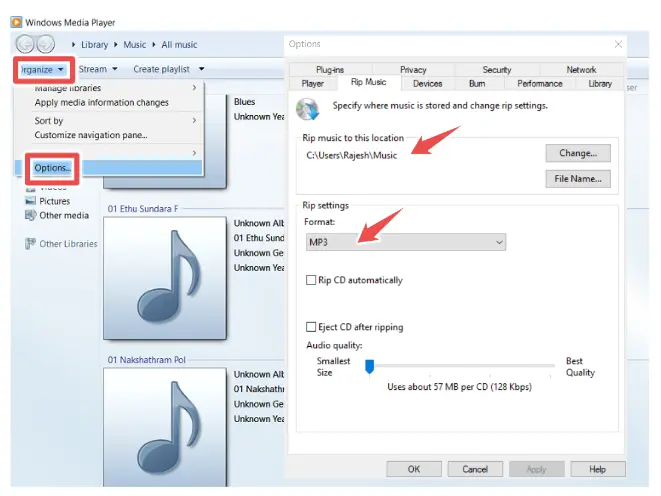
Step 4: Set “Rip music to this location” to your preferred folder.
Step 5: Set “Format” to MP3.
Step 6: Drag the audio quality slider to your desired bitrate (256 or 320 kbps recommended . See the bitrate section below).
Step 7: Click OK, then click Rip CD in the main window.
Step 8: Wait for each track’s progress indicator to reach 100%, then eject the disc once finished.
Tip: In the same Rip Music settings, enabling error correction (labeled “Use error correction” in some versions) meaningfully improves output quality on older or lightly scratched discs, at the cost of a slower rip.
Method 2: Music App / iTunes (Mac, Free)
Apple’s Music app (the successor to iTunes on modern macOS, though iTunes still works the same way on older systems and on Windows) handles CD ripping natively.
Step 1: Insert the CD into your Mac’s CD drive.
Step 2: Open the Music app.
Step 3: Go to Music > Settings > Files, then click Import Settings.
Step 4: Set “Import Using” to MP3 Encoder, and pick your quality preset (Custom lets you set an exact bitrate, 320 kbps for the best result).
Step 5: Click OK.
Step 6: Select the CD in the sidebar, uncheck any tracks you don’t want to import, and click Import CD.
Step 7: Wait for the progress bar next to each track to finish. Your MP3s are now in your Music library. Right-click any track and choose Show in Finder (or Show in Windows Explorer on Windows) to find the actual files.
Method 3: VLC Media Player (Cross-Platform, Free)
VLC works identically on Windows, Mac, and Linux, and is a solid alternative if you’d rather not use the built-in options, or if they’re mishandling a particular disc.
Step 1: Insert your CD, then open VLC.
Step 2: Go to Media > Convert/Save.
Step 3: Click the Disc tab and select Audio CD.
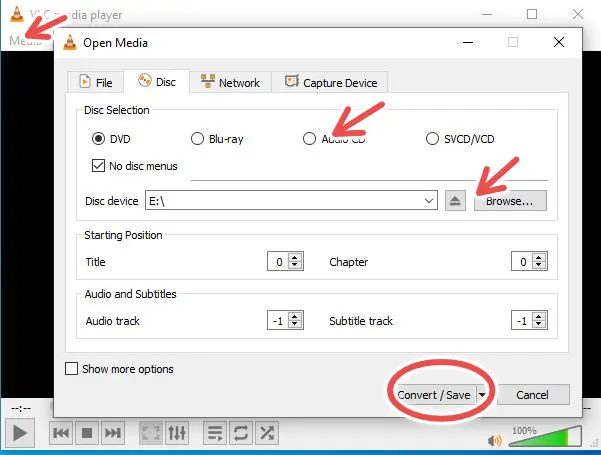
Step 4: Click Browse and choose your disc drive, then click Convert/Save.
Step 5: Under Profile, click the wrench/tool icon to confirm the audio codec is set to MP3, then click Save.
Step 6: Set your destination file/folder, then click Start to begin ripping.
VLC doesn’t handle batch metadata lookups as smoothly as dedicated rippers, so expect to manually rename files or add tags afterward.
Method 4: Dedicated CD Ripping Software
If you’re digitizing a large collection, want the most accurate possible rip, or need to recover audio from damaged discs, purpose-built ripping software outperforms the general-purpose tools above.
- Exact Audio Copy (Windows, free): the audiophile standard. It re-reads uncertain sections of a disc multiple times to guarantee bit-for-bit accuracy, which matters most on old, scratched, or otherwise unreliable CDs. Steeper learning curve, but unmatched for damaged media.
- dBpoweramp (Windows/Mac, paid with free trial): built for speed at scale. It supports ripping from multiple CD drives simultaneously, uses AccurateRip verification to confirm each track matches a known-good copy, and pulls metadata from several databases at once for better accuracy on obscure releases.
- fre:ac (Windows/Mac/Linux, free, open source): a strong all-around free option with batch conversion, solid tagging support, and no cost ceiling if you’re digitizing a very large library.
- XLD (Mac, free): a Mac-native favorite for lossless, high-accuracy ripping, particularly popular among users who want FLAC alongside or instead of MP3.
If you’re only converting a handful of CDs, the free built-in tools above are more than sufficient. Reach for this tier of software specifically when you’re dealing with hundreds of discs, audibly damaged CDs, or when you care about verified bit-perfect accuracy.
Related: Best Free Audio Converter Software Programs
No CD Drive? Here’s the Fix
Most laptops made since the mid-2010s, and a growing share of desktops, no longer include a CD/DVD drive. If that’s your situation, you have two workable paths:
- Buy an external USB CD/DVD drive. These plug into any USB-A or USB-C port, are recognized automatically on Windows and Mac without extra driver installs, and are inexpensive. A portable external CD drive like the Rioddas External CD/DVD Drive (view on Amazon) is the simplest fix if you’re ripping more than one or two discs. Once it’s connected, every method in this guide works exactly as described.
- Use a different computer that still has a drive, rip your CDs there, then move the finished MP3 files to your main device over USB or cloud storage.
Choosing the Right Format and Bitrate
MP3 remains the most universally compatible audio format, playable on essentially every phone, computer, car stereo, and streaming device made in the last two decades.
Alternatives like AAC offer slightly better quality at the same bitrate but with marginally less universal support, while FLAC is lossless (identical to the CD) but produces much larger files. A good choice only if storage space isn’t a concern and you want a perfect archival copy.
For MP3 specifically, bitrate is the main quality lever:
- 128 kbps – noticeably compressed; only worth it if storage space is extremely tight.
- 192 kbps – acceptable for casual, background listening.
- 256 kbps – very good for most listeners on most equipment.
- 320 kbps – the MP3 format’s maximum bitrate, and the safest choice if you might not have the physical CD to re-rip from later.
If in doubt, rip at 320 kbps. Storage is cheap; a disc you’ve lost, scratched, or given away is not something you can re-rip.
Related: Easy Ways to Convert M4A to WAV
Comparing Every Method
| Method | Cost | Best For | Limitations |
|---|---|---|---|
| Windows Media Player | Free | Most Windows users | Basic error-correction and metadata controls |
| Music app / iTunes | Free | Mac users, existing Apple ecosystem users | Not ideal for very large batch collections |
| VLC Media Player | Free | Cross-platform users, one-off rips | Manual metadata tagging is usually required |
| Exact Audio Copy | Free | Damaged or old discs, audiophile accuracy | Steep learning curve |
| dBpoweramp | Paid (free trial) | Large collections (100+ CDs), multi-drive batch ripping | License cost after trial |
| fre:ac | Free | Budget-conscious users wanting solid all-around features | Interface less polished than paid tools |
| XLD | Free | Mac users wanting lossless-focused ripping | Mac-only |
Organizing, Tagging, and Backing Up Your Library
- Use a consistent folder structure, such as Genre > Artist > Album, so tracks are easy to locate later.
- Adopt a clear file naming convention; something like
Artist - Album - 01 - Track Title.mp3This avoids ambiguity as your library grows. - Check metadata (ID3 tags) after ripping. Most software pulls artist, album, and track info automatically from an online database when you’re connected to the internet, but obscure or regional releases sometimes come back incomplete; worth a quick review before you have hundreds of files to fix retroactively.
- Back up in two places. An external hard drive plus a cloud storage service (Google Drive, Dropbox, OneDrive) covers you against both hardware failure and accidental deletion. The whole point of ripping is not to depend on a single point of failure anymore.
Transferring MP3s to Your Devices
- Computer to computer: a USB drive or a shared cloud folder (Dropbox, Google Drive) is the simplest route.
- Phone or tablet: connect via USB and sync through iTunes/Finder (iPhone) or drag-and-drop in File Explorer (Android), or use a cloud storage app to access your library from any device.
- Streaming and library apps: several music apps let you upload your own MP3 files alongside streaming catalog tracks, effectively merging your personal collection with a streaming library in one place.
Common Mistakes to Avoid
- Ripping at a low bitrate, you can’t undo. If there’s any chance you’ll lose access to the disc later, rip at 320 kbps the first time rather than settling for a smaller file now.
- Skipping error correction on old or scratched CDs. It takes longer, but meaningfully reduces the odds of pops, clicks, or skips in your final files.
- Not checking metadata before ripping a large batch. Fixing track names one file at a time after the fact is far more tedious than confirming your software’s internet connection and database source up front.
- Assuming every ripping tool handles damaged discs equally well. General-purpose players like VLC and Windows Media Player will often just fail or produce a glitchy rip on a scratched CD; a tool built for recovery, like Exact Audio Copy, succeeds where they don’t.
- Forgetting to back up the finished files. Ripping once and storing everything on a single hard drive with no backup defeats much of the purpose.
Troubleshooting Common Ripping Problems
The software doesn’t detect the CD. Confirm the disc is clean, try reinserting it, and check that your computer’s CD drive appears correctly in your device list (Windows) or Finder (Mac).
The ripped MP3 has clicks, pops, or skips. Usually a sign of a dirty or scratched disc. Clean it with a soft cloth, wiping from the center outward, then re-rip with error correction enabled, or switch to a recovery-focused tool like Exact Audio Copy.
Track and artist names are missing. Your ripping software couldn’t reach an online metadata database. Check your internet connection and try again, or enter the details manually for obscure releases that aren’t well indexed.
Ripping is very slow. Error correction intentionally slows the process for accuracy. If a disc is in good condition, you can safely disable it for a faster rip with minimal quality risk.
One specific track keeps failing. That section of the disc likely has physical damage. A dedicated recovery tool that re-reads problem areas multiple times, like Exact Audio Copy, has the best odds of successfully extracting it.
The audio sounds distorted or unusually quiet. Double-check your output bitrate wasn’t set unintentionally low, and confirm you didn’t accidentally apply a volume normalization setting that doesn’t suit the track.
Final Thoughts
For the vast majority of people, ripping a CD to MP3 is genuinely simple: the software you already have, Windows Media Player or the Music app, handles it in a few clicks, and a bitrate of 256–320 kbps will sound great on virtually any device.
Reach for dedicated tools like Exact Audio Copy or dBpoweramp only when you’re dealing with damaged discs or a large collection where speed and verified accuracy start to matter.
However you approach it, ripping at a solid bitrate and backing the files up properly means your CD collection outlives the discs themselves.
Related: How to Convert DVD to Digital? Simple Methods
Frequently Asked Questions
What’s the easiest way to convert a CD to MP3?
Windows Media Player (Windows) or the Music app (Mac). Both are free, already installed, and handle standard CDs without issue.
Is ripping a CD to MP3 legal?
Generally, yes, for personal use of a CD you own. Sharing or distributing ripped files, or ripping discs you don’t own, is where legal issues typically arise.
What bitrate should I use when ripping a CD to MP3?
256–320 kbps gives the best balance of quality and file size; use 320 kbps if you want the closest possible match to the original CD audio.
Can I convert a CD to MP3 without installing any software?
Not directly. You need software capable of reading the disc and encoding the audio, though Windows Media Player and the Mac Music app are both already installed on most systems.
My laptop doesn’t have a CD drive. How do I rip CDs?
An external USB CD/DVD drive solves this. It’s automatically recognized on Windows and Mac and works exactly like a built-in drive.
What’s the difference between ripping and converting?
Ripping extracts audio directly from a physical CD; converting changes an existing digital file from one format to another. CDs require ripping, not simple file conversion.
Does ripping reduce audio quality compared to the original CD?
MP3 is a lossy format, so there’s some quality loss versus the uncompressed CD audio, but at 256–320 kbps, the difference is very difficult for most listeners to detect.
What software is best for ripping scratched or old CDs?
Exact Audio Copy is specifically designed for damaged media. It re-reads uncertain sections multiple times to maximize accuracy.
How do I rip a large CD collection efficiently?
dBpoweramp supports ripping from multiple CD drives simultaneously, which dramatically cuts total time for large collections. Some users report ripping over 1,000 discs using several drives at once.
Can I rip a CD to a format other than MP3?
Yes. Most ripping software also supports WAV, AAC, and FLAC; MP3 is simply the most widely compatible choice across devices.
Why are my track names showing as “Track 1,” “Track 2,” instead of song titles?
Your software couldn’t retrieve metadata from an online database, usually due to no internet connection or an unlisted/obscure release. Reconnect and retry, or add the info manually.
Can I rip a CD on both Windows and Mac?
Yes. Windows Media Player (Windows) and the Music app/iTunes (Mac) both handle the same core process natively on their respective platforms.
Is VLC good for ripping CDs?
Yes, VLC works well as a free, cross-platform option, though its metadata handling is more manual than dedicated ripping software.
How much storage does an MP3 CD rip take up?
At 320 kbps, expect roughly 80–120MB for a typical full-length album; lower bitrates or shorter albums will be smaller.
What’s AccurateRip, and does it matter?
It’s a verification system, used by tools like dBpoweramp, that checks your rip against a database of known-good copies of the same disc to confirm it was extracted without errors; most useful for collectors who want certainty that their rips are flawless.
Should I rip to MP3 or FLAC?
MP3 for broad device compatibility and smaller files; FLAC if you want a lossless, CD-quality archive and have the storage space to spare.
Can I convert an already-ripped CDA file to MP3 without the original disc?
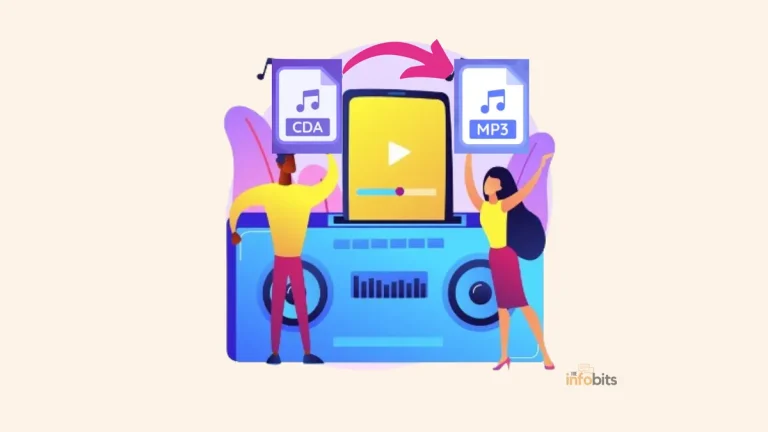
No. CDA files are just shortcuts with no real audio data. If you’ve run into this specific issue, our dedicated guide on converting CDA to MP3 walks through why and what to do instead.
Do I need an internet connection to rip a CD?
No, the ripping process itself works offline. You only need a connection for automatic track and artist name lookup.
Please share this article with your friends and relatives if you find it useful.
We also ask that you bookmark this page for future reference, as we are constantly updating our articles with new information.
Sign up for our free newsletter as well to receive fresh information immediately in your inbox and keep technically up to date.
Disclosure: If you follow our links to a retailer’s website and make a purchase, we will get an affiliate commission on some, but not all, of the items or services we promote. This will cause no price change for you.