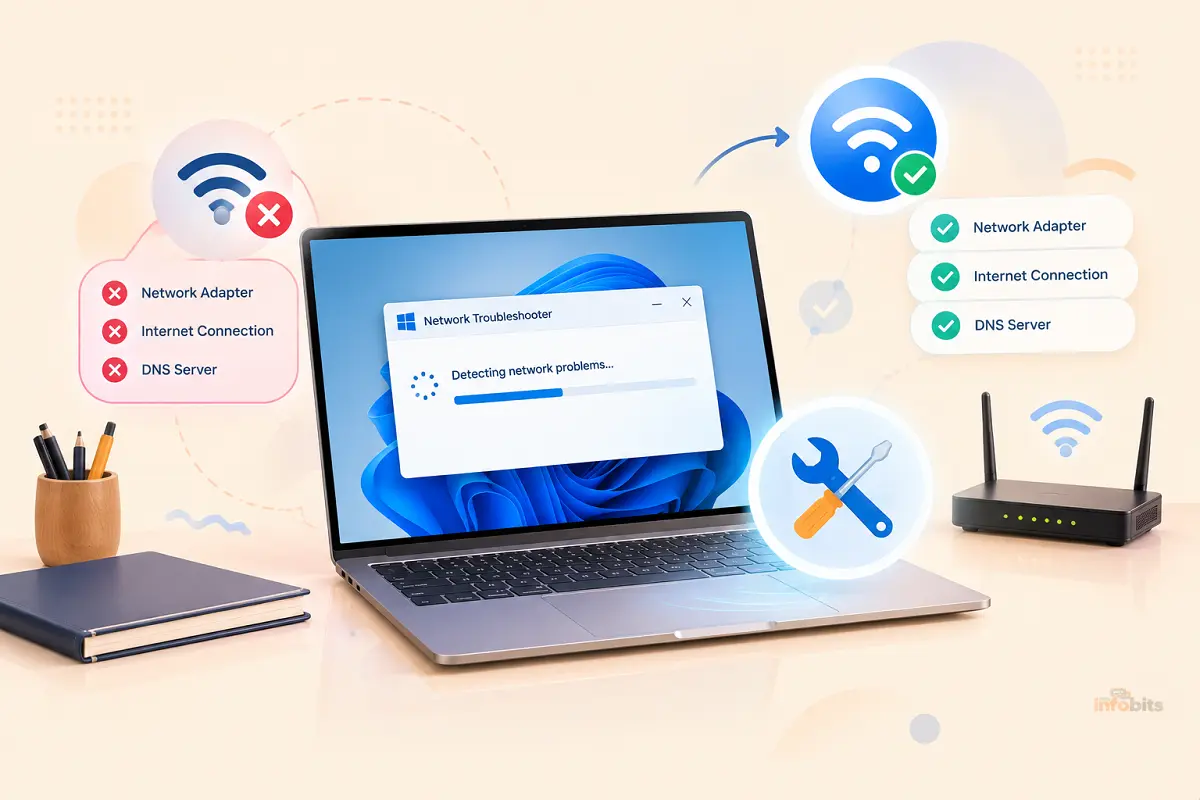
Windows Network Troubleshooter Not Working: How to Fix It
Quick Answer: If the Windows Network Troubleshooter won’t open, freezes, closes immediately, or runs without actually fixing anything, the cause is almost always one of three things: the Diagnostic Policy Service isn’t running, a corrupted network adapter driver, or damaged Windows networking components (Winsock or TCP/IP stack). Restarting the Diagnostic Policy Service, then working through a manual reset using
netshandipconfigcommands, resolves the vast majority of cases. And importantly, a broken troubleshooter doesn’t mean your actual network problem can’t be fixed.
The troubleshooter is just one tool. Everything it does can also be done manually, and this guide walks through both the troubleshooter-specific fixes and the manual fallback path.
Why the Network Troubleshooter Fails in the First Place
The Network Troubleshooter isn’t magic. It’s a small diagnostic program that depends on other Windows services to actually inspect your network stack. When one of those underlying pieces breaks, the troubleshooter itself breaks along with it. The most common root causes are:
- The Diagnostic Policy Service (DPS) is stopped or disabled. This Windows service is what actually powers network diagnostics; without it running, the troubleshooter has nothing to talk to.
- A corrupted or outdated network adapter driver. If the driver itself is misbehaving, the troubleshooter often can’t even gather accurate information to diagnose against.
- Damaged Winsock or TCP/IP components. These are the underlying Windows networking libraries; corruption here can cause the troubleshooter to hang, crash, or report a generic “unexpected error.”
- A recent Windows update. Diagnostics-breaking regressions after cumulative updates aren’t uncommon. This has happened before and gets fixed in later patches, but not always immediately.
- Missing file associations or a corrupted Troubleshooting platform, which shows up as errors like “This file does not have an app associated with it for performing this action.”
How to Open the Network Troubleshooter (Two Ways)
If the troubleshooter won’t launch from your usual spot, try the alternate path first. Windows actually exposes it in two different places, and one sometimes works when the other doesn’t.
Method 1 – via Settings:
- Press Windows key + I to open Settings.
- Go to System > Troubleshoot > Other troubleshooters (Windows 11) or Network & Internet > Status > Network troubleshooter (Windows 10).
- Select Run next to Network and Internet, or Internet Connections.
Method 2 – via the Get Help app:
- Open the Get Help app from the Start menu.
- Search for “network” and choose the Network and Internet troubleshooter.
- This version can run diagnostic tests and restart the adapter even in some cases where the classic Settings-based troubleshooter fails outright.
If both methods fail to even open, skip ahead to the Diagnostic Policy Service fix below. That’s the most common blocker.
Fix 1: Restart the Diagnostic Policy Service
This is the single most common fix and should be your first stop.
- Press the Windows key + R, type
services.msc, and press Enter. - Scroll down and find Diagnostic Policy Service.
- Right-click it and select Properties.
- Set Startup type to Automatic.
- Click Start if the service isn’t already running, then click Apply and OK.
- Try running the Network Troubleshooter again.
If the service refuses to start or immediately stops again, the underlying issue is often a permissions problem. Fix it from an elevated Command Prompt:
- Search for Command Prompt, right-click it, and choose Run as administrator.
- Run these two commands, pressing Enter after each:
net localgroup Administrators /add networkservicenet localgroup Administrators /add localservice - Restart your PC and check whether the Diagnostic Policy Service starts normally.
Fix 2: Reinstall or Update the Network Adapter Driver
A corrupted driver can prevent the troubleshooter from gathering accurate information about your connection, which is a common reason it reports vague or unhelpful results, or fails to load at all.
- Right-click Start and open Device Manager.
- Expand Network adapters.
- Right-click your Wi-Fi or Ethernet adapter and select Uninstall device.
- Confirm the prompt, then click the Scan for hardware changes icon (or restart your PC) to let Windows reinstall the driver automatically.
- If Windows doesn’t reinstall a working driver on its own, download the latest driver directly from your laptop or network card manufacturer’s support page rather than relying solely on Windows Update.
Fix 3: Reset Winsock and TCP/IP (the Manual Reset Path)
This is the most reliable fix when the troubleshooter itself is too broken to run, since it repairs the same underlying components the troubleshooter would normally check; just directly, through Command Prompt.
- Open Command Prompt as administrator.
- Run each of these commands one at a time, pressing Enter after each and waiting for “The command completed successfully”:
netsh winsock resetnetsh int ip resetnetsh advfirewall resetipconfig /releaseipconfig /renewipconfig /flushdns - Restart your PC. This step matters, since some of these changes only take effect after a reboot.
A note on netsh advfirewall reset: this returns Windows Firewall to its default settings, which will remove any custom firewall rules you’ve manually added. If you rely on custom firewall rules (for a specific app or a home server, for example), note them down before running this command so you can re-add them afterward.
Fix 4: Run Network Reset (Last Resort Before Reinstalling)
Network Reset is a more aggressive option that removes and reinstalls all network adapters and resets networking components to their default state. Microsoft explicitly positions this as a step to try after the above fixes, not before.
- Go to Settings > Network & Internet > Status.
- Scroll down and select Network reset.
- Select Reset now, then confirm.
- Your PC will restart automatically.
Important: After a network reset, you’ll likely need to reconnect to Wi-Fi networks and re-enter any saved passwords, and you may need to reinstall networking-related software such as VPN clients or virtual network adapters. Network profiles may also revert to “Public,” so double-check your firewall and sharing settings afterward if you use file sharing on a home network.
What to Do If the Troubleshooter Still Won’t Work
If you’ve tried the above and the troubleshooter itself remains broken, remember: you don’t actually need it. Everything the troubleshooter attempts to do, like check adapter status, verify IP configuration, and test connectivity, can be done manually:
- Check adapter status manually: Right-click the network icon in the taskbar and confirm Wi-Fi or Ethernet shows as Connected, not Limited or Unidentified.
- Check your IP configuration: Open Command Prompt and run
ipconfig /allto review your IP address, gateway, and DNS settings directly. If you’re seeing an invalid or self-assigned IP address, our guide on Wi-Fi doesn’t have a valid IP configuration walks through that specific fix. - Test basic connectivity: Run
ping 8.8.8.8to check whether you can reach the internet at all, andping [your router's IP]to check whether the problem is local (your PC to your router) or further upstream. - Check for a “connected but no internet” state: if Windows shows you’re connected but nothing loads, see our guide on the Windows 10 “No Internet, Secured” error for that specific scenario.
- Rule out the router itself: if multiple devices are having issues, not just this one PC, the problem is more likely on the router side; see our common router issues guide.
Common Troubleshooter Errors and What They Mean
| Error / Symptom | Likely Cause | What to Try |
|---|---|---|
| “The Diagnostics Policy Service is not running” | DPS stopped or disabled | Fix 1 above |
| Troubleshooter window closes immediately or won’t open | Corrupted Troubleshooting platform or missing file association | Restart PC, run Windows Update, then try Fix 3 |
| “An unexpected error has occurred. The troubleshooting wizard can’t continue.” | Often tied to a specific buggy Windows update | Check for pending updates; if it started right after an update, note the KB number and search Microsoft’s known issues for that update |
| Troubleshooter runs but finds “no problems” despite an obvious connection issue | The tool only checks a limited set of known issues | Use the manual diagnostic steps above instead |
| “This file does not have an app associated with it” | Broken file association for the troubleshooting pack | Run System File Checker (sfc /scannow in an elevated Command Prompt), then retry |
Prevention: Keeping the Troubleshooter (and Your Network Stack) Healthy
- Keep Windows Update current, but if a network issue starts right after a specific update, check whether that update is a known culprit before assuming it’s your hardware.
- Keep your network adapter driver updated directly from the manufacturer rather than relying solely on generic Windows Update drivers, especially on laptops with less common Wi-Fi chipsets.
- Avoid running multiple third-party “network booster” or “internet optimizer” utilities alongside Windows’ own networking stack. Competing tools that both try to modify TCP/IP settings are a common, underappreciated cause of instability.
- If your connection issues seem to cluster around specific devices joining or leaving your network (smart home devices, IoT gadgets), that’s often a router-side issue rather than a Windows one. See our guide on Matter/Thread devices disconnecting Wi-Fi if that matches your situation.
Frequently Asked Questions
Why does the Windows Network Troubleshooter say it can’t identify the problem?
The troubleshooter only checks against a limited, predefined set of known issues. If your problem falls outside that set, or the underlying diagnostic service itself is impaired, it will report no issues found even when something is clearly wrong. Manual checks with ipconfig and ping are more thorough.
Is it safe to run Network Reset?
Yes, it’s a supported Microsoft feature, but it will forget saved Wi-Fi passwords and may reset network profiles to Public, so treat it as a later step rather than a first try.
Does netsh winsock reset delete my files or settings?
No; it only resets networking-related Windows components (the Winsock catalog). It doesn’t touch personal files, installed applications, or non-network settings.
Why did my network troubleshooter stop working after a Windows update?
This has happened before with specific cumulative updates causing regressions in the diagnostics components. If the timing lines up closely with an update, check whether that update has known issues before assuming a driver or hardware problem.
Do I need administrator access to fix this?
Yes; most of the effective fixes (service restarts, netsh commands, driver reinstalls) require running Command Prompt or the relevant tool as an administrator.
What’s the difference between the Network Troubleshooter and Network Reset?
The Network Troubleshooter diagnoses and attempts targeted fixes for a detected issue. Network Reset is a broader, more disruptive tool that reinstalls all network adapters and restores default networking settings, regardless of what the specific problem is.
Can a VPN cause the troubleshooter to fail?
Yes; some VPN client software installs virtual network adapters or modifies networking components in ways that can confuse the troubleshooter. Try temporarily disabling or uninstalling VPN software as a diagnostic step if you suspect this.
My Ethernet works, but Wi-Fi doesn’t (or vice versa); does that change anything here?
It’s a useful clue: if one connection type works and the other doesn’t, the problem is more likely isolated to that specific adapter or driver rather than the broader Windows networking stack, which points you toward Fix 2 (driver reinstall) first.
Should I reinstall Windows if nothing here works?
It’s rarely necessary. Before considering a reinstall, try creating a new local user account to rule out a corrupted user profile, and check Windows Update for any pending patches. Most persistent networking issues resolve without a full reinstall.
Why does my computer say “connected” but I still have no internet?
This is a distinct issue from the troubleshooter not opening. It usually points to a DNS, gateway, or ISP-side problem. See our dedicated guide on the “No Internet, Secured” error for that specific case.
Found this guide useful? Share it with someone who is suffering from networking-related issues. Follow us on Facebook and Twitter for more tips, tricks, and guides.
We also ask that you bookmark this page for future reference, as we are constantly updating our articles with new information.
Sign up for our free newsletter as well to receive fresh information immediately in your inbox and keep technically up to date.
Disclosure: If you follow our links to a retailer’s website and make a purchase, we will get an affiliate commission on some, but not all, of the items or services we promote. This will not change the price for you.
You May Be Interested in Reading:
- No Internet Connection? Here’s Why Your Internet Access Is Blocked
- Windows 11 25H2 vs 24H2: Which Update Should You Install?
- How to Run Windows Programs on a Mac: Every Method Explained
- MBR or GPT for SSD? The Real Answer (Windows 11, NVMe & 2TB+ Drives)
- How to Transfer Files Over Remote Desktop in Windows: 5 Easy Methods