Windows 11 KB5094126 Boot Failure & BitLocker Recovery: How to Fix It
If your PC rebooted after installing the June 2026 Windows 11 update and greeted you with a BitLocker recovery key screen instead of your desktop, or worse, a blue screen with error code 0xc0430001. You’re not imagining a one-off glitch.
You’ve run into one of the more disruptive Patch Tuesday regressions of the year, tied directly to KB5094126 (Build 26200.8655 / 26100.8655), released on June 9, 2026.
In the vast majority of cases, your data is not lost, and you don’t need to reinstall Windows from scratch. But the fix depends on whether your PC still boots at all, and getting it wrong can waste hours. This guide walks through exactly what’s going wrong, who’s affected, and every fix path in order of how likely it is to work for your situation.
Quick answer: If you’re seeing a BitLocker recovery prompt, enter your recovery key first. Don’t touch anything else yet. Then temporarily disable Secure Boot in your BIOS/UEFI settings, let the update finish installing, and re-enable Secure Boot once your desktop loads normally. If the PC won’t boot at all, you’ll need to force your way into the Windows Recovery Environment and uninstall the update manually. Full steps are below.
What Is KB5094126, and Why Is It Causing This?
KB5094126 is Microsoft’s June 2026 cumulative update for Windows 11, versions 24H2 and 25H2, covering every edition: Home, Pro, Enterprise, Education, and IoT.
It’s a substantial patch. It addresses roughly 200 security vulnerabilities, including 33 rated critical and five actively exploited zero-days, alongside a servicing stack update and a refresh of the Secure Boot certificate chain (DB/DBX entries).
That last part, the Secure Boot certificate refresh, is where the trouble starts. To apply the new certificates and boot components, the update needs free space on your EFI System Partition (ESP), the small hidden partition that stores your boot files.
On most consumer PCs, the ESP has plenty of headroom. But on several business-oriented laptops ( HP EliteBook and Dell Precision models are the most frequently reported), the ESP was originally sized tightly by the manufacturer, with little room left for new boot components.
When KB5094126 tries to write its updated Secure Boot certificates and boot manager files into a nearly full ESP, the write fails partway through. That triggers a TPM-WMI error, which in turn hands control over to BitLocker recovery; from the system’s perspective, the boot chain measurements no longer match what BitLocker expects, so it assumes tampering and locks the drive.
In more severe cases, the interrupted write leaves the boot manager itself in an inconsistent state, and the PC blue-screens with error 0xc0430001 instead of reaching the recovery prompt at all.
In short: this isn’t a random Windows bug. It’s a partition-sizing mismatch that a security-hardening update exposed. That’s also why it isn’t hitting every PC. If your EFI partition has healthy free space (which you can check once you’re back into Windows; see the checklist below), you’re unlikely to see it again after a clean install of the update.
Who’s Affected
- Windows 11 24H2 and 25H2, all editions
- Predominantly HP EliteBook and Dell Precision business laptops with small factory-configured EFI partitions
- Devices with outdated BIOS/UEFI firmware
- Enterprise fleets managed through Intune, SCCM, or WSUS, where the update rolls out automatically unless deferred.
- To a lesser extent, some devices are also seeing broken OneDrive/File Explorer sync and OLE Automation failures that stop Office documents from opening via third-party business software (ERP systems, legacy VBA macros, document management tools) – a related but separate regression from the same update.
Related: KERNEL_MODE_HEAP_CORRUPTION (0x13A) Fix: 12 Proven Ways
Before You Do Anything: Locate Your BitLocker Recovery Key
Every fix path below assumes you have your 48-digit BitLocker recovery key on hand. Do not attempt firmware changes, forced shutdowns, or update rollbacks without it. If the process goes sideways, that key is the only thing standing between you and a full reinstall.
Check these locations, in order:
- Your Microsoft account – sign in at account.microsoft.com/devices/recoverykey from any browser or phone.
- Your organization’s IT department – if this is a work laptop, Azure AD/Entra ID or Active Directory almost certainly has it escrowed.
- A printed copy or USB drive – if you saved it that way during BitLocker setup.
- Your Microsoft 365 admin center – for managed business accounts.
If you don’t already have a printed backup of your recovery key, this is a good moment to also grab a small encrypted USB drive like Kingston IronKey (available on Amazon) to store BitLocker keys and other recovery credentials offline. It’s cheap insurance against exactly this kind of scenario.
Fix 1: The BIOS Workaround (Try This First If Your PC Still Boots)
This is the fastest fix and works for most people who are stuck in the BitLocker recovery loop but can still get into firmware settings.
- Have your BitLocker recovery key ready and visible on another device.
- Restart the PC and enter BIOS/UEFI setup (on most HP devices, this is the Esc key at startup, then F10; on Dell, it’s usually F2).
- Find the Secure Boot setting and temporarily disable it.
- Save changes and exit. The PC should now boot into Windows instead of looping to BitLocker.
- Enter your BitLocker recovery key one more time if prompted.
- Once at the desktop, let the update finish installing completely. Don’t interrupt it.
- Go to Settings > Windows Update and confirm KB5094126 shows as successfully installed.
- Go back into BIOS/UEFI and re-enable Secure Boot.
- Reboot once more to confirm everything is stable.
Important: treat disabling Secure Boot as a temporary recovery step, not a permanent setting. It’s a real security boundary, and leaving it off longer than necessary weakens protection against boot-level malware.
If Secure Boot won’t toggle, or the loop continues after re-enabling it, move to Fix 2.
Related: Fix UNEXPECTED_KERNEL_MODE_TRAP (0x7F) in Windows 11/10
Fix 2: Manual Rollback via Windows Recovery Environment (For PCs That Won’t Boot at All)
If your PC never gets past the recovery prompt, or is stuck on a blue screen, you’ll need to force your way into the Windows Recovery Environment (WinRE) and remove the update manually.
A single hard reset will not fix this; it just returns you to the same stalled screen. You need to interrupt the boot process three times in a row to trigger Automatic Repair.
- Turn on the computer.
- As soon as the Windows logo appears, press and hold the power button until it shuts off.
- Repeat this two more times (three interruptions total).
- On the next boot, Windows should display “Preparing Automatic Repair” and drop you into WinRE.
- Navigate to Troubleshoot > Advanced Options > Command Prompt.
- You may be asked to authenticate with a local administrator account, or enter your BitLocker recovery key.
- From the command prompt, use DISM to identify and remove the pending or installed update package. Because the exact package index varies by system, check installed packages first, then remove the KB5094126 package specifically rather than guessing.
- Restart normally.
This process is more technical than Fix 1, and if you’re not comfortable with command-line recovery tools, this is a reasonable point to hand the device to your IT department or a professional repair service rather than risk further data loss.
Fix 3: Uninstall the Update Normally (If Windows Still Loads)
Some devices boot successfully but become unstable, freeze intermittently, or show the OneDrive/OLE issues without a full BitLocker lockout. If you can reach the desktop:
- Open Settings (Win + I).
- Go to Windows Update > Update history > Uninstall updates.
- Find KB5094126 in the list and click Uninstall.
- Restart when prompted.
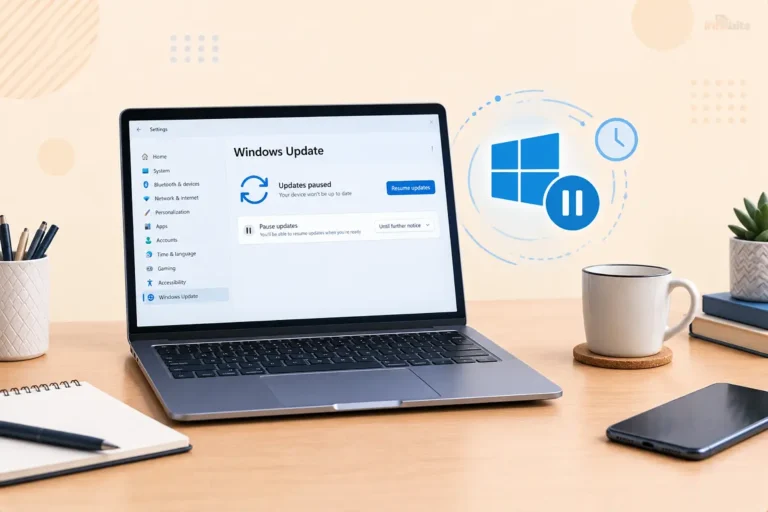
- Go back to Windows Update and select Pause updates for at least 7 days, or use Group Policy if you’re on a managed fleet, to prevent the same build from re-downloading immediately.
Note that because KB5094126 includes a servicing stack update, you generally can’t strip out just the cumulative patch without also addressing the servicing stack component. The standard uninstall flow above handles this automatically, but a fully manual removal is more involved.
Comparison: Which Fix Should You Use?
| Your situation | Recommended fix | Difficulty | Data risk |
|---|---|---|---|
| Stuck at BitLocker recovery prompt, can reach BIOS | Fix 1: BIOS workaround | Low | Minimal |
| Blue screen (0xc0430001), can’t reach desktop or BIOS reliably | Fix 2: WinRE + DISM rollback | High | Moderate; proceed carefully |
| Boots fine, but freezes; OneDrive/Office issues | Fix 3: Uninstall via Settings | Low | Minimal |
| Enterprise fleet, multiple devices affected | KIR/safeguard hold (see below) | Medium (IT-managed) | Low |
Related: How to Transfer Files Over Remote Desktop in Windows: Easy Methods
For IT Admins: Known Issue Rollback and Safeguard Holds
If you’re managing more than a handful of endpoints, don’t treat this as a device-by-device fix. Microsoft has, in the past, resolved comparable regressions through Known Issue Rollback (KIR). This is a mechanism that reverses a specific problematic change without requiring a full update removal.
Whether KIR has been issued for this specific ESP/BitLocker interaction may change after this article is published, so check Microsoft’s official KB5094126 support page and the Windows release health dashboard for the current status before rolling out further.
In the meantime:
- Inventory affected hardware first. Cross-reference your fleet for HP EliteBook and Dell Precision models with small factory EFI partitions before expanding deployment rings.
- Check ESP free space on representative devices using disk management tools. A partition with less than roughly 50–100 MB free is a red flag.
- Update firmware/BIOS to the latest OEM version across the fleet; several of the reported failures involve outdated UEFI firmware.
- Confirm BitLocker recovery-key escrow to Azure AD/Entra ID or your on-prem AD before pushing the update further. Don’t assume every device is escrowed correctly.
- Use safeguard holds in WSUS, Intune, or Configuration Manager if you’ve identified device groups that shouldn’t receive KB5094126 yet, particularly for endpoints running line-of-business software that depends on OLE Automation to control Office apps.
- Be aware that affected devices often won’t report a “Failed” status back to your deployment console. They simply hang or loop, so compliance dashboards may show “In Progress” even on unbootable machines. Don’t rely on dashboard status alone; check with affected users directly.
If your team doesn’t have dedicated headcount to monitor every Patch Tuesday for regressions like this one, a managed IT support retainer or pay-per-incident service can absorb the triage and rollback work without committing to a long-term contract. It is worth considering if this is the second or third patch cycle in a row that’s caused a fire drill.
Related: UEFI and Secure Boot Explained: What They Do and Why They Matter
Pre-Update Checklist: Avoid This Happening Again
Before your next major cumulative update installs, run through this checklist. It takes ten minutes and can save you an entire afternoon:
- [1] Confirm your BitLocker recovery key is backed up somewhere other than the PC itself (Microsoft account, AD, or printed copy)
- [2] Check your EFI System Partition’s free space via Disk Management (right-click the ESP, though you may need a third-party partition tool to see free space clearly, since Windows hides this partition by default)
- [3] Update your BIOS/UEFI firmware to the latest version from your manufacturer’s support site
- [4] Create a full system backup or restore point before installing major cumulative updates, especially on business-line laptops
- [5] If you manage multiple devices, stagger rollout through deployment rings rather than pushing to everyone simultaneously
An external backup drive, such as a Seagate Portable 4TB External Hard Drive, is worth keeping on hand specifically for moments like this, which is easily available on Amazon. A quick full-system image before a major cumulative update installs means that even a worst-case boot failure costs you an hour of restoring, not a full data-loss scenario.
Common Mistakes That Make This Worse
- Hard-resetting the PC repeatedly without a plan. A single reset does nothing useful; you need exactly three interruptions to trigger Automatic Repair, and resetting randomly beyond that can corrupt the boot state further.
- Entering the wrong BitLocker key or guessing. BitLocker locks you out after repeated failed attempts on some configurations. Always copy the key precisely from its source rather than retyping from memory.
- Leaving Secure Boot disabled permanently after using it as a recovery step. Re-enable it once the system is stable.
- Reinstalling Windows from scratch immediately. This is necessary in rare cases for this specific issue and risks losing data that a targeted rollback would have preserved.
- Ignoring the update afterward. KB5094126 is a security update carrying critical and zero-day fixes. Pausing it is a short-term measure, not a permanent skip. Plan to reinstall once Microsoft ships a corrected build.
Related: Can’t Upgrade to Windows 11? Here’s What to Do
Myth vs. Fact
Myth: “If I see the BitLocker recovery screen, my data is already gone.” Fact: BitLocker recovery is a protective lockout, not data loss. Entering the correct recovery key unlocks the drive; the files are intact.
Myth: “This means my hardware is failing.” Fact: In the vast majority of reported cases, this is a software/firmware interaction ( a partition-sizing conflict ), not a failing SSD or motherboard.
Myth: “Disabling Secure Boot permanently is the real fix.” Fact: It’s a valid temporary recovery step, but leaving it off long-term removes a meaningful layer of protection against boot-level malware. Re-enable it once stable.
Myth: “I should just skip all Windows updates from now on to avoid this.” Fact: KB5094126 patches dozens of critical vulnerabilities, including active zero-days. Skipping updates indefinitely trades one risk for a much larger one.
Expert Tips
- If you manage even a small number of business laptops, keep a written record of each device’s ESP size. It takes minutes to check and turns “which machines might be affected” from guesswork into a five-minute lookup next time this happens.
- Firmware updates are frequently the unsung fix here. Several of the affected devices were also running BIOS/UEFI versions that were months out of date. Updating firmware before a major Windows update rolls out closes off a meaningful share of these failures before they start.
- If you’re an administrator, treat “In Progress” status in your deployment console with suspicion after a patch cycle like this. Cross-check with a quick user ping rather than assuming silence means success.
Frequently Asked Questions
What does error 0xc0430001 mean on Windows 11?
It indicates the boot manager or Secure Boot components couldn’t complete an update correctly, typically because the EFI System Partition didn’t have enough free space to write the new files. It usually appears alongside, or instead of, a BitLocker recovery prompt.
Is my data lost if I see the BitLocker recovery screen?
No. Entering your recovery key unlocks the drive, and your files remain intact. Data loss only becomes a real risk if the recovery key can’t be located and other rollback methods also fail.
How do I find my BitLocker recovery key?
Check account.microsoft.com/devices/recoverykey if the PC is linked to a personal Microsoft account, or contact your IT department if it’s a managed work device tied to Azure AD/Entra ID.
Why is this mainly affecting HP and Dell laptops?
Reports concentrate on HP EliteBook and Dell Precision business models because their EFI System Partitions were factory-configured with less free space than typical consumer laptops, leaving little headroom for the update’s new Secure Boot certificate files.
Should I uninstall KB5094126 permanently?
No; treat removal as temporary. It’s a cumulative security update covering critical and zero-day vulnerabilities. Uninstall it to restore stability, pause updates briefly, then reinstall once a corrected version is available.
Can I prevent this before installing the update?
Yes, mostly. Update your BIOS/firmware first, confirm you have free EFI System Partition space, and make sure your BitLocker recovery key is backed up before letting a major cumulative update install.
What is the EFI System Partition, and why does it matter here?
It’s a small hidden partition that stores boot-critical files, including Secure Boot certificates and the boot manager. Updates that touch Secure Boot need free space in this partition to write new files; if it’s nearly full, the write can fail and trigger this exact issue.
Does a single hard reset fix a stuck update?
No. A single reset just returns you to the same stalled screen. You need three consecutive interruptions during boot to trigger Automatic Repair and reach the Windows Recovery Environment.
Is disabling Secure Boot safe?
It’s safe as a short, temporary recovery step, but it does lower your protection against certain boot-level malware. Re-enable it as soon as the system is stable again.
Will Microsoft release an official fix?
Microsoft has acknowledged related issues stemming from this update, including the OneDrive/File Explorer and OLE Automation regressions, and has a track record of resolving comparable problems through Known Issue Rollback or a follow-up update. Check the official KB5094126 support page for the current status, since this can change after publication.
Does this affect Windows 11 Home and Pro the same way as Enterprise?
Yes, the update applies to all editions of 24H2 and 25H2. Enterprise and Education fleets are more likely to surface the issue at scale because of automated deployment, but the underlying cause affects any edition running on a vulnerable hardware configuration.
My OneDrive icons disappeared from File Explorer after this update; is that related?
Yes, it’s a separate but related regression tied to the same update. Web-based OneDrive access typically still works while this is unresolved; native File Explorer integration should return once the update is corrected or rolled back.
Word/Excel won’t open when launched from my other business software; is this the same problem?
This is a related regression affecting OLE Automation, the mechanism third-party software uses to open and control Office apps. It’s a separate bug from the boot/BitLocker issue but stems from the same update.
How long does the WinRE rollback process take?
Typically 20–45 minutes depending on the device, including the forced reboots needed to trigger Automatic Repair and the time DISM takes to remove the update package.
Can I use System Restore instead of DISM?
If a restore point exists from before the update was installed, System Restore is often simpler and achieves the same result. Not all systems have one available by default, which is why creating a restore point before major updates is worth adding to your routine.
I don’t have my BitLocker key and can’t boot; what now?
Without the recovery key, there’s no supported way to unlock the drive, and a full reinstall may be unavoidable. Contact your IT department first if this is a work device, since the key is often escrowed even if you don’t have direct access to it.
Will pausing updates for a week leave me vulnerable?
Briefly, yes, to the specific vulnerabilities this update patches. But that’s a smaller risk than an unstable fleet of unbootable machines. Reinstall as soon as a corrected version is available rather than pausing indefinitely.
Does this issue affect virtual machines?
Some reports point to complications on Generation 2 VMs with Secure Boot enabled, particularly with Linux guest operating systems. If you run VMs with Secure Boot on, test the update in a snapshot before applying it broadly.
Where can I check the current status of this issue?
Microsoft’s official support page for KB5094126 and the Windows release health dashboard are the most reliable sources for updates, since fixes and safeguard holds can be issued after this guide was published.
Found this guide useful? Share it with someone who is suffering from Windows-related problems. Follow us on Facebook and Twitter for more tips, tricks, and guides.
We also ask that you bookmark this page for future reference, as we are constantly updating our articles with new information.
Sign up for our free newsletter as well to receive fresh information immediately in your inbox and keep technically up to date.
You May Be Interested in Reading:
- “Wi-Fi Doesn’t Have a Valid IP Configuration”: 12 Fixes
- How to Fix Mouse Stuttering in Games: 15 Proven Fixes for Windows 10 & 11
- What Is TPM 2.0? How to Check, Enable & Fix It for Windows 11
- How to Set Up Windows Dynamic Lock and Fixes If It Won’t Work
- DISM Error 1910 Fix: “The Object Exporter Specified Was Not Found”