Windows 11 25H2 vs 24H2: Which Update Should You Install?
If you’ve opened Windows Update recently and seen “25H2” waiting to install, you’ve probably asked the obvious question: is this worth doing, or is it just another version number Microsoft wants you to chase?
It’s a fair question, and the honest answer is a little unusual. 25H2 and 24H2 aren’t really two different operating systems. They’re closer to two settings on the same one.
That’s not a knock on the update. There’s a real, practical reason to install it, and it has almost nothing to do with new features. This guide walks through exactly what changed, what didn’t, how the update actually installs, and, most importantly, when you should install it versus when it’s fine to wait.
Quick answer: Install Windows 11 25H2 if you’re currently on 24H2 with a security update from the last few months. It installs in minutes, the risk is low, and it resets your support clock by a full year. If you’re still on Windows 11 23H2 or Windows 10, you’re not doing a quick switch either way. You’re doing a full upgrade, so the 25H2 vs 24H2 question doesn’t really apply to you; go straight to 25H2.
In Short: They’re the Same Operating System
Windows 11 24H2, released in October 2024, and Windows 11 25H2, released roughly a year later, run on the same underlying platform internally referred to as the “Germanium” codebase.
That’s not marketing language you’ll see from Microsoft, but it’s an accurate way to describe what’s happening. The two versions share the same core files, the same servicing pipeline, and largely the same feature set at launch.
Instead of building 25H2 as a full, from-scratch feature update the way Microsoft historically has for major Windows releases, it shipped as an enablement package (eKB). It is a small file that flips on feature switches for code that was already sitting dormant inside your 24H2 installation.
If your PC has installed its monthly cumulative updates through 2025 on schedule, most of what makes up 25H2 is technically already on your hard drive. The eKB just turns it on and bumps the version number.
This is why the install process for 25H2 (if you’re coming from 24H2) is dramatically faster than a typical annual Windows update. Here, often a single restart, rather than the lengthy reinstall-style process older feature updates required.
Related: Windows 11 System Requirements: How to Check & Bypass TPM 2.0
So What Actually Changed?
Here’s the part that surprises people. At launch, there is essentially no functional difference between a fully updated 24H2 machine and a 25H2 machine. Both receive the same monthly cumulative updates, the same security patches, and the same quality-of-life fixes on the same schedule, because they share a servicing branch.
A feature that ships in a June cumulative update reaches 24H2 and 25H2 devices simultaneously. You don’t need 25H2 to get it.
Where you will notice small differences is in a handful of features that Microsoft has chosen to gate behind “temporary enterprise feature control,” meaning they’re technically present on 24H2 but administratively switched off until the device is marked as 25H2 (or 26H2).
These are typically minor UI refinements and enterprise-management options rather than headline features, and the list changes as Microsoft continues shipping monthly updates. So treat any specific feature list you read (including this one) as a snapshot, not a permanent difference.
What Doesn’t Change
- Core file system and platform code
- Hardware requirements (TPM 2.0, Secure Boot, supported CPU generations; see our Windows 11 system requirements guide for the full list)
- Driver compatibility
- The vast majority of visible features, since they arrive via shared cumulative updates regardless of version label
The Real Difference: Support Lifecycle
This is the actual reason to care about 25H2 vs 24H2, and it’s not about features at all. It’s about how long Microsoft will keep patching your PC.
| Windows 11 24H2 | Windows 11 25H2 | |
|---|---|---|
| Released | October 2024 | Late 2025 |
| Platform | Same (“Germanium”) | Same (“Germanium”) |
| Install method (from 24H2) | — | Enablement package, single restart |
| Home/Pro support ends | October 13, 2026 | October 12, 2027 |
| Enterprise/Education support ends | ~36 months from release | ~36 months from release |
| New features at launch | Baseline | None beyond 24H2 at launch; dormant switches enabled |
| Feature updates going forward | Shared cumulative updates | Shared cumulative updates |
Once Windows 11 24H2’s support window closes in October 2026, Home and Pro devices still running it will stop receiving monthly security updates entirely.
No more patches for newly discovered vulnerabilities, no more fixes for the kind of update-related bugs that occasionally cause boot or compatibility issues. Moving to 25H2 costs you a restart and buys you another full year of security coverage on the same hardware, with no other downside.
Microsoft has confirmed it’s repeating this same pattern with Windows 11 26H2, expected in fall 2026, which is also shipping as a lightweight enablement package with no new features over 25H2. Its entire purpose is, again, to reset the support clock. If you’re already on 25H2 when 26H2 arrives, expect the same quick, low-friction install.
Related: Can’t Upgrade to Windows 11? Here’s What to Do
How to Check Which Version You’re Running
- Press Win + R, type
winver, and press Enter. - A small window will show your Windows version (24H2, 25H2, etc.) and build number directly.
- Alternatively, go to Settings > System > About and check the “Windows specifications” section.
Comparison: Should You Upgrade?
| Your situation | Recommendation | Why |
|---|---|---|
| Running 24H2, fully patched | Upgrade to 25H2 | Fast eKB install, resets support to Oct 2027, minimal risk |
| Running 23H2 or Windows 10 | Go straight to 25H2 | You need a full upgrade either way; no reason to land on 24H2 first |
| Managing a business fleet | Plan a staged rollout to 25H2 before Oct 2026 | 24H2 loses security patching for Home/Pro after that date |
| Currently mid-troubleshooting a boot or update issue | Resolve the issue first | Don’t layer a version upgrade on top of an unstable system |
| Copilot+ PC with NPU-dependent features | Upgrade | Some AI-adjacent features are more likely to be surfaced/enabled on 25H2 devices |
Step-by-Step: Installing Windows 11 25H2
- Back up important files or create a system restore point. It is a good habit before any Windows version change, even a low-risk one.
- Go to Settings > Windows Update.
- Click Check for updates. If 25H2 is available for your device, you’ll see it listed as an optional update initially, then eventually as part of the standard rollout.
- Select Download and install.
- Restart when prompted. For devices already on 24H2 with recent cumulative updates, this typically completes in one restart.
- Confirm the new version with
winveronce you’re back at the desktop.
If 25H2 doesn’t appear yet under “Check for updates,” Microsoft staggers the rollout by device compatibility and telemetry signals. You don’t need to force it early.
If you’d rather not wait, the Windows 11 Installation Assistant or Update Catalog can install it manually, though the standard Windows Update path is safer for most people.
Related: “Your Location Is Currently in Use” on Windows: What It Means
Common Mistakes to Avoid
- Assuming 25H2 is a bigger upgrade than it is. Don’t expect a redesigned interface or a wave of new features; you’re mainly buying support time.
- Upgrading during active troubleshooting. If your PC currently has driver, boot, or update-related problems, resolve those first rather than adding a version change into the mix.
- Confusing 25H2 with 26H1. Version 26H1 is a separate, ARM64-specific branch for new Snapdragon-based devices shipped directly from the factory. It isn’t an upgrade path for existing 24H2 or 25H2 machines.
- Ignoring the October 2026 deadline if you manage multiple devices. Waiting until the last month to move a whole fleet off 24H2 creates unnecessary pressure; stagger it earlier.
- Forgetting a backup because the update “seems minor.” Any Windows update carries a small risk of an edge-case failure. A five-minute restore point costs far less than troubleshooting an unbootable PC afterward.
Myth vs. Fact
Myth: “25H2 is a completely new version of Windows 11.” Fact: It shares the same underlying platform code as 24H2 and is delivered as a small enablement package rather than a full OS replacement.
Myth: “I’ll get exclusive new features by upgrading.” Fact: Nearly all feature and security improvements roll out to 24H2 and 25H2 simultaneously through shared monthly cumulative updates. A small number of features are gated behind the version flag, but they’re not the primary reason to upgrade.
Myth: “There’s no reason to bother since the OS is basically identical.” Fact: The support lifecycle reset is a real, concrete benefit. An extra year of security patching for a few minutes of install time, at essentially no feature-parity cost.
Myth: “If I skip 25H2, I’ll be stuck without updates immediately.” Fact: 24H2 continues receiving monthly updates right up until its support end date (October 13, 2026 for Home/Pro). You’re not cut off today, but you do need a plan before that date.
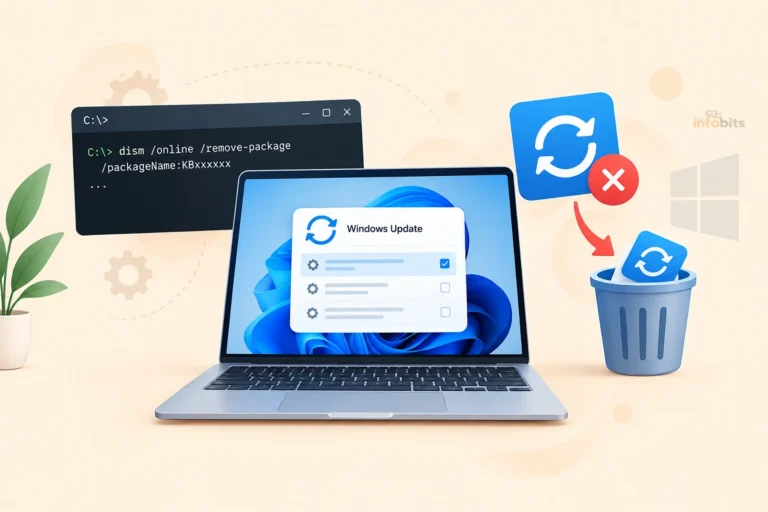
Related: How to Use DISM to Remove a Windows Update (Step-by-Step Guide)
Expert Tips
- Check your device’s cumulative update history before upgrading. If you’re several months behind on monthly patches, install those first so the 25H2 enablement package has everything it needs already staged.
- If you manage several machines, don’t rely on “Check for updates” timing to be consistent across devices. Microsoft’s staggered rollout means some PCs will see 25H2 offered weeks before others with near-identical hardware.
- Treat 26H2 the same way later this year: it’s expected to follow the identical eKB pattern, so budget for it as a routine restart, not a disruptive upgrade project.
Troubleshooting: 25H2 Won’t Install, or Update Gets Stuck
- Update doesn’t appear in Windows Update: This is usually a staged rollout delay, not an error. Confirm your device meets the Windows 11 system requirements and has all pending cumulative updates installed first.
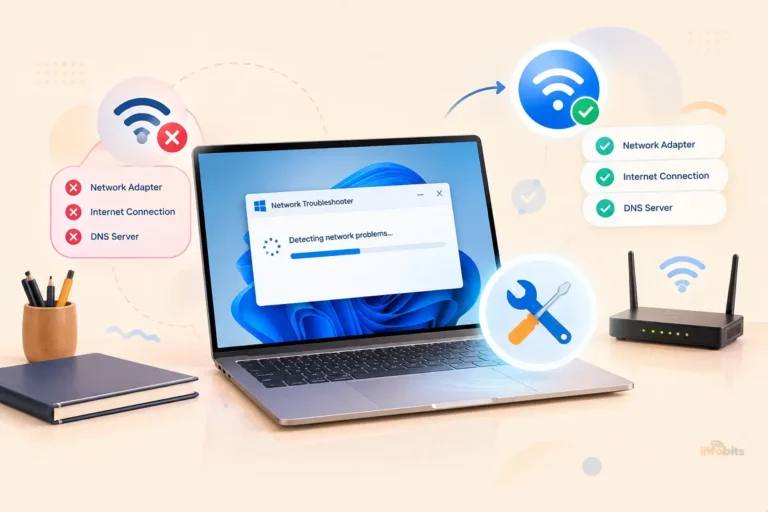
- Update downloads but fails to install: Run the Windows Update Troubleshooter (Settings > System > Troubleshoot > Other troubleshooters), then retry.
- PC won’t boot after installing: Since 25H2 shares 24H2’s platform, boot-level problems are rare, but if you hit one, the recovery steps are the same as for any Windows 11 update issue. Use the Windows Recovery Environment to roll back. If you’ve dealt with a similar boot failure recently, see our guide on Windows 11 update boot failures and BitLocker recovery loops for the full recovery process.
- Persistent DISM errors during install: See our DISM error troubleshooting guide for the underlying causes and fixes.
- Version shows 24H2 after “successful” install: Re-check with
winver; a partial rollback or a paused update can cause this. Re-run Windows Update and reboot again.
Related: Unmountable Boot Volume Error (Windows 10/11): 12 Real Fixes
Final Thoughts
Choosing between Windows 11 25H2 and 24H2 does not have to be complicated. For most people, the right choice depends on the version already installed on their PC and whether they want the newest features as soon as they become available.
Windows 11 24H2 remains an important release. It introduced major platform changes, performance improvements, and new features that continue to shape the Windows 11 experience. If your computer is already running 24H2 smoothly, there may be little reason to make unnecessary changes until the next update is officially offered to your device.
Windows 11 25H2, on the other hand, is the newer option and is likely to be the better long-term choice for eligible PCs. It brings the latest updates, security improvements, and continued support. However, as with any major Windows update, it is still a good idea to check compatibility and back up important files before upgrading.
The best approach is usually simple. Keep Windows Update enabled and install updates when Microsoft makes them available for your device. Avoid forcing a major upgrade unless you have a specific reason to do so.
Whether you are comparing Windows 11 25H2 vs 24H2, deciding which Windows update to install, or checking if your PC is ready for the latest version, understanding the differences can help you make a more confident choice. Windows updates can occasionally cause problems, but staying informed and keeping a backup can make the upgrade process much less stressful.
We will continue updating this guide as Windows 11 25H2 and future Microsoft updates evolve.
Frequently Asked Questions
Is Windows 11 25H2 a major update or a minor one?
Technically, it’s labeled a feature update, but functionally it behaves like a minor one. It shares 24H2’s platform code and installs as a small enablement package rather than a full reinstall.
Do I need to do a clean install to get 25H2?
No, not if you’re already running 24H2 with recent updates. The enablement package installs in place with a single restart. A clean install is only relevant if you’re moving from Windows 10 or Windows 11 23H2.
Will installing 25H2 delete my files or apps?
No. Since it’s an enablement package rather than a full OS upgrade, your files, apps, and settings remain untouched. Still, a backup or restore point before any Windows update is good practice.
How long is Windows 11 24H2 supported?
Windows 11 24H2 Home and Pro editions reach end of support on October 13, 2026. Enterprise and Education editions are supported longer, generally around 36 months from release.
How long is Windows 11 25H2 supported?
Home and Pro editions of 25H2 are supported until October 12, 2027. A full year beyond 24H2’s end date, which is the main practical reason to upgrade.
Does 25H2 improve performance over 24H2?
Not meaningfully on its own, since both share the same platform code. Any performance improvements ship through shared monthly cumulative updates and reach both versions at roughly the same time.
What is an enablement package (eKB)?
It’s a small update file that activates feature code already present but dormant on your device, rather than installing an entirely new operating system. It’s why 24H2-to-25H2 upgrades are so much faster than older-style Windows feature updates.
Is 25H2 available for Windows 10 users?
Not directly. Windows 10 users need to perform a full Windows 11 upgrade or clean install, which lands them on the current release (25H2) rather than an intermediate version.
What’s the difference between 25H2 and 26H1?
25H2 is the mainstream update path for existing 24H2 and 25H2 devices. 26H1 is a separate branch built specifically for new ARM64 devices with newer Snapdragon chips, shipped preinstalled on new hardware. It isn’t an upgrade option for existing PCs.
When is Windows 11 26H2 coming, and should I wait for it instead?
26H2 is expected in fall 2026, likely September or October, and is also shipping as a no-new-features enablement package. There’s no benefit to waiting for it instead of installing 25H2 now. If anything, being on 25H2 makes the eventual 26H2 update faster too.
Can I skip 25H2 and go straight to 26H2 later?
In most cases, yes. Microsoft’s enablement packages are designed to apply from either 24H2 or 25H2. That said, waiting means running on 24H2 past its October 2026 support cutoff unless you upgrade to something before then.
Will my drivers or software still work after upgrading to 25H2?
Since the underlying platform is unchanged from 24H2, driver and software compatibility issues are rare. If a specific app or driver already works on 24H2, it should continue working on 25H2.
Does 25H2 change the hardware requirements for Windows 11?
No. TPM 2.0, Secure Boot, and supported CPU generation requirements are unchanged from 24H2, since both share the same platform baseline.
I’m on a Copilot+ PC; does 25H2 unlock more AI features?
Some AI-adjacent capabilities tied to NPU hardware are more consistently surfaced on 25H2, since a portion of the feature-gating Microsoft applies is specific to version labels rather than hardware alone. The underlying hardware support doesn’t change, though.
Is it safe to install 25H2 on a work laptop without asking IT?
If your device is centrally managed (Intune, SCCM, WSUS), IT may control update timing directly, and a manual install could conflict with fleet policy. Check with your IT department first on managed devices.
What happens if I do nothing and stay on 24H2 past October 2026?
Your PC will continue running normally, but it will stop receiving security patches. Over time, this becomes a real risk, particularly for anything connected to the internet, since newly discovered vulnerabilities will go unpatched.
Does upgrading to 25H2 fix existing Windows Update problems?
Not directly. If your 24H2 installation currently has an unresolved update or boot issue, resolve that first. Layering a version upgrade on top of an already unstable update state can complicate troubleshooting.
Can I roll back from 25H2 to 24H2 if something goes wrong?
Yes, within the standard 10-day rollback window via Settings > Windows Update > Update history > Uninstall updates, the same as any other Windows update.
We hope you found this article helpful, and do like and follow us on Facebook and Twitter for regular updates. In addition, we ask that you bookmark this page for future reference.
Please share this article with your friends and relatives if you find it useful.
Sign up for our free newsletter as well to receive fresh information immediately in your inbox and keep technically up to date.