AirPods Microphone Not Working? 13 Fixes That Work in 2026
Quick answer: Most AirPods mic problems come down to one of four things: a low battery, a clogged mic mesh, the wrong microphone mode selected, or the app you’re using (Zoom, Discord, Teams) not being permitted to use the mic. Start with a reconnect and a battery check ( those alone fix a surprising number of cases ), then work through cleaning, settings, and app-specific fixes below before assuming it’s a hardware fault.
If you’re mid-call and need the fastest fix: put both AirPods back in the case, close the lid, wait five seconds, then take them out and reconnect. That resolves the majority of “people can’t hear me” complaints on its own.
Why Your AirPods Microphone Stops Working
Before troubleshooting, it helps to know what’s actually going wrong. AirPods mic issues generally fall into one of these buckets:
- Physical blockage: earwax, dust, or lint covering the tiny mic mesh at the base of the stem
- Low battery: audio quality (including mic performance) degrades before AirPods die completely
- Wrong microphone mode: AirPods let you lock the mic to one earbud, and it’s easy to end up on the “wrong” one
- Software/connection glitch: a stuck Bluetooth profile or outdated firmware
- App-level permission issue: increasingly common with Windows apps like Zoom, Teams, and Discord, which route audio separately from the OS
- Water exposure: AirPods are sweat- and splash-resistant, not waterproof
- Genuine hardware failure: rare, but possible after drops or years of use
The fixes below are ordered from fastest/most common to most involved, so work through them in order rather than jumping straight to a factory reset.
1. Reconnect Your AirPods
This solves more mic issues than anything else on this list because it forces a fresh Bluetooth handshake.
Put both AirPods back in the case (or AirPods Max into the Smart Case), close the lid for about 5 seconds, then take them out and put them back in your ears. Test the microphone again before moving on.
2. Clean the Microphone Mesh
The microphones sit at the very tip of the AirPods stems, not the same spot as the main speaker grille, so cleaning the wrong area is a common miss.
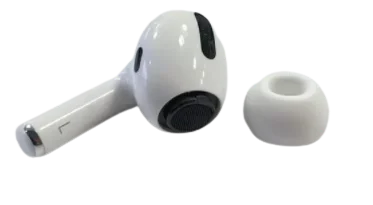
- Dampen a cotton swab with rubbing alcohol (not water) and gently wipe the mic mesh and the underside of each AirPods.
- Use a dry, soft-bristled brush or a toothpick to lift out any visible debris. Don’t push anything into the mesh.
- Let them air-dry for a minute before reconnecting.
- Avoid compressed air; the pressure can damage the mesh or push debris deeper in.
3. Check for Water or Moisture Damage
AirPods carry sweat and splash resistance, but they are not waterproof. If they’ve been submerged, worn in the shower, or caught in heavy rain, moisture in the mic port is a likely cause of muffled or missing audio.
If you suspect water exposure: wipe them down with a soft, dry, lint-free cloth and let them sit somewhere dry and ventilated for several hours. Apple explicitly advises against using heat or compressed air to dry them, since both can push moisture further into the internals or damage components.
4. Charge Your AirPods
A low battery is one of the most overlooked causes of a flaky microphone. Audio quality (including the mic) can degrade before the AirPods actually die.
Open the case near your iPhone (or check the battery widget if they’re already in your ears) to see the charge level. If it’s low, give them a full charge and retest.
5. Update AirPods Firmware
Outdated firmware occasionally causes exactly this kind of intermittent mic failure.
Go to Settings → General → About → AirPods to check your current version against Apple’s latest release.
To trigger an update, keep your AirPods in their case near your iPhone (with the case lid open) while the iPhone is connected to Wi-Fi — updates typically install in the background within 30 minutes to an hour, with no manual “check for update” button available.
6. Restart Your Device
A stuck Bluetooth stack on the connected device is a common, invisible cause of mic dropouts.
- iPhone: Hold Side + either Volume button, slide to power off, wait 30 seconds, then power back on.
- Mac: Apple menu → Restart.
- Windows PC: Start menu → Power → Restart (a full restart, not just sleep, clears more Bluetooth state).
7. Rule Out Bluetooth Interference
Bluetooth operates on a crowded 2.4GHz band, and other nearby wireless devices ( speakers, keyboards, other headphones, even a busy Wi-Fi router) can degrade the connection enough to affect microphone audio specifically, since mic data has less error correction than music playback.
Turn off or move away from other Bluetooth devices you’re not actively using, then re-test.
On iPhone/iPad/Mac, toggling Bluetooth off and back on (Settings → Bluetooth) also clears minor interference-related glitches.
8. Turn Off Noise Cancellation
Active Noise Cancellation processes mic input alongside audio output, and on rare occasions a glitch here can affect voice pickup too.
Open Control Center while wearing your AirPods, long-press the volume slider, tap the Noise Control icon in the corner, and switch it to Off.
Test your mic, then turn ANC back on if that wasn’t the cause.
9. Fix Your Active Microphone Setting
If only one AirPods’ mic seems to work ( or the mic cuts out when you turn your head), this setting is almost always the reason.
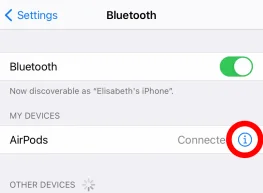
Go to Settings → Bluetooth, tap the ⓘ next to your AirPods, then Microphone, and make sure Automatically Switch AirPods is selected (not “Always Left” or “Always Right”).
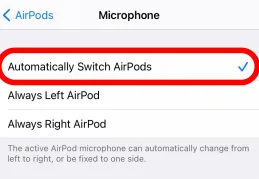
This lets both AirPods share mic duty and automatically hands off to whichever one has the clearer signal.
10. Check App-Level Microphone Permissions
This is the fix most troubleshooting guides skip, and it’s one of the most common causes on Windows in particular. Apps like Zoom, Microsoft Teams, and Discord manage audio input separately from the operating system, so your AirPods can show as “connected” system-wide while a specific app still can’t hear you.
On Windows:
- Go to Settings → Privacy & Security → Microphone and confirm both “Microphone access” and the specific app’s toggle are turned on.
- Open the app itself (Zoom, Teams, Discord) and manually select your AirPods as the Input Device. Don’t leave it on “Default,” since Windows sometimes points that at the wrong endpoint.
- In Discord specifically: User Settings (gear icon) → Voice & Video → Input Device, and choose the entry that includes “Hands-Free” or “AirPods” rather than the generic default.
On iPhone/iPad:
- Go to Settings → [App Name] → Microphone and make sure access is granted.
- For browser-based calls (Google Meet, web Zoom), check the browser’s own site permissions too.
On Mac:
- System Settings → Privacy & Security → Microphone and confirm the app is checked.
If you’re regularly running into Bluetooth mic conflicts across multiple apps on a Windows laptop, a small USB Bluetooth adapter with a dedicated, up-to-date driver that is available on Amazon can sometimes resolve routing issues that the laptop’s built-in Bluetooth chipset struggles with.
Related: Why Does the Mic Keep Cutting Out in Windows 11/10?
11. Reinstall the App (App-Specific Glitches)
If one specific app (commonly Discord or Zoom) never picks up your AirPods mic even after fixing permissions and input device settings, corrupted local app files are a likely culprit.
Uninstall the app completely, restart your device, then reinstall the latest version. This clears cached audio-routing configs that a normal update won’t touch.
12. Reset Your AirPods
Think of this as the AirPods equivalent of a factory reset. It clears saved settings and pairing data that other fixes can’t touch.
- Place both AirPods in the case and close the lid for about 30 seconds.
- Open the lid, then press and hold the Status button on the back of the case until the light flashes amber, then white.
- On your iPhone, go to Settings → Bluetooth, tap the ⓘ next to your AirPods, and select Forget This Device.
- Open the case near your iPhone and follow the on-screen prompts to reconnect as if pairing for the first time.
For AirPods Max, hold both the Noise Control button and the Digital Crown simultaneously until the light flashes amber.
13. Get Them Repaired or Replaced
If you’ve worked through every fix above and the mic still doesn’t work, you’re almost certainly dealing with a hardware fault. It is often from repeated drops, which can damage the internal mic even when the exterior looks fine.
- Check Settings → General → About → AirPods for the serial number, then look up your AppleCare or warranty status.
- Book a Genius Bar appointment or start a repair request through Apple Support.
- Test the AirPods on a second device first. If the mic fails there too, it confirms a hardware issue rather than something specific to your primary phone or laptop.
Quick Diagnostic: Match Your Symptom to the Fix
| Symptom | Most likely cause | Try this first |
|---|---|---|
| Nobody can hear me at all | Wrong mic mode, or app not using AirPods as input | Fix #9, then #10 |
| Mic cuts in and out | Bluetooth interference or low battery | Fix #7, then #4 |
| Muffled or scratchy voice | Blocked mic mesh, possible moisture | Fix #2, then #3 |
| Only one AirPods’ mic works | Active microphone setting stuck on one side | Fix #9 |
| Works everywhere except one app (Zoom/Discord/Teams) | App-level input device or permission issue | Fix #10, then #11 |
| Mic dead after a swim, rain, or shower | Moisture in the mic port | Fix #3 |
| Nothing above works | Hardware fault | Fix #13 |
Common Mistakes That Make This Worse
- Using compressed air or heat to “dry out” wet AirPods. Both can force moisture deeper in or warp internal seals.
- Cleaning the speaker grille and assuming you’ve cleaned the mic. They’re in different spots; the mic mesh is at the stem tip.
- Jumping straight to a factory reset before checking the Active Microphone setting, which is a much more common (and much faster) fix.
- Leaving “Default” selected as the input device in apps like Discord or Zoom on Windows, instead of explicitly choosing the AirPods endpoint.
- Ignoring a low battery because playback still sounds fine. Mic performance often degrades before playback does.
Expert Tips to Prevent Future Mic Issues
- Wipe the mic mesh with a dry microfiber cloth once a week if you use AirPods daily, more often if you work out in them.
- Keep AirPods and iOS/macOS/Windows fully updated. Several documented mic bugs have been fixed via firmware and OS patches rather than hardware fixes.
- Store AirPods in the case when not in use rather than a pocket or bag, where lint and dust accumulate fastest.
- If you use AirPods primarily for calls and meetings, periodically check Settings → Bluetooth → [AirPods] → Microphone to confirm it’s still set to Automatically Switch. This setting can reset after major iOS updates.
A soft-bristle cleaning kit (find on Amazon) designed for earbuds ( with a fine brush and a flocked swab) makes mic-mesh cleaning noticeably easier and safer than improvising with a toothpick.
Wrapping Up
Most AirPods microphone problems are fixable in under five minutes. A reconnect, a charge check, or fixing the Active Microphone setting handles the large majority of cases.
App-specific problems in Zoom, Teams, or Discord are usually a mismatched input device or a missing permission rather than anything wrong with the AirPods themselves.
Work through the fixes above roughly in order, and reserve a reset or repair request for when the simpler steps genuinely don’t help.
Frequently Asked Questions
Why can’t callers hear me on my AirPods?
The most common causes are a blocked mic mesh, the Active Microphone setting locked to the wrong earbud, or ( especially on Windows) the calling app not set to use the AirPods as its input device. Start with a reconnect, then check the mic settings.
Why is my AirPods microphone not working?
It can be caused by a low battery, dirt or moisture blocking the mic mesh, an outdated firmware version, a stuck Bluetooth connection, or an app-specific permission/input issue. Work through the troubleshooting steps to isolate the cause.
Can I fix AirPods microphone issues myself?
In most cases, yes. Reconnecting, cleaning the mic mesh, checking the microphone mode, and updating firmware resolve the large majority of reported issues without needing a repair.
Why does my AirPods mic work everywhere except Zoom (or Discord/Teams)?
These apps manage microphone input separately from your operating system’s Bluetooth settings. Open the app’s audio settings and manually select your AirPods as the Input Device rather than leaving it on Default, and confirm the app has microphone permission in your system’s privacy settings.
Why does only one of my AirPods pick up my voice?
Your Active Microphone setting is likely locked to “Always Left” or “Always Right” instead of “Automatically Switch.” Go to Settings → Bluetooth → [AirPods] → Microphone to fix it.
Can water damage stop the AirPods mic from working?
Yes. AirPods resist sweat and light splashes but aren’t waterproof. If they’ve been submerged or soaked, dry them with a lint-free cloth and let them air-dry fully; never use heat or compressed air.
Does a low AirPods battery affect the microphone?
Yes. Audio quality, including microphone performance, can noticeably degrade before the AirPods fully die. If the mic sounds weak or cuts out, check the battery level first.
How do I reset my AirPods?
Place them in the case, hold the Status button on the back until the light flashes amber, then white, forget the device in your Bluetooth settings, then reconnect them as new.
Will updating my iPhone or AirPods firmware fix mic problems?
It can. Several known AirPods mic bugs have been resolved through iOS and firmware updates rather than hardware repairs, so it’s worth checking before assuming a hardware fault.
Why does my AirPods mic cut out mid-call?
This is usually Bluetooth interference from nearby wireless devices, since mic audio is more sensitive to interference than music playback. Move away from other Bluetooth devices and busy Wi-Fi routers, or turn off ones you’re not using.
Do I need to clean my AirPods mic differently from the speakers?
Yes. The microphones sit at the very tip of the stem, not on the main speaker grille. Clean both areas, but focus on the mic mesh specifically if voice pickup is the issue.
Is it normal for the AirPods mic to sound muffled after a workout?
Sweat and moisture buildup around the mic mesh is a common cause. Wipe them down with a dry cloth after workouts and let them air out before storing them in the case.
Can Bluetooth interference from other devices affect only the microphone and not the audio?
Yes. Microphone data typically has less error correction built in than music streaming, so it’s often the first thing to degrade when the Bluetooth connection is under interference.
Should I contact Apple Support or try a third-party repair shop first?
If your AirPods are still under warranty or covered by AppleCare, start with Apple Support or a Genius Bar appointment, since third-party repairs can void remaining coverage. If they’re out of warranty, either option is reasonable. Compare cost against the price of a new pair.
How do I know if it’s a hardware problem versus a settings problem?
Test the AirPods on a second device (a friend’s phone, a different laptop). If the mic fails there too after you’ve already tried cleaning, resetting, and checking settings, it points to a hardware issue rather than something specific to your original device.
Does turning off Noise Cancellation actually fix mic problems?
Occasionally. ANC processing and mic input are handled by related audio systems, so a glitch in one can occasionally affect the other. It’s a fast, reversible thing to try before moving to a full reset.
We hope you found this solution useful. Please like and follow us on Facebook and Twitter to receive frequent updates.
Furthermore, we request that you bookmark this page for future reference.
Sign up for our free newsletter to receive new information directly in your inbox and stay technically informed.
Disclosure: If you follow our links to a retailer’s website and make a purchase, we will get an affiliate commission on some, but not all, of the items or services we promote. This will cause no price change for you.