
Fix “android.process.acore has stopped” Error (Latest)
Quick answer: This error almost always comes from corrupted cached data in your phone’s Contacts app, and the fastest fix is clearing that app’s cache and storage. It’s a longstanding Android bug ( still reported by users on current phones and Android versions ), not a sign of hardware failure, and it’s fixable in a few minutes for most people.
What Is android.process.acore?
android.process.acore is a core Android system process, not a standalone app. “acore” stands for Android Core, and it handles the Contacts and Call Log databases that other apps (Dialer, Messages, Contacts, and many third-party apps) read from.
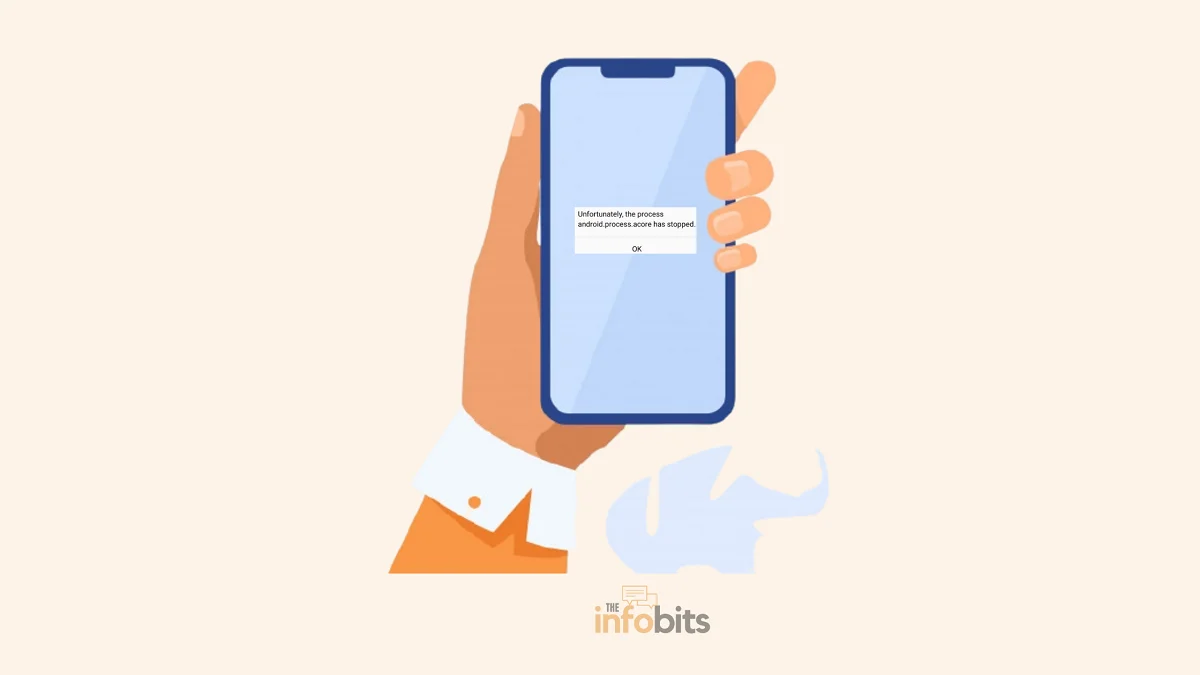
When this process crashes, you’ll see a pop-up reading “Unfortunately, the process android.process.acore has stopped,” usually right when you open your Contacts app, try to make a call, or interact with anything that touches your contact list.
Because so many apps depend on this process, a crash here can make basic phone functions ( calling, texting, looking up a contact) temporarily unusable until it’s resolved.
Related: Android Permissions Management: Complete Guide
What Causes This Error
The most common root cause is corrupted cached data tied to your Contacts app or its underlying database. This can happen after:
- A failed or interrupted OS/firmware update
- A sync conflict between your phone and your Google account (or another synced service, like Facebook)
- Low storage space interrupting a background database operation
- A corrupted update to the Contacts, Phone, or Google Contacts Sync app
- Occasionally, a buggy third-party app that hooks into your contacts
The good news is to understand that this is a software/data issue in the vast majority of cases, not a hardware fault, and it’s still being actively reported (including on recent flagship phones after major OS updates), so the fixes below remain relevant.
How to Fix It: Try These in Order
Work through these roughly in sequence. Most people resolve the error within the first three or four steps.
1. Restart Your Phone
Before anything else, a simple restart clears temporary process state and resolves a meaningful share of one-off crashes. If this is the first time you’ve seen the error, start here.
2. Clear Cache and Storage for the Contacts App
This is the fix that resolves the issue for most people, since it directly targets the corrupted cached data causing the crash.
Current menu path (Android 14/15/16):
- Open Settings
- Go to Apps
- Tap See all apps
- Find and tap Contacts
- Tap Storage & cache
- Tap Clear cache first, and restart your phone to test
If the error persists, go back into the same Storage & cache menu and tap Clear storage (this may also be labeled Clear data on some phones).
This removes all local contact data on the device, but it isn’t destructive to your actual contacts as long as they’re synced to your Google account. They’ll re-download automatically once you sign back in and sync.
Repeat this same process for two related apps, since the crash often traces back to one of these instead of (or in addition to) the main Contacts app:
- Contacts Storage (a hidden system app. If you don’t see it in the main app list, tap the three-dot menu in See all apps and enable Show system apps)
- Google Contacts Sync
3. Force Stop the Contacts App First, Then Clear
On some phones, clearing cache while the app is actively running doesn’t fully resolve the issue. From the same app info screen used above, tap Force stop before clearing cache and storage, then restart your phone.
4. Check for a Facebook Sync Conflict
Facebook and Facebook Messenger both sync contact data by default, and this sync has a long history of triggering android.process.acore crashes when it conflicts with your phone’s native contact database.
- Open the Facebook app.
- Go to Settings & privacy > Settings
- Look for Contacts or Sync contacts and turn it off
- Repeat in Messenger if you use it separately
If disabling sync doesn’t fully resolve it, uninstalling and reinstalling Facebook and Messenger gives both apps a clean slate, which resolves the issue for some users when sync toggling alone doesn’t.
5. Update Your Apps
Outdated versions of Contacts, Phone/Dialer, or Google Contacts Sync can carry unpatched bugs. Open the Google Play Store, check for pending updates to these apps specifically (they update independently of your main OS version), install any available updates, and restart your phone.
6. Check for a Pending Android/System Update
Manufacturers regularly patch known stability bugs, including contact-database issues, in system updates.
- Go to Settings
- Tap About phone (or System > System update, depending on your device)
- Tap Check for update
- Install anything available, then restart
7. Reset App Preferences
If you’ve ever disabled a system app (intentionally or by accident, including through a cleaner or optimizer app), it can destabilize processes that depend on it, including this one.
- Go to Settings > Apps
- Tap the three-dot menu
- Select Reset app preferences
- Confirm
This re-enables any disabled system apps and resets default app choices. It doesn’t delete any data.
8. Remove and Re-Add Your Google Account
If your Contacts data is out of sync with your Google account, removing and re-adding the account forces a clean resync.
- Go to Settings > Passwords & accounts (or Accounts, depending on your device)
- Select your Google account
- Tap Remove account and confirm
- Go back and tap Add account > Google, then sign back in
Your contacts, along with anything else synced through that account, will re-download automatically. This can take a few minutes depending on how much data is being restored.
9. Clear the Cache Partition (System-Level, Not App-Level)
This wipes temporary system files across the whole device, separate from any individual app’s cache. This is useful if the corruption isn’t isolated to the Contacts app specifically.
Note: The exact key combination and recovery-mode interface vary by manufacturer (and newer phones increasingly hide or restrict access to this menu). Search your specific phone model plus “recovery mode” if the general steps below don’t match your device.
- Power off your phone completely
- Hold the manufacturer-specific button combination (commonly Volume Up + Power, or Volume Down + Power) to boot into Recovery Mode.
- Use the volume keys to navigate to Wipe cache partition
- Confirm with the Power button
- Once complete, select Reboot system now
This does not erase your personal data or apps, delete only cached system files.
10. Try a Different Contacts App
If nothing above resolves it, switching your default contacts app can bypass the corrupted system database entirely.
- Back up and export your existing contacts first (Contacts app > Settings/menu > Export)
- Install a well-reviewed third-party contacts app from the Play Store
- Import your exported contacts
- Optionally, disable (rather than uninstall) the stock Contacts app under Settings > Apps
11. Factory Reset (Last Resort)
If the error persists after all of the above, a factory reset resolves the underlying corruption by rebuilding the OS from scratch.
Back up your data first. Anything synced to your Google account (contacts, photos, app data for supported apps) will restore automatically, but local-only files won’t.
- Go to Settings > System (path varies by manufacturer; look for General management on Samsung)
- Tap Reset options or Reset
- Select Erase all data (factory reset)
- Confirm, entering your PIN or password if prompted
Your phone will restart and walk through initial setup again, re-syncing your Google account data automatically if you sign back in.
When to Suspect a Hardware Issue
If the error continues to appear after a full factory reset, this points to a hardware-level fault rather than software corruption. Something a factory reset can’t fix.
At this point:
- Check if your phone is still under manufacturer warranty
- Contact an authorized service center rather than attempting a repair yourself, since opening the device yourself can void any remaining warranty coverage
- Back up everything possible before handing off the device, in case data recovery isn’t part of the repair process
Summary
android.process.acore has stopped is a long-running but well-understood Android bug, almost always traced back to corrupted cached contact data.
Clearing the cache and storage for the Contacts app (and its two related system apps) resolves it for most people within a few minutes.
If that doesn’t work, work down the list – checking Facebook’s contact sync, updating apps, resetting app preferences, and re-adding your Google account each resolve it for a meaningful share of remaining cases before you need to consider a cache partition wipe or full factory reset.
Frequently Asked Questions
Why does my phone say “Unfortunately, the process android.process.acore has stopped”?
This almost always means the cached data behind your Contacts app or its underlying database has become corrupted, often after a failed update, a sync conflict (commonly with Facebook), or low storage interrupting a background process.
Is android.process.acore a virus?
No. It’s a legitimate core Android system process responsible for contacts and call log data, not malware. The error message means this process crashed, not that your phone is infected.
Will clearing the Contacts app’s storage delete my contacts permanently?
No, as long as your contacts are synced to your Google account (or another cloud service). They’ll automatically re-download the next time your phone syncs. If your contacts are stored only locally on the device, back them up first via export before clearing storage.
Does this error mean my phone has a hardware problem?
Rarely on its own. It’s a software/data corruption issue in the overwhelming majority of cases. Hardware is only worth suspecting if the error persists after a full factory reset, which rules out software-level causes.
Why does this keep happening after I update my phone?
Updates occasionally interrupt background sync or database operations, or introduce a temporary compatibility issue with the Contacts or Dialer app before a follow-up patch resolves it. Checking for a subsequent system update and updating the Contacts/Phone apps individually through the Play Store resolves many post-update cases.
Can Facebook really cause this error?
Yes. Facebook and Messenger’s contact-sync features have a long history of conflicting with Android’s native contact database, which can trigger this exact crash. Disabling contact sync in both apps is a quick, low-effort fix worth trying early.
Do I need to factory reset my phone to fix this?
Not usually. A factory reset is the last resort on this list. Most people resolve the error by clearing the Contacts app’s cache and storage, or by working through the app-update and account-resync steps before it. Reserve the factory reset for when nothing else has worked.
We hope you found this post informative, and do like and follow us on Facebook and Twitter for regular updates.
We also ask that you bookmark this page for future reference. Sign up for our free newsletter as well to receive fresh information immediately in your inbox and keep technically up to date.
Disclosure: If you follow our links to a retailer’s website and make a purchase, we will get an affiliate commission on some, but not all, of the items or services we promote. This will cause no price change for you.
You May Be Interested in Reading:
- 10 Steps To Take If The Flashlight Isn’t Working On An Android Phone
- Advantages of Firewall and 4 Best Android Firewall Apps For Easy Use
- How To Fix Ghost Touch On An Android Device?
- How to Fix the ‘Mobile Network State Disconnected’ Error?
- Android 17 Not Showing Up on Your Phone? Here’s Why (and When You’ll Get It)

)