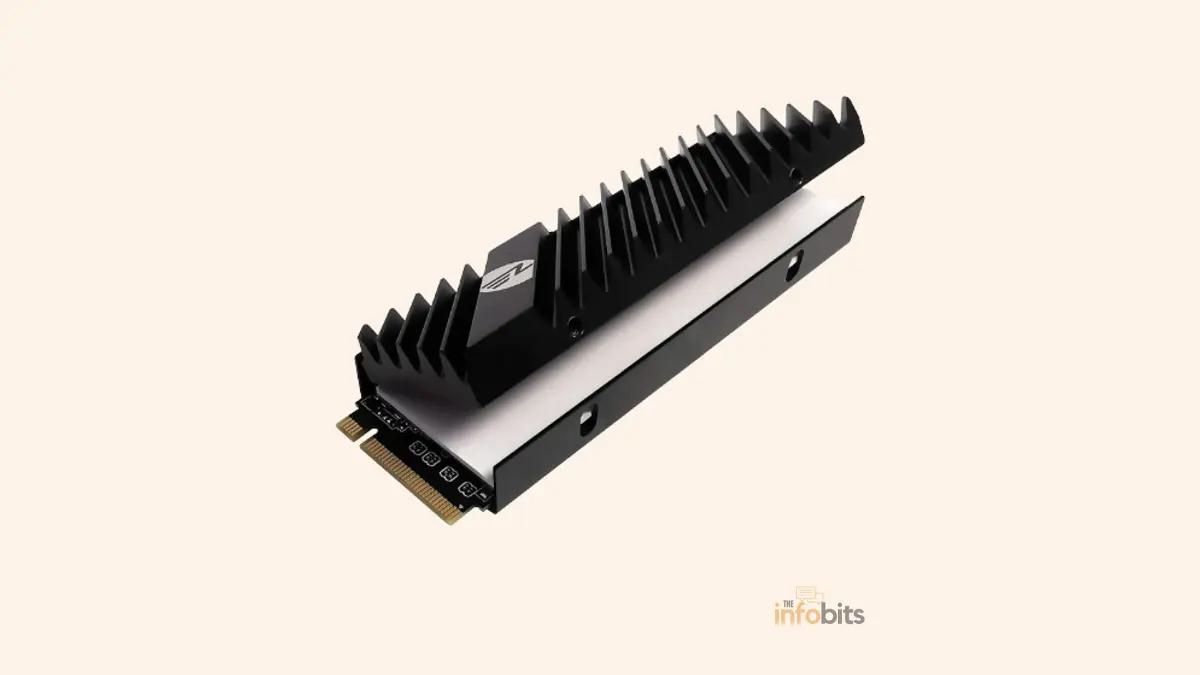
Does an M.2 SSD Need a Heatsink? The Honest Answer
Quick answer: It depends on which M.2 SSD you actually have. This isn’t a universal yes. M.2 SATA drives never get hot enough to need one. M.2 NVMe (PCIe) drives are the ones that generate real heat, and how much matters: PCIe Gen3 and Gen4 drives usually do fine with just a basic motherboard heatsink or good case airflow for everyday use, while PCIe Gen5 and Gen6 drives run hot enough that a heatsink is close to mandatory, even at idle in some cases. The honest answer is “usually helpful, essential for the newest drives, unnecessary for older or lighter workloads”, not a blanket yes.
If you’ve read that an M.2 SSD “unquestionably requires” a heatsink or it will suffer “total damage” without one, that’s outdated and overstated advice. Here’s what actually happens when an NVMe drive overheats, which drives genuinely need cooling, and which don’t.
First: M.2 Is a Shape, Not a Speed
This is the single most important thing missing from most heatsink advice, including a lot of what’s out there. “M.2” describes the physical connector and form factor; the small stick that plugs directly into your motherboard. It says nothing about how the drive actually communicates with your system.
There are two very different types of M.2 SSDs:
- M.2 SATA: uses the older SATA interface, capped at roughly 550 MB/s. These run cool. They never need a heatsink, full stop.
- M.2 NVMe (PCIe): uses the much faster PCIe interface, capable of thousands of MB/s. These are the drives that generate meaningful heat, and where the heatsink question actually applies.
If you’re not sure which one you have, check your drive’s listed interface (SATA vs. NVMe/PCIe) before worrying about cooling at all. An M.2 SATA drive doesn’t need this conversation.
Related: M.2 vs U.2: a Detailed Comparison
Does It Actually Need a Heatsink? By Generation
PCIe Gen3 NVMe drives: Rarely need a dedicated heatsink. These draw relatively little power and stay well within safe operating temperatures for typical desktop use, even without one.
PCIe Gen4 NVMe drives: Usually fine for everyday use like browsing, gaming, general productivity, with just a case that has decent airflow, or the basic heatsink many motherboards now include over at least one M.2 slot.
Sustained heavy workloads (large file transfers, video editing, repeated benchmarking) are where a proper heatsink starts to matter, since these are the scenarios that actually push the drive hot enough to throttle.
PCIe Gen5 NVMe drives: This is where a heatsink stops being optional in practice. Gen5 drives draw significantly more power than Gen4, often 8–11W under load, compared to roughly 5–7W for a typical Gen4 drive. A bare Gen5 SSD can hit 90–105°C within seconds of sustained writes.
Manufacturers and independent testing consistently point the same direction: get a real heatsink, not just the thin stock cover some motherboards include.
PCIe Gen6 drives: Even more power-hungry, and the gap between a drive’s peak advertised speed and what it can actually sustain is increasingly defined by cooling. Treat cooling here the same way you’d treat CPU or GPU cooling; a real, deliberate part of the build, not an afterthought.
What Actually Happens When an NVMe SSD Overheats
This is worth being precise about, because a lot of existing advice overstates the danger. Modern NVMe SSDs have a built-in protective mechanism called thermal throttling.
When the controller gets too hot, typically above 70°C, with hard limits often in the 80–90°C range depending on the drive, it automatically reduces read/write speeds to bring the temperature back down. That’s the drive protecting itself, not the beginning of “total damage.”
In real-world testing, a bare Gen4 or Gen5 drive under sustained heavy writes can lose 30–50%+ of its performance once throttling kicks in. This is annoying and very noticeable in large file transfers, but not the drive dying.
The genuine long-term risk is different: consistently running hot over months and years can accelerate NAND wear and modestly shorten the drive’s usable lifespan, which is a real reason to manage heat even though throttling itself won’t kill your drive on the spot.
You may note that some documented cases of poorly cooled early Gen5 drives haven’t just throttled. They’ve hit extreme temperatures (85°C+) under sustained load and shut down entirely, requiring a full cold reboot to recover.
That’s a real, if uncommon, failure mode specific to high-power Gen5 controllers pushed hard without adequate cooling. A good reason to take cooling seriously on those drives specifically, rather than a reason to panic about every M.2 SSD.
Related: How to Tell If Your SSD Is Failing: Real Warning Signs
When You Genuinely Need a Heatsink
- You have a PCIe Gen5 or Gen6 drive; treat a heatsink as close to mandatory, not optional.
- You regularly do sustained large writes: transferring 50GB+ files, unpacking large archives, transcoding video directly to the drive, or running storage benchmarks back to back.
- You’re installing an SSD in a PlayStation 5; Sony explicitly requires a heatsink (many compatible drives ship with one pre-attached) for PCIe Gen4 upgrade drives. If you’re upgrading your PS5 SSD, consider a PS5-compatible NVMe SSD with a pre-attached heatsink like WD Black SN850X (available on Amazon).
- Your case has poor airflow, or the M.2 slot sits directly beneath a hot GPU with little clearance. This is a common layout on many consumer motherboards.
- You’ve actually checked your temperatures (see below) and seen the drive regularly crossing into throttling territory during your normal workload.
When You Probably Don’t Need One
- M.2 SATA drives: never applicable, regardless of workload.
- General desktop use: browsing, office work, streaming, most gaming. These workloads rarely sustain the kind of continuous heavy writes that push a drive into throttling.
- A Gen3 or Gen4 boot drive in a case with reasonable front-to-back airflow, not trapped behind a GPU.
- Your motherboard already includes an M.2 heatsink over the relevant slot. On mid-range and higher boards released since roughly 2024, that stock cover is often a genuine aluminum heatsink, not just decorative metal. It is frequently enough for Gen4 drives under normal use.
Related: SSD Not Showing Up in BIOS Boot Menu Or Windows: Simple Solutions
What About Laptops?
Laptops are a different situation entirely, and most heatsink advice (including a lot of what’s written for desktops) doesn’t translate directly.
You generally can’t add an aftermarket heatsink to a laptop’s M.2 slot. There’s rarely physical clearance for one, and doing so could interfere with the keyboard deck or other components.
Laptop manufacturers instead manage NVMe drive temperatures through thermal pads that make direct contact with the laptop’s chassis or a shared heat pipe, channeling heat away without adding bulk.
If you’re concerned about NVMe temperatures in a laptop, your realistic options are:
- ensure vents aren’t blocked (avoid using it on soft surfaces like a bed or couch), and keep the laptop’s internals clean of dust buildup.
- And if you’re comfortable opening the laptop, confirm the factory thermal pad is still making proper contact with the drive, since a missing or displaced pad is a common, fixable cause of higher-than-expected temperatures.
How to Check Your Drive’s Actual Temperature
Don’t guess it. Checking takes under a minute and removes the guesswork entirely.
- CrystalDiskInfo (Windows, free) shows current SSD temperature alongside general drive health.
- HWiNFO (Windows, free) gives more detailed real-time monitoring, useful for watching temperature climb during a sustained transfer.
- Manufacturer software (Samsung Magician, Crucial Storage Executive, WD Dashboard) also reports temperature, often with manufacturer-specific safe-range guidance.
As a rough guideline: idle temperatures in the 40–55°C range are typical and healthy. Sustained load temperatures climbing past 70°C are worth monitoring; consistently hitting 80°C+ under normal (not benchmark-stress) use is a reasonable trigger to add or upgrade cooling.
How to Install an M.2 Heatsink
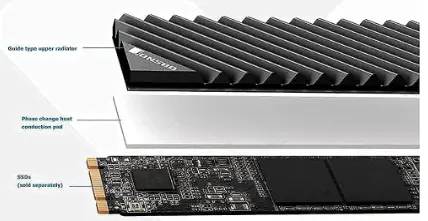
If your SSD doesn’t include a heatsink, a dedicated M.2 heatsink with a pre-cut thermal pad (view on Amazon) is an inexpensive upgrade that’s worth considering. It improves heat dissipation, helps reduce thermal throttling during heavy workloads, and is usually easy to install in just a few minutes.
- Confirm your motherboard’s M.2 slot clearance; some slots sit close to the GPU or other components, which can physically block a taller heatsink.
- Remove any existing stock M.2 cover if you’re replacing it with a dedicated heatsink, and set aside its screws.
- Apply the included thermal pad to the drive (most heatsinks come with one pre-cut to size). This is what actually transfers heat from the drive’s chips to the metal heatsink, not the heatsink alone.
- Peel any protective film off the thermal pad before installing; an easy step to miss, and one that fully defeats the pad’s purpose if skipped.
- Seat the heatsink evenly and secure it with the provided screws or clip, avoiding overtightening, which can crack the thermal pad or, in rare cases, stress the drive’s PCB.
- Ensure the heatsink doesn’t block airflow to nearby components, and that your case fans are still positioned to move air across the area once everything is installed.
Common Mistakes to Avoid
- Assuming every M.2 drive needs a heatsink. M.2 SATA drives never do, and plenty of NVMe drives in typical desktop use don’t meaningfully benefit either.
- Skipping the thermal pad’s protective film. The heatsink does almost nothing without proper contact through the thermal pad.
- Stacking a heatsink on top of a motherboard’s stock M.2 cover without removing it first. This usually just traps heat rather than dissipating it.
- Treating a heatsink as a substitute for case airflow. A heatsink moves heat off the drive into the surrounding air. If that air has nowhere to go, you’ve just delayed the problem.
- Panicking over a single high temperature reading during a benchmark. Occasional throttling under an artificial stress test isn’t the same as a problem during real-world use. Check temperatures under your actual typical workload, not just synthetic benchmarks.
Myth vs. Fact
Myth: “Every M.2 SSD unquestionably needs a heatsink.” Fact: M.2 SATA drives never need one, and many PCIe Gen3/Gen4 drives run fine without one under typical desktop use. Only heavy sustained workloads and Gen5+ drives make a heatsink close to essential.
Myth: “Without a heatsink, an NVMe SSD will suffer total damage.” Fact: Modern NVMe drives throttle performance automatically to protect themselves when they get hot. That’s a safety feature, not drive failure. The real long-term risk is more modest: sustained heat can accelerate wear and shorten lifespan somewhat, not destroy the drive outright.
Myth: “A stock motherboard M.2 cover is just for looks.” Fact: On many mid-range and higher motherboards released since roughly 2024, that cover is a genuine aluminum heatsink and is often sufficient for Gen4 drives under normal use.
Myth: “You should add an aftermarket heatsink to your laptop’s SSD.” Fact: Most laptops have no physical room for one, and laptop manufacturers manage NVMe heat differently, through chassis-integrated thermal pads rather than a discrete heatsink.
Quick Decision Guide
| Your situation | Heatsink needed? |
|---|---|
| M.2 SATA drive | No. Never applicable |
| PCIe Gen3/Gen4, general desktop use, decent airflow | Usually not necessary |
| PCIe Gen3/Gen4, frequent large file transfers or video work | Recommended |
| PCIe Gen5 or Gen6 | Essentially required |
| Installing in a PlayStation 5 | Required (Sony’s own guidance) |
| M.2 slot located near/behind the GPU with poor airflow | Recommended, regardless of drive generation |
| Laptop NVMe drive | Not applicable. No room to add one; check factory thermal pad instead |
Related: Is Your Hard Drive Clicking? Here’s What You Need to Know
Final Thoughts
So, does an M.2 SSD need a heatsink? The answer depends on the type of drive you have and how you use your computer.
Many Gen3 and Gen4 NVMe SSDs work perfectly fine with good airflow or a built-in motherboard heatsink. On the other hand, newer Gen5 and Gen6 drives benefit greatly from proper cooling, especially during heavy workloads.
M.2 SATA SSDs don’t need a heatsink at all. The key is to match your cooling solution to your SSD, not follow a one-size-fits-all rule.
Before spending money on a heatsink, check your SSD model, monitor its temperature, and consider how you actually use your PC. A little research now can save you money and help your SSD perform at its best.
Frequently Asked Questions
Does every M.2 SSD need a heatsink?
No. M.2 SATA drives never need one, and many PCIe Gen3/Gen4 NVMe drives run fine for everyday use without one, especially with decent case airflow. Heatsinks matter most for PCIe Gen5/Gen6 drives and sustained heavy workloads.
What happens if an NVMe SSD overheats without a heatsink?
The drive automatically throttles its read/write speeds to bring the temperature back down. It is a protective feature, not a drive failure. Performance can drop significantly during sustained heavy use, but the drive itself typically isn’t damaged by throttling alone.
Do M.2 SATA SSDs need a heatsink?
No. M.2 SATA drives use the same interface as older 2.5-inch SATA SSDs and don’t generate enough heat to need one.
Does a PS5 SSD upgrade need a heatsink?
Yes. Sony’s official guidance requires a heatsink for compatible PCIe Gen4 NVMe upgrade drives, and many PS5-compatible drives ship with one pre-installed.
Is the heatsink built into my motherboard good enough?
Often, yes, for PCIe Gen4 and older drives under typical use. On mid-range and higher boards from roughly 2024 onward, the stock M.2 cover is frequently a real aluminum heatsink rather than a purely cosmetic cover. Gen5 drives usually need more than the stock cover provides.
How hot is too hot for an M.2 SSD?
Idle temperatures of 40–55°C are typical and healthy. Sustained temperatures above 70°C are worth monitoring, and consistently hitting 80°C+ under normal (non-benchmark) use is a reasonable point to add or improve cooling.
Can I add a heatsink to a laptop’s M.2 SSD?
Generally no. Most laptops don’t have physical clearance for an aftermarket heatsink. Laptop manufacturers manage SSD heat through thermal pads connected to the chassis instead.
Does a heatsink improve SSD performance, or just prevent throttling?
Its main job is preventing throttling under sustained load. It won’t make a drive faster than its rated speed, but it helps the drive sustain its rated speed for longer during heavy writes.
How do I check my SSD’s current temperature?
Free tools like CrystalDiskInfo or HWiNFO on Windows show real-time SSD temperature, as does most manufacturer software (Samsung Magician, Crucial Storage Executive, etc.).
Do I need thermal paste or just a thermal pad for an M.2 heatsink?
A thermal pad, not paste. Nearly all M.2 heatsinks include a pre-cut thermal pad designed for this specific contact, and pads are easier to install correctly than paste on this form factor.
Will a heatsink void my SSD’s warranty?
Generally no for aftermarket heatsinks you add yourself, but check your specific manufacturer’s warranty terms, since this can vary. Some drives ship with a heatsink pre-attached specifically to avoid this question altogether.
Why do PCIe Gen5 SSDs run so much hotter than Gen4?
Gen5 drives use faster signaling and draw significantly more power under load. This is often 8–11W compared to roughly 5–7W for Gen4, which, combined with denser NAND running at higher speed, produces more heat meaningfully.
Does dust buildup affect M.2 SSD temperatures?
Yes, indirectly; dust restricting case or laptop airflow raises overall internal temperatures, which affects every component including the SSD, even if the SSD itself isn’t directly coated in dust.
Can an overheating SSD lose data?
Extreme, sustained overheating in poorly cooled high-power drives has, in documented cases, caused shutdowns requiring a cold reboot rather than data loss during the event itself. But repeatedly stressing a drive into extreme thermal territory isn’t good practice regardless, and normal throttling doesn’t put data at risk.
Is it worth buying a Gen5 SSD if I’d rather not deal with cooling it properly?
If you’re not doing the kind of sustained heavy workloads that benefit from Gen5 speeds, a well-cooled Gen4 drive is a simpler, cheaper choice that avoids the cooling considerations Gen5 essentially requires.
If you found this guide helpful, please share it with your friends and family. Also, follow The Infobits on Facebook and X (formerly Twitter) for more practical tech guides, troubleshooting tips, honest product comparisons, and expert buying advice.
We also ask that you bookmark this page for future reference, as we are constantly adding new information to our articles.
Sign up for our free newsletter as well to receive fresh information immediately in your inbox and keep technically up to date.
Disclosure: If you follow our links to a retailer’s website and make a purchase, we will get an affiliate commission on some, but not all, of the items or services we promote. This will cause no price change for you.