ASUS AiProtection Setup Guide: Every Feature Explained, Step by Step
Most people never touch the security tab on their ASUS router. They set up Wi-Fi, pick a password, and move on. That’s a shame, because sitting inside that router is a free security suite that can block malicious sites, catch infected devices, and give kids sensible internet limits. It’s called AiProtection, and it costs nothing extra.
The catch is that it’s easy to turn on and easy to misunderstand. Some switches do very different things from what their names suggest, a few features only exist on certain models, and one or two can affect speed or privacy. This guide walks through the setup, explains every feature in a simple manner, and covers the settings, compromises, and fixes that most guides skip.
Deciding between brands rather than setting one up? See our AiProtection vs Armor vs HomeShield comparison first.
Quick answer: To turn on ASUS AiProtection, log in to your router at router.asus.com, open AiProtection (called Network Protection on many models), switch on Enable AiProtection, and accept the Trend Micro agreement. Then run the Router Security Assessment and enable the individual protections you want: Malicious Sites Blocking, Two-Way IPS, and Infected Device Prevention and Blocking. It’s included with supported ASUS routers at no extra cost, and it works at the router level, so it also covers devices that can’t run antivirus, like smart TVs and cameras.
What Is ASUS AiProtection?
ASUS describes AiProtection as a subscription-free, built-in security suite that runs on your router. Instead of living on one PC or phone like traditional antivirus, it inspects traffic at the gateway to cover every device on your network. ASUS says it uses cloud data centers from Trend Micro to detect threats.
That gateway position is its whole advantage. Smart TVs, cameras, baby monitors, and game consoles usually can’t run security software. Router-level filtering is one of the few ways to watch over them.
A note on names. ASUS has changed the labels over the years. You may see it called AiProtection, Network Protection, or, on the newest interface, AiProtection Smart Security. Older guides mention “AiProtection Classic” and “AiProtection Pro.” The core features are the same. Which ones you see depends on your model and firmware.
Before You Start: Compatibility Checklist
Run through this before you flip any switches. It prevents most “why can’t I find it?” problems.
- Your router supports it. ASUS says to check your model’s specification page. Feature support varies by model.
- Firmware is up to date. ASUS recommends updating first, and some options only appear on newer firmware. Our router firmware update checklist walks through it safely.
- The router is in router mode. AiProtection isn’t supported in Access Point (AP) mode.
- WAN setup is compatible. It can’t run alongside WAN Link Aggregation or Dual WAN Load Balance mode. It works with a single WAN connection or Dual WAN Failover.
- You know it’s a blind spot. If a device runs a VPN, its traffic is encrypted, so AiProtection can’t inspect it for that device.
If your current router doesn’t have AiProtection, an ASUS model like the ASUS RT-AX88U Pro (available on Amazon) includes it.
Doing the firmware update? Use a wired connection for stability. A basic Cat6 Ethernet cable like one from Amazon Basics is enough. A power cut mid-update can corrupt a router, so a small UPS like APC BE600M1 with a quality surge protector is cheap insurance, which is available on Amazon.
How to Turn On AiProtection
Method 1: Web interface
- Connect your computer to the router by cable or Wi-Fi.
- Open router.asus.com (or www.asusrouter.com), or type your router’s LAN IP address.
- Sign in with your router username and password. If you’ve forgotten them, ASUS says you’ll need to factory reset the router.
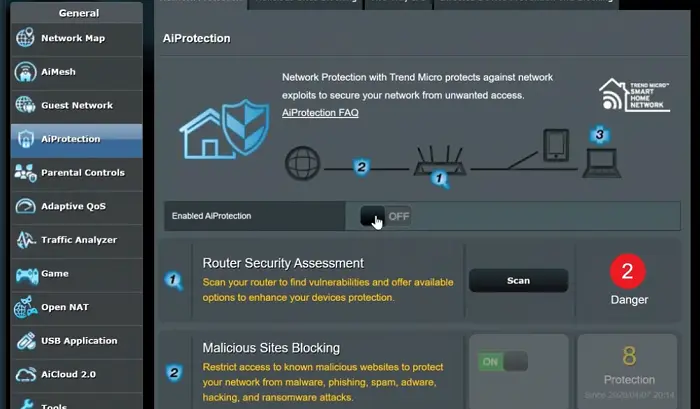
- Go to AiProtection > Network Protection and click Enable AiProtection. On the newest interface, open AiProtection Smart Security in the left panel and turn on the switches you want.
- Accept the Trend Micro End User License Agreement when prompted. (More on what that means in the privacy section below.)
Method 2: ASUS Router app
- Connect your phone to your router’s Wi-Fi.
- Open the ASUS Router app.
- Go to Settings > AiProtection.
- Tap Enable AiProtection. Individual switches for each feature appear below it.
The app is the easiest route if you don’t want to hunt through the web menus, and it’s also where the Family (parental controls) tools live.
Every AiProtection Feature Explained
| Feature | What it does | Turn it on if… | Watch out for |
|---|---|---|---|
| Router Security Assessment | Scans your router’s settings and flags weak spots | Always. Run it first and after big changes | It’s a checkup, not a shield |
| Malicious Sites Blocking | Blocks known malware, phishing, and scam sites | Almost everyone | Can occasionally block a safe site (use the allow list) |
| Two-Way IPS | Inspects incoming and outgoing traffic for attacks and infected-device behavior | Most homes, especially with smart devices | Only on certain models; can affect speed on older routers |
| Infected Device Prevention and Blocking | Stops a compromised device from talking to botnet servers | Almost everyone | None major |
| Advertisement Blocking | Blocks common ad sources | You want fewer ads and cleaner pages | May break some sites |
| Tracker Blocking | Blocks third-party tracking requests | You care about privacy | May break some sites |
Router Security Assessment
This is the best place to start. It checks your router’s security-related settings and gives you a report. ASUS says it looks at things like password strength and open ports, and its consumer page also mentions outdated firmware and risky configurations.
To use it, go to AiProtection, click Scan, and review the list. Where a setting is marked unsafe, click No to jump straight to the page that fixes it. ASUS recommends running it before you download new apps or add smart-home devices.
Malicious Sites Blocking
It blocks access to known malicious websites using a continuously updated database. That covers malware, phishing, spam, adware, hacker attacks, and ransomware sources. ASUS suggests it especially for children and seniors, who are more likely to click something risky.
If it blocks a site you trust, you can add the domain to the Allow List from the same screen. You can also review, save, or delete the list of blocked events.
Two-Way IPS
An intrusion prevention system watches traffic in both directions. Inbound, it blocks malicious packets aimed at your router’s vulnerabilities. Outbound, it spots suspicious traffic from infected devices so they can’t be used in botnet attacks.
ASUS’s use case: if a computer or phone suddenly slows down, shows unwanted ads, or has odd upload activity, turn on Two-Way IPS. If you can’t see it, that’s normal. ASUS says it’s supported only on certain models and depends on firmware.
Infected Device Prevention and Blocking
If a device on your network gets infected, this feature stops it from being enslaved by a botnet or from being used to steal information or attack other devices.
ASUS’s consumer page says a compromised device is isolated to block outbound malware communication and stop local spread. It protects computers and phones, and it’s a quiet safety net for gadgets you’ll never install antivirus on.
Advertisement Blocking
It blocks common advertising sources across your whole network, which can make pages cleaner and faster. Because some sites rely on ad or tracking services to work, ASUS notes that a few may break. If a page won’t load properly, turn this off and reload.
Tracker Blocking
It detects and blocks tracking requests from websites, advertisers, and third-party analytics platforms. The aim is privacy, fewer data leaks, and faster loading. It has the same caveat as ad blocking: if a site misbehaves, disable it and retry.
The event log
Each protection keeps a record of Successfully Protected Events. You can review the details, save the list to your device, or delete it, and the newer interface lets you search by time range and export events. It’s worth a glance once a month. If a particular device keeps showing up, it may need attention.
Parental Controls and Family Profiles
Parental controls sit alongside AiProtection, and ASUS calls them free. The tools differ slightly between the web interface and the app.
In the ASUS Router app (easiest):
- Go to Settings > Family and choose a level, such as School-aged child.
- Enter the member’s name and pick their device(s).
- Choose a schedule mode: an Offline Schedule (times the internet is off) or, on supported models, an Online Schedule.
- Set content blocks where supported. A red icon means a service is blocked and gray means allowed.
- On selected models, use Reward Time to give extra online time.
In the web interface:
- Web & Apps Filters lets you block unwanted websites and apps by content category for selected devices (selected models only). Go to Parental Controls > Web & Apps Filters, enable it, agree to the terms, choose devices and categories, add the profile, and click Apply.
- Time Scheduling sets when specific devices can go online. There’s also a Block All Devices switch.
Things to know:
- A device set to offline can still reach the router’s settings page, provided the person has the admin login.
- If schedules misbehave, first check that the router’s system time and time zone are correct.
- Parental controls work in router mode only, not AP mode.
- ASUS says its routers don’t currently support blocking a specific website on a specific device. For a Windows PC or Chromebook, it points you to Microsoft Family Safety or Chromebook controls.
Our router parental controls guide covers the wider picture across brands.
DNS, Privacy, and Network Controls
ASUS’s newer AiProtection materials also highlight several DNS and network features. Menu locations vary by firmware, so check your model.
- DNSSEC verifies that DNS answers are authentic, which helps stop domain spoofing.
- DNS over TLS (DoT) encrypts requests between your router and your DNS provider so others can’t easily snoop on them.
- DNS Rebind Protection stops malicious websites from reaching devices on your local network.
- Safe Browsing filters explicit search results and adult domains at the DNS level.
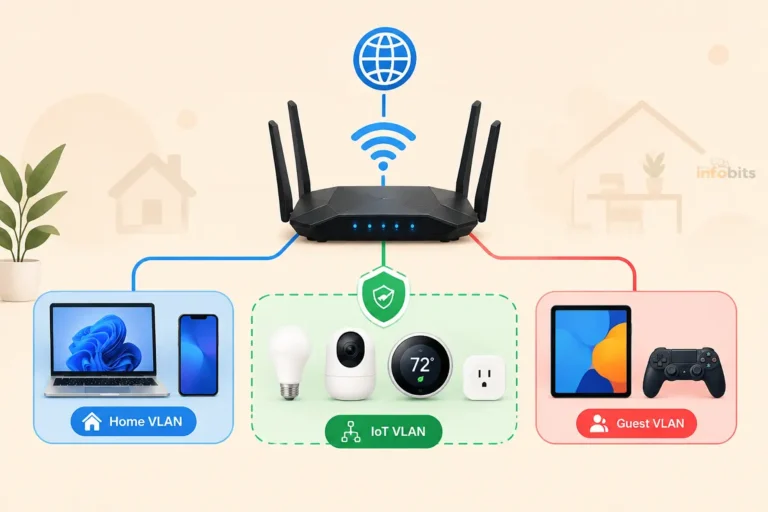
- VLANs create isolated networks for guests, personal devices, or remote work, limiting how far a problem can spread.
On many ASUS firmware versions, the DNS options live under the WAN or Internet Connection settings. If you want to go further, our guides to choosing malware-blocking DNS servers, VLANs for IoT devices, and creating a secure guest network pair well with AiProtection.
Recommended Settings by Home Type
There’s no single perfect setup. Start here and adjust.
| Home type | Suggested setup |
|---|---|
| Typical family home | Enable AiProtection, Malicious Sites Blocking, Infected Device Prevention, and Two-Way IPS (if available). Add Family profiles for kids. |
| Lots of smart-home gadgets | Turn on everything above, put IoT devices on a guest network or VLAN, and check the event log monthly. |
| Gigabit or faster internet | Enable protections, then run a wired speed test. If speeds fall short, turn features off one at a time to find the culprit. |
| Privacy-focused | Review the Trend Micro agreement first. Consider DNS-based filtering, or enable only what you need. |
| Gamers | Test latency with protections on and off. Keep Malicious Sites Blocking, and trial Two-Way IPS separately. |
If you’d like an extra layer of visibility beyond the router, see our guide to monitoring network traffic.
Performance: Will AiProtection Slow My Internet?
Often not on a modern router, but it can on older ones or at very high speeds.
Deep packet inspection takes processing power. Users on SNBForums have reported download speeds capped after enabling AiProtection features on an older RT-AC5300, with speeds returning when they were disabled.
Another user on a 5 Gbps plan with an ASUS RT-BE7200 said a firmware update and adjusting AiProtection settings raised their upload speed from about 3 Gbps to about 4.7 Gbps. Meanwhile, other users say the impact on a modern router is minimal.
How to test it properly:
- Update to the latest firmware.
- Run a speed test from a wired computer with AiProtection on.
- Turn off one feature at a time and retest.
- Keep the strongest combination that still gives you the speed you pay for.
Privacy: What You’re Agreeing To
When you enable AiProtection, ASUS asks you to accept the Trend Micro End User License Agreement. The prompt says your information will be collected by Trend Micro through AiProtection, Traffic Analyzer, Apps Analyzer, Adaptive QoS, and web history.
In practice, cloud-based site checking means some data, such as URLs of suspicious sites, is sent to Trend Micro. A 2017 Computerworld report highlighted this and how broadly the agreement is worded. Privacy-minded users on router forums debate how much is actually transmitted, so treat the agreement as the authoritative source.
Your options:
- Read the Trend Micro privacy notice linked in your router’s Administration > Privacy area before enabling anything.
- Enable only the protections you need.
- Use DNS-level filtering instead if you’d rather not use Trend Micro’s cloud.
This is a real trade-off, not a reason to panic. Most cloud security tools work by checking what you visit. It’s your call whether the convenience is worth it.
What AiProtection Doesn’t Do
- It doesn’t replace device antivirus. Router-level protection and on-device antivirus complement each other.
- It can’t inspect VPN traffic. ASUS confirms encrypted VPN data can’t be examined.
- It won’t fix a weak password. Use a strong Wi-Fi password and a password manager.
- It doesn’t stop everything. No filter blocks 100% of threats.
- It won’t work in AP mode or with certain dual-WAN modes.
Troubleshooting Common Problems
| Problem | What to try |
|---|---|
| Can’t find Two-Way IPS | It’s model- and firmware-dependent. Update the firmware, check your model’s specs, and if it should be there, ASUS suggests a factory reset and fresh setup. |
| A safe site is blocked | Add it to the Malicious Sites Blocking Allow List. |
| A site loads oddly, or ads are broken | Turn off Advertisement Blocking and Tracker Blocking, then reload. |
| Speeds dropped after enabling | Update firmware, then toggle features one at a time and retest wired. |
| AiProtection isn’t working on one device | If that device uses a VPN, its traffic can’t be inspected. |
| AiProtection options are missing | Check that the router isn’t in AP mode or using WAN aggregation or Dual WAN load balancing. |
| Schedules don’t turn the internet off | Verify system time and time zone, confirm the correct device is selected, update firmware, and if still stuck, try a reset. |
| Too many old events in the log | Use the trash or delete icon in the events section to clear it. |
Common Mistakes
- Enabling everything without testing speed. Measure before and after.
- Skipping the firmware update. Some features only appear on current firmware.
- Ignoring the Router Security Assessment. It’s the fastest way to catch weak settings.
- Forgetting devices on VPNs. They’re outside AiProtection’s view.
- Assuming it replaces good habits. It complements strong passwords and updates.
- Trying to “test” it by visiting malware sites. Don’t. Check the event log instead.
Myth vs. Fact
Myth: AiProtection costs extra like other brands’ security suites.
Fact: ASUS says it’s subscription-free on supported routers.
Myth: It protects only my computer.
Fact: It works at the router, so it covers devices like smart TVs and cameras.
Myth: It works on every ASUS router the same way.
Fact: Feature support varies by model and firmware, and Two-Way IPS is only on certain models.
Myth: It slows every router down.
Fact: Impact varies by router and connection speed. Test yours.
Myth: Turning it on means nothing is ever collected.
Fact: It uses Trend Micro’s cloud, and you agree to a data agreement when enabling it.
Expert Tips
- Run the assessment monthly, and after adding any new device.
- Put smart-home gadgets on a guest network so a compromised gadget can’t reach your laptop.
- Use AiMesh? Manage protections from your main router. Adding a compatible ASUS node can extend coverage without extra subscriptions.
- Pair it with a password manager and two-factor authentication.
- Check the event log for a device that keeps triggering blocks.
- Keep firmware current and turn on automatic updates if your model offers them.
- Also lock down the basics with our guides to securing your home Wi-Fi and WPA3.
10-Minute Setup Checklist
- Confirm your router supports AiProtection.
- Update the firmware.
- Make sure the router is in router mode.
- Log in at router.asus.com or use the ASUS Router app.
- Enable AiProtection and accept the agreement.
- Run the Router Security Assessment and fix flagged items.
- Turn on Malicious Sites Blocking and Infected Device Prevention.
- Turn on Two-Way IPS if your model has it.
- Optionally enable ad and tracker blocking.
- Create Family profiles for kids’ devices.
- Run a wired speed test and confirm you’re happy.
- Set a monthly reminder to review the event log.
Closing Words
ASUS AiProtection is one of the better reasons to own an ASUS router. It’s free, it works at the network level, and it covers devices nothing else can. Setup takes minutes, and the Router Security Assessment alone can flag weak spots you didn’t know about.
It isn’t magic. Check your model’s feature support, test your speeds, understand the Trend Micro data trade-off, and keep good habits like strong passwords and firmware updates. Do that, and you’ll get most of the value of a paid security suite for nothing.
Frequently Asked Questions
What is ASUS AiProtection?
It’s a free, built-in security suite in supported ASUS routers. It works at the router level, using Trend Micro’s cloud data, to block malicious sites, detect attacks, and protect connected devices.
Is ASUS AiProtection free?
Yes. ASUS states it’s subscription-free on supported routers, with no recurring fee.
How do I turn on ASUS AiProtection?
Log in at router.asus.com, go to AiProtection (or Network Protection), and click Enable AiProtection. In the ASUS Router app, go to Settings > AiProtection and tap Enable.
What does Two-Way IPS do?
It inspects traffic in both directions, blocking malicious incoming packets and detecting suspicious outgoing traffic from infected devices to stop botnet activity. It’s only on certain models.
Why can’t I see Two-Way IPS on my router?
It’s supported only on certain models and depends on firmware. Update the firmware and check your model’s specifications. ASUS suggests a factory reset if it should be available.
What is the Router Security Assessment?
It’s a scan of your router’s security settings that shows a report and links to fix unsafe items. ASUS recommends running it before adding new apps or smart devices.
Does AiProtection work with a VPN?
Not for the device running the VPN. VPN traffic is encrypted, so AiProtection can’t inspect it.
Does AiProtection slow down my internet?
It can on older routers or very fast connections, since it needs processing power. On modern routers, the impact is often small. Test with and without features to check.
Does AiProtection work in access point mode?
No. ASUS says AiProtection isn’t supported in AP mode, and parental controls need router mode too.
What does Malicious Sites Blocking block?
Known malicious websites, including malware, phishing, spam, adware, hacking, and ransomware sources, using a continuously updated database.
Can I allow a website that AiProtection blocked?
Yes. Add the domain to the Allow List within Malicious Sites Blocking.
Does AiProtection send my data to Trend Micro?
It uses Trend Micro’s cloud, and enabling it requires accepting an agreement saying information will be collected. Read the privacy notice and enable only what you need.
Can AiProtection block ads and trackers?
Yes. Advertisement Blocking and Tracker Blocking are available, though some sites may break, in which case turn them off.
How do I set up parental controls on an ASUS router?
In the ASUS Router app, go to Settings > Family, choose a level, pick devices, and set schedules and content blocks. In the web interface, use Parental Controls for Web & Apps Filters and Time Scheduling.
Can I block a specific website on one device?
ASUS says its routers currently don’t support blocking a specific website on a specific device. Use device-level tools like Microsoft Family Safety or Chromebook controls.
Do I still need antivirus if I use AiProtection?
Yes. Router-level protection and device antivirus complement each other. AiProtection covers devices that can’t run antivirus, but it isn’t a replacement.
Does AiProtection protect smart-home devices?
Yes, at the network level. It can watch traffic from gadgets like cameras and TVs that can’t run security software, though it isn’t a guarantee against every threat.
Why is my parental control schedule not working?
Check that the router’s system time and time zone are correct, the right device is selected, and firmware is current. If it persists, ASUS suggests resetting and setting it up again.
Found this guide useful? Share it with someone who is suffering from networking-related issues. Follow us on Facebook and Twitter for more tips, tricks, and guides.
We also ask that you bookmark this page for future reference, as we are constantly updating our articles with new information.
Sign up for our free newsletter as well to receive fresh information immediately in your inbox and keep technically up to date.
Disclosure: If you follow our links to a retailer’s website and make a purchase, we will get an affiliate commission on some, but not all, of the items or services we promote. This will cause no price change for you.
You May Be Interested in Reading:
- How to Set Up a Router at Home: A Complete Beginner’s Guide
- How to Secure IoT Devices on Your Home WiFi Network
- Can a VPN Secure Your Home WiFi? What It Protects (and What It Doesn’t)
- Windows Network Troubleshooting Basics: A Step-by-Step Guide
- How to Stream Safely as a Content Creator: A Practical Guide