PC Turns On But No Display? Here’s How to Fix It
Quick Answer: When your PC powers on, fans spinning, lights glowing, drives whirring, but the monitor stays completely black, the cause is almost always one of three things: a cable or input source problem, a loose or failing component (most often RAM or the graphics card), or a peripheral interfering with boot.
Work through the checks in order of simplicity. Examine the monitor input source and cables first, then unplug peripherals, then reseat RAM and the GPU, then listen for beep codes if your motherboard has a speaker. Most cases are resolved within the first few steps; a genuine dead-motherboard scenario is much rarer than it feels like in the moment.
First, Narrow Down What’s Actually Wrong
Before touching any hardware, answer these questions. They determine which half of this guide you actually need:
- Are any lights on (power button, motherboard LEDs, drive activity light)? If not, this may be a power issue rather than a display issue.
- Can you hear fans spinning and drives running? If yes, the PC is powering on. The problem is specifically with getting a signal to the display.
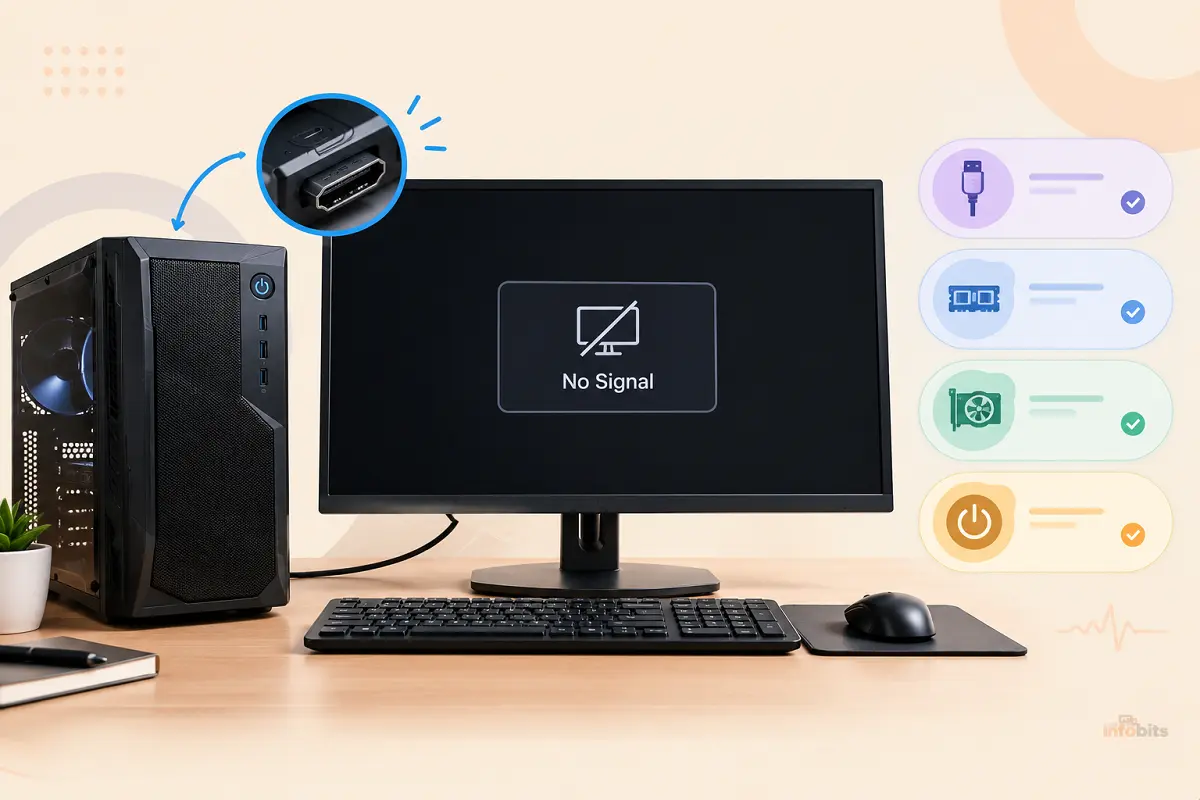
- Does the monitor show “No Signal” or “Input Not Found”? This means the monitor itself is working and receiving power, but nothing is reaching it from the PC. That’s a more specific and usually easier problem than a monitor that shows nothing at all.
- Does your motherboard have a speaker, and did you hear any beeps? Beep patterns are a genuine diagnostic tool. See the beep code table further down.
This guide assumes the PC is genuinely powering on (fans spinning, lights active) but producing no image. If your PC won’t power on at all, our guide on laptops not turning on or a dedicated power-issue check is the better starting point.
Step 1: Check the Monitor Itself First
It sounds almost too obvious, but confirming the monitor side of the connection before opening the PC saves a lot of wasted troubleshooting time.
- Confirm the monitor has power. Look for a power LED near the button or on the bezel. A solid or blinking amber/orange light usually means the monitor is in standby. It means that the monitor is powered on, but not receiving a signal.
- Check the input source. If your PC is connected via HDMI but the monitor is manually set to DisplayPort (or vice versa), you’ll get a “No Signal” message even though everything is working. Cycle through the monitor’s physical input buttons to check each connected source.
- Test with a different cable. Cables fail internally without visible outward damage. Swap in a known-working cable, even temporarily borrowing one from another device.
- Test the monitor on a different device, if possible (another PC, a laptop, even a game console). This immediately tells you whether the problem is the monitor or the PC.
If the monitor lights up and shows a signal from another source, the monitor itself is fine. Then move on to the PC-side checks below.
Step 2: Rule Out Peripherals and Boot Order
A surprisingly common cause: something connected to the PC is interfering with the normal startup sequence before it ever gets to sending a display signal.
- Unplug all non-essential peripherals like external hard drives, USB docking stations, printers, extra monitors, webcams, and anything else beyond the keyboard, mouse, and display cable.
- A connected external drive can silently change your boot order, causing the system to attempt booting from a device with no valid system files, which can present as a black screen with no obvious error.
- Docking station conflicts are another common, easy-to-overlook culprit for laptops connected to an external display.
- After unplugging everything, restart the PC. If the display comes back, reconnect peripherals one at a time to identify which one was causing the conflict.
Step 3: Check the Physical Cable and Port Connection
If you’re using a discrete graphics card, this step matters more than people expect:
- Plug the display cable into the graphics card’s ports, not the motherboard’s video output. If you have a dedicated GPU installed, the motherboard’s built-in video ports are typically disabled by default. Plugging into the wrong one produces exactly this symptom.
- Try a different port on the same card (a second HDMI or DisplayPort output, if available) to rule out a single failed port.
- Check for bent pins or physical damage on both the cable and the port itself.
- Verify the cable can handle your target resolution and refresh rate. A cable that can’t carry enough bandwidth for 4K at a high refresh rate can produce a blank signal rather than a degraded one. An HDMI 2.0 cable can’t reliably drive 4K above 60Hz, for example, and true 4K at 144Hz needs HDMI 2.1 or DisplayPort 1.4, which are easily available on Amazon.
Step 4: Reseat RAM and the Graphics Card
If the cable, input, and peripheral checks don’t resolve it, the next most common cause is a component that’s shifted slightly out of its slot. This happens more often than people expect, even without anyone touching the inside of the case, simply from heat cycling and vibration over time.
- Power off and fully unplug the PC, then hold the power button for a few seconds to discharge any residual power.
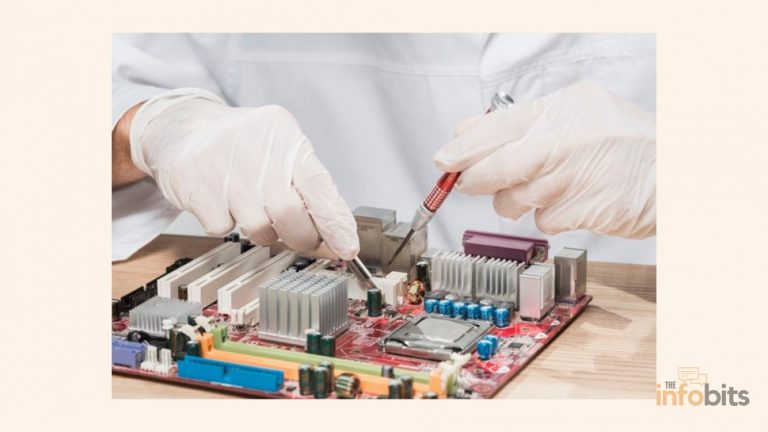
- Reseat the RAM: remove each stick, check for dust or debris in the slot, and firmly reinsert it until the side clips click into place. Try running with a single stick at a time in different slots if you have more than one module. This also helps isolate a specific bad stick or slot. If you’ve recently added or swapped memory, our guide on mixing different RAM modules covers compatibility issues that can cause exactly this kind of boot failure.
- Reseat the graphics card: remove it fully from its PCIe slot, check the slot for debris, and reinsert it firmly until it clicks. Reconnect all PCIe power cables directly to the card. A loose supplementary power connector is a common and easy-to-miss cause of a card that powers on the fans but produces no output.
- Check GPU temperatures and cooling aren’t a factor if the card has powered on before. A card overheating on a previous session can sometimes fail to initialize cleanly on the next boot. Our guide to ideal GPU temperatures has reference ranges if you want to rule this out with a monitoring tool once you’re back up and running.
Step 5: Listen for Beep Codes
If your motherboard has a small onboard speaker (many boards do, though it’s increasingly optional or omitted on budget models), the pattern of beeps during startup is a genuine, specific diagnostic signal, not just noise.
| Beep Pattern | Likely Meaning |
|---|---|
| No beeps at all | No power reaching the board, a loose card, or a short. Check power connections first |
| 1 short beep | Normal POST. The system passed its self-test; if you still have no display, the issue is downstream of POST (cable/monitor) |
| Continuous beeping | RAM not detected or improperly seated |
| 1 long, 2 short beeps | Video card error. GPU not initializing or not properly seated |
| Repeating short beeps | Power supply issue, or a loose/shorting component |
| 1 long, 1 short beep | Motherboard or memory controller issue |
| 3 long beeps | Keyboard controller error (less likely to be your actual display issue) |
Important: exact beep meanings vary by BIOS manufacturer (AMI, Award/Phoenix) and by motherboard brand (Dell and other OEMs sometimes use proprietary patterns), so treat this table as a general guide and check your specific motherboard’s manual or manufacturer support page for the precise pattern if you want a definitive answer.
If you’ve got a discrete diagnostics-focused test in mind, our motherboard diagnostic tests guide covers additional tools for isolating hardware faults beyond beep codes.
Step 6: Reset the CMOS/BIOS
If you’ve recently changed BIOS settings (an overclock, a voltage tweak, or an unfamiliar setting), a bad configuration can absolutely prevent the display from initializing even though everything else is otherwise fine.
- Power off and unplug the PC completely.
- Locate the CMOS battery (a small, coin-shaped battery on the motherboard) or a dedicated CMOS-reset jumper/button, depending on your board.
- Remove the battery for 1–2 minutes, or use the reset jumper/button per your motherboard’s manual, then reinstall it.
- Power the system back on. This resets BIOS settings to factory defaults, which resolves display issues caused by an unstable overclock or incompatible setting.
This is also the fix if your only symptom is a repeated failed-POST beep pattern immediately after you changed a BIOS setting. It’s a strong signal that the setting itself, not a hardware fault, is the actual cause.
When It’s Likely a Deeper Hardware Failure
If you’ve worked through every step above, such as cables, input source, peripherals, reseating RAM and the GPU, checking beep codes, and a CMOS reset, and you’re still getting no display, the remaining likely causes are:
- A failing graphics card – if you have integrated graphics available (built into the CPU), try connecting the display directly to the motherboard’s video output with the discrete GPU removed, to isolate whether the card itself is the fault.
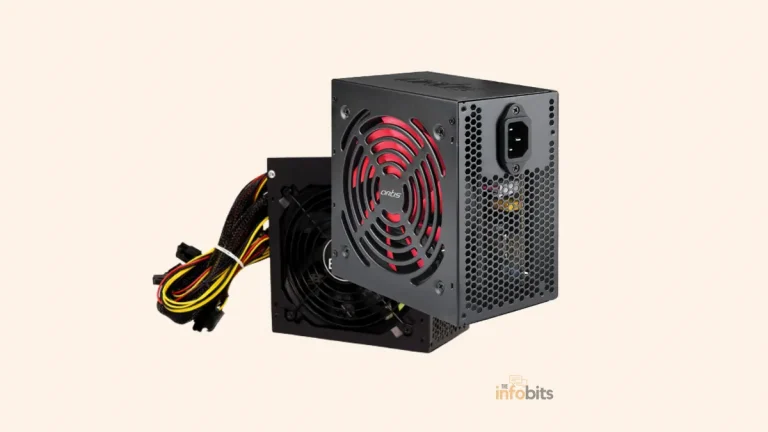
- A failing or marginal power supply – insufficient or unstable power delivery to the GPU specifically can prevent it from initializing even though the rest of the system appears to boot normally.
- A CPU or motherboard fault – less common, but possible, especially after a recent CPU upgrade where the motherboard’s BIOS may not yet support the new processor.
At this point, professional diagnosis (or a component swap-test with known-good parts, if you have access to spares) is the most efficient path forward, since narrowing down which specific part has failed without spare components to test against becomes genuinely difficult from the outside.
Quick Troubleshooting Checklist
- [1] Confirm the monitor has power and the correct input source selected
- [2] Test with a different cable and a different port
- [3] Test the monitor on another device to rule it out
- [4] Unplug all non-essential peripherals and external drives
- [5] Confirm the cable is plugged into the GPU, not the motherboard (if using a discrete card)
- [6] Reseat RAM sticks one at a time
- [7] Reseat the graphics card and its power connectors
- [8] Listen for and note any beep codes
- [9] Reset CMOS/BIOS to defaults
- [10] Test with integrated graphics (GPU removed) if available, to isolate the card
Frequently Asked Questions
Why does my PC turn on but the monitor stays black?
The most common causes are a loose or incorrect display cable connection, the monitor being set to the wrong input source, a peripheral interfering with the boot sequence, or improperly seated RAM or a graphics card.
What does it mean if my monitor says “No Signal”?
It means the monitor itself is powered on and working, but isn’t receiving any video data from the PC. Check the cable, the input source selection, and whether the cable is plugged into the correct port (the GPU, not the motherboard, if you have a discrete card).
Should I be worried about losing my data if my PC won’t display anything?
Generally, no. A display issue on its own doesn’t put your stored data at risk. The main risk to data comes from performing a hard, forced shutdown repeatedly without letting the system complete its boot process, so avoid unnecessary hard resets once you’ve confirmed the basics.
What do continuous beeps during startup mean?
Continuous beeping most often indicates RAM that isn’t detected or properly seated. Power off, reseat each memory stick firmly, and try booting with a single stick if you have more than one installed.
Why does my PC show a display sometimes but not always?
Intermittent display issues often point to a loose connection (cable, RAM, or GPU) rather than a fully failed component. A connection that’s marginal can work sometimes and fail other times depending on vibration, temperature, or how firmly it’s seated.
Can a bad power supply cause a no-display issue even if the PC turns on?
Yes. A marginal or failing power supply can provide enough power for fans and lights to turn on while still failing to deliver stable power to the graphics card specifically, which can prevent it from initializing a display signal.
Do I need to reset CMOS if I haven’t changed any BIOS settings?
It’s still worth trying if other steps haven’t worked, since CMOS settings can occasionally become corrupted on their own (often tied to a dying CMOS battery), even without an intentional change.
Is it safe to reseat my own RAM and graphics card?
Yes, for most desktop PCs, this is a standard, low-risk maintenance task. Just make sure the PC is fully powered off and unplugged first, and handle components by their edges to avoid static damage.
My PC has no beep speaker at all; how do I diagnose it?
Many modern motherboards, especially budget models, omit the onboard speaker or use LED debug codes/displays instead. Check your motherboard’s manual for onboard diagnostic LEDs, or attach a basic PC speaker to the motherboard’s header if you specifically need audible beep codes for diagnosis.
Could a recent Windows update cause a “PC turns on but no display” issue?
It’s less common than hardware-related causes, since a display problem this early in boot (before Windows even loads) is usually independent of the operating system. But if your display works fine until Windows starts loading and then goes black, that points toward a software or driver issue rather than the hardware causes covered in this guide.
Found this guide useful? Share it with someone who is suffering from networking-related issues. Follow us on Facebook and Twitter for more tips, tricks, and guides.
We also ask that you bookmark this page for future reference, as we are constantly updating our articles with new information.
Sign up for our free newsletter as well to receive fresh information immediately in your inbox and keep technically up to date.
Disclosure: If you follow our links to a retailer’s website and make a purchase, we will get an affiliate commission on some, but not all, of the items or services we promote. This will cause no price change for you.