Hard Drive Clicking? What It Means, Is It Fixable, and What to Do Now
You hear it before you consciously register what it is – a rhythmic click… click… click… coming from your computer or an external drive. It’s not a normal hum, not a fan noise, and it doesn’t stop. If you’ve landed here searching for what that sound means, here’s the honest, no-fluff answer.
Quick answer: A clicking hard drive almost always means the read/write head inside can’t properly locate data on the spinning platters, and it’s repeatedly trying and failing to reset itself. This is commonly called the “click of death.” It’s a mechanical warning sign, not a software glitch, and it means your drive’s failure is likely already underway. The single most important thing you can do right now is stop using the drive and back up or recover anything you can’t afford to lose before you try anything else.
This guide explains exactly what’s happening inside the drive, what’s actually causing it in your specific case, what’s safe to try yourself, and, just as importantly, what popular “fixes” you’ll find online that data recovery professionals say will make things worse.
What Is Hard Drive Clicking, Exactly?
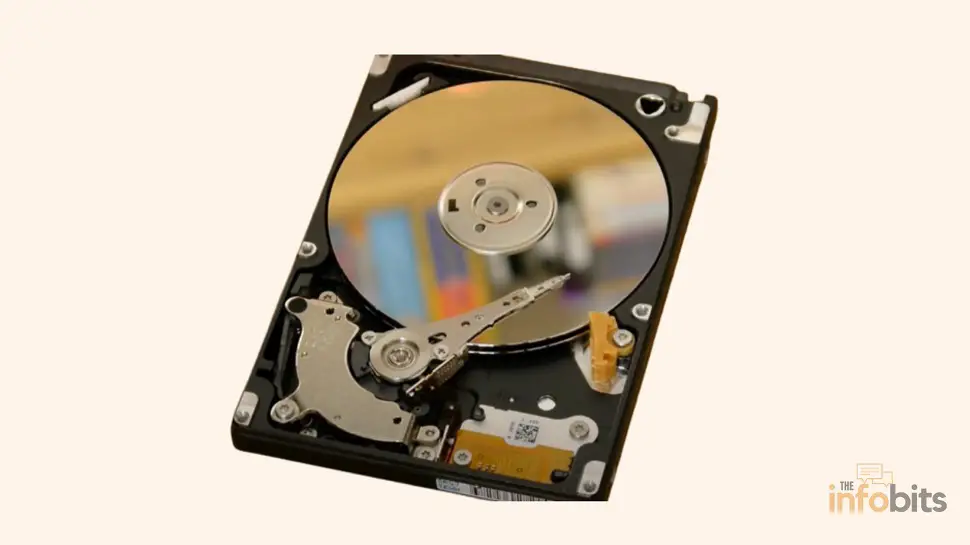
Every traditional hard disk drive (HDD), as opposed to a solid-state drive (SSD), which has no moving parts, stores data on spinning magnetic platters. A read/write head, mounted on a moving actuator arm, hovers a few nanometers above the platter surface and glides smoothly across it to find and read data.
When that arm can’t calibrate properly because of a mechanical fault, electrical problem, or damaged platter surface, the drive’s controller repeatedly tries to reset the head back to its home position and try again.
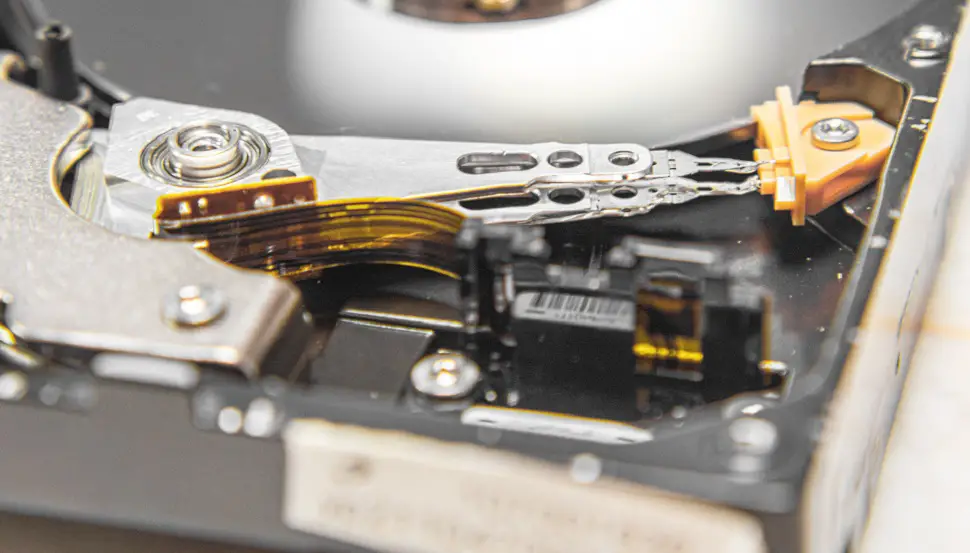
Each failed attempt produces an audible click as the arm’s base contacts a small limiter that’s meant to stop it from over-traveling. Do this dozens of times a second, and you get the distinctive repetitive clicking sound.
Important: this is exclusively an HDD phenomenon. SSDs have no moving parts, so they cannot physically click. If you hear clicking near what you believe is an SSD, the sound is coming from another component (a fan, another drive, or a nearby HDD), or you may be mistaken about which drive type you have.
Is a Clicking Hard Drive Always Failing?
In the vast majority of cases, yes. A click indicates the drive is either already failing or about to fail. That said, not every click sounds or means the same thing:
| What you’re hearing | What it likely means | Urgency |
|---|---|---|
| A single soft click occasionally during heavy use | Normal head movement or park/unpark cycling on some drives | Low; monitor, don’t ignore entirely |
| Slow, sporadic clicking, drive is detected | Possible connection or power issue | Medium; check cables/power first |
| Fast, loud, repetitive “click, click, click” (the “click of death”) | Mechanical failure of the read/write head or actuator | High; stop using it now |
| Clicking plus grinding or scraping | Head has likely contacted the platter surface (a “head crash”) | Critical; power off immediately |
If your drive is also showing any of these symptoms alongside the clicking, treat it as an emergency:
- Frequent Blue Screens of Death or sudden reboots
- “No operating system detected” or the drive not appearing at all in Windows/File Explorer or Disk Management
- Files taking unusually long to open, or appearing corrupted
- Windows prompting you to “format this disk” when you plug it in
What Causes a Hard Drive to Click?
There are several distinct mechanical and electrical failures that all produce the same symptom, which is exactly why clicking is hard to self-diagnose with certainty.
Physical damage. Drops, spills, exposure to fire or extreme temperatures, or strong magnetic fields can misalign or damage internal components directly. This is the single most common real-world cause.
Wear and tear. Hard drives are mechanical devices with moving parts, and moving parts eventually wear out, even in a drive that’s never been mistreated. The actuator arm and its bearings are common failure points as a drive ages.
Misaligned read/write heads. A drop or rough handling, even once, can knock the heads out of alignment with the platter tracks, producing the same click-and-retry pattern.
Damaged printed circuit board (PCB). A power surge can fry the drive’s control board or the head stack assembly it manages. Interestingly, PCB-related clicking can happen even when the heads and platters themselves are still physically intact, which is one reason PCB issues are sometimes recoverable without ever opening the drive.
Damaged or scratched platters. If the magnetic platter surface itself is damaged, the actuator arm keeps sweeping back and forth searching for readable data it can’t find, producing a continuous clicking pattern.
Firmware corruption. The drive’s onboard firmware, including a small reserved “service area” that stores manufacturer calibration data, can become corrupted from a bad sector, a botched update, or sudden power loss. If the drive can’t load this data correctly on startup, it may click repeatedly trying to initialize.
Insufficient or unstable power. A failing power supply, an overloaded power strip, or (for external drives) an underpowered USB port can starve the drive of the power it needs to spin up and operate its heads correctly.
What to Do When You Hear Clicking
Step 1: Power It Off
This is the single most important step, and it comes before anything else on this list. Every additional spin-up and read attempt on a mechanically failing drive risks scratching the platters further and turning a recoverable situation into an unrecoverable one.
If it’s your main system drive, shut down properly if you can; if it’s an external drive, unplug it immediately.
Do not repeatedly power it on and off to “see if it still works.” Each attempt adds risk without adding useful information.
Step 2: Don’t Try These Popular “Fixes”
A lot of outdated advice circulates online for clicking drives, and some of it actively destroys data that could otherwise have been professionally recovered. Skip all of these:
- The freezer trick. This dates back to hard drives from the 1990s that used a different bearing design where extreme cold occasionally, briefly freed a seized spindle. Modern drives (essentially anything made in the last 15+ years) use fluid dynamic bearings and much tighter head-to-platter tolerances that this trick does nothing for, and the condensation it introduces when the drive warms back up can cause permanent, additional damage. Data recovery labs report success rates near zero and damage rates near total.
- Tapping or dropping the drive (“percussive maintenance”). Platters spin at 5,400–7,200+ RPM. Any impact hard enough to dislodge a genuinely stuck component is also hard enough to cause a head crash. The heads physically gouge the platter surface.
- Opening the drive casing yourself. Hard drive interiors require a certified cleanroom environment (ISO Class 5 or cleaner) to open safely. A single dust particle landing on an exposed platter can cause a head crash. Your bathroom, garage, or desk is not a cleanroom, no matter how careful you are.
- Swapping in a PCB from a different drive off eBay. Even boards that look identical often have drive-specific calibration data (adaptive parameters) stored on them. Mismatched boards can cause further damage rather than fixing anything.
Step 3: Rule Out the Simple, Safe Causes First
Before assuming the worst, it’s worth ruling out a few things that are genuinely easy and low-risk to check. These apply mainly if the clicking is intermittent or the drive is still detected by your computer.
Check the power and cables.
- Make sure the drive isn’t sharing an overloaded power strip with several other devices.
- For external drives, confirm you’re using the original or a compatible power adapter. Some external drives are picky about amperage.
- Inspect the connection cable for visible damage, bent pins, or corrosion, and swap it for a known-good cable if you have one.
- Confirm you’re using a cable and port that match the drive’s USB version. A USB 3.0 drive on a USB 2.0 cable can behave unpredictably or fail to be detected properly.
Related: USB-A vs USB-C: What’s the Difference?
Test on a different system. If it’s an external hard drive, try it on a different computer entirely. If it’s an internal drive, you can remove it and connect it to another PC using a SATA-to-USB adapter or an external enclosure.
This single test tells you whether the problem is the drive itself or something about your original computer (a failing motherboard SATA port, a bad power connector, etc.).
Check Disk Management or Device Manager (Windows). Even if File Explorer doesn’t show the drive, check whether Windows detects it at the hardware level:
- Right-click the Start button and select Disk Management.
- See if the drive appears at all, even as “Not Initialized” or “Unallocated.”
If it’s not appearing here either, that’s a stronger signal of a genuine hardware fault rather than a simple driver or connection issue.
Step 4: If the Drive Is Still Accessible, Back Up Immediately
If you can currently see and open your files despite the clicking, treat this as a closing window, not a stable state. Copy everything irreplaceable to another drive or cloud storage right now, before doing anything else, including before running any diagnostic or “repair” tool, since diagnostics themselves involve reading from the failing drive.
Once your critical files are safely copied elsewhere, you can consider running your drive manufacturer’s diagnostic tool (Seagate SeaTools, Western Digital Data Lifeguard, CrystalDiskInfo for general S.M.A.R.T. health data) to get a clearer read on the drive’s health. But back up first, diagnose second.
Related: SSD Not Showing Up in BIOS or Windows? Here’s How to Fix It
Step 5: If the Drive Isn’t Accessible, Stop and Weigh Your Options
If the drive is clicking and either isn’t detected at all or is detected but you can’t see your files, you’re at a genuine decision point:
- If the data isn’t valuable to you (an old backup drive with nothing irreplaceable, for instance), it’s reasonable to try inexpensive DIY data recovery software as a low-stakes attempt, understanding it’s unlikely to succeed against true mechanical failure and further spin-up attempts add risk.
- If the data matters – family photos, financial records, work you can’t reproduce – the responsible move is to stop attempting anything yourself and contact a professional data recovery service. This isn’t a sales pitch; it’s the consistent, blunt advice from essentially every reputable data recovery lab, because DIY attempts on a mechanically failing drive are one of the most common reasons data becomes permanently unrecoverable.
Step 6: Once You’ve Secured Your Data, Address the Drive Itself
- If the drive is under warranty, contact the manufacturer for an RMA (replacement) rather than attempting any repair yourself, which typically voids the warranty anyway.
- If it’s out of warranty and the data has been recovered or wasn’t critical, the drive should simply be retired. A clicking HDD is not worth attempting to keep in service. Replace it with a new drive, and strongly consider an SSD, which has no moving parts and therefore cannot develop this specific failure mode at all.
Related: How Much Does Data Recovery Cost (Plus: Is Free Software Worth It?)
Myth vs. Fact
Myth: “Putting a clicking hard drive in the freezer can fix it.” Fact: This worked, sometimes, on certain drives from the 1990s. On any modern drive, data recovery professionals report success rates near zero and damage rates near total, largely due to condensation forming as the drive returns to room temperature.
Myth: “If I can still see my files, the drive is fine; clicking is just cosmetic.” Fact: Clicking means a mechanical process is actively struggling. A drive that’s still readable today can become completely inaccessible within hours or days. Treat any access you currently have as a closing window to back up, not a sign of stability.
Myth: “A clicking noise means the whole drive and all my data is destroyed.” Fact: Not necessarily. Depending on the cause (a PCB failure, for example, versus a genuine head crash), professional recovery labs successfully retrieve data from clicking drives regularly. The key variable is how quickly you stop using the drive after the clicking starts.
Myth: “Recovery software can fix a clicking drive.” Fact: Software recovery tools work by reading data off a drive that’s electronically and mechanically sound but has lost its file system or had files deleted. They cannot repair a physically failing head or actuator, and running them on a clicking drive adds more read cycles and more risk for a mechanical problem software has no ability to fix.
Common Mistakes That Make Things Worse
- Continuing to use the drive because “it still mostly works,” rather than backing up immediately and stopping.
- Repeatedly power-cycling the drive hoping it’ll “reset itself”. Each cycle adds risk without benefit.
- Trying the freezer trick or a physical tap based on outdated advice from years-old forum threads.
- Running recovery software on a mechanically clicking drive before understanding whether the cause is mechanical (where this makes things worse) or something else.
- Opening the drive casing to “take a look,” which introduces dust and near-guarantees a head crash on a drive that wasn’t already crashed.
Preventing Hard Drive Clicking
- Keep at least one backup of anything important, ideally following the 3-2-1 rule: three copies, on two different types of media, with one stored off-site or in the cloud.
- Protect drives, especially external ones, with a surge protector, since PCB damage from power surges is a common and often overlooked cause.
- Handle external and portable drives gently; avoid moving or bumping them while they’re actively reading or writing, since that’s when the heads are closest to the platter surface.
- Keep drives away from extreme heat, cold, and strong magnetic sources.
- If you’re due for a replacement anyway, consider migrating to an SSD, which eliminates the mechanical failure modes that cause clicking entirely.
If you’re replacing a clicking hard drive rather than recovering it, a reliable internal SSD like the Samsung 870 EVO is a safe upgrade path available on Amazon. SSDs have no moving parts, so this specific failure mode simply can’t happen to them.
For ongoing protection against the power surges that commonly damage a drive’s PCB, plugging your desktop or external drives into a surge protector like the Belkin Heavy-Duty Surge Protector Power Strip is a cheap safeguard available on Amazon against one of the more preventable causes on this list.
Final Thoughts
A clicking hard drive is one of the more legitimately urgent noises your computer can make; but panic isn’t useful here, and neither is guesswork.
Power the drive down, resist the temptation to try folk remedies you’ve seen online, and make your very next move about protecting whatever data you can still reach.
Everything after that- diagnosing the exact cause, deciding between DIY recovery and a professional lab, and eventually replacing the drive – goes more smoothly once your files are safe.
Frequently Asked Questions
Why is my hard drive clicking?
It almost always means the read/write head can’t properly locate data on the platters and is repeatedly retrying and resetting, producing an audible click with each failed attempt. Common root causes include physical damage, worn components, a damaged circuit board, or corrupted firmware.
Is a clicking hard drive always failing?
In the large majority of cases, yes, especially with a fast, repetitive “click of death” pattern. Occasional single clicks during normal use can sometimes be benign head parking, but persistent clicking should always be treated as a warning sign.
What is the “click of death”?
It’s the informal name for the repetitive, rhythmic clicking that occurs when a hard drive’s actuator arm repeatedly fails to properly position its read/write head, almost always indicating a mechanical failure in progress.
Should I keep using a clicking hard drive?
No. Every additional read or spin-up on a mechanically struggling drive increases the risk of further, potentially permanent damage. Power it off and prioritize backing up any data you can still access.
Does the freezer trick actually fix a clicking hard drive?
No, not on any modern drive. It occasionally worked on some hard drives from the 1990s, but data recovery professionals report it has a near-zero success rate today and frequently causes additional, irreversible damage from condensation.
Can I recover data from a clicking hard drive myself?
It depends on the cause and how much the data matters to you. If the drive is still detected and accessible, back up immediately. If it’s not detected or the data is important, DIY software recovery is unlikely to help with a genuine mechanical failure, and professional recovery is the safer route.
Is it safe to open a clicking hard drive to inspect it?
No. Hard drives require a certified cleanroom environment to open safely. A single dust particle landing on an exposed platter can cause a head crash, turning a potentially recoverable drive into an unrecoverable one.
Can a power surge cause a hard drive to click?
Yes. A surge can damage the drive’s printed circuit board or head stack assembly, and in some cases this produces clicking even though the platters and heads themselves are still physically undamaged.
What’s the difference between clicking and grinding noises?
Clicking typically indicates the head is failing to calibrate or find data. Grinding or scraping is a more severe sign that the head has likely made physical contact with the platter surface – a “head crash” – and warrants immediate shutdown.
Can SSDs make a clicking noise?
No. SSDs have no moving mechanical parts, so they are physically incapable of producing a clicking sound. If you hear clicking near an SSD, the noise is coming from elsewhere in the system.
How do I know if my hard drive clicking is a connection issue rather than a hardware failure?
Try a different cable, power source, and USB port, and test the drive on a completely different computer if possible. If the clicking persists across all of these changes, it points to the drive itself rather than the connection.
Will Windows show a clicking hard drive in Disk Management even if File Explorer doesn’t show it?
Sometimes. A drive can appear in Disk Management as “Not Initialized” or “Unallocated” even when it’s not visible in File Explorer, which can help distinguish a file-system-level problem from a deeper hardware failure.
Is data recovery from a clicking hard drive expensive?
Professional data recovery costs vary widely depending on the type and severity of failure, but it’s generally the more reliable option compared to DIY attempts, which can turn a recoverable failure into an unrecoverable one and end up costing more in lost data.
Should I try data recovery software before contacting a professional?
Only if the data isn’t critical to you. Recovery software can’t repair mechanical damage, and running it on a clicking drive adds more read cycles and risk to a problem it has no ability to actually fix.
Can a clicking hard drive be fixed permanently, or should I always replace it?
Even when a specific issue (like a damaged PCB) can be professionally repaired, a drive that has already shown mechanical clicking has a meaningfully elevated risk of future failure. Most people are better served recovering their data and replacing the drive rather than continuing to rely on it.
How can I prevent hard drive clicking in the future?
Keep regular backups following the 3-2-1 rule, use surge protection, handle drives gently (especially while they’re actively in use), and keep them away from extreme temperatures and magnetic fields. Migrating to an SSD eliminates this specific failure mode.
Does a clicking noise always mean I’ll lose my data?
No. With a fast response (powering off immediately and either backing up what’s accessible or getting professional help quickly), a meaningful share of clicking-drive cases result in successful data recovery. Speed matters more than almost anything else here.
What should I do first if I hear clicking right now?
Power the drive off immediately. If it’s still accessible and readable, back up your most important files right away. If it’s not accessible, stop trying things yourself and get a professional opinion, especially if the data matters.
We hope you found this article helpful, and do like and follow us on Facebook and Twitter for regular updates. Also, please bookmark this page for future reference.
Sign up for our free newsletter as well to receive fresh information right in your inbox and stay informed technically.
Disclosure: If you use some of the links in this article to navigate to a retailer’s website and make a purchase, we will receive an affiliate commission on some of the products or services we recommend without changing the price you pay.