Modem Keeps Resetting? 13 Fixes That Stop the Reboot Loop
Your internet drops out every few minutes, and when you check the modem, the lights are cycling like it just got plugged in.
That’s a reboot loop, and it’s one of the most common (and most disruptive) networking problems there is, because it doesn’t just slow you down; it cuts you off entirely, repeatedly, often at the worst moment.
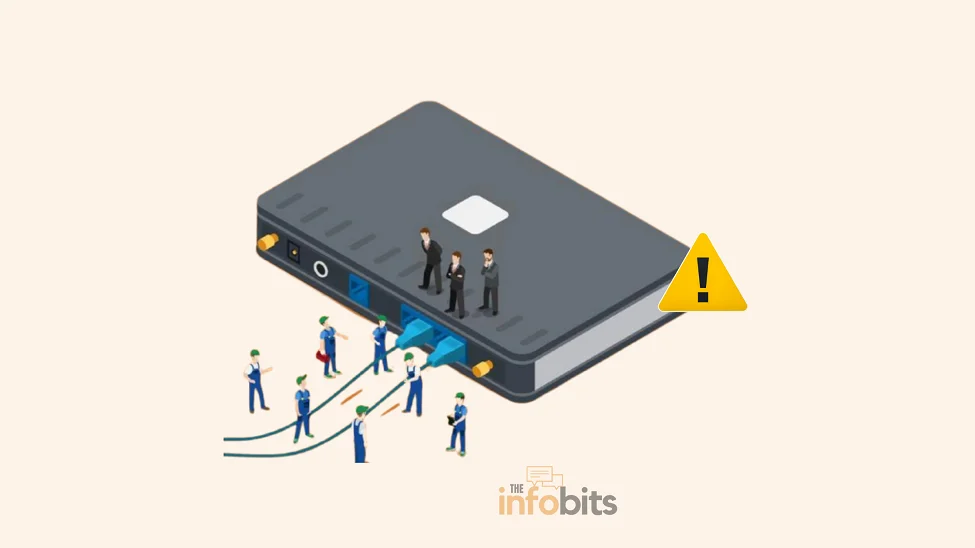
The frustrating part is that a modem can reset itself for half a dozen unrelated reasons. This may include a loose cable, a dying power adapter, an overheating case, too many connected devices, outdated firmware, or a problem entirely on your ISP’s end that no amount of troubleshooting on your side will fix.
This guide walks you through diagnosing which one you’re dealing with, in the order that wastes the least time, plus how to read your modem’s own status page for hard data instead of guessing.
Quick Answer: How to Stop a Modem From Resetting
Work through these in order and stop as soon as it’s fixed:
- Check the power adapter and cable for a loose connection or physical wear.
- Check the coax, DSL, or fiber cable connection at both ends for damage or looseness.
- Give the modem more airflow and confirm it isn’t hot to the touch.
- Log in to the modem’s status page and check signal levels (downstream/upstream power, SNR).
- Update the firmware.
- Reduce the number of connected devices, or split traffic across Wi-Fi bands.
- Factory reset the modem as a last software step.
- If none of that works, call your ISP to check for line issues or a known outage.
- If your modem is more than 4–5 years old and still resets after all this, replace it.
The rest of this guide covers each step in detail, plus how to tell the difference between a restart, a reboot, and a full reset, and why that distinction matters before you touch anything.
Restart vs. Reboot vs. Reset: Know the Difference First
These terms get used interchangeably, but they’re not the same thing, and mixing them up can cost you your settings.
- Restart / Reboot – Powering the modem off and back on. This clears temporary memory and refreshes the connection without touching any settings. Safe to do anytime.
- Reset (Factory Reset) – Wipes the modem back to its out-of-the-box defaults: Wi-Fi name and password, port forwarding rules, DNS settings, firewall rules, everything. This should be a later step, not a first one, since you’ll need to redo your configuration afterward.
If a random online guide tells you to “reset” your modem as step one, they mean restart. Actual factory resets belong near the end of your troubleshooting, not the start.
Why Does My Modem Keep Resetting?
Your modem is the single device translating your ISP’s incoming signal into something your home network can use. When it resets on its own, the cause is almost always one of these:
- A loose or failing power connection; the single most common cause.
- A weak or damaged internet cable connection (coax, DSL, or fiber) between the wall and the modem.
- Overheating, usually from poor ventilation or being stacked with other devices.
- Signal problems on the line itself; often visible on the modem’s status page as poor power or SNR readings.
- Too many connected devices overwhelming a modem/router combo.
- Outdated or buggy firmware.
- Aging hardware; most modems have a realistic 3–5 year service life before internal components start failing.
- Issues entirely on your ISP’s side, including scheduled maintenance or line problems outside your home.
Troubleshoot hardware and connections first, since they’re the fastest to rule out. Then move to signal and firmware. ISP-side issues and replacement are the last resort, not the first guess.
How to Fix a Modem That Keeps Resetting: Step-by-Step
1. Restart the Modem
Unplug the power for a full 60 seconds. A quick unplug/replug often isn’t enough to fully discharge internal memory. Plug it back in and watch it for several minutes. If it resets again quickly, move to the next steps; don’t just keep restarting it repeatedly hoping it sticks.
2. Inspect the Power Adapter and Connection
A loose or failing power connection is the single most common cause of unexpected modem resets. Check it properly:
- While the modem is powered on, gently wiggle the power connector where it plugs into the back of the modem. If a light touch causes it to reset, the port or adapter itself is failing.
- Feel the power brick (the small box on the cord). If it’s unusually hot, buzzing, or smells like burning plastic, stop using it. That’s a failing adapter, not just a loose plug.
- Plug directly into a wall outlet rather than a power strip or extension cord, at least while testing.
- Watch the power indicator light while you handle the cable; flickering points to an intermittent connection.
If the outlet or strip itself seems to be the issue, or you want reliable protection against the power fluctuations that cause resets in the first place, a dependable surge protector like the Hanycony Power Strip Surge Protector is a cheap way to rule this out permanently and is available on Amazon.
3. Check the Internet Cable Connection
Follow the physical line ( coax, DSL, or fiber) from the wall to the back of the modem.
- Make sure the connector is finger-tight at both ends, not loose or cross-threaded.
- Look for kinks, cracks, or crush damage anywhere along the cable, especially where it runs under furniture or through a wall plate.
- If your setup uses a coax splitter, try connecting the modem directly to the first wall jack without it, even temporarily. Old or low-quality splitters add signal loss and noise that can cause frequent re-syncing and resets.
- If damage is visible, the cable itself needs replacing. For coax and DSL lines provided by your ISP, they can usually send a replacement or a technician.
4. Rule Out Overheating
A modem should feel warm at most during normal use, never hot. If it is:
- Give it at least 6 inches of clearance on all sides.
- Stand it upright on a hard surface rather than lying flat, and don’t stack it under or on top of other devices like a router, set-top box, or game console. Trapped heat between stacked equipment is a common, easily missed cause.
- Clean dust out of any vents in the casing.
- Move it out of enclosed spaces like cabinets or shelves with poor airflow.
5. Check Your Modem’s Status Page for Signal Data
This is the step most troubleshooting guides skip, and it’s the one that actually tells you whether the problem is inside your home or out on the line. Most modems host a status page at an address like 192.168.100.1 (check your model’s manual if that doesn’t work).
Look for:
- Downstream/Upstream Power – should fall within the range your modem’s documentation specifies; consistently out-of-range values point to a line issue.
- SNR (Signal-to-Noise Ratio) – lower is generally worse; a poor SNR alongside frequent resets is a strong sign of a cabling or ISP-side problem, not something you can fix by restarting.
- Event Log – look for repeated “T3/T4 timeout” or sync-loss entries, which indicate the modem is losing its connection to your ISP’s network, not resetting due to an internal fault.
If these numbers look bad, the fix isn’t more troubleshooting on your end. It’s a call to your ISP with these specific readings in hand, which speeds up the support call considerably.
Related: Powerline Adapter vs Wi-Fi Extender vs Mesh: Which Fixes Dead Zones?
6. Check for an Overloaded Modem or Router Combo
If you’re using a modem/router combo, too many connected devices can push it past its functional limit.
- Power off the modem and every connected device, including computers, phones, smart home gear, and streaming boxes.
- Restart the modem, then bring devices back online one at a time.
- If it resets again after a specific number of devices, you’ve found your limit. At that point, talk to your ISP about a higher-capacity modem, or invest in one yourself, such as the Motorola MG7700 Modem WiFi Router Combo, available on Amazon.
7. Update the Modem’s Firmware
Manufacturers release firmware updates to patch bugs, close security holes, and improve stability, including fixes for known reset issues on specific models.
Log in to your modem’s admin page and check for a firmware update option, or check the manufacturer’s site directly if the interface doesn’t show one. Outdated firmware is a genuinely common, easily overlooked cause of ongoing instability.
8. Spread Devices Across Wi-Fi Bands
On a modem/router combo, too many devices crowded onto one band can cause congestion that looks like a modem problem but is really a wireless traffic jam. Distribute devices across the 2.4GHz and 5GHz bands (not every device supports 5GHz, so check specs first) and see if resets stop.
Related: How to Choose the Best WiFi Channel for Faster Speeds
9. Factory Reset the Modem
If you’ve worked through everything above, a factory reset clears out any corrupted configuration that’s built up since setup. This is more disruptive than a restart. It erases your Wi-Fi name and password, port forwarding rules, DNS settings, and firewall configuration, so you’ll need to reconfigure from scratch afterward.
Most modems have a small recessed reset button on the back. With the modem powered on, press and hold it with a paperclip for about 30 seconds until the lights cycle.
10. Request a Connection Refresh From Your ISP
If your modem has been running for a long stretch without a restart, it can become desynchronized from your provider’s network, leading to repeated resets as it tries to recover. Contact your ISP and ask them to refresh or re-provision the connection from their end. This is different from a line/signal issue and is a quick, no-cost request.
11. Ask Your ISP About Outages or Maintenance
Sometimes there’s genuinely nothing wrong with your equipment. Scheduled maintenance or a line issue on your provider’s network can cause a modem to reset repeatedly with no fix available on your side.
Check your ISP’s outage map or app, or call support and ask directly whether there’s known maintenance or a service ticket for your area.
12. Add Surge Protection
Power surges, from storms, grid fluctuations, or even other appliances on the same circuit, can degrade a modem’s internal components over time, contributing to instability even when the immediate cause looks unrelated.
A surge protector absorbs that excess and shields the modem from cumulative damage. In an area with frequent outages, a small UPS (uninterruptible power supply) also keeps the modem running through brief power blips instead of hard-cycling every time the power flickers.
Related: How to Choose a Surge Protector for Home Electronics
13. Replace the Modem
If you’ve been through every step above and the resets continue, two things are worth checking before you buy.How old the modem is, and whether it’s actually rated for your current internet plan.
Most modems have a realistic service life of about 3–5 years before internal components, capacitors especially, start to fail, causing exactly this kind of intermittent resetting.
Separately, if you’ve upgraded your internet speed since you got the modem, an older unit that doesn’t support DOCSIS 3.1 (for cable) or your ISP’s current standard may simply be overwhelmed rather than faulty.
Check with your ISP before buying anything to confirm compatibility, since not every modem works with every provider’s network.
Related: How Long Do Routers Last and When Should You Replace Them?
Diagnostic Table: Match Your Symptom to the Likely Cause
| What You’re Seeing | Most Likely Cause | Fix to Try First |
|---|---|---|
| Resets when you touch or move the power cable | Loose power connection | Step 2 |
| Power brick is hot, buzzing, or smells odd | Failing adapter | Step 2 (replace adapter) |
| Modem is hot to the touch | Overheating | Step 4 |
| Resets happen with many devices connected | Overloaded modem | Step 6 |
| Status page shows poor SNR or out-of-range power | Signal/line issue | Step 5, then Step 11 |
| Resets started right after a storm or power outage | Surge damage | Step 12, consider Step 13 |
| Modem is 4+ years old | Aging hardware | Step 13 |
| Resets only during certain hours or citywide | ISP-side issue | Step 11 |
Common Mistakes That Waste Time
- Jumping straight to a factory reset. Most resets are caused by power, cabling, or heat, not corrupted configuration. A factory reset should be near the end of your list, not the first thing you try.
- Never checking the modem’s own status page. The signal data sitting right there in the admin interface can tell you in seconds whether this is a line issue, which no amount of restarting will fix.
- Restarting repeatedly instead of diagnosing. If a restart doesn’t hold for more than a few minutes, restarting again won’t change the outcome. Then move on to checking power, cables, or heat.
- Overlooking the power brick itself. People check the wall outlet and the cable but skip feeling the adapter for heat, which is one of the clearest signs of a failing part.
- Stacking equipment. Placing a modem directly under or on top of a router, streaming box, or game console is a very common, easily fixed cause of overheating-related resets.
Modem vs. Router vs. Modem-Router Combo
Modem: Converts the signal coming from your ISP (over coax, DSL, or fiber) into a format your home devices can use, and sends data back the other way. It’s your connection point to the wider internet.
Router: Takes the connection from the modem and distributes it to your devices, creating your home Wi-Fi or LAN network and assigning each device its own address so data reaches the right place.
Modem-Router Combo: Combines both functions into a single device. It saves space and can save money if you’re currently paying a monthly rental fee for a separate modem, though a combo unit can also become a single point of failure, and, as covered in Step 6, hit its device-handling limit faster than a two-box setup.
Related: What to Do with an Old Router? 15 Efficient Uses For Old Routers
Frequently Asked Questions
How can I troubleshoot modem resetting?
To troubleshoot modem resetting, you can follow numerous methods. Checking hardware connections, ensuring appropriate airflow, upgrading firmware, verifying cable connections, tweaking network settings, and fixing power supply issues are all part of the process. You can narrow down the reason and solve the problem by following these troubleshooting steps.
Can I prevent the modem from resetting?
While certain reasons for modem resetting are beyond your control, you may take preventive actions to reduce its incidence. Cleaning and dusting the modem regularly, utilizing surge protectors or UPS, minimizing electrical interference, and keeping firmware up to date can all assist in preventing modem resetting.
What should I do if troubleshooting doesn’t resolve the modem resetting issue?
If your attempts to troubleshoot the modem resetting problem fail, you should contact your internet service provider (ISP) for assistance. They may offer more troubleshooting advice, arrange a technician visit if necessary, and determine whether a modem replacement is required if the problem persists.
Why does my modem keep resetting itself?
The most common causes are a loose or failing power connection, a damaged or loose internet cable, overheating, an overloaded device count on a modem/router combo, outdated firmware, or a signal problem on your ISP’s line. Aging hardware and ISP-side maintenance issues are also common once the more obvious causes are ruled out.
What’s the difference between restarting and resetting a modem?
Restarting (or rebooting) simply powers the modem off and back on, refreshing its memory without touching any settings. Resetting is a full factory reset that erases your Wi-Fi name, password, port forwarding, DNS, and firewall settings back to defaults. It’s a more disruptive step that should come later in troubleshooting, not first.
How do I know if my modem is overheating?
It’s normal for a modem to feel warm during regular use, but it should never be hot to the touch. If it is, check that it has at least 6 inches of clearance on all sides, isn’t stacked with other devices, and has clean, unblocked vents.
How do I check my modem’s signal levels?
Log into your modem’s status page, usually at an address like 192.168.100.1 (check your specific model’s manual if that doesn’t load). Look for downstream/upstream power levels and SNR (signal-to-noise ratio); values outside your modem’s documented normal range point to a line issue rather than something fixable on your end.
Can too many devices cause a modem to keep resetting?
Yes, particularly on a modem/router combo. If the modem is handling routing duties for every device on your network, exceeding its functional capacity can cause it to slow down or reset. Turning devices off and reconnecting them one at a time will show you where the limit is.
Will updating the firmware fix my modem’s reset problem?
It can. Manufacturers regularly release firmware updates that patch known bugs, including ones that cause specific models to reset unexpectedly. Check your modem’s admin page or the manufacturer’s website for the latest version.
Does a factory reset fix a modem that keeps resetting?
Sometimes, if the cause is corrupted configuration data. But it should be tried after you’ve ruled out power, cabling, heat, and signal issues, since it wipes all your custom settings and requires you to reconfigure the modem from scratch.
How can I tell if the problem is my modem or my ISP?
Check your modem’s status page for signal data; poor downstream/upstream power or a bad SNR reading points to a line issue outside your home. You can also check your ISP’s outage map or app, or call support directly and ask if there’s known maintenance or a reported issue in your area.
Can a bad power adapter cause a modem to keep resetting?
Yes, and it’s one of the most common causes. Feel the power brick while the modem is running. If it’s unusually hot, buzzing, or smells off, it’s likely failing and needs replacing, not just re-plugging.
How long do modems last before they need replacing?
Most modems have a realistic service life of about 3 to 5 years before internal components, particularly capacitors, begin to fail. If your modem is in that range and continues resetting after all other troubleshooting, replacement is the most likely fix.
Can a coax splitter cause a modem to reset?
Yes. Old or low-quality splitters introduce signal loss and noise, which can cause a modem to lose sync with your ISP’s network and reset to recover. Testing the modem connected directly to the wall jack, without a splitter, can confirm whether it’s the cause.
Is it safe to keep restarting my modem repeatedly?
Restarting itself won’t damage the modem, but if it doesn’t hold a stable connection for more than a few minutes after each restart, repeating it won’t fix the underlying cause. Move on to checking the power adapter, cables, heat, or signal levels instead.
Why does my modem only reset during certain times of day?
This pattern often points to network congestion, either from your own household’s peak usage or from congestion on your ISP’s local network during high-traffic hours. It’s worth mentioning this specific pattern to your ISP, since it can help them pinpoint a local capacity issue.
Should I upgrade my modem if I recently increased my internet speed?
Possibly. Older modems that don’t support current standards, such as DOCSIS 3.1 for cable connections, can struggle to keep up with a higher-speed plan, which can present as instability or resets rather than simply slower speeds. Check your modem’s supported standard against what your ISP currently requires.
Can a power surge damage my modem even if it still turns on?
Yes. A surge can degrade internal components without killing the modem outright, leading to intermittent issues, including resets, that appear well after the actual surge event. A modem that started resetting shortly after a storm or power outage is a reasonable candidate for this.
Does my ISP need to send a technician to fix a resetting modem?
Not always. Many causes like power connections, cabling, overheating, device overload, and firmware are fixable without a technician visit. A visit typically becomes necessary when the signal levels on the status page point to a line issue outside your home, or when your modem itself needs replacing, and your ISP provides the hardware.
We hope you found this post informative, and do like and follow us on Facebook and Twitter for regular updates.
We also ask that you bookmark this page for future reference. Sign up for our free newsletter as well to receive fresh information immediately in your inbox and keep technically up to date.
Disclosure: We will receive an affiliate commission on some, but not all, of the items or services we promote if you follow our links to a retailer’s website and make a purchase, without altering your price.