Windows Network Troubleshooting Basics: A Step-by-Step Guide for Windows 11 and 10
The Wi-Fi icon says you’re connected. Your browser says otherwise. It’s annoying, but it’s usually fixable once you know where to look.
Almost every Windows network problem comes down to one weak link in a short chain. It may be your PC, your router, your modem, your internet provider, or DNS (the internet’s phonebook). This guide walks through that chain in order, from 30-second checks to last-resort resets, so you can stop guessing and start isolating the problem.
You don’t need to be an IT pro. If you can open Settings and paste a command into Windows Terminal, you can do everything below.
Windows 10 or Windows 11? The commands work on both. Menu names differ slightly, and I’ve noted where. Windows 10 support ended in October 2025, so if you’re still on it, plan your move to Windows 11 or an extended-support option.
Quick Answer: The Fix Order That Works
To troubleshoot a Windows network problem, work in this order:
- Check whether other devices can get online.
- Restart your PC, then power-cycle your modem and router (unplugged for at least 60 seconds).
- Run the Windows network troubleshooter.
- Check your IP address with
ipconfig /all.- Ping your router, then a public server like 8.8.8.8, then a website name.
- Flush DNS or switch DNS servers.
- Update, roll back, or reinstall the network driver.
- Reset Winsock and TCP/IP. Use Network reset only as a last resort.
Each step below explains what to do, what the result means, and where to go next.
How Your Windows PC Actually Gets Online
Knowing the chain makes everything else easier. Your PC talks to a router, the router talks to a modem, the modem talks to your internet provider (ISP), and DNS turns website names into addresses along the way.
| Piece | What it does | What failure looks like |
|---|---|---|
| Network adapter (Wi-Fi card or Ethernet port) | Connects your PC to the local network | No Wi-Fi option, adapter missing, warning icon in Device Manager |
| Router | Hands out local addresses and connects your devices | Every device struggles, or your PC gets a 169.254 address |
| Modem / ONT | Connects your home to your ISP | Router shows “internet down,” modem lights off or blinking |
| ISP | Provides the actual internet | Everything fails, even with a PC plugged straight into the modem |
| DNS | Translates names (google.com) into numbers | IP addresses work, websites don’t |
Four quick definitions you’ll see later:
- IP address: your device’s address on the network.
- Default gateway: the router’s address, the door your traffic goes through to leave your home network.
- DHCP: the router feature that automatically hands your PC an IP address.
- DNS: the service that converts a website name into the number computers use.
My rule of thumb is to work from the inside out, in the order that your PC first, then your router, then your ISP. Test one thing at a time so you know what actually fixed it.
Step 1: Work Out How Big the Problem Is
Before you touch a single setting, figure out whether this is a “my PC” problem or a “my network” problem. Grab your phone and see what else is affected.
| What you see | Most likely cause | Go to |
|---|---|---|
| Only this PC is offline; phones on the same Wi-Fi are fine | PC settings, driver, or adapter | Steps 4 to 9 |
| Every device is offline | Router, modem, or ISP | Step 3 and the ISP section |
| Wi-Fi fails, but Ethernet works | Wi-Fi adapter, driver, or signal | Step 11 |
| One website or app fails | That service, DNS, or an app-level block | Steps 7 and 10 |
| Browser works but other apps don’t | Proxy, VPN, or firewall | Step 10 |
| Works on your phone’s hotspot but not at home | Router or ISP | Steps 3 and 12 |
Switch your phone to mobile data and check your provider’s outage page or app. Comcast/Xfinity, Spectrum, BT, Rogers, Telstra, Spark, and most others have one. If there’s an outage, no amount of Windows fiddling will help, and you can stop here.
Step 2: Read What Windows Is Telling You
Click the network icon at the bottom right of the taskbar. It tells you more than most people notice.
- Airplane mode on? It’s the most embarrassing fix and one of the most common. Turn it off.
- Wi-Fi toggled off? Turn it back on. On laptops, also check for a keyboard shortcut or physical switch.
- Connected to the wrong network? Windows sometimes joins a neighbor’s open network, a guest network, or an old hotspot.
- “No Internet” under the network name? You’re connected to the router, but nothing is getting through to the wider internet. On Windows 10, you may see “No Internet, secured.” Our guide to the Windows 10 “No Internet, secured” error covers that one in detail.
- In a café, hotel, or airport? You may need to sign in on a captive portal first. Open a plain
http://page such as neverssl.com to trigger it, and read our tips on using public Wi-Fi safely.
Step 3: Restart the Right Things, in the Right Order
Restarting fixes more than it has any right to, because routers and modems hold onto stale session data and Windows can hang on to a broken connection state.
- Restart your PC. Use Restart, not Shut down. On recent Windows versions, a full shutdown can keep some state around.
- Unplug the modem and router from power (both, if they’re separate boxes).
- Wait at least 60 seconds. This gives the devices time to fully clear.
- Plug in the modem first. Wait until its lights settle, which usually takes a couple of minutes.
- Plug in the router. Give it another couple of minutes to boot.
- Test again on your PC and on one other device.
If your ISP gave you a single combined modem-router box, power-cycle that one device.
Expert tip: If your modem or router needs restarting every few days, treat that as a symptom, not a fix. Read our guides on why a modem keeps resetting and common router issues.
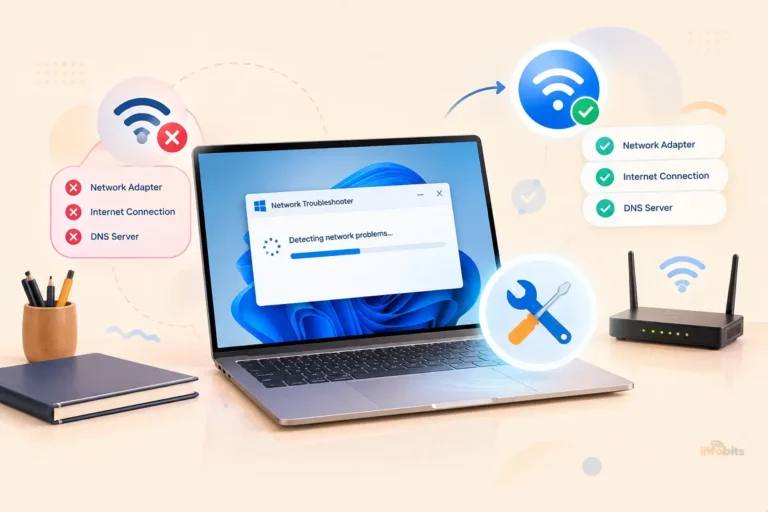
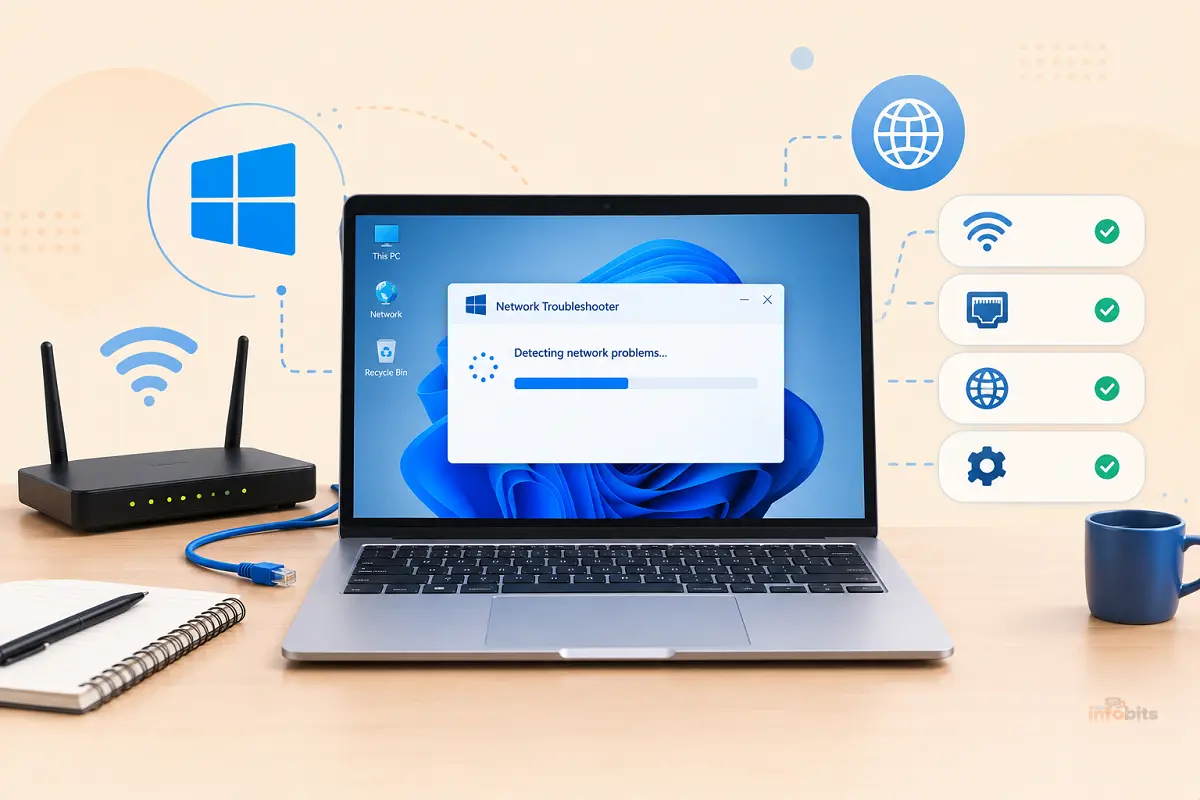
Step 4: Run the Windows Network Troubleshooter (The Current Way)
The built-in troubleshooter won’t solve everything, but it’s a fast first pass. It catches disabled adapters, obvious DNS trouble, and some configuration mistakes.
Windows 11:
- Open Settings > System > Troubleshoot > Other troubleshooters.
- Find Network and Internet and select Run.
- Follow the prompts. It may hand you off to the Get Help app, which now runs many of Windows’ automated troubleshooters.
On many builds, you can also right-click the network icon in the taskbar and choose Diagnose.
Windows 10: Go to Settings > Network & Internet > Status > Network troubleshooter.
A note on old advice: you’ll see plenty of guides telling you to run
msdt.execommands. Microsoft has deprecated that tool, so use Settings or Get Help instead.
Write down whatever the troubleshooter reports, even if it says it “couldn’t identify the problem.” Messages like “DHCP is not enabled” or “Default gateway is not available” tell you exactly where to look next. If it does apply a fix, run it again to confirm the fix actually held.
Step 5: Check Your IP Address With ipconfig
This takes 30 seconds and tells you more than any icon can.
Right-click the Start button and choose Terminal (Admin), or Windows PowerShell (Admin) on older builds. Then type:
ipconfig /all
Find your active adapter (Wi-Fi or Ethernet) and look at four lines: IPv4 Address, Default Gateway, DHCP Server, and DNS Servers.
What does your IP address tell you?
| What you see | What it means |
|---|---|
| 192.168.x.x, 10.x.x.x, or 172.16–31.x.x | Normal private address. Your router handed out a lease. |
| 169.254.x.x | Windows gave itself an address because it couldn’t reach a DHCP server. Your router isn’t answering. |
| No address, or 0.0.0.0 | Adapter is disconnected, disabled, or failing. |
| Good address but blank Default Gateway | Windows has no route out. Suspect router config or a virtual adapter conflict. |
| An address range different from your router’s usual one | You’re probably on the wrong network, or a VPN or virtual adapter is interfering. |
What does a 169.254 IP address mean?
It’s an APIPA address (Automatic Private IP Addressing). Windows assigns it to itself when it asks for an address and hears nothing back. It usually points to a bad cable, a router that isn’t responding, or an adapter problem. Our guide on Wi-Fi that doesn’t have a valid IP configuration goes deeper on that exact error.
Ask for a fresh address
ipconfig /release
ipconfig /renew
ipconfig /flushdns
/release drops your current lease, /renew asks the router for a new one, and /flushdns clears saved name lookups. A few cautions:
- Your connection will drop for a moment. That’s normal.
- If you’re connected to the PC remotely,
/releasecan cut you off. - If you’ve set a static IP on purpose, this won’t do much.
Step 6: Use Ping to Find Exactly Where the Chain Breaks
Ping sends a small test message to another device and tells you whether it answers. Run these four in order:
ping 127.0.0.1
ping 192.168.1.1
ping 8.8.8.8
ping google.com
Swap 192.168.1.1 for the Default Gateway address you found in Step 5. (Common ones are 192.168.1.1, 192.168.0.1, and 10.0.0.1.)
| Result | What it tells you |
|---|---|
| 127.0.0.1 fails | Your PC’s own network software is damaged. Jump to Step 9. |
| Router fails, everything else too | Problem between your PC and the router: Wi-Fi, cable, adapter, or router. |
| Router works, 8.8.8.8 fails | The problem is beyond your router: modem, ISP, or router settings. |
| 8.8.8.8 works, google.com fails | This is a DNS problem. Go to Step 7. |
| All four work | The network is fine. Look at the specific app, browser, proxy, or VPN. |
Some handy extras:
- Add
-t(for exampleping 8.8.8.8 -t) to keep pinging while you make changes. Press Ctrl+C to stop. It’s great for watching a connection come back to life or drop out. - Timeouts: “Request timed out” usually means the reply never came back. Some routers and firewalls deliberately block ping, so a failed ping to one site doesn’t prove it’s down. That’s why testing several targets matters.
- To test whether a real website port is reachable, open PowerShell and run
Test-NetConnection google.com -Port 443. If it saysTcpTestSucceeded : True, your PC can reach web servers. tracert google.comshows each hop your traffic takes, so you can see where it stalls.
Step 7: Fix DNS Problems
Symptoms: you can ping 8.8.8.8 but not google.com, or Chrome and Edge show errors like DNS_PROBE_FINISHED_NO_INTERNET.
Fix 1: Flush the cache.
ipconfig /flushdns
Fix 2: Try a different DNS server. Your router usually hands out your ISP’s DNS servers. Public alternatives are often more reliable.
On Windows 11:
- Open Settings > Network & internet, then choose Wi-Fi or Ethernet.
- Open your network’s properties.
- Next to DNS server assignment, choose Edit, then Manual.
- Turn on IPv4 and enter a preferred and alternate server, such as 1.1.1.1 and 1.0.0.1 (Cloudflare), 8.8.8.8 and 8.8.4.4 (Google), or 9.9.9.9 (Quad9).
- Save and test.
Windows 11 can also encrypt lookups (DNS over HTTPS) for well-known providers. If you care about privacy or filtering, see our picks for the best DNS servers for blocking malware and ads and the best DNS servers for gaming.
Expert tip: Changing DNS can make a flaky connection more reliable, but it doesn’t raise your bandwidth. If your speeds look off, check why speed test tools show different results before blaming DNS. If switching DNS on the PC fixes things, consider changing it on the router so every device benefits.
Step 8: Check the Adapter, Driver, and Power Settings
If only your PC is affected, the adapter is the next suspect.
- Toggle the adapter. Press Win+R, type
ncpa.cpl, right-click your Wi-Fi or Ethernet adapter, choose Disable, wait a few seconds, then Enable. - Open Device Manager (
devmgmt.msc) and expand Network adapters. A warning icon or a missing adapter points to a driver or hardware problem. - Get drivers from the source. Use your PC maker’s or adapter maker’s support page rather than random driver-download sites. If trouble started after an update, right-click the adapter, choose Properties > Driver > Roll Back Driver if available.
- Reinstall the driver. Right-click the adapter, choose Uninstall device, then restart. Windows will usually reinstall a driver automatically.
- Turn off aggressive power saving. In the adapter’s properties, open the Power Management tab and untick Allow the computer to turn off this device to save power. This is a classic cause of Wi-Fi that dies after sleep. Our walkthrough of the Windows 10 “No Internet, secured” fix shows where to find it, and the same idea applies on Windows 11.
- Check key services. Open
services.mscand confirm that DHCP Client, DNS Client, and WLAN AutoConfig (for Wi-Fi) are running. Don’t change anything if they already are.
A small USB 3.0 Gigabit Ethernet adapter like the Amazon Basics USB 3.0 Gigabit Ethernet Internet Adapter is a smart thing to keep in your laptop bag for exactly this situation. If the internet works through the adapter but not through the built-in port, you’ve just proven the built-in hardware is the problem.
The same trick works in reverse for Wi-Fi, since a compatible USB Wi-Fi 6 adapter like the TP-Link USB WiFi 6 Adapter available on Amazon can prove (or bypass) a dead internal wireless card.
Step 9: Repair the Network Stack (Winsock and TCP/IP)
If ping to 127.0.0.1 failed, or apps can’t get online even though Windows says you’re connected, the network software layer may be corrupted.
Winsock is the part of Windows that manages how programs open network connections. (If “socket” is a new word, see our explainer on the difference between a port and a socket.)
In an admin Terminal, run:
netsh winsock reset
netsh int ip reset
ipconfig /flushdns
Then restart your PC. The restart is what makes the repair stick.
Heads-up:
netsh int ip resetcan wipe manual IP settings. If you use a static IP, write your settings down first.
Step 10: Check Proxy, VPN, Firewall, and Security Software
When the network is healthy but one program, or all programs but the browser, can’t get online, look here.
- Proxy: Go to Settings > Network & internet > Proxy. Unless your workplace requires one, “Use a proxy server” should be off.
- VPN: Disconnect your VPN and test. VPN apps install virtual adapters and sometimes a kill switch that blocks traffic when the tunnel drops. If the internet returns with the VPN off, fix or reinstall the VPN client. (Wondering what a VPN actually does for you at home? See: Can a VPN make your home Wi-Fi more secure.)
- Firewall and antivirus: Third-party security suites can block apps or web traffic after a silent update. Check the suite’s web-protection or network-protection module. If you pause it for a test, keep the test brief and turn it back on.
- “Access is blocked” messages: Read our guide to ” Your internet access is blocked.
Step 11: Wi-Fi-Specific and Ethernet-Specific Fixes
If it’s Wi-Fi
- Forget and rejoin the network. Go to Settings > Network & internet > Wi-Fi > Manage known networks, select your network, choose Forget, then reconnect. This clears stale saved settings.
- Get closer or change the band. 5 GHz is faster but doesn’t reach as far. 2.4 GHz goes further but gets crowded. Learn how to choose the best Wi-Fi channel and how to boost your Wi-Fi signal at home.
- Check for security mismatches. If a newer router uses WPA3 and an older adapter struggles, see our guide to WPA3 encryption. Newer Wi-Fi 7 routers can also trip up older gear, which we cover in Wi-Fi 7 router won’t connect older devices.
- Generate a Wi-Fi report. In an admin Terminal, run
netsh wlan show wlanreport. Windows builds an HTML report of recent connection history, including disconnect reasons and session durations. It’s one of the most underused diagnostic tools in Windows. It saves toC:\ProgramData\Microsoft\Windows\WlanReport\wlan-report-latest.html. - Suspect unwanted guests. If everything is slow, see how to detect unauthorized devices on your Wi-Fi network.
If the trouble only shows up in one far corner of the house, the fix is usually more coverage rather than more troubleshooting, and a mesh Wi-Fi system (see the options on Amazon) will do more than a plug-in extender (we compare the two in our mesh system vs Wi-Fi extender guide).
If it’s Ethernet
Wired problems are usually physical. Work through this list:
- Check that the cable clicks in firmly at both ends, and look for link lights on the port.
- Swap the cable, then try a different port on the router or switch.
- If you use a dock or USB-C adapter, test the PC’s own port directly.
- Leave speed and duplex on Auto Negotiation in the adapter’s Advanced properties unless you’re testing something specific.
If you don’t have a spare cable to test with, a short Cat6 patch cable is one of the cheapest troubleshooting tools you can own, and a basic RJ45 cable tester (available on Amazon) tells you in seconds whether a long wall run is actually good.
Step 12: Last Resorts: Network Reset, Bad Updates and Repair Installs
You’ve tried everything above, and it’s still broken. Here’s the heavy artillery, in order.
1. Back up your Wi-Fi profiles (optional but smart)
mkdir C:\WiFiBackup
netsh wlan export profile key=clear folder=C:\WiFiBackup
Warning:
key=clearsaves your Wi-Fi passwords in readable text. Store the folder somewhere safe and delete it when you’re done.
2. Run Network reset
Go to Settings > Network & internet > Advanced network settings > Network reset and select Reset now. Windows removes and reinstalls your network adapters, forgets saved Wi-Fi networks, and clears custom DNS, proxy, and IP settings, including VPN adapters.
Your files aren’t touched, but you’ll need to reconnect to Wi-Fi and possibly reinstall your VPN client afterward.
3. Check whether an update broke it
If the trouble began right after a Windows update, Microsoft’s Windows release health page for your Windows version lists known issues and fixes.
Check Windows Update for a newer patch first. If none exists, you can remove the recent update from Settings > Windows Update > Update history > Uninstall updates.
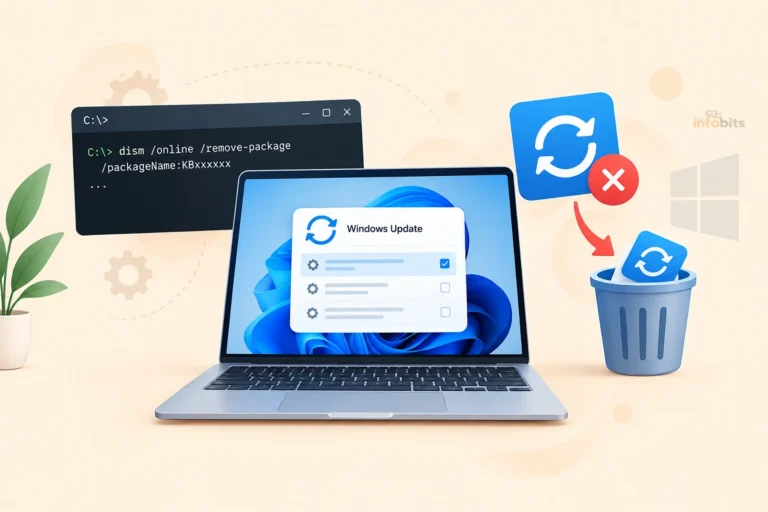
For command-line removal, see our guide on using DISM to remove a Windows update, and read Windows 11 25H2 vs 24H2 if you’re unsure which version you’re on.
4. Consider a repair install
On many current Windows 11 builds, Settings > System > Recovery offers a “reinstall now” option that repairs Windows while keeping your files and apps.
Back up first. If networking still fails afterward, the cause is almost certainly hardware or outside your PC.
Common Mistakes That Waste Time
- Changing five things at once, so you never learn which one worked.
- Jumping straight to Network reset before trying simpler fixes.
- Restarting the router for two seconds instead of leaving it unplugged for a full minute.
- Downloading drivers from random “driver updater” sites.
- Turning off the firewall permanently instead of testing briefly.
- Blaming Windows when every device in the house is offline.
Myth vs Fact
| Myth | Fact |
|---|---|
| “Network reset is a safe first step.” | It removes adapters and saved Wi-Fi networks. Save it for last. |
| “No internet means Windows is broken.” | If other devices are offline too, the router, modem, or ISP is the likely cause. |
| “A failed ping means the site is down.” | Many servers and firewalls block ping. Test more than one target. |
| “Public DNS makes my internet faster.” | It can make lookups more reliable, but it won’t raise your bandwidth. |
| “Flushing DNS speeds things up.” | It only clears stale lookups. |
| “Disabling the firewall is a fine permanent fix.” | It’s only a short diagnostic test. Turn protection back on. |
Quick Symptom Cheat Sheet
| Symptom | Try this first |
|---|---|
| Connected, no internet | Power-cycle modem and router, then Step 5 and Step 6 |
| 169.254.x.x address | Check cable or Wi-Fi, then ipconfig /release and /renew |
| Websites fail, IP pings work | Flush DNS, switch DNS servers |
| Browser works, other apps don’t | Check proxy, VPN, and firewall |
| Wi-Fi drops after sleep | Turn off adapter power saving, update the driver |
| Wi-Fi network doesn’t appear | Toggle Wi-Fi and Airplane mode, restart adapter, check driver |
| Ethernet “unidentified network” | Try a new cable and port, then ipconfig /renew |
| Everything slow | Check for other devices, try Ethernet, switch Wi-Fi channel |
Should You Fix It, Replace Something, or Call Your ISP?
| Situation | Best move |
|---|---|
| Only your PC fails, and another adapter works | Replace or update the PC’s adapter |
| Everything fails, and the router restarts constantly | Check firmware, then consider replacing the router |
| Every device fails, and modem lights show a fault | Call your ISP |
| A PC plugged straight into the modem still can’t get online | Call your ISP |
| Your router is several years old and drops connections | Compare options, and see how long routers last |
If your router really is aging, a current Wi-Fi 6 or Wi-Fi 7 model is worth the upgrade, and our list of features to look for in a router helps you shop without overpaying.
While you wait for the ISP, you can still get by with a phone hotspot. See our guide to temporary internet service options.
Before you call your ISP, have this ready
- [1] Your account name and address
- [2] What the modem and router lights are doing
- [3] Whether the problem affects all devices or just one
- [4] The results of your ping tests (router and 8.8.8.8)
- [5] Whether a PC connected straight to the modem works
- [6] When the problem started and what changed
It saves everyone time, and it keeps you from being sent through a “have you tried restarting?” script you’ve already done.
Going Deeper: Tools for When Basics Aren’t Enough
When the basics fail, these give you more evidence:
- Event Viewer: Check Windows Logs > System and the WLAN-AutoConfig log for repeated adapter or DHCP errors.
- Reliability Monitor: Shows a timeline of failures and updates, handy for spotting “it broke right after X.”
- Resource Monitor > Network tab: Shows which apps are using your connection.
pathping: A combined ping and traceroute that shows where packet loss begins.- Safe Mode with Networking: If the problem vanishes there, third-party software is likely to be to blame.
For watching traffic more closely, see how to monitor network traffic.
How to Prevent Network Problems
- Keep drivers and router firmware updated. Here’s our router firmware update checklist.
- Place your router well. Central, elevated, away from thick walls and microwaves.
- Keep a wired option. One Ethernet port and cable within reach is a great troubleshooting fallback.
- Note your baseline. Write down your router’s IP, your normal speeds, and your DNS setup so you can spot what changed.
- Protect your gear. Plug your modem and router into a decent surge protector, or a small UPS like the APC BE600M1 UPS available on Amazon, if outages are common where you live, because power blips can lock up or reset networking equipment. Our surge protector guide explains what to look for.
Conclusion
Network troubleshooting feels like magic until you see the pattern: find out whether it’s your PC or your network, read what Windows and ipconfig are telling you, use ping to locate the break, and only then reach for resets. Most people can solve their problem by Step 6.
Bookmark this page and come back to the Quick Answer next time the Wi-Fi icon lies to you. And if you’ve been through all twelve steps and it’s still broken, you’ve just collected exactly the evidence your ISP or a repair shop needs.
Frequently Asked Questions
Why does Windows say I’m connected, but there’s no internet?
It means your PC is talking to the router, but nothing is getting through to the wider internet. The usual suspects are a router or modem that needs a restart, an ISP outage, a DNS problem, or a proxy or VPN setting. Test another device first to see whether it’s the PC or the network.
How do I run the network troubleshooter in Windows 11?
Open Settings, go to System > Troubleshoot > Other troubleshooters, and run the Network and Internet troubleshooter. On many builds, you can also right-click the network icon in the taskbar and choose Diagnose. Microsoft now routes many troubleshooters through the Get Help app.
What should I try first when Windows can’t connect to the internet?
Check whether other devices are online, then restart your PC and power-cycle your modem and router, leaving them unplugged for at least 60 seconds. Those two moves fix many everyday problems and also tell you whether the fault is on your PC or your network.
What does a 169.254 IP address mean?
It’s an APIPA address. Windows assigned it to itself because it couldn’t get a proper address from your router’s DHCP server. It usually points to a bad cable, a router that isn’t responding, or an adapter problem. Try ipconfig /release and /renew, then check the physical connection.
What does netsh winsock reset do?
It resets the Windows Sockets catalog to its default state, clearing corruption that can stop apps from reaching the network even when the connection looks healthy. Run it in an admin terminal, then restart your PC. Pair it with netsh int ip reset for a fuller TCP/IP repair.
Is it safe to run ipconfig /release and /renew?
Yes. They drop your current IP lease and request a fresh one from the router without changing your settings. You’ll lose the connection briefly, and a remote desktop session may disconnect. If you use a static IP, these commands won’t help.
How can I tell if the problem is my PC, my router, or my ISP?
Compare devices. If only your PC is affected, look at its adapter, driver, and settings. If every device is offline, restart the modem and router, then check for an outage and call your ISP if it persists. A PC plugged straight into the modem that still can’t get online points to the ISP.
Why does Wi-Fi work on my phone but not my Windows laptop?
Something is wrong on the laptop’s side: a stale saved network profile, a misbehaving driver, adapter power-saving, a VPN or proxy, or a stuck IP lease. Forget the network and reconnect, run the troubleshooter, then update or reinstall the Wi-Fi driver.
How do I change DNS on Windows 11?
Go to Settings > Network & internet, pick Wi-Fi or Ethernet, open your network’s properties, and edit DNS server assignment to Manual. Enter servers such as 1.1.1.1 and 1.0.0.1 (Cloudflare) or 8.8.8.8 and 8.8.4.4 (Google), then save.
Why can I ping 8.8.8.8 but not google.com?
Your connection to the internet works, but DNS isn’t turning names into addresses. Flush the DNS cache with ipconfig /flushdns, then switch to a public DNS server such as 1.1.1.1 or 8.8.8.8 to see if lookups recover.
Why does my Wi-Fi keep disconnecting on Windows 11?
Common causes are adapter power-saving, an outdated or buggy driver, a weak or crowded signal, or a corrupted saved network profile. Turn off the option that lets the computer switch off the adapter to save power, update the driver, and forget and rejoin the network.
How do I update my network driver?
Open Device Manager, expand Network adapters, right-click your adapter, and choose Update driver. For the best results, download the latest driver from your PC or adapter maker’s support page. If trouble began after an update, use Roll Back Driver in the adapter’s properties.
Can a Windows update break my internet?
Occasionally, yes. Driver changes and buggy updates can knock out Wi-Fi or Ethernet. Check Microsoft’s Windows release health page for known issues, install the latest updates or fixes, roll back the network driver, and if needed, uninstall the recent update.
Does flushing DNS speed up my internet?
No. It clears saved name lookups so Windows asks for fresh ones, which fixes stale or wrong results. It won’t increase your download speed, which depends on your plan, signal, and network conditions.
Does Network reset delete my files?
No, your files are untouched. It does remove and reinstall network adapters, forget saved Wi-Fi networks and passwords, and clear VPN, proxy, and custom IP or DNS settings, so back up anything you need first. Use it as a last resort.
When should I call my ISP?
Call when every device is offline after restarting your modem and router, when a computer connected straight to the modem still can’t get online, when modem lights show a fault, or when your provider’s outage page reports a problem in your area.
Do these steps work on Windows 10?
Yes. The commands are the same. Menu paths differ slightly; for example, Windows 10 uses Network & Internet > Status > Network troubleshooter. Windows 10 support ended in October 2025, so moving to Windows 11 or an extended-support option is a good idea.
Found this guide useful? Share it with someone who is suffering from networking-related issues. Follow us on Facebook and Twitter for more tips, tricks, and guides.
We also ask that you bookmark this page for future reference, as we are constantly updating our articles with new information.
Sign up for our free newsletter as well to receive fresh information immediately in your inbox and keep technically up to date.
Disclosure: If you follow our links to a retailer’s website and make a purchase, we will get an affiliate commission on some, but not all, of the items or services we promote. This will cause no price change for you.