
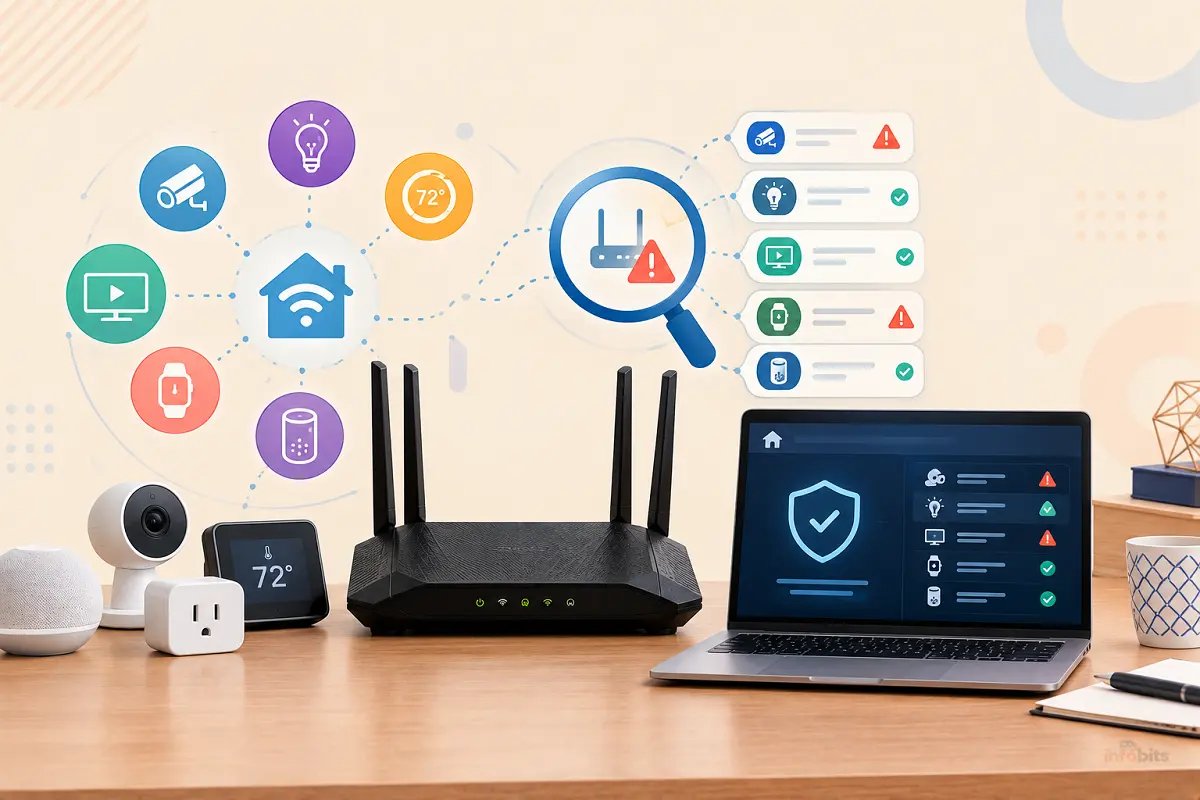
How to Check If a Smart Device on Your Network Is Vulnerable (Step-by-Step Guide)
Your smart TV, camera, doorbell, streaming box, and that no-name digital picture frame all sit on the same Wi-Fi as your laptop and your bank app. Most were set up once and never thought about again. That’s exactly what attackers count on.
This isn’t hypothetical. The FBI has warned that criminals gain access to home networks through compromised devices like streaming boxes, projectors, and picture frames, either because the device shipped with malware or because it picked up a backdoor during setup.
The good news is that you can check your own devices in an afternoon, with free tools and no security background.
This guide walks through eight steps: list every device, identify each one, check for known flaws, test for weak settings, scan for open ports, use your router’s built-in tools, look for signs of compromise, and decide what to fix or replace. It’s a companion to our guides on securing IoT devices and detecting unauthorized devices.
Quick answer: To check whether a smart device is vulnerable, (1) list every device on your network using your router’s client list or a scanner like Fing, (2) find each device’s make, model, and firmware version and confirm it still gets security updates, (3) search the maker’s security advisories and CISA’s Known Exploited Vulnerabilities list for that product, (4) log in and check for default passwords and risky features like remote access, (5) scan your own network for risky open ports such as Telnet (23) and Android Debug Bridge (5555), (6) run your router’s built-in security scan, (7) watch for signs of compromise like unknown apps or strange traffic, and (8) update, lock down, isolate, or replace anything that fails. Only scan networks you own.
Before You Start: Ground Rules
- Only scan your own network. Scanning networks you don’t own or have permission to test can break laws and terms of service.
- Stay non-intrusive. The steps here identify devices and check for exposed services. They don’t try to break in. Skip “exploit” or “attack” tools.
- Be gentle with fragile gadgets. Some cheap cameras and sensors crash under heavy scanning. Start with light scans.
- Set aside 30 to 60 minutes for a first pass. After that, a monthly check takes about 15 minutes.
- You’ll need: access to your router’s admin page, a computer or phone on the same network, and the manuals or apps for your devices.
Step 1: Build a Device Inventory
You can’t check what you don’t know about. Start by listing everything connected.
Method A: Your router. Log in to your router’s admin page or app and open the connected devices (or client list) page. It shows names, IP addresses, and MAC addresses. Our guide to detecting unauthorized devices walks through this.
Method B: A network scanner. A free app such as Fing scans your Wi-Fi in seconds and shows each device with its IP, MAC address, manufacturer, and device type. Fing also includes a port scanner and reports open ports, and it’s available on mobile and desktop. Nmap is a free, open-source alternative. It’s more powerful but is a command-line tool with a steeper learning curve.
What to do with the list:
- Give every device a name you’ll recognize, such as “Living room TV” or “Front door camera.”
- Circle anything you can’t identify. Unknown devices with names like “Espressif” or “Tuya” are often legitimate smart plugs or bulbs, so check before you panic. A quick match of the MAC address prefix to a manufacturer can help.
- Note the type of device, since some categories carry more risk than others (see the table later).
If you find a device you don’t recognize and can’t explain, disconnect it or block it. Our guide to blocking devices from your Wi-Fi router shows how.
Step 2: Identify Make, Model, and Firmware Version
Vulnerability checks depend on knowing exactly what you have.
For each device, find:
- Manufacturer and model number (on the label, the box, or the device’s app).
- Firmware or software version (in the device’s settings or companion app, usually under About, System, or Device Info).
- Whether it still gets updates. Search the manufacturer’s support page for the model and look for an “end of life” or “end of support” notice.
Red flags at this stage:
- No brand name, or a brand you can’t find a website for
- No firmware information anywhere
- The manufacturer stopped updates years ago
- The device isn’t certified by the platform it runs (for example, an Android streaming box that isn’t Play Protect certified)
The FBI lists several indicators tied to compromised streaming devices. They include generic TV streaming boxes advertised as “unlocked” or capable of free content, devices from unrecognizable brands, Android devices that aren’t Play Protect certified, and devices that require Play Protect to be turned off or that rely on suspicious app marketplaces.
The FBI stresses that no single indicator proves malicious activity, so treat them as reasons to look closer.
Our guide to OTT TV boxes explains what separates certified boxes from risky ones.
Step 3: Check for Known Vulnerabilities
Now check whether your specific device has known problems. Use these sources in this order.
1. The manufacturer’s security advisories
Search “[brand] [model] security advisory” or look for a Product Security or PSIRT page. This is usually the fastest and most reliable source. If a maker has no security page and no update history, treat that as a warning sign.
2. CISA’s Known Exploited Vulnerabilities (KEV) catalog
CISA’s KEV catalog lists vulnerabilities that have been confirmed as exploited in the wild. You can search it by vendor or product. If your device or its brand appears, act quickly. One caution: absence from KEV doesn’t mean a device is safe. It’s a list of what CISA has confirmed and published, not everything that exists.
3. The National Vulnerability Database (NVD), with a Caution
The NVD has long been the go-to place to look up a CVE (a numbered vulnerability). But on April 15, 2026, NIST changed how it operates. It will now fully “enrich” (add severity scores and affected-product lists to) mainly CVEs in the KEV catalog, software used by the federal government, and critical software.
Other CVEs are still listed but marked lowest priority, and older backlog entries published before March 1, 2026 were moved to a “Not Scheduled” category.
What this means for you: if you look up a consumer gadget and find a CVE with no severity score or product list, that doesn’t mean it’s harmless. It may simply not have been processed. Lean on vendor advisories and KEV instead.
4. Your device’s own update check
Open the companion app and check for updates. If an update is available, install it, then re-check the version.
Result of Step 3: for each device, you’ll know if it has known flaws, if a fix exists, and if the maker is still supporting it.
Step 4: Test for Weak Passwords and Risky Settings
Many real-world compromises don’t need clever hacking. They use factory-default logins or features left switched on.
For each device you own, log in to its web page or app and check:
- Default credentials. If the admin login is still “admin/admin,” a blank password, or something printed on the label, change it now to a long, unique password from your password manager.
- Remote access. Turn off any feature that exposes the device to the internet unless you truly need it. CISA advises disabling remote management on routers, and the same principle applies to cameras and hubs.
- UPnP. CISA warns that malware inside your network can use UPnP to bypass your router’s firewall, and advises disabling it unless you have a specific need. Check this in your router settings.
- Old protocols. If a device offers Telnet or an unencrypted admin page, look for an option to turn it off.
- Debug modes. On Android-based boxes and TVs, look for a developer or debugging mode. Android Debug Bridge (ADB) left open is a serious risk (more on this in Step 5).
- Two-factor authentication on the account that controls the device. Consider securing your Google, Amazon, or Apple account with a hardware key like the YubiKey 5C NFC available on Amazon.
Also review your router’s port forwarding rules. A forgotten rule can leave a camera or NAS reachable from the internet. Our port forwarding guide explains how to review and remove them.
Step 5: Scan for Open Ports
Open ports show which services a device is offering to the network. A few are especially worth checking on smart devices.
Easy way: Fing
Run a scan in Fing, tap a device, and use its port scanner to see open ports and services. Fing reports open ports and security risks and gives recommendations.
Nmap way (for the comfortable)
Nmap is free and open source. Replace 192.168.1.0/24 with your own network range (your router’s client list shows it).
# 1. List devices that respond on your network
nmap -sn 192.168.1.0/24

# 2. Check the ports most worth worrying about on IoT gear
nmap -p 21,22,23,80,554,5555,8080 --open 192.168.1.0/24

# 3. Identify the services on one specific device (slower)
nmap -sV 192.168.1.50
Stick to these light scans. Avoid aggressive or “vuln” script modes on cameras, locks, and sensors, which can crash them or trigger router alerts.
What the results mean
| Port | What it is | What to do if it’s open |
|---|---|---|
| 23 | Telnet (unencrypted remote login) | Treat as a red flag. Disable it, update firmware, or replace the device. |
| 21 | FTP (file transfer, usually unencrypted) | Check whether it’s needed. Disable if not. |
| 22 | SSH (encrypted remote login) | Fine if you set a strong password or keys. Check for defaults. |
| 80 / 8080 | Unencrypted web admin page | Log in and check the password. Prefer HTTPS if offered. |
| 554 | RTSP (camera video streams) | Confirm the stream requires a password. |
| 5555 | Android Debug Bridge (ADB) | Serious if open without authentication. Disable debugging or replace the device. |
An open port isn’t automatically a vulnerability. Context matters. An admin page on port 80 protected by a strong password is a minor issue. Telnet or ADB open with no authentication is a major one.
Why port 5555 matters in 2026
Krebs on Security reported on the Kimwolf botnet, which spreads by finding devices with Android Debug Bridge exposed. According to that reporting, typing “adb connect” with a vulnerable device’s local IP address and “:5555” can quickly give unrestricted administrative access.
The reporting says the botnet’s operators tunneled through residential proxy software, including on unofficial Android TV boxes, to reach other devices on the same local network. Most of the systems compromised this way have been unofficial Android TV streaming boxes.
These are typically Android Open Source Project devices, not Android TV OS devices or Play Protect certified ones, and they’re often marketed as a way to watch free streaming content.
The lesson: a device on your own network isn’t automatically safe just because it’s behind your router. One compromised box can be used to reach the others.
Check from the outside, too
Your router’s port forwards and UPnP settings decide what’s reachable from the internet. Use a public port-check tool such as GRC’s ShieldsUP, or look up your public IP on a service like Shodan, to see what the outside world can see. Only check your own address.
Step 6: Use Your Router’s Built-In Scans
Your router may already have a scanner. These are quick, low-effort checks.
| Router feature | What it does |
|---|---|
| ASUS Router Security Assessment | Scans your router’s security settings, including password strength and open ports, and links to fixes. See our ASUS AiProtection setup guide. |
| TP-Link HomeShield Basic (free) | Includes router and wireless security scans and IoT device identification, plus device isolation and camera security on supported models. |
| NETGEAR Armor | Scans connected devices for vulnerabilities and provides a weekly security score (paid subscription). |
| Firewalla | Adds device-level visibility and alerts on any router. |
A Firewalla Gold Plus is worth considering if you want ongoing monitoring instead of one-off checks. Our Firewalla vs UniFi Dream Machine guide compares the options.
Remember the limits: router-level tools can’t see inside encrypted traffic and can be bypassed. Our guide on router-level security vs antivirus explains what they can and can’t do.
Step 7: Look for Signs of Compromise
A device can be vulnerable without being infected, and infected without obvious symptoms. Check for clues.
On the device:
- Apps or app stores you didn’t install, especially unofficial marketplaces
- Google Play Protect turned off, or a prompt telling you to turn it off
- The device runs hot, lags, or reboots when it’s idle
- Settings changed that you didn’t change (DNS, admin passwords, debug mode)
On your network:
- Unexplained or unusually high outbound traffic, especially when the device is idle
- A device connecting to lots of unfamiliar destinations
- IoT devices making encrypted DNS connections (for example, port 853) that they shouldn’t need
- A device scanning other devices, such as probing ports like 5555 across your network (per one 2026 botnet analysis)
The FBI recommends monitoring home network traffic, assessing all IoT devices for suspicious activity, avoiding apps from unofficial marketplaces that advertise free streaming, and keeping software and firmware up to date. See our guide to monitoring network traffic and our explainer on whether your router is part of a botnet.
Check a public botnet lookup: the security firm Synthient, which researched Kimwolf, says users can check whether they’re a victim on its site, and recommends removing high-risk devices such as unofficial TV boxes from the network. Treat any third-party checker as one more clue, not proof.
Step 8: Decide What to Fix, Isolate, or Replace
Turn your findings into action with a simple three-color triage.
| Status | What it looks like | What to do |
|---|---|---|
| Green | Recognized brand, current firmware, updates supported, no default password, no risky ports | Keep it. Re-check monthly. |
| Yellow | Known device with an available update, a default password, remote access on, or a risky-but-explainable open port | Update, change credentials, turn off unneeded features. Move to a guest network or VLAN. |
| Red | Unofficial box, no updates, unauthenticated ADB or Telnet, signs of compromise, or a KEV-listed flaw with no fix | Disconnect. Replace it. Don’t just factory reset and reconnect. |
How to fix yellow devices
- Update the firmware and reboot.
- Change default passwords and use a unique one for each device.
- Disable what you don’t use: remote access, UPnP, Telnet, debug modes.
- Isolate it. Put smart-home devices on a guest network or a VLAN so they can’t reach your laptops and phones.
- Re-scan to confirm the risky port is closed.
What to do with red devices
Be realistic. Research from the Cloud Security Alliance describes BADBOX 2.0 as embedding a backdoor directly in device firmware before the devices leave the factory, making infection invisible and hard to remove by standard means.
For devices like that, a factory reset may not help. Replace them with a certified product from a brand that publishes security updates. If you need a new streamer, a mainstream option like a Fire TV Stick or Roku (both are available on Amazon) is a safer choice, and our guides on Apple TV vs Roku and Apple TV vs Google TV can help you choose.
If you believe you’re a victim, the FBI asks you to report an intrusion to its Internet Crime Complaint Center at ic3.gov. Also change your router’s admin password and check its DNS settings, since the NSA and FBI have advised reviewing them.
Which Devices Are Riskiest?
| Device type | Typical risks | Priority |
|---|---|---|
| Unofficial Android TV boxes, projectors, picture frames | Pre-installed malware, proxy software, exposed debug mode | Highest. Replace. |
| Cheap IP cameras and baby monitors | Default passwords, open video streams, old firmware | High |
| Smart TVs | Outdated software, tracking, exposed features | Medium |
| Routers and mesh systems | Outdated firmware, remote management, weak admin passwords | High (see router firmware guide) |
| Smart plugs, bulbs, sensors | Cloud account risks, rarely updated | Medium |
| NAS drives and printers | Exposed services, old firmware | Medium to high |
| Big-brand streamers and speakers | Generally supported and updated | Lower |
The NSA also recommends replacing routers that no longer receive updates and rebooting devices regularly.
Buying Safer Devices Next Time
Before you buy any smart device:
- Check the update policy. Look for a stated support period and a history of security updates.
- Prefer known brands with a security contact or advisory page.
- Avoid “unlocked” or “free content” boxes and devices that ask you to disable security features.
- Look for Play Protect certification on Android devices.
- Don’t rely on the Cyber Trust Mark yet. The FCC’s U.S. Cyber Trust Mark is designed to label IoT products that meet cybersecurity standards, but per the FCC, ioXt Alliance became lead administrator effective April 13, 2026, and the FCC will announce when the program is ready to accept applications for products to bear the label. Check the FCC’s page for updates.
Your 15-Minute Monthly Routine
- Open your router’s device list and look for anything new or unrecognized.
- Check that your router and key devices have installed their latest updates.
- Skim your router’s security report or event log.
- Review port forwards and confirm UPnP and remote management are off.
- Check the news for advisories that affect your brands.
- Re-scan any device you changed.
Common Mistakes
- Assuming “behind my router” means safe. One compromised device can reach the others.
- Trusting the NVD alone. Many consumer-device CVEs no longer get scored, so check vendor advisories and KEV.
- Factory resetting a device with firmware-level malware and putting it back on the network.
- Leaving default passwords because “nobody knows my Wi-Fi.”
- Ignoring end-of-life gear, which never gets fixes.
- Running aggressive scans on fragile devices.
- Skipping the account layer, the login that controls the device.
Myth vs. Fact
Myth: Only computers get hacked.
Fact: The FBI says criminals use compromised TV streaming devices, projectors, and picture frames to reach home networks.
Myth: If a device works fine, it isn’t infected.
Fact: Compromised devices often work normally while quietly using your connection.
Myth: A factory reset always cleans an infected device.
Fact: Firmware-level malware can survive a reset, so replace those devices.
Myth: If a CVE has no score, it’s not serious.
Fact: Since April 2026, many CVEs simply aren’t scored by NIST. Absence of a score isn’t absence of risk.
Myth: Big security suites will find bad devices for me.
Fact: Router-level tools help but can’t see everything. A manual audit catches what they miss.
Expert Tips
- Isolate first, investigate second. Moving suspicious devices to a guest network limits damage while you check.
- Keep a simple spreadsheet of devices, models, firmware versions, and update status.
- Turn on automatic updates wherever they’re offered.
- Buy fewer, better devices. Every extra gadget is another thing to maintain.
- Use a router that supports guest networks or VLANs. Router models like the ASUS RT-BE88U (available on Amazon) include a security assessment and free protections.
- Reboot routinely. The NSA recommends regular reboots of routers and devices.
Closing Words
Checking whether a smart device is vulnerable comes down to five plain questions: What is it, is it supported, does it have known problems, is it configured safely, and does it behave normally? You don’t need special tools to answer them.
A router’s device list, a free scanner, the manufacturer’s security page, and CISA’s exploited-vulnerabilities list will get you most of the way.
The devices that deserve the most suspicion are the ones with the least accountability: unbranded boxes, uncertified Android gadgets, and anything that no longer gets updates. Replace those, isolate the rest, and keep a monthly routine. That turns a scary, invisible problem into a manageable checklist.
Frequently Asked Questions
How do I check if a smart device on my network is vulnerable?
List every device using your router or a scanner like Fing, identify each device’s model and firmware, check the maker’s security advisories and CISA’s Known Exploited Vulnerabilities list, test for default passwords and open ports, and look for signs of compromise.
How do I see all devices on my home network?
Open your router’s admin page or app and check the connected devices list, or run a network scanner such as Fing or Nmap. Name each device and flag any you don’t recognize.
How do I know if a device is still getting security updates?
Look up the model on the manufacturer’s support site for an end-of-life or end-of-support notice, and check the companion app for firmware updates. If you can’t find either, treat it as a risk.
What ports should I worry about on smart devices?
Telnet (23), Android Debug Bridge (5555), and unauthenticated camera streams (554) are the biggest concerns. An open port is only a problem in context, so check whether it’s protected.
Is it safe to scan my own network?
Yes, if you stick to your own network and use light scans. Avoid aggressive scanning or attack tools, which can crash fragile devices.
What is the CISA KEV catalog?
It’s a list of vulnerabilities that CISA has confirmed are being exploited in the wild. It’s a good place to check whether your device or brand appears, though absence doesn’t prove a device is safe.
Why doesn’t the NVD show a score for my device’s vulnerability?
Since April 15, 2026, NIST fully enriches only certain CVEs, such as those in the KEV catalog. Many others are listed without severity scores, so use vendor advisories too.
What is BADBOX 2.0?
A botnet the FBI says uses compromised TV streaming devices, projectors, picture frames, and other IoT devices, often infected before purchase or during setup, to proxy criminal traffic through home networks.
What is Kimwolf?
A botnet reported in 2026 that spreads by finding devices with exposed Android Debug Bridge, largely unofficial Android TV boxes, sometimes by tunneling through residential proxy software to reach other devices on a local network.
How do I tell if my streaming box is compromised?
Look for signs like a generic or unknown brand, an unofficial app store, Play Protect being off, an uncertified Android device, or unexplained traffic. No single sign proves infection.
Should I factory reset a suspicious device?
Not necessarily. Firmware-level malware can survive a reset. If a device is unbranded or shows strong signs of compromise, replace it.
Can my router scan for vulnerable devices?
Some can. ASUS has a Router Security Assessment, TP-Link HomeShield Basic includes security scans and IoT identification, and NETGEAR Armor scans for device vulnerabilities on a paid plan.
Should I put smart devices on a guest network?
Yes. Isolating them on a guest network or VLAN limits how far a compromised device can reach.
Do I need to change default passwords on smart devices?
Yes. Default credentials are one of the easiest ways in. Use a unique, strong password for each device and the account that controls it.
What is UPnP and should I turn it off?
UPnP lets devices open ports automatically. CISA warns malware can use it to bypass your router’s firewall, so disable it unless you have a specific need.
Does the U.S. Cyber Trust Mark help me pick safe devices?
Not yet. Per the FCC, the lead administrator took effect April 13, 2026, and the FCC will announce when the program accepts product applications. Check its page for updates.
What should I do if I think I’m a victim?
Disconnect the suspect device, change your router admin password, check DNS settings, replace the device if needed, and report it to the FBI’s IC3 at ic3.gov.
How often should I check my smart devices?
Do a full audit once, then a 15-minute monthly check of the device list, updates, port forwards, and security reports.
Found this guide useful? Share it with someone who’s added an IoT of smart devices lately. Follow us on Facebook and Twitter for more tips, tricks, and guides.
We also ask that you bookmark this page for future reference, as we are constantly updating our articles with new information.
Sign up for our free newsletter as well to receive fresh information immediately in your inbox and keep technically up to date.
Disclosure: If you follow our links to a retailer’s website and make a purchase, we will get an affiliate commission on some, but not all, of the items or services we promote. This will cause no price change for you.
You May Be Interested in Reading:
- Best Routers With Built-In Malware Protection (Tested & Ranked)
- How to Secure IoT Devices on Your Home WiFi Network (Practical Guide)
- Is Your Router Part of a Botnet? How to Check and What to Do
- Is NETGEAR Armor Worth $100 a Year? A Real Cost-Benefit Breakdown
- Best DNS Servers for Blocking Malware and Ads (Free & Paid, Tested)


)