SSD vs. HDD for Gaming, Editing, and Everyday Use: The Real Differences
For years, the SSD vs. HDD question had a simple answer. Buy an SSD for speed, buy an HDD for space, and don’t overthink it. In 2026, the answer is still mostly the same, but it’s no longer so simple.
SSD prices have roughly doubled since early 2025, hard drives have become more expensive too, and the gap between the two on cost per terabyte has opened up again.
So this guide doesn’t just repeat the old speed charts. It shows what the differences actually feel like when you game, edit video, or just use a computer every day, what each type costs right now, and how to build a sensible mix of both without overspending.
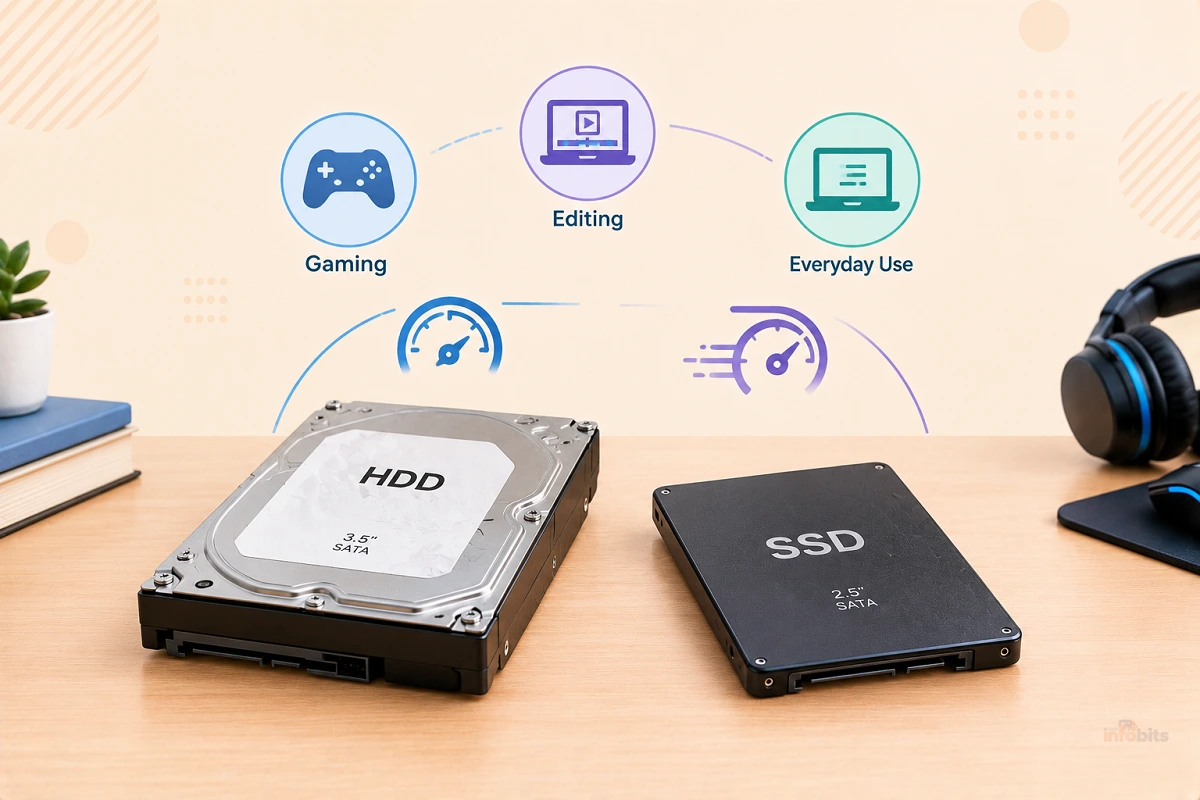
Quick answer: For almost everyone, an SSD should hold your operating system, apps, games you play, and projects you’re working on. An HDD still makes sense only for cheap bulk storage, such as backups, media libraries, and rarely played games. In 2026 an SSD costs roughly 4 to 6 times more per terabyte than a hard drive, so a small, fast SSD paired with a big, cheap HDD is often the smartest setup.
SSD vs. HDD at a Glance
| Feature | SSD | HDD |
|---|---|---|
| How it stores data | Flash memory chips, no moving parts | Spinning magnetic platters and a moving read/write head |
| Sequential speed | About 500 MB/s (SATA) to over 14,000 MB/s (PCIe 5.0 NVMe) | About 100 to 280 MB/s |
| Random performance (IOPS) | Tens of thousands to over a million | Roughly 100 to 200 |
| Typical response time | Microseconds | Milliseconds (about 4 ms or more) |
| Windows boot and app launch | Usually seconds | Often a minute or more to feel fully ready |
| Approx. cost per TB (Oct. 2026) | About $85 to $180 and up | About $24 to $41 |
| Common capacities | 256 GB to 8 TB | 500 GB to 24 TB and beyond |
| Noise | Silent | Audible spinning and clicking |
| Power and heat | Lower power, but fast NVMe drives can run hot | Higher idle power, and sensitive to heat |
| Shock resistance | Strong | Weak, especially when running |
| Best for | OS, apps, games, editing projects | Backups, archives, media libraries |
How SSDs and HDDs Actually Work
Hard disk drives (HDDs)
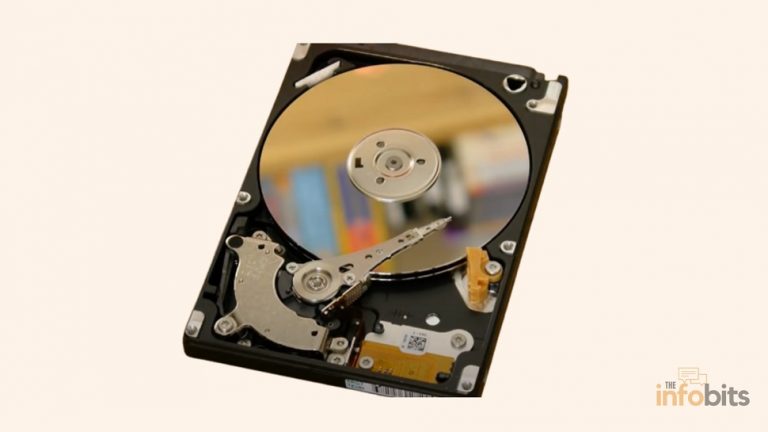
An HDD stores data magnetically on one or more spinning platters. A tiny read/write head moves across the surface to find the data you need, much like a record player’s arm.
Because that arm has to physically move and wait for the right spot to spin underneath it, every request for a small piece of data takes a few milliseconds. That delay is the root of nearly every HDD slowdown you’ve ever noticed.
Solid-state drives (SSDs)
An SSD stores data in flash memory chips and reads it electronically, with nothing to move or wait for. That’s why it can answer a request in a tiny fraction of the time, and why it can handle many requests at once without slowing down.
If you want a deeper look at what’s inside, see our guide to internal SSD storage fundamentals.
SATA SSD vs. NVMe SSD
Not all SSDs are equal. There are two main types you’ll meet:
- SATA SSDs use the same connection as old hard drives, which caps them at roughly 550 MB/s. They’re still plenty fast for everyday use and are a great upgrade for older PCs.
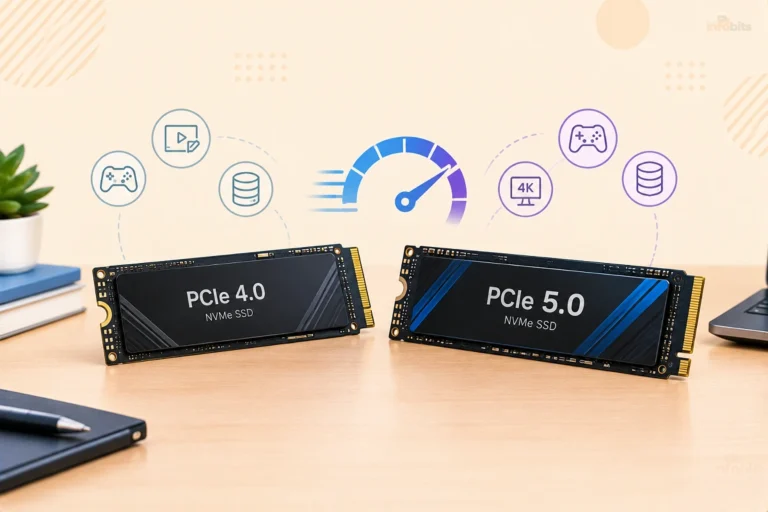
- NVMe SSDs connect directly over PCIe lanes, usually in a small M.2 slot on the motherboard. Speeds run from about 3,500 MB/s on PCIe 3.0 to roughly 7,000 MB/s on PCIe 4.0 and up to around 14,000 MB/s on PCIe 5.0. If you’re curious about the different shapes and connectors, see M.2 vs. U.2.
The Real Differences, in Plain English
Speed: big on paper, bigger in daily use
The spec sheets can look absurd. A PCIe 5.0 SSD can read at around 14,500 MB/s, while a fast 7,200 RPM hard drive tops out at roughly 285 MB/s, which is about 50 times slower.
In random reads, where the drive fetches lots of small pieces of data, the gap is far bigger. An HDD manages a couple of hundred operations per second, while a good NVMe drive handles hundreds of thousands to over a million.
But here’s what that means in the real world:
- Startup and wake: Windows boots, logs in, and loads your first apps in seconds on an SSD. On an HDD, the computer may seem ready while it’s still busy in the background, and the first minute is sluggish.
- Opening apps and files: An SSD makes programs and folders open almost instantly. An HDD makes you wait, especially when several things happen at once.
- Copying large files: An SSD copies a big video file in seconds. An HDD slows down further when the drive is busy or fragmented.
The biggest jump you’ll feel is HDD to any SSD. The next jump, from a SATA SSD to a fast NVMe, is real but smaller for everyday tasks.
Price: the gap has widened again
This is the part most guides haven’t caught up on. The price picture changed sharply in 2025 and 2026. AI data centers have been buying huge amounts of flash memory, and manufacturers have been shifting production toward enterprise drives.
Market trackers show that NAND flash contract prices rose sharply through 2026 and were still forecast to climb in the fourth quarter. Hard drives have also gone up, as the big makers report that their high-capacity production is sold out well into 2027.
| Drive type | Approx. price per TB (mid-Oct. 2026) | Notes |
|---|---|---|
| Internal HDD (3.5-inch) | About $24 to $41 | Mid-to-large capacities usually give the best value |
| SATA SSD | About $85 to $140 | The cheapest way to get an SSD |
| NVMe SSD (PCIe 4.0) | About $110 to $180 | A 1 TB model has been around $140 to $145 at the best prices |
| NVMe SSD (PCIe 5.0) | About $175 to $300 | Paying a premium for speed most people can’t use |
Note: These are approximate US prices from public price trackers in October 2026. They move often, so treat them as a guide, not a quote.
In this context, we would like to point out that the key takeaway is that a 1 TB SSD for your system and games now costs a meaningful amount, while 8 TB or more of HDD space can still be had for a modest sum. That’s why the best setups in 2026 mix the two.
Capacity: HDDs still go bigger
HDDs are available in capacities of 20 TB and more, while consumer SSDs mostly top out at around 4 to 8 TB and cost far more at that size.
For archives, backups, and media libraries, capacity per dollar still favors the hard drive. If you’re ever unsure why a drive shows less space than advertised, our explainer on how many bytes are in a gigabyte covers it.
Reliability and lifespan: both last, but fail differently
Hard drives have moving parts, so they’re more vulnerable to drops, vibration, heat, and plain mechanical wear.
Backblaze, which tracks over 340,000 hard drives in its data centers, reported a lifetime annualized failure rate of about 1.39% in its Q1 2026 report, and just 0.85% for drives of 20 TB or more.
That’s a data center environment, and consumer experience varies, but it shows that modern hard drives can last for years when treated well.
SSDs have no moving parts and shrug off bumps, but their flash cells wear out after a certain amount of data is written.
Mainstream drives commonly carry endurance ratings of hundreds of terabytes written, which is many years of normal use for most people. Gamers, students, and office workers rarely come close to those limits.
The important point is that both types fail eventually, and neither is a backup. An SSD can stop responding suddenly, and an HDD often gives warning signs like clicking or slowdowns. We cover those warning signs later in this guide.
Noise, heat, power, and portability
- Noise: SSDs are silent. HDDs spin and click, which you’ll notice in a quiet room.
- Power: SSDs generally draw less power, which helps laptop battery life a little.
- Heat: HDDs run warm but steady. Fast NVMe SSDs can run hot and slow themselves down without cooling. Our guide on whether an M.2 SSD needs a heatsink explains when to worry.
- Portability: A portable SSD survives a backpack. A spinning portable HDD can be damaged by a drop while it’s running.
SSD vs. HDD for Gaming
Gaming is where most people ask this question, so let’s be specific about what an SSD does and doesn’t change.
What an SSD improves in games
- Load times: Menus, level loads, and fast travel are all shorter. In one 2026 retailer test of a large open-world game, a 7,200 RPM hard drive needed roughly 45 to 65 seconds for the first load, compared with about 18 to 25 seconds on a SATA SSD. Your numbers will vary by game and PC, but the pattern holds: the SSD cuts waits by half or more.
- Texture pop-in and stutter: Modern open-world games constantly stream data as you move. A slow drive can lead to objects popping in late or the game hitching when you cross into a new area.
- Install, patch, and update times: Big games are now 100 GB or more, and an SSD makes installing and verifying them noticeably quicker.
What an SSD does not improve
An SSD won’t raise your frame rate. Your graphics card and processor do that work. If a game runs at 60 fps on an HDD, it will run at about 60 fps on an SSD, just with fewer loading screens and less streaming trouble.
Do games require an SSD now?
Increasingly, yes. Starfield, Cyberpunk 2077, Diablo IV, and Dead Space all list an SSD as a minimum requirement, and many other big releases recommend one. Even when a game technically runs from an HDD, the developers often say you’ll get longer loads and a worse experience.
A newer technology called DirectStorage lets games move data straight from an NVMe SSD to your graphics card, which reduces loading overhead. Support is still limited to certain titles, so it’s a bonus, not a reason to buy the fastest drive.
Consoles: what works where
| Console | Can games run from an HDD? | What to know |
|---|---|---|
| PlayStation 5 | Not PS5 games | PS5 games must run from the internal SSD or a compatible M.2 NVMe drive. A USB hard drive can store PS5 games and play PS4 games |
| Xbox Series X | S | Not Series X |
| PS4 and Xbox One | Yes, that’s what they use | An SSD swap helps load times a bit, but the console’s connection limits the gain |
Best gaming setup in 2026
With prices where they are, the practical answer for a PC gamer is a two-drive setup:
- Primary drive: A 1 TB NVMe SSD at minimum, and 2 TB if your budget allows. This holds Windows, your launcher, and the games you play now.
- Library drive (optional): A 2 to 4 TB or larger HDD for older games, rarely played titles, screenshots, and recordings. You can move games between the two in a few minutes.
If you’re building or upgrading, see our checklist of the best things to upgrade on a PC to decide where storage fits among RAM, graphics, and everything else.
SSD vs. HDD for Video and Photo Editing
Editing is where storage choices can quietly hold back an expensive computer. Here the question isn’t just “which is faster,” but “which drive keeps the timeline smooth, the cache fast, and the archive affordable?”
Why editing is hard on storage
- High data rates. Apple’s published figures put a single stream of 4K ProRes 422 HQ at roughly 90 to 110 MB/s at 24 to 30 frames per second. Multicam edits, 60 fps footage, or several layers multiply that quickly.
- Scrubbing and random access. Even efficient camera formats such as H.264 and H.265 have low file sizes but need the drive to jump around constantly when you skim through a timeline. That kind of random access is exactly where hard drives struggle.
- Cache, previews, and renders. Editing software writes large temporary files all the time. A slow cache drive makes the whole program feel sluggish.
- Capacity. Footage piles up. A common rule of thumb is to plan for two to three times your raw footage size once you count the project, cache, and exports.
If you want to understand why bitrate, not just resolution, drives these numbers, see our explainer on bitrate vs. resolution.
A sensible storage layout for editors
| Job | Best drive | Why |
|---|---|---|
| Windows, apps, editing software | Internal NVMe SSD | Fast launches and a responsive interface |
| Active project and source media | Internal NVMe or a fast external SSD | Smooth playback and scrubbing |
| Cache, previews, scratch files | NVMe SSD with strong sustained write speed | These files are written and rewritten constantly |
| Proxy files | Any SSD | They make heavy footage easy to edit on modest hardware |
| Finished projects and archive | HDD or NAS | Cheap capacity for files you rarely open |
| Backup copies | A second HDD, plus an offsite or cloud copy | Safety, not speed |
Can you edit video from an HDD?
Sometimes. A single stream of 1080p footage from a modern camera can play from a hard drive, especially if the project is simple.
But as soon as you add 4K, multiple layers, effects, or multicam, you’ll likely see dropped frames, stuttering playback, and long waits when you scrub. Using an HDD as an archive is fine. Using it as your main editing drive is where people run into trouble.
Watch out for slow SSDs
Not every SSD is good for editing. Many budget drives are fast only until their small, fast write cache fills up. After that, sustained write speeds can drop sharply, sometimes to levels that feel no better than a hard drive.
If you do long exports or big file copies, look for a drive known for steady sustained performance, not just a high headline number.
External drives: the USB speed trap
Portable drives are popular with editors, but the cable and port matter as much as the drive. A portable HDD over USB tops out at about 100 to 150 MB/s.
A portable SSD can reach around 1,000 MB/s on a 10 Gbps USB port, and faster on USB4 or Thunderbolt. Plug a fast SSD into a slow port, and you’ve wasted the speed. Our guide on USB-A vs. USB-C explains how to read the labels.
If you edit on a laptop or move projects between machines, a portable SSD with a USB 3.2 Gen 2 or faster connection is worth the extra money over a portable hard drive, because it keeps scrubbing smooth and survives a bump in the camera bag.
Photographers and audio producers
The same logic applies on a smaller scale. Keep your Lightroom catalog and previews on an SSD so browsing stays fast, and archive old RAW files on a hard drive.
Musicians should store large sample libraries on an SSD so projects load quickly, while finished mixes can live on an HDD.
SSD vs. HDD for Everyday Use
If you mainly browse, stream, email, and work in documents, the difference is less about benchmark numbers and more about how the computer feels.
- Startup and wake: An SSD-equipped computer is ready in seconds. An HDD-based one often feels busy for a minute or longer after you sign in.
- Opening apps and files: Nearly instant on an SSD, noticeably delayed on an HDD.
- Updates: Windows updates install faster and cause less sluggishness on an SSD.
- Laptop life: An SSD draws less power, is silent, and is far less likely to be damaged if the laptop is bumped.
- Web browsing: Mostly limited by your internet connection, so the difference is smaller than people expect.
For an older computer that still has a hard drive, an SSD upgrade is often the single most noticeable improvement you can make, usually more than adding RAM.
For a new purchase, don’t buy a laptop or PC with a hard drive as its only drive in 2026. Aim for at least a 512 GB SSD, and 1 TB if you keep lots of photos or apps. Our best laptop configuration guide helps you balance storage with the rest of the specs.
Where HDDs Still Win in 2026
Hard drives aren’t obsolete. They just aren’t your main drive anymore. They’re still the best value for:
- Backups. A second copy of your important files on a cheap, big drive is the foundation of any backup plan.
- Media libraries. Photos, videos, music, and ripped discs take lots of space and don’t need to open instantly. If you’re digitizing old discs, see our guide to converting DVDs to digital files.
- NAS and home servers. Network storage is built around high-capacity drives.
- Security camera recording. Continuous recording writes a lot of data, and capacity matters most.
- Rarely played games. Older or less demanding games can sit on an HDD and be moved to the SSD when you want to play.
For backups or a home NAS, look for a high-capacity drive that’s labeled for NAS or CMR use. Some budget drives use a recording method called SMR that can slow down badly during long writes, which is the last thing you want when copying a big backup.
SSD or HDD: A Simple Decision Guide
Three questions to ask yourself
- Will Windows, my apps, or my games live on this drive? If yes, it should be an SSD.
- Am I storing a lot of files I rarely open? If yes, an HDD is the cheaper choice.
- Do I work with large files every day, such as 4K video? If yes, make sure your working drive is an NVMe SSD or a fast external SSD.
Recommended setups by user
| If you are… | Best setup | Suggested capacity |
|---|---|---|
| A student or office user | One SSD, SATA is fine | 512 GB to 1 TB |
| Reviving an old PC or laptop | SATA SSD in place of the HDD | 500 GB to 1 TB |
| A PC gamer | NVMe SSD, plus an optional HDD for the library | 1 to 2 TB NVMe, 2 to 4 TB HDD |
| A PS5 player | Compatible M.2 NVMe SSD inside, plus a USB drive for PS4 games and storage | 1 to 2 TB |
| A video editor or photographer | NVMe for system and active work, an HDD or NAS for archive | 1 to 2 TB NVMe, 4 TB+ HDD |
| Building a media library or NAS | NAS-rated HDDs with a separate backup | 8 TB or more |
| On a tight budget | A smaller SSD for the system, keeping an existing HDD for storage | 256 to 512 GB SSD |
How to Check Whether You Have an SSD or an HDD
On Windows, there are two quick ways to find out:
- Task Manager: Press Ctrl + Shift + Esc, open the Performance tab, and select Disk. The drive type is listed with the model name.
- Optimize Drives: Search for “defragment and optimize drives” in the Start menu. The Media type column shows whether each drive is a Solid State Drive or a Hard disk drive.
Macs sold in recent years use flash storage, so you won’t find a spinning disk in them unless you’re using an older model or an external drive.
How to Upgrade From an HDD to an SSD
Swapping your main drive is easier than most people expect.
- Back up your files. Copy anything important to an external drive or cloud storage first. If you’re wondering what losing files can cost, see how much data recovery costs.
- Check what your computer supports. Look for an M.2 slot or a 2.5-inch SATA bay, and check whether the M.2 slot supports NVMe or SATA. Your manual or the manufacturer’s support page will say. Our guide to M.2 vs. U.2 helps you read the connector types.
- Choose the capacity. Pick a drive at least as large as the space you’re using now, and leave 20 to 30 percent free for speed and longevity.
- Clone or reinstall. You can copy your existing Windows setup to the new drive with cloning software, or do a clean install. If you clone, make sure the new drive uses the right partition style for your PC. Our guides on MBR vs. GPT for SSDs and converting an SSD to GPT cover it.
- Install the drive. Power off, unplug the computer, and ground yourself. Insert the M.2 drive and secure it with its screw, or connect the SATA drive with its data and power cables.
- Set the boot drive. Open the BIOS or UEFI and make the new SSD the first boot device. If the drive doesn’t appear, see SSD not showing up in BIOS.
- Reuse the old drive. Once you’ve confirmed everything works, you can wipe the old HDD and use it for storage or backups.
On a laptop with only one drive slot, a USB-to-SATA or M.2 enclosure lets you connect the new SSD externally, clone your system onto it, and then swap it in, and you can keep using the enclosure afterwards as a portable drive for the old one.
NVMe vs. SATA SSD: Which Should You Buy?
| SATA SSD | NVMe PCIe 4.0 | NVMe PCIe 5.0 | |
|---|---|---|---|
| Typical speed | About 550 MB/s | About 7,000 MB/s | About 12,000 to 14,500 MB/s |
| Price per TB (Oct. 2026) | Lowest of the three | Mid-range | Highest |
| Best for | Older PCs, laptops, second drives | Gaming, editing, most new builds | Heavy professional workloads |
| Heat | Low | Moderate | High, often needs a heatsink |
| Real-world gaming gain over PCIe 4.0 | Smaller | Baseline | Usually small |
Our practical advice: For most people in 2026, a 1 to 2 TB PCIe 4.0 NVMe drive is the sweet spot. Paying extra for PCIe 5.0 rarely makes games load noticeably faster, and those drives run hot. If your computer is older or has no M.2 slot, a SATA SSD still delivers the biggest jump in everyday responsiveness.
A 1 TB or 2 TB PCIe 4.0 NVMe SSD from a reputable brand like Samsung SSD 990 PRO 2TB available on Amazon is the safest all-round choice right now, and if your motherboard doesn’t include an M.2 heatsink, a low-cost one will help the drive hold its speed under long transfers.
Common Mistakes When Choosing Between SSD and HDD
- Overpaying for PCIe 5.0. Gaming rarely needs it.
- Buying too little SSD space. A drive that’s nearly full slows down. Leave breathing room.
- Running Windows from an HDD because it’s the drive you already have.
- Using a budget SSD as an editing cache. Sustained write speed matters more than the headline number.
- Expecting a USB hard drive to run PS5 games. It can store them, not play them.
- Skipping backups. Both types fail eventually.
- Plugging a fast external SSD into a slow USB port, then wondering why it isn’t fast.
- Defragmenting an SSD. It’s unnecessary, and Windows already handles SSD maintenance automatically.
Myth vs. Fact
| Myth | Fact |
|---|---|
| SSDs wear out in a year or two. | Mainstream SSDs are rated for hundreds of terabytes of writes, far more than typical users produce. |
| An SSD will increase my frame rate. | It shortens loading and reduces streaming stutter, but your GPU and CPU set the frame rate. |
| HDDs are obsolete. | They’re still the cheapest way to store lots of data for backups, archives, and media. |
| I should defragment my SSD. | Defragmenting is for hard drives. SSDs use TRIM, and Windows handles it. |
| An SSD in a drawer keeps data forever. | Flash memory can lose data when left unpowered for long periods, so it’s not an archive by itself. |
| PCIe 5.0 makes everything twice as fast. | It lifts benchmark numbers, but most everyday tasks and games barely change. |
| An SSD is a backup. | No drive is a backup. Keep a second copy elsewhere. |
Warning Signs Your Drive Is Failing
For hard drives:
- Clicking, grinding, or repeated spin-up noises
- Long freezes when opening files
- Files or folders that disappear or won’t open
- Windows reporting bad sectors or SMART warnings
- The drive vanishing from the computer
For SSDs:
- Sudden read-only behavior or write errors
- Corrupted files or frequent crashes
- The drive disappearing from the BIOS or Windows
- Very slow performance that doesn’t improve
- SMART or health-tool warnings
If you see any of these, back up immediately before you try to fix anything. Our guides on a clicking hard drive and how to tell if your SSD is failing walk through what to do next.
Troubleshooting: Common SSD and HDD Problems
| Problem | Likely cause | What to try |
|---|---|---|
| Windows shows 100% disk usage and crawls | A busy hard drive, common on older HDD systems | Moving Windows to an SSD is the cleanest fix |
| New SSD isn’t in File Explorer | It needs to be initialized and formatted | Open Disk Management, initialize it, and create a volume |
| SSD isn’t detected in BIOS | Poor seating, a disabled slot, or lane sharing | Reseat the drive and check the manual. See our BIOS guide |
| Cloned drive won’t boot | Boot mode or partition style mismatch | Check UEFI vs. legacy mode and MBR vs. GPT |
| NVMe slower than advertised | Slower slot, high heat, or a full cache | Check the slot’s PCIe version, add cooling, and leave free space |
| Still slow after an SSD upgrade | The bottleneck is elsewhere, such as RAM or background apps | Check memory use and startup programs |
| Games stutter on an HDD | Streaming can’t keep up | Move the game to the SSD |
| External SSD feels slow | A slow port or cable | Use a faster USB port and the cable that came with the drive |
Your Storage Checklist
- I know whether my current drive is an SSD or an HDD
- My operating system and apps are on an SSD
- My most-played games are on an SSD
- My SSD has at least 10 to 20 percent free space
- I have a backup on a separate drive, plus one offsite or in the cloud
- I checked whether my PC has an M.2 slot before buying
- I chose capacity before chasing the fastest speeds
- I know the warning signs of a failing drive
Frequently Asked Questions
Is an SSD better than an HDD?
For speed, responsiveness, noise, and durability, yes. An SSD is the better choice for your operating system, apps, games, and active projects. An HDD is still better value for cheap bulk storage such as backups and archives.
What is the main difference between an SSD and an HDD?
An SSD stores data on flash memory chips with no moving parts, while an HDD stores data on spinning magnetic platters read by a moving head. That makes SSDs far faster, quieter, and more shock-resistant, and HDDs cheaper per terabyte.
How much faster is an SSD than an HDD?
A SATA SSD reads at about 550 MB/s versus roughly 100 to 280 MB/s for an HDD, and a PCIe 4.0 NVMe SSD reaches about 7,000 MB/s. For small random reads, the gap is far larger, which is why computers feel so much quicker.
Is an SSD worth it for gaming?
Yes. An SSD shortens loading screens, reduces texture pop-in and stutter in open-world games, and speeds up installs. Several big PC games now list an SSD as a minimum requirement. It won’t raise your frame rate, which depends on your graphics card and processor.
Does an SSD increase FPS?
No. Frame rate depends mainly on your graphics card and CPU. An SSD improves loading times and asset streaming, which can reduce stutter and pop-in, but a game that runs at 60 fps from an HDD will usually run at about 60 fps from an SSD.
Do I need an SSD for video editing?
For serious editing, yes. 4K footage, multiple layers, and cache files demand fast, responsive storage. Keep your system and active projects on an NVMe or fast external SSD, and use a hard drive or NAS for archives and backups.
Is SSD or HDD better for everyday use?
An SSD is better. It boots in seconds, opens apps almost instantly, runs silently, and uses less power in laptops. An SSD upgrade is often the most noticeable improvement you can make to an older computer that still has a hard drive.
Which lasts longer, an SSD or an HDD?
Neither lasts forever. HDDs can fail from mechanical wear, heat, or drops, while SSDs wear out after a large amount of data is written, which most users never reach. Both fail eventually, so keep backups regardless of drive type.
Do SSDs wear out?
Yes, flash cells have a limited number of writes, but mainstream SSDs are typically rated for hundreds of terabytes written. Normal home and office use is unlikely to reach that limit during the drive’s useful life. Heavy video or server workloads wear drives faster.
Why are SSD prices so high in 2026?
AI data centers have been buying huge amounts of flash memory, and manufacturers have shifted production toward enterprise drives. Market trackers report sharply higher NAND prices through 2026, with further increases forecast for the fourth quarter, though the pace has slowed.
Are HDDs still cheaper than SSDs per terabyte?
Yes. In mid-October 2026, internal hard drives cost roughly $24 to $41 per terabyte, while SSDs were roughly $85 to $180 or more, so an SSD costs about 4 to 6 times more per terabyte. Prices change often.
Should I use an SSD or an HDD for backups?
An HDD is usually the better value for backups because capacity is cheap. Keep at least one backup copy on a separate drive and another offsite or in the cloud. Prefer a NAS-rated or CMR drive for large backups.
Can I use both an SSD and an HDD in the same computer?
Yes, and it is often the best setup. Put Windows, apps, and current games on the SSD, and use the HDD for backups, media, and rarely played games. Most desktops and many laptops can hold both.
Should I buy a SATA SSD or an NVMe SSD?
For most new PCs, a PCIe 4.0 NVMe drive is the best choice. A SATA SSD is a good, cheaper option for older computers or laptops without an M.2 slot. PCIe 5.0 rarely makes games noticeably faster and runs hotter.
Can I run PS5 games from an external HDD?
No. PS5 games must run from the console’s internal SSD or a compatible M.2 NVMe drive. A USB hard drive can store PS5 games and play PS4 games, but you must move PS5 games back to internal storage to play them.
How do I know if my computer has an SSD or an HDD?
In Windows, open Task Manager, choose Performance, and select Disk, or search for Defragment and Optimize Drives and check the Media type column, which shows Solid state drive or Hard disk drive.
Should I defragment my SSD?
No. Defragmenting is meant for hard drives and offers no benefit for SSDs. Windows automatically handles SSD maintenance, including TRIM, so you don’t need to run anything manually.
What size SSD do I need for gaming?
One terabyte is the practical minimum for a gaming PC today, since many big games exceed 100 GB. Choose 2 TB if you play many large titles, and consider a cheap HDD for older games and recordings.
The Bottom Line
The real difference between an SSD and an HDD isn’t a number on a spec sheet. It’s whether your computer feels instant or feels like it’s thinking about it.
For the drive that holds Windows, your apps, your games, and your active projects, choose an SSD. For everything you want to keep but rarely touch, a hard drive is still the cheapest place to put it.
In 2026, with SSD prices elevated and hard drives rising too, the smartest move for most people is a mix: a fast NVMe or SATA SSD sized for what you use every day, and a big, inexpensive HDD for backups and archives.
Buy the capacity you need before you chase the fastest speeds, and keep a backup no matter which drive you choose.
Found this guide useful? Share it with someone interested in technology. Follow us on Facebook and Twitter for more tips, tricks, and guides.
We also ask that you bookmark this page for future reference, as we are constantly updating our articles with new information.
Sign up for our free newsletter as well to receive fresh information immediately in your inbox and keep technically up to date.
Disclosure: If you follow our links to a retailer’s website and make a purchase, we will get an affiliate commission on some, but not all, of the items or services we promote. This will cause no price change for you.