How to Set Up Windows Dynamic Lock and Fixes If It Won’t Work
Leaving your PC unlocked when you step away, even for a minute, is one of the easiest ways to expose your accounts, files, and open work to anyone nearby. Windows has a built-in feature that solves this without you having to remember to hit a keyboard shortcut every time: Dynamic Lock.
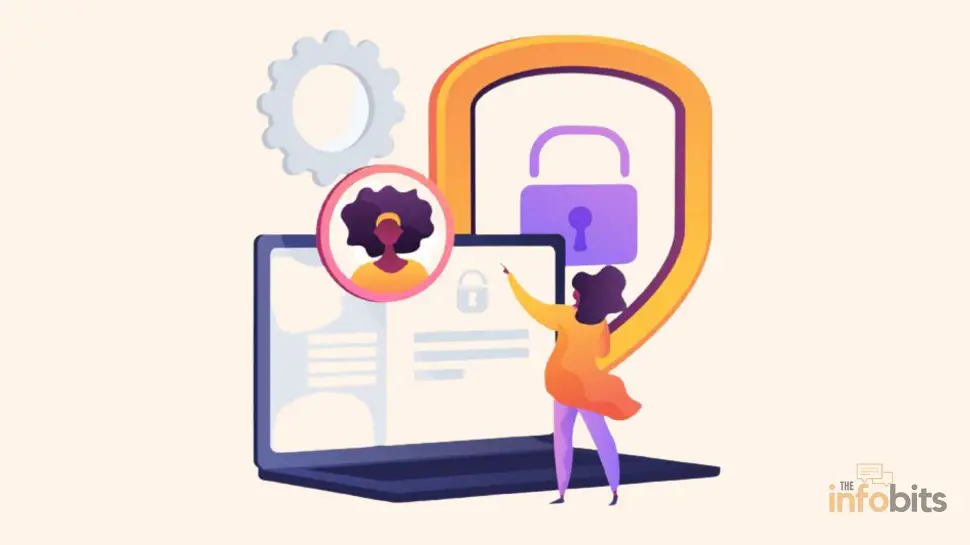
Dynamic Lock uses your phone’s Bluetooth signal as a proximity sensor. Pair your phone once, and Windows will automatically lock your PC when that signal drops out of range; no timers, no manual locking, no relying on memory. It’s built into Windows 10 and Windows 11 already; there’s nothing to download.
This guide covers the full setup on Windows 11, what Dynamic Lock can and can’t actually do, and, since this is the part most guides skip, how to fix it when it stops working, which happens more often than Microsoft would like to admit.
Quick Answer: How Do I Turn On Dynamic Lock?
Pair your phone with your PC over Bluetooth, then go to Settings > Accounts > Sign-in options > Dynamic Lock and check “Allow Windows to detect when you’re away and automatically lock the device.” That’s the whole setup. The sections below walk through each step in detail, plus what to do if it doesn’t work as expected.
What Is Dynamic Lock in Windows?
Dynamic Lock is a native Windows security feature ( no third-party app required) that automatically locks your PC when a Bluetooth-paired phone is no longer nearby. It’s designed for exactly the scenario where most people get caught out: stepping away from a desk in an office, a shared coworking space, or a public setting, and forgetting to lock the screen manually.
Under the hood, it works by monitoring your phone’s Received Signal Strength Indicator (RSSI), essentially how strong the Bluetooth signal is between your phone and PC. As you walk away, the signal weakens. Once it drops below a set threshold and your PC has been idle for a short period, Windows locks the screen automatically.
It’s worth being precise about what this feature actually is, because a lot of guides get this wrong: Dynamic Lock is a backup, not a replacement, for locking your PC manually.
According to Microsoft’s own documentation, it only triggers once your signal drops and your system is idle. So if someone sits down at your unlocked PC and starts using it the instant you walk away, Dynamic Lock won’t catch that. It reduces risk; it doesn’t eliminate it.
What You Need Before You Start
- A PC running Windows 10 or Windows 11 with working Bluetooth. Windows 10 reached the end of Microsoft support in October 2025, so if you’re still on it, this is a good moment to plan your move to Windows 11 rather than relying on an unsupported OS for security-sensitive features.
- A phone with Bluetooth – iPhone or Android, no specific app required for the core feature.
- Bluetooth hardware on your PC. Most laptops from the last decade have it built in. Desktop PCs often don’t.
If your desktop doesn’t show a Bluetooth option in Settings at all, that usually means there’s no Bluetooth radio installed.
A small USB Bluetooth adapter, like the Plugable USB Bluetooth 6.0 adapter available on Amazon, plugs into any open USB port and adds the missing hardware in about two minutes, no drivers to hunt down separately since Windows detects most of these automatically.
Related: How To Install Windows 11 on an Unsupported Computer?
How to Set Up Dynamic Lock in Windows 11 (Step by Step)
Step 1: Turn On Bluetooth on Your PC
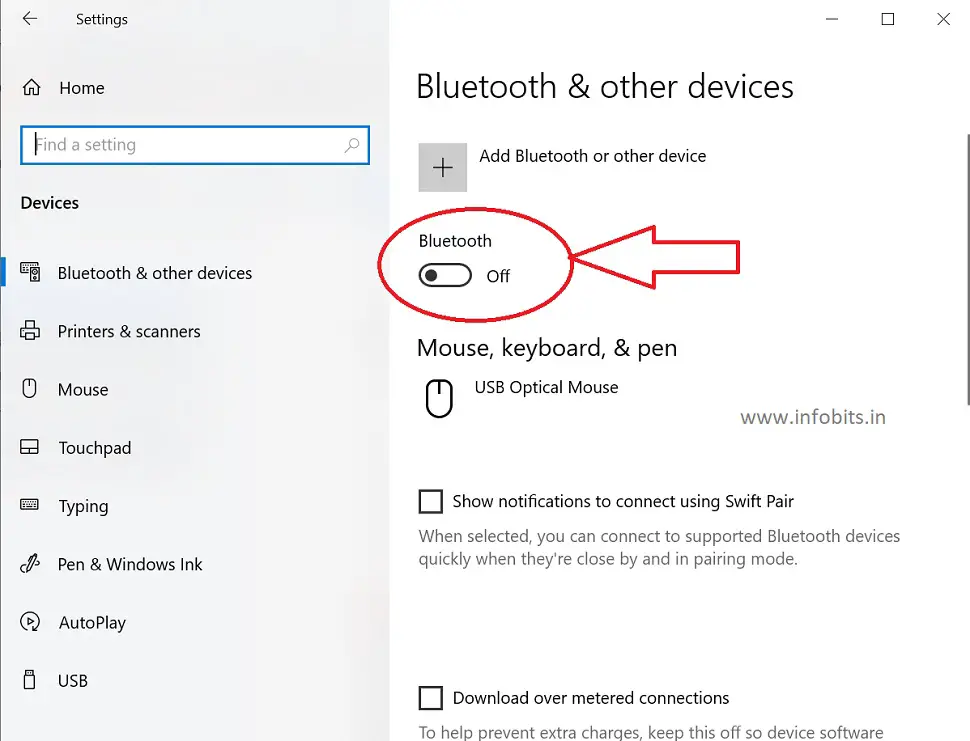
Go to Settings > Bluetooth & devices and make sure the Bluetooth toggle is switched on. If you don’t see a Bluetooth option here at all, your PC likely doesn’t have Bluetooth hardware. See the note above about USB adapters.
Step 2: Turn On Bluetooth on Your Phone
iPhone: Settings > Bluetooth, or swipe down from the top-right for Control Center and tap the Bluetooth icon.
Android: Swipe down from the top of the screen for Quick Settings and tap the Bluetooth icon.
Step 3: Pair Your Phone With Your PC
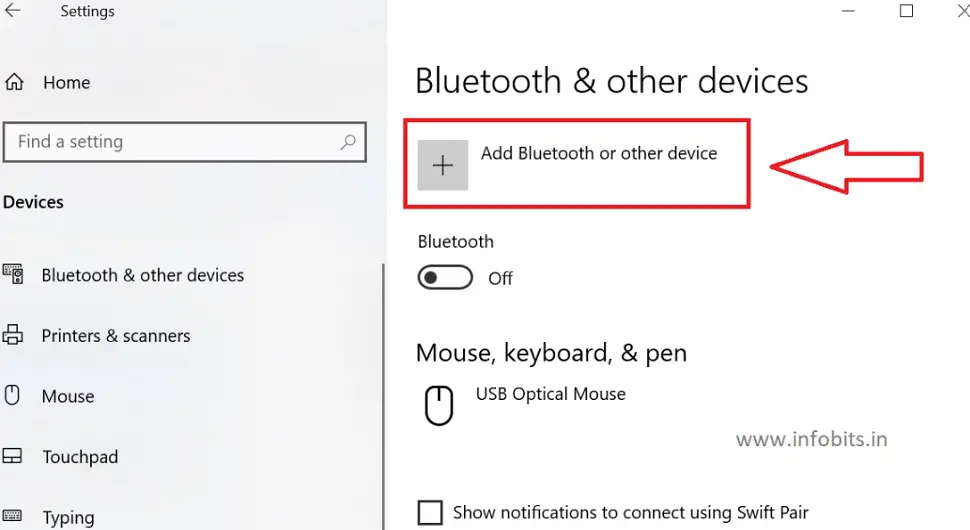
On your PC, go to Settings > Bluetooth & devices > Devices, then click Add device > Bluetooth. Your phone should appear in the list; select it. You’ll see a pairing code appear on both devices; confirm it matches, then tap Pair on your phone and Connect on your PC.
One detail that trips a lot of people up: after pairing, check that your phone shows as Connected, not just Paired, in the Bluetooth & devices list. Dynamic Lock only monitors devices that are actively connected.
A phone that’s paired but not currently connected won’t register as “present,” and the feature simply won’t work until it is.
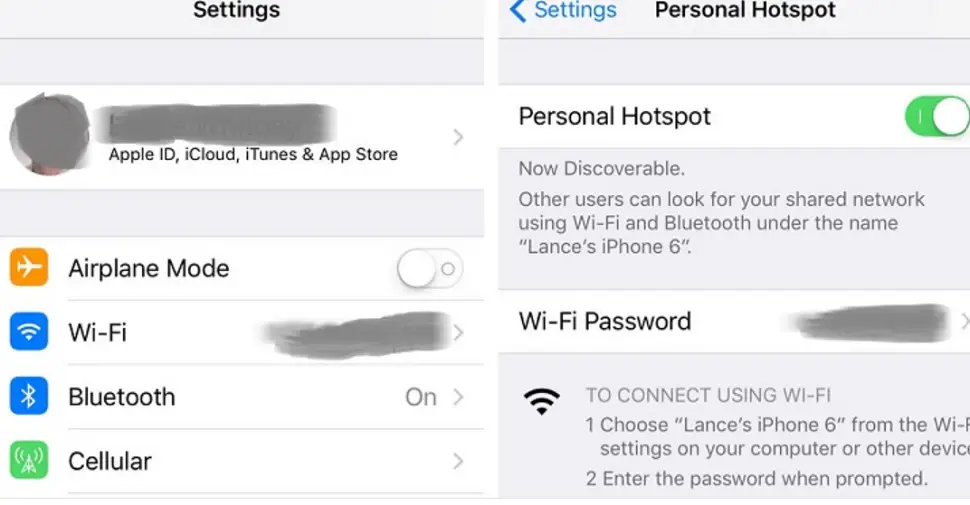
iPhone users: if your iPhone doesn’t show up during the scan, make sure Personal Hotspot is turned on in Settings first. This is a known quirk that makes the phone visible for Bluetooth pairing on Windows.
Step 4: Turn On Dynamic Lock
Go to Settings > Accounts > Sign-in options, scroll down to the Dynamic Lock section, and check the box for “Allow Windows to detect when you’re away and automatically lock the device.”
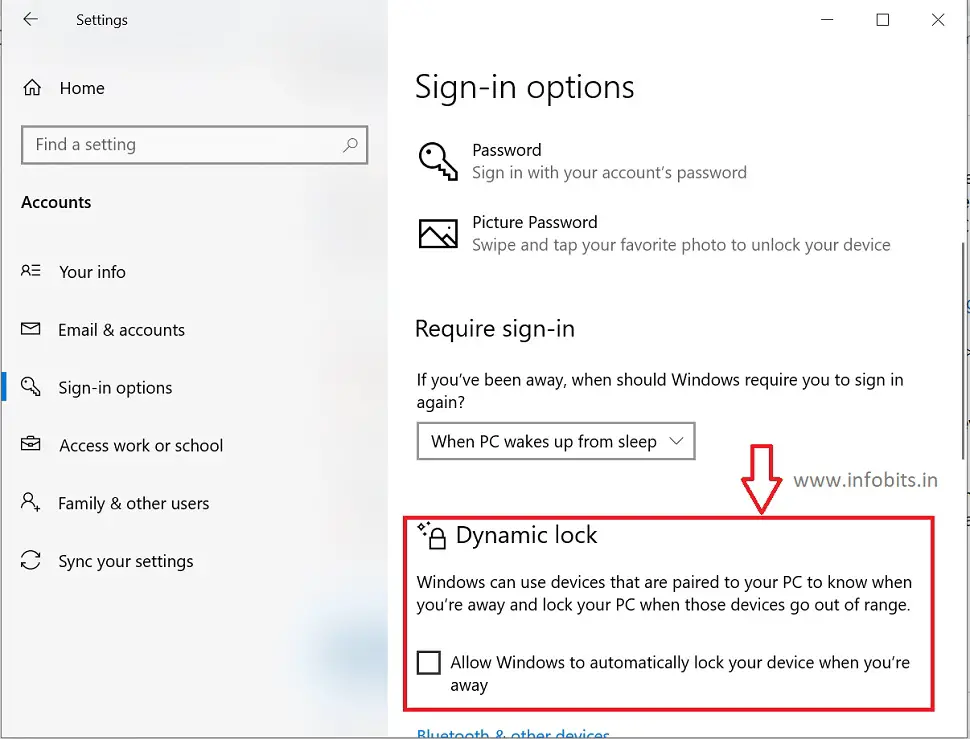
You can also jump straight to this screen by typing ms-settings:signinoptions-dynamiclock into the Windows Run dialog (Win + R) or address bar.
Testing Dynamic Lock
Make sure your PC isn’t already locked, then physically walk away with your paired phone, far enough to exit Bluetooth range, which is typically 30 feet (about 9 meters) depending on your hardware. Give it a minute or two; Dynamic Lock isn’t instant, since it waits for both the signal drop and system idle time before triggering.
When you come back, your PC should be sitting at the lock screen. One thing to know going in: Dynamic Lock does not automatically unlock your PC when your phone comes back into range. You’ll still need to sign in with your password, PIN, or Windows Hello as usual. It’s a one-way lock, not a proximity-based unlock.
Related: “Your Location Is Currently in Use” on Windows: What It Means
Dynamic Lock vs. Other Ways to Secure Your PC
Dynamic Lock is genuinely useful, but it’s one layer among several. Here’s how it stacks up against the other common options:
| Method | Trigger | Setup Effort | Best For |
|---|---|---|---|
| Dynamic Lock | Phone moves out of Bluetooth range + system idle | Low; built-in, one-time pairing | Office or shared spaces where you regularly step away |
| Win + L (manual lock) | You press the shortcut | None | Anyone, anytime; the fastest and most reliable method |
| Screen timeout lock | Fixed period of inactivity | Low; one setting | Home use, when you don’t mind a delay before locking |
| Windows Hello (face/fingerprint) | Not a lock trigger; speeds up unlocking, not locking | Low; needs supported hardware | Fast sign-in once the PC is already locked |
| Group Policy / Intune managed lock | Configured by an IT admin | High; enterprise setup | Company-managed devices with security compliance needs |
The realistic best practice is to combine Dynamic Lock with the Win + L habit, not replace one with the other. Dynamic Lock covers the moments you forget; muscle memory covers everything else.
Related: Why Does the Mic Keep Cutting Out in Windows?
Fixing “Dynamic Lock Not Working” (The Part Most Guides Skip)
Dynamic Lock has a reputation for being finicky, and there are a few well-documented reasons why. Work through these in order.
1. Check the Phone Link Conflict
There’s a known compatibility issue between Dynamic Lock and the Phone Link app (formerly “Your Phone”) on Windows 11, particularly when Phone Link is set to launch automatically at sign-in. If Dynamic Lock has stopped working after you set up Phone Link:
- Open the Phone Link app.
- Go to Settings (gear icon) > General > App behavior.
- Turn off “Start Phone Link when I sign in.”
- Restart your PC and test Dynamic Lock again.
This single fix resolves the issue for a large share of affected users.
2. Confirm Your Phone Shows as “Connected,” Not Just “Paired”
Go to Settings > Bluetooth & devices and check your phone’s status. If it says Paired but not Connected, Dynamic Lock won’t have a live signal to monitor. Tap or click the device and select Connect if that option is available, or remove and re-pair it if it won’t reconnect.
3. Re-Pair the Bluetooth Device
Sometimes the simplest fix is starting fresh:
- Go to Settings > Bluetooth & devices > Devices.
- Click the three-dot menu next to your phone and select Remove device.
- Re-add it following the pairing steps above.
4. Update or Reinstall Your Bluetooth Driver
An outdated or corrupted Bluetooth driver is one of the more common root causes:
- Right-click Start and select Device Manager.
- Expand Bluetooth, right-click your adapter, and select Update driver.
- If that doesn’t resolve it, right-click again and choose Uninstall device, then restart your PC. Windows will typically reinstall a fresh driver automatically.
For the best results, download the driver directly from your PC manufacturer’s or Bluetooth chipset vendor’s website rather than relying solely on what Windows Update offers, since Windows Update doesn’t always carry the newest version.
5. Toggle Dynamic Lock Off and Back On
This clears minor glitches without a full re-pair. Go back to Settings > Accounts > Sign-in options > Dynamic Lock, uncheck the box, wait a few seconds, then check it again.
6. Check for Windows Updates
Microsoft periodically patches Dynamic Lock bugs, especially after major feature updates. Go to Settings > Windows Update and install anything pending.
7. Rule Out Interference or Signal Weakness
If Dynamic Lock is triggering too aggressively, locking your PC even when you’re just a few feet away, it’s usually a weak Bluetooth signal getting disrupted by interference. USB 3.0 hubs, Wi-Fi routers, and even microwave ovens broadcast on the same 2.4GHz band as Bluetooth and can cause dropouts that Windows misreads as you leaving.
Try moving your PC’s Bluetooth adapter (or the PC itself, for laptops) away from these sources.
Common Mistakes to Avoid
- Assuming Dynamic Lock will unlock the PC when you return. It won’t. You still need to sign back in manually every time.
- Relying on it as your only security layer. Since it depends on system idle time plus signal loss, it’s not instant. Keep using Win + L when you consciously step away.
- Leaving Phone Link set to auto-launch at sign-in if you’re also using Dynamic Lock, without knowing about the known conflict between the two.
- Confusing “Paired” with “Connected.” A phone that shows as paired but isn’t actively connected won’t trigger the lock.
- Ignoring driver updates. Bluetooth driver bugs are a leading cause of Dynamic Lock reliability issues, and manufacturers do push fixes over time.
Related: DISM Error 1910 Fix: “The Object Exporter Specified Was Not Found”
Expert Tips
- If you regularly switch between a personal and a work phone, know that Dynamic Lock only monitors one paired device at a time. You’ll need to manually switch which phone is being tracked if you alternate.
- On a laptop, keep your phone in a pocket rather than a bag when working in public. Bags add distance and material that can degrade the Bluetooth signal and cause inconsistent locking behavior.
- If you manage multiple Windows PCs in an organization, Dynamic Lock can be configured centrally through Group Policy or Microsoft Intune, which is worth setting up rather than relying on each user to enable it individually.
- Pair a schedule of driver checks into your routine. Checking your PC manufacturer’s site for Bluetooth driver updates every few months prevents a lot of the reliability issues before they start.
Conclusion
Dynamic Lock is one of the simplest, most underused security features already sitting in Windows. A one-time Bluetooth pairing gets you an automatic safety net for the moments you forget to lock up manually. It’s not a replacement for good habits or a strong sign-in method, but paired with those, it closes a real and common gap.
If it’s not working the way it should, the fix is almost always one of a handful of known issues: a Phone Link conflict, a phone that’s paired but not connected, or a Bluetooth driver that needs updating.
Work through the troubleshooting steps above in order, and it’s very likely to be running reliably within a few minutes.
Related: Hardware-Accelerated GPU Scheduling: On or Off?
Frequently Asked Questions
Does Dynamic Lock work on both Windows 10 and Windows 11?
Yes, though Windows 10 reached the end of Microsoft support in October 2025. The feature and setup steps are essentially identical on both, but if you’re still on Windows 10, moving to a supported version of Windows 11 is worth prioritizing for security reasons beyond just this feature.
Why does my PC say “Paired” but Dynamic Lock still isn’t working?
Dynamic Lock needs your phone to be actively connected, not just paired in Windows’ memory. Check the Bluetooth & devices screen and reconnect the device if it only shows as paired.
Does Dynamic Lock automatically unlock my PC when I come back?
No. Dynamic Lock is a one-way feature. It locks your PC when your phone leaves range, but you’ll always need to sign back in manually with your password, PIN, or Windows Hello.
How far away does my phone need to be for Dynamic Lock to trigger?
Typical Bluetooth range is around 30 feet (9 meters), though this varies based on your PC’s Bluetooth hardware, obstacles, and interference. It’s based on signal strength (RSSI) rather than a precise distance measurement, so the exact trigger point can vary.
Why does Dynamic Lock take a minute or more to lock my PC?
Dynamic Lock only locks once the Bluetooth signal has dropped below the threshold and your system has been idle for a short period. It’s intentionally not instant, which is part of why Microsoft describes it as an additional safeguard rather than a replacement for locking manually.
Can Dynamic Lock work with a Bluetooth device other than a phone?
Technically yes. Any Bluetooth-paired device Windows can monitor for RSSI can theoretically be used, but phones are the practical choice since they’re portable, always with you, and reliably support the required Bluetooth profile.
Is Dynamic Lock a replacement for a strong password or PIN?
No. Dynamic Lock only controls when your PC locks. You still need a real password, PIN, or Windows Hello credential to sign back in. It’s a convenience and safety-net feature, not an authentication method on its own.
Why did Dynamic Lock stop working after I installed Phone Link?
There’s a known compatibility conflict between Dynamic Lock and the Phone Link app when Phone Link is set to launch automatically at sign-in. Turning off that auto-launch setting in Phone Link’s app behavior settings resolves it for most users.
Can I use Dynamic Lock with more than one phone?
Windows Dynamic Lock only actively monitors one paired device at a time. If you want to switch between phones, you’ll need to manually change which device Windows is tracking.
Does Dynamic Lock drain my phone’s battery?
The impact is minimal. Dynamic Lock relies on low-energy Bluetooth signaling in the background, which uses less power than an active Bluetooth connection like audio streaming or file transfer.
My desktop PC doesn’t show a Bluetooth option at all; can I still use Dynamic Lock?
Yes, as long as you add Bluetooth hardware. A USB Bluetooth adapter plugs into any open USB port and gives a desktop PC without built-in Bluetooth the hardware it needs.
Is Dynamic Lock secure, or can someone bypass it?
Dynamic Lock adds a real layer of protection, but Microsoft is explicit that it’s a supplementary safeguard, not a hardened security barrier. Since it depends on system idle time, someone who accesses your PC in the brief window before it locks won’t be stopped by this feature alone.
Can IT administrators configure Dynamic Lock across company computers?
Yes. Dynamic Lock can be configured and enforced centrally through Group Policy or Microsoft Intune, which is the recommended approach for organizations rather than relying on individual users to turn it on.
Why does my PC lock even when I haven’t actually left?
This is usually caused by Bluetooth signal interference or a weak connection – often from nearby USB 3.0 hubs, Wi-Fi routers, or other 2.4GHz devices – which briefly drops the connection and gets misread as you walking away.
Does turning off Dynamic Lock affect other Bluetooth features on my PC?
No. Disabling Dynamic Lock only turns off the automatic locking behavior; your phone will remain paired and connected for any other Bluetooth uses, like audio or file transfer.
We hope you found this article helpful, and do like and follow us on Facebook and Twitter for regular updates. In addition, we ask that you bookmark this page for future reference.
Sign up for our free newsletter as well to receive fresh information right in your inbox and stay informed technically.
Disclosure: We may receive an affiliate commission for the products or services we suggest if you follow some of the links to go to a retailer’s website and make a purchase without changing the price for you.