Is It Bad to Leave Your Laptop Plugged In All the Time?
Quick answer: No, leaving your laptop plugged in won’t overcharge it. Every laptop made in the last decade has a battery management system that cuts off current the moment the cell hits 100%.
But there’s a second, quieter problem. Sitting at 100% charge for hours or days at a stretch puts your lithium-ion battery under voltage stress, and combined with the heat a plugged-in laptop generates, that stress is what actually shortens battery life over the long run.
The fix isn’t to unplug obsessively. It’s to use your laptop’s built-in charge-limiting feature (most brands have one) and keep an eye on heat.
If you only remember one thing from this guide, make it this: it’s not the “plugged in” part that hurts your battery. It’s staying pinned at 100% while hot.
Everything below explains why, and exactly what to do about it.
How a Laptop Battery Actually Behaves When You Plug It In
Almost every laptop sold today runs on a lithium-ion (or the closely related lithium-polymer) cell. These batteries store energy by shuttling lithium ions between a positive and negative electrode as you charge and discharge them.
Here’s the part most people get wrong. A modern laptop battery cannot be overcharged in the traditional sense. Every charger and every battery pack includes a small controller or the Battery Management System (BMS) that constantly monitors voltage.
The instant the cell reaches its target voltage (100% state of charge), the BMS stops the flow of current into the battery entirely. At that point, your laptop switches to running directly off the wall adapter, and the battery just sits there, fully charged but disconnected from the charging circuit.
So when your laptop says “plugged in, not charging,” that’s exactly what’s happening, and it’s working as designed.
What actually keeps the battery “topped up” while you’re plugged in is a small trickle. As the cell self-discharges by a percent or two, the BMS briefly kicks the charger back on to bring it back to 100%. This is sometimes called trickle charging, and it’s completely normal. It’s also, indirectly, part of why permanent 100% charging causes gradual wear; more on that next.
Related: What to Look for When Buying a Laptop? Tips from the Experts
So Why Do People Say It’s Bad, Then?
Because there’s a real, well-documented mechanism at play. It’s just not “overcharging.” It’s voltage stress.
Lithium-ion chemistry is most stable when it’s sitting somewhere in the middle of its charge range, not pinned at the extremes. At 100% charge, the battery’s cathode is under its highest internal voltage. This accelerates the chemical side-reactions that eat away at capacity over time.
Materials scientist Kent Griffith, who researches battery degradation at the University of California, has explained it this way: full charge is the single most stressful state a lithium-ion cell can be held in, and the longer it stays there- hours, days, months- the faster it ages.
Independent testing backs this up. Battery University’s widely cited research found that cycling a cell between roughly 85% and 25% delivers meaningfully longer service life than repeatedly charging to 100% and draining to 50%.
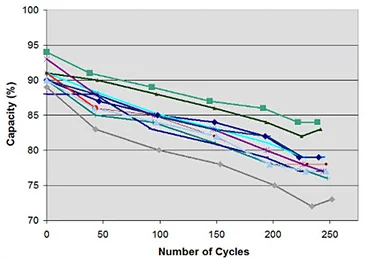
And that a battery held at 100% and exposed to elevated heat can lose a significant chunk of capacity in as little as a year. That combination, full charge plus heat, is the real villain here.
In short:
- Overcharging (the battery absorbing too much energy) → not possible on modern hardware, thanks to the BMS.
- Voltage stress from sitting at 100% for extended periods → real, and it’s the main reason “always plugged in” laptops tend to show battery wear sooner.
- Heat generated while plugged in and under load → compounds the problem significantly.
The Two Real Threats: Heat and Time-at-Full-Charge
If you strip away the myths, laptop battery aging comes down to a short list of measurable factors.
1. Charge/Discharge Cycles
A “cycle” is one full 100%-to-0%-and-back equivalent, and it can be spread across several partial charges (charging from 50% to 100% twice equals one full cycle, for example).
Most laptop batteries are rated for somewhere between 300 and 1,000 cycles before they drop to about 80% of their original capacity. The industry’s usual definition of “end of useful life.”
Leaving your laptop plugged in all day doesn’t necessarily burn through cycles faster; in fact, it can reduce cycling because you’re not draining and recharging the battery repeatedly. The catch is that avoiding cycles by sitting at 100% trades one problem for another.
2. Depth of Discharge and Charge Range
This is the factor with the most research behind it. Cycling a battery through its full 0–100% range wears it out roughly three times faster than cycling it through a narrower band like 20–80%.
That’s because the extremes ( both very low and very high charge) put disproportionate stress on the electrodes.
| Charge range used | Relative cycle life | Real-world takeaway |
|---|---|---|
| 0–100% (full drain, full charge) | Baseline (shortest) | Fastest wear; avoid as a daily habit |
| 20–80% | ~3x longer | Best everyday balance of longevity and usable capacity |
| 45–75% (narrow) | Longest per cycle | Great for long-term storage, impractical for daily use |
3. Temperature
Heat is arguably the single biggest accelerant of battery aging, bigger than charge level on its own. Research from Battery University found that a lithium-ion cell held at 40°C (104°F) and a high state of charge can lose as much as a third of its capacity within a year.
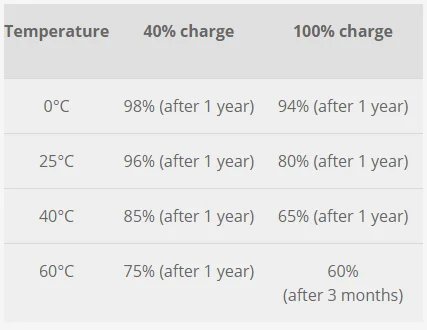
HP’s own engineering documentation puts the safe operating ceiling at around 30–35°C (86–95°F) internally, noting that keeping temperatures below that range can nearly double usable battery lifespan.
Plugged-in laptops run warmer than battery-powered ones simply because they’re drawing continuous AC power and often running at higher performance states. Add a blocked vent, a soft surface like a bed or couch cushion, or a resource-heavy task like gaming or video editing, and you’ve created exactly the conditions that age a battery fastest.
4. Voltage / Charge Level
The table below (based on Battery University’s testing) shows just how much of a difference shaving a little off your maximum charge voltage makes:
| Charge level | Expected discharge cycles | Stored energy retained |
|---|---|---|
| 100% (4.20V/cell) | 300–500 | 100% |
| ~90–95% (4.10–4.15V/cell) | 400–1,000 | 85–95% |
| ~80–85% (4.05–4.10V/cell) | 600–1,500 | 80–90% |
| ~70–75% (4.00V/cell) | 1,200–2,000 | 70–75% |
The pattern is consistent: every small drop in maximum charge roughly doubles the number of cycles the battery can handle before it degrades.
That’s the entire logic behind the “charge to 80%” advice you’ll see repeated throughout this guide, and it’s also exactly what laptop manufacturers have built into their software.
Can You Actually Use Your Laptop While It’s Charging?
Yes, without hesitation. When plugged in, your laptop draws its operating power directly from the AC adapter, not the battery. The battery only gets tapped for extra current during brief demand spikes (like a CPU boost), and even then only marginally.
There’s no meaningful risk to the battery or the machine from using it while charging. This has never been the actual concern.
Is It a Fire Risk to Leave a Laptop Plugged In?
This is worth addressing directly because it’s one of the most searched and most overstated fears on this topic.
Modern lithium-ion batteries include multiple layers of physical safety protection: current-interrupt devices, thermal shutdown separators, and pressure-release vents, all designed to prevent thermal runaway before it becomes dangerous.
Battery University’s engineering team notes that modern laptops run cooler than older generations and that reported fire incidents from normal plugged-in use are rare. The genuine fire risks come from specific, avoidable situations, not from routine charging:
- A damaged, frayed, or third-party charger that doesn’t regulate voltage properly
- A laptop left on a soft surface (bed, couch, carpet) that blocks the intake vents and traps heat
- A battery that’s already physically damaged, swollen, or very old and past its safe service life
- Charging in extreme heat, such as inside a hot car
None of these are caused by “leaving it plugged in” on its own. Use the charger that came with your laptop (or a certified replacement), keep the vents clear, and a battery in good condition sitting on AC power overnight is not a meaningful fire hazard.
The Manufacturer Fix: Battery Charge Limiters
Here’s the single most useful thing this guide can tell you: you don’t have to choose between convenience and battery health. Every major laptop brand now ships a charge-limiting feature that keeps the battery below 100% while you’re plugged in, specifically to eliminate the voltage-stress problem described above.
If your laptop is more than a couple of years old and you leave it plugged in most of the day, turning this on is the single highest-impact change you can make.
| Brand | Feature name | Where to find it | Typical limit |
|---|---|---|---|
| Lenovo | Conservation Mode | Lenovo Vantage (or Commercial Vantage on ThinkPads) → Battery → Battery settings | ~55–60% |
| ASUS | Battery Health Charging | MyASUS app → Customization → Power & Performance | Balanced (80%) or Maximum Lifespan (60%) |
| Dell | Custom Charge / Primarily AC Use | Dell Power Manager → Battery Information → Battery Settings | Custom (set your own start/stop %) |
| HP | Adaptive Battery Optimizer / Battery Health Manager | BIOS (F10 on boot) → Configuration, or HP Support Assistant | Varies by model; some business lines only |
| Acer | Battery Charge Limit | Acer Care Center → Checkup → Battery | Adjustable slider |
| MSI | Battery Health Option | Dragon Center / Creator Center → toolbox icon | Best for Mobility / Balanced (~80%) / Best for Battery (~50–60%) |
| Microsoft Surface | Battery Limit Mode | UEFI menu → Boot Configuration → Advanced Options | On/off toggle |
| Apple (MacBook) | Optimized Battery Charging / Charge Limit | System Settings → Battery → Battery Health | Learns your routine, holds near 80% (or set a hard limit in macOS 26.4+) |
If you can’t find one of these on your machine, check your BIOS. On Lenovo, Dell, and HP systems, the “Stop charging” threshold is often exposed directly in the firmware (Power or Advanced tab) even when there’s no software option, and BIOS-level settings persist regardless of the operating system.
A practical rule of thumb: if your laptop is mostly a desktop replacement that stays plugged in at a desk, set the limit to 60–80%. If you regularly unplug and go mobile, 80% is the better balance. It gives you nearly full runway while still avoiding the worst of the voltage stress.
If your laptop doesn’t offer a built-in charge limiter, or you’d rather not dig through BIOS menus, a smart plug with scheduling like Kasa Smart Plug Ultra Mini available on Amazon can approximate the same effect by cutting power once your laptop’s usually reached a safe charge level.
Should You Leave Your Laptop Plugged In Overnight?
For most modern laptops, occasionally leaving it plugged in overnight isn’t going to cause sudden damage. The BMS will stop charging at 100%, and the machine will simply idle on trickle power.
But doing it as a nightly habit, for months or years on end, is exactly the scenario that maximizes time spent at full charge, which is the condition that ages batteries fastest.
The practical middle ground:
- If you have a charge limiter enabled (see the table above), leaving it plugged in overnight is genuinely fine. The battery never reaches the high-stress zone in the first place.
- If you don’t, try to unplug once it hits somewhere around 80–90% during the day, and treat all-night charging as an occasional convenience rather than a permanent routine.
- Either way, make sure the laptop is on a hard, flat, ventilated surface overnight ( not on a bed or under a pillow ) since restricted airflow is a bigger overnight risk than the charging itself.
What About Only Running It on Battery?
This is the other extreme, and it’s not the answer either. If you only ever run your laptop on battery power and recharge it from empty, you’ll burn through your battery’s rated charge/discharge cycles much faster, and full-depth discharges (draining close to 0%) are themselves a stress factor, similar to sitting at 100%.
The healthiest real-world pattern is a hybrid: use battery power when you’re mobile, plug in when you’re at a desk, and let a charge limiter (or your own habit of unplugging around 80%) keep you out of the danger zones at both ends.
Myth vs. Fact
| Myth | Fact |
|---|---|
| Leaving your laptop plugged in will overcharge and fry the battery. | Impossible on modern hardware. The BMS cuts charging current at 100% automatically. |
| You must fully drain the battery before recharging. | This “memory effect” applied to old nickel-cadmium batteries. Lithium-ion has no memory effect; partial charges are fine and preferred. |
| Using a laptop while it’s charging damages the battery. | No; the laptop runs on AC power directly during charging; the battery isn’t under extra load. |
| A laptop plugged in overnight is a serious fire risk. | Modern batteries have multiple built-in safety cutoffs. The real risks are damaged chargers, blocked airflow, or a laptop already showing swelling/damage. |
| It doesn’t matter what percentage you charge to, as long as it’s plugged in. | It matters a lot; sitting at 100% for extended periods is the main mechanism behind accelerated wear, which is exactly why charge-limiting features exist. |
Common Mistakes That Actually Damage Laptop Batteries
- Charging on a soft surface. Beds, couches, and carpets block intake vents and trap heat right where the battery sits.
- Using a cheap, unregulated third-party charger. Voltage regulation matters; stick with the original or a certified replacement.
- Letting the laptop sit at 0% for long periods. Deep discharge is stressful in the other direction. Try not to let it sit fully drained for days.
- Ignoring dust buildup in vents. Dust insulates heat inside the chassis, raising the internal temperature the battery experiences even during light use.
- Never checking for a charge-limit feature. Most people simply don’t know their laptop already has this built in.
- Storing a laptop for weeks at 100% or 0%. If you’re putting a laptop into storage, charge it to roughly 50% first. That’s the state of charge that ages a battery slowest while sitting idle.
Related: How to Charge a Laptop Without a Charger: 10 Safe Methods
Expert Tips for Longer Battery Life
- Enable your manufacturer’s charge-limiting feature and set it to 80% (or 60% if the laptop is permanently desk-bound).
- Keep the laptop on a hard, elevated, ventilated surface, especially during demanding tasks.
- Calibrate the battery every couple of months by letting it run down close to empty and fully recharging once, so the percentage readout stays accurate.
- Avoid leaving the laptop in a hot car, near a window in direct sun, or anywhere the ambient temperature climbs above 35°C (95°F).
- If you’re storing the laptop for an extended period, charge it to around 50% and power it off completely rather than leaving it in sleep mode.
A laptop stand like the BESIGN LS03 Aluminum Laptop Stand available on Amazon, which lifts the chassis off the desk and improves airflow underneath, makes a real difference during long plugged-in sessions, especially if your laptop tends to run warm under load.
Decision Guide: What Should You Actually Do?
- You mostly use it at a desk, plugged in all day: Turn on your brand’s charge limiter and set it to 60–80%. This gives you the convenience of always-on power without the voltage stress.
- You move between battery and AC power regularly: Set the limiter to 80% if available; otherwise, just get in the habit of unplugging once it’s comfortably charged rather than always topping up to 100%.
- You’re gaming or doing heavy rendering while plugged in: Prioritize cooling, a stand or cooling pad, over charge percentage, since heat under heavy load is the bigger threat in this scenario.
- You’re about to store the laptop for weeks or months: Charge to ~50%, power off, and keep it somewhere cool and dry.
For anyone running a laptop as a semi-permanent desktop replacement, a cooling pad with active fans (view on Amazon) is one of the more effective low-cost upgrades for keeping internal temperatures and battery wear down during long plugged-in sessions.
Wrapping Up
Let us conclude that leaving your laptop plugged in won’t overcharge it, and using it while it charges is completely safe. The real, evidence-backed concern is different. Sitting at 100% charge for long stretches, especially while the laptop is running warm, gradually stresses the battery and shortens its usable life.
The main thing is that fixing this doesn’t require unplugging your laptop every hour. It requires turning on a setting that’s very likely already sitting in your system software, unused. Set a charge limit around 80%, keep the vents clear, and let your laptop’s built-in battery management system do the rest.
This article is for general informational purposes. If your laptop’s battery shows signs of physical damage ( swelling, unusual heat, or a burning smell), stop using it and contact a certified repair service immediately.
Frequently Asked Questions
Is it bad to leave my laptop plugged in all day?
Not in the sense of overcharging. That’s not possible on modern hardware. But keeping the battery at 100% for extended periods does accelerate long-term wear, so using a charge-limiting feature (if your laptop has one) is the better long-term habit.
Will leaving my laptop plugged in overnight damage the battery?
Occasionally, no. As a permanent nightly habit without a charge limiter, it contributes to the same 100%-charge stress described throughout this guide. Enabling a charge limit removes most of the concern.
Can I use my laptop normally while it’s charging?
Yes. The laptop runs on AC power directly while plugged in, so charging doesn’t add stress to normal use.
Does leaving a laptop plugged in cause a fire?
Extremely unlikely with an original or certified charger and a battery in good condition. Real fire risk comes from damaged cables, blocked vents, or an already-compromised battery, not from routine charging.
What’s the best battery percentage to keep my laptop at?
Somewhere between 20% and 80% for daily use. If you can set a hard limit through your manufacturer’s software, 80% is a good everyday target; 60% is better if the laptop rarely leaves your desk.
Do all laptops have a charge-limiting feature?
Most current-generation laptops from Lenovo, ASUS, Dell, Acer, MSI, Microsoft Surface, and Apple do. HP restricts some versions to business-line laptops, so consumer HP owners should check their specific model or BIOS.
Does using a cheap replacement charger hurt the battery?
It can. An out-of-spec charger that doesn’t regulate voltage correctly is one of the few things that can genuinely stress or damage a battery (and in rare cases the wider system). Stick with the original charger or a certified equivalent.
Is it better to run my laptop on battery or keep it plugged in?
Neither extreme is ideal. A mix using battery when mobile, plugging in at a desk, and avoiding long stretches at exactly 100% or 0%, gives the best long-term battery health.
How many charge cycles does a laptop battery last?
Typically 300 to 1,000 full cycles before capacity drops to around 80% of original, depending on the battery chemistry and how carefully it’s been used.
What is trickle charging?
It’s the small top-up current a laptop applies once its battery has dropped a percent or two below 100% while still plugged in, keeping the display near “full” without a large charge/discharge swing.
Does gaming or video editing while plugged in hurt the battery faster?
Indirectly, yes. Those workloads generate more heat, and heat is one of the two biggest accelerants of battery aging (along with sitting at full charge). Good cooling matters more during these sessions.
Should I let my laptop battery fully drain before recharging?
No. That advice applied to older nickel-cadmium batteries with a “memory effect.” Lithium-ion batteries have no memory effect, and frequent partial charges are actually better for long-term health.
What temperature is dangerous for a laptop battery?
Sustained internal temperatures above roughly 30–35°C (86–95°F) noticeably accelerate degradation, and it gets significantly worse above 40°C (104°F).
Does MacBook’s Optimized Battery Charging actually work?
Yes. It learns your daily plug-in pattern and holds the battery near 80% until it predicts you’ll need a full charge, which meaningfully reduces time spent at 100%. Recent macOS versions also let you set a fixed charge limit manually.
Can I set my own custom charge limit, or only pick from presets?
It depends on the brand. Dell’s Power Manager and recent macOS versions allow custom percentages; Lenovo, ASUS, and MSI typically offer a small set of presets (like 60%, 80%, and 100%).
Is it normal for my laptop to feel warm while charging?
Mild warmth is normal, especially under load. Consistently hot-to-the-touch, especially near the vents, is worth investigating. Check for dust buildup or a demanding background process.
Will limiting my charge to 80% noticeably reduce my usable battery life per charge?
Slightly, yes. You’re trading roughly 20% of runway for meaningfully longer overall battery lifespan. For a desk-bound laptop that’s rarely used away from a plug, that trade is almost always worth it.
How do I know if my laptop’s battery is already degraded?
Watch for a shorter runtime than it used to have, sudden percentage drops (like 40% to 15% in a couple of minutes), or the laptop shutting down unexpectedly while showing charge remaining. Most operating systems also expose a battery health or capacity report you can check directly. You can refer to our related article: Laptop Won’t Turn On? 11 Fixes That Actually Work
Does storing a laptop fully charged for a long time damage it?
Yes. Storing at 100% keeps the cell at its highest-stress voltage the whole time it’s idle. Charging to around 50% before long-term storage is the better practice.
We hope you found this article useful. Please like and follow us on Facebook and Twitter to receive frequent updates.
Furthermore, we request that you bookmark this page for future reference.
Sign up for our free newsletter to receive new information directly in your inbox and stay technically informed.
Disclosure: If you follow our links to a retailer’s website and make a purchase, we will get an affiliate commission on some, but not all, of the items or services we promote. This will cause no price change for you.