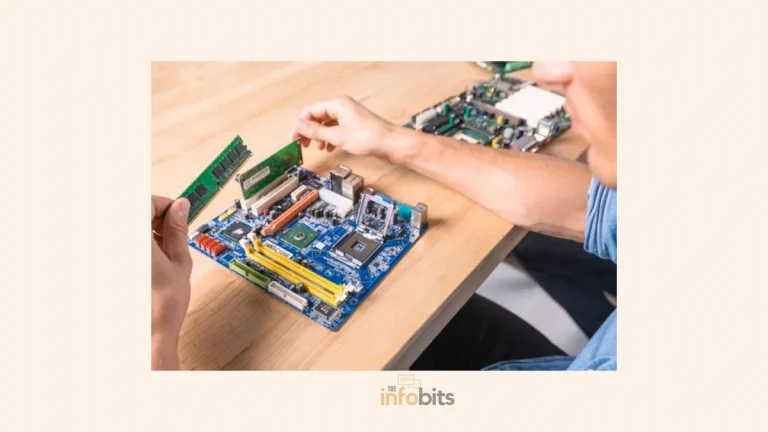
SSD Not Showing Up in BIOS or Windows? Here’s How to Fix It
You installed a brand-new SSD, powered on your PC, and… nothing. No drive in BIOS, no drive in File Explorer, no drive in Disk Management.
It’s one of the most common frustrations after a storage upgrade, and it happens on SATA SSDs and M.2/NVMe drives alike, new or old, desktop or laptop.
In the overwhelming majority of cases, this is a connection, configuration, or initialization issue, not a dead drive.
This guide walks through the fixes in the order that actually resolves the problem fastest, starting with BIOS-level checks (since if the BIOS can’t see the drive, Windows never will) and moving into Windows-specific fixes for drives that are detected by the BIOS but still won’t show up in File Explorer.
Quick Answer:
If BIOS doesn’t detect the SSD at all, check the physical connection first (SATA/power cables or M.2 seating), then confirm the SATA port or M.2 slot is enabled in BIOS. If BIOS does see the drive but Windows doesn’t, the drive almost certainly just needs to be initialized and assigned a drive letter in Disk Management. This is expected behavior for a brand-new SSD, not a fault.
Is Your SSD SATA or NVMe/M.2? Why It Matters
Before troubleshooting, know which type of drive you’re dealing with. The fixes differ:
- 2.5″ SATA SSD: connects via a SATA data cable and a separate SATA power cable, just like a traditional hard drive.
- M.2 SATA SSD: a small stick-shaped drive that plugs directly into a motherboard M.2 slot, but still uses the older SATA protocol.
- M.2 NVMe SSD: looks identical to an M.2 SATA drive but uses the much faster PCIe/NVMe protocol instead.
This matters because M.2 slots and NVMe drives aren’t always interchangeable. Some motherboards have M.2 slots that only support SATA drives, not NVMe. And an NVMe drive in a SATA-only slot, or vice versa, simply won’t be detected no matter what BIOS setting you change.
Check your motherboard or laptop’s manual (or its product page) to confirm which protocol your M.2 slot(s) support, and check your drive’s key notch (B key, M key, or B+M) against the slot before assuming it’s a software problem.
Related: M.2 vs U.2 vs U.3: SSD Form Factors Compared
Step 1: Check BIOS First, Always
Start troubleshooting in BIOS/UEFI even if the problem seems Windows-related. If the drive isn’t visible in BIOS, Windows has no chance of seeing it either.
- Restart your PC and press the BIOS access key as it boots (commonly F2, Del, F10, or Esc; it varies by manufacturer, so check your PC or motherboard’s manual if you’re not sure).
- Navigate to the Boot menu or a Storage/SATA Configuration section.
- Look for your SSD listed by model name among the detected drives.
If it’s listed here: the hardware and BIOS are fine. Your issue is in Windows. Skip to Fixing SSD Detected in BIOS but Not in Windows.
If it’s not listed: continue with the fixes below, starting with the physical connection.
Fixing SSD Not Detected in BIOS
1. Check the Physical Connection
This is the single most common cause, especially right after installation.
- SATA drives: make sure both the SATA data cable and the SATA power cable are firmly seated at both ends. The drive and the motherboard/power supply. Try a different SATA cable and a different SATA port on the motherboard; cables fail more often than people expect, and internal damage isn’t always visible from the outside.
- M.2 drives: power off and unplug the PC, open the case, and confirm the drive is inserted at roughly a 30-degree angle, pushed all the way into the slot, then pressed flat and secured with its mounting screw. A drive that isn’t screwed down can lose contact with the slot even if it looks correctly seated.
2. Enable the Drive/Port in BIOS
The relevant SATA port or M.2 slot may simply be disabled in BIOS, which is common on motherboards that share bandwidth between ports.
Go into BIOS, find the Storage Configuration or Onboard Devices section, and make sure the specific port your drive is connected to is set to Enabled.
3. Check for Shared PCIe Lanes (M.2/NVMe Specifically)
Many boards share PCIe lanes or SATA ports between an M.2 slot and other components. Installing an NVMe drive in one slot can automatically disable a SATA port (or another M.2 slot) elsewhere on the board, or vice versa.
Check your motherboard’s manual for a lane-sharing diagram. This is often listed as “M.2_2 shares bandwidth with SATA3” or similar, and it explains detection failures that look like a fault but are actually working as designed.
4. Set the Correct SATA Controller Mode
An incorrect SATA controller mode is a common cause of detection failure. In the BIOS, look under Storage Options → SATA Configuration and check the controller mode. Modern systems should generally use AHCI, while older configurations sometimes use IDE/Compatibility Mode.
If your drive doesn’t appear under one mode, try switching and rebooting (note: changing this after Windows is already installed on another drive can affect that drive’s ability to boot, so only do this as a dedicated test, and be prepared to switch back).
5. Update Your BIOS/UEFI Firmware
Older BIOS versions, especially on motherboards released before NVMe became standard, may not properly recognize newer NVMe drives at all.
Check your motherboard or laptop manufacturer’s support page for your model, download the latest BIOS update, and follow their specific update instructions carefully.
An interrupted BIOS update can be more serious than the original problem, so make sure your PC has stable power throughout (a laptop should be plugged in, and a desktop ideally on a surge-protected outlet or UPS).
6. Disable Conflicting Security Features (NVMe-Specific)
On some systems, features like Intel PTT (Platform Trust Technology) or an overly strict Secure Boot / CSM configuration can interfere with NVMe detection, particularly for boot purposes.
If you’re trying to boot from a new NVMe drive and it’s not appearing as a boot option, check that CSM (Compatibility Support Module) is disabled and UEFI mode is enabled, since NVMe boot generally requires UEFI rather than legacy BIOS boot.
7. Test the Drive on Different Hardware
If the drive still doesn’t show up after all of the above:
- Try a different SATA cable and port, or a different M.2 slot if your board has more than one.
- Test the SSD in a completely different PC, or connect it externally via a SATA-to-USB adapter or M.2 NVMe enclosure.
If it’s not detected anywhere, on any hardware, the drive itself is very likely defective. See Is the SSD Actually Dead? below.
Fixing SATA SSD Detection Issues
If you’ve confirmed you’re specifically dealing with a 2.5″ or M.2 SATA drive:
- Double-check you haven’t exceeded your motherboard’s total SATA port count when combined with other drives. Some boards disable specific ports once certain combinations of drives are connected.
- Try a known-good SATA cable from another drive to rule out a bad cable, which is a very common and easily overlooked cause.
Fixing M.2/NVMe SSD Detection Issues
If you’re dealing with an NVMe drive specifically, beyond the BIOS fixes above:
- Confirm compatibility one more time. An M-key NVMe drive will not work in a B-key SATA-only M.2 slot, and no BIOS setting can fix a physical protocol mismatch.
- If you’re using an M.2-to-PCIe adapter card (common when a laptop or older desktop lacks a native M.2 slot), make sure it’s seated in a PCIe slot that supports the required lane configuration (commonly x4 or greater), and check whether your BIOS needs a specific setting enabled for that PCIe slot to support storage devices, sometimes referred to as “Bifurcation.”
Fixing SSD Detected in BIOS but Not in Windows
If your drive shows up correctly in BIOS but is still missing from File Explorer, the issue is in Windows, not your hardware. Work through these in order.
8. Initialize the Drive in Disk Management
This is the most common reason a brand-new SSD doesn’t appear: it hasn’t been initialized yet, which is a normal, required step for any new drive, not a sign of a problem.
- Press the Windows key, type Disk Management, and open it (running as administrator if prompted).
- If your new SSD shows as “Not Initialized,” right-click it and choose Initialize Disk.
- Choose a partition style. GPT is the modern standard and correct choice for most systems; use MBR only if you have a specific compatibility reason to.
- Once initialized, right-click the unallocated space on the drive and choose New Simple Volume, then follow the wizard to format it and assign a drive letter.
Related: MBR or GPT for SSD? The Real Answer
9. Assign or Change the Drive Letter
Sometimes a drive is initialized and formatted correctly but simply lacks a drive letter, which makes it invisible in File Explorer even though it’s fully functional.
In Disk Management, right-click the drive’s volume, choose Change Drive Letter and Paths, then Add, and assign an unused letter.
10. Update Storage and Chipset Drivers
An outdated storage controller or chipset driver can prevent Windows from properly recognizing a drive that the BIOS sees just fine.
- Open Device Manager (right-click the Start button).
- Expand Storage controllers, right-click your controller, and choose Update driver → Search automatically for drivers.
- Do the same for the drive itself under Disk drives.
- For NVMe drives specifically, check your SSD manufacturer’s website (Samsung, WD, Crucial, etc.) for a dedicated NVMe driver, which sometimes offers better compatibility than the generic Windows driver.
11. Check Diskpart for a Hidden or Corrupted Partition Table
If Disk Management shows the drive but something looks off (wrong size, “RAW” file system, or it won’t initialize), open Command Prompt as administrator and run diskpart, then list disk to confirm Windows sees the correct drive and capacity.
A drive showing 0 MB or an unexpected capacity here often points to a failing drive rather than a settings issue.
Related: How to Fix an Unmountable Boot Volume Error in Windows 10 or 11?
12. Run Windows Memory Diagnostic
Faulty RAM can occasionally cause storage devices to behave inconsistently, including intermittent detection failures.
Search Windows Memory Diagnostic, run it as administrator, and choose to restart and check for problems. This is a lower-probability cause but worth ruling out if everything else checks out.
13. Format the Drive (Data Loss Warning)
If the SSD has a corrupted or unreadable partition table, formatting can resolve it. But this erases all data on the drive.
Only do this if you’re certain there’s nothing on it you need, or after you’ve already attempted data recovery.
Comparison: Symptom → Likely Cause → First Fix
| Your Symptom | Most Likely Cause | Try This First |
|---|---|---|
| Not detected in BIOS at all | Loose/faulty cable or M.2 seating | Reseat/replace SATA cable or M.2 screw |
| Was detected before, now suddenly gone | Loose connection or BIOS setting reset (e.g. after a BIOS update) | Reseat drive, recheck BIOS storage settings |
| New NVMe drive invisible in BIOS | Disabled M.2 slot or slot doesn’t support NVMe | Check motherboard manual for slot protocol/lane sharing |
| Detected in BIOS, missing in File Explorer | Uninitialized drive (new SSD) | Initialize in Disk Management, assign drive letter |
| Shows in Disk Management but as “Unallocated” | Never partitioned/formatted | Create New Simple Volume |
| Detected on one PC but not another | Driver or BIOS version difference | Update storage/chipset drivers, update BIOS |
| Shows 0 MB capacity or “RAW” | Likely failing or dying drive | Back up immediately, consider data recovery software |
Common Mistakes That Waste Your Time
- Jumping straight to Windows troubleshooting when the drive isn’t even visible in BIOS. Always confirm BIOS detection first.
- Assuming an M.2 slot supports NVMe without checking the motherboard manual; some support SATA only.
- Skipping the cable swap test on SATA drives, since a bad cable is one of the most common and cheapest-to-fix causes.
- Changing the SATA controller mode (AHCI/IDE) without realizing it can prevent an existing Windows installation on another drive from booting.
- Formatting a drive before attempting data recovery, when the data was actually still recoverable.
- Not securing the M.2 screw, leaving the drive making intermittent contact that causes it to appear and disappear randomly.
Myth vs. Fact
Myth: If BIOS doesn’t see the SSD, the drive is dead. Fact: In new installations, this is far more often a loose connection, a disabled port, or a slot/protocol mismatch than an actual dead drive.
Myth: A new SSD should appear in File Explorer automatically, right out of the box. Fact: Every new, blank drive needs to be initialized and formatted first. This is a normal one-time setup step, not a malfunction.
Myth: Any M.2 slot works with any M.2 SSD. Fact: M.2 is just a physical form factor. Whether a given slot supports SATA, NVMe, or both depends on the motherboard, and a mismatch means the drive won’t be detected no matter what you change in BIOS.
Myth: Updating your BIOS is risky and should be avoided. Fact: A BIOS update is one of the more effective fixes for newer NVMe drives not being recognized on older motherboards. It carries some risk if interrupted, but following the manufacturer’s instructions and ensuring stable power makes it a routine, low-risk procedure.
Related: How to Test a PC Motherboard: Signs of Failure, Diagnostic Tools
Is the SSD Actually Dead? Warning Signs
Consider the drive itself faulty if:
- It isn’t detected in BIOS on any port, on any PC you test it on.
- Disk Management or
diskpartshows it at 0 MB or an impossible capacity. - The drive was previously working normally, then disappeared with no changes to cables, slots, or settings.
- It shows physical signs of damage like burn marks, bent pins, or a visibly cracked PCB.
- It was exposed to a power surge, static discharge, or physical impact before the problem started.
How to Recover Data From an Undetected SSD
If the drive contains data you need and it’s showing signs of failure rather than a simple configuration issue, don’t format it. Instead:
- Stop using the drive immediately to avoid further data loss.
- Connect it to another PC via an external SATA-to-USB or NVMe enclosure to see if it’s readable there, even briefly.
- If it’s readable but unstable, use dedicated data recovery software such as Wondershare Recoverit, which is built to pull files off drives showing partition or file-system errors, to copy files off before the drive degrades further.
- If the drive isn’t detected at all, even externally, the recovery job likely needs specialized lab equipment. A professional data recovery service is the more reliable (if pricier) option for drives with genuinely critical data.
When to Replace the Drive
Replace the SSD rather than continuing to troubleshoot if:
- It fails to be detected on multiple different PCs and connection methods.
- SMART diagnostic tools (like CrystalDiskInfo) report a “Bad” or “Caution” health status.
- It’s an older drive that has already logged an unusually high number of read/write cycles or bad sectors.
- It shows visible physical damage.
When shopping for a replacement, sticking with an established brand and checking current-generation NVMe drives against your motherboard’s supported specs avoids running into this exact problem again.
A well-reviewed NVMe SSD from a major manufacturer like Samsung SSD 990 PRO (available on Amazon) tends to have far better BIOS compatibility and firmware support than lesser-known budget brands.
Frequently Asked Questions
Why is my new SSD not showing up in BIOS?
Most often it’s a loose SATA or M.2 connection, a disabled storage port in BIOS, or, for M.2 NVMe drives, a slot that only supports SATA. Physical connection issues are the single most common cause right after installation.
Why is my SSD detected in BIOS but not in Windows?
This almost always means the drive simply hasn’t been initialized yet. Open Disk Management, initialize the drive, then create a new volume and assign it a drive letter.
Do I need to initialize a new SSD before using it?
Yes. Every new, blank drive requires initialization and formatting in Disk Management before Windows will show it in File Explorer. This is expected, normal behavior, not a fault.
Can a bad SATA cable cause an SSD to not be detected?
Yes, and it’s one of the most common causes. Cables can be damaged internally without any visible sign on the outside. Swapping to a known-good cable is one of the fastest diagnostic steps you can try.
Why does my M.2 SSD not fit or work in my motherboard’s M.2 slot?
M.2 slots and drives come in different “keys” (B key, M key, or both) and support either SATA, NVMe, or both protocols depending on the motherboard. Check your board’s manual to confirm your slot supports your specific drive type before assuming it’s faulty.
Can installing an NVMe SSD disable my other SATA ports?
Yes, on many motherboards. M.2 slots often share PCIe lanes or SATA bandwidth with other ports, so installing a drive in one slot can automatically disable another port elsewhere on the board. This is documented in your motherboard’s manual, usually as a lane-sharing table.
Will updating my BIOS fix SSD detection problems?
It can, particularly for newer NVMe drives on older motherboards that predate widespread NVMe support. Always follow your manufacturer’s specific update instructions and ensure stable power throughout the process.
Should I use AHCI or IDE mode for my SSD?
AHCI is the correct, modern choice for SSDs in the vast majority of cases and enables features like TRIM that keep SSDs performing well over time. Only use IDE/Compatibility mode if you have a specific legacy compatibility requirement.
Can a dying SSD show up intermittently in BIOS?
Yes. A drive that appears sometimes and disappears other times, especially without any changes to cables or settings, often indicates a failing drive or a loose connection, particularly on M.2 drives that aren’t fully screwed down.
How do I know if my SSD is actually dead versus just misconfigured?
Test it on a different PC or via an external enclosure. If it isn’t detected anywhere, on any hardware, at all, it’s very likely dead. If it works elsewhere, the problem is specific to your original system’s settings or connections.
Can I recover data from an SSD that isn’t showing up?
Sometimes, especially if the drive is detected but unreadable due to a partition or file-system error rather than full hardware failure. Data recovery software can help in these cases; a drive that isn’t detected anywhere at all typically needs a professional recovery service.
Does formatting fix an SSD that isn’t showing up in Windows?
It can fix a corrupted partition table, but it erases all data on the drive. Only format after you’ve confirmed you don’t need the existing data, or after attempting recovery first.
Why did my SSD work fine before but suddenly stopped being detected?
Common causes include a connection that’s come loose (especially after moving the PC), a recent BIOS update that reset storage settings, or the beginning of drive failure. Start by reseating the connection and rechecking BIOS settings before assuming the worst.
Can a Windows update cause an SSD to stop showing up?
It’s uncommon but not unheard of, usually related to a driver conflict introduced by the update. Updating your storage/chipset drivers directly from the manufacturer’s website, rather than relying solely on Windows Update, often resolves this.
What’s the difference between M.2 SATA and M.2 NVMe, and does it affect detection?
They’re both M.2 form-factor drives but use entirely different protocols. A motherboard’s M.2 slot may only support one or the other, and a drive that’s the wrong protocol for its slot will not be detected regardless of any BIOS setting.
Is it safe to change my BIOS SATA mode if I already have Windows installed?
Be cautious. Switching AHCI/IDE mode after Windows is already installed and booting from a different drive can sometimes prevent that existing installation from booting. If you need to test this for a new drive, be prepared to switch the setting back.
How can I check my SSD’s health to see if it’s failing?
Free tools like CrystalDiskInfo report SMART health data, including a simple Good/Caution/Bad status, reallocated sector counts, and estimated remaining lifespan, which can confirm whether a drive is physically failing versus just misconfigured.
Should I try repairing a failing SSD myself?
There isn’t much a typical user can safely do to physically repair a failing SSD. Unlike mechanical hard drives, there are no moving parts to service. Your realistic options are software-based data recovery, a professional recovery service for critical data, or replacement.
We hope you found this post informative, and do like and follow us on Facebook and Twitter for regular updates.
We also ask that you bookmark this page for future reference. Sign up for our free newsletter as well to receive fresh information immediately in your inbox and keep technically up to date.
Disclosure: If you follow our links to a retailer’s website and make a purchase, we will get an affiliate commission on some, but not all, of the items or services we promote. This will cause no price change for you.