No Internet Connection? Here’s Why Your Internet Access Is Blocked and How to Fix It
Your Wi-Fi icon shows full bars. Every device says “connected.” And yet nothing loads. You’re staring at “No Internet Access,” “Connected, No Internet,” or the dreaded ERR_NETWORK_ACCESS_DENIED error.
It’s one of the most confusing tech problems there is, because the connection looks fine right up until the moment you actually try to use it.
The reason this happens is simple once you understand it: being “connected” only means your device can talk to your router. It doesn’t mean your router can talk to the internet.
Somewhere between your device and the wider internet, that chain is broken, and this guide walks you through finding exactly where, then fixing it, whether you’re on Windows, Mac, Android, or iPhone.
Quick Answer:
Start by checking whether the problem affects every device or just one. If every device on your network is affected, restart your modem and router first. That alone resolves the majority of cases. If it’s only one device, the fix usually lies in that device’s network settings (DNS, IP configuration, or a VPN/firewall conflict) rather than your router.
The 60-Second Test: Is It One Device or Your Whole Network?
Before touching any settings, run this quick check. It tells you exactly where to focus.
- Try a second device on the same Wi-Fi network; a phone, tablet, or another computer.
- If the second device also has no internet: the problem is with your router, modem, or ISP. Skip to Fixes for Everyone.
- If the second device works fine: the problem is isolated to the one device that’s failing. Jump to the section for that device’s operating system.
- If you have an Ethernet cable handy, plug it directly into your router or modem and test. If wired internet works but Wi-Fi doesn’t, the issue is with your wireless connection specifically, not your ISP line. This usually means it’s a router or driver problem rather than an outage.
Why Is Your Internet Access Blocked?
A handful of causes account for almost every case:
- Router or modem glitch: by far the most common cause; a restart clears it more often than any other single fix.
- ISP outage or maintenance: the problem may not be on your end at all.
- Loose or damaged cables: coaxial, DSL, fiber, or Ethernet connections that have come loose or degraded.
- Wrong network or expired password: connecting to a neighbor’s signal, an unconfigured extender, or using an outdated Wi-Fi password.
- DNS server problems: your device can reach the router but can’t translate website names into addresses.
- IP address conflicts or static IP misconfiguration: especially common after changing routers or manually setting a static IP.
- VPN or firewall interference: security software or a VPN client blocking or misrouting traffic.
- Outdated or corrupted network drivers: mostly a Windows-specific issue.
- MAC address filtering: more common on office or campus networks that only allow approved devices.
- Malware: less common than people assume, but it does happen, and it can quietly redirect or block your connection.
Most modems and routers have status lights for power, internet, and Wi-Fi. Check your device’s manual to decode them. A blinking or red “internet” light is often the fastest way to confirm the problem is upstream of your devices, not on them.
Fixes for Everyone: Router and Network-Level Issues
Work through these first if the diagnostic test showed every device is affected.
1. Power-Cycle Your Modem and Router
This resolves the majority of “no internet” cases on its own. Unplug the modem and router from power (don’t just use a switch), wait a full 30–60 seconds so the ISP-side session fully times out, then plug the modem in first.
Wait until its lights stabilize, then plug in the router. This clears temporary memory and forces a fresh handshake with your ISP.
2. Check All Physical Cable Connections
Inspect the coaxial, DSL, or fiber cable running into the back of your modem. Make sure it’s fully seated and free of visible damage. A loose connection here can look exactly like a total outage.
3. Rule Out an ISP Outage
Before troubleshooting further, check whether your provider has a known outage in your area. Many ISPs list this on their status page or app, and outage-tracking sites can also confirm whether others nearby are affected.
If it’s an outage, no amount of router restarting will fix it. You’ll just need to wait or contact support.
4. Reset the Modem/Router to Factory Settings
If a restart doesn’t help, a full reset (usually a recessed button held for 10–15 seconds) wipes custom settings, including your Wi-Fi password, DNS entries, and firewall rules, back to factory defaults.
This is more drastic than a restart and should come after it, not instead of it. If the internet still doesn’t work after a reset with everything else ruled out, the modem/router hardware itself may have failed.
Related: Why Is Your Modem Keeps Resetting? Fix It In Easy Steps
5. Confirm You’re on the Right Network
Check the exact network name in your Wi-Fi list. It’s easy to accidentally connect to a neighbor’s similarly named network or an unconfigured Wi-Fi extender that’s broadcasting the same name as your main router but isn’t actually passing traffic.
Try temporarily powering off any extenders to see if the main router alone restores your connection.
6. Re-enter Your Wi-Fi Password
Some devices won’t clearly flag an incorrect password. They’ll just silently fail to get internet access. Forget the network on your device and reconnect from scratch with the current password.
7. Disconnect From Any VPN
A VPN can show a strong Wi-Fi connection while blocking or misrouting your actual internet traffic, especially if the VPN server is down or misconfigured. Disconnect and test; if that fixes it, try a different server location or check your VPN app for updates.
8. Check for MAC Address Filtering
If you’re on a workplace, school, or other managed network, your router may only allow approved device addresses to get online.
You’ll appear connected to Wi-Fi but be unable to reach the internet. Ask your network administrator to add your device’s MAC address to the allowed list (found under your device’s Wi-Fi/network settings).
Fixes for Windows PCs
If the diagnostic test pointed to a single Windows computer, work through these in order.
9. Restart the Computer
Simple, but it resolves a surprising number of one-off connectivity glitches.
10. Check for a Valid IP Address
Open Command Prompt and run ipconfig. If your IPv4 address starts with 169.254.x.x, your PC failed to get a proper address from the router.
In Control Panel → Network and Sharing Center → Change adapter settings, right-click your connection, open Properties → Internet Protocol Version 4 (TCP/IPv4), and make sure Obtain an IP address automatically is selected rather than a manual static IP.
11. Flush DNS and Reset the Network Stack
Open Command Prompt as Administrator and run each of these in order:
ipconfig /release
ipconfig /renew
ipconfig /flushdns
netsh winsock reset
netsh int ip reset
Restart your PC after running these. This clears out corrupted network configuration that a simple restart won’t touch.
12. Try a Different DNS Server
Your ISP’s DNS server can occasionally go down even when the rest of the internet is working fine. In your network adapter’s IPv4 properties, switch to a public DNS provider like Google DNS (8.8.8.8 / 8.8.4.4) or Cloudflare (1.1.1.1) and see if pages start loading.
13. Temporarily Disable Antivirus and Firewall
Third-party security software occasionally blocks legitimate network traffic. Disable it temporarily to test. If that restores your connection, check the software’s network/firewall rules rather than leaving protection off long-term.
14. Run Windows Network Diagnostics
Go to Settings → Network & Internet → Status → Network troubleshooter and follow the prompts. It won’t always find the issue, but it costs nothing to try and occasionally catches something you’d otherwise miss.
15. Update or Reinstall the Wireless Driver
Press Windows + X → Device Manager → Network adapters, right-click your wireless adapter, and choose Update driver → Search automatically.
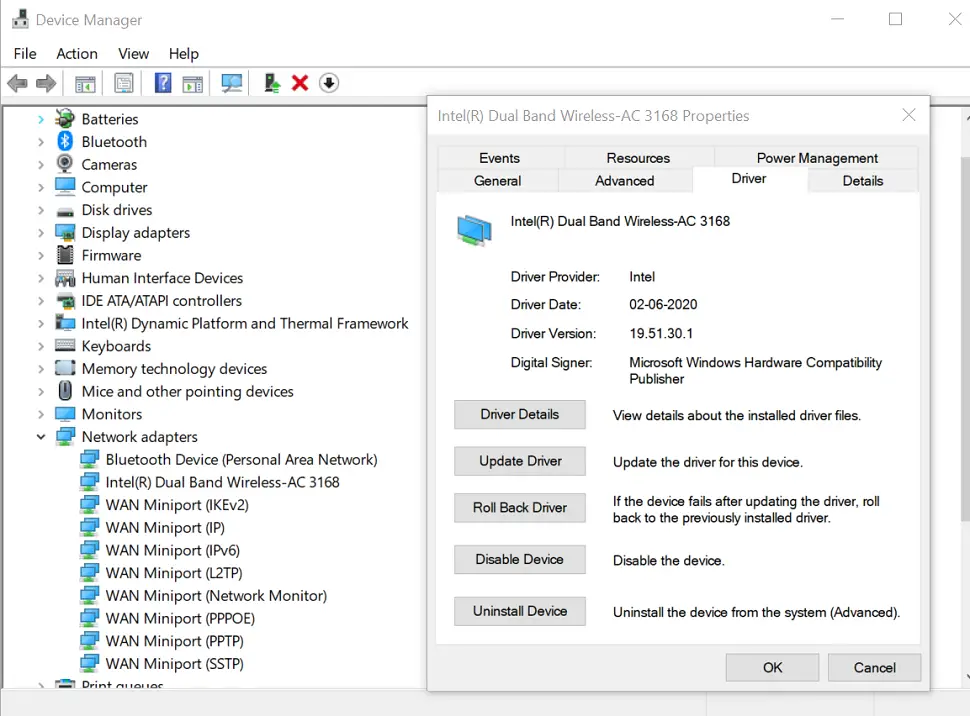
If that doesn’t find anything newer, check your PC or Wi-Fi card manufacturer’s website (commonly Intel or Realtek) for a current driver.
If problems persist, right-click the adapter and select Uninstall device, then restart — Windows will reinstall it fresh.
16. Check Your System Date and Time
An incorrect system clock can break secure (HTTPS) connections even when the network itself is fine.
Go to Settings → Time & language → Date & time and make sure Set time automatically and Set time zone automatically are both on, then sync.
17. Scan for Malware
Run a full scan with Windows Defender or another reputable antivirus tool. If the affected PC can’t get online to download a scanner, download one on another device and transfer it via USB.
18. Reset Network Settings
As a last resort, go to Settings → Network & Internet → Advanced network settings → Network reset.
This removes and reinstalls all network adapters and restores default settings — you’ll need to reconnect to and re-enter passwords for every saved Wi-Fi network afterward.
Fixes for Android and iPhone
Mobile devices fail differently than PCs, so a few of these are specific to phones and tablets.
19. Toggle Airplane Mode
Turn Airplane Mode on, wait 10 seconds, then turn it off. This forces the phone to fully re-establish both its Wi-Fi and cellular connections and fixes a large share of mobile “no internet” cases instantly.
20. Forget and Reconnect to the Network
In Settings → Wi-Fi, tap the network, choose Forget This Network, then reconnect and re-enter the password. This clears out a corrupted saved profile for that network.
21. Check for a Captive Portal (Public Wi-Fi)
If you’re at a hotel, airport, or café, a strong Wi-Fi connection doesn’t always mean internet access. Open a browser; you should be redirected to a login or terms-of-service page.
If it doesn’t appear automatically, try navigating to any plain (non-HTTPS) website to trigger it.
22. Reset Network Settings on Mobile
On iPhone: Settings → General → Transfer or Reset iPhone → Reset → Reset Network Settings.
On Android: Settings → System → Reset options → Reset Wi-Fi, mobile & Bluetooth. This clears saved networks, Bluetooth pairings, and VPN configs, so you’ll need to reconnect to Wi-Fi afterward.
23. Use Mobile Data as a Temporary Workaround
If Wi-Fi is down but you need to get online right away, enable mobile data or turn your phone into a hotspot for other devices.
Keep an eye on your data plan’s limits, since streaming or large downloads over cellular can burn through a data cap quickly.
Related: Simple Methods to Get Temporary Wi-Fi Internet Without a Dedicated ISP
Fixes for Mac
24. Use Wireless Diagnostics
Hold Option and click the Wi-Fi icon in the menu bar, then choose Open Wireless Diagnostics, and follow the guided troubleshooting.
25. Renew Your DHCP Lease
Go to System Settings → Network → Wi-Fi → Details → TCP/IP, and click Renew DHCP Lease.
This is the Mac equivalent of the Windows ipconfig /renew command and often resolves address-related connection failures.
Comparison: Symptom → Likely Cause → First Fix
| Your Symptom | Most Likely Cause | Try This First |
|---|---|---|
| Every device on the network is affected | Router/modem or ISP issue | Power-cycle modem and router |
| Only one PC or phone is affected | Device-specific network config | DNS flush (Windows) or Forget & Reconnect (mobile) |
| Works on Ethernet, not on Wi-Fi | Wireless driver or router radio issue | Update Wi-Fi driver/restart router |
| “Connected” but a red X or exclamation mark | No valid IP address (APIPA/169.254.x.x) | Set adapter to obtain IP automatically |
| Started right after connecting to a VPN | VPN misconfiguration | Disconnect VPN and retest |
| Only happens on public/hotel Wi-Fi | Captive portal not loading | Open a plain HTTP site to trigger login page |
| Started after changing your router or ISP plan | Static IP conflict | Switch device back to automatic (DHCP) IP |
Common Mistakes That Waste Your Time
- Resetting the router before restarting it. A reset erases your settings and password; a restart usually fixes the same problem without the extra hassle.
- Skipping the “one device vs. all devices” test and troubleshooting the router when only one laptop is actually affected.
- Leaving antivirus/firewall off after testing. Use it only to diagnose, then re-enable and adjust specific rules if needed.
- Forgetting to check for an ISP outage first, especially if you’re troubleshooting during a storm or after a known service alert.
- Not checking the date and time on Windows, which silently breaks secure connections and gets mistaken for a Wi-Fi problem.
- Assuming a strong Wi-Fi signal means working internet. They’re two different things. Signal strength to the router says nothing about whether the router can reach the internet.
Myth vs. Fact
Myth: Full Wi-Fi bars mean the internet is working. Fact: Signal bars only measure the strength of your connection to the router, not whether that router has a working internet connection.
Myth: You should always do a full router reset first. Fact: A simple restart (power cycle) solves the vast majority of cases and doesn’t erase your Wi-Fi password or custom settings. Save the full reset for when a restart doesn’t help.
Myth: Antivirus software never affects your internet connection. Fact: The firewall component bundled with many antivirus suites can block legitimate traffic, especially after an update. It’s worth testing, even though it’s not the most common cause.
Myth: If one website won’t load, your whole internet connection is down. Fact: A single site being unreachable is often a DNS issue or a problem on that site’s end, not your connection. Try a couple of other well-known sites before assuming your internet itself is broken.
When to Contact Your ISP
Call or message your provider if:
- Every device in your home is affected, and a full router/modem restart didn’t help.
- Your modem’s “internet” or “online” status light is red, blinking abnormally, or off entirely.
- You’ve confirmed there’s no known outage in your area but still can’t connect.
- The connection drops repeatedly at the same time of day, which can indicate a line quality issue only your ISP can diagnose.
- You’ve replaced the modem/router (or tried a factory reset), and the problem persists.
Have your account number and the exact error message or light pattern ready. It speeds up the support call considerably.
How to Prevent This From Happening Again
- Restart your router and modem every week or two, or set them on a smart plug to reboot automatically overnight.
- Keep your router’s firmware updated. Most modern routers can do this automatically from their app or admin page.
- Avoid manually setting static IP addresses on personal devices unless you have a specific reason to.
- Keep your Wi-Fi password saved somewhere accessible (a password manager) so re-entering it after a network reset takes seconds, not a search.
- If your router is more than 4–5 years old, consider replacing it. Aging hardware is more prone to the exact glitches this guide covers.
Conclusion
“No internet connection” almost always comes down to a break somewhere in the chain between your device, your router, and your ISP. The fastest way to fix it is to figure out which link is broken before you start changing settings.
Test whether one device or every device is affected, restart your modem and router first, and only move on to driver updates, DNS changes, or a full reset if the basics don’t resolve it.
If everything checks out on your end and the problem persists, it’s time to get your ISP involved.
Frequently Asked Questions
Why is my internet access blocked even though Wi-Fi shows connected?
“Connected” only confirms your device can reach your router. It says nothing about whether that router can reach the internet. The break is usually with the router, modem, ISP, or a setting on the specific device.
What’s the fastest way to fix no internet connection?
Power-cycle your modem and router: unplug both, wait 30–60 seconds, plug the modem in first, then the router once its lights stabilize. This resolves the majority of cases in under two minutes.
How do I know if the problem is my router or my ISP?
Check your modem’s status lights. A red or blinking “internet” light usually points to an ISP-side issue. You can also check your provider’s outage page or app to see if others in your area are affected.
Why does only one device have no internet while others work fine?
This points to a device-specific issue rather than a network-wide one. Most often a DNS/IP configuration problem, an outdated network driver, or a VPN/firewall conflict on that particular device.
Can a VPN cause a “no internet” error?
Yes. If the VPN server is down or misconfigured, it can show a strong Wi-Fi connection while blocking or misrouting your traffic. Disconnect the VPN and test again.
Does resetting my router delete my Wi-Fi password?
Yes. A full factory reset wipes your Wi-Fi name, password, DNS settings, and firewall rules back to defaults. A simple restart (power cycle) does not; it only clears temporary memory.
Why does my computer say “No Internet, Secured”?
This Windows-specific message means the PC connected to a password-protected network but couldn’t get internet access. Try flushing DNS, renewing your IP address, or updating your wireless driver. For detailed reading, refer to our article: “No Internet, Secured” Error in Windows 10/11: 18 Fixes That Work.
Can an incorrect date and time cause internet problems?
Yes, particularly with secure (HTTPS) websites. An incorrect system clock can cause certificate validation to fail, which looks like a connectivity problem but is actually a time-sync issue.
How do I fix “no internet” on my Android phone?
Toggle Airplane Mode on and off, or forget and reconnect to the Wi-Fi network. If that doesn’t help, reset your network settings under Settings → System → Reset options.
How do I fix “no internet” on my iPhone?
Toggle Airplane Mode, forget and rejoin the Wi-Fi network, and if needed, go to Settings → General → Transfer or Reset iPhone → Reset → Reset Network Settings.
Why does my internet work on Ethernet but not Wi-Fi?
This points to a wireless-specific issue ( an outdated Wi-Fi driver, a router radio problem, or interference ) rather than your ISP connection itself, since the wired path is working fine.
What does “Obtain an IP address automatically” mean, and should I use it?
It means your device will get its IP address from the router automatically (via DHCP) instead of using a fixed one you set manually. Unless you have a specific reason for a static IP, automatic is the safer default and avoids conflicts.
Can antivirus software block my internet connection?
Yes, particularly the firewall component. Temporarily disabling it can confirm whether it’s the cause; if so, adjust its network rules rather than leaving it off.
What is a captive portal, and why does it stop me from getting online?
It’s the login or terms-of-service page many public Wi-Fi networks (hotels, airports, cafés) require before granting internet access. If it doesn’t pop up automatically, try opening any non-HTTPS website to trigger it.
Can malware cause a “no internet” error?
It’s less common than router or DNS issues, but yes. Some malware alters network settings or blocks traffic. A full antivirus scan is worth doing if nothing else resolves the problem.
Should I use mobile data while my home Wi-Fi is down?
It’s a reasonable short-term workaround, and turning your phone into a hotspot can get other devices online too. Just watch your data plan’s limits, especially for anything data-heavy like video streaming.
How often should I restart my router?
Every one to two weeks is a reasonable habit, or you can automate it with a smart plug set to power-cycle overnight. It clears memory buildup before it causes a full outage.
When should I just replace my router?
If it’s more than 4–5 years old, drops connections frequently even after resets, or a factory reset and firmware update don’t resolve recurring issues, replacing it is usually more effective than continuing to troubleshoot.
Does changing my DNS server actually help?
Sometimes. If your ISP’s DNS server is having issues, switching to a public option like Google DNS (8.8.8.8) or Cloudflare (1.1.1.1) can restore browsing even while the rest of your connection is fine.
What does the “two-device rule” mean in troubleshooting?
It’s a quick test where you try a second device on the same network. If it also can’t get online, the problem is with your router/ISP; if it works fine, the problem is isolated to the original device.
We hope you found this post informative, and do like and follow us on Facebook and Twitter for regular updates.
We also ask that you bookmark this page for future reference. Sign up for our free newsletter as well to receive fresh information immediately in your inbox and keep technically up to date.
Disclosure: If you follow our links to a retailer’s website and make a purchase, we will get an affiliate commission on some, but not all, of the items or services we promote. This will cause no price change for you.
You May Be Interested in Reading:
- 5 Simple Methods to Get Temporary Wi-Fi Internet Without a Dedicated ISP
- How to Fix the Windows 10 No Internet-Secured Error
- Powerline Adapter vs. Wi-Fi Extender: Which Is Best for Wi-Fi Signal Boosting?
- Why Is Your Modem Keeping Resetting? Fix It In 10 Easy Steps
- How Long Do Routers Last and When Should You Replace Them?