Android Flashlight Not Working? 16 Fixes That Actually Work
Your Android’s flashlight is one of those features you barely think about until the exact moment you need it: fumbling for keys in the dark, checking under the couch, or just trying to read a label.
When it won’t turn on, or the icon in Quick Settings looks greyed out and unresponsive, it’s frustrating, but it’s very rarely a sign your phone is broken.
Quick answer: Most Android flashlight failures come down to another app holding onto the camera in the background, Battery Saver mode, or a temporary software glitch. Close any recently used camera apps, confirm Battery Saver is off, then restart your phone. Together, these solution steps resolve the large majority of cases in under two minutes. If you’re on Samsung or Pixel specifically, there are a couple of brand-specific quirks covered below that are worth checking first.
This guide walks through every fix, organized from fastest to most involved, plus brand-specific tips for Samsung, Pixel, and Xiaomi devices, and a way to test definitively whether you’re dealing with software or an actual hardware fault.
Why Does This Happen?
Android’s camera system only allows one app to control the LED flash at a time, since the flashlight and the camera’s photo/video flash are the same physical component.
Most “flashlight not working” reports trace back to something else ( another app, a power-saving setting, or a stuck process ) still holding that control, or your phone simply needing a refresh.
Genuine hardware failure is possible but comparatively rare, and this guide will help you tell the difference before you consider a repair.
1. Close the Camera App
If the Camera app is open, even in the background, the flashlight can only be controlled from within it. The Quick Settings toggle will appear greyed out or simply won’t respond.
Open your Recent Apps view (swipe up and hold, or tap the square/recents button depending on your phone), and fully close the Camera app. Then try the flashlight toggle again from Quick Settings.
2. Force-Close Any Other App That Uses Your Camera
This is the most common cause overall, and it’s easy to miss since the interfering app doesn’t have to be visibly open.
Social apps like Instagram, Snapchat, and TikTok, along with video call apps and QR scanners, frequently hold camera access in the background even when you’re not actively using their camera features.
Open Recent Apps and swipe away everything, not just the Camera app, then try the Quick Settings flashlight tile again.
3. Restart Your Phone
A simple restart resolves a large share of temporary glitches, since it clears whatever background process might be holding the camera or LED hostage.
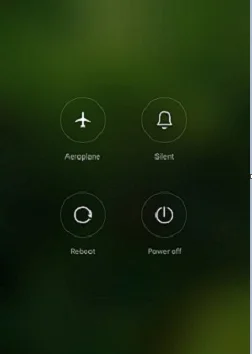
Press and hold the Power button until the power menu appears, then tap Restart. If your phone doesn’t offer a direct restart option, select Power Off, wait about 30 seconds, then power it back on.
4. Turn Off Battery Saver / Power Saving Mode
Most Android manufacturers disable or restrict the flashlight (along with background data, vibration, and other features) when Battery Saver is active, as a battery-conservation measure.
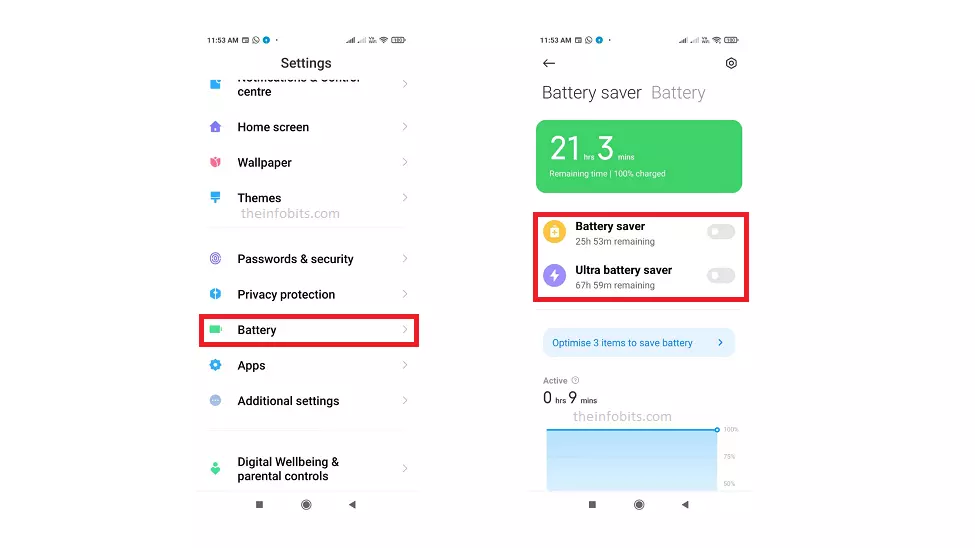
Go to Settings > Battery, and check whether Battery Saver, Power Saving Mode, or a similarly named feature is turned on. Disable it and test the flashlight again.
Related: Does Your Phone Charge Faster in Low Power Mode?
5. Let Your Phone Cool Down
If your phone has been in direct sunlight, charging heavily, or running demanding apps, it may be running hot enough that the system disables the flash to prevent further heat buildup.
You may even see a “Flash is disabled” or similar temperature warning on screen.
Remove the case, move the phone to a cool, shaded spot, and wait 15–20 minutes before testing the flashlight again. Never put a hot phone in a freezer or fridge to speed this up. Rapid temperature changes can cause internal condensation damage.
6. Check Camera App Permissions
If camera permissions were accidentally revoked, either by you, a permissions-cleanup app, or a recent system update, the flashlight can stop responding even though nothing else looks wrong.
Go to Settings > Apps > Camera > Permissions, and confirm camera access is allowed.
On most versions of Android, you can also check this broadly under Settings > Privacy > Permission Manager > Camera.
7. Clear Camera App Data
If the Camera app’s settings have become corrupted through normal use, resetting them can restore default behavior, including the flashlight.
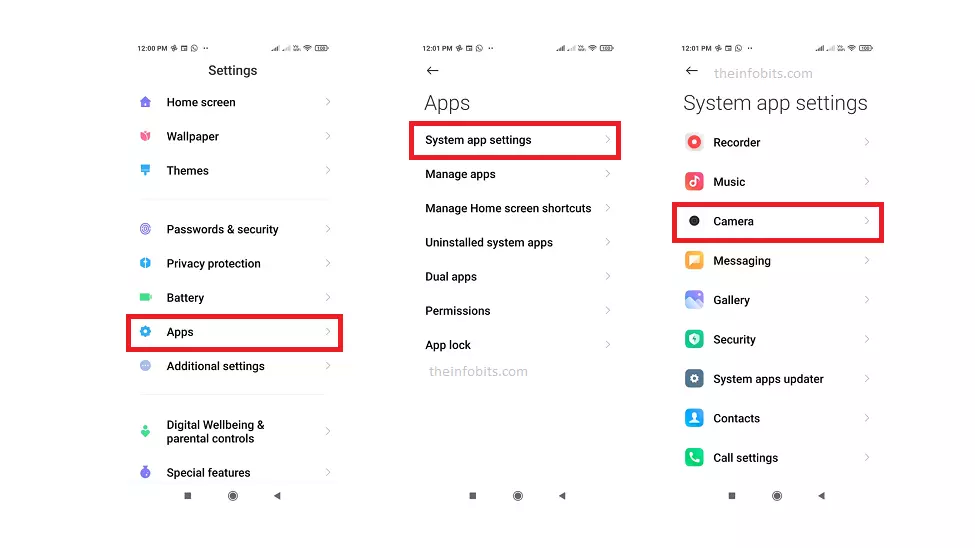
Go to Settings > Apps > Camera > Storage, then tap Clear Data (or Restore Default Settings, depending on your version of Android).
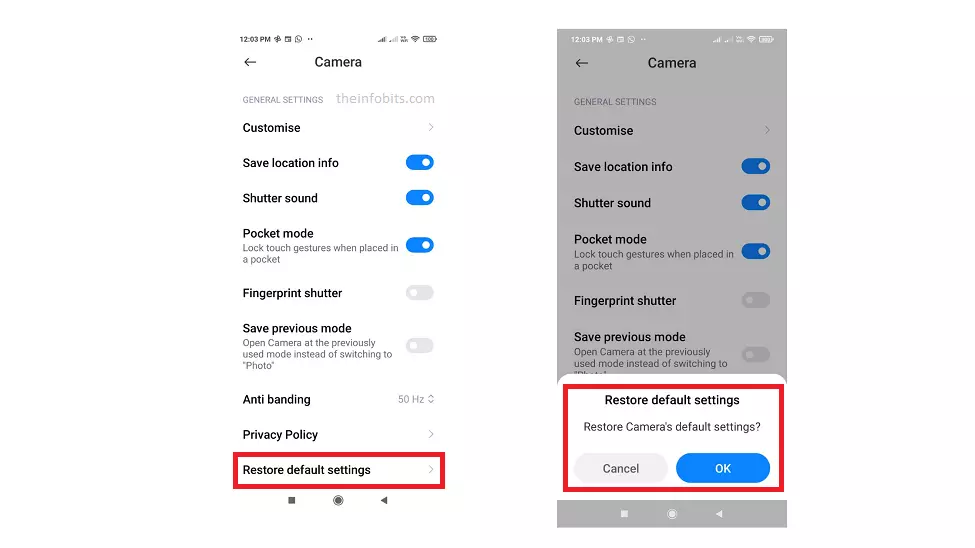
This resets your camera preferences to default but doesn’t delete your photos.
8. Try Safe Mode to Rule Out a Third-Party App
Safe Mode temporarily disables all third-party apps, which makes it the most reliable way to confirm whether an installed app ( not a system setting) is the actual cause.
Press and hold the Power button until the power menu appears, then press and hold the Power Off option until you’re prompted to reboot into Safe Mode. Confirm, and your phone will restart with only pre-installed system apps active.
Test the flashlight in Safe Mode. If it works normally here, the cause is a third-party app. Restart normally and move to the next step to track it down.
9. Find and Remove the Interfering App
If Safe Mode confirmed a third-party app is the culprit, the most likely suspect is something installed or updated recently.
Start with apps you’ve installed or updated in the last few days, uninstalling or disabling them one at a time and testing the flashlight after each.
If nothing recent stands out, consider running a malware scan. Malicious apps that request unnecessary camera permissions are a known, if less common, cause of exactly this kind of interference.
10. Disable Auto Flash Mode in the Camera App
The Camera app’s Auto flash setting decides when to fire the flash based on ambient light, and it can occasionally get stuck in a locked state that also affects the standalone flashlight toggle.
Open the Camera app, toggle the flash setting away from Auto and back, then exit and test the Quick Settings flashlight tile again.
11. Update Your Phone’s Software
A flashlight bug tied to a specific Android version or manufacturer update is a genuinely common, recurring pattern. It is worth checking especially if the issue started right after your phone updated.
Go to Settings > System > System Update (the exact path varies slightly by manufacturer) and install anything available.
If the issue started immediately after an update, it’s also worth searching your phone model plus “flashlight bug” to check whether it’s a known, already-acknowledged issue with a patch on the way.
Brand-Specific Fixes
Different manufacturers layer their own camera and power management on top of Android, which means the same symptom sometimes needs a slightly different fix depending on your phone.
Samsung (One UI): A routine software update occasionally disrupts the torch specifically.
The most reliable fix: open the Camera app, set the flash mode to Auto, exit the Camera app, then try the Quick Settings torch toggle again. This re-initializes the camera hardware driver and often restores the flashlight without needing a full restart.
Google Pixel: A known issue on some Android versions causes the torch to stop responding after the phone wakes from sleep. A simple restart resolves it in almost every case.
If you have “Double tap back of phone to toggle flashlight” enabled under Settings > System > Gestures > Quick Tap, try disabling and re-enabling it, since this gesture shortcut is a separate, occasionally glitchy path to the same LED.
Xiaomi (MIUI/HyperOS): MIUI’s aggressive battery optimization is a frequent, brand-specific cause. Go to Settings > Battery > App Battery Saver, find the Camera app, and make sure it isn’t set to a restricted or heavily optimized mode.
12. Use the Hidden Hardware Test Menu (Samsung)
Samsung devices include a hidden diagnostic menu that lets you fire the LED directly, bypassing the Camera app and Quick Settings entirely. This is very useful for isolating software from hardware.
Open your phone’s Dialer app and type *#0*#. In the test menu that appears, look for LED or a similar option and tap it.
If the flash fires here but still won’t respond through normal use, the cause is a software or system UI bug, not damaged hardware. If it doesn’t fire here either, treat it as a strong signal of an actual hardware fault.
13. Try a Third-Party Flashlight App
If your phone’s built-in toggle specifically won’t cooperate, a reputable third-party flashlight app can confirm whether the LED itself works while you continue troubleshooting the default toggle.
Choose one with strong reviews and minimal permission requests from the Google Play Store. A legitimate flashlight app needs camera access and little else. Be wary of any that ask for contacts, location, or messaging permissions, which are unrelated and a common red flag for adware-laden apps.
If a third-party app successfully turns on the LED, it confirms the hardware is fine, and the issue is isolated to your phone’s default flashlight toggle or Camera app.
14. Reset App Preferences
This is a gentler alternative to a full factory reset. It resets all app-related settings (default apps, permissions, background restrictions) to their original state without deleting any data or apps.
Go to Settings > Apps > [three-dot menu] > Reset App Preferences.
This can clear an accidentally revoked permission or a stuck background restriction you haven’t been able to track down manually.
15. Factory Reset Your Phone
If nothing above has worked, a factory reset clears out any deeper software corruption that’s specifically tied to your phone’s system rather than any individual app.
Back up your data first. This process erases everything. Go to Settings > System > Reset Options > Erase All Data (Factory Reset), confirm your PIN or password, and follow the prompts.
This is a serious step, but it’s worth trying before assuming the problem is hardware and heading to a repair shop.
16. Check for Physical Damage
If you’ve worked through every software fix and the flashlight still won’t respond, inspect the LED and surrounding area directly.
Look for cracks in the lens, a bent or dented section of the phone body near the camera module, or a stray piece of screen protector film or case material blocking the LED.
Water exposure is also a common, sometimes delayed cause. If your phone was recently dropped in water, flashlight failure (including a flash that flickers on for a second and then cuts out) can be an early sign of internal corrosion even if everything else still works.
Related: Phone Dropped in Water? Here’s How to Fix It in 7 Steps
When It’s a Hardware Problem
If Safe Mode didn’t help, the Samsung hardware test menu (or a third-party app, on other brands) confirms the LED doesn’t fire under any circumstance, and a factory reset didn’t resolve it, you’re very likely dealing with a hardware fault.
Most commonly, a damaged LED, a loose internal connector, or corrosion from prior water exposure.
At this point:
- Stop troubleshooting further and avoid opening the phone yourself. This risks further damage and can void any remaining warranty.
- Check your warranty status with your phone’s manufacturer.
- Contact an authorized service center. If your phone is still covered, repair or replacement is typically free or low-cost; even out of warranty, a flash/LED assembly repair is usually far cheaper than a full device replacement.
Common Mistakes to Avoid
- Jumping straight to a factory reset before trying Safe Mode or the hardware test menu. Both take under a minute and can save you from wiping your phone unnecessarily.
- Assuming a greyed-out icon means hardware failure. In the large majority of cases, it just means another app currently controls the camera.
- Skipping the temperature check. An overheating phone will keep disabling the flash no matter what software fix you try until it actually cools down.
- Ignoring brand-specific quirks. The Samsung Auto-flash re-initialization trick and the Pixel Quick Tap gesture bug are both well documented but easy to miss if you only try generic fixes.
Final Thoughts
An Android flashlight that won’t turn on almost always points to software, not a broken phone. Start with closing background camera apps and checking Battery Saver, then work through Safe Mode and the brand-specific tricks above before considering anything more drastic.
If Safe Mode and a hardware test (or third-party app) both confirm the LED itself doesn’t respond, that’s your clearest signal it’s time for a professional repair rather than more troubleshooting.
Frequently Asked Questions
What should I do if the basic troubleshooting steps don’t fix the flashlight issue?
If the standard troubleshooting measures, such as restarting your device or clearing cache and data, do not resolve the flashlight problem, you can take extra action. You can try updating the flashlight app, stopping the app’s battery optimization, or verifying the app permissions. If all else fails, it is suggested that you contact customer service for further guidance.
Why is my Android flashlight not working?
This is most often caused by another app holding onto the camera in the background, Battery Saver mode being active, or a temporary software glitch, rather than a hardware problem. Working through the software fixes in order resolves the large majority of cases.
Why is my flashlight icon greyed out?
The Camera app or another app using your camera is currently holding control of the LED, which the flashlight and camera flash share. Force-closing the Camera app and any other recently used camera apps typically restores it immediately.
Does Battery Saver mode disable the flashlight?
On most Android phones, yes. Battery Saver restricts several features, including the flashlight, to conserve power. Turning it off in Settings > Battery usually resolves the issue.
Will restarting my phone fix the flashlight?
Often, yes. A restart clears temporary software glitches and background processes that commonly interfere with the flashlight, and it’s one of the fastest fixes to try.
How do I know if my flashlight problem is hardware or software?
Try Safe Mode first. If the flashlight works there, a third-party app is the cause. On Samsung phones, you can also dial #0# to access a hardware test menu and fire the LED directly. If the LED doesn’t respond even in the hardware test menu, it’s likely a genuine hardware fault.
Does a phone update ever break the flashlight?
Yes, this is a genuinely common and recurring issue, particularly on Samsung and Pixel devices after a routine software update. Checking for a follow-up patch, or trying the brand-specific fixes above, usually resolves it.
Why does my flashlight turn on for a second and then shut off?
This flickering pattern can indicate either a software conflict with a specific app, or in some cases, early signs of hardware damage from a drop or water exposure. If the issue persists after trying Safe Mode and a restart, it’s worth having it checked for physical damage.
Can a third-party flashlight app damage my phone?
A reputable app with minimal, relevant permissions is safe, but poorly designed or ad-heavy flashlight apps can drain battery excessively or cause overheating. Stick to apps with strong reviews and avoid ones requesting unrelated permissions like contacts or location.
Is it safe to reset app preferences instead of doing a full factory reset?
Yes, and it’s worth trying first. Resetting app preferences clears stuck permissions and background restrictions without deleting any of your data, apps, or photos, unlike a full factory reset.
Why does my Samsung flashlight stop working after an update?
This is a known, recurring issue on One UI. Opening the Camera app, setting flash to Auto, exiting, and then trying the Quick Settings torch toggle again often re-initializes the camera driver and restores the flashlight.
Why does my Pixel’s flashlight stop working after the screen turns off?
This is a documented issue on some Android versions where the torch fails to respond after the phone wakes from sleep. A restart typically fixes it, and Google frequently addresses it in monthly security patches if it recurs.
Can I check if the LED hardware itself is broken without a service center?
Yes. Samsung users can dial #0# for a hardware test menu, and any Android user can install a reputable third-party flashlight app to test the LED independently of the default toggle. If the LED still doesn’t respond through either method, it’s a strong sign of a hardware fault.
We hope you found this post informative, and do like and follow us on Facebook and Twitter for regular updates.
We also ask that you bookmark this page for future reference. Sign up for our free newsletter as well to receive fresh information immediately in your inbox and keep technically up to date.
Disclosure: If you follow our links to a retailer’s website and make a purchase, we will get an affiliate commission on some, but not all, of the items or services we promote. This will cause no price change for you.