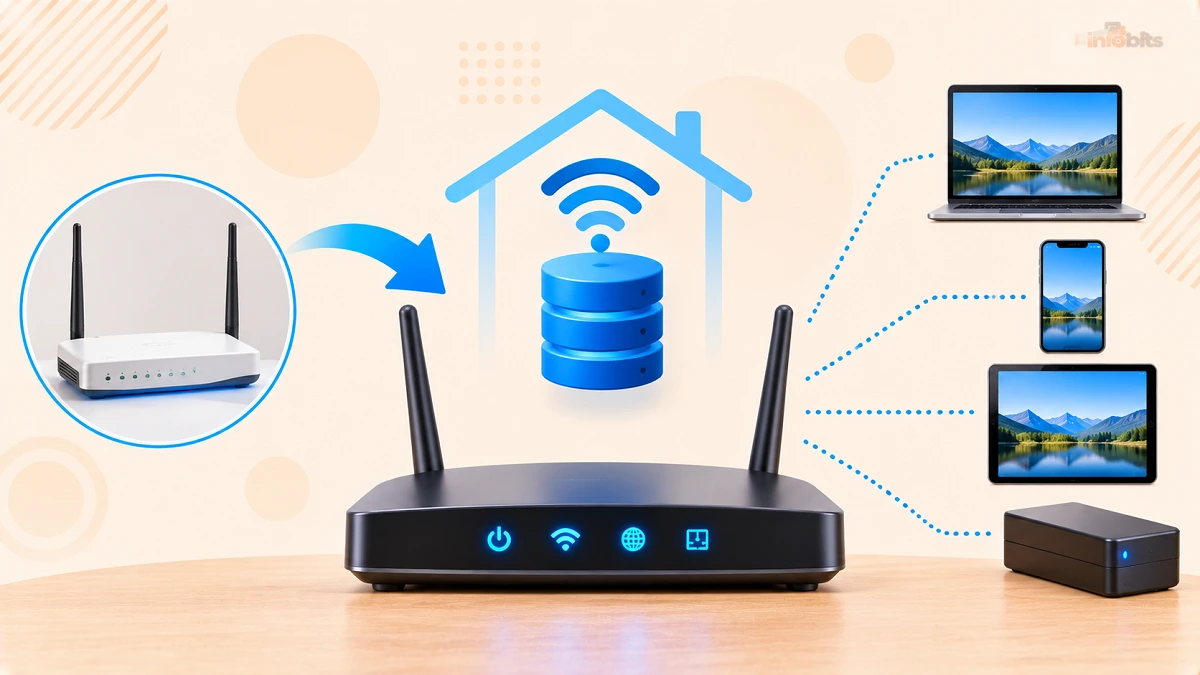
How to Turn an Old Router into a Network Storage Device (NAS)
That dusty router in your drawer might have one useful feature left: a USB port. Plug a drive into it, flip a few settings, and every device in your home can read and save files to it. It won’t replace a proper NAS, but it’s a surprisingly good way to get shared storage for almost nothing.
This guide covers the easy way (your router’s built-in settings), the advanced way (OpenWrt), the real-world speeds, the security risks people forget, and how to fix the usual problems.
Quick answer: To turn an old router into a NAS, plug a USB drive into the router’s USB port, log in to the router’s admin page, and enable USB storage sharing (often called Samba, SMB, Network Place, or ReadySHARE). Create a user account, then open the share from your computer or phone using the router’s IP address. This only works if your router has a USB port, and speeds are modest because old routers have slow processors.
Will Your Old Router Work as a NAS?
Check these three things first. If you fail the first one, stop here.
- It has a USB port. Look at the back or side. Many routers from roughly 2010 onward have one. A blue port is usually USB 3.0, and black or white is USB 2.0.
- The firmware supports file sharing. Look for a menu called USB Application, Storage, USB Sharing, Network Place (Samba), or File Sharing. Many ISP-supplied routers have this feature removed.
- It’s not your only router, or you’re comfortable with the risks. More on this below. A router that no longer gets security updates shouldn’t face the open internet.
Most routers with sharing features are brands you’ll recognize. ASUS calls it AiDisk or Network Place, Netgear calls it ReadySHARE, TP-Link has USB Sharing or Storage Sharing, and D-Link uses SharePort.
Not sure what else the router can do? See our roundup of other uses for old routers.
Is a Router NAS a Good Idea? An Honest Comparison
A router NAS is free and simple, but it’s the weakest option for speed and reliability.
| Option | Cost | Typical speed | Setup difficulty | Best for |
|---|---|---|---|---|
| Old router + USB drive | Almost free | Slow to moderate | Easy | Shared documents, photos, light media streaming |
| Raspberry Pi + USB drive | Low | Moderate | Medium | A more reliable home server with more features |
| Old PC running Linux | Low to medium | Fast | Medium to hard | Large storage, many users |
| Entry-level NAS (2 bays) | Medium | Fast | Easy | Real backups, long-term use |
Note: Use a router NAS for convenience files you can afford to lose, or as a stepping stone. If the data matters, use something built for it.
What You Need
- An old router with a USB port
- A USB flash drive, portable SSD, or external hard drive
- A computer on the same network
- An Ethernet cable
- The router’s admin login (check the sticker on the back)
Choosing the Right Drive
This is where most first attempts go wrong.
- Power: A USB 2.0 port is supposed to supply only about 500 mA, and USB 3.0 about 900 mA. Router ports are often weaker. A bare 2.5-inch hard drive can fail to spin up or keep disconnecting. A flash drive or SSD draws far less. For a hard drive, use a self-powered enclosure or a powered hub. If you want to use a spinning hard drive, a powered USB 3.0 hub such as Atolla 8-Port USB 3.0 Data Hub Splitter (available on Amazon) gives the drive its own power supply, which cures most “drive keeps disconnecting” problems.
- File system: Windows drives are usually NTFS or exFAT. Many old routers support NTFS and FAT32 but not exFAT. FAT32 can’t store files over 4 GB. NTFS works with Windows and most routers, though it can slow down weak processors. ext4 is the fastest choice on Linux-based firmware like OpenWrt, but Windows can’t read it directly.
- Capacity: Some very old routers struggle with drives above 2 TB. If it fails to mount, try a smaller drive.
If you don’t have a spare drive, a small portable SSD such as the Samsung T7 or SanDisk Extreme Portable SSD (both are available on Amazon) is a good fit, since it’s quiet, draws little power, and doesn’t mind being on all day.
Step 1: Prepare the Router
If this is your only router, you can skip ahead to Step 2, but read the security section first.
If you’re adding it as a second device (the better setup), connect it like this:
- Log in to the old router and turn off DHCP, so it doesn’t fight with your main router.
- Give it a fixed IP address in your main router’s range but outside its DHCP pool (for example, 192.168.1.2).
- Connect a cable from a LAN port on your main router to a LAN port on the old router. Don’t use the WAN (internet) port.
- Turn off Wi-Fi on the old router unless you want it as an access point too.
This keeps the old router off the internet side of your network entirely. If you need help with these settings, see setting up a router and using a router as a Wi-Fi extender.
Update the firmware if the manufacturer still offers any. Here’s a router firmware update checklist to do it safely.
Step 2: Plug In the Drive and Enable Sharing (Stock Firmware)
The menus differ by brand, but the process is almost always the same.
- Plug the drive into the router’s USB port (use the USB 3.0 port if there is one).
- Wait about 30 seconds for the router to detect it.
- Log in to the router’s admin page (commonly 192.168.1.1 or 192.168.0.1).
- Find the USB or storage menu and confirm the drive appears there.
- Turn on Samba / SMB / Network Place / Windows sharing.
- Create a username and password for the share. Avoid anonymous or guest access.
- Choose which folders to share and set permissions (read-only or read/write).
- Save and apply.
Step 3: Open the Shared Drive From Your Devices
Replace 192.168.1.1 with your router’s IP, and share with the name you gave the folder.
- Windows: Open File Explorer, type
\\192.168.1.1\sharein the address bar, and press Enter. To make it permanent, right-click the folder and choose Map network drive. - Mac: In Finder, press Cmd + K and enter
smb://192.168.1.1/share. - iPhone/iPad: Open the Files app, tap the three dots, choose Connect to Server, and enter
smb://192.168.1.1. - Android: Use a file manager with network support (many have an SMB or “Network storage” option) and add your router’s IP as a new location.
- Smart TV/media players: Apps like VLC or Kodi can browse SMB shares and play video straight from the drive.
The Advanced Option: Using OpenWrt
If your router’s stock firmware has no storage feature, or it’s too old to be safe, OpenWrt (a free, open-source router firmware) can add it. Check your exact model on the OpenWrt hardware list first, because flashing the wrong firmware can brick a router.
Weighing alternatives? Compare them in DD-WRT vs OpenWrt and see the best OpenWrt routers.
In outline, the process is:
- Flash OpenWrt on your router following its device page.
- Install the packages for USB storage (such as
kmod-usb-storage,block-mount, a file system package likekmod-fs-ext4, andluci-app-samba4) from the Software page in LuCI. Newer OpenWrt versions are moving to a different package manager, so use the web interface rather than copying older commands. - Plug in the drive and mount it under System → Mount Points.
- Go to Services → Network Shares, add the mounted folder, and set a user.
- Connect from your devices exactly as in Step 3.
I would like to point out that OpenWrt is more flexible and gets security updates for many older routers, but it takes more effort. Stock firmware is fine for most people.
What Speeds Should You Expect?
Don’t expect NAS-class performance.
| Factor | Why it matters |
|---|---|
| USB 2.0 vs 3.0 | USB 2.0 caps real-world transfers at roughly 25–35 MB/s. USB 3.0 can be much faster in theory. |
| Router CPU | Older routers often can’t push USB 3.0 speeds, especially with NTFS. |
| Wi-Fi vs Ethernet | Wireless is often the real bottleneck. Use a cable for big transfers. |
| Drive type | Flash drives vary wildly. An SSD or decent portable drive is steadier. |
For documents, photos, and a movie stream or two, it’s fine. For editing video directly off the share or backing up a whole PC nightly, it’s not.
Security
A router NAS sits on the device that guards your network, so a mistake costs more here than on a separate NAS.
Do:
- Disable remote management and any option to reach the USB drive from the internet.
- Use a strong, unique password for the share account.
- Keep it as a secondary device behind your main router, with its WAN port unused.
- Turn off UPnP on the old router.
- Update the firmware if updates exist. If they don’t, keep it off the internet entirely.
Don’t:
- Don’t forward ports to the router to “reach your files from anywhere.” If you need remote access, a VPN service on your network is much safer. See: Can a VPN make your home Wi-Fi more secure?.
- Don’t store anything sensitive (tax records, ID scans) on it.
- Don’t re-enable SMBv1 on Windows to make an old router work. It’s a long-standing security weak point.
If your guest devices and smart gadgets share the same network, consider creating a secure guest network. For extra background, read: Is your router part of a botnet?.
Protect Your Data: A Router NAS Isn’t a Backup
A shared drive is one copy of your files. If it dies, they’re gone. Follow the simple 3-2-1 idea: keep three copies, on two different types of media, with one stored off-site (or in the cloud).
Cheap drives fail, and listening for clicking sounds can give early warning. See hard drive clicking and is my SSD failing?. Recovery is expensive, as data recovery costs explain.
A router that runs 24/7 also benefits from clean power. A decent surge protector, like the ones covered in surge protector, protects both the router and the drive from power spikes.
Common Mistakes
- Using a bus-powered hard drive on a weak USB port
- Formatting as exFAT, then wondering why the router can’t see it
- Leaving guest or anonymous access on
- Plugging the second router’s WAN port into the main router
- Keeping the only copy of important files on the drive
- Expecting gigabit speeds from a decade-old router
Myth vs Fact
| Myth | Fact |
|---|---|
| “Any router can be a NAS.” | Only routers with a USB port and file-sharing support. |
| “A router NAS is as fast as a real NAS.” | Router CPUs and USB controllers are far weaker. |
| “It’s a backup.” | It’s one copy. Back it up elsewhere. |
| “USB 3.0 always means fast.” | The router’s CPU and file system often limit speed. |
| “It’s safe to open it to the internet.” | Don’t. Use a VPN instead. |
Troubleshooting
The router doesn’t detect the drive.
Try another port or another drive. Check the format (FAT32 or NTFS is safest on stock firmware). If it’s a hard drive, try a powered hub. Reboot the router with the drive attached.
Windows can’t connect or shows “network path not found.”
Confirm you’re using the right IP and share name. If the router only supports SMBv1, update its firmware or use OpenWrt rather than turning SMBv1 back on in Windows. Also check that Network discovery is on and your network is set as private.
Transfers are painfully slow.
Switch to Ethernet, use the USB 3.0 port, try an ext4 or FAT32 drive instead of NTFS, and avoid copying many small files at once.
The drive disappears after a while.
This is usually a power or sleep problem. Use a powered hub, or turn off the router’s drive hibernation option if it has one.
You can’t copy a big file.
FAT32 limits files to 4 GB. Reformat to NTFS or ext4 (after backing up).
It’s read-only.
Check the share permissions and make sure the drive wasn’t mounted read-only after an unsafe removal.
Quick Checklist
- [1] Router has a working USB port
- [2] Firmware updated (or kept off the internet)
- [3] Drive formatted as NTFS or FAT32 (or ext4 on OpenWrt)
- [4] Powered hub for hard drives
- [5] Remote access and UPnP turned off
- [6] Password-protected share, no guest access
- [7] Files also backed up somewhere else
When It’s Time to Upgrade
If you outgrow the router NAS, two natural next steps exist. A Raspberry Pi or an old PC gives you more speed and features. See How to Use Your Old PC or Laptop as a NAS.
If you’d rather skip the tinkering, a small two-bay NAS like the Synology DiskStation DS224+ is a far safer home for photos and backups.
If you want to stream those files to a TV, what transcoding is explains why some NAS devices struggle with video.
Conclusion
An old router makes a decent, nearly free file-sharing box if it has a USB port and you set it up carefully.
Pick the right drive, keep the router off the open internet, use a password, and treat it as convenience storage rather than a vault.
When you need real reliability, move up to a Raspberry Pi, old PC, or dedicated NAS.
Frequently Asked Questions
Can I turn any old router into a NAS?
No. The router needs a USB port and firmware that supports file sharing, or support for OpenWrt. Routers without USB can’t do this.
How do I know if my router supports USB storage sharing?
Look for a USB port and a menu called USB Application, Storage, USB Sharing, Network Place, or ReadySHARE on the admin page. Your model’s manual will confirm it.
What type of drive works best?
A flash drive or portable SSD is easiest because it draws little power. For hard drives, use a self-powered enclosure or powered hub.
Which file system should I use?
NTFS or FAT32 is safest on stock firmware. FAT32 can’t hold files over 4 GB. exFAT isn’t supported on many older routers. ext4 is best on OpenWrt.
Is a router NAS fast?
Not usually. Expect modest speeds, especially over USB 2.0 or Wi-Fi. Ethernet and a USB 3.0 port help.
Is it safe to use a router as a NAS?
It can be if you disable remote access and UPnP, use a strong password, and keep the router updated. Avoid it for sensitive files.
Can I use it as a backup device?
It can hold backups, but it shouldn’t be your only copy. Keep another copy elsewhere or in the cloud.
Can I access the files outside my home?
Technically, yes, but don’t open ports on your router. A VPN is the safer way to reach home files remotely.
How do I find the shared drive on Windows?
Type \\ followed by the router’s IP address and share name into File Explorer’s address bar, or map it as a network drive.
Can I connect from an iPhone or Android phone?
Yes. iPhones can connect through the Files app using “Connect to Server,” and Android works with file manager apps that support SMB.
Why can’t Windows see my router’s drive?
Common causes are the wrong IP or share name, network discovery turned off, or a router that only offers old SMBv1. Updating firmware usually fixes the last one.
Why does the drive keep disconnecting?
Usually the USB port isn’t supplying enough power or the drive is going to sleep. Try a powered hub or disable hibernation.
Do I need OpenWrt?
No. Many routers can share a USB drive with their stock firmware. OpenWrt is for routers lacking the feature or those without security updates.
Can I stream movies from the router?
Yes, using apps like VLC or Kodi over SMB. Smooth playback of high-bitrate video depends on the router’s speed and your connection.
Does the router need to stay on all the time?
Only while you want access to the files. Many people leave it on, but check that the drive and router run cool.
What’s better, a router NAS or a Raspberry Pi?
A Raspberry Pi is usually more reliable and flexible, with better software. A router NAS is simpler and free if you already have the hardware.
Found this guide useful? Share it with someone interested in tech-related tips, tricks, solutions, and news. Follow us on Facebook and Twitter for more tips, tricks, and guides.
We also ask that you bookmark this page for future reference, as we are constantly updating our articles with new information.
Sign up for our free newsletter as well to receive fresh information immediately in your inbox and keep technically up to date.
Disclosure: If you follow our links to a retailer’s website and make a purchase, we will get an affiliate commission on some, but not all, of the items or services we promote. This will cause no price change for you.
You May Be Interested in Reading:
- ISP Router vs. Buying Your Own: Is Bridge Mode Worth the Hassle?
- How to Set Up a VLAN for IoT Devices on Your Home Router (Step-by-Step)
- Best Routers With Built-In Malware Protection (Tested & Ranked)
- Using a Second Router as a Guest Network: Complete Setup Guide
- How to Monitor Network Traffic on Your Home Router