UEFI and Secure Boot Explained: What They Do and Why They Matter
If you’ve ever opened your PC’s boot menu and seen “UEFI” or “Secure Boot” listed as a setting, you’ve probably wondered what either one actually does.
Both terms get thrown around constantly, especially since Windows 11 made them requirements, but most explanations either oversimplify them into meaninglessness or bury you in firmware jargon.
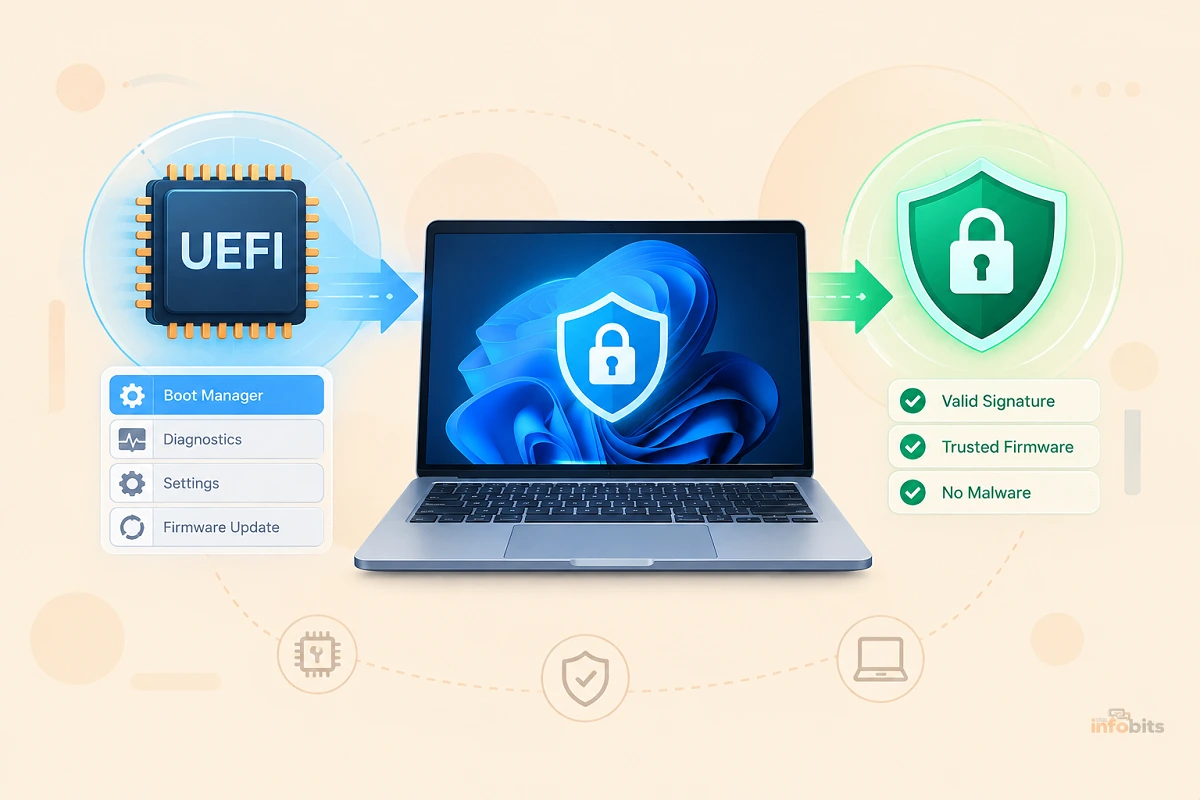
Here’s the simple version: UEFI is the modern replacement for your PC’s old BIOS. This is the low-level software that starts your computer before Windows even loads. Secure Boot is a security feature built into UEFI that checks whether the software trying to start your PC is legitimate before letting it run.
Together, they’re the reason a piece of malware can’t easily hijack your computer before your operating system, or your antivirus, even gets a chance to load.
Quick Answer:
- UEFI (Unified Extensible Firmware Interface) is the firmware that initializes your hardware and hands control to your operating system when you power on your PC. This is the direct successor to the older BIOS standard.
- Secure Boot is a UEFI feature that only allows digitally signed, trusted software (your OS bootloader, essentially) to run during startup, blocking unsigned or tampered bootloaders and rootkit-style malware.
- Windows 11 requires both UEFI mode and Secure Boot to be enabled, along with a TPM 2.0 chip.
- A real, time-sensitive issue right now: the Secure Boot certificates originally issued in 2011 began expiring in June 2026, with another expiring in October 2026. Most PCs are updating automatically through Windows Update, but it’s worth checking your own machine. See the dedicated section below.
What Is UEFI?
UEFI is the firmware that lives on a chip on your motherboard, separate from your hard drive or SSD. It’s the very first thing that runs when you press the power button, before Windows, before Linux, before any operating system loads at all.
Its job is to initialize your hardware (CPU, RAM, storage, graphics) and then hand control over to your operating system’s bootloader.
UEFI replaced the older BIOS (Basic Input/Output System) standard that PCs used for roughly three decades. Compared to legacy BIOS, UEFI offers:
- Support for larger drives. UEFI works natively with the GPT (GUID Partition Table) disk format, which supports drives larger than 2TB, something legacy BIOS and its MBR partitioning scheme can’t handle.
- Faster boot times. UEFI can initialize hardware in parallel rather than the older sequential process BIOS relied on.
- A graphical interface. Most UEFI setup screens support mouse input and graphics, unlike the text-only BIOS menus of the past.
- Built-in security features, including Secure Boot, which legacy BIOS has no equivalent for.
- Network capabilities, like UEFI’s ability to boot directly over a network connection for diagnostics or OS installation.
Nearly every PC sold since around 2012 ships with UEFI firmware, though many boards still include a “Legacy” or “CSM” (Compatibility Support Module) mode that emulates old-style BIOS behavior for older operating systems or hardware.
Related: MBR or GPT for SSD? The Real Answer (Windows 11, NVMe & 2TB+ Drives)
What Is Secure Boot?
Secure Boot is a security standard built into UEFI. Its core job is straightforward: only let software that’s been cryptographically signed by a trusted authority run during the boot process.
Here’s how it works in practice:
- When your PC powers on, UEFI checks the digital signature of the bootloader (the small program responsible for loading your operating system).
- That signature is checked against a database of trusted keys stored in the firmware itself.
- If the signature matches a trusted key, the boot process continues normally.
- If the signature is missing, doesn’t match, or has been tampered with, Secure Boot blocks it from running.
This matters because some of the most dangerous malware, known as bootkits or rootkits, tries to load before your operating system and antivirus software even start, making it extremely difficult to detect or remove through normal means.
Secure Boot closes that window by refusing to run anything unsigned at the earliest possible stage.
How UEFI and Secure Boot Work Together
It helps to think of UEFI as the foundation and Secure Boot as one specific safety feature built on top of it.
UEFI handles the general job of starting your hardware and finding an operating system to load. Secure Boot, running as part of UEFI, adds a verification step, refusing to hand off control to anything that isn’t properly signed.
You can run UEFI without Secure Boot enabled (many people do, particularly for compatibility with older hardware or certain Linux distributions), but you can’t run Secure Boot without UEFI, since Secure Boot is a UEFI-specific feature with no equivalent in legacy BIOS.
Secure Boot Certificate Expiration: What You Need to Know
This is a genuinely current issue worth understanding, not just background theory. The Secure Boot certificates that Microsoft issued back in 2011 have a limited lifespan, and they’ve started expiring.
The KEK (Key Exchange Key) CA 2011 certificate expired in June 2026, with the related Production PCA 2011 certificate following in October 2026.
Here’s what that actually means for your PC:
- Your computer will keep working. Devices that don’t receive the updated certificates will still start and run Windows normally. This isn’t a sudden shutdown scenario.
- What you lose is future protection. Without the newer 2023-dated certificates, your PC stops receiving new security updates for the Windows Boot Manager, Secure Boot’s trusted database, and revocation lists for newly discovered boot-level threats.
- Most PCs are handling this automatically. Microsoft has been rolling out the updated 2023 certificates through Windows Update since 2024, and most systems manufactured from 2024 onward already have them pre-installed.
- Older or manually-managed systems are more at risk, particularly business environments where Windows Update is tightly controlled or delayed.
How to check your own PC: Open Windows Security, go to Device security, and look under the Secure Boot section.
A green indicator generally means you’re on the updated certificates; a yellow or red indicator suggests you should check for a firmware update from your PC manufacturer or ensure Windows Update is running normally.
If you want to confirm this at a technical level, opening PowerShell as an administrator and checking whether your system’s Secure Boot database includes the “Windows UEFI CA 2023” reference is the most direct way to verify.
How to Check If Secure Boot Is Enabled
- Press Win + R, type
msinfo32, and press Enter to open System Information. - Look for “Secure Boot State” in the System Summary panel.
- If it says “On,” Secure Boot is active. If it says “Off” or “Unsupported,” it’s either disabled or your hardware doesn’t support it.
How to Enable Secure Boot in UEFI
The exact menu layout varies by motherboard or laptop manufacturer, but the general process looks like this:
- Restart your PC and enter the UEFI/BIOS setup screen (usually by pressing F2, F10, F12, Del, or Esc during startup; check your manufacturer’s documentation for the exact key).
- Navigate to the Boot or Security tab.
- Confirm your boot mode is set to UEFI rather than Legacy or CSM; Secure Boot requires UEFI mode.
- Find the Secure Boot option and set it to Enabled.
- Save changes and exit (often F10).
If Secure Boot is grayed out or unavailable, your drive may currently be using the older MBR partition format, which isn’t compatible with Secure Boot. Converting to GPT is usually required first.
Related: For a full walkthrough on partition formats, see our guide on converting an SSD from MBR to GPT, and if you’re troubleshooting a drive that isn’t appearing correctly, check SSD Not Showing Up in BIOS.
UEFI vs Legacy BIOS: Side-by-Side
| UEFI | Legacy BIOS | |
|---|---|---|
| Partition format | GPT (supports drives over 2TB) | MBR (limited to 2TB) |
| Boot speed | Faster, parallel hardware init | Slower, sequential init |
| Interface | Graphical, mouse support | Text-only |
| Security features | Secure Boot supported | No equivalent |
| Network boot | Built-in support | Limited/none |
| Windows 11 support | Required | Not supported |
Secure Boot and TPM: Why Windows 11 Wants Both
Secure Boot and TPM (Trusted Platform Module) are often mentioned together because Windows 11 requires both, but they do different jobs. Secure Boot verifies that your bootloader hasn’t been tampered with.
TPM is a separate security chip (or firmware-based equivalent) that securely stores encryption keys and can verify the integrity of the boot process at a hardware level, supporting features like BitLocker drive encryption.
If you’re checking Windows 11 compatibility, both settings typically need to be enabled in the same UEFI menu.
For a full walkthrough on the TPM side specifically, see our guide on how to enable TPM, and if you’re still running into compatibility blocks, check Can’t Upgrade PC to Windows 11 and our full breakdown of Windows 11 system requirements.
Related: Windows 11 KB5094126 Boot Failure & BitLocker Recovery: How to Fix It
Secure Boot and Dual-Booting Linux
A common point of confusion: Secure Boot doesn’t block Linux outright. Most major distributions (Ubuntu, Fedora, Debian, and others) ship with a signed “shim” bootloader that’s trusted by the default Secure Boot database, allowing them to boot normally with Secure Boot enabled.
Issues tend to show up with:
- Less common or heavily customized distributions that don’t include a signed shim
- Custom-compiled kernels or third-party kernel modules (like certain proprietary GPU drivers) that aren’t signed
- Dual-boot setups where a bootloader configuration conflicts with Windows’ own boot entries
If you run into a distribution that won’t boot with Secure Boot enabled, the two general options are to disable Secure Boot for that specific use case, or to manually enroll the distribution’s signing key (MOK, or Machine Owner Key) into your UEFI’s trusted database; a more advanced process most distributions document directly.
Common Mistakes to Avoid
- Disabling Secure Boot to “fix” an unrelated problem. Some outdated troubleshooting guides suggest turning off Secure Boot for issues it has nothing to do with, unnecessarily reducing your PC’s security.
- Forgetting to switch to UEFI mode before enabling Secure Boot. If your system is still in Legacy/CSM mode, Secure Boot won’t be selectable until you switch.
- Assuming a Legacy-formatted (MBR) drive will “just work” with Secure Boot. You typically need to convert to GPT first.
- Ignoring a yellow or red Secure Boot indicator in Windows Security. This usually means your PC hasn’t received the updated 2023 certificates yet and is worth investigating before the 2011 certificates fully phase out.
- Installing unsigned or third-party bootloaders without understanding the trust chain, which can break Secure Boot validation and, in some cases, lock you out of booting until it’s manually reconfigured.
Related: How to Test a PC Motherboard: Signs of Failure, Diagnostic Tools & Step-by-Step Fixes
Myth vs Fact
Myth: “Secure Boot only matters for Windows 11 upgrades.” Fact: Secure Boot has been a meaningful security feature since Windows 8, protecting against boot-level malware regardless of which Windows version (or even which operating system) you’re running.
Myth: “Secure Boot prevents you from installing Linux.” Fact: Most major Linux distributions boot fine with Secure Boot enabled thanks to signed shim bootloaders; only less common or heavily customized setups tend to run into friction.
Myth: “If Secure Boot is on, my PC is fully protected from malware.” Fact: Secure Boot protects specifically against boot-level tampering. It doesn’t replace antivirus software or safe browsing habits, which cover a much broader range of threats.
Myth: “The 2026 certificate expiration means my PC will stop working.” Fact: Affected devices continue to start and run normally. What’s lost is future boot-level security updates, not current functionality.
Frequently Asked Questions
What’s the difference between UEFI and BIOS?
UEFI is the modern replacement for BIOS, offering faster boot times, support for drives larger than 2TB via GPT partitioning, a graphical interface, and built-in security features like Secure Boot that BIOS never had.
Do I need Secure Boot enabled to run Windows 11?
Yes. Windows 11 requires Secure Boot along with UEFI mode and a TPM 2.0 chip as part of its minimum system requirements.
Will disabling Secure Boot break my PC?
No, disabling it won’t damage your system, but it does remove a layer of protection against boot-level malware, and some operating systems (including Windows 11, in its default compatibility check) require it to be enabled.
Can I dual-boot Windows and Linux with Secure Boot enabled?
Generally yes. Most major Linux distributions include a signed bootloader that works with Secure Boot by default.
How do I know if my PC supports UEFI?
Nearly every PC manufactured since around 2012 supports UEFI. You can confirm by checking System Information (msinfo32) for “BIOS Mode,” which will show either UEFI or Legacy.
What is the Secure Boot certificate expiration issue in 2026?
The Secure Boot certificates Microsoft issued in 2011 began expiring in June 2026, with a related certificate expiring in October 2026. Most PCs receive updated 2023-dated certificates automatically through Windows Update, but older or manually managed systems should verify their status.
What happens if my PC doesn’t get the updated Secure Boot certificates?
It will continue to start and run Windows normally, but it will stop receiving new security updates for the boot process, gradually reducing protection against newly discovered boot-level threats.
How do I check if my PC has the updated Secure Boot certificates?
Open Windows Security, go to Device Security, and check the indicator under Secure Boot. A green status generally means you’re current; yellow or red suggests checking for a firmware update.
Is Secure Boot the same as TPM?
No. Secure Boot verifies your bootloader’s digital signature during startup. TPM is a separate hardware or firmware security chip used for tasks like encryption key storage and supporting features such as BitLocker.
Can Secure Boot be re-enabled after I’ve disabled it?
Yes, in most cases you can simply return to your UEFI settings and toggle it back on, provided your drive is still in GPT format and your bootloader is properly signed.
Does Secure Boot slow down my PC?
No. The signature verification happens during the brief startup sequence and has no measurable impact on day-to-day performance.
What is a bootkit, and how does Secure Boot stop it?
A bootkit is malware designed to load before the operating system starts, making it very difficult to detect with standard antivirus tools. Secure Boot blocks unsigned or tampered bootloaders from running in the first place, preventing bootkits from gaining a foothold.
Why is Secure Boot grayed out in my UEFI settings?
This usually means your system is still in Legacy/CSM boot mode, or your drive is formatted as MBR rather than GPT. Switching to UEFI mode and converting to GPT typically resolves it.
Do all motherboards support Secure Boot?
Motherboards manufactured since roughly 2012 with UEFI firmware generally support Secure Boot, though very old or budget UEFI implementations occasionally lack it.
Does Secure Boot affect gaming or third-party software?
Rarely. Most modern, digitally signed software runs without issue. Certain unsigned drivers or low-level tools (like some older anti-cheat systems or custom hardware utilities) can occasionally require Secure Boot to be disabled, though this is increasingly uncommon.
What’s the difference between the 2011 and 2023 Secure Boot certificates?
The 2011 certificates were the original set issued when Secure Boot launched and have a limited validity period. The 2023 certificates are their planned replacement, ensuring continuity of trust and ongoing security updates for the boot process.
Can I manually update my Secure Boot certificates?
For most consumer PCs, this happens automatically through Windows Update. Organizations managing their own update cycles may need to take manual action. Microsoft’s Secure Boot documentation outlines the specific steps for IT administrators.
Is it safe to use a third-party bootloader with Secure Boot enabled?
Only if that bootloader is properly signed and trusted by your system’s Secure Boot database. Unsigned third-party bootloaders will be blocked unless you manually enroll their signing key.
Does converting my drive from MBR to GPT delete my data?
It can, depending on the method used. Some tools support in-place conversion without data loss, but backing up important files before converting is strongly recommended.
Should I be worried about the June/October 2026 certificate deadlines?
Most home users on an up-to-date, actively used Windows PC don’t need to take manual action, since Microsoft handles the certificate rollout automatically. It’s worth a quick check in Windows Security if your PC is older, rarely updates, or is managed by an organization with delayed update policies.
Found this guide useful? Share it with someone who is suffering from networking-related issues. Follow us on Facebook and Twitter for more tips, tricks, and guides.
We also ask that you bookmark this page for future reference, as we are constantly updating our articles with new information.
Sign up for our free newsletter as well to receive fresh information immediately in your inbox and keep technically up to date.
Disclosure: If you follow our links to a retailer’s website and make a purchase, we will get an affiliate commission on some, but not all, of the items or services we promote. This will cause no price change for you.
You May Be Interested in Reading:
- Hardware-Accelerated GPU Scheduling: On or Off? (Latest Guide)
- Unmountable Boot Volume Error (Windows 10/11): 12 Real Fixes
- CPU Fan Error on Boot: 11 Fixes for “Press F1 to Resume”
- How to Use DISM to Remove a Windows Update (Step-by-Step Guide)
- Windows 11 KB5094126 Boot Failure & BitLocker Recovery: How to Fix It