PCIe 4.0 vs PCIe 5.0 SSD in 2026: Is Gen5 Worth the Upgrade?
Every few months, a new SSD arrives promising nearly 15,000 MB/s, and the same question follows: do I actually need that?
On a spec sheet, PCIe 5.0 looks like a knockout. In daily use, the picture is a lot less dramatic. Your games don’t load twice as fast, Windows doesn’t feel twice as snappy, and your FPS stays exactly where it was.
2026 adds a twist. A global NAND flash shortage has pushed SSD prices up sharply, and it has squeezed the gap between Gen4 and Gen5 drives. So the question is no longer only “is Gen5 faster?” It’s “is Gen5 worth it at today’s prices, on my hardware, for what I actually do?”
Let’s work through it.
Quick Answer: Is PCIe 5.0 worth it over PCIe 4.0?
If you already own a good PCIe 4.0 SSD, upgrading to PCIe 5.0 is not worth it for gaming or everyday use. You’d gain a second or two in some games and nothing in most others.
A PCIe 5.0 SSD does make sense if:
- You’re building a new PC on a Gen5-ready motherboard and the price gap is small
- You move or edit very large files every day
- You work with huge datasets, local AI models, or high-bitrate video
Stick with PCIe 4.0 if:
- You game on a PC, PS5, or PS5 Pro
- You’re buying for a laptop
- You’d rather spend the savings on a GPU, RAM, or more capacity
PCIe 4.0 vs PCIe 5.0 SSD at a Glance
| PCIe 4.0 SSD | PCIe 5.0 SSD | |
|---|---|---|
| Theoretical x4 bandwidth | about 7.9 GB/s | about 15.8 GB/s |
| Top sequential read speeds | about 7,000 to 7,450 MB/s | about 10,000 to 14,900 MB/s |
| Game load times | Baseline | Often a second or two faster, sometimes no difference |
| Everyday responsiveness | Excellent | Barely different |
| Heat | Manageable, heatsink recommended | Runs hot, heatsink effectively required |
| PS5 / PS5 Pro | Supported (with heatsink) | Works, but capped at Gen4 speed |
| Laptops | Standard | Still uncommon |
| Best for | Gaming, general use, most builds | Heavy file transfers, creators, new high-end builds |
What’s Actually Different Between PCIe 4.0 and 5.0?
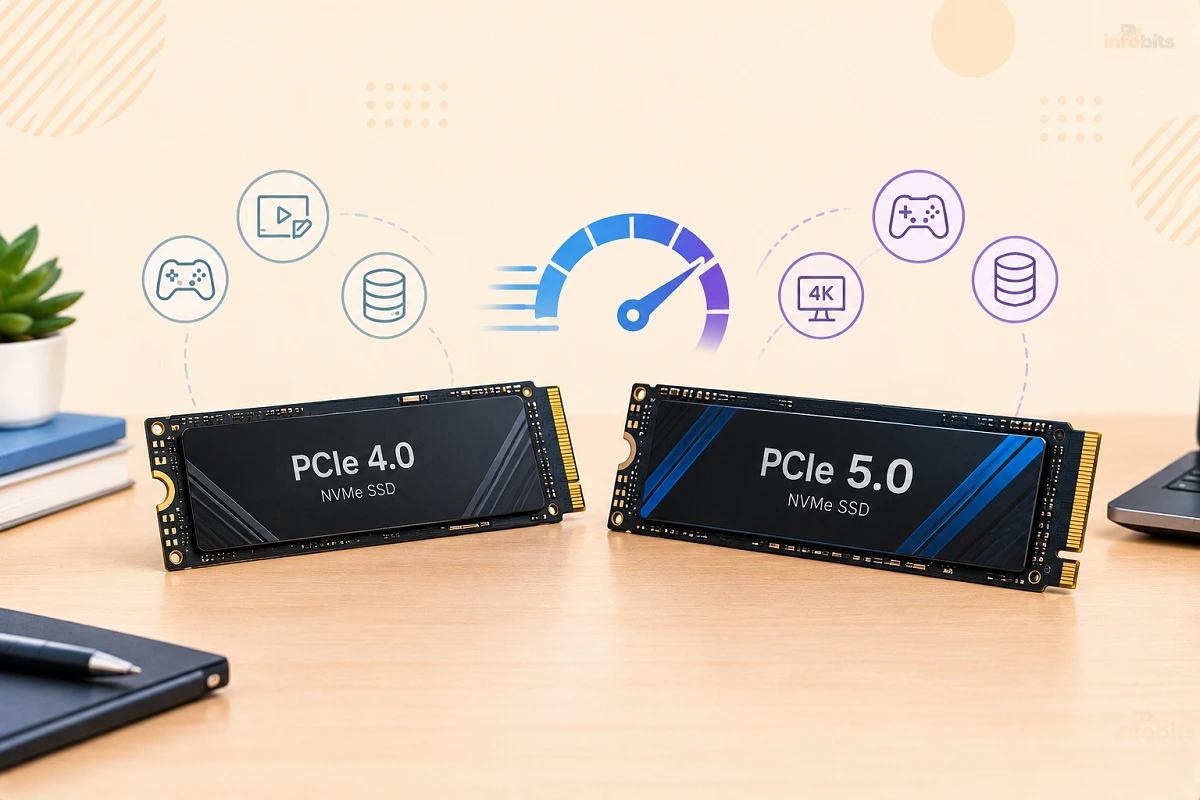
PCIe is the connection between your SSD and the rest of your PC. Each generation doubles the bandwidth of the last. An M.2 NVMe drive uses four lanes, so PCIe 4.0 x4 tops out around 7.9 GB/s and PCIe 5.0 x4 around 15.8 GB/s.
Real drives land below those ceilings. The fastest Gen5 drives on the market reach roughly 14,800 MB/s in sequential reads, almost double what a top-class Gen4 drive manages.
Two compatibility points are worth knowing:
- A Gen5 SSD works in a Gen4 slot, but it runs at Gen4 speed.
- A Gen4 SSD works in a Gen5 slot and runs at its normal Gen4 speed.
Nothing breaks, so you can’t buy the “wrong” generation. You can only pay for speed you can’t use. If you want the basics on how drives connect, our guide to SSD storage fundamentals covers it, and M.2 vs U.2 explains the form factors.
Where PCIe 5.0 Is Genuinely Faster
Gen5 wins clearly at large sequential transfers: copying a 100 GB game library, moving raw video footage, or loading a huge file in one go.
One hands-on test ran the same Gen5 drive in its normal mode and then forced it down to Gen4 in the BIOS. Large-file reads were roughly 50% to 66% quicker on Gen5, but random writes improved by only about 2% to 6%.
That second number matters more than it looks. Everyday computing is mostly small random reads and writes: opening apps, booting Windows, loading thousands of tiny game files. That’s where Gen5 barely moves the needle, because small-file speed depends on latency and the controller, not raw bandwidth.
Does a PCIe 5.0 SSD Make Games Load Faster?
Slightly, in some games. Not by the margin the spec sheet suggests.
One review timed game loads on Samsung’s flagship Gen5 drive. Its headline speed is roughly double that of Samsung’s own 990 Pro, yet it did not come close to halving the load time the 990 Pro had averaged, which was around 14 seconds.
The reason is simple. When a game loads, the drive is only one part of the chain. The CPU decompresses assets, the engine builds the scene, and shaders compile. A drive twice as fast can’t speed up work it isn’t doing.
Myth vs Fact
| Myth | Fact |
|---|---|
| A Gen5 SSD will double my game load speed | Load times improve by seconds at best, because the CPU and game engine are also in the chain |
| A faster SSD raises my FPS | Once a game is loaded, assets live in RAM and VRAM. Your GPU and CPU decide FPS |
| Gen5 makes Windows feel faster | Boot and app launch depend on small random reads, where Gen4 and Gen5 are close |
| Gen5 is future-proof | Games are built around what most players own, and PS5 and PS5 Pro use Gen4 |
What About DirectStorage?
DirectStorage is Microsoft’s technology that lets a game stream assets from the SSD and have the GPU decompress them, which in theory cuts load times and CPU load. It’s the usual argument for buying Gen5 early.
Two reasons to stay skeptical:
- It works on any NVMe drive, including Gen3 and Gen4. It isn’t a Gen5 feature.
- Adoption has been slow. Corsair’s overview of the technology counted only four shipped games three years after it was announced. Check the current list yourself before counting on it.
Early testing is also telling. A DirectStorage 1.1 benchmark in Forspoken found the load-time differences between PCIe 3.0, 4.0, and 5.0 SSDs were negligible. That’s an older test, but it shows the drive often isn’t the bottleneck.
Creators, Editors, and Power Users: Who Actually Benefits?
This is where Gen5 earns its price, but only in specific situations.
Video editors and photographers. If you move hundreds of gigabytes of footage between fast drives, Gen5 can cut real time off each transfer. But the transfer is only as fast as the slowest link. Offloading from a camera card or a USB 3.2 external drive (about 1 GB/s) won’t get any faster with a Gen5 destination. You’d need a very fast source too, such as a second NVMe drive or a Thunderbolt/USB4 enclosure.
Local AI and data work. Loading multi-gigabyte model files or datasets is a sequential read, so Gen5 helps here. You’ll save seconds per load, which adds up if you swap models constantly.
Developers and virtual machines. Mostly random I/O, so the gain is small.
Everyone else. Browsing, office work, streaming, and gaming won’t show a meaningful difference.
A good rule: if you can’t name the specific workflow where you wait on file copies, Gen5 won’t fix a problem you have.
The Hidden Cost of Gen5: Heat
Speed generates heat. Gen5 controllers draw more power and run hotter, and sustained writes expose it.
In one test of a first-generation Gen5 drive, after 15 minutes of continuous writing, the bare drive averaged about 1,027 MB/s, while the same drive with a heatsink averaged about 3,681 MB/s. Without cooling, a “14,000 MB/s” drive can crawl.
Placement and airflow matter as much as the drive. Another review found the gap between a well-integrated motherboard heatsink and a bare drive can reach 30 to 40 degrees under write load.
What this means in practice:
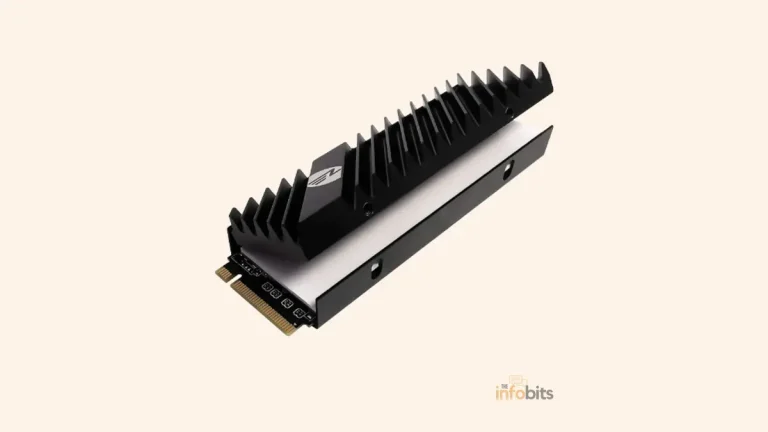
- Use the motherboard’s M.2 heatsink if it has good pad contact, or buy a drive with a heatsink included.
- Don’t tuck a Gen5 drive under a hot GPU if you have another slot.
- Make sure your case has airflow across the board.
Our guide on whether an M.2 SSD needs a heatsink covers the installation details. If you’re also watching component temperatures, see ideal GPU temperature while gaming.
A basic M.2 heatsink with a decent thermal pad costs very little compared to the drive, and it’s the cheapest insurance for a Gen5 SSD, so a copper or aluminum model available on Amazon is a sensible add-on if your motherboard doesn’t include one.
PS5, Laptops and Handhelds: Skip Gen5
PS5 and PS5 Pro. Both use a PCIe 4.0 M.2 slot, as even the newer PS5 Pro tops out at PCIe 4.0. A Gen5 drive just runs at Gen4 speed and costs more, and thick heatsinks may not fit the bay.
Buy a Gen4 drive that meets Sony’s requirements and has a low-profile heatsink. A PS5-ready Gen4 drive such as the WD_BLACK SN850P is a straightforward pick and can be gotten from Amazon.
Laptops. Gen5 drives are still uncommon in laptops, and for good reason. A thin chassis can’t cool them well, and the extra power draw eats battery life. A fast Gen4 drive is the better match. If you’re configuring a new laptop, our guide to the best laptop configuration shows where storage fits among other priorities.
The 2026 Price Twist: Gen5 Is Cheaper Than It Used To Be (Relatively)
SSDs have gotten more expensive across the board. The price of a TLC NAND chip rose by roughly 123% over six months, and industry forecasts expect contract prices to climb another 15% to 20% in Q4 2026. The root cause is AI data-center demand, not gamers.
The side effect is that the gap between Gen4 and Gen5 has narrowed. According to Tom’s Hardware’s SSD price tracker (updated October 20, 2026), the best US prices for 2TB drives were about $409 for the Samsung 990 Pro and $429 for the WD_BLACK SN850X (both Gen4), against about $403 for the Samsung 9100 Pro and $399 for the Crucial T705 (both Gen5).
| 2TB drive (approx., Oct 2026) | Generation | Best US price |
|---|---|---|
| Silicon Power UD90 | Gen4 | about $249 |
| Samsung 990 Pro | Gen4 | about $409 |
| WD_BLACK SN850X | Gen4 | about $429 |
| Samsung 9100 Pro | Gen5 | about $403 |
| WD_BLACK SN8100 | Gen5 | about $536 |
Prices swing daily, and stock disappears quickly, so treat these as a snapshot, not a quote.
What this means for you:
- Buying new? If a quality Gen5 drive costs about the same as a flagship Gen4 drive, and your board and cooling support it, Gen5 is a reasonable buy. You’re not overpaying for speed.
- Already own a good Gen4 drive? Don’t replace it. At these prices, a swap makes no financial sense.
- On a tight budget? A cheaper Gen4 drive is still the value choice, with the extra money better spent on capacity.
If you decide a flagship Gen4 drive is the sweet spot, the Samsung 990 Pro and WD_BLACK SN850X are the two most builders shortlist, and both have strong warranties and are easily available on Amazon.
Should you wait for prices to drop? There’s no reliable sign of relief soon. If you need storage now, buy now. If you don’t, you can wait, but don’t expect a quick return to 2024 prices.
What about PCIe 6.0? Not relevant for consumers yet. Silicon Motion’s CEO said PCIe 6.0 would add roughly 25% to 30% to production costs and is unlikely to reach consumers before 2027 to 2028, and then mainly for enterprise. Gen5 should stay the top consumer tier for a while.
Will Your PC Even Run a Gen5 SSD at Full Speed?
Buying a Gen5 SSD for a system that can’t use it is the most common way to waste money.
Checklist: Can your system run a Gen5 NVMe drive?
- [1] Your CPU supports PCIe 5.0 for storage (recent AMD AM5 chips and recent Intel Core Ultra platforms do, but check your exact model).
- [2] Your motherboard has an M.2 slot explicitly labeled PCIe 5.0 x4. Many boards have only one, and some have none.
- [3] That slot is wired to the CPU, not through the chipset.
- [4] You’ve checked the manual for lane sharing. On some boards, using the Gen5 M.2 slot reduces the lanes available to other slots.
- [5] Your cooling is ready: heatsink and case airflow.
- [6] Your BIOS is up to date.
Not sure what you have? Our guide to things-to-upgrade-on-pc helps you decide where money does the most good, and Windows 11 system requirements is useful if you’re planning a bigger refresh.
Should You Upgrade? A Decision Guide
| Your situation | Best choice |
|---|---|
| Gaming PC, already have a decent Gen4 SSD | Keep it. Spend on GPU, RAM, or capacity |
| New build, Gen5 slot available, price gap is small | Gen5 is a fair buy |
| New build, tight budget | Gen4 and put savings elsewhere |
| PS5 or PS5 Pro | Gen4 with a heatsink |
| Laptop | Gen4 |
| Video editor moving huge files between fast drives | Gen5 plus a good heatsink |
| Local AI model loading, large datasets | Gen5 if budget allows, Gen4 if not |
| Old SATA SSD or hard drive | Move to NVMe. Gen4 gets you almost all of the benefit |
That last row matters. Going from a hard drive or SATA SSD to any NVMe drive is a huge jump. Going from Gen4 to Gen5 is a small one.
Common Mistakes When Buying a Gen5 SSD
- Paying for peak speed you can’t reach. A Gen4 slot caps the drive at Gen4 speed.
- Ignoring heat. A bare Gen5 drive in a tight, hot spot will throttle.
- Buying on the sequential number alone. Random performance, controller quality, and warranty matter more for daily use.
- Choosing too little capacity. Modern games are huge. A roomy 2TB Gen4 usually beats a cramped 1TB Gen5.
- Skipping a backup plan. Fast drives still fail. Our guide to signs your SSD is failing is worth reading, and so is the data recovery cost guide.
Is Your SSD Really the Problem? A Quick Reality Check
Before spending money, make sure storage is the bottleneck. Upgrade signals:
- Your drive is nearly full. SSDs slow down as they fill. More capacity can help more than more speed.
- You’re still on a hard drive or SATA SSD. This is where NVMe pays off.
- File copies stall after a few seconds. That can be the drive’s cache filling up or overheating.
Not a storage problem:
- Stuttering in games usually comes from the GPU, CPU, or RAM.
- Slow boots with a decent SSD often come from startup apps, drivers, or BIOS settings.
How to Check Which PCIe Generation Your SSD Is Running
Windows Task Manager doesn’t show the PCIe generation, so use a free tool.
- Install CrystalDiskInfo (or HWiNFO).
- Select your NVMe drive.
- Find the Transfer Mode line. It shows something like “PCIe 4.0 x4 | PCIe 4.0 x4”. The first part is what the drive supports, and the second is what it’s currently using.
- If your Gen5 drive shows a lower generation or only x2 lanes, check the slot, lane sharing, and BIOS settings.
Troubleshooting a Gen5 drive that runs slower than expected:
- Wrong slot. Move it to the slot labeled Gen5 x4.
- Lane sharing. Another device is using the lanes. Check the manual.
- BIOS set to Auto. Try forcing the slot to Gen5.
- Thermal throttling. Add or reseat the heatsink.
- Drive not detected at all. See our fix guide for SSD not showing up in BIOS.
A newly installed drive also needs a partition style. If you’re setting one up, choose MBR or GPT for SSD.
Expert Tips
- Put the OS and your most-played games on the fastest drive you own, regardless of generation.
- Check the warranty and endurance rating, not just the speed. A longer warranty with a higher TBW is a better sign than a bigger number on the box.
- Mount it properly. A flat, firm heatsink and correct standoffs matter. If your board needs them, see our motherboard standoffs guide.
- Keep your old drive. Putting it in a USB-C enclosure makes an easy backup or transfer drive. USB-A vs USB-C explains why the cable and port matter. An NVMe-to-USB-C enclosure like the SABRENT USB-C NVMe Enclosure is an inexpensive option available on Amazon to give your old drive a second life.
- Have the right tools. A small magnetic screwdriver set (view options on Amazon) makes installing an M.2 drive a two-minute job.
Final Verdict: PCIe 4.0 or PCIe 5.0 in 2026?
For most people, PCIe 4.0 is still the right answer. It’s fast, cooler, widely compatible, and plenty for gaming, work, and everyday use.
PCIe 5.0 is worth it when you’re building new, your motherboard supports it, you can cool it, and the price is close to a top Gen4 drive. It also makes sense if your work involves large, fast file transfers.
Don’t upgrade just for the numbers. The jump from Gen4 to Gen5 is real on a benchmark and small in daily use. If you’re choosing a Gen5 drive for a new build, the Samsung 9100 Pro and WD_BLACK SN8100 are the ones most reviewers keep coming back to.
Frequently Asked Questions
Is a PCIe 5.0 SSD worth it over PCIe 4.0 in 2026?
For most people, no. If you already have a good Gen4 drive, Gen5 saves a second or two at best in games and nothing in everyday tasks. It makes sense for new high-end builds when the price is close, and for people who move very large files all day.
Will a PCIe 5.0 SSD make my games load faster?
Slightly in some games, but not by much. Load times also depend on CPU decompression and the game engine, so a drive with double the speed won’t halve loading time.
Can I use a PCIe 5.0 SSD in a PCIe 4.0 slot?
Yes. It works normally but runs at Gen4 speed, so you won’t get the extra performance you paid for.
Can I use a PCIe 4.0 SSD in a PCIe 5.0 slot?
Yes. It runs at its normal Gen4 speed, with no compatibility problems.
How much faster is PCIe 5.0 than PCIe 4.0?
On paper, about double: roughly 15.8 GB/s against 7.9 GB/s theoretical for an x4 drive. Real drives reach around 14,800 MB/s for top Gen5 models, against around 7,000 to 7,450 MB/s for top Gen4 models. The gap is largest in big sequential transfers and small in random tasks.
Is a PCIe 5.0 SSD worth it for PS5 or PS5 Pro?
No. Both consoles use a PCIe 4.0 slot, so a Gen5 drive runs at Gen4 speed. Buy a Gen4 drive that meets Sony’s requirements and has a low-profile heatsink.
Do PCIe 5.0 SSDs overheat?
They run hotter than Gen4 drives and can throttle without cooling. In one test, a bare Gen5 drive averaged about 1,027 MB/s over 15 minutes of writing, against about 3,681 MB/s with a heatsink.
Do I need a heatsink for a PCIe 5.0 SSD?
Yes, in practice. Use a good motherboard M.2 heatsink or a drive with one included, and make sure your case has airflow.
Is a PCIe 5.0 SSD good for video editing?
It can be, if you regularly move huge files between fast drives. If your source is a camera card or a USB 3.2 drive, the source speed is the limit, so Gen5 won’t help much.
Does DirectStorage require a PCIe 5.0 SSD?
No. DirectStorage works on any NVMe SSD, including Gen3 and Gen4. Adoption in games has also been slow, so it shouldn’t drive a Gen5 purchase.
Are PCIe 5.0 SSDs more expensive than PCIe 4.0 in 2026?
Often only a little, and sometimes not at all. In October 2026, a top 2TB Gen5 drive was selling at about the same price as a flagship 2TB Gen4 drive, though cheaper Gen4 drives still cost much less.
Should I buy an SSD now or wait for prices to drop?
If you need storage now, buy now. TrendForce expected NAND contract prices to rise another 15% to 20% in Q4 2026, so waiting is a gamble.
How do I know if my motherboard supports PCIe 5.0 SSDs?
Check the spec sheet or manual for an M.2 slot labeled PCIe 5.0 x4, and confirm it’s wired to the CPU. Also check for lane sharing with other slots.
How do I check if my SSD is running at PCIe 5.0 speed?
Open CrystalDiskInfo and look at the Transfer Mode line for your NVMe drive. It shows the generation and lane count the drive is currently using.
Why is my PCIe 5.0 SSD slower than advertised?
Common causes are the wrong M.2 slot, shared lanes, a BIOS setting on Auto, thermal throttling, or a nearly full drive. Advertised numbers are peak sequential speeds, and real workloads are slower.
Will PCIe 6.0 SSDs arrive for consumers soon?
Unlikely. Silicon Motion’s CEO said consumer PCIe 6.0 is not expected before 2027 to 2028, with enterprise first, so Gen5 should stay the top consumer tier for a while.
Do PCIe 5.0 SSDs hurt laptop battery life?
They draw more power than Gen4 drives, and thin laptops struggle to cool them. Gen5 is also uncommon in laptops, so a good Gen4 drive is the better fit.
Is PCIe 4.0 still good enough in 2026?
Yes. A good Gen4 NVMe drive handles gaming, work, and everyday use with ease, and the gap to Gen5 is small outside heavy file-transfer workloads.
Found this guide useful? Share it with someone interested in tech-related information. Follow us on Facebook and Twitter for more tips, tricks, and guides.
We also ask that you bookmark this page for future reference, as we are constantly updating our articles with new information.
Sign up for our free newsletter as well to receive fresh information immediately in your inbox and keep technically up to date.
Disclosure: If you follow our links to a retailer’s website and make a purchase, we will get an affiliate commission on some, but not all, of the items or services we promote. This will cause no price change for you.
You May Be Interested in Reading:
- SSD vs. HDD for Gaming, Editing, and Everyday Use: The Real Differences
- Internal SSD Fundamentals: Types, Speeds & How to Choose
- How to Check What Power Supply (PSU) Your PC Has: 6 Easy Ways
- RAM vs VRAM: What’s the Difference?
- How to Test a PC Motherboard: Signs of Failure, Diagnostic Tools & Step-by-Step Fixes