
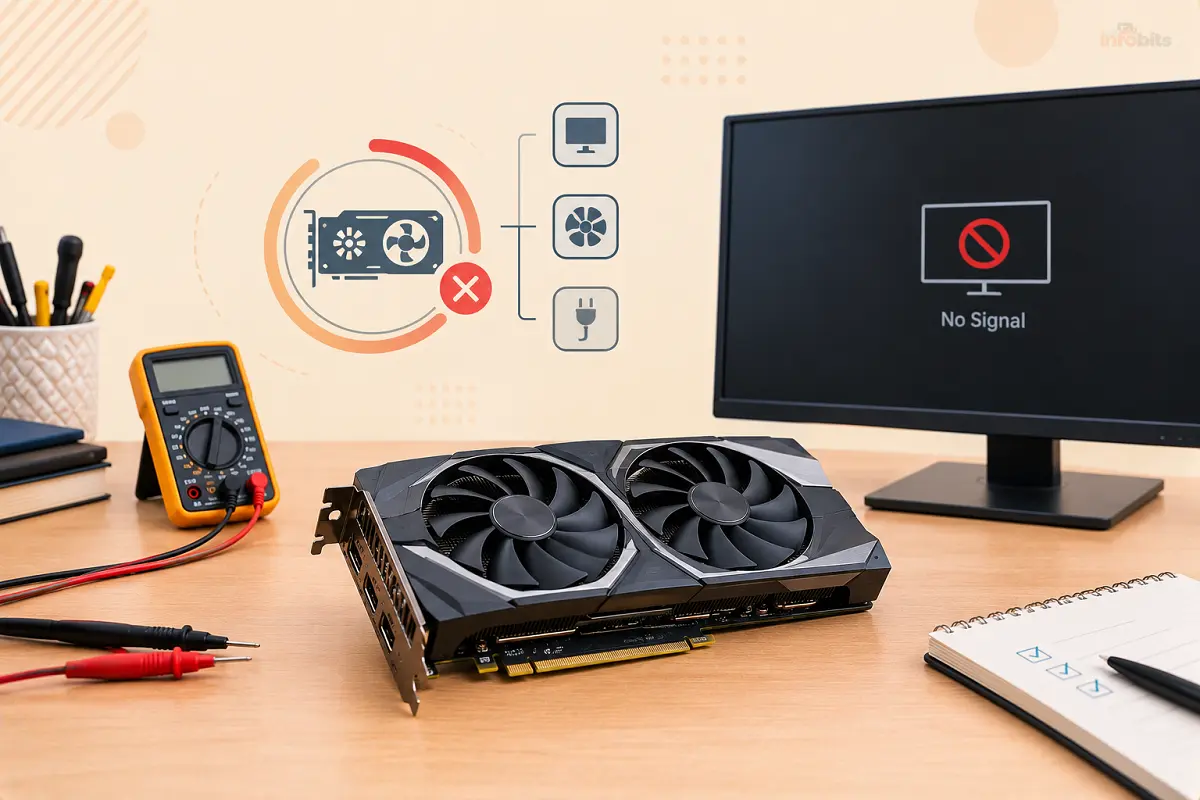
How to Test If Your Graphics Card Is Dead (Without Buying a New One)
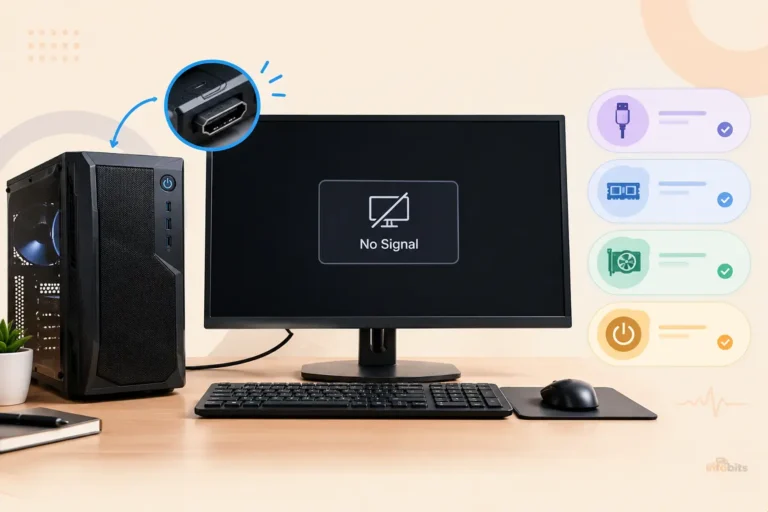
Your screen went black mid-game, the fans are spinning, and now your PC won’t show anything. It’s easy to jump straight to “the GPU is dead,” and a new graphics card can cost more than all your other upgrades combined.
Before you spend anything, know this: a lot of “dead GPU” problems aren’t a dead GPU. A loose cable, a bad driver, a dying power supply, or a monitor input set to the wrong source can all look identical. Plenty of people replace a perfectly good card and find the problem is still there.
This guide walks you through nine free tests, in the order that rules out the cheap, common causes first. By the end, you’ll know whether your GPU is dead, dying, or innocent, and what to do next.
Quick Answer: How Do You Know If a Graphics Card Is Dead?
A graphics card is most likely dead if it fails to produce any video output in two different systems or on two different display connections, even after you reseat it, reconnect its power cables, and try known-good cables and a known-good monitor. If it works in another PC, the problem is somewhere else in your system, usually the power supply, motherboard, RAM, or a driver.
The fastest test: unplug your monitor from the graphics card, plug it into your motherboard’s video port (if your CPU has integrated graphics), and boot. If you get a picture, your PC is fine, and the graphics card is the suspect. If you still get nothing, the problem probably isn’t the GPU.
Dead, Dying or Just Misbehaving?
These get confused constantly, and the difference matters for what you do next.
- Dead GPU: The card fails to initialize. You get no video output, and the system may not complete startup with the card installed. It fails the same way across drivers, cables, and (ideally) a second PC.
- Dying (failing) GPU: It works, but unreliably. You’ll see artifacts, crashes under load, driver resets, or black screens that appear only when the card is working hard.
- Not the GPU at all: Symptoms come from the monitor, cable, driver, power supply, RAM, motherboard, or overheating caused by dust and poor airflow.
Safety first: If you smell burning, see scorch marks, or find a melted or discolored power connector, power the PC off, unplug it from the wall and don’t try to run it again. A damaged power connector is a fire risk. Skip the software tests and go straight to the “What to do if it’s dead” section.
Common Symptoms and What They Usually Mean
| Symptom | Could be the GPU? | Other likely causes |
|---|---|---|
| No display at all, fans spinning | Yes | Wrong monitor input, bad cable, RAM, motherboard, PSU |
| Colored dots, lines, or checkerboard patterns (artifacts) | Very likely | Overheating, unstable overclock, bad cable |
| Black screen during games, PC keeps running | Likely | PSU overload, overheating, driver bug |
| “Display driver stopped responding” pop-ups | Possible | Driver conflict, unstable overclock, software |
| Blue screens mentioning video or display drivers | Possible | RAM, drivers, PSU |
| Sudden reboots under load | Possible | PSU, overheating CPU, RAM |
| Fans at 100% and loud, even at idle | Possible | Dust, failing temperature sensor, driver issue |
| Windows shows “Microsoft Basic Display Adapter” | Possible | Missing or corrupted driver, card not detected |
| Low frame rate in games | Possible | Thermal throttling, wrong slot or lane speed, background software |
If your PC powers on but shows nothing, our guide to PC turns on, but no display covers the non-GPU causes in more depth.
Before You Start: What You’ll Need
Most tests need nothing but your PC. A few small items make the physical steps easier:
- A Phillips screwdriver. A small precision set helps with retention screws and tight spots. A basic precision screwdriver kit, like the iFixit Essential Electronics Toolkit available on Amazon, makes reseating a card far less fiddly than hunting for the one screwdriver that fits.
- A flashlight to inspect the slot and power connectors.
- A second monitor or TV, plus a spare HDMI or DisplayPort cable, if you have them. A spare DisplayPort or HDMI cable is worth keeping around, since cables fail more often than people expect, and a certified cable from a brand like Cable Matters, easily available on Amazon, costs very little.
- A free hardware monitoring tool such as GPU-Z or HWiNFO.
The 9 Tests (In the Right Order)
Test 1: Rule Out the Monitor and Cable
This takes two minutes and catches more “dead GPU” cases than you’d expect.
- Check that the monitor is on and set to the correct input (HDMI 1, DisplayPort, and so on). Monitors sometimes switch inputs on their own.
- Swap the cable for a different one.
- Try a different port on the graphics card. Cards have several outputs, and one can fail while the others work.
- Try a different monitor or a TV.
If a different cable, port, or screen brings the picture back, the card isn’t dead. If your display only fails to wake from sleep, see our tip on PC monitor fails to wake.
Test 2: Look for Signs of Life
Power the PC on and check:
- Do the GPU fans spin? Many modern cards have a zero-RPM mode, where fans stay off at idle and low temperatures. So a stationary fan at idle is not a sign of death. If the fans never spin even when the card is hot or under load, that’s a different story.
- Do any LEDs or RGB lights come on? No lighting at all, along with a fan that never moves, can hint at a power problem.
- Does the motherboard show a VGA or GPU error light? Many boards have small debug LEDs (CPU, DRAM, VGA, BOOT). A lit VGA LED points toward the graphics card or its slot.
- Do you hear beep codes? These vary by motherboard and BIOS, so check your manual. Our PC motherboard diagnostic tests guide explains how to read them.
Test 3: Switch to Your Motherboard’s Video Output
This is the single most useful isolation test, and it costs nothing.
If your CPU has integrated graphics (most Intel desktop chips without an “F” suffix, and AMD Ryzen chips with built-in graphics), your motherboard has its own HDMI or DisplayPort. Here’s how to use it:
- Shut down and unplug the PC.
- Plug your monitor into the motherboard’s video port, not the graphics card.
- Power on.
If you get a picture: The rest of your PC works, and the graphics card (or its slot, or its power) is the suspect. You can also open Device Manager and see whether Windows still lists your graphics card.
If you still get no picture: The problem is probably outside the GPU: RAM, motherboard, CPU, or power supply. Also, some CPUs have no integrated graphics (Intel “F” chips and many AMD Ryzen models), so there’s nothing to fall back on. In that case, skip to Test 9.
Tip: On some boards, a card that’s physically fine can still be ignored because of a BIOS setting. Look for an “Initial Display Output” or “Primary Display” setting and make sure it’s set to PCIe or PEG. Clearing the CMOS (resetting the BIOS) is also worth a try, especially after a BIOS update.
Test 4: Reseat the Card and Check Every Connection
A poorly seated card is a classic cause of “no signal.” Do this carefully:
- Shut down, switch off the power supply, and unplug the PC.
- Hold the power button for about 10 seconds to drain leftover charge.
- Touch bare metal on the case to discharge static.
- Unplug the PCIe power cables from the card.
- Undo the retention screws, release the latch at the end of the PCIe slot, and lift the card out.
- Inspect the gold contacts for dirt or discoloration, and the slot for debris. A soft brush or a blast of air is enough. A can of compressed air or a small electric duster (both are available on Amazon) is the safest way to clear dust out of the slot and heatsink without touching anything delicate.
- Reinstall the card until you feel and hear the latch click.
- Reconnect the power cables, pressing each one in fully.
Power connector checklist:
- Use a separate PCIe cable for each power port on high-power cards where possible, rather than daisy-chaining.
- Look for discoloration, melting, or bent pins on every connector.
- For newer 12VHPWR or 12V-2×6 connectors, make sure the plug is fully seated and avoid sharp bends right at the connector.
- Confirm the card’s required power connectors are all plugged in. Missing one can prevent startup entirely.
Also check the card sits flat. If your card or case feels slightly off, check that the motherboard is mounted properly. Our guide to motherboard standoffs explains how misplaced ones cause trouble.
Test 5: Check Whether Windows Can See the Card
If you can get to a desktop (using the motherboard output, or because the card works intermittently), open Device Manager and expand Display adapters.
- Your GPU is listed with no warning icon: Windows detects it. The problem may be a driver or load-related fault.
- A yellow warning icon, or “Code 43”: Windows stopped the device because it reported a problem. This is often driver-related but can indicate hardware failure.
- “Microsoft Basic Display Adapter”: Windows isn’t using a proper driver, or can’t talk to the card.
- The GPU isn’t listed at all: Windows doesn’t detect it. Combined with a working motherboard output, this points to a dead card, a dead slot, or a power problem.
You can also run dxdiag (press Win + R, type it, press Enter) and check the Display tab for the card name and any listed problems.
Test 6: Rule Out the Driver With a Clean Reinstall
Corrupted drivers can mimic hardware failure, so it’s worth ruling out before you blame the card.
- Download the latest driver for your card from NVIDIA, AMD, or Intel in advance.
- Boot into Safe Mode, where Windows uses a basic display driver.
- Run Display Driver Uninstaller (DDU) to remove every trace of the old driver.
- Restart normally and install the fresh driver.
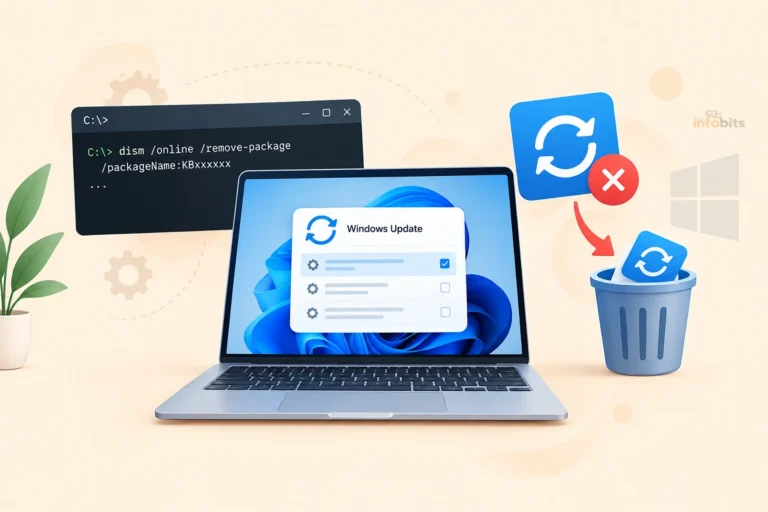
If you’re having problems since a recent Windows update, you might also try rolling back the update or the driver. Our DISM remove Windows update guide covers one way.
If the card works in Safe Mode but fails in normal Windows, that’s a strong hint the issue is software, not hardware.
Test 7: Read What Windows Is Telling You
Windows quietly logs GPU trouble. Check:
- Event Viewer: Press Win + X, open Event Viewer, then go to Windows Logs → System. Look for Event ID 4101 from the “Display” source, which means the display driver stopped responding and recovered. Repeated entries during gaming or loading point to instability.
- Reliability Monitor: Search “View reliability history” in the Start menu. Repeated “hardware error” or “video” entries show a pattern.
- Blue screen codes: Stop codes such as
VIDEO_TDR_FAILURE,VIDEO_SCHEDULER_INTERNAL_ERRORandVIDEO_DXGKRNL_FATAL_ERRORinvolve the graphics stack. The file named on the blue screen (for example,nvlddmkm.sysfor NVIDIA oratikmpag.sysfor AMD) tells you which driver was involved.
These errors can come from drivers, RAM, or power as well as the card, so treat them as clues, not a verdict. If you’re also seeing other kernel errors, our guides on unexpected kernel mode trap and kernel mode heap corruption can help separate GPU problems from memory or driver faults.
Test 8: Monitor Temperatures and Stress Test the Card
If the card works long enough to test, put it under controlled load while watching the numbers.
Tools (all free or with free versions):
- GPU-Z or HWiNFO: Watch temperature, clock speed, fan speed, and power draw in real time.
- 3DMark Time Spy stress test, Unigine Superposition, or OCCT: Run a loop that pushes the GPU hard. OCCT also has a video memory test that can reveal VRAM errors.
- FurMark: Very demanding, so run it briefly and watch temperatures closely. It’s an extreme load that most games never produce.
What to watch for:
| What you see | What it suggests |
|---|---|
| Visual artifacts that appear only under load | Overheating, unstable overclock, or failing VRAM |
| Artifacts in the Windows desktop or menus (even at idle) | Likely hardware fault |
| Temperature climbing quickly and the card slowing down | Dust, dried thermal paste, or a failed fan |
| Crash or black screen at a consistent point | Power delivery or unstable GPU |
| Clocks stuck very low, or performance far below normal | Throttling, or a PCIe/power issue |
| Stable, no artifacts, normal temps for 15 to 30 minutes | Card is probably healthy |
What counts as “too hot” depends on the card. Many run comfortably into the 70s or low 80s °C under load, but if yours climbs into the 90s or throttles, check airflow and cooling first. We explain normal ranges in our ideal GPU temperature while gaming guide.
Bonus check in GPU-Z: On the main tab, click the question mark next to “Bus Interface” and run the render test. It shows whether the card is running at its full PCIe speed under load. A card stuck at a much lower speed may have a seating or slot issue.
If the cooler is the problem, replacing thermal paste and pads is a common fix for older cards, though it voids the warranty on many models. If your card is out of warranty and running hot, quality thermal paste such as Arctic MX-4 or Noctua NT-H1, available on Amazon, is an inexpensive fix to try before writing the card off.
Test 9: Cross-Test in Another System (The Definitive Test)
If you’ve reached this point without an answer, this is the test that settles it. You’re swapping one variable at a time:
- Put your card in another PC (a friend’s, or a local repair shop’s bench). If it works there, your original system is the problem. If it fails the same way, the card is dead or failing.
- Put a different graphics card in your PC. Even an old, cheap card will do. If your PC boots fine with it, your original card is the culprit. If it fails too, look at the PSU, motherboard, or RAM.
- Try a different PCIe slot if your board has a second x16-length slot.
- Try a different power supply, ideally a borrowed one that’s known to be good.
Many independent PC shops will bench-test a card for a small fee, or free if you’re buying other parts. Ask before you drop it off.
What Do Your Results Mean?
| What you found | Most likely verdict |
|---|---|
| Picture on motherboard output, nothing from the card, fails in another PC | Dead graphics card |
| Picture on motherboard output, card works in another PC | Issue is in your original system (slot, PSU, BIOS) |
| Card works in Safe Mode, fails normally | Driver or software problem |
| Artifacts only under load, high temperatures | Overheating: clean, repaste, improve airflow |
| Artifacts even on the desktop, across systems | Failing VRAM or GPU: likely dying |
| No picture from anything, including the motherboard port | Probably not the GPU: RAM, CPU, board, or PSU |
| Random reboots under load, no GPU errors logged | Look at the PSU first |
Is It the GPU, or Something Else?
When a GPU is blamed unfairly, the culprit is usually one of these:
- Power supply: A weak or aging PSU can cause black screens and shutdowns specifically when the GPU draws heavy power. See how long a PC power supply lasts and how to find your PSU’s specs.
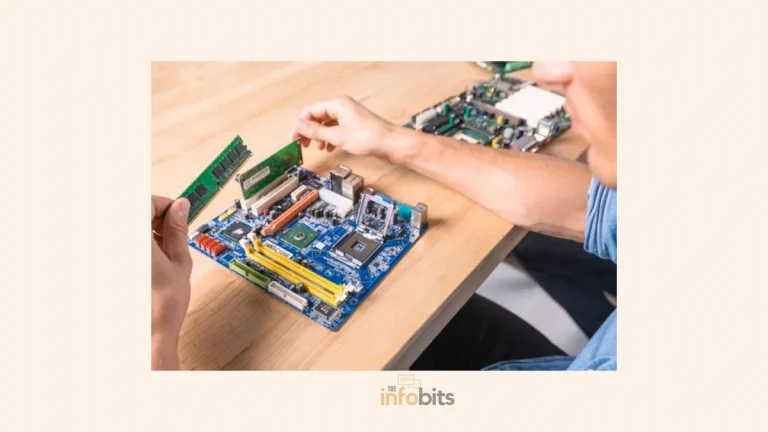
- RAM: Faulty or mismatched memory causes crashes and blue screens that look graphics-related. See a detailed explanation on mixing different RAM modules. Don’t confuse system RAM with the card’s own memory. Our RAM vs VRAM explainer clears that up.
- Motherboard or PCIe slot: A damaged slot makes a healthy card look dead.
- Monitor, cable or input settings: Covered in Test 1.
- Power quality: Surges and unstable mains can damage components. A good surge protector helps.
Testing a Laptop GPU
Laptops are trickier because the GPU is usually soldered to the board and often shares the screen with integrated graphics.
- Connect an external monitor. If the external display works but the laptop screen is blank, the problem may be the screen or cable, not the GPU.
- Check both graphics adapters in Device Manager. Many laptops list integrated graphics and a discrete GPU. If the discrete card disappears or shows an error, that’s a clue.
- Try forcing the integrated graphics in the BIOS or manufacturer software to see whether the system is stable without the discrete GPU.
- Run the manufacturer’s built-in diagnostics. Most major brands include a hardware test accessible at startup.
- Contact support early. Soldered GPUs usually can’t be swapped at home, and laptops are often still under warranty.
If the laptop won’t power on at all, start with the fix for a laptop not turning on.
Have an RTX 50-Series Card? Read This
Newer cards have had their own particular problems, and they’re worth knowing about before you assume yours is “dead.”
- Black screens: Early RTX 50-series owners reported black-screen issues, and NVIDIA released updated drivers and BIOS updates for a range of cards to address the problem. Updating first is worthwhile.
- Missing ROPs: NVIDIA said a small number of RTX 5090, 5090D, and 5070 Ti cards shipped with defective ROPs and told affected users to contact the manufacturer for a replacement. A card with this problem still works, just slower than it should. Tools like GPU-Z show the ROP count, so compare it with your model’s official specification.
- Power connector heat: Reports of overheating or melted 12V-2×6 connectors have continued on high-end cards. Some owners found damage even with the plug seated correctly. If you smell something hot, see discoloration, or have unexplained black screens or crashes under heavy load, power down and inspect the connector. Don’t keep running the card.
Common Mistakes That Waste Time (and Money)
- Buying a new card first. Do the isolation tests before spending anything.
- Skipping the monitor and cable check. It’s the most overlooked step.
- Assuming a stationary fan means a dead card. Zero-RPM modes are normal.
- Stress testing a card that’s already overheating. Fix cooling first.
- Running FurMark for an hour. It’s a punishing load that doesn’t reflect normal use.
- Touching components without discharging static. Ground yourself on bare case metal.
- Forcing a card into the slot. It should click in with gentle pressure.
- Ignoring the PSU. A failing power supply is a leading cause of misdiagnosed GPUs.
- Updating the driver over a broken one. Use DDU for a clean install.
Myth vs Fact
Myth: A dead GPU always means a black screen.
Fact: Many failing cards still show a picture, but with artifacts, crashes, or driver resets.
Myth: If the fans spin, the GPU works.
Fact: Fans can spin on a card that has failed to initialize.
Myth: A GPU that fails will always fail the same way every time.
Fact: Failing cards are often intermittent, working for hours and then crashing under a specific load.
Myth: You can fix a dead GPU by baking it in the oven.
Fact: This folk “reflow” trick is unreliable at best, can damage the card further, and creates fire and fume risks. It isn’t recommended.
Myth: Artifacts always mean the card is dying.
Fact: Overheating, an unstable overclock, or a bad cable can cause them too. Artifacts on the desktop at idle are more concerning than artifacts only in games.
What to Do If Your Graphics Card Is Dead
Once you’re confident the card is the problem, you have options besides buying new.
- Check your warranty. Many graphics cards carry a manufacturer warranty of around three years, sometimes longer. Look up your serial number on the manufacturer’s site. In the UK, Australia, and New Zealand, consumer law may also give you rights beyond the written warranty, so ask the retailer. In the US, check whether a credit card or store protection plan applies.
- Start an RMA. Photograph the card, keep your proof of purchase, and document the tests you ran. Clear evidence speeds up claims.
- Consider repair. Some faults, such as a failed fuse, a damaged power connector, or a bad fan, can be repaired at a component-level repair shop for less than a replacement. There’s no guarantee, so get a quote first.
- Use integrated graphics in the meantime. If your CPU supports it, you can keep working on the motherboard output.
- Sell it for parts or recycle it responsibly. Don’t leave a dead card in a drawer or the trash. Check local e-waste options.
- If you do replace it, check your PSU wattage and connectors first, and read things to upgrade on your PC for what to look at alongside.
How to Help a Healthy GPU Last Longer
- Clean dust from fans and heatsinks every few months.
- Keep case airflow clear and fans working. See PWM vs DC fans if you’re upgrading.
- Don’t skimp on the power supply.
- Use a surge protector.
- Avoid extreme overclocks without proper cooling.
- Keep drivers reasonably current, but don’t chase every release.
- Watch temperatures occasionally with GPU-Z or HWiNFO.
Final Thoughts
Declaring a graphics card dead should be your last conclusion, not your first. Start with the cheap checks (monitor, cable, input, motherboard output), move to reseating and a clean driver install, read what Windows is logging, and finish with a cross-test in another system.
Most of the time that process either saves you from buying a card you didn’t need or gives you evidence for a warranty claim.
If it does turn out to be dead, you’ll be able to say so with confidence, and you’ll know which part of the process proved it.
Frequently Asked Questions
How do I know if my graphics card is dead or just failing?
A dead card fails to produce video at all, even after reseating it and trying new cables. A failing card still works but shows artifacts, crashes under load, or resets its driver. Testing it in another PC separates the two cases.
Can a dead graphics card still turn on the PC?
Yes. The PC and card fans can power on even though the card fails to output video. A dead GPU doesn’t usually stop the computer from starting, though a severe electrical fault might.
What does a dying graphics card look like?
Common signs are colored dots, lines, or checkerboard patterns, black screens under load, driver crashes, and unusual fan behavior. Artifacts on the Windows desktop at idle are a stronger warning than artifacts only in games.
How can I test my GPU without another computer?
Plug your monitor into the motherboard’s video port if your CPU has integrated graphics, then check whether the PC works normally. Run a clean driver reinstall, check Device Manager and Event Viewer, and stress test with free tools.
What if my CPU has no integrated graphics?
You can’t use the motherboard output as a fallback. Borrow another graphics card, or test your card in a friend’s PC or a repair shop’s bench system.
Is a black screen always a graphics card problem?
No. A black screen can come from the monitor, cable, wrong input, drivers, RAM, motherboard, or PSU. Check the cable and motherboard output before blaming the card.
Do graphics card fans not spinning mean the card is dead?
Not necessarily. Many cards stop their fans at idle on purpose. If the fans don’t spin even under heavy load or high temperatures, that may point to a fan, controller, or power issue.
Can a bad power supply look like a dead GPU?
Yes. A weak or failing PSU can cause black screens, restarts, and crashes that appear only when the GPU is working hard. Testing with a known-good PSU rules it out.
What are artifacts on a graphics card?
Artifacts are visual glitches such as stretched shapes, flickering colors, lines, or checkerboard patterns. They can come from overheating, unstable overclocking, a bad cable, or failing video memory.
Can overheating kill a graphics card?
Sustained extreme heat can damage components and shorten a card’s life, though modern cards throttle to protect themselves. Dust, dead fans, and dried thermal paste are the usual culprits.
What is the Code 43 error for a graphics card?
Code 43 means Windows stopped the device because it reported a problem. It’s often driver-related, but if a clean driver reinstall doesn’t fix it, a hardware fault is possible.
How long do graphics cards usually last?
Many last five to ten years with normal use and good cooling, though lifespans vary by build quality, workload, and temperatures. Heavy mining or constant overheating can shorten it.
Is it worth repairing a dead graphics card?
It can be, if the fault is something simple like a fan or connector and the repair costs well under a replacement. Component-level repair on the GPU chip or memory is rarely worthwhile.
Can I fix a dead GPU by baking it?
Not reliably. The oven trick can destroy the card and create safety risks. It’s not recommended.
Should I update my GPU drivers if I think the card is dying?
A clean reinstall with DDU is a good test, since corrupted drivers mimic hardware faults. If problems persist across clean drivers and Safe Mode, suspect hardware.
Found this guide useful? Share it with someone who is suffering from networking-related issues. Follow us on Facebook and Twitter for more tips, tricks, and guides.
We also ask that you bookmark this page for future reference, as we are constantly updating our articles with new information.
Sign up for our free newsletter as well to receive fresh information immediately in your inbox and keep technically up to date.
Disclosure: If you follow our links to a retailer’s website and make a purchase, we will get an affiliate commission on some, but not all, of the items or services we promote. This will cause no price change for you.
You May Be Interested in Reading:
- SSD vs. HDD for Gaming, Editing, and Everyday Use: The Real Differences
- Hardware-Accelerated GPU Scheduling: On or Off? (Latest Guide)
- Dual Boot vs Virtual Machine: Which One Should You Use?
- How to Fix Mouse Stuttering in Games: 15 Proven Fixes for Windows
- Laptop Buying Guide: What to Look for Before You Buy

)