PWM vs DC Fans: Which Is Better for PC Cooling?
Quick answer: PWM fans (4-pin) give you precise, automatic speed control and run quieter at idle, but cost a little more. DC fans (3-pin) are simpler and cheaper but usually run at a fixed speed and can’t spin as slowly. For a CPU cooler, go PWM. For a basic case exhaust fan on a budget, DC is still perfectly fine.
If you’ve ever opened your BIOS and seen a fan header setting that says “PWM,” “DC,” or “Auto,” you’ve probably paused and wondered what it actually means, and whether you’re using the right one.
It’s a fair question. Every fan in your PC works the same basic way. It draws cooler air in, pushes hot air out, and keeps your CPU, GPU, and other components from cooking themselves.
But how that fan’s speed gets controlled comes down to one of two systems. PWM (Pulse Width Modulation) or DC (Direct Current), and picking the wrong one, or mismatching your BIOS setting with your actual fan, can leave you with a PC that’s either too loud or not cooling properly.
I’ve built and repaired enough PCs to have gone through this exact confusion myself, so let’s clear it up properly. What each type actually is, how you can tell them apart just by looking, and which one makes sense for your build.
PWM vs DC Fans at a Glance
| DC Fan (3-Pin) | PWM Fan (4-Pin) | |
|---|---|---|
| Connector | 3 pins: power, ground, tachometer | 4 pins: power, ground, tachometer, PWM signal |
| Speed control method | Varies the voltage sent to the fan | Keeps voltage constant, pulses power on/off (duty cycle) |
| Control precision | Coarse; usually a handful of speed steps | Fine; can be adjusted in small increments automatically |
| Minimum speed | Roughly 60–70% of max before it risks stalling | Can drop below 20% of max speed |
| Stall risk | Yes, if voltage drops too low | No. Voltage to the motor stays constant |
| Noise at idle | Louder, and can produce electrical “whine” at reduced voltage | Quieter, since it can spin much slower |
| Typical price | Slightly cheaper | Slightly more expensive |
| Power efficiency | Draws power continuously at set voltage | More efficient; motor only draws full power part of the cycle |
| Best for | Budget case/exhaust fans, always-on systems (servers, NAS) | CPU coolers, case fans in any noise-sensitive or gaming build |
What Is a DC Fan? (3-Pin Fans)
A DC fan is the simpler of the two designs, and it’s been the standard in computers for decades. It runs on a fixed voltage ( usually 12V ) supplied either directly from your PSU or through a motherboard fan header.
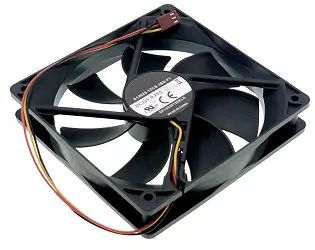
You can identify one instantly by its three-pin connector:
- Power pin: supplies the 12V (or lower) that drives the motor
- Ground pin: completes the circuit
- Sense/tachometer pin: reports the fan’s current RPM back to the motherboard so it can warn you if a fan dies
Because there’s no dedicated control wire, the only way to change a DC fan’s speed is to change the voltage reaching it. Motherboards that support “DC mode” do this by adjusting output voltage on the header itself. A lot of quieter case fans and older systems also use inline resistors or manual fan controllers to do the same thing.
This has one real downside. DC fans have a minimum voltage threshold. Drop below it, and the motor doesn’t have enough torque to keep spinning; it stalls. In practice, that limits most DC fans to roughly 60–70% of their rated speed as the lowest usable setting, and running one below its rated voltage for a long time can also produce an audible electrical hum.
That said, DC fans aren’t a downgrade across the board. Because they’re mechanically and electrically simpler, they’re cheaper to manufacture, and there’s genuinely nothing wrong with using one as a case exhaust fan in a budget build, or in a system that’s meant to run at a constant speed all the time (a home server or NAS, for example, where you’re not chasing silence).
Related: How Long Do PC Power Supplies Last? PSU Lifespan Guide
What Is a PWM Fan? (4-Pin Fans)
A PWM fan is mechanically almost identical to a DC fan ( same motor, same blades ) with one important addition: a fourth wire dedicated to a PWM control signal.
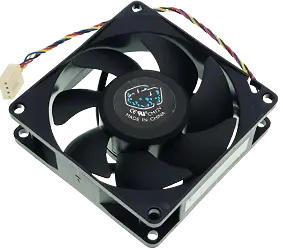
The four pins are:
- Power pin: constant 12V, always on
- Ground pin
- Sense/tachometer pin: reports RPM
- PWM control pin: carries the speed signal from the motherboard
Here’s the key difference in how it works. A PWM fan’s motor voltage never changes. It’s always getting a full 12V.
Instead, the motherboard sends a high-frequency square-wave signal (typically 25 kHz or higher, which is above the range of human hearing) down that fourth wire, rapidly switching the fan on and off thousands of times per second.
The percentage of time the signal stays “on” during each cycle is called the duty cycle, and that duty cycle is what actually determines fan speed.
A 30% duty cycle means the fan motor is only receiving power for 30% of each cycle. So it spins proportionally slower, even though full voltage is always available.
Because the motor is never asked to run on reduced voltage, there’s no stalling risk, and PWM fans can drop as low as 20% of their rated speed (versus roughly 60–70% for DC fans).
The motherboard typically drives this automatically, adjusting duty cycle in real time based on CPU or case temperature sensors, which is why a well-tuned PWM fan curve means your PC stays whisper-quiet at idle and only ramps up when you’re actually pushing the hardware.
This automatic, granular control is exactly why PWM fans have become the default choice for CPU coolers and most modern case fans.
How to Tell PWM and DC Fans Apart
The fastest way is to count the wires on the connector:
- 3 pins → DC fan
- 4 pins → PWM fan
One catch worth knowing. Not every 4-pin fan is a PWM fan. Some manufacturers use a 4-pin connector on a fan that’s electrically still a standard DC fan, just for header compatibility. If you’re not sure, check the fan’s product listing or the printed spec on the fan’s sticker. It’ll usually say explicitly.
The reverse is also true. A 3-pin DC fan will physically plug into a 4-pin PWM header (the extra pin just goes unused), and it’ll spin at full, fixed speed. It won’t gain PWM speed control just because it’s plugged into a PWM header.
PWM vs DC: The Differences That Actually Matter
Speed Control and Precision
DC fans change speed through voltage, which is a fairly blunt instrument. You’re typically choosing between a handful of discrete speed levels, whether that’s through BIOS voltage steps or a physical knob.
PWM fans change speed through duty cycle switching, which motherboards can adjust in much finer increments, often automatically and continuously based on temperature.
If you want your PC to quietly and dynamically respond to load ( ramping up only when the CPU actually gets hot), PWM is doing the real work here.
Minimum Speed and Stalling
This is probably the most practical difference. A DC fan has a minimum threshold voltage; drop below it, and the fan can stall out entirely, sometimes without any warning until you notice your temperatures climbing.
Most DC fans can only be throttled down to somewhere around 60–70% of their maximum rated speed before this becomes a risk.
PWM fans don’t have this problem. Because the voltage never drops ( only the duty cycle changes ), the motor always has enough torque to keep spinning. PWM fans can comfortably run at 20% speed or lower with zero stall risk, which is a huge part of why they’re quieter at idle.
Noise
In day-to-day use, PWM fans are quieter, mainly because they can spin slower without stalling. A DC fan running below its rated voltage can also generate a faint electrical whine or hum, something you’ll notice fast if you do any audio recording or work in a quiet room.
At full speed, though, noise mostly comes down to the fan’s blade design, bearing quality, and RPM ceiling, not whether it’s PWM or DC. A cheap, high-RPM PWM fan can absolutely be louder at 100% than a well-built DC fan.
Price
DC fans are simpler to manufacture, so they’re usually a little cheaper, though the gap has narrowed a lot in recent years. It’s now common to find PWM 120mm fans for well under $10 a piece, only a dollar or two more than comparable DC models.
If you’re buying in bulk for a budget build, it’s still worth comparing, but price alone is rarely a good reason to pick DC anymore.
Power Efficiency
PWM fans are generally more power-efficient. Since the fan motor is only drawing full power for a portion of each duty cycle, average power draw at partial speeds is lower than a DC fan running continuously at a reduced (but still constant) voltage.
In a full PC, this difference is small in absolute terms, but it adds up slightly in systems with many fans.
Longevity
Because PWM fans spend more time at lower speeds when idle, their bearings generally experience less wear over the fan’s lifetime compared to a DC fan that’s constantly spinning near its rated speed.
This isn’t universal. Build quality varies far more between individual fan models than between PWM and DC as categories. But it’s a real factor if you’re comparing otherwise-similar fans.
Where Each One Is Actually Used
- CPU coolers: Almost universally PWM today. Precise, temperature-responsive control matters most here.
- Case/exhaust fans in modern builds: Mostly PWM as well. Most cases released in the last few years ship with PWM fans by default, if they include fans at all.
- Budget or pre-built cases: Still sometimes DC, purely for cost. You’ll mostly see this in cases under $50.
- Servers, NAS boxes, always-on industrial systems: DC fans remain common here, since these systems are designed to run at a constant speed continuously rather than ramp up and down.
If you’re upgrading your case fans or picking a CPU cooler today, PWM is the safer default in almost every situation. DC still makes sense if you’re working with a tight budget on non-critical case fans, or maintaining older hardware that’s built around DC headers.
Related: What Is a Normal GPU Temperature While Gaming?
Myth vs Fact
Myth: “All 4-pin fans are PWM fans.” Fact: Some manufacturers put standard DC fans on 4-pin connectors purely for header compatibility. Always check the fan’s actual spec sheet rather than assuming based on pin count.
Myth: “You can’t plug a 3-pin fan into a 4-pin header, or vice versa.” Fact: You can plug either type into either header size. A 3-pin fan on a 4-pin header will just run at fixed speed, and a 4-pin fan on a 3-pin header won’t get PWM control. But both will spin and work.
Myth: “PWM fans are always quieter, no matter what.” Fact: PWM fans are quieter at idle and low load, because they can spin slower without stalling. At full speed, noise depends entirely on the fan’s build quality and RPM, not its control type.
Myth: “DC fans are outdated and shouldn’t be used anymore.” Fact: DC fans are still a sensible choice for simple case exhaust duty in budget builds or systems that run at a constant speed 24/7, like home servers.
Common Mistakes to Avoid
- Leaving the BIOS fan mode on “Auto.” Auto-detection isn’t always reliable and can misidentify a DC fan as PWM (or vice versa), leading to erratic speed behavior or fans running at full blast constantly. Set it manually to match your actual fan type.
- Assuming a 4-pin fan is PWM without checking. As covered above, this isn’t always true. Verify before configuring a fan curve around it.
- Running a DC fan at very low voltage long-term. This increases stall risk and can produce audible electrical noise. If you need very quiet, very low-speed operation, a DC fan isn’t the right tool for the job; switch to PWM.
- Ignoring the tachometer warning. Both fan types report RPM back to the motherboard. If you’re getting a “fan failure” warning in BIOS, don’t dismiss it. Check the connection and the fan itself before it leads to overheating.
- Mixing fan types on the same header without checking compatibility. It’ll usually work, but you won’t get the control behavior you expect (see the myths above).
Expert Tips
- Check your motherboard’s header count before buying fans. If most of your headers are 4-pin, PWM fans let you use their full potential; if you’re short on 4-pin headers, a fan splitter or hub can help, but be mindful of amperage limits.
- Set a custom fan curve instead of relying on defaults. Most motherboard software (or BIOS fan control menus) let you define your own temperature-to-speed curve for PWM fans. This is where PWM’s advantage really shows up in day-to-day quietness.
- Match fan type to purpose, not just price. Use PWM for anything temperature-critical (CPU cooler, GPU-adjacent case fans) and save DC for simple, always-on exhaust duty if you’re cutting costs.
- Don’t chase the highest RPM number. A high-RPM fan that’s mostly running at 30% duty cycle will usually be quieter and just as effective as a lower-RPM fan running near its ceiling.
If you’re shopping for PWM case fans and want a reliable, quiet option without spending much money, the Arctic P12 PWM PST (get from Amazon) is a solid budget pick, and the Noctua NF-P12 (view on Amazon) is the premium model that consistently punches above its price point in independent airflow and noise tests.
Troubleshooting: Fan Not Behaving as Expected?
Fan runs at full speed constantly and won’t slow down. Check your BIOS fan mode setting first. If it’s set to DC on a PWM fan (or vice versa), speed control won’t work correctly. Also confirm the fan curve isn’t set aggressively in your motherboard software.
BIOS shows a fan error or “fan failure” warning even though the fan is spinning. This usually means the tachometer (sense) wire isn’t making a good connection, or the header itself isn’t reading RPM correctly. Reseat the connector fully and make sure it’s on the correct header (CPU fan headers and case fan headers sometimes behave differently).
Fan makes a humming or whining noise. On a DC fan, this often means it’s running at reduced voltage. Normal to some extent, but worth checking if it’s new or has gotten louder over time, since it can also indicate bearing wear.
Fan won’t spin below a certain speed, or shuts off unexpectedly. Classic DC fan stalling behavior. It’s being asked to run below its minimum voltage threshold. Either raise the minimum speed in your fan curve, or switch to a PWM fan for that position if you need lower minimum speeds.
Related: How to Fix CPU Fan Error on Boot Time?
Final Verdict
Technology has closed most of the historical gaps between these two fan types, but the practical differences that remain still point in one direction for most builders. PWM fans are the better default choice for CPU coolers and case fans in any build where noise or precise cooling control matters, which, these days, is most builds.
DC fans haven’t disappeared, and they don’t need to. They’re still a completely reasonable choice for a basic case exhaust fan on a tight budget, or for systems designed to run at a constant, predictable speed around the clock, like a home server or NAS.
If your motherboard has enough 4-pin headers and you’re not counting every dollar, PWM is the safer bet. If you’re working with a 3-pin-only header, or you just need a no-frills fan that runs at a fixed speed reliably, a good DC fan will still get the job done.
For anyone assembling a fresh set of case fans from scratch, a matched 3-pack like the Thermalright TL-C12C PWM fans (Available on Amazon) is a genuinely good value option. Same PWM control benefits covered above, at a price close to what basic DC fans used to cost.
Related: PC Upgrade Guide: What to Upgrade First for Better Performance
Frequently Asked Questions
What is the advantage of PWM fans?
PWM fans are often more efficient than DC fans and consume less power due to the way they operate. PWM fans also have lower noise levels and more accurate speed control.
Is a PWM fan better than a DC fan?
For most modern builds, yes. PWM fans give more precise speed control, run quieter at idle, use power slightly more efficiently, and can’t stall the way DC fans can. DC fans are still a fine, cheaper option for simple case exhaust duty.
Are DC fans louder than PWM fans?
Generally yes, mainly because DC fans can’t spin as slowly without stalling, and running them below their rated voltage can add an audible electrical hum on top of the mechanical noise.
Should I set my fan header to PWM, DC, or Auto in BIOS?
Set it to match your actual fan type: PWM for a 4-pin PWM fan, DC for a 3-pin fan. Avoid “Auto” where possible; automatic detection isn’t always accurate and can cause erratic fan behavior.
Are all 4-pin fans PWM fans?
No. Some fans use a 4-pin connector but are electrically standard DC fans, mainly for header compatibility. Check the product spec sheet to confirm.
Can I connect a 3-pin fan to a 4-pin header?
Yes. It’ll plug in fine and spin at a fixed speed. You just won’t get PWM speed control, since the fan doesn’t have the extra signal wire to use it.
Can I connect a 4-pin PWM fan to a 3-pin header?
Yes, it’ll work, but it’ll typically run at full speed continuously since the 3-pin header can’t send it a PWM signal.
Why do CPU fans have 4 wires?
The fourth wire carries the PWM control signal that lets the motherboard precisely regulate fan speed based on CPU temperature, rather than turning the entire fan on and off or relying on voltage steps.
Are PWM fans more energy efficient than DC fans?
Yes, generally. Because PWM fans only draw full power for part of each duty cycle at partial speeds, average power consumption tends to be lower than a DC fan running continuously at reduced voltage.
Do PWM fans last longer than DC fans?
Often, yes, since PWM fans can spend more time at lower speeds, bearing wear tends to be slightly reduced over the fan’s lifetime. Build quality still matters more than fan type here.
Why is my PWM fan not changing speed?
Check that your BIOS fan header mode is set to PWM (not DC), and review your fan curve settings in BIOS or motherboard software. It may be set to run at a fixed high speed.
Can a DC fan use a PWM controller?
Not directly through the PWM signal wire, since a DC fan lacks that connection. But a DC fan can be speed-controlled by a separate voltage-based fan controller, which achieves a similar goal through a different method.
What’s the minimum speed a PWM fan can run at?
PWM fans can typically run down to around 20% of their rated maximum speed without stalling, compared to roughly 60–70% for most DC fans.
Do I need PWM fans for my CPU cooler?
It’s strongly recommended. Nearly all modern CPU coolers ship with PWM fans specifically because temperature-responsive speed control matters most in that position.
Is it worth upgrading old DC case fans to PWM?
If noise or precise cooling control matters to you, yes; the price difference is now minimal, and the control improvement is noticeable, especially at idle.
Do PWM and DC fans use different amounts of power at full speed?
At 100% duty cycle, a PWM fan draws roughly the same power as an equivalent DC fan at full voltage. The efficiency advantage of PWM shows up mainly at partial speeds, not at maximum.
Can mixing PWM and DC fans in the same PC cause problems?
No, they can coexist without issue. Each fan just gets controlled according to whichever header type it’s plugged into, and mixing types is common in real builds.
Why does my DC fan make noise only sometimes?
This is often the “electrical noise” DC fans can produce at certain reduced voltage levels. It may only be audible at specific speed steps rather than constantly.
Is PWM the same thing as fan RPM?
No. PWM is the control method used to set speed; RPM is the resulting rotational speed. A fan’s PWM signal and duty cycle determine what RPM it actually spins at.
Do laptops use PWM or DC fans?
Most modern laptops use small PWM-controlled fans so they can finely adjust speed based on internal temperature. This is part of why laptop fans ramp up and down instead of just switching on and off.
Which is better for a quiet, low-noise PC build?
PWM, without much debate. Its ability to spin down further without stalling is the single biggest factor in achieving a genuinely quiet idle state.
We hope you found this post useful, and please like and follow us on Facebook and Twitter for regular updates.
We also request that you bookmark this page for future reference. Sign up for our free newsletter as well to receive new information in your inbox regularly and stay technically up to date.
Disclosure: If you follow our links to a retailer’s website and make a purchase, we will get an affiliate commission on some, but not all, of the items or services we promote. This will cause no price change for you.
You May Be Interested in Reading:
- How to Find the Maximum RAM Capacity of Your Computer?
- How to Fix It When a PC Monitor Fails to Wake Up from Sleep?
- What Happens When Your Hardware Accelerated GPU Scheduling Is On or Off?
- What Is the Ideal GPU Temperature While Gaming?
- Can We Use Different Brands or Sizes of RAM Together on a PC or a Laptop?